2007 NISSAN ALTIMA display
[x] Cancel search: displayPage 207 of 344

There are different methods to input a phone
number. Select one of the following options in-
stead of the “Bluetooth” key in step 4 above.
Enter Data by Keypad:
Input the name and phone number manually.
Downloaded Phonebook:
Select an entry from a list of phone numbers you
have already transferred from your phone to your
vehicle.
Outgoing Calls:
Store the name and phone number from the
outgoing call list.
Incoming Calls:
Store the name and phone number from the
incoming call list.
To delete an item, touch the “Delete item” key.
MAKING A CALL
To make a call, follow the procedures below.
1. Press the phone
button on the steer-
ing wheel switches. The phone screen will
appear on the display.
2. Touch the “Phonebook” key.
3. Touch one of the downloaded person’s key
from the list. Dialing will start.
4. After the call is over, perform one of the
following to finish the call.
a. Touch the “Hang Up” key.b. Press and hold the phone
button on the
steering wheel switches.
There are different methods to make a call. Select
one of the following options instead of the
“Phonebook” key in step 2 above.
Redial:
Dial the previously dialed number again.
Call Logs - Outgoing Calls:
Select the name and phone number from the
outgoing call logs.
Call Logs - Incoming Calls:
Store the name and phone number from the
outgoing call list.
Downloaded Phonebook:
Choose from a list of stored numbers that have
been transferred from your phonebook to your
vehicle.
Dial Keypad:
Input the phone number manually.
LHA0765
Monitor, climate, audio, phone and voice recognition systems4-63
ZREVIEW COPYÐ2007 Altima(alt)
Owners ManualÐUSA_English(nna)
10/27/06Ðdebbie
X
Page 208 of 344

RECEIVING A CALL
When you hear a phone ring, the display will
change to phone mode. To receive a call, follow
the two procedures listed below.
a. Touch the “Answer” key on the display.
b. Press the phone
button on the steering
wheel switches.
There are some options available when receiving
a call. Select one of the following displayed on
the screen.
Answer:
Accept an incoming call to talk.Hold Call:
Continue to hold call.
Reject Call:
Reject an incoming call.
To finish the call, follow the three procedures
listed below.
a. Touch the “Reject Call” key on the display.
b. Press and hold the phone
button on the
steering wheel switches.
DURING A CALL
There are some options available during a call.
Select one of the following displayed on the
screen if necessary.
Hang up:
Finish the call.
Handset:
Transfer the call to the cellular phone.
Mute:
Mute your voice to the person.
LHA0766LHA0767
4-64Monitor, climate, audio, phone and voice recognition systems
ZREVIEW COPYÐ2007 Altima(alt)
Owners ManualÐUSA_English(nna)
10/27/06Ðdebbie
X
Page 209 of 344

Enter Digit:
Brings up a keypad, enter digits when needed.
For example, entering your PIN number for voice-
mail.
Cancel Mute:
This will appear after the “Mute” key is touched.
Mute will be cancelled.
To adjust the person’s voice to be louder or
quieter, press the volume control switch located
on the steering wheel switches or turn the volume
control knob on the instrument panel while talking
on the phone. This adjustment is also available in
the SETUP mode.
PHONE SETTING
To set up the hands-free phone system to your
preferred settings, press the SETUP button, then
touch the “Phone” key on the display.
Phonebook:
See “Phonebook download” earlier in this section.
Downloaded Phonebook:
See the following information for each item.
cDownload All:
Transfer phonebook entries from your cellu-
lar phone to the vehicle’s phonebook. For
more information, see “Phonebook down-
load” earlier in this section.cDelete Downloaded Phonebook:
Delete all of the downloaded phonebook
entries.
cDelete an Entry of Downloaded Phone-
book:
Delete a single entry from the downloaded
phonebook. Touch the corresponding letter
key, then touch on the name key you wish to
delete. Touch the “Yes” key to delete the
entry.
Delete Call Logs:
Delete all the outgoing or incoming call logs from
the list.
Phone Ringer Vol:
Adjust the ring volume to be quieter “–” or louder
“+”.
Phone Incoming Vol:
Adjust the phone incoming volume to be quieter
“–” or louder “+”.
Use Vehicle Ringtone:
If this item is turned on, a specific ringtone that is
different from the cellular phone’s will sound
when receiving a call.
Bluetooth Setup:
See the following information for each item.
WHA0788
Monitor, climate, audio, phone and voice recognition systems4-65
ZREVIEW COPYÐ2007 Altima(alt)
Owners ManualÐUSA_English(nna)
10/27/06Ðdebbie
X
Page 210 of 344

cBluetooth Hands-Free:
If this item is turned off, the connection be-
tween the cellular phone and the in-vehicle
phone module will be canceled.
cPaired Phone List:
Up to 5 registered cellular phones are
shown on the list.
cPair Phone:
See “Pairing Procedure” in this section.
cPriority Change
If multiple phones are registered to the sys-
tem, you can change the priority of the
phones on the shown list.
cRemove Paired Phone:
Delete a registered cellular phone from the
paired list.
cBluetooth Info:
Check information about the device name,
vehicle name, device address device PIN
and connection status.
cEdit Phone Name:
If you would like to change the way your
phone’s name is displayed select this key, a
character input screen will be displayed.The NISSAN Voice Recognition system allows
hands-free operation of the systems equipped on
this vehicle, such as the phone and navigation
systems.
To operate NISSAN Voice Recognition, press
the
button located on the steering wheel.
Then speak the command for the system you
wish to activate. The command given is picked up
by the microphone, and it is performed when it is
properly recognized. At this time NISSAN Voice
Recognition will provide a voice and message (in
the center display) to inform you of the command
results.
USING THE SYSTEM
Initialization
When the ignition switch is in the ON position,
NISSAN Voice Recognition is initialized, which
takes a few seconds. When completed, the sys-
tem is ready to accept voice commands. If
the
button is pressed before the initializa-
tion completes, the display will show the mes-
sage: “Phonetic data downloaded. Please wait.”
Giving voice commands
1. Press thebutton.
2. The system announces: “Please say a com-
mand after a tone.”
3. After the tone sounds and the face icon of
the display changes, speak a command. For
additional information, see “List of voice
commands” later in this section.
4. Voice and message feedback will be pro-
vided when the command is accepted.
cIf the command is not recognized, the sys-
tem announces: “Please say again.” Repeat
the command in a clear voice.
LHA0768
NISSAN VOICE RECOGNITION
SYSTEM (if so equipped)
4-66Monitor, climate, audio, phone and voice recognition systems
ZREVIEW COPYÐ2007 Altima(alt)
Owners ManualÐUSA_English(nna)
10/27/06Ðdebbie
X
Page 212 of 344
![NISSAN ALTIMA 2007 L32A / 4.G Owners Manual How to say commands
Example: “[PHONE] DIAL/CALL<phone num-
ber digits>” stands for the following possible
commands.
DIAL<1 to 32 phone number digits>
CALL<1 to 32 phone number digits>
PHONE DIAL<1](/manual-img/5/724/w960_724-211.png "NISSAN ALTIMA 2007 L32A / 4.G Owners Manual How to say commands
Example: “[PHONE] DIAL/CALL<phone num-
ber digits>” stands for the following possible
commands.
DIAL<1 to 32 phone number digits>
CALL<1 to 32 phone number digits>
PHONE DIAL<1")
How to say commands
Example: “[PHONE] DIAL/CALL
commands.
DIAL<1 to 32 phone number digits>
CALL<1 to 32 phone number digits>
PHONE DIAL<1 to 32 phone number digits>
Help commands
c“COMMAND LIST”, “VOICE HELP” or
“HELP”
Gives spoken information about NISSAN
Voice Recognition and displays the list of
help commands.
Phone commands
c“[PHONE] DIAL
or “CALL
Dials the phone number given in the com-
mand. Speak the phone number in one se-
quence. The number is automatically dialed.c“[PHONE] DIAL
Dials the phone number registered in the
specified “voicetag”.
c“[PHONE] REDIAL”
Redials the phone number last dialed.
c“OUTGOING CALLS”
Shows the outgoing call history (1 to 5) .
c“INCOMING CALLS”
Shows the incoming call history (1 to 5) .
c“PHONE SELECT
If multiple phones are registered to the sys-
tem, you can change which phone to con-
nect to the system (as long as that phone is
present in the vehicle) .
c“PHONEBOOK”
Shows the first page of the “phone book” list.
c“PHONEBOOK
Shows the specified “voicetag” entry in the
“phone book”.c“ PHONEBOOK [PLAY] DIRECTORY” or
“PLAY PHONEBOOK [DIRECTORY]”
Dials the phone number registered in the
phone book.
Navigation system commands (if so
equipped)
For additional information, see the separate Navi-
gation System Owner’s Manual for the voice
commands available and operations.
TROUBLESHOOTING GUIDE
The system should respond correctly to all voice
commands without difficulty. If problems are en-
countered, follow the solutions given in this guide
for the appropriate error.
Where the solutions are listed by number, try
each solution in turn, starting with number one,
until the problem is resolved.
4-68Monitor, climate, audio, phone and voice recognition systems
ZREVIEW COPYÐ2007 Altima(alt)
Owners ManualÐUSA_English(nna)
10/27/06Ðdebbie
X
Page 213 of 344

Symptom/error messageSolution
Displays “COMMAND NOT RECOG-
NIZED” or he system fails to interpret the
command correctly.1. Ensure that the command format is valid, seeCommand listin this section.
2. Speak clearly without pausing between words and at a level appropriate to the ambient noise level.
3. Ensure that the ambient noise level is not excessive, for example, windows open or defrost on.
NOTE:
If it is too noisy to use the phone, it is likely that voice commands will not be recognized.
4. If optional words of the command have been omitted, then the command should be tried with these in place.
The system consistently selects the wrong
voicetag.1. Ensure that the voicetag requested matches what was originally stored. This can be confirmed by giving the Address Book Directory
or Phone Directory command.
2. Replace one of the voicetags being confused with a different voicetag.
Monitor, climate, audio, phone and voice recognition systems4-69
ZREVIEW COPYÐ2007 Altima(alt)
Owners ManualÐUSA_English(nna)
10/27/06Ðdebbie
X
Page 220 of 344
WARNING
cDo not operate the push-button ignition
switch while driving the vehicle except
in an emergency. (The engine will stop
when the ignition switch is pushed 3
consecutive times or the ignition switch
is pushed and held for more than 2
seconds.) If the engine stops while the
vehicle is being driven, this could lead
to a crash and serious injury.
cWhen the battery of the Intelligent Key
runs down, insert the Intelligent Key
into the Intelligent Key port until a click
sounds. And then, push the ignition
switch to start the engine.
cIf the steering lock release malfunction
indicator appears on the vehicle infor-
mation display, push the push-button
ignition switch again while lightly turn-
ing the steering wheel right and left.
See “Vehicle information display” in the
“Instruments and controls” section.When the ignition switch is pushed without de-
pressing the brake pedal (CVT) or the clutch
pedal (MT) , the ignition switch position will illu-
minate as follows:
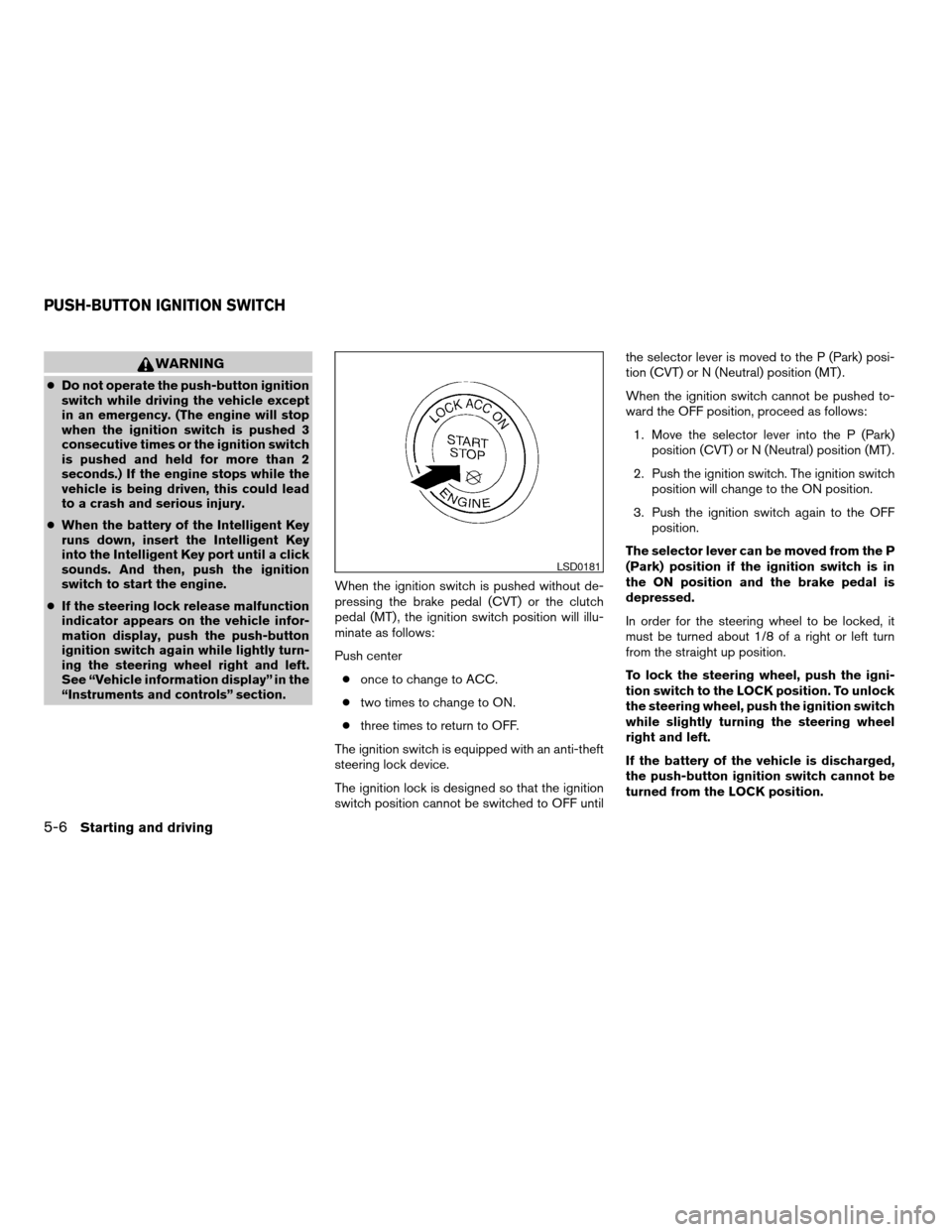
Push center
conce to change to ACC.
ctwo times to change to ON.
cthree times to return to OFF.
The ignition switch is equipped with an anti-theft
steering lock device.
The ignition lock is designed so that the ignition
switch position cannot be switched to OFF untilthe selector lever is moved to the P (Park) posi-
tion (CVT) or N (Neutral) position (MT) .
When the ignition switch cannot be pushed to-
ward the OFF position, proceed as follows:
1. Move the selector lever into the P (Park)
position (CVT) or N (Neutral) position (MT) .
2. Push the ignition switch. The ignition switch
position will change to the ON position.
3. Push the ignition switch again to the OFF
position.
The selector lever can be moved from the P
(Park) position if the ignition switch is in
the ON position and the brake pedal is
depressed.
In order for the steering wheel to be locked, it
must be turned about 1/8 of a right or left turn
from the straight up position.
To lock the steering wheel, push the igni-
tion switch to the LOCK position. To unlock
the steering wheel, push the ignition switch
while slightly turning the steering wheel
right and left.
If the battery of the vehicle is discharged,
the push-button ignition switch cannot be
turned from the LOCK position.
LSD0181
PUSH-BUTTON IGNITION SWITCH
5-6Starting and driving
ZREVIEW COPYÐ2007 Altima(alt)
Owners ManualÐUSA_English(nna)
10/27/06Ðdebbie
X
Page 221 of 344

Some indicators and warnings for operation are
displayed on the vehicle information display. See
“Vehicle information display” in the “Instruments
and controls” section.
PUSH-BUTTON IGNITION SWITCH
POSITIONS
LOCK (Normal parking position):
The ignition switch can only be locked in this
position.
The ignition switch will be unlocked when it is
pushed to the ACC position while carrying the
Intelligent Key or with the Intelligent Key inserted
in the port.
The ignition switch will lock when any door is
opened or closed with the ignition switched off.
OFF:
The ignition switch is in the off position when the
engine is turned off using the ignition switch. No
lights will illuminate on the ignition switch.
ACC (Accessories):
This position activates electrical accessories
such as the radio, when the engine is not running.
ON (Normal operating position):
This position turns on the ignition system and
electrical accessories.
CAUTION
Do not leave the vehicle with the ignition
switch in ACC or ON positions when the
engine is not running for an extended pe-
riod. This can discharge the battery.
INTELLIGENT KEY BATTERY
DISCHARGE
If the battery of the Intelligent Key is almost dis-
charged, the guide light
sAof the Intelligent Key
port blinks and the indicator appears on the ve-
hicle information display. See “Vehicle informa-
tion display” in the “Instruments and controls”
section.
In this case, inserting the Intelligent Key into the
port
sBallows you to start the engine. Make sure
the Intelligent Key is placed in the correct direc-
tion: The front side faces upward and the key ring
side faces backward as illustrated.
LSD0185
Starting and driving5-7
ZREVIEW COPYÐ2007 Altima(alt)
Owners ManualÐUSA_English(nna)
10/27/06Ðdebbie
X