Page 79 of 187

78 Satellite radio*
General information
Sirius Satellite Radio provides 100 chan-
nels, so called streams, of digital-quality
radio, among others music, sports, news,
and entertainment free of commercials.
Sirius Satellite Radio uses a fleet of high-
power satellites to broadcast 24 hours per
day, coast-to-coast, in the contiguous US.
This diverse, satellite-delivered program-
ming is available for a monthly subscrip-
tion fee.
For more information and service availabil-
ity, call the Sirius Service Center
(
�page 84), or contact
www.siriusradio.com
Program categories
The channels are categorized. Categories
allow you to tune to stations broadcasting
a certain type of program (category mode)
(
�page 81).Category selection
ALL contains the station
list of all receivable channels (channel
mode) (
�page 81).
Introduction to satellite radio
i
Additional optional satellite radio
equipment and a subscription to satel-
lite radio service provider are required
for the satellite radio operation de-
scribed in this chapter.
Contact your authorized Mercedes-
Benz Center for details and availability
for your vehicle.
Note that categories and channels
shown in illustrations are dependent on
programming content delivered by the
service provider. Programming content
is subject to change. Therefore, chan-
nel and categories shown in illustra-
tions and descriptions contained in this
manual may differ from the channels
and categories delivered by the service
provider.
i
Satellite radio service may be unavail-
able or interrupted from time to time
for a variety of reasons, such as envi-
ronmental or topographic conditions
and other things we can't control. Ser-
vice might also not be available in cer-
tain places (e.g., in tunnels, parking
garages, or within or next to buildings)
or near other technologies.
Page 80 of 187
79 Satellite radio*
Satellite radio operation
� Satellite radio operation
�Press;.
Different menus appear depending on
Satellite radio service activation.
�Prior to activation of the Satellite
radio service,
�After Satellite radio service was ac-
tivated.
Prior to activation of the Satellite radio
service
The Satellite radio main menu will appear
and displays the
Weather channel. You can-
not select any other station.
Subscribing to satellite radio
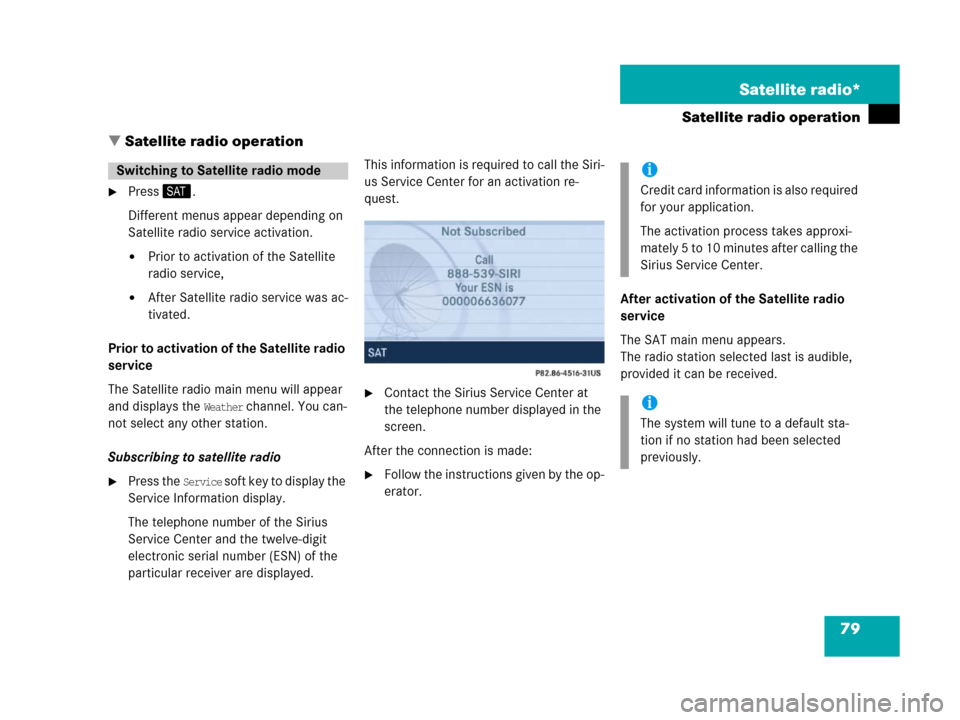
�Press the Service soft key to display the
Service Information display.
The telephone number of the Sirius
Service Center and the twelve-digit
electronic serial number (ESN) of the
particular receiver are displayed.This information is required to call the Siri-
us Service Center for an activation re-
quest.
�Contact the Sirius Service Center at
the telephone number displayed in the
screen.
After the connection is made:
�Follow the instructions given by the op-
erator.After activation of the Satellite radio
service
The SAT main menu appears.
The radio station selected last is audible,
provided it can be received.
Switching to Satellite radio modei
Credit card information is also required
for your application.
The activation process takes approxi-
mately 5 to 10 minutes after calling the
Sirius Service Center.
i
The system will tune to a default sta-
tion if no station had been selected
previously.
Page 81 of 187

80 Satellite radio*
Satellite radio operation
Station information is displayed on the
main area and in the center of the status
bar.
Main area, in this example:
�ROCK = selected category (�page 81)
�Vault = name of the selected station
Status bar, in this example:
�SAT (on the left) = the selected mode
�SAT5 = location in the program
memory, if the current channel is pre-
stored
�Ch16 = number of the current channel
Selectable soft keys
�Presets
shows channels pre-stored in the pro-
gram memory (up to 10 channels). You
can store stations (
�page 84) and re-
quest stored stations (
�page 80).
�Info
shows additional text information relat-
ed to the current channel.
�Scan
is used to start and stop the scan
search (
�page 83).
�Service
displays a screen showing the tele-
phone number of the Sirius Service
Center and electronic serial number
(ESN) of the receiver in your vehicle.
�You can also adjust the following:
�Balance (�page 32)
�Bass and treble (�page 33)
�Sound functions (�page 34)
�Volume (not on soft keys)
(
�page 31)
The following options are available:
�Tuning via station presets (�page 81)
�Tuning via manual channel input
(
�page 81)
�Tuning via the program category list
(
�page 81)
�Tuning a station within the selected
category (
�page 82)
�Tuning via scan search (�page 83)
SAT main menu
Selecting a station
Page 85 of 187

84 Satellite radio*
Satellite radio operation
Two options are available:
�Storing using the number keys
�Storing using the Presets menu
Storing via number keys
�Press and hold a number key between
! and " for more than 2 seconds.
The currently selected station is stored
in the corresponding preset location.
Storing via Presets menu
�Press the Presets soft key.
The Preset list appears.
�Use% or & to select a preset loca-
tion.
�Press' for more than 2 seconds.
The currently selected station is stored
in the corresponding preset location.
Resetting Presets menu
The
Presets soft key is active indicated by
its color.
�Press the Presets soft key again.
All channels in the Preset list are delet-
ed.
�Press the Service soft key.
The telephone number of the Sirius
Service Center and the twelve-digit
electronic serial number (ESN) of your
vehicle's receiver appear.
It may be necessary to call the Sirius Ser-
vice Center if, for example:
�you want to cancel the subscription or
to re-subscribe at a later date
�you forget to pay the bill
�you sell the car to another person
Storing stations
i
When storing a station out of the cate-
gory
All, later selection of this channel
does not lead into the category mode.
Calling the Sirius Service Center
Page 90 of 187
89 Telephone*
Telephone operation
� Telephone operation
Switching ON
The telephone is switched ON automatical-
ly when COMAND is activated. The cell
phone must be readily inserted into the
cradle*.
If COMAND is switched ON, the switched
OFF telephone can also be switched ON
manually:
�Press and hold1 for a few seconds
until the telephone is switched ON.
The Telephone main menu appears
(
�page 92).
One of the following messages could also
appear:
�Please insert phone
�Insert the mobile phone into the
cradle*.
�Phone not installed
Your vehicle is not configured for cellu-
lar telephone operation.
�Please insert SIM card
This message appears only when using
a GSM cell phone.
�Insert a SIM card (�Telephone Op-
eration Guide).
Switching OFF
�In the Telephone main menu
(
�page 92), press and hold 1 for
longer than 2 seconds;
or
�Switch COMAND OFF (�page 31).
The telephone switches OFF after a
one-minute delay. If a call is in progress
during this time, the telephone switch-
es OFF approx. one minute after the
call is ended.The following conditions must be met for a
“911” emergency call:�cell phone readily inserted in cradle
�telephone switched ON
�available cell phone network
Switching the phone ON/OFFi
If a call is in progress (handsfree) you
cannot switch the COMAND OFF, ) is
disabled.
911 emergency call
WarningG
The “911” emergency call system is a
public service. Using it without due
cause is a criminal offense.
Page 92 of 187

91 Telephone*
Telephone operation
In succession, press the number keys =,
! and !.
�Press2.
The telephone establishes the connec-
tion, the ringing tone is audible.
�Wait until the emergency call center
answers, then describe the emergency.
The PIN protects the telephone against un-
authorized use. Your PIN is found in the
telephone service provider's documenta-
tion.
Commit your PIN to memory.
Most telephone functions are not available
before entering the PIN.
�Press the corresponding number key
! - " for each digit.
In case of erroneous entry, you can de-
lete the last or more digits.
�Press the Delete soft key as often as
required.
�Once all digits have been entered,
press the
OK soft key.
If the input is correct, the telephone
will log itself into the network.If the input is incorrect, message
Wrong PIN number will appear briefly.
�Re-enter the PIN.
After three incorrect entries, the SIM
card is blocked. Message
SIM card
blocked
will appear briefly.
�The PUK has to be entered.
(
�Telephone Operation Guide)
The unlock code protects the telephone
against unauthorized use. To activate the
unlock code (
�Telephone Operation
Guide).
Commit your unlock code to memory.
Most telephone functions are not available
before entering the unlock code.
Entering the PIN (only GSM)
i
The PIN may be entered on the cell
phone itself (
�Telephone Operation
Guide).
i
The telephone cannot be used before it
is logged-in.
Entering the unlock code
Page 109 of 187

108 Navigation*
Important notes
Safety instructions
WarningG
For safety reasons, you should only enter a
destination when the vehicle is stationary.
When the vehicle is in motion, a passenger
should enter the destination. Study manual
and select route before driving.
Do not watch display screen or operate but-
tons while the vehicle is in motion - let navi-
gation announcements guide you. Stop at a
safe location before using buttons or mak-
ing corrections.
Traffic regulations always have priority over
any route recommendations given.
Bear in mind that at a speed of just 30 mph
(approximately 50 km/h), your vehicle is
covering a distance of 44 feet (approximate-
ly 14 m) every second.
WarningG
The route calculated by COMAND is a rec-
ommendation on how to best reach your se-
lected destination.
During route guidance, you will not receive
any information on
�Traffic lights
�Stop and yield signs
�Parking or stopping zones
�One-way streets
�Narrow bridges
�Similar traffic regulation data
You should therefore always strictly observe
traffic regulations while driving. Drive care-
fully and always obey traffic laws and road
signs even if they contradict COMAND in-
structions.
WarningG
The Navigation DVD module contains a
Class 1 laser product. There is a danger of
invisible laser radiation if the cover is
opened or damaged.
Do not remove the cover. The Navigation
DVD module does not contain any parts
which can be serviced by the user. For safe-
ty reasons, have any service work which
may be necessary performed only by quali-
fied personnel.
Page 162 of 187
