Page 55 of 187

54 Audio
MP3 operation
i
Depending on vehicle production date
COMAND may not be equipped with
the MP3 functionality. If so, the CD
changer* may be used for playback of
MP3 CDs.
Safety Instructions
WarningG
In order to avoid distraction which could
lead to an accident, the driver should insert
CDs with the vehicle at a standstill and oper-
ate the audio system only when road, weath-
er and traffic conditions permit.
Bear in mind that at a speed of just 30 mph
(approximately 50 km/h), your vehicle is
covering a distance of 44 feet (approximate-
ly 14 m) every second.
WarningG
The CD drive is a Class 1 laser product.
There is a danger of invisible laser radiation
when you open or damage the cover.
Do not remove the cover. The CD drive does
not contain any parts serviceable by the us-
er. For safety reasons, have any necessary
service work performed by qualified person-
nel.
Tips on data storage media
!
Do not attach labels of any type to the
CD. They may become detached and
damage the drive.
Do not play single CDs (80mm) with an
adapter. An adapter could become
stuck and damage the drive. Only use
12 cm diameter CDs.
!
Your CD drive has been designed to
play CDs which correspond to the IEC
60908 standard. Therefore only CDs
not exceeding a thickness of 1.3 mm
can be used.
If you insert thicker data carriers, e.g.
ones that have data on both sides (one
side with DVD data, the other side with
audio data), they will become stuck and
damage the drive.
Data carriers which contain data on
both sides can cause playback prob-
lems because the storage layers are
thinner than one-sided data carriers.
Page 57 of 187

56 Audio
MP3 operation
Track names and folder names
When creating an MP3 CD, you can assign
names to the MP3 tracks and folders.
COMAND uses these names in MP3 mode
for the corresponding display.
Please note the following when assigning
folder and track names:
�Per folder a maximum of 1800 charac-
ters are available for title and folder
names combined.
Exceeding this number, COMAND can-
not display all titles and folders.
�Track and folder names must contain
at least 1 character.
�Track names may contain up to fifty
characters. If a name exceeds this
character limit, COMAND will not be
able to display it in full.
�Track names must have the extension
“mp3”.
�A period must appear between the
track name and the file extension.
Example of a correct track name:
Track1.mp3
Empty folders or folders containing data
other than MP3 tracks will not be dis-
played by COMAND.
If MP3 files are stored in the root directory
itself, the root directory also counts as a
folder. COMAND will then display the root
directory name as a folder name.
Permissible MP3 formats
COMAND supports the MPEG1
Audio Layer 3 format.Permissible bit and scan rates
�Fixed and variable bit rates up to 320
kbps
�Scan rates from 24 kHz - 48 kHz
.
i
COMAND does not support ID3 tags.
Tips on creating MP3 tracks
i
In everyday speech, this format has
been replaced by the designation
“MP3”.
i
It is recommended to use MP3 tracks
w i t h a b i t r a t e o f 1 2 8 k b p s o r h i g h e r a n d
with a scan rate of 44.1 kHz or higher.
Lower rates may impair quality. This is
particularly true if the sound function
LOGIC7 Surround has been activated.
Page 64 of 187
63 Audio
MP3 operation
�Press% or & to select a different
option.
�Press'.
The option is activated. A correspond-
ing display will appear in the status bar
for all options except
Normal sequence.
An option will remain activated even if
C O M A N D i s s w i t c h e d O F F a n d t h e n O N
again.
Page 67 of 187

66 Audio
CD changer* operation
In order to load CDs, you will need to open
the glove box.
1CD slot
2Magazine compartment buttonsThe CD changer has a built-in magazine
which can hold up to six CDs.
The CD changer has six magazine compart-
ment buttons 2 for controlling the loading
procedure.
LEDs in the buttons indicate the status of
the corresponding magazine compart-
ment.
�Button LED OFF:
Magazine compartment empty
�Button LED flashes green:
CD changer requesting CD to be load-
ed
�Button LED continuously red:
Magazine compartment loaded with a
CD
The status of a magazine compartment can
also be seen when selecting a CD in the CD
Selection menu (
�page 71).
The CD slot 1 for loading CDs into the CD
changer is located above the buttons 2.
!
Do not attach labels of any type to the
CD. They may become detached and
damage the drive.
Your CD drive has been designed to
play CDs which correspond to the IEC
60908 standard. Therefore only CDs
not exceeding a thickness of 1.3 mm
can be used.
If you insert thicker data carriers, e.g.
ones that have data on both sides (one
side with DVD data, the other side with
audio data), they will become stuck and
damage the drive.
Data carriers which contain data on
both sides can cause play-back prob-
lems because the storage layers are
thinner than one-sided data carriers.
!
Do not play single CDs (80mm) with an
adapter. An adapter could become
stuck and damage the drive. Only use
12 cm diameter CDs.
i
The CD changer may not be able to play
audio CDs with copy protection.
Page 68 of 187

67 Audio
CD changer* operation
Loading options:
�Loading a single magazine compart-
ment
�Loading all six magazine compart-
ments
Loading a single magazine compart-
ment
�Open the glove box
(
�Vehicle owner's manual).
�Briefly press the button 2 of the emp-
ty magazine compartment to be load-
ed.
�Wait until the LED in the button 2
flashes green.
This indicates that the CD changer re-
quests a CD.
�Insert an audio CD into the CD slot 1
within approx. 15 seconds. Insert the
CD face up.
The CD is pulled in. The red LED in the
corresponding magazine compartment
button 2 lights up continuously. The
system starts playing the CD.
The loading procedure is completed.
Loading all six magazine compart-
ments
Initial situation: all magazine compart-
ments are empty.
The CD changer loads all magazine com-
partments beginning with compartment 1.
�Open the glove box
(
�Vehicle owner's manual).1CD slot
2Magazine compartment buttons
�Press and hold the button of an empty
magazine compartment 2 for more
than 2 seconds.
The LEDs of all magazine compartment
buttons 2 briefly light up green sever-
al times.
�Wait until the LED in the first magazine
compartment button 2 flashes green.
This indicates that the CD changer re-
quests a CD.
i
Loading a magazine slot will stop the
playback of a CD in the changer.
��
Page 69 of 187

68 Audio
CD changer* operation
�Insert an audio CD into the CD slot 1
within approx. 15 seconds. Insert the
CD face up.
The CD is pulled in; the magazine com-
partment is loaded.
The red LED in the corresponding mag-
azine compartment button 2 lights up
continuously.
The CD changer then requests inser-
tion of the next CD. The LED in the cor-
responding magazine compartment
button 2 flashes green.
�Repeat the last step until all six maga-
zine compartments are loaded.
The system plays the sixth CD. The
LEDs in all magazine compartment but-
tons 2 light up red continuously.
The loading procedure is completed.The following options are available:�Ejecting one CD
�Ejecting all CDs (�page 69)Ejecting one CD
1CD slot
2Magazine compartment buttons
�Open the glove box
(
�Vehicle owner's manual).
�Briefly press the appropriate magazine
compartment button 2.
The button LED 2 flashes red. The CD
changer ejects the CD.
�Within 15 seconds, remove the CD
from the slot 1.
i
If, for example, only compartments 1
through 4 are to be loaded instead of
all six compartments, simply do not in-
sert the a fifth CD into the slot 1. The
CD changer attempts to load the fifth
CD, yet aborts the loading procedure.
The system automatically plays the last
(fourth) CD.
Ejecting CDs
Page 72 of 187
71 Audio
CD changer* operation
�Use$ or # to select another CD
from the list.
�Wait approx. 3 seconds without chang-
ing the selection.
The CD is changed. The newly selected
CD is played.Selecting via direct entry of the CD
number
�Press one of the ! - 0 keys.
The CD changer switches to the CD
loaded in the appropriate CD changer
compartment.
Selecting via CD Selection menu
�Press the Magaz. soft key.
The CD Selection menu appears. You
see the list of all six compartments. An entry shows the CD title if the CD con-
tains corresponding text data.
No text displayed with a CD symbol indi-
cates that the corresponding CD does not
contain any CD text data.
An entry shaded out indicates an empty
CD changer compartment.
�Use% or & to select a CD.
The system will skip empty CD
changer compartments.
i
The system will skip empty CD changer
compartments.
i
The CD fails to be changed if you select
an empty compartment.
��
Page 76 of 187
75 Audio
CD changer* operation
�Track Random
The tracks are played in random order
(e.g. track 3, 8, 5 etc.).
If several CDs are loaded in the CD
changer, the last track on a CD will be
followed by the first track of the next
CD in the changer.
The CDs are changed in their normal
sequence (e.g. CD 1, 2, 3, etc.).
�CD Random
At least 4 tracks on one CD are played
in random order (e.g. track 5, 7, 3, 9)
before the next CD is played.
The CDs are changed in random
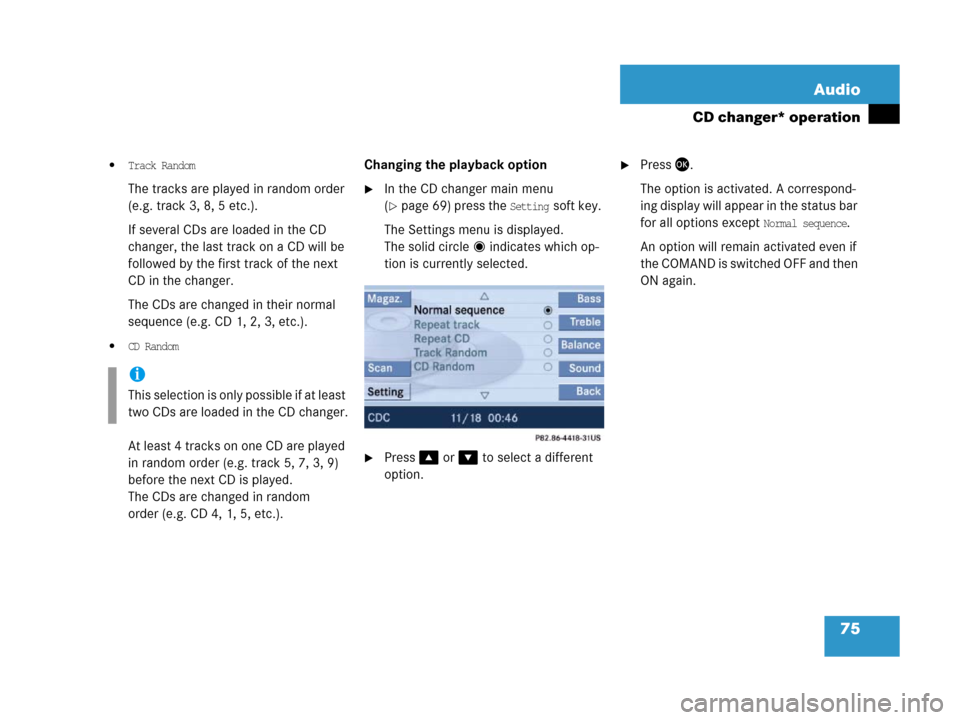
order (e.g. CD 4, 1, 5, etc.). Changing the playback option
�In the CD changer main menu
(
�page 69) press the Setting soft key.
The Settings menu is displayed.
The solid circle indicates which op-
tion is currently selected.
�Press% or & to select a different
option.
�Press'.
The option is activated. A correspond-
ing display will appear in the status bar
for all options except
Normal sequence.
An option will remain activated even if
the COMAND is switched OFF and then
ON again.
i
This selection is only possible if at least
two CDs are loaded in the CD changer.

