Page 109 of 705
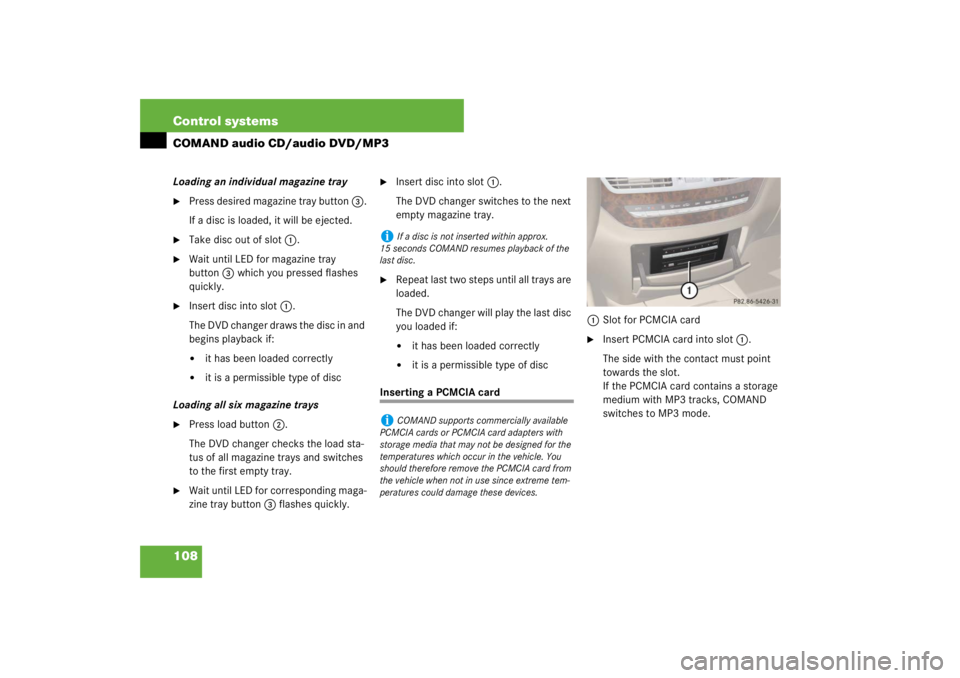
108 Control systemsCOMAND audio CD/audio DVD/MP3Loading an individual magazine tray�
Press desired magazine tray button 3.
If a disc is loaded, it will be ejected.
�
Take disc out of slot 1.
�
Wait until LED for magazine tray
button3 which you pressed flashes
quickly.
�
Insert disc into slot 1.
The DVD changer draws the disc in and
begins playback if:�
it has been loaded correctly
�
it is a permissible type of disc
Loading all six magazine trays
�
Press load button 2.
The DVD changer checks the load sta-
tus of all magazine trays and switches
to the first empty tray.
�
Wait until LED for corresponding maga-
zine tray button 3 flashes quickly.
�
Insert disc into slot 1.
The DVD changer switches to the next
empty magazine tray.
�
Repeat last two steps until all trays are
loaded.
The DVD changer will play the last disc
you loaded if:�
it has been loaded correctly
�
it is a permissible type of disc
Inserting a PCMCIA card1Slot for PCMCIA card
�
Insert PCMCIA card into slot 1.
The side with the contact must point
towards the slot.
If the PCMCIA card contains a storage
medium with MP3 tracks, COMAND
switches to MP3 mode.
i
If a disc is not inserted within approx.
15 seconds COMAND resumes playback of the
last disc.
i
COMAND supports commercially available
PCMCIA cards or PCMCIA card adapters with
storage media that may not be designed for the
temperatures which occur in the vehicle. You
should therefore remove the PCMCIA card from
the vehicle when not in use since extreme tem-
peratures could damage these devices.
Page 110 of 705
109 Control systems
COMAND audio CD/audio DVD/MP3
Ejecting CDs and DVDs
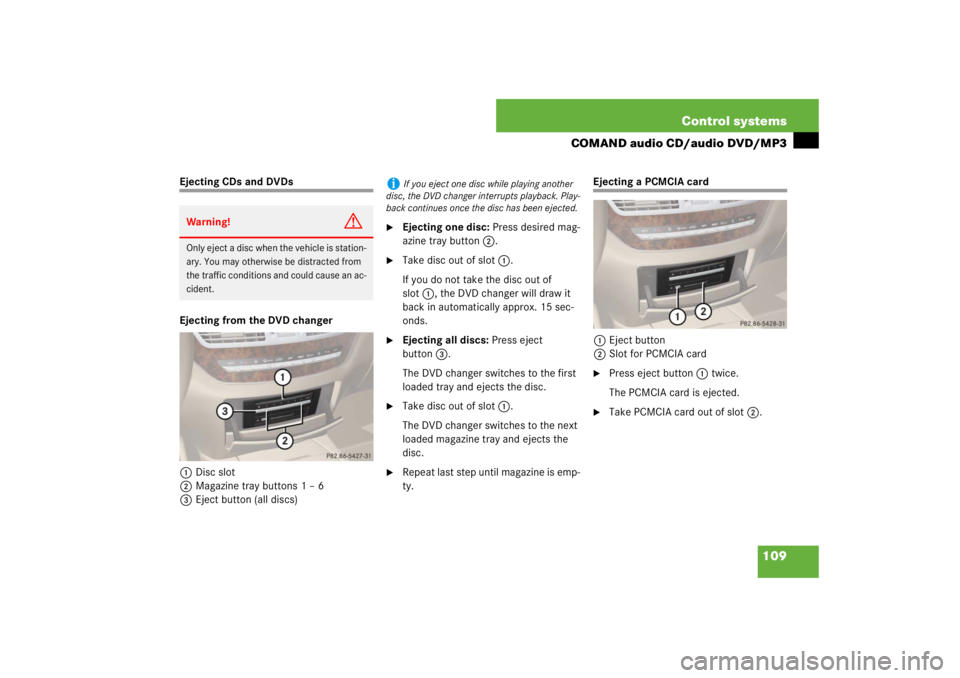
Ejecting from the DVD changer
1Disc slot
2Magazine tray buttons 1 – 6
3Eject button (all discs)
�
Ejecting one disc: Press desired mag-
azine tray button 2.
�
Take disc out of slot 1.
If you do not take the disc out of
slot1, the DVD changer will draw it
back in automatically approx. 15 sec-
onds.
�
Ejecting all discs: Press eject
button3.
The DVD changer switches to the first
loaded tray and ejects the disc.
�
Take disc out of slot 1.
The DVD changer switches to the next
loaded magazine tray and ejects the
disc.
�
Repeat last step until magazine is emp-
ty.
Ejecting a PCMCIA card
1Eject button
2Slot for PCMCIA card�
Press eject button 1 twice.
The PCMCIA card is ejected.
�
Take PCMCIA card out of slot 2.
Warning!
G
Only eject a disc when the vehicle is station-
ary. You may otherwise be distracted from
the traffic conditions and could cause an ac-
cident.
i
If you eject one disc while playing another
disc, the DVD changer interrupts playback. Play-
back continues once the disc has been ejected.
Page 111 of 705
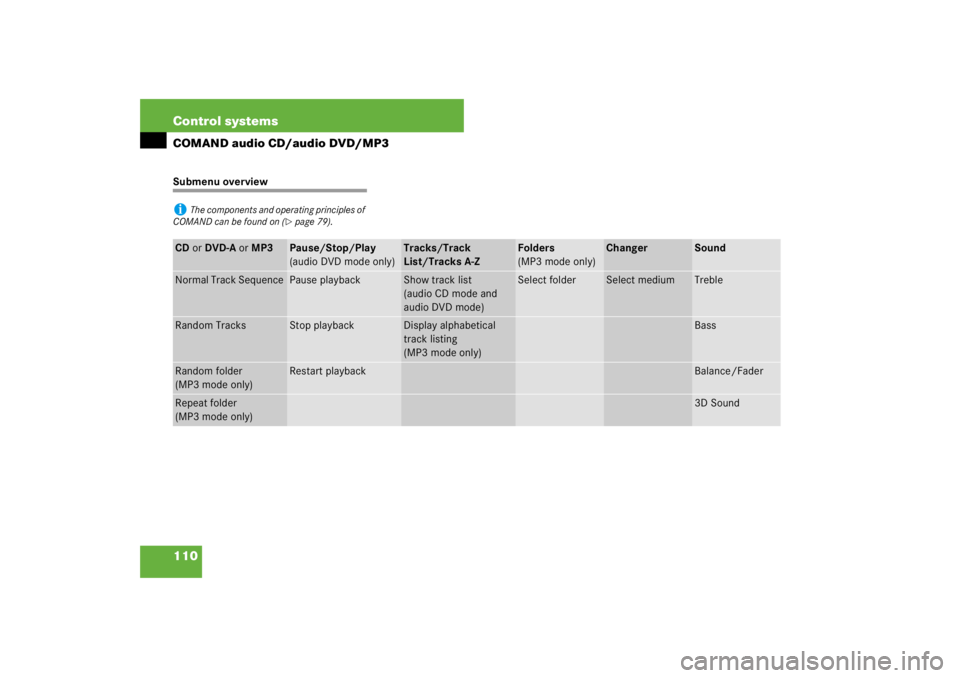
110 Control systemsCOMAND audio CD/audio DVD/MP3Submenu overviewi
The components and operating principles of
COMAND can be found on (
�page 79).
CD or DVD-A or MP3
Pause/Stop/Play
(audio DVD mode only)
Tracks/Track
List/Tracks A-Z
Folders
(MP3 mode only)
Changer
Sound
Normal Track Sequence
Pause playback
Show track list
(audio CD mode and
audio DVD mode)
Select folder
Select medium
Treble
Random Tracks
Stop playback
Display alphabetical
track listing
(MP3 mode only)
Bass
Random folder
(MP3 mode only)
Restart playback
Balance/Fader
Repeat folder
(MP3 mode only)
3D Sound
Page 113 of 705
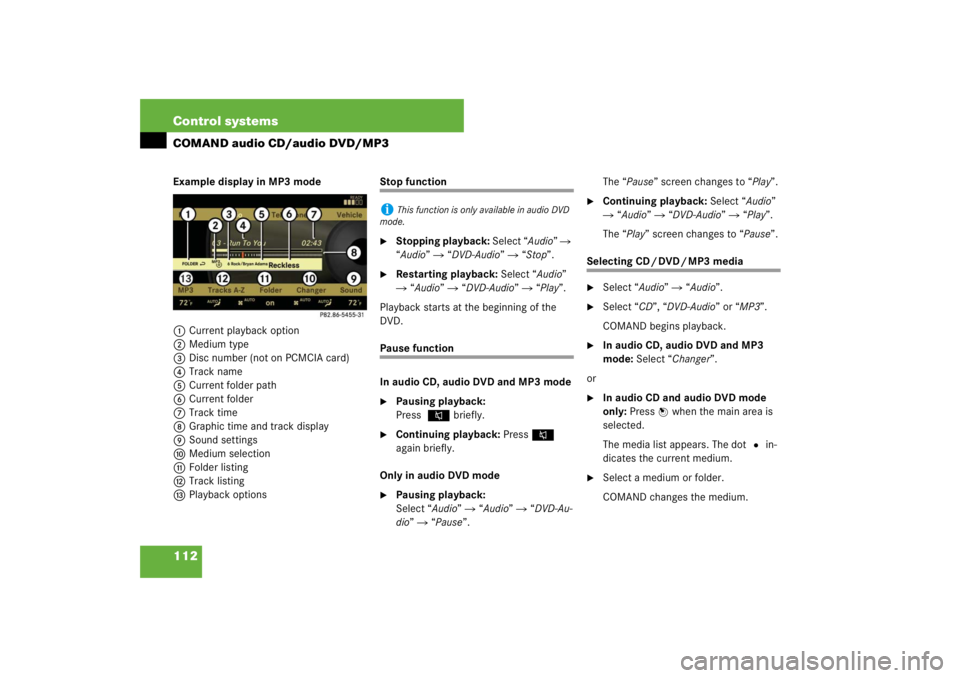
112 Control systemsCOMAND audio CD/audio DVD/MP3Example display in MP3 mode
1Current playback option
2Medium type
3Disc number (not on PCMCIA card)
4Track name
5Current folder path
6Current folder
7Track time
8Graphic time and track display
9Sound settings
aMedium selection
bFolder listing
cTrack listing
dPlayback options
Stop function�
Stopping playback: Select “Audio” �
“Audio” � “DVD-Audio” � “Stop”.
�
Restarting playback: Select “Audio”
� “Audio” � “DVD-Audio” � “Play”.
Playback starts at the beginning of the
DVD.
Pause function
In audio CD, audio DVD and MP3 mode�
Pausing playback:
Press F briefly.
�
Continuing playback: PressF
again briefly.
Only in audio DVD mode
�
Pausing playback:
Select “Audio” � “Audio” � “DVD-Au-
dio” � “Pause”.The “Pause” screen changes to “Play”.
�
Continuing playback: Select “Audio”
� “Audio” � “DVD-Audio” � “Play”.
The “Play” screen changes to “Pause”.
Selecting CD/DVD/MP3 media�
Select “Audio” � “Audio”.
�
Select “CD”, “DVD-Audio” or “MP3”.
COMAND begins playback.
�
In audio CD, audio DVD and MP3
mode: Select “Changer”.
or
�
In audio CD and audio DVD mode
only: Press n when the main area is
selected.
The media list appears. The dot R in-
dicates the current medium.
�
Select a medium or folder.
COMAND changes the medium.
i
This function is only available in audio DVD
mode.
Page 142 of 705
141 Control systems
COMAND navigation (introduction)
Updating the map software
You can update the map software yourself
using a DVD.
Notes about handling DVDs�
Only hold discs by the edge.
�
Handle discs carefully to prevent read
problems.
�
Avoid getting scratches, fingerprints
and dust on discs.
�
Use a commercially-available cleaning
cloth to clean discs. Do not wipe them
with a circular motion, but only in
straight lines from the center out-
wards.
�
Place discs back in their boxes after
use.
�
Protect discs from heat and direct sun-
light.
Updating process
The updating process has the following
phases:�
Loading a DVD into the DVD changer
(�page 142)
�
Updating process (
�page 142)
i
The updating process can take between 10
and 60 minutes, depending on the size of the
map software. If the radio was switched on be-
fore you started the updating process, you can
still adjust the volume. You can also use
COMAND to operate the automatic air condition-
ing and to cancel the process. Other functions
are not operational.
If possible, carry out the update when the vehicle
is stationary.
i
If you carry out the update with the engine
switched off and the vehicle battery has insuffi-
cient power, COMAND may automatically switch
off during the process in order to protect the bat-
tery. If this occurs, restart the update with the
engine running period. Similarly, if the SmartKey
position is unintentionally switched to 0, restart
the update.Warning!
G
Never leave the engine running in an en-
closed space. The exhaust gases contain
carbon monoxide. Inhaling exhaust gases
constitutes a health hazard and could lead
to loss of consciousness or even death.
Page 143 of 705
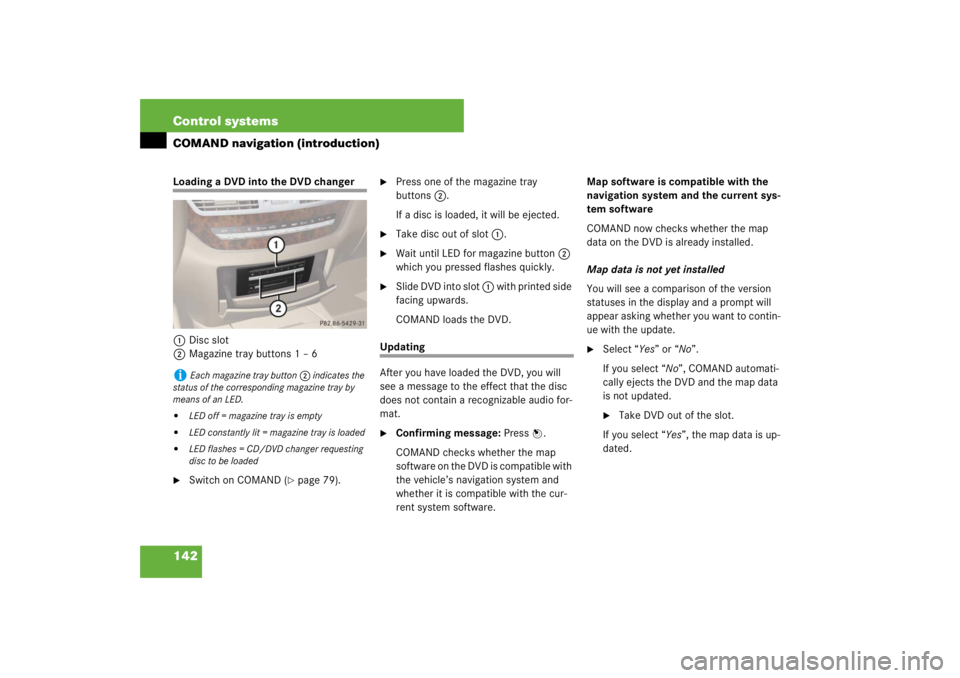
142 Control systemsCOMAND navigation (introduction)Loading a DVD into the DVD changer
1Disc slot
2Magazine tray buttons 1 – 6�
Switch on COMAND (
�page 79).
�
Press one of the magazine tray
buttons2.
If a disc is loaded, it will be ejected.
�
Take disc out of slot 1.
�
Wait until LED for magazine button 2
which you pressed flashes quickly.
�
Slide DVD into slot 1 with printed side
facing upwards.
COMAND loads the DVD.
Updating
After you have loaded the DVD, you will
see a message to the effect that the disc
does not contain a recognizable audio for-
mat.�
Confirming message: Press n.
COMAND checks whether the map
software on the DVD is compatible with
the vehicle’s navigation system and
whether it is compatible with the cur-
rent system software.Map software is compatible with the
navigation system and the current sys-
tem software
COMAND now checks whether the map
data on the DVD is already installed.
Map data is not yet installed
You will see a comparison of the version
statuses in the display and a prompt will
appear asking whether you want to contin-
ue with the update.
�
Select “Yes” or “No”.
If you select “No”, COMAND automati-
cally ejects the DVD and the map data
is not updated.�
Take DVD out of the slot.
If you select “Yes”, the map data is up-
dated.
i
Each magazine tray button 2 indicates the
status of the corresponding magazine tray by
means of an LED.
�
LED off = magazine tray is empty
�
LED constantly lit = magazine tray is loaded
�
LED flashes = CD/DVD changer requesting
disc to be loaded
Page 144 of 705
143 Control systems
COMAND navigation (introduction)
Map data is already installed
You will see a message that the map data
is already installed and a prompt will ap-
pear asking you whether you want to con-
tinue with the update.�
Select “Yes” or “No”.
If you select “No”, COMAND automati-
cally ejects the DVD and the map data
is not updated.�
Take DVD out of slot.
If you select “Yes”, the existing map
data is saved again.
Updating the map data
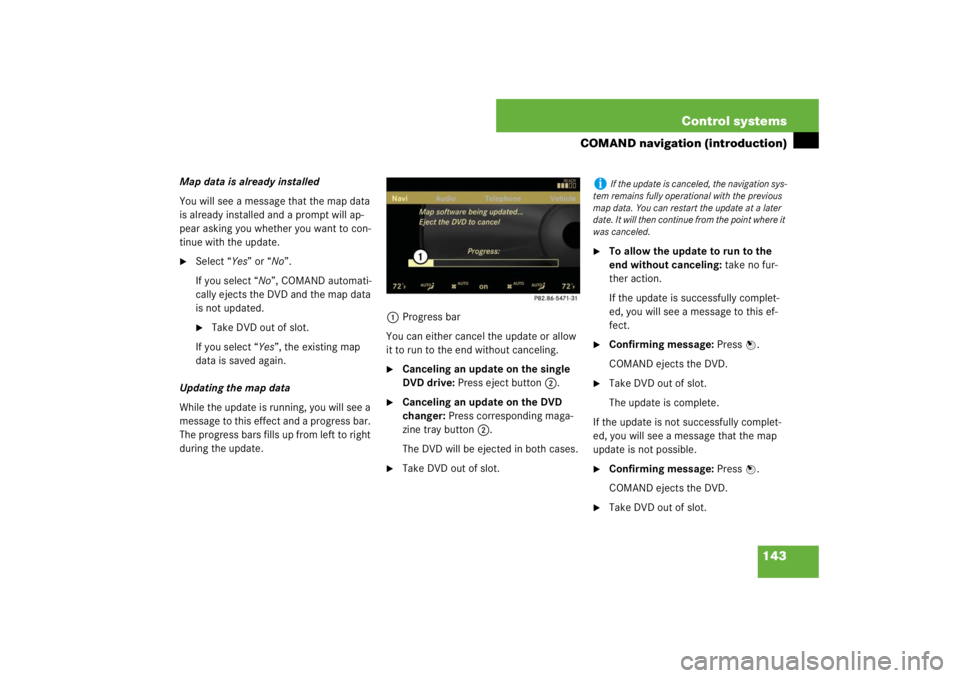
While the update is running, you will see a
message to this effect and a progress bar.
The progress bars fills up from left to right
during the update.1Progress bar
You can either cancel the update or allow
it to run to the end without canceling.
�
Canceling an update on the single
DVD drive: Press eject button 2.
�
Canceling an update on the DVD
changer: Press corresponding maga-
zine tray button 2.
The DVD will be ejected in both cases.
�
Take DVD out of slot.
�
To allow the update to run to the
end without canceling: take no fur-
ther action.
If the update is successfully complet-
ed, you will see a message to this ef-
fect.
�
Confirming message: Press n.
COMAND ejects the DVD.
�
Take DVD out of slot.
The update is complete.
If the update is not successfully complet-
ed, you will see a message that the map
update is not possible.
�
Confirming message: Press n.
COMAND ejects the DVD.
�
Take DVD out of slot.
i
If the update is canceled, the navigation sys-
tem remains fully operational with the previous
map data. You can restart the update at a later
date. It will then continue from the point where it
was canceled.
Page 244 of 705
243 Control systems
Instrument cluster control system
Menus
Trip (
�page 245)
Navi (
�page 246)
Audio (
�page 248)
Telephone* (
�page 249)
Commands/submenusStandard display
Show route guidance instruc-
tions, current direction trav-
eled
Select radio station
Answer a call
Fuel consumption statistics af-
ter start
Select satellite radio chanel*
(USA only)
Dial a number from the phone
book
Fuel consumption statistics
since the last reset
Operate CD changer/DVD-Au-
dio/MP3
Redialing
Call up range
End a call or reject an incoming
call
Digital speedometer