Page 125 of 505
124 Controls in detail
Memory function
Prior to operating the vehicle, the driver
should check and adjust the seat height,
seat position fore and aft, and seat back-
rest angle if necessary, to ensure adequate
control, reach and comfort. The head
restraint should also be adjusted for
proper height. See also the section on
air bags (
�page 65) for proper seat
positioning.
In addition, adjust the steering wheel to
ensure adequate control, reach, operation
and comfort. Both the interior and exterior
rear view mirrors should be adjusted for
adequate rear vision.
Fasten seat belts. Infants and small chil-
dren should be seated in a properly se-
cured restraint system that complies with
U.S. Federal Motor Vehicle Safety
Standards 213 and 225 and
Canadian Motor Vehicle Safety Standards
213 and 210.2.The following settings are stored when
using the buttons on the driver’s door:
�Driver’s seat, backrest and head
restraint position
�Steering wheel position
�Exterior rear view mirror position
The following settings are stored when
using the buttons on the passenger door:
�Front passenger seat, backrest and
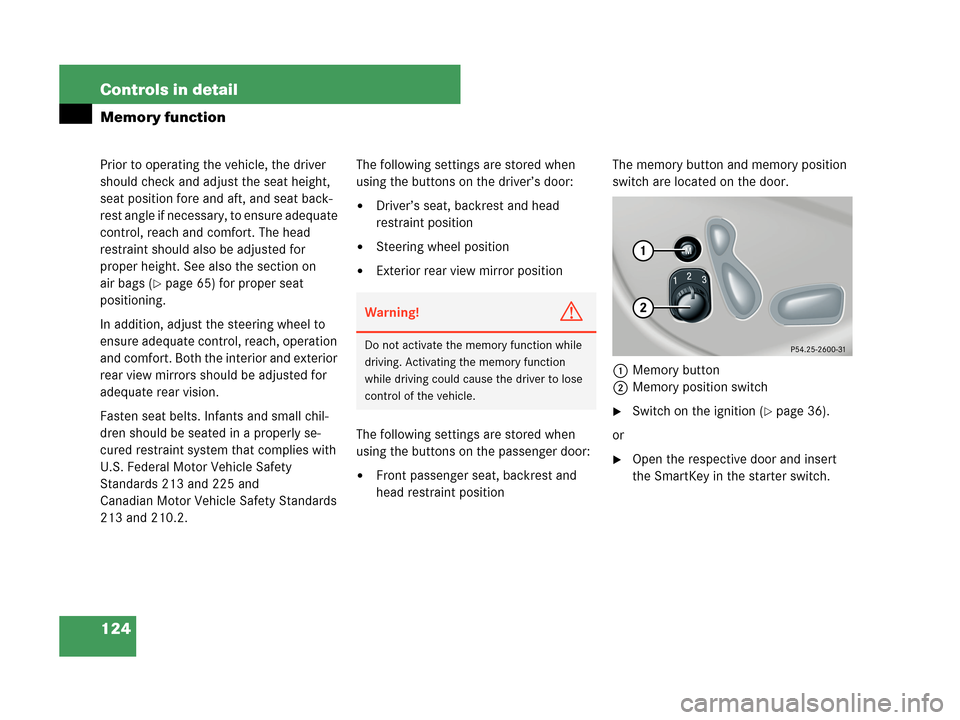
head restraint positionThe memory button and memory position
switch are located on the door.
1Memory button
2Memory position switch
�Switch on the ignition (�page 36).
or
�Open the respective door and insert
the SmartKey in the starter switch.
Warning!G
Do not activate the memory function while
driving. Activating the memory function
while driving could cause the driver to lose
control of the vehicle.
Page 141 of 505
140 Controls in detail
Control system
Multifunction steering wheel
The displays in the multifunction display
and the settings in the control system are
controlled by the buttons on the multifunc-
tion steering wheel (
�page 28).
1Multifunction display
Operating the control system
2Selecting the submenu or setting the
volume:
Press button
æup / to increase
çdown / to decrease
3Telephone*:
Press button
sto take a call
to dial
to redial
tto end a call
to reject an incoming call
4Menu systems:
Press button
èfor next menu
ÿfor previous menu
5Moving within a menu:
Press button
jfor next display
kfor previous display
Page 142 of 505
141 Controls in detail
Control system
Depending on the selected menu
(
�page 142), pressing the buttons on the
multifunction steering wheel will alter what
is shown in the multifunction display.
The information available in the multifunc-
tion display is arranged in menus, each
containing a number of functions or sub-
menus.
The individual functions are then found
within the relevant menu (radio or CD op-
erations under
Audio, for example). These
functions serve to call up relevant informa-
tion or to customize the settings for your
vehicle.It is helpful to think of the menus, and the
functions within each menu, as being
arranged in a circular pattern.
�If you press buttonè orÿ
repeatedly, you will pass through each
menu one after the other.
�If you press buttonk orj
repeatedly, you will pass through each
function display, one after the other, in
the current menu.In the
Settings menu, instead of functions
you will find a number of submenus for
calling up and changing settings. For
instructions on using these submenus, see
“Submenus in the Settings menu”
(
�page 154).
The number of menus available in the sys-
tem depends on which optional equipment
is installed in your vehicle.
The menus are described on the following
pages.
Page 169 of 505
168 Controls in detail
Control system
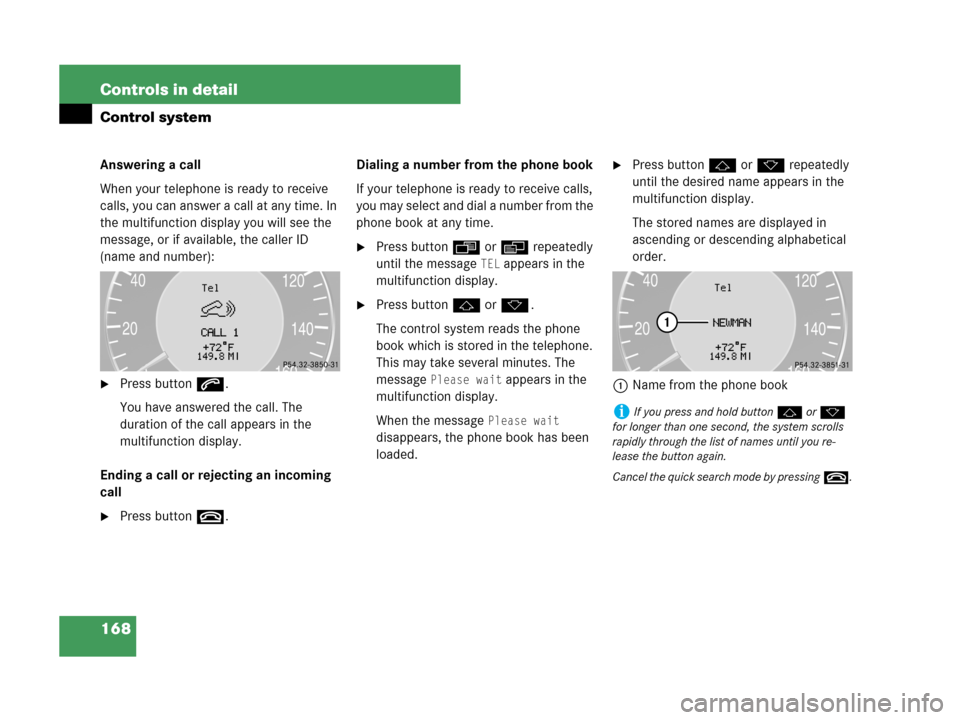
Answering a call
When your telephone is ready to receive
calls, you can answer a call at any time. In
the multifunction display you will see the
message, or if available, the caller ID
(name and number):
�Press buttons.
You have answered the call. The
duration of the call appears in the
multifunction display.
Ending a call or rejecting an incoming
call
�Press buttont.Dialing a number from the phone book
If your telephone is ready to receive calls,
you may select and dial a number from the
phone book at any time.
�Press buttonÿ orè repeatedly
until the message
TEL appears in the
multifunction display.
�Press buttonj ork.
The control system reads the phone
book which is stored in the telephone.
This may take several minutes. The
message
Please wait appears in the
multifunction display.
When the message
Please wait
disappears, the phone book has been
loaded.
�Press buttonj ork repeatedly
until the desired name appears in the
multifunction display.
The stored names are displayed in
ascending or descending alphabetical
order.
1Name from the phone book
iIf you press and hold buttonj ork
for longer than one second, the system scrolls
rapidly through the list of names until you re-
lease the button again.
Cancel the quick search mode by pressingt.
Page 170 of 505
169 Controls in detail
Control system
�Press buttons.
The system dials the selected phone
number.
�If the connection is successful and
this feature is supported by your
network provider, the name of the
party you are calling (if stored in
your phone book) and the duration
of the call will appear in the multi-
function display.
�If no connection is made, the
control system stores the dialed
number in the redial memory.Redialing
The control system stores the most
recently dialed phone numbers. This
eliminates the need to search through
your entire phone book.
�Press buttonÿ orè repeatedly
until the message
TEL appears in the
multifunction display.
�Press buttons.
The first number in the redial memory
appears in the multifunction display.
�Press buttonj ork repeatedly
until the desired name appears in the
multifunction display.
�Press buttons.
The control system dials the selected
phone number.
iIf you do not want to use the telephone,
press buttont.
Page 215 of 505
214 Controls in detail
Audio system
Button and soft key operation
In these instructions, the alphanumeric
keypad (right side of radio panel) and the
function buttons (left side of radio panel)
are referred to as “buttons”. The four keys
below the display panel are referred to as
“soft keys”.
Operation
Switching the unit on/off
Switching on
�Turn the SmartKey in the starter switch
to position1 or2.
�If the audio system was on as you
removed the SmartKey from the starter
switch, the audio system will
automatically come back on as you
turn the SmartKey to position1 or2.
or
�Press M button.
Switching off
�Remove SmartKey from starter switch.
or
�Press M button.
Adjusting the volume
�Turn rotary control of N button.
The volume will increase or decrease
depending on the direction turned.
!Do not press directly in the display face.
Otherwise, the display will be damaged.
iIf the radio is switched on without the key in
the starter switch, it will automatically switch off
again after approx. 30 minutes.
If your vehicle is equipped with a telephone, the
display may prompt you to enter your PIN (GSM
network) or code (TDMA or CDMA network).
iShould excessively high temperatures occur
while the audio system is being operated, the
display will dim. If temperatures continue to rise,
HIGH TEMP will appear in the display, after which
the audio system will be switched off for a
cooling-down period.
iIf your vehicle equipment includes a Mer-
cedes-Benz specified mobile phone*, you can
adjust its volume separately from the volume of
the audio system while the telephone is being
used.
Page 220 of 505
219 Controls in detail
Audio system
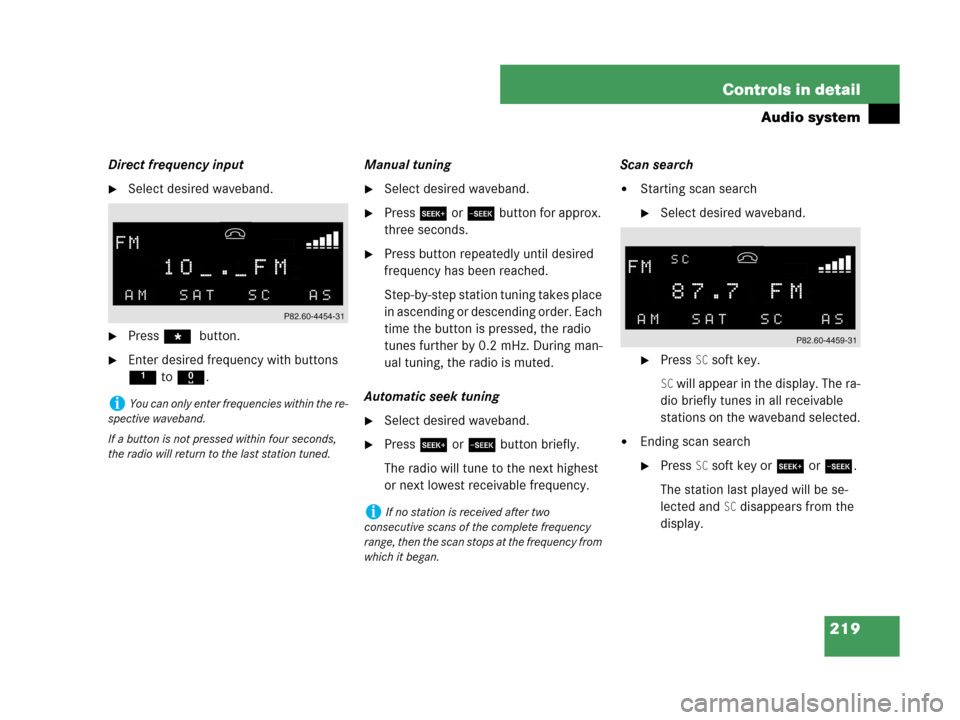
Direct frequency input
�Select desired waveband.
�Press * button.
�Enter desired frequency with buttons
1to R.Manual tuning
�Select desired waveband.
�Press S or Tbutton for approx.
three seconds.
�Press button repeatedly until desired
frequency has been reached.
Step-by-step station tuning takes place
in ascending or descending order. Each
time the button is pressed, the radio
tunes further by 0.2 mHz. During man-
ual tuning, the radio is muted.
Automatic seek tuning
�Select desired waveband.
�Press S or T button briefly.
The radio will tune to the next highest
or next lowest receivable frequency.Scan search
�Starting scan search
�Select desired waveband.
�Press SC soft key.
SC will appear in the display. The ra-
dio briefly tunes in all receivable
stations on the waveband selected.
�Ending scan search
�Press SC soft key or S or T.
The station last played will be se-
lected and
SC disappears from the
display.
iYou can only enter frequencies within the re-
spective waveband.
If a button is not pressed within four seconds,
the radio will return to the last station tuned.
iIf no station is received after two
consecutive scans of the complete frequency
range, then the scan stops at the frequency from
which it began.
Page 221 of 505
220 Controls in detail
Audio system
Station memory
You can store ten AM and ten FM stations
in the memory.
�Storing stations
�Tune in desired station.
�Press and hold desired station
button1 to R until a brief
signal tone is heard.
The frequency is stored on the se-
lected station button.
�Calling up stations
�Press desired station button1
to R briefly.Autostore – automatic station memory
The Autostore memory function provides
an additional memory level. The station
memory for manually stored stations is not
overwritten.
�Calling up Autostore memory level and
storing stations
�Press AS soft key briefly.
The radio switches to the Autostore
memory level.
AS and SEARCH ap-
pear in the display and the radio
finds the ten stations with the
strongest signals. These stations
are stored on the station buttons
1 to R in order of signal
strength.
�Calling up stations
�Press desired station button1
to R.
�Leaving the Autostore memory level
�Press FM or AMsoft key briefly.