Page 114 of 723
113 Control systems
COMAND audio CD/audio DVD/MP3
Ejecting CDs and DVDs
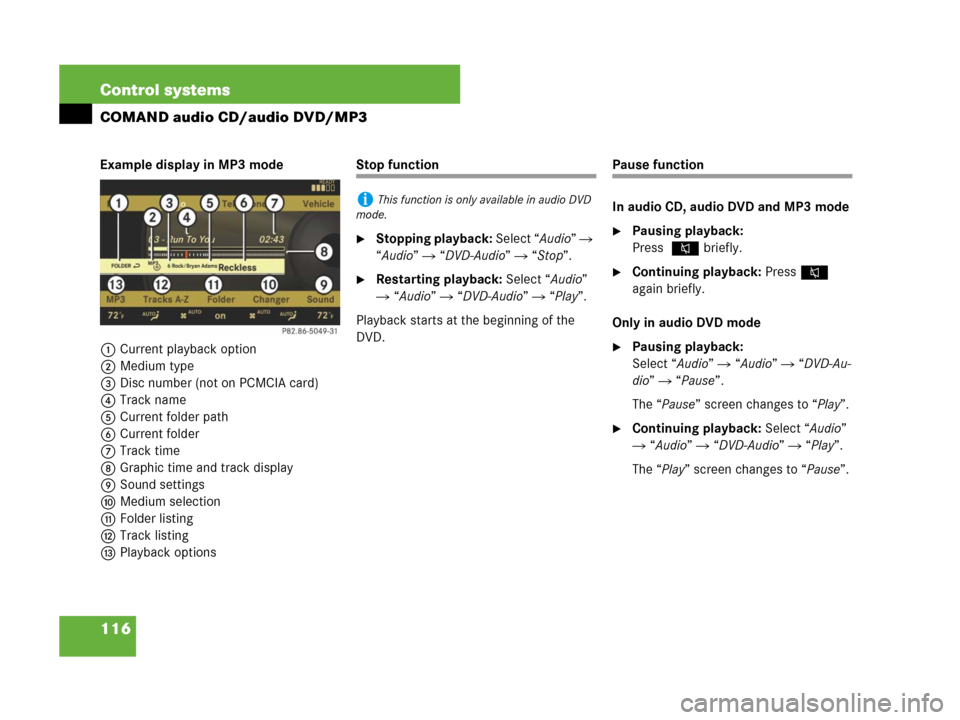
Ejecting from the DVD changer
1Disc slot
2Magazine tray buttons 1 – 6
3Eject button (all discs)
�Ejecting one disc: Press desired mag-
azine tray button 2.
�Take disc out of slot 1.
If you do not take the disc out of
slot1, the DVD changer will draw it
back automatically in approximately
15 seconds.
�Ejecting all discs: Press eject
button3.
The DVD changer switches to the first
loaded tray and ejects the disc.
�Take disc out of slot 1.
The DVD changer switches to the next
loaded magazine tray and ejects the
disc.
�Repeat last step until magazine is emp-
ty.
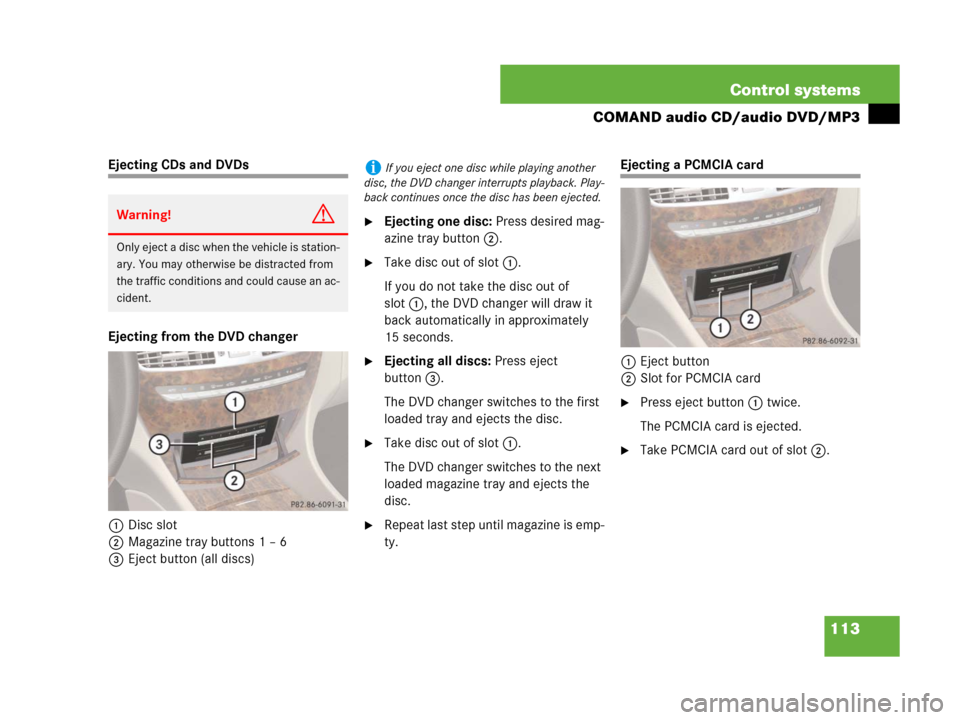
Ejecting a PCMCIA card
1Eject button
2Slot for PCMCIA card
�Press eject button 1 twice.
The PCMCIA card is ejected.
�Take PCMCIA card out of slot 2.
Warning!G
Only eject a disc when the vehicle is station-
ary. You may otherwise be distracted from
the traffic conditions and could cause an ac-
cident.
iIf you eject one disc while playing another
disc, the DVD changer interrupts playback. Play-
back continues once the disc has been ejected.
Page 116 of 723
115 Control systems
COMAND audio CD/audio DVD/MP3
Switching to audio CD, audio DVD or
MP3 mode
�Load CD/DVD (�page 111) or
PCMCIA card (
�page 112).
or
�Select “Audio” � “Audio”, then “CD”,
“DVD-Audio” or “MP3”.
or
�Press the M shortcut button once or
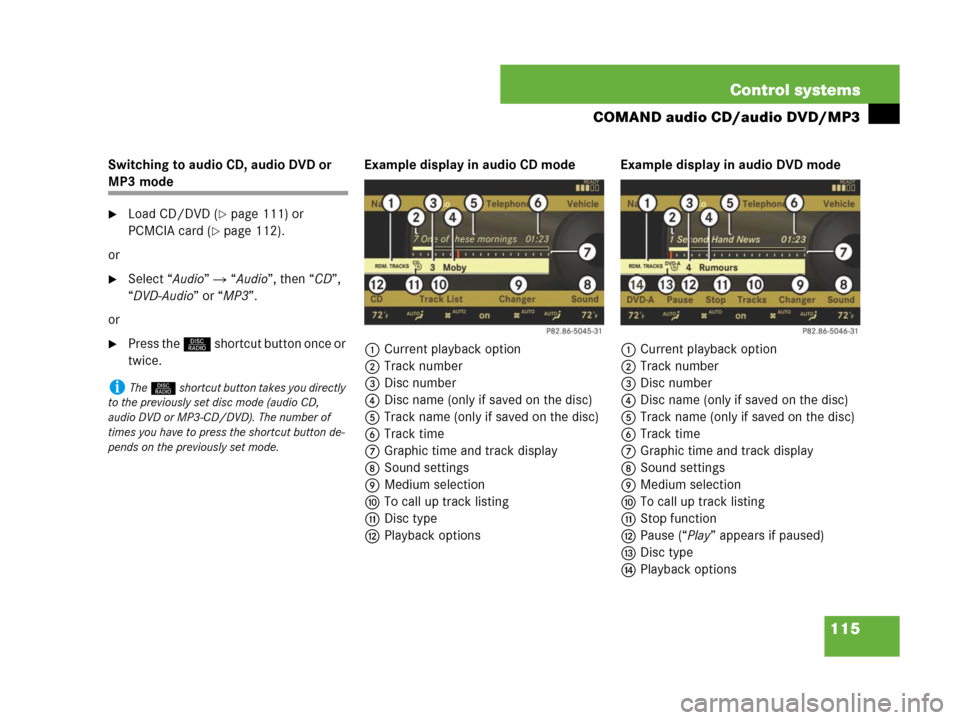
twice.Example display in audio CD mode
1Current playback option
2Track number
3Disc number
4Disc name (only if saved on the disc)
5Track name (only if saved on the disc)
6Track time
7Graphic time and track display
8Sound settings
9Medium selection
aTo call up track listing
bDisc type
cPlayback optionsExample display in audio DVD mode
1Current playback option
2Track number
3Disc number
4Disc name (only if saved on the disc)
5Track name (only if saved on the disc)
6Track time
7Graphic time and track display
8Sound settings
9Medium selection
aTo call up track listing
bStop function
cPause (“Play” appears if paused)
dDisc type
ePlayback options
iThe M shortcut button takes you directly
to the previously set disc mode (audio CD,
audio DVD or MP3-CD/DVD). The number of
times you have to press the shortcut button de-
pends on the previously set mode.
Page 117 of 723
116 Control systems
COMAND audio CD/audio DVD/MP3
Example display in MP3 mode
1Current playback option
2Medium type
3Disc number (not on PCMCIA card)
4Track name
5Current folder path
6Current folder
7Track time
8Graphic time and track display
9Sound settings
aMedium selection
bFolder listing
cTrack listing
dPlayback optionsStop function
�Stopping playback: Select “Audio” �
“Audio” � “DVD-Audio” � “Stop”.
�Restarting playback: Select “Audio”
� “Audio” � “DVD-Audio” � “Play”.
Playback starts at the beginning of the
DVD.
Pause function
In audio CD, audio DVD and MP3 mode
�Pausing playback:
Press F briefly.
�Continuing playback: PressF
again briefly.
Only in audio DVD mode
�Pausing playback:
Select “Audio” � “Audio” � “DVD-Au-
dio” � “Pause”.
The “Pause” screen changes to “Play”.
�Continuing playback: Select “Audio”
� “Audio” � “DVD-Audio” � “Play”.
The “Play” screen changes to “Pause”.
iThis function is only available in audio DVD
mode.
Page 305 of 723
304 Control systems
Voice Control CD/DVD changer/MP3
Commands
For a complete list of commands
(
�page 305).
“Help CD” or “Help DVD” “Help MP3”
Use the commands
�“Help CD”
�“Help DVD”
�“Help MP3”
and the Voice Control System will read out
a complete list of available commands for
the CD, DVD or MP3.
“CD/DVD/Medium 1” to
“CD/DVD/Medium 6”
Use commands “CD/DVD/Medium 1” to
“CD/DVD/Medium 6” to select one of up
to 6 mediums in your DVD changer.“Next CD/DVD/Medium”
Use the command “Next CD/DVD/Medi-
um” to select the next available medium in
the DVD changer.
“Track 1” to “Track 39”
Use the commands “Track 1” to
“Track 39” to select one of up to 39 title
numbers of a loaded medium.
“Next track”
Use the command “Next track” to select
the next track.
“Previous track” or “Repeat track”
Use the command “Previous track” or “Re-
peat track” to play again the track you are
listening to.“Group 1” to “Group 9”
The “Group 1” to “Group 9” commands are
used to select a group on the inserted au-
dio-DVD.
“Next group”/“Previous group”
The “Next group”/“Previous group” com-
mands are used to select a group on the in-
serted audio-DVD.
“Memory card”
The “Memory card” command is used to
switch from the DVD drive to the PCMCIA
card.
“Drive”
The “Drive” command is used to switch
from the PCMCIA card to the DVD drive.
Page 711 of 723
708 Index
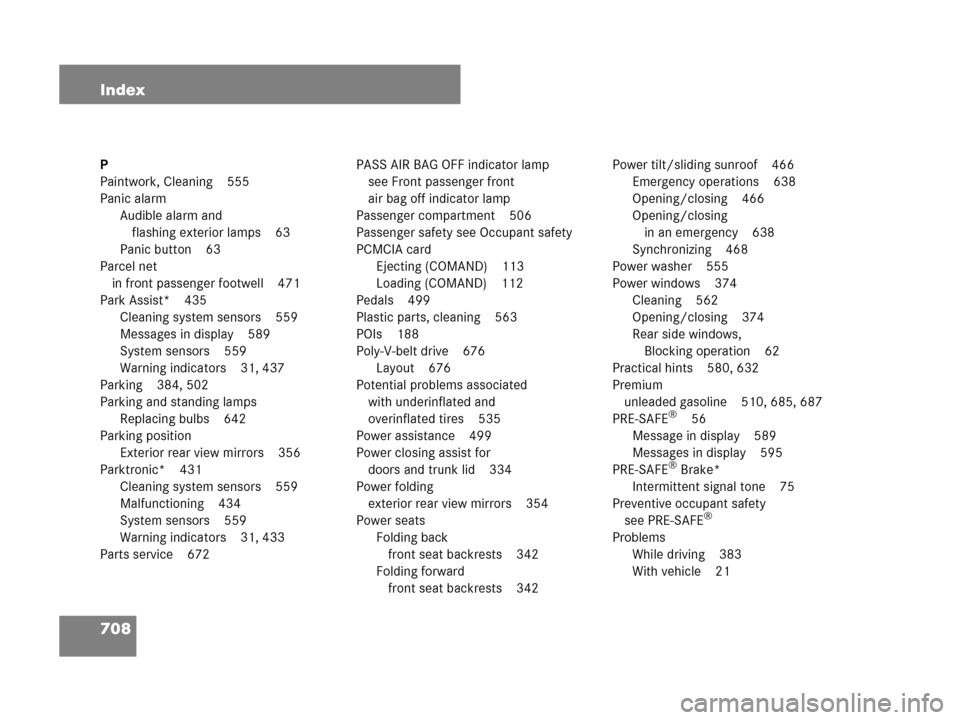
P
Paintwork, Cleaning 555
Panic alarm
Audible alarm and
flashing exterior lamps 63
Panic button 63
Parcel net
in front passenger footwell 471
Park Assist* 435
Cleaning system sensors 559
Messages in display 589
System sensors 559
Warning indicators 31, 437
Parking 384, 502
Parking and standing lamps
Replacing bulbs 642
Parking position
Exterior rear view mirrors 356
Parktronic* 431
Cleaning system sensors 559
Malfunctioning 434
System sensors 559
Warning indicators 31, 433
Parts service 672PASS AIR BAG OFF indicator lamp
see Front passenger front
air bag off indicator lamp
Passenger compartment 506
Passenger safety see Occupant safety
PCMCIA card
Ejecting (COMAND) 113
Loading (COMAND) 112
Pedals 499
Plastic parts, cleaning 563
POIs 188
Poly-V-belt drive 676
Layout 676
Potential problems associated
with underinflated and
overinflated tires 535
Power assistance 499
Power closing assist for
doors and trunk lid 334
Power folding
exterior rear view mirrors 354
Power seats
Folding back
front seat backrests 342
Folding forward
front seat backrests 342Power tilt/sliding sunroof 466
Emergency operations 638
Opening/closing 466
Opening/closing
in an emergency 638
Synchronizing 468
Power washer 555
Power windows 374
Cleaning 562
Opening/closing 374
Rear side windows,
Blocking operation 62
Practical hints 580, 632
Premium
unleaded gasoline 510, 685, 687
PRE-SAFE
®56
Message in display 589
Messages in display 595
PRE-SAFE
® Brake*
Intermittent signal tone 75
Preventive occupant safety
see PRE-SAFE
®
Problems
While driving 383
With vehicle 21