Page 38 of 328
•Chinese food•Continental restaurant
•Continental food•French restaurant
•French food•Italian restaurant
•Italian food•Japanese restaurant
•Japanese food•Mexican restaurant
•Mexican food•Seafood restaurant
•Seafood•Other restaurant
•Other food•Shopping
•Shopping mall•Grocery store
•Airport•Bus station
•Ferry terminal•Historical monument
•Hotel•Park and ride
•Rental car agency•Rest area
•Rest stop•Tourist information
•Train station•Business facility
•City center•POI off
•Commuter rail station
While in navigation destination (DEST) mode, the following commands
are available:
•Home•Go home
•Previous starting point•Go starting point
•Next way point map•First way point map
•Second way point map•Third way point map
•Fourth way point map•Fifth way point map
•Destination map•Delete destination
•Cancel destination
While in navigation guidance mode, the following commands are available
by voice activation:
•Repeat guidance•Repeat voice
•
Louder•Softer
•Voice guidance off•Voice guidance on
•Open guidance screen•Close guidance screen
•Arrow guidance•Arrow guide
2007 Town Car(tow)
Owners Guide (post-2002-fmt)
USA(fus)
Entertainment Systems
38
Page 39 of 328
•Change to arrow guidance•Change to arrow guide
•Turn list guidance•Turn list guide
•Change to turn list guidance•Change to turn list guide
•Entire route map•Entire route
•Route overview•Reroute
•Detour•Detour entire route
Navigation help commands you may speak at any time:
•Help•Map
•Destination•Guidance
•Radio•Disc
•Map help•Destination help
•Guidance help•Radio help
•Disc help
Audio mode
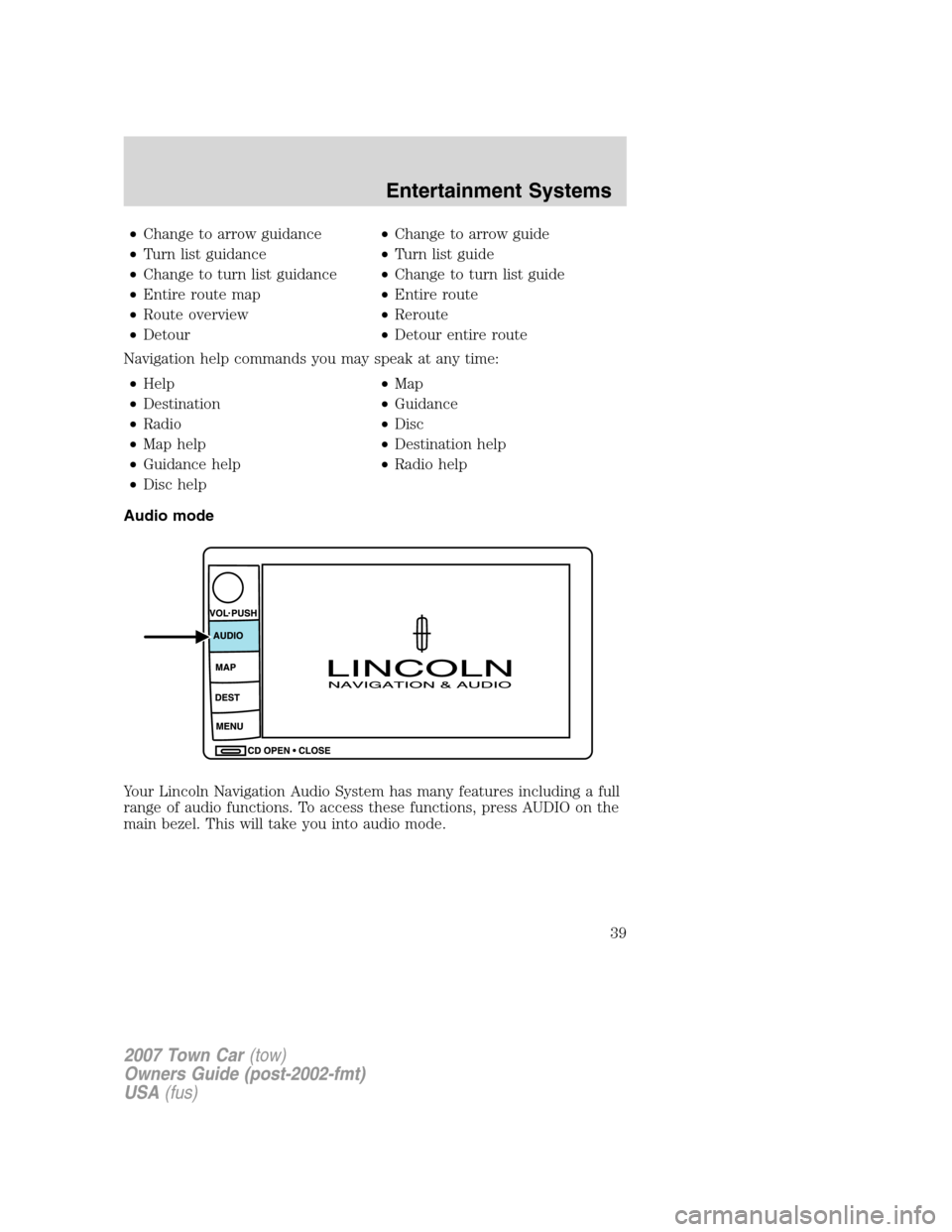
Your Lincoln Navigation Audio System has many features including a full
range of audio functions. To access these functions, press AUDIO on the
main bezel. This will take you into audio mode.
2007 Town Car(tow)
Owners Guide (post-2002-fmt)
USA(fus)
Entertainment Systems
39
Page 40 of 328
Volume/power control
Press knob to turn the audio system
on/off. Turn to raise or lower
volume. The levels will be displayed
on the screen.
To activate the navigation mode,
press MAP or DEST.
To adjust the navigation voice output level, select the NAV MENU button
via the map screen.
Speed compensated volume (SCV)
With this feature, radio volume changes automatically with vehicle speed
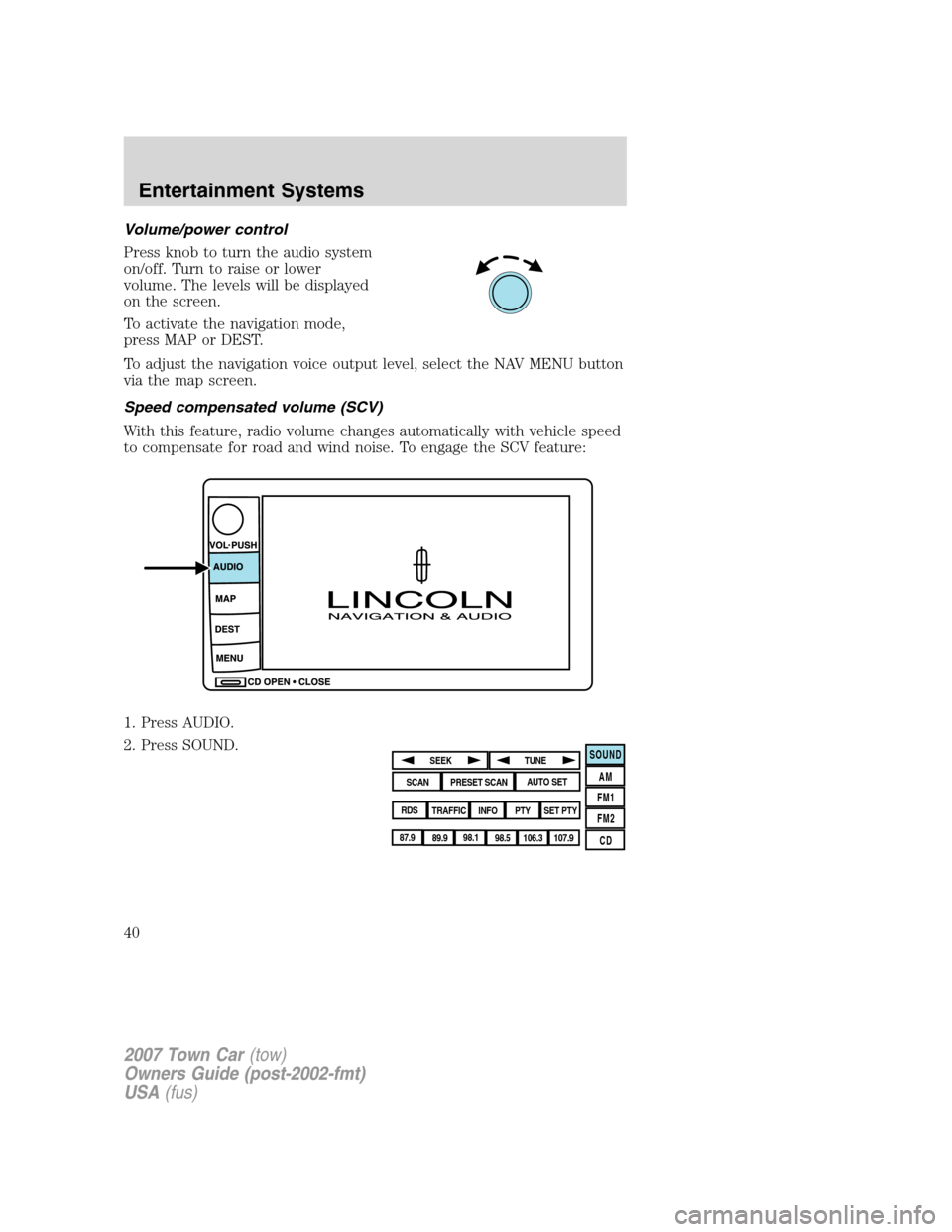
to compensate for road and wind noise. To engage the SCV feature:
1. Press AUDIO.
2. Press SOUND.
SOUND
AM
FM1
FM2
CDSEEK
TUNE
PRESET SCANAUTO SET
SCAN
RDS
TRAFFIC
INFO PTYSET PTY
87.9
89.9 98.1
98.5 106.3 107.9
2007 Town Car(tow)
Owners Guide (post-2002-fmt)
USA(fus)
Entertainment Systems
40
Page 51 of 328
Pause
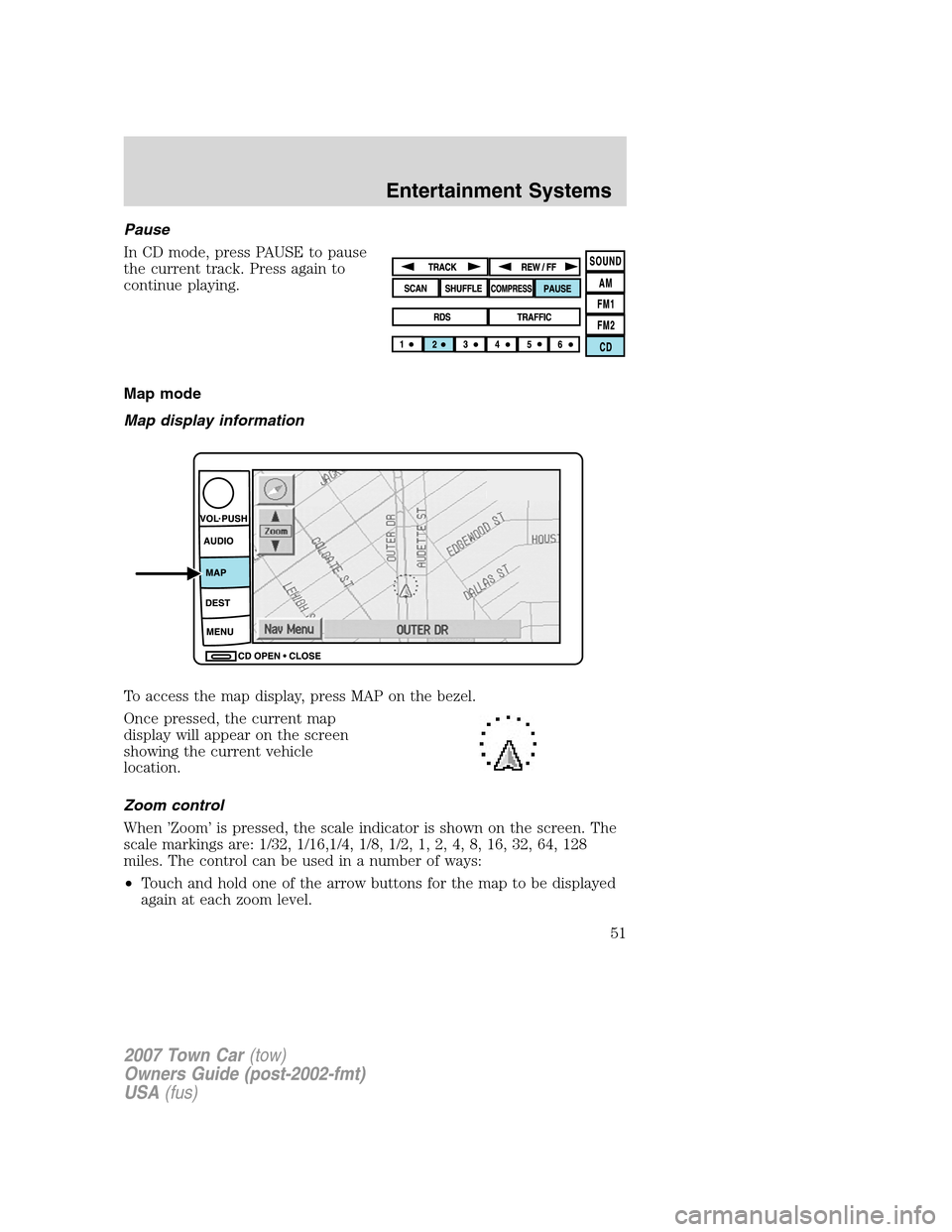
In CD mode, press PAUSE to pause
the current track. Press again to
continue playing.
Map mode
Map display information
To access the map display, press MAP on the bezel.
Once pressed, the current map
display will appear on the screen
showing the current vehicle
location.
Zoom control
When ’Zoom’ is pressed, the scale indicator is shown on the screen. The
scale markings are: 1/32, 1/16,1/4, 1/8, 1/2, 1, 2, 4, 8, 16, 32, 64, 128
miles. The control can be used in a number of ways:
•Touch and hold one of the arrow buttons for the map to be displayed
again at each zoom level.
2007 Town Car(tow)
Owners Guide (post-2002-fmt)
USA(fus)
Entertainment Systems
51
Page 52 of 328
•Touch one of the arrow buttons repeatedly for the map to be
displayed again at the final zoom level.
•Touch one of the segments of the scale indicator for the map to be
displayed at the selected zoom level.
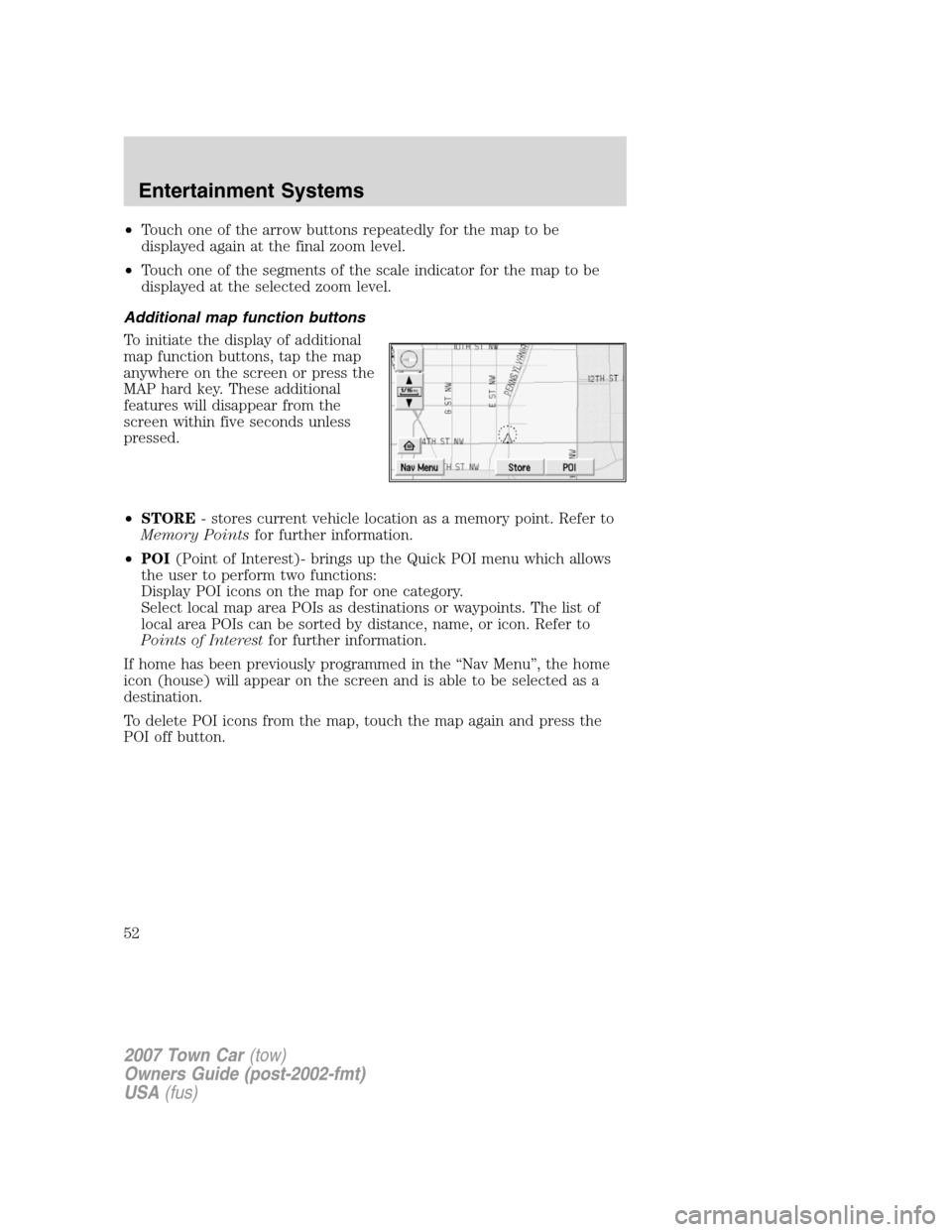
Additional map function buttons
To initiate the display of additional
map function buttons, tap the map
anywhere on the screen or press the
MAP hard key. These additional
features will disappear from the
screen within five seconds unless
pressed.
•STORE- stores current vehicle location as a memory point. Refer to
Memory Pointsfor further information.
•POI(Point of Interest)- brings up the Quick POI menu which allows
the user to perform two functions:
Display POI icons on the map for one category.
Select local map area POIs as destinations or waypoints. The list of
local area POIs can be sorted by distance, name, or icon. Refer to
Points of Interestfor further information.
If home has been previously programmed in the “Nav Menu”, the home
icon (house) will appear on the screen and is able to be selected as a
destination.
To delete POI icons from the map, touch the map again and press the
POI off button.
2007 Town Car(tow)
Owners Guide (post-2002-fmt)
USA(fus)
Entertainment Systems
52
Page 54 of 328
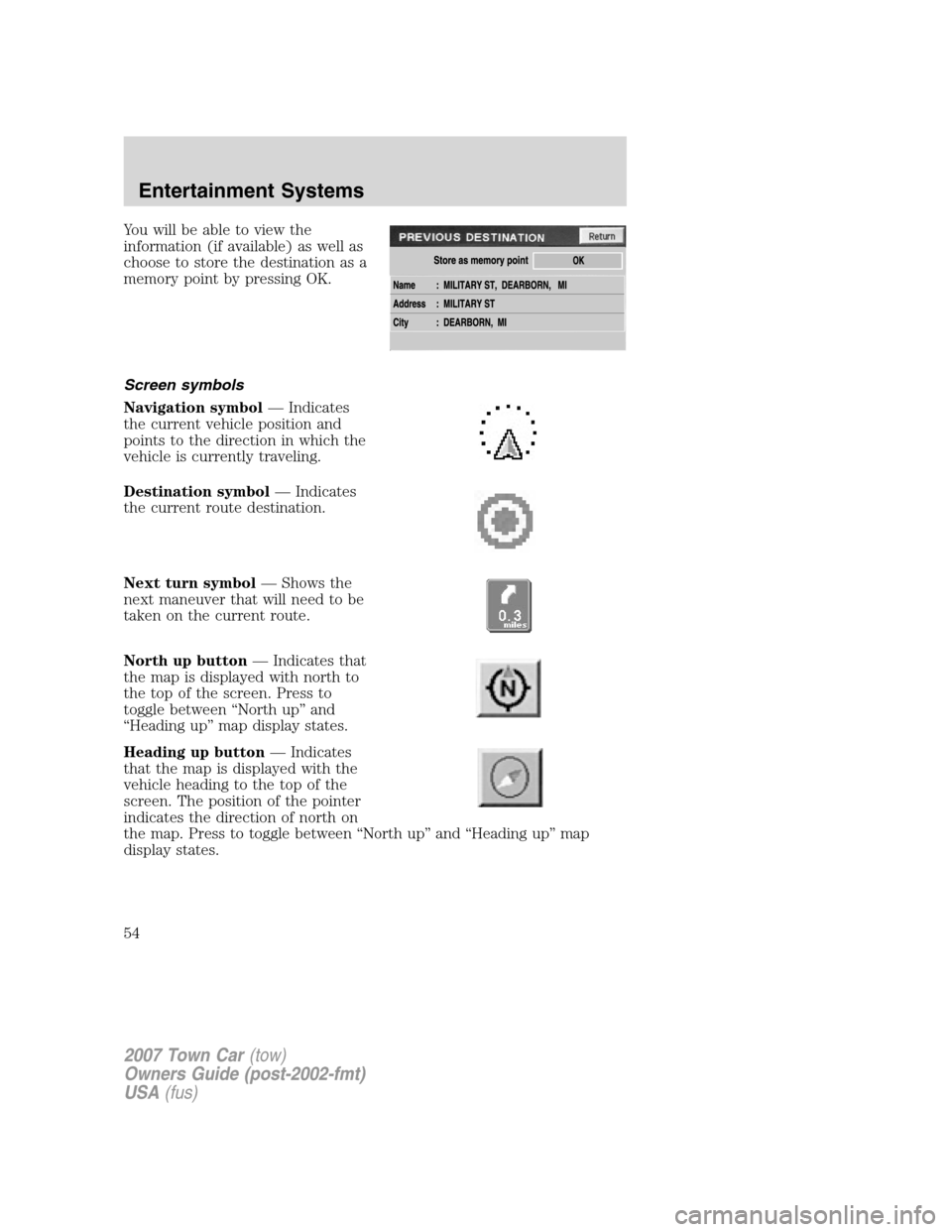
You will be able to view the
information (if available) as well as
choose to store the destination as a
memory point by pressing OK.
Screen symbols
Navigation symbol— Indicates
the current vehicle position and
points to the direction in which the
vehicle is currently traveling.
Destination symbol— Indicates
the current route destination.
Next turn symbol— Shows the
next maneuver that will need to be
taken on the current route.
North up button— Indicates that
the map is displayed with north to
the top of the screen. Press to
toggle between “North up” and
“Heading up” map display states.
Heading up button— Indicates
that the map is displayed with the
vehicle heading to the top of the
screen. The position of the pointer
indicates the direction of north on
the map. Press to toggle between “North up” and “Heading up” map
display states.
2007 Town Car(tow)
Owners Guide (post-2002-fmt)
USA(fus)
Entertainment Systems
54
Page 55 of 328
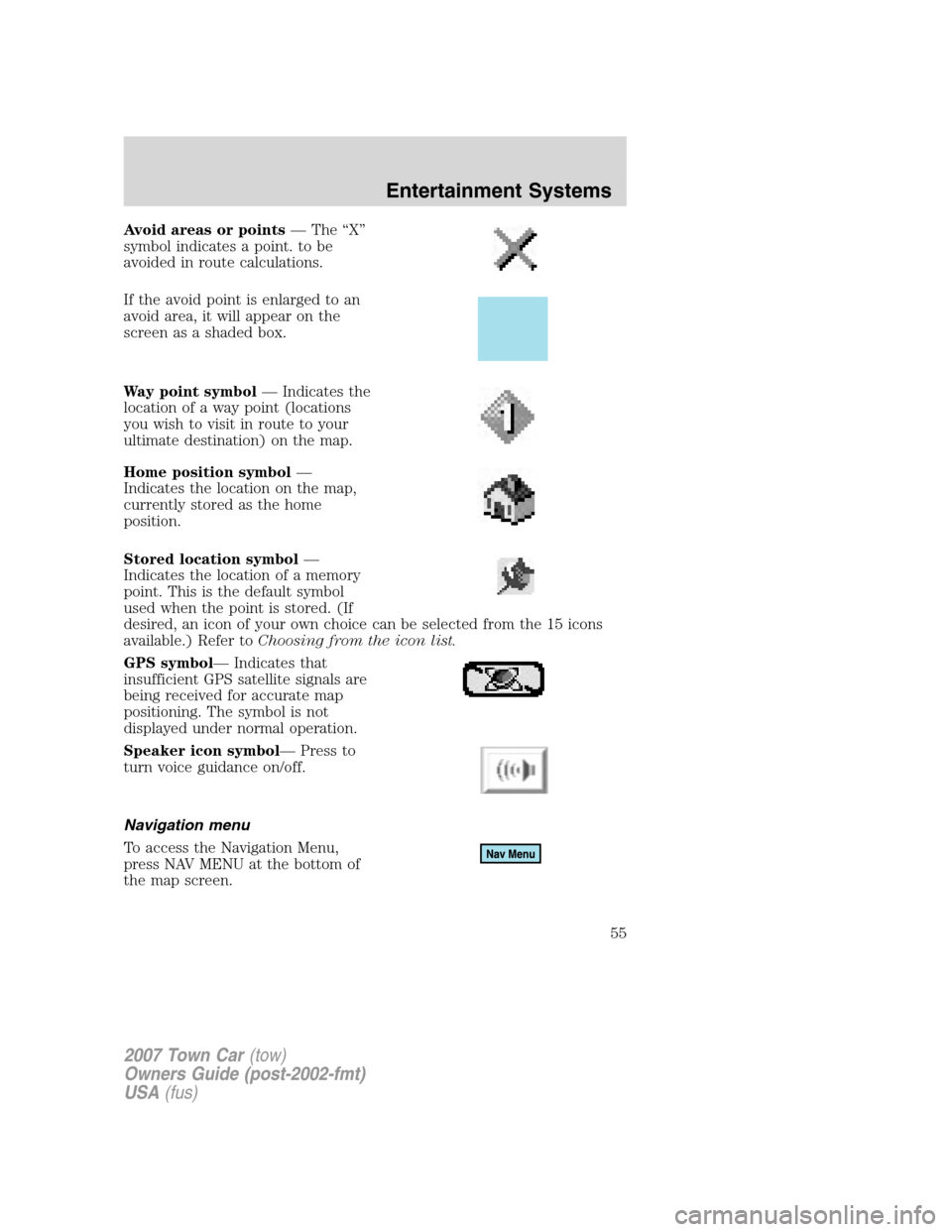
Avoid areas or points— The “X”
symbol indicates a point. to be
avoided in route calculations.
If the avoid point is enlarged to an
avoid area, it will appear on the
screen as a shaded box.
Way point symbol— Indicates the
location of a way point (locations
you wish to visit in route to your
ultimate destination) on the map.
Home position symbol—
Indicates the location on the map,
currently stored as the home
position.
Stored location symbol—
Indicates the location of a memory
point. This is the default symbol
used when the point is stored. (If
desired, an icon of your own choice can be selected from the 15 icons
available.) Refer toChoosing from the icon list.
GPS symbol— Indicates that
insufficient GPS satellite signals are
being received for accurate map
positioning. The symbol is not
displayed under normal operation.
Speaker icon symbol— Press to
turn voice guidance on/off.
Navigation menu
To access the Navigation Menu,
press NAV MENU at the bottom of
the map screen.
2007 Town Car(tow)
Owners Guide (post-2002-fmt)
USA(fus)
Entertainment Systems
55
Page 56 of 328
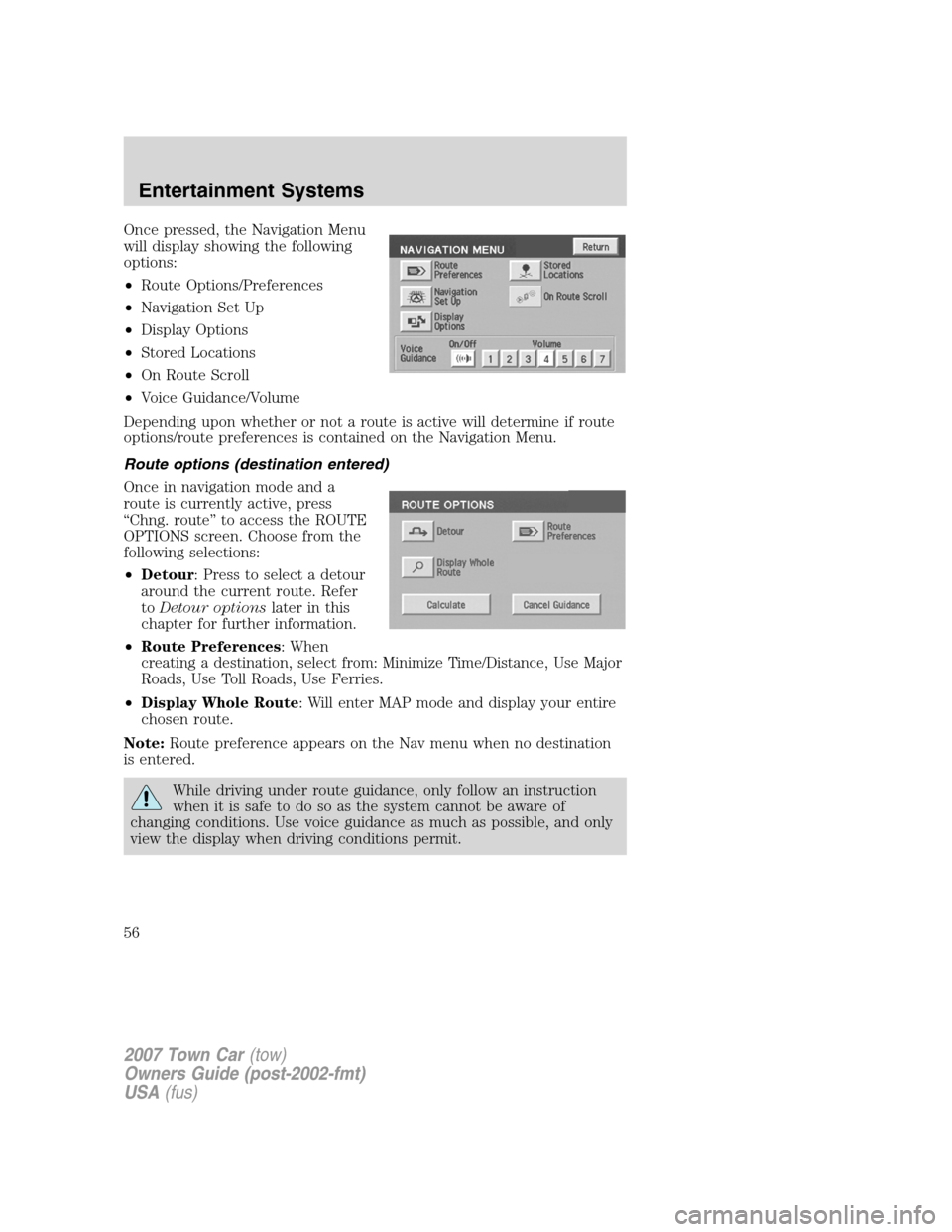
Once pressed, the Navigation Menu
will display showing the following
options:
•Route Options/Preferences
•Navigation Set Up
•Display Options
•Stored Locations
•On Route Scroll
•Voice Guidance/Volume
Depending upon whether or not a route is active will determine if route
options/route preferences is contained on the Navigation Menu.
Route options (destination entered)
Once in navigation mode and a
route is currently active, press
“Chng. route” to access the ROUTE
OPTIONS screen. Choose from the
following selections:
•Detour: Press to select a detour
around the current route. Refer
toDetour optionslater in this
chapter for further information.
•Route Preferences: When
creating a destination, select from: Minimize Time/Distance, Use Major
Roads, Use Toll Roads, Use Ferries.
•Display Whole Route: Will enter MAP mode and display your entire
chosen route.
Note:Route preference appears on the Nav menu when no destination
is entered.
While driving under route guidance, only follow an instruction
when it is safe to do so as the system cannot be aware of
changing conditions. Use voice guidance as much as possible, and only
view the display when driving conditions permit.
2007 Town Car(tow)
Owners Guide (post-2002-fmt)
USA(fus)
Entertainment Systems
56