2007 KIA Sorento radio
[x] Cancel search: radioPage 116 of 325

3 107
Knowing your vehicle
5. AM, FM, FM1, FM2, CD buttonsModel D446: AM, FM1, FM2, CD
Model D465: AM, FM, CD
Use the input source selector buttons to
select/switch operation modes. Press the
AMband selector button, FM/FM1/FM2
band selector button(s) or CD or button
to resume operation in the corresponding
mode.
Pressing any of these buttons automati-
cally switches the audio system on.
The LCD screen displays either the radio
frequency you are tuned into or the track
currently played back.✽ ✽ NOTICE• Remember that station Presets (1-6)
stored in FM1 mode can only be
accessed in FM1 mode. Similarly,
FM2 presets can only be accessed in
FM2 mode.
• For Model D465: Press the FM band selector button
repeatedly to switch between the FM1
and FM2 modes.
6. Sound equalizer and digital signal
processing Both Model D446 and Model D465: EQ
button
EQ button:
Press the EQ button repeatedly to select
the sound equalizer setting you want.
The 6 settings are: ROCK, POP, JAZZ,
CLASSIC, TALK and equalizer off. If no
icon is displayed in the LCD screen, the
equalizer is switched off.
The 5 preset equalizer settings have
been optimized for the 5 common genres
of music. For example, the ROCKsetting
enhances bass reproduction with rock
music whereas the CLASSIC setting
enhances the clarity of string instruments
during audio reproduction of classical
music. You may want to experiment with
the different settings to confirm your per-
sonal preferences.
✽ ✽ NOTICEIf you store a station Preset (1~6) with a
specific equalizer setting, that setting is
automatically used across other stations
preset.
Page 117 of 325
Knowing your vehicle108
3
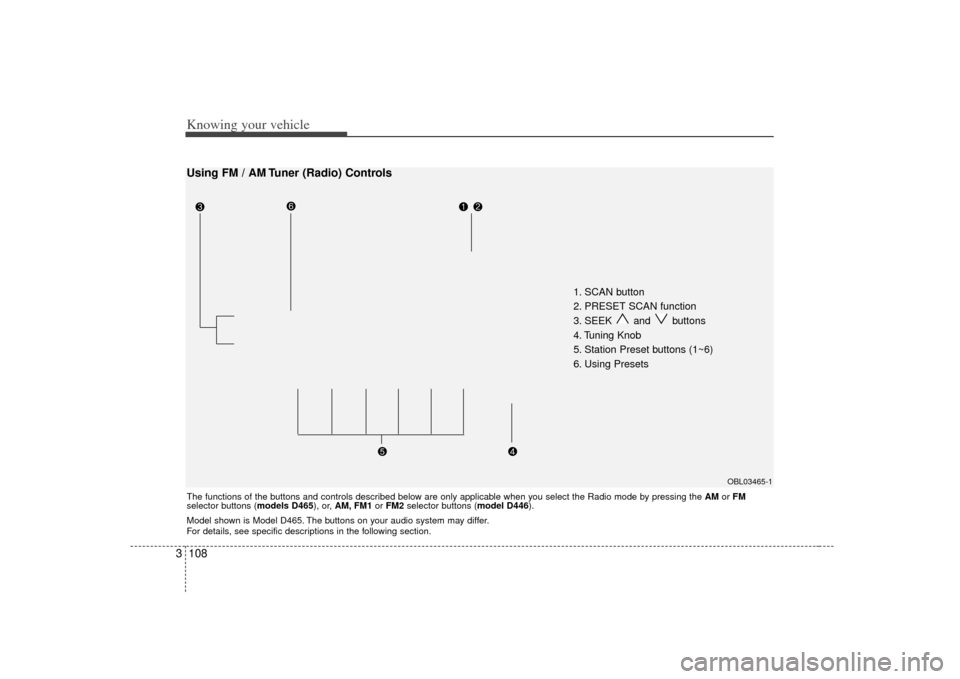
1. SCAN button
2. PRESET SCAN function
3. SEEK and buttons
4. Tuning Knob
5. Station Preset buttons (1~6)
6. Using Presets
OBL03465-1
Using FM / AM Tuner (Radio) ControlsThe functions of the buttons and controls described below are only applicable when you select the Radio mode by pressing the AMor FM
selector buttons (models D465), or, AM, FM1 or FM2 selector buttons (model D446).
Model shown is Model D465. The buttons on your audio system may differ.
For details, see specific descriptions in the following section.
Page 118 of 325
3 109
Knowing your vehicle
1. SCAN buttonFrequency band scan function
Press the SCANbutton for the tuner to
scan for radio signals in the selected fre-
quency band (AM or FM). Once the tuner
locks onto the signal of a transmitting
station, it plays that station for 5 seconds
before scanning for the next available
station in the selected frequency band.
If you want to keep listening to a particu-
lar station and want to stop the scanning,
press the SCAN button again.
This function is useful for providing you
with a good overview of all the radio sta-
tions within range of your tuner.2. PRESET SCAN functionPress and hold the SCAN button for
more than 2 seconds. Each preset radio
stations will be automatically played for 5
seconds. If you want to keep listening to
a particular preset station and want to
stop the scanning, press the SCAN but-
ton again.
3. SEEK and buttonsAutomatic Channel Selection function
Press the and buttons to scan up
and down the frequency range for the
next available radio station and automat-
ically lock on to that frequency.
The LCD screen displays the frequency
of the radio station transmitting a clear
and strong signal.
Use this function to search for a radio
station you want. If you like a particular
station, you can store it as one of 6
Presets using the Preset buttons below.✽ ✽
NOTICEThis function is not effective if you are
experiencing poor reception in your
vicinity.
4. Tuning KnobManual Channel Selection
Rotate the knob clockwise or counter-
clockwise to manually advance up or
down the frequency range. The tuning
knob also gives you fine-grain control
which you can use to manually fine-tune
your frequency selection. This is useful if
you are searching for a radio signal
which is not strong enough for you to use
the Automatic Channel Selection func-
tion✽ ✽NOTICEThe speed at which you advance up or
down the frequency range depends on
how fast you turn the knob.
Page 119 of 325

Knowing your vehicle110
35. Station Preset buttons (1~6) There are 6 Station Preset buttons which
you can use to store the frequencies of
your 6 favorite radio stations. Saving a
station as a preset gives you one-touch
access to the station you want.
Remember that the 6 presets stations
you store are for the specific radio band
mode you are in. That means that you
can store up to 6 stations in AM mode, 6
in FM1 mode, and 6 in FM2 mode. This
means that you can store up to 18 of your
favorite stations in the preset memory.✽ ✽
NOTICE• To switch between FM1 and FM2
mode:
Use the FM1 and FM2 buttons (for
Model D446)
Press the FM button to switch
between FM1 and FM2 modes (For
Model D465)
• Remember that if you store a station as preset 1 in FM2 mode, you must
first select FM2 mode before you can
use that preset button.
• This function is not effective if you are experiencing poor reception in your
vicinity.
6. Using PresetsTo save a radio station as a preset:
1. Take note of the band selection dis-
played on the LCD screen (AM, FM1 or
FM2)
2. Tune in to the radio station you want using either the SEEK UP and DOWN
buttons or the Tuning Knob.
3. Choose the Preset button (1~6) you want to use to store the radio station.
4. Press and hold the Preset button for more than 2 seconds.
The system beeps to indicate that it
has saved the new station and displays
the frequency and preset number on
the LCD screen.✽ ✽ NOTICESaving a new station erases the previous
setting saved in that preset.
To tune in to a preset station:
1. Select the band (AM, FM1 or FM2) you
want using the band selector buttons.
2. Press the preset button corresponding to the radio station you want.
The system automatically jumps to the
preset station. The frequency and pre-
set number is displayed on the LCD
screen.
Buttons not in use in Radio mode:
The following buttons and functions are
not used in Radio mode.
• REW button
FF button
RPT button
RDM button
MARK button
NFO button
Page 123 of 325
Knowing your vehicle114
3Model D465
You can load one or more CDs (maxi-
mum of 6) into the CD changer through
the CD loading slot. To do so:
1. Press the Load button to load 1 CD.
The LCD screen displays the number
assigned to the CD as a flashing num-
ber. For example, if the CD changer
currently contains 4 CDs, the loaded
disc will be CD 5.
OR
Press and hold the Load button for
more than 2 seconds to load more than
1 CD.
The LCD screen displays empty slots
in the CD changer as flashing num-
bers.
2. The LCD screen displays the instruc- tions for loading one or more CDs.
Follow the instructions - Wait, Insert
CD1, Loading CD 1, Reading CD1,…
Reading CD6.
3. Once you have finished loading the CD or CDs, the CD player automatically
plays the first track of the last CD
loaded.
If the audio system was in Radio mode
while you were loading the CDs, it
automatically switches to CD player
mode.
✽ ✽ NOTICEThe LCD screen displays Changer Full
to indicate that the CD changer is full.
Do not try to load any other disc.2. Ejecting CDsModel D446
Press the CD EJECT ( ) button to
eject the CD in the CD player.
Model D465
Press the button once to eject the
last CD played.
Press and hold button for more than
2 seconds to eject all the CDs in the
changer in sequence beginning with the
last CD played.✽ ✽NOTICEYou can eject discs without switching on
the audio system using the Power ON-
OFF knob.
To eject 1 CD:
Press the EJECT button once.
If you are playing a CD, playback will
automatically switch to the next available
CD.
The LCD screen displays the number of
the CD ejected as a flashing number.
If there are no other disc left in the CD
changer, the audio system automatically
switches to Radio mode and resumes
with the last channel or frequency select-
ed.
OR
If the audio system is in Radio mode, the
last CD played will be ejected.
The LCD screen displays the number of
the CD ejected as a flashing number.
To eject all CDs:
Press and hold the EJECT button for
more than 2 seconds to eject all the CDs
in the CD changer.
The LCD screen displays the CDs being
ejected in the CD changer as flashing
numbers. The CDs are ejected in
sequence. Follow the instructions dis-
played on the LCD screen to remove all
CDs from the changer.
Page 124 of 325

3 115
Knowing your vehicle
✽
✽NOTICEIf the audio system is in Radio mode,
you can eject CDs without interrupting
the operation of the radio. 3. Selecting a disc to playModel D446
Only the CD loaded in the player can be
played.
Model D465
You can select any disc loaded in the CD
changer for playback.
To do so:
Press the corresponding CD selector
button (1~6).
The CD changer automatically loads the
selected CD and begins playback of the
first track.
The LCD screen displays the selected
CD as a flashing number.
4. Selecting and playing tracks
(songs)To select tracks, you can use one of 3
methods:
Method 1:
Press the Track Up or Track Down but-
ton repeatedly until you find the track you
want.
Method 2:
Rotate the File Search knob to scroll to
the track you want. The number counter
in the LCD screen shows you the track
number.
Press the File Search knob to ENTER
your selection and begin playback. Method 3 (only for MP3 and WMA
CDs):
Press the DIR Up
or Down buttons
repeatedly to switch to the directory you
want on the CD.
The LCD screen displays the name of
the directory you have switched to.
Rotate the File Search knob to scroll to
the track you want in the selected direc-
tory. The number counter in the LCD
screen shows you the track number.
Press the File Search knob to ENTER
your selection and begin playback.
Page 127 of 325
Knowing your vehicle118
3Using External Controls1. The Dimmer control
The Dimmer control setting determines
the brightness of the entire vehicle's dis-
plays.
Turn the scroll wheel up or down to
increase or decrease the brightness of
the vehicle's instrument panels, backlit
displays and the audio system's LCD
screen and backlit controls.
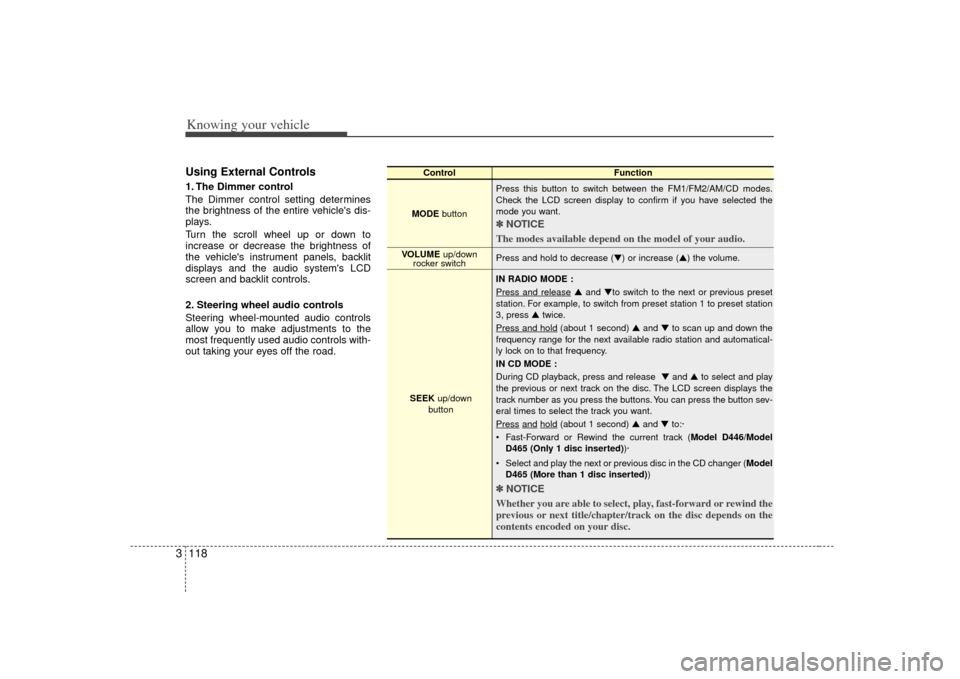
2. Steering wheel audio controls
Steering wheel-mounted audio controls
allow you to make adjustments to the
most frequently used audio controls with-
out taking your eyes off the road.
Control Function
MODE button Press this button to switch between the FM1/FM2/AM/CD modes.
Check the LCD screen display to confirm if you have selected the
mode you want.
✽ ✽
NOTICE
The modes available depend on the model of your audio. Press and hold to decrease (▼) or increase (▲) the volume.
IN RADIO MODE :
Press and release
▲ and ▼to switch to the next or previous preset
station. For example, to switch from preset station 1 to preset station
3, press ▲ twice.
Press and hold
(about 1 second) ▲ and ▼to scan up and down the
frequency range for the next available radio station and automatical-
ly lock on to that frequency.
IN CD MODE :
During CD playback, press and release ▼ and ▲to select and play
the previous or next track on the disc. The LCD screen displays the
track number as you press the buttons. You can press the button sev-
eral times to select the track you want.
Press
and
hold
(about 1 second) ▲ and ▼to:·
Fast-Forward or Rewind the current track ( Model D446/Model
D465 (Only 1 disc inserted) )·
Select and play the next or previous disc in the CD changer (Model D465 (More than 1 disc inserted) )
✽ ✽
NOTICE
Whether you are able to select, play, fast-forward or rewind the
previous or next title/chapter/track on the disc depends on the
contents encoded on your disc.
VOLUME up/down
rocker switch
SEEK up/down
button
Page 128 of 325
3 119
Knowing your vehicle
Troubleshooting Poor Radio
ReceptionProblem:
Fading Signals / Interference /
Increased interference/ Static
FM Broadcasts - The further you move
away from the radio station's transmitting
source (normally within a city or town),
the weaker the signal will be. You might
experience abrupt breaks in transmis-
sion, garbled sound and also static even
though your radio remains tuned to the
same frequency.
AM Broadcasts - Even though AM radio
signals travel further and stronger than
FM radio signals, weather or terrain con-
ditions might adversely affect your radio's
ability to receive the signals.
Solution:
Use your audio system's Scan function to
automatically search for and select
another radio station with good signal
strength. Problem:
High-pitched static, distortion or a
'fluttering' sound (Multi-Path
Cancellation)
Radio stations transmitting on frequen-
cies that are very close to each other
may cause distortion or 'fluttering'. This
effect is known as Multi-Path
Cancellation. This normally occurs when
your tuner is receiving a station's trans-
mission as both direct and 'reflected'
radio signals or when your tuner receives
signals from more than 1 radio station
transmitting on frequencies that are very
close to each other.
Solution:
If the problem is caused by a temporary
deterioration in the signal strength of one
station's transmission, reduce the levels
of your audio system's Treble and Middle
settings to suppress the sound. If the
problem is caused by interference from
another station, select another radio sta-
tion with good and clear signal strength.
Problem:
Interference from another FM radio
broadcast ('station-swapping')
FM radio stations transmit on frequen-
cies that are very close to each other on
the FM band. When you travel further
and further away from a transmitting
source, the signal strength of that trans-
mission decreases. Your radio's ability to
'lock' on to that specific frequency is
affected. This is because your radio is
designed to lock on to the strongest sig-
nal it can detect. Therefore, another radio
station broadcasting on a frequency very
close to your original station could 'inter-
fere' with your reception and you might
start to hear the broadcast of the second
station. You will normally experience this
when you are moving away from a weak
signal and towards a stronger one.