Page 245 of 441
4163
Features of your vehicle
1. XM Selector
2. LCD (Liquid Crystal Display)
3. SCAN Button
4. Information Button
5. Channel Move (Seek Up/Down) Button
6. Preset Memory Button
7. Category Search (Fast Up/Down) Button
8. Channel Search Control and Selector
EN M466XMRSE
XM (Satellite radio) operation (M466 RSE)■ M466s RSE
EN hma 4-121~(Audio).qxd 11/28/2006 3:10 PM Page 163
procarmanuals.com
Page 246 of 441

Features of your vehicle164 41. XM Selector The XM selector will turn to each mode
in the following order each time you
press the button.
- XM1 XM2 XM3
When you press this button when you
are listening to CD or RADIO, the sys-
tem will automatically turn to XM
mode.
When the ignition switch is set to ACC
(1st notch) or ON (2nd notch) and
when you press this button, XM will be
on even when the audio system was
turned off.2. LCD (Liquid Crystal Display)It displays the XM1, XM2, XM3, Preset
Number, Title of the Channel Received,
EQ Mode (CLASSIC, POP, ROCK,
JAZZ), and SCAN Status when listening
to XM.
3. SCAN ButtonWhen you press this button, the player
will play 10 seconds of each channel
(LCD will display "SCAN"). Press it again
to cancel scanning. Also, press and this
button for more than 0.8 seconds to play
the channels memorized to the preset
buttons for 10 seconds each. (LCD will
display "corresponding channel number",
"
", and "SCAN".) Press it again to
cancel scanning.4. Information ButtonYou can see the information of the chan-
nel currently received and you can switch
to different information by pressing this
button in the following order.
- Title Name Category Current
State
5. Channel Move (Seek Up/Down)
Button When you press this button, the chan-
nel will move automatically and stop at
the next available channel and play the
channel. The display will cycle once
through the Channel, Title, Name and
Category for selected channel.
(Press [ ] to move to the higher fre-
quencies, press [ ] to the lower fre-
quencies automatically.)
Press and hold either the down or up at
a fast rate. The display will show the
Channel Name and Number while tun-
ing at the fast rate.
Radio ID :Seek or tune to XM channel
0 to display the Radio ID.
EN hma 4-121~(Audio).qxd 11/28/2006 3:10 PM Page 164
procarmanuals.com
Page 247 of 441

4165
Features of your vehicle
6. Preset Memory ButtonPress this button and hold for less than
0.8 seconds to listen to the channel
memorized to the button. Also, when you
are listening to the channel other than
the channel memorized to the button
using TUNE or SEEK, press the button
you wish to memorize current channel to
and hold for more than 0.8 seconds until
it beeps to memorize the channel.7. Category Search ButtonPress this button to search another cate-
gory while listening to current channel
(LCD will display "CAT"). (Press [ ] to
search in the higher categories and [ ],
lower categories. Press 8 when you want
to choose the category you want and the
system will receive the channel on the
top of the list in the selected category.)
8. Channel Search Control and
SelectorWhile listening to an XM broadcast,
rotate this control to the right or left to
search other channels while listening to
current channel. (Turn to the right to
search higher channels and left, lower
channels. When you find the channel you
want, press the button to select the
channel.)✽ ✽
NOTICERotate this control to the right or left
during category search, the LCD will
display "" and press this button to
select the channel you want within the
category you want.
EN hma 4-121~(Audio).qxd 11/28/2006 3:10 PM Page 165
procarmanuals.com
Page 248 of 441

Features of your vehicle166 4D320000AENImportant Safety InformationIt is always important to operate your
vehicle in a safe manner and to avoid dis-
traction while driving. This manual pro-
vides information that will help you safely
operate your Rear Seat Entertainment
System (RSE). Please read it completely
before using the system.
This device complies with part 15 of
the FCC rules.
Operation is subject to the following two
conditions:
1. This device may not cause harmful
interference, and
2. This device must accept any interfer-
ence received, including interference
that may cause undesired operation.
WelcomeThe Rear Seat Entertainment System is
a compact, built-in, easy-to-use enter-
tainment system designed to provide
family fun while you are on the road.
Enjoy great quality sound from the vehi-
cle speakers, or have a private, quiet lis-
tening with the wireless headphones.
The overhead display unit is mounted to
the ceiling in the rear passenger area of
the vehicle, allowing rear-seat passen-
gers to play DVD movies, video CDs or
music CDs. Users may also plug in a
game platform or VHS player into an aux-
iliary input to show the programs through
the RSE display. The RSE can also
access to the vehicle's front radio pro-
grams.
System OverviewConnections / SetupYour Rear Seat Entertainment system
will play DVD movies, video CDs, music
CDs or music MP3 discs and Mix CD
(Regarding Mix CD, only the CD track
can be played by system.), and is
designed to make your time on the road
more enjoyable. Please follow these
instructions carefully to get the most out
of your RSE.
REAR SEAT ENTERTAINMENT SYSTEM (RSE) (IF EQUIPPED)
CAUTION
Avoid having food or drinks near,
in or on the RSE, the wireless
headphones or the remote con-
troller.
Direct sunlight may interfere with
the headphone's operation and
performance.
Normal RSE operation cannot be
guaranteed with unofficially
duplicated discs.
(Continued)
WARNING
Changes or modifications not
expressly approved by the party
responsible for compliance could
void the user's authority to operate
the equipment.
EN hma 4-121~(Audio).qxd 11/28/2006 3:10 PM Page 166
procarmanuals.com
Page 249 of 441
4167
Features of your vehicle
✽ ✽
NOTICEThe RSE requires a few seconds of set
up time after the ignition switch is
turned ON or to ACC mode.
Your RSE system is already set up and
ready for use, and can be turned on by
pushing the POWER/VOLUMEknob on
the RSE control panel or the POWER
ON/OFFbutton on the remote
controller. The vehicle's ignition must be
turned on or in accessory power mode.
The RSE system can also be turned OFF
by the Audio Unit.
ComponentsYour RSE consists of several compo-
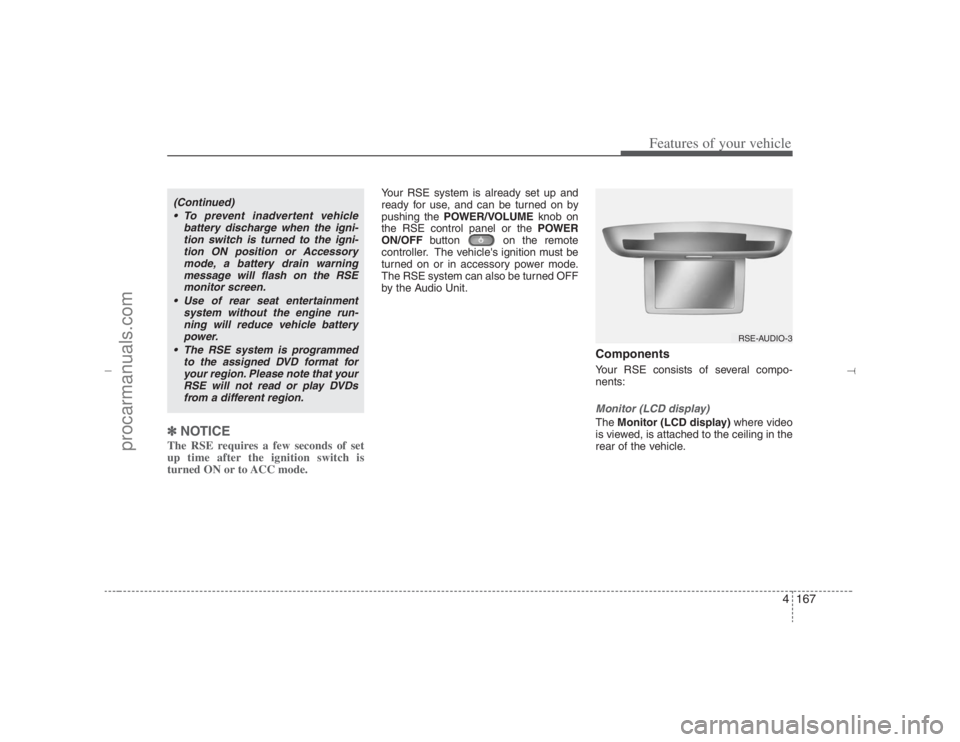
nents:Monitor (LCD display)The Monitor (LCD display)where video
is viewed, is attached to the ceiling in the
rear of the vehicle.
(Continued)
To prevent inadvertent vehicle
battery discharge when the igni-
tion switch is turned to the igni-
tion ON position or Accessory
mode, a battery drain warning
message will flash on the RSE
monitor screen.
Use of rear seat entertainment
system without the engine run-
ning will reduce vehicle battery
power.
The RSE system is programmed
to the assigned DVD format for
your region. Please note that your
RSE will not read or play DVDs
from a different region.
RSE-AUDIO-3
EN hma 4-121~(Audio).qxd 11/28/2006 3:10 PM Page 167
procarmanuals.com
Page 250 of 441
Features of your vehicle168 4RSE Control PanelThe RSE Control Panel, which includes
a digital display and the RSE control but-
tons, is located in the rear of the armrest
console between the front seats.
DVD PlayerThe DVD Player, where CDs, DVDs and
other discs are inserted, is located below
the RSE control panel located in the rear
of the armrest console between the front
seats.
Wireless headphonesThe Wireless headphonesallows you
to hear the audio from the RSE without
disturbing other passengers. Two sets,
with batteries, are provided.
RSE-AUDIO-4
RSE-AUDIO-5
RSE-AUDIO-6
EN hma 4-121~(Audio).qxd 11/28/2006 3:10 PM Page 168
procarmanuals.com
Page 251 of 441
4169
Features of your vehicle
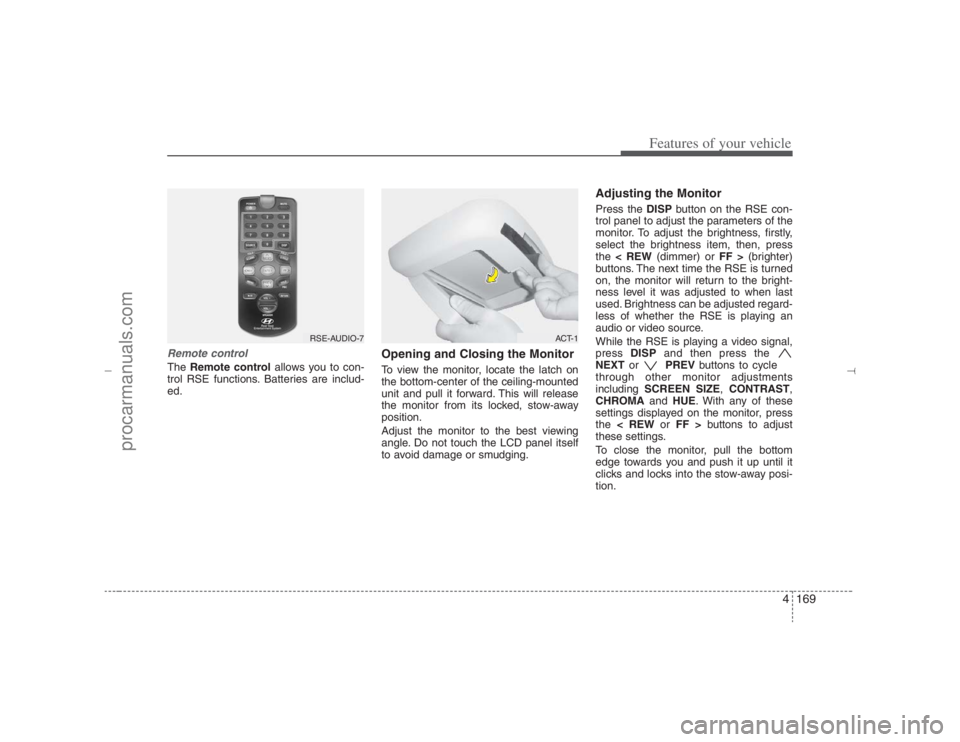
Remote controlThe Remote controlallows you to con-
trol RSE functions. Batteries are includ-
ed.
Opening and Closing the MonitorTo view the monitor, locate the latch on
the bottom-center of the ceiling-mounted
unit and pull it forward. This will release
the monitor from its locked, stow-away
position.
Adjust the monitor to the best viewing
angle. Do not touch the LCD panel itself
to avoid damage or smudging.
Adjusting the MonitorPress the DISPbutton on the RSE con-
trol panel to adjust the parameters of the
monitor. To adjust the brightness, firstly,
select the brightness item, then, press
the < REW(dimmer) or FF >(brighter)
buttons. The next time the RSE is turned
on, the monitor will return to the bright-
ness level it was adjusted to when last
used. Brightness can be adjusted regard-
less of whether the RSE is playing an
audio or video source.
While the RSE is playing a video signal,
press DISPand then press the
NEXTor PREVbuttons to cycle
through other monitor adjustments
including SCREEN SIZE,CONTRAST,
CHROMAand HUE. With any of these
settings displayed on the monitor, press
the < REWor FF >buttons to adjust
these settings.
To close the monitor, pull the bottom
edge towards you and push it up until it
clicks and locks into the stow-away posi-
tion.
RSE-AUDIO-7
ACT-1
EN hma 4-121~(Audio).qxd 11/28/2006 3:10 PM Page 169
procarmanuals.com
Page 252 of 441
Features of your vehicle170 4Cleaning the DisplayIf the LCD display becomes dusty or
dirty, clean it by wiping gently with a soft,
dry, clean cloth. Do not use chemical
cleanser to clean the screen.Loading a DiscTo load a disc in the player, insert it part
way into the loading slot. The player will
automatically grip the disc and pull it the
rest of the way in.Disc ProtectionThe player has an Auto-Reload Disc
Protection feature to protect discs from
accidental damage. If a disc is not
removed within 12 seconds after being
ejected, it will be pulled back into the
player.
Audio via Vehicle SpeakersTo hear the audio from the RSE through
the vehicle's speakers, the RSE button
(located in the front radio control) must
be selected. Regardless of whether RSE
audio is selected for the vehicle speakers
or not, when the RSE audio is playing it
can be heard in the headphones.Volume ControlYou can adjust the volume of the audio
heard in the vehicle speakers from the
RSE control panel or the remote control.
From the RSE control panel, rotate the
POWER/VOLUMEknob. From the
remote control, press "VOL +" to
increase the volume and "VOL -" to
decrease the volume.
Adjusting the volume in this way will not
affect the wireless headphone volume. To
adjust the headphones, turn the VOL
control wheel on the headphones.
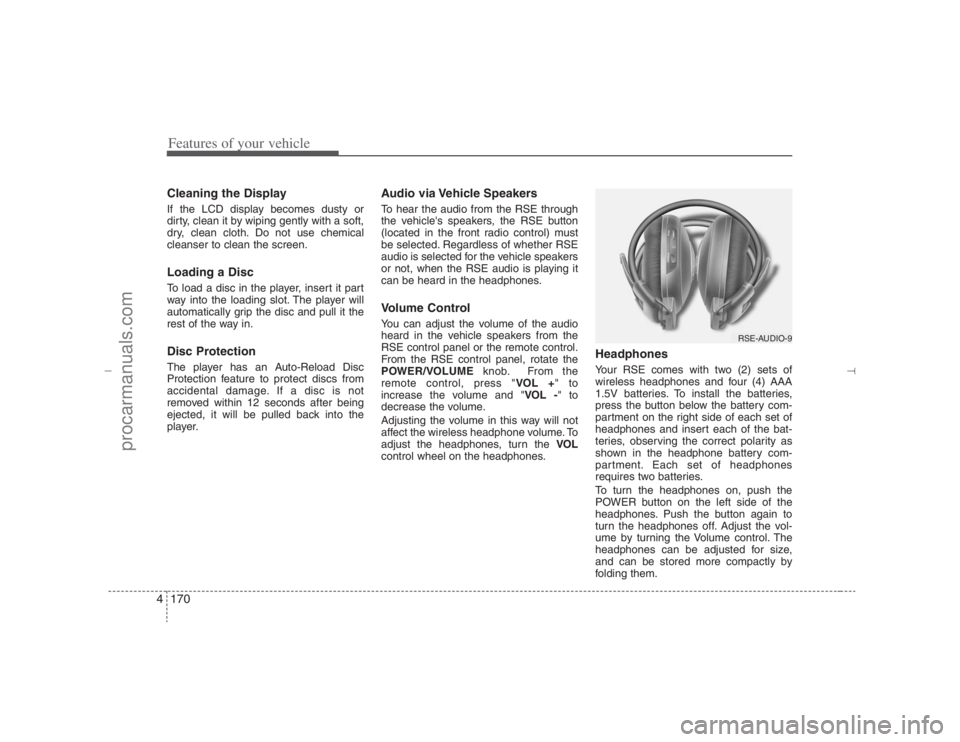
HeadphonesYour RSE comes with two (2) sets of
wireless headphones and four (4) AAA
1.5V batteries. To install the batteries,
press the button below the battery com-
partment on the right side of each set of
headphones and insert each of the bat-
teries, observing the correct polarity as
shown in the headphone battery com-
partment. Each set of headphones
requires two batteries.
To turn the headphones on, push the
POWER button on the left side of the
headphones. Push the button again to
turn the headphones off. Adjust the vol-
ume by turning the Volume control. The
headphones can be adjusted for size,
and can be stored more compactly by
folding them.
RSE-AUDIO-9
EN hma 4-121~(Audio).qxd 11/28/2006 3:10 PM Page 170
procarmanuals.com

