2007 FORD FREESTYLE light
[x] Cancel search: lightPage 17 of 296
2.Phone/mute:Press to mute the
playing media. Press again to return
to the playing media.
3.Menu:Press to toggle through
the following modes:
CATEGORY(Satellite Radio if equipped): Press MENU until the
currently active category appears in the display (CATEGORY MODE). In
CATEGORY MODE, press
/to scroll through the list of available
Sirius channel Categories (Pop, Rock, News, etc.) Press
SEEKor
SCAN to select the category. After a category is selected, press SEEK to
search for that specific category of channels only (i.e. ROCK). To select
a different category, press MENU until the category appears in the
display. Press
/to select a different category. You may also select
CATEGORY ALL to seek all available Sirius categories and channels.
Satellite radio is available only with a valid SIRIUS subscription.
Check with your authorized dealer for availability.
Autoset:Allows you to set the strongest local radio stations without
losing your original manually set preset stations for AM/FM1/FM2 . Press
MENU to access. Use
//SEEKto set.
When the six strongest stations are filled, the station stored in preset 1
will begin playing. If there are less than six strong stations, the system
will store the last one in the remaining presets.
Bass:Press to adjust the bass setting. Use
//SEEK.
Treble:Press to adjust the treble setting. Use
//SEEK.
Balance:Press to adjust the audio between the left and right speakers.
Use
//SEEK.
Fade:Press to adjust the audio between the front and rear speakers.
Use
//SEEK.
Speed sensitive volume (if equipped):Radio volume automatically
changes slightly with vehicle speed to compensate for road and wind
noise. Press MENU to access and use
//SEEKto adjust.
The recommended level is 1–3. Level 0 turns the feature off and level 7
is the maximum setting.
2007 Freestyle(219)
Owners Guide (post-2002-fmt)
USA(fus)
Entertainment Systems
17
Page 23 of 296
Speed sensitive volume:Radio volume automatically changes slightly
with vehicle speed to compensate for road and wind noise.
Use
//SEEKto adjust. Recommended level is 1–3. Level 0
turns the feature off and level 7 is the maximum setting.
Setting the clock:Press until SELECT HOUR or SELECT MINS is
displayed. Press
//SEEKto adjust the hours/minutes.
RDS(Available on Audiophile radios only): Allows you to search
RDS-equipped stations for a certain category of music format: Classic,
Country, Info, Jazz/RB, Religious, Rock, Soft, Top 40. RDS (only available
in FM mode) must be activated to access Find and Show functions.
To activate, press and hold MENU until RDS (ON/OFF) appears in the
display. Press MENU repeatedly to scroll through Find, Show and RDS.
Use
//SEEKto toggle RDS ON/OFF. When RDS is Off, you
will not be able to access Find and Show functions.
Find:Allows you to search RDS-equipped stations for the desired music
category. Use
/to find the desired program type, then use
SEEKor SCAN to begin the search.
Show:Allows you to display the name of the radio station or program
type. Use
//SEEKto show type, name or none.
Track/Folder Mode:Available only on MP3 discs in CD mode. In Track
Mode, pressing
SEEKwill scroll through all tracks on the disc.
In Folder mode, pressing
SEEKwill scroll only through tracks
within the selected folder.
Compression:Available only in CD mode, brings soft and loud CD
passages together for a more consistent listening level.
Repeat:Available only in CD mode. Press to repeat the current CD track.
4.Aux:Press to toggle between
FES/DVD and AUX modes. If no
auxiliary sources are available, NO
AUX AUDIO will be displayed. To return to radio mode, press AM/FM.
If equipped with Satellite Radio, press AUX to cycle through SAT1, SAT2
and SAT3 modes.
Satellite radio is available only with a valid SIRIUS subscription.
Check with your authorized dealer for availability.
2007 Freestyle(219)
Owners Guide (post-2002-fmt)
USA(fus)
Entertainment Systems
23
Page 26 of 296
17.CD:Press to enter CD mode. If
a CD is already loaded into the
system, CD play will begin where it
ended last.
18.LOAD:Press to load a CD.
Press LOAD and a memory preset
to load to a specific slot. Press and
hold to autoload up to six CDs.
19.CD eject:Press to eject a CD.
Press and hold to auto eject all CDs
present in the system. If there is no
CD present, the display will read NO CD.
20.CD slot:Insert a CD label side
up.
GENERAL AUDIO INFORMATION
Radio frequencies:
AM and FM frequencies are established by the Federal Communications
Commission (FCC) and the Canadian Radio and Telecommunications
Commission (CRTC). Those frequencies are:
AM: 530, 540–1700, 1710 kHz
FM: 87.7, 87.9–107.7, 107.9 MHz
Radio reception factors:
There are three factors that can affect radio reception:
•Distance/strength: The further you travel from an FM station, the
weaker the signal and the weaker the reception.
•Terrain: Hills, mountains, tall buildings, power lines, electric fences,
traffic lights and thunderstorms can interfere with your reception.
•Station overload: When you pass a broadcast tower, a stronger signal
may overtake a weaker one and play while the weak station frequency
is displayed.
CD/CD player care
Do:
•Handle discs by their edges only. Never touch the playing surface.
•Inspect discs before playing. Clean only with an approved CD cleaner
and wipe from the center out.
2007 Freestyle(219)
Owners Guide (post-2002-fmt)
USA(fus)
Entertainment Systems
26
Page 27 of 296
Don’t:
•Expose discs to direct sunlight or heat sources for extended periods
of time.
•Clean using a circular motion.
CD units are designed to play commercially pressed 4.75 in (12
cm) audio compact discs only. Due to technical incompatibility,
certain recordable and re-recordable compact discs may not
function correctly when used in Ford CD players. Irregular
shaped CDs, CDs with a scratch protection film attached, and CDs
with homemade paper (adhesive) labels should not be inserted
into the CD player. The label may peel and cause the CD to
become jammed. It is recommended that homemade CDs be
identified with permanent felt tip marker rather than adhesive
labels. Ballpoint pens may damage CDs. Please contact your
authorized dealer for further information.
Audio system warranty and service
Refer to theWarranty Guidefor audio system warranty information. If
service is necessary, see your dealer or qualified technician.
Satellite radio information (if equipped)
Satellite radio channels:Satellite radio frequencies are established by
the Federal Communications Commission (FCC). SIRIUS Satellite Radio
broadcasts within a frequency range of 2320.0 MHz-2332.5 MHz. This
frequency range is sub-divided into over 120 channels of music, news,
sports, weather and traffic programming. For a complete set of SIRIUS
Satellite Radio channels, visit www.sirius.com or call SIRIUS at
1–888–539–7474. For a quick reference of the SIRIUS Satellite Radio
channel guide, refer to theSirius Welcome Kit.
Satellite radio reception factors:To receive the satellite signal, your
vehicle has been equipped with a satellite radio antenna located on the
roof of your vehicle. The vehicle roof provides the best location for an
unobstructed, open view of the sky, a requirement of a satellite radio
system. Like AM/FM, there are several factors that can affect satellite
radio reception performance:
•Antenna Obstructions: For optimal reception performance, keep the
antenna clear of snow and ice build-up and keep luggage and other
material as far away from the antenna as possible.
•Terrain: Hills, mountains, tall buildings, bridges, tunnels, freeway
overpasses, parking garages, dense tree foliage and thunderstorms can
interfere with your reception.
2007 Freestyle(219)
Owners Guide (post-2002-fmt)
USA(fus)
Entertainment Systems
27
Page 32 of 296
4.ENTERcontrol
Press to select the function highlighted on the active menu. ENTER may
also be used by some user interactive discs during movie play.
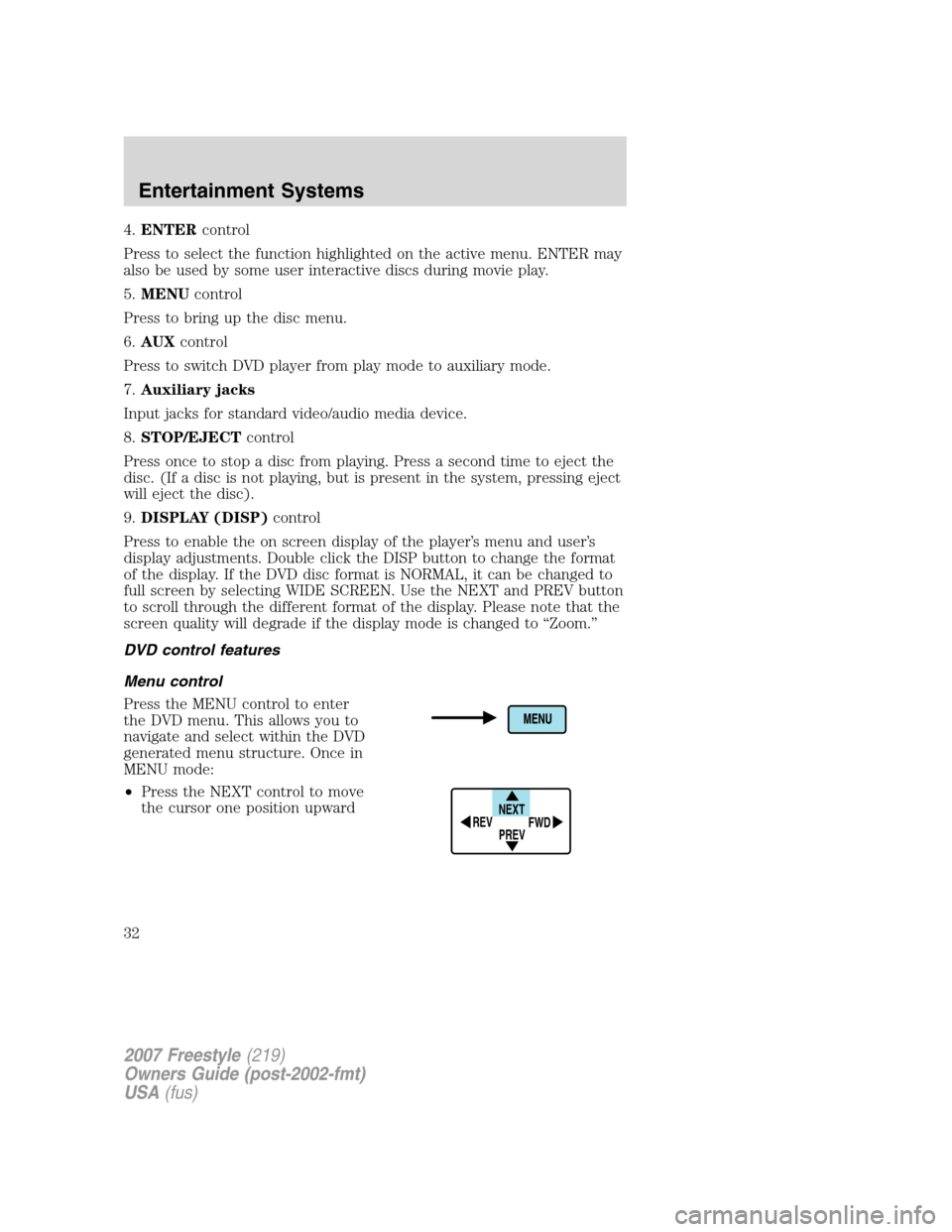
5.MENUcontrol
Press to bring up the disc menu.
6.AUXcontrol
Press to switch DVD player from play mode to auxiliary mode.
7.Auxiliary jacks
Input jacks for standard video/audio media device.
8.STOP/EJECTcontrol
Press once to stop a disc from playing. Press a second time to eject the
disc. (If a disc is not playing, but is present in the system, pressing eject
will eject the disc).
9.DISPLAY (DISP)control
Press to enable the on screen display of the player’s menu and user’s
display adjustments. Double click the DISP button to change the format
of the display. If the DVD disc format is NORMAL, it can be changed to
full screen by selecting WIDE SCREEN. Use the NEXT and PREV button
to scroll through the different format of the display. Please note that the
screen quality will degrade if the display mode is changed to “Zoom.”
DVD control features
Menu control
Press the MENU control to enter
the DVD menu. This allows you to
navigate and select within the DVD
generated menu structure. Once in
MENU mode:
•Press the NEXT control to move
the cursor one position upward
NEXT
PREV REV
FWD
2007 Freestyle(219)
Owners Guide (post-2002-fmt)
USA(fus)
Entertainment Systems
32
Page 33 of 296
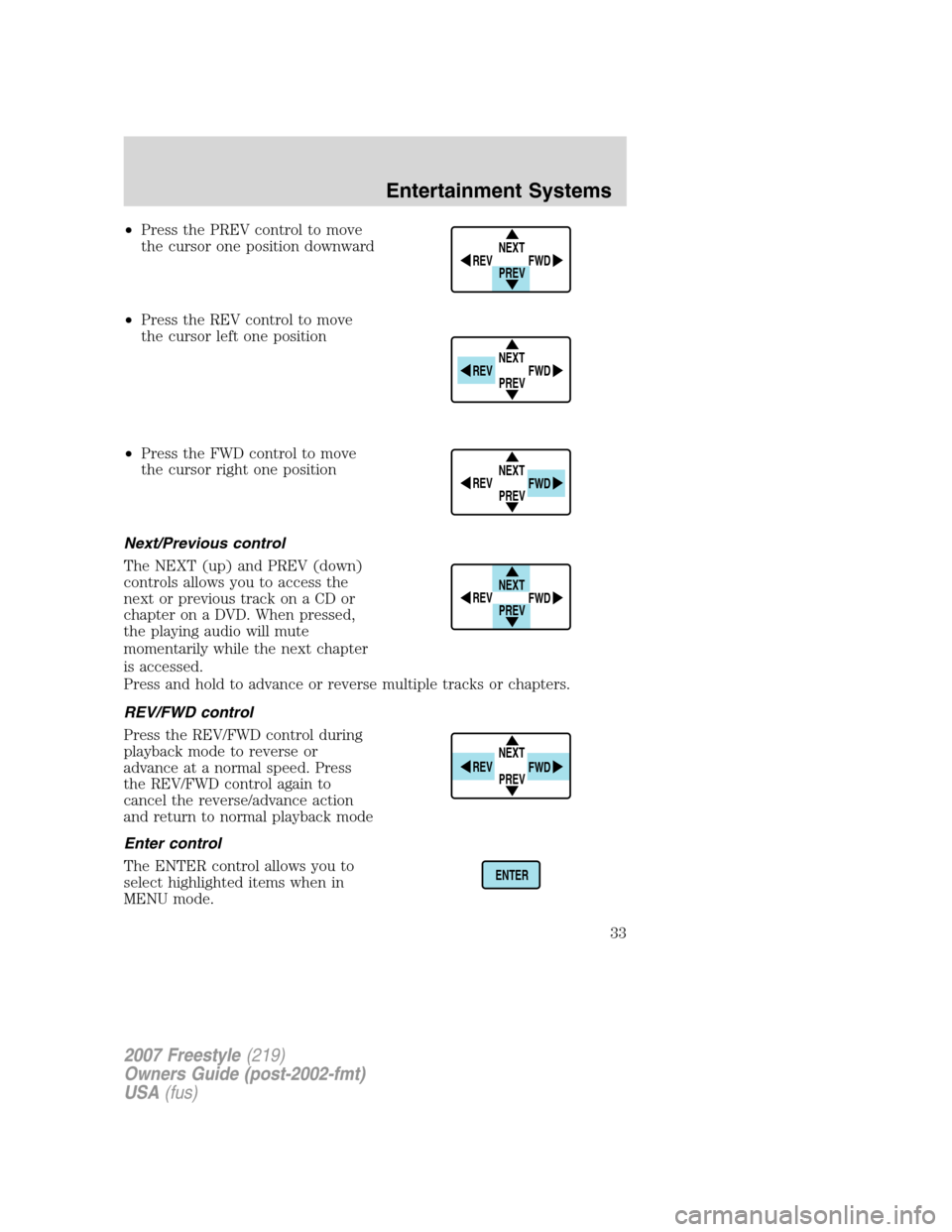
•Press the PREV control to move
the cursor one position downward
•Press the REV control to move
the cursor left one position
•Press the FWD control to move
the cursor right one position
Next/Previous control
The NEXT (up) and PREV (down)
controls allows you to access the
next or previous track on a CD or
chapter on a DVD. When pressed,
the playing audio will mute
momentarily while the next chapter
is accessed.
Press and hold to advance or reverse multiple tracks or chapters.
REV/FWD control
Press the REV/FWD control during
playback mode to reverse or
advance at a normal speed. Press
the REV/FWD control again to
cancel the reverse/advance action
and return to normal playback mode
Enter control
The ENTER control allows you to
select highlighted items when in
MENU mode.
NEXT
PREV REV
FWD
NEXT
PREV REV
FWD
NEXT
PREV REV
FWD
NEXT
PREV REV
FWD
NEXT
PREV REV
FWD
ENTER
2007 Freestyle(219)
Owners Guide (post-2002-fmt)
USA(fus)
Entertainment Systems
33
Page 35 of 296
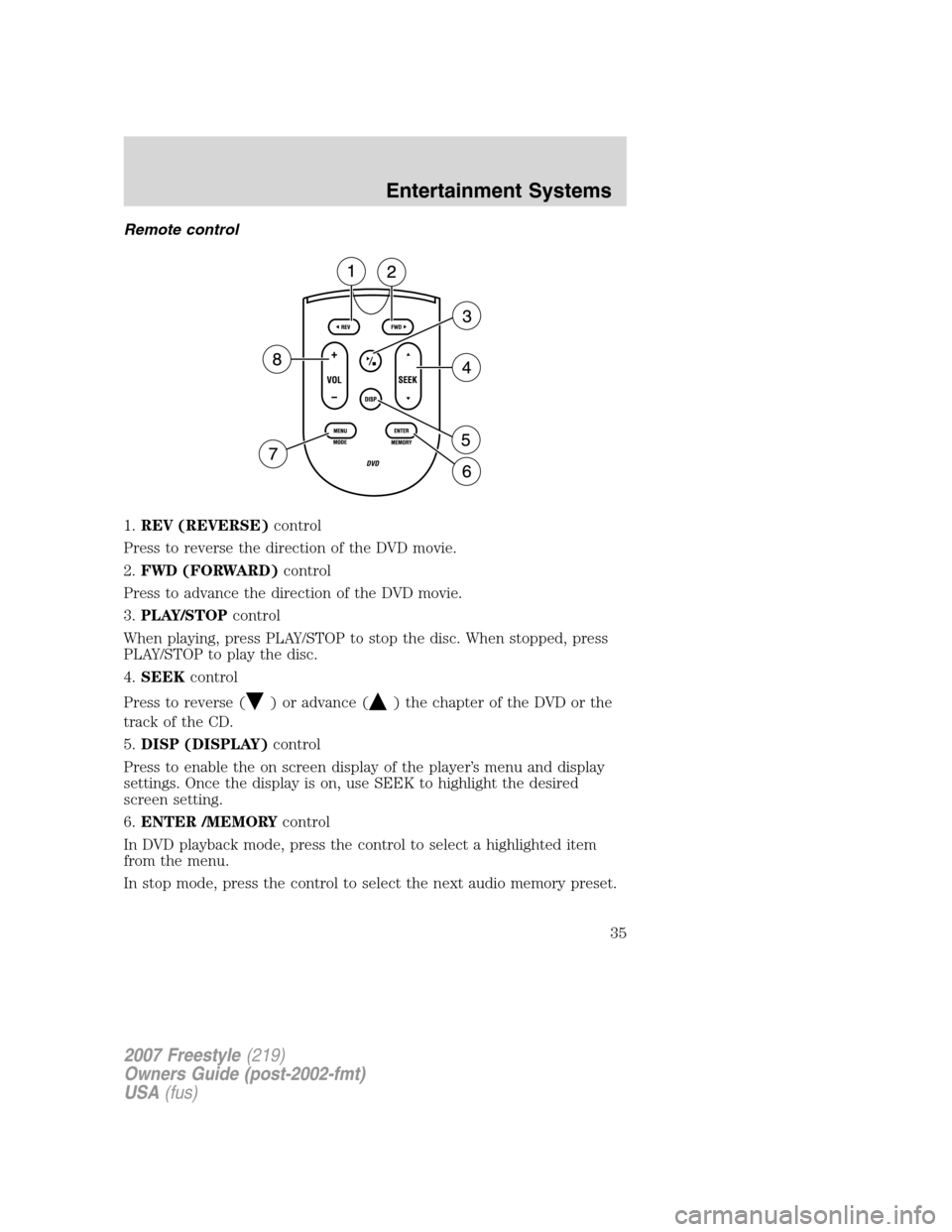
Remote control
1.REV (REVERSE)control
Press to reverse the direction of the DVD movie.
2.FWD (FORWARD)control
Press to advance the direction of the DVD movie.
3.PLAY/STOPcontrol
When playing, press PLAY/STOP to stop the disc. When stopped, press
PLAY/STOP to play the disc.
4.SEEKcontrol
Press to reverse (
) or advance () the chapter of the DVD or the
track of the CD.
5.DISP (DISPLAY)control
Press to enable the on screen display of the player’s menu and display
settings. Once the display is on, use SEEK to highlight the desired
screen setting.
6.ENTER /MEMORYcontrol
In DVD playback mode, press the control to select a highlighted item
from the menu.
In stop mode, press the control to select the next audio memory preset.
2007 Freestyle(219)
Owners Guide (post-2002-fmt)
USA(fus)
Entertainment Systems
35
Page 37 of 296
Battery replacement
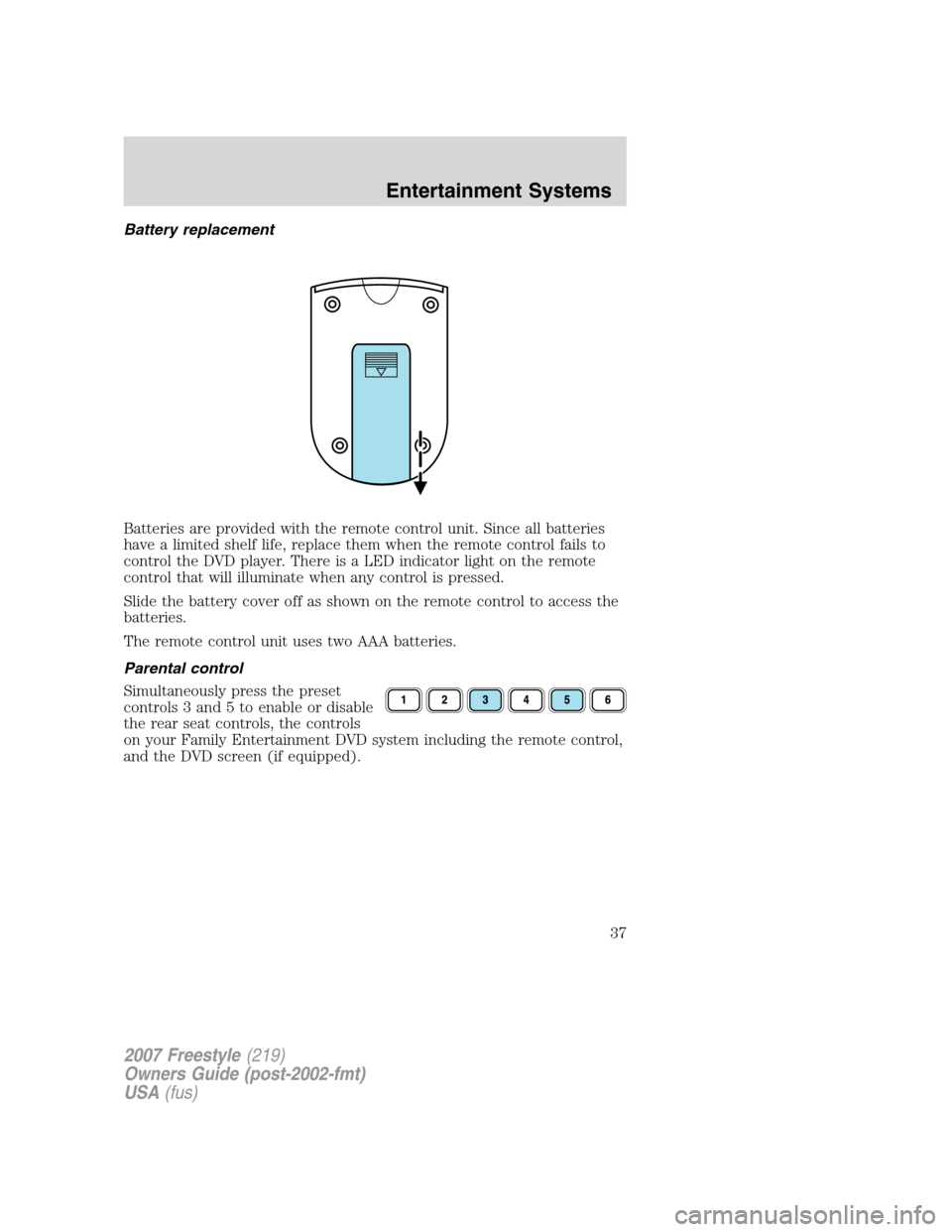
Batteries are provided with the remote control unit. Since all batteries
have a limited shelf life, replace them when the remote control fails to
control the DVD player. There is a LED indicator light on the remote
control that will illuminate when any control is pressed.
Slide the battery cover off as shown on the remote control to access the
batteries.
The remote control unit uses two AAA batteries.
Parental control
Simultaneously press the preset
controls 3 and 5 to enable or disable
the rear seat controls, the controls
on your Family Entertainment DVD system including the remote control,
and the DVD screen (if equipped).
2007 Freestyle(219)
Owners Guide (post-2002-fmt)
USA(fus)
Entertainment Systems
37