Page 28 of 296
•Station overload: When you pass a ground based broadcast repeating
tower, a stronger signal may overtake a weaker one and result in an
audio mute.
Unlike AM/FM audible static, you will hear an audio mute when there is
a satellite radio signal interference. Your radio display may display NO
SIGNAL to indicate the interference.
SIRIUS satellite radio service:SIRIUS Satellite Radio is a continental
U.S. based satellite radio service that broadcasts over 120 channels of
music, sports, news and entertainment coast-to-coast. A service fee is
required in order to receive SIRIUS service. Vehicles that are equipped
with a factory installed SIRIUS Satellite Radio system include:
•Hardware and limited subscription term, which begins on the date of
sale or lease of the vehicle.
•SIRIUS online media player access: providing access to all 100%
commercial-free music channels over the internet. Call SIRIUS at
1–888–539–7474 to obtain login instructions and your password.
For information on extended subscription terms, contact SIRIUS at
1–888–539–7474.
Note:SIRIUS reserves the unrestricted right to change, rearrange, add
or delete programming including canceling, moving or adding particular
channels, and its prices, at any time, with or without notice to you. Ford
Motor Company shall not be responsible for any such programming
changes.
Satellite Radio Electronic Serial Number (ESN):This12digit
Satellite Serial Number is needed to activate, modify or track your
satellite radio account. You will need this number when communicating
with SIRIUS. While in Satellite Radio mode, you can view this number on
the radio display by pressing AUX and Preset 1 control simultaneously.
2007 Freestyle(219)
Owners Guide (post-2002-fmt)
USA(fus)
Entertainment Systems
28
Page 29 of 296
Radio Display Condition Action Required
ACQUIRING Radio requires more
than two seconds to
produce audio for the
selected channel.No action required.
This message should
disappear shortly.
SAT FAULT Internal module or
system failure
present.If this message does
not clear within a short
period of time, or with
an ignition key cycle,
your receiver may have
a fault. See your
authorized dealer for
service.
INVALID CHNL Channel no longer
available.This previously
available channel is no
longer available. Tune
to another channel. If
the channel was one of
your presets, you may
choose another channel
for that preset button.
UNSUBSCRIBED Subscription not
available for this
channel.Contact SIRIUS at
1–888–539–7474 to
subscribe to the
channel, or tune to
another channel.
NO TEXT Artist information not
available.Artist information not
available at this time on
this channel. The
system is working
properly.
2007 Freestyle(219)
Owners Guide (post-2002-fmt)
USA(fus)
Entertainment Systems
29
Page 32 of 296
4.ENTERcontrol
Press to select the function highlighted on the active menu. ENTER may
also be used by some user interactive discs during movie play.
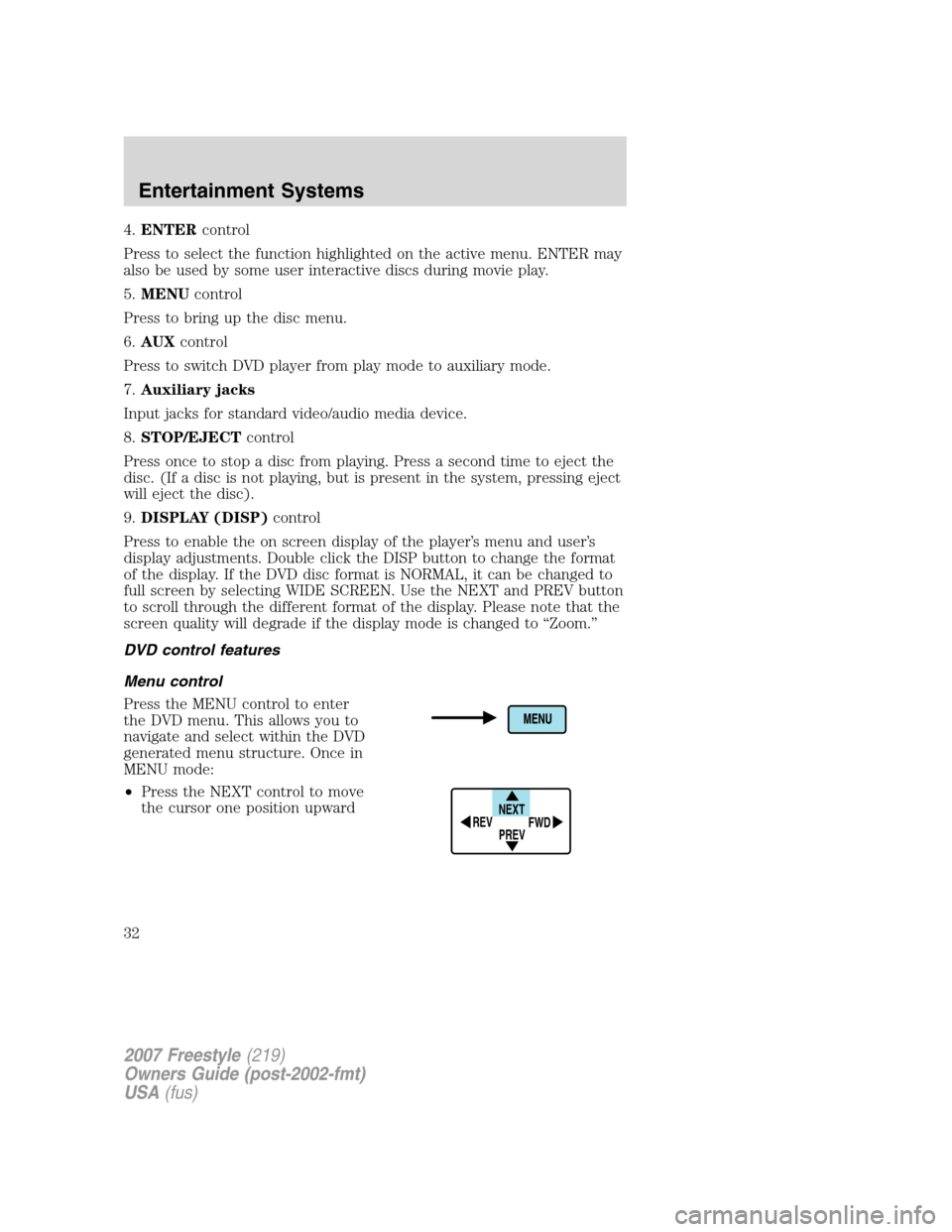
5.MENUcontrol
Press to bring up the disc menu.
6.AUXcontrol
Press to switch DVD player from play mode to auxiliary mode.
7.Auxiliary jacks
Input jacks for standard video/audio media device.
8.STOP/EJECTcontrol
Press once to stop a disc from playing. Press a second time to eject the
disc. (If a disc is not playing, but is present in the system, pressing eject
will eject the disc).
9.DISPLAY (DISP)control
Press to enable the on screen display of the player’s menu and user’s
display adjustments. Double click the DISP button to change the format
of the display. If the DVD disc format is NORMAL, it can be changed to
full screen by selecting WIDE SCREEN. Use the NEXT and PREV button
to scroll through the different format of the display. Please note that the
screen quality will degrade if the display mode is changed to “Zoom.”
DVD control features
Menu control
Press the MENU control to enter
the DVD menu. This allows you to
navigate and select within the DVD
generated menu structure. Once in
MENU mode:
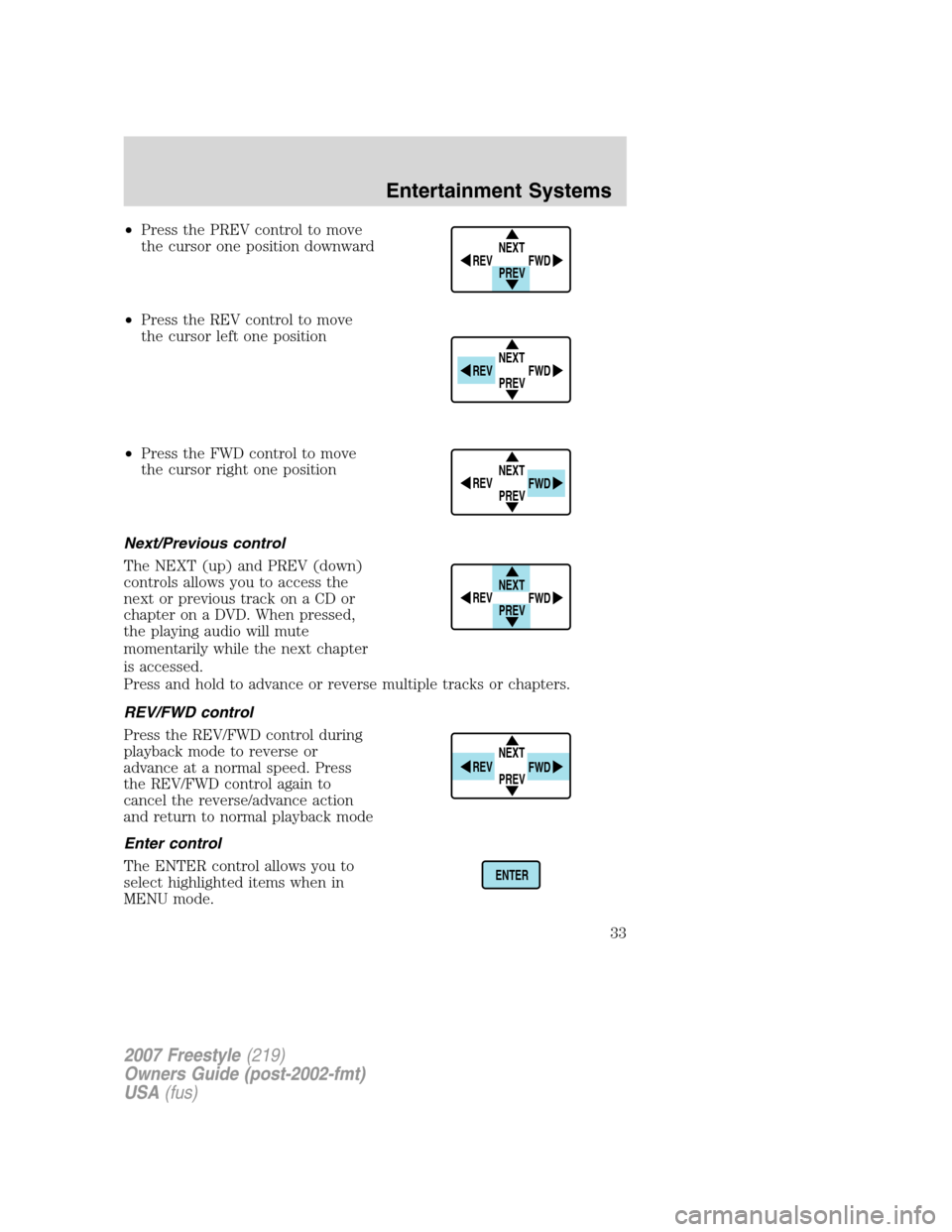
•Press the NEXT control to move
the cursor one position upward
NEXT
PREV REV
FWD
2007 Freestyle(219)
Owners Guide (post-2002-fmt)
USA(fus)
Entertainment Systems
32
Page 33 of 296
•Press the PREV control to move
the cursor one position downward
•Press the REV control to move
the cursor left one position
•Press the FWD control to move
the cursor right one position
Next/Previous control
The NEXT (up) and PREV (down)
controls allows you to access the
next or previous track on a CD or
chapter on a DVD. When pressed,
the playing audio will mute
momentarily while the next chapter
is accessed.
Press and hold to advance or reverse multiple tracks or chapters.
REV/FWD control
Press the REV/FWD control during
playback mode to reverse or
advance at a normal speed. Press
the REV/FWD control again to
cancel the reverse/advance action
and return to normal playback mode
Enter control
The ENTER control allows you to
select highlighted items when in
MENU mode.
NEXT
PREV REV
FWD
NEXT
PREV REV
FWD
NEXT
PREV REV
FWD
NEXT
PREV REV
FWD
NEXT
PREV REV
FWD
ENTER
2007 Freestyle(219)
Owners Guide (post-2002-fmt)
USA(fus)
Entertainment Systems
33
Page 35 of 296
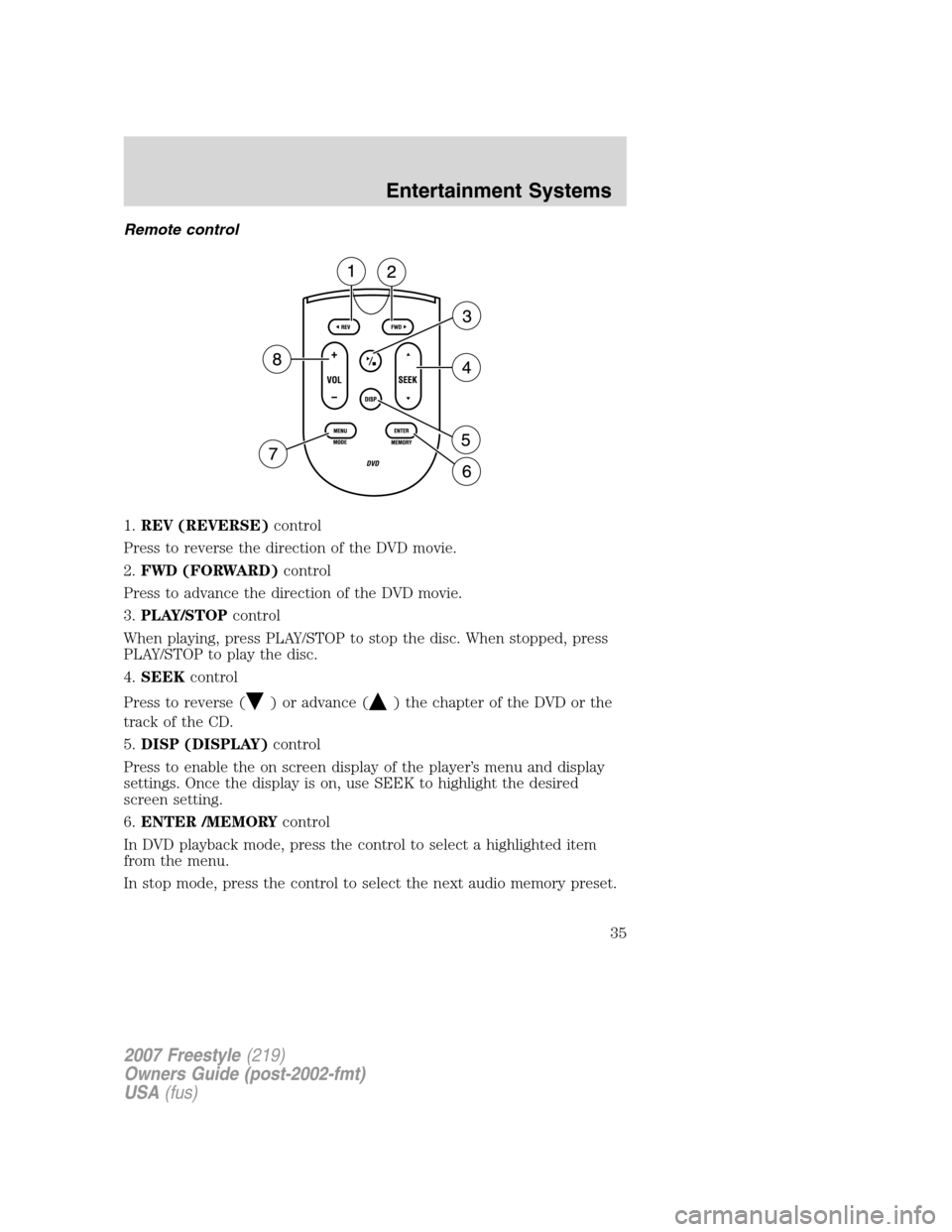
Remote control
1.REV (REVERSE)control
Press to reverse the direction of the DVD movie.
2.FWD (FORWARD)control
Press to advance the direction of the DVD movie.
3.PLAY/STOPcontrol
When playing, press PLAY/STOP to stop the disc. When stopped, press
PLAY/STOP to play the disc.
4.SEEKcontrol
Press to reverse (
) or advance () the chapter of the DVD or the
track of the CD.
5.DISP (DISPLAY)control
Press to enable the on screen display of the player’s menu and display
settings. Once the display is on, use SEEK to highlight the desired
screen setting.
6.ENTER /MEMORYcontrol
In DVD playback mode, press the control to select a highlighted item
from the menu.
In stop mode, press the control to select the next audio memory preset.
2007 Freestyle(219)
Owners Guide (post-2002-fmt)
USA(fus)
Entertainment Systems
35
Page 38 of 296
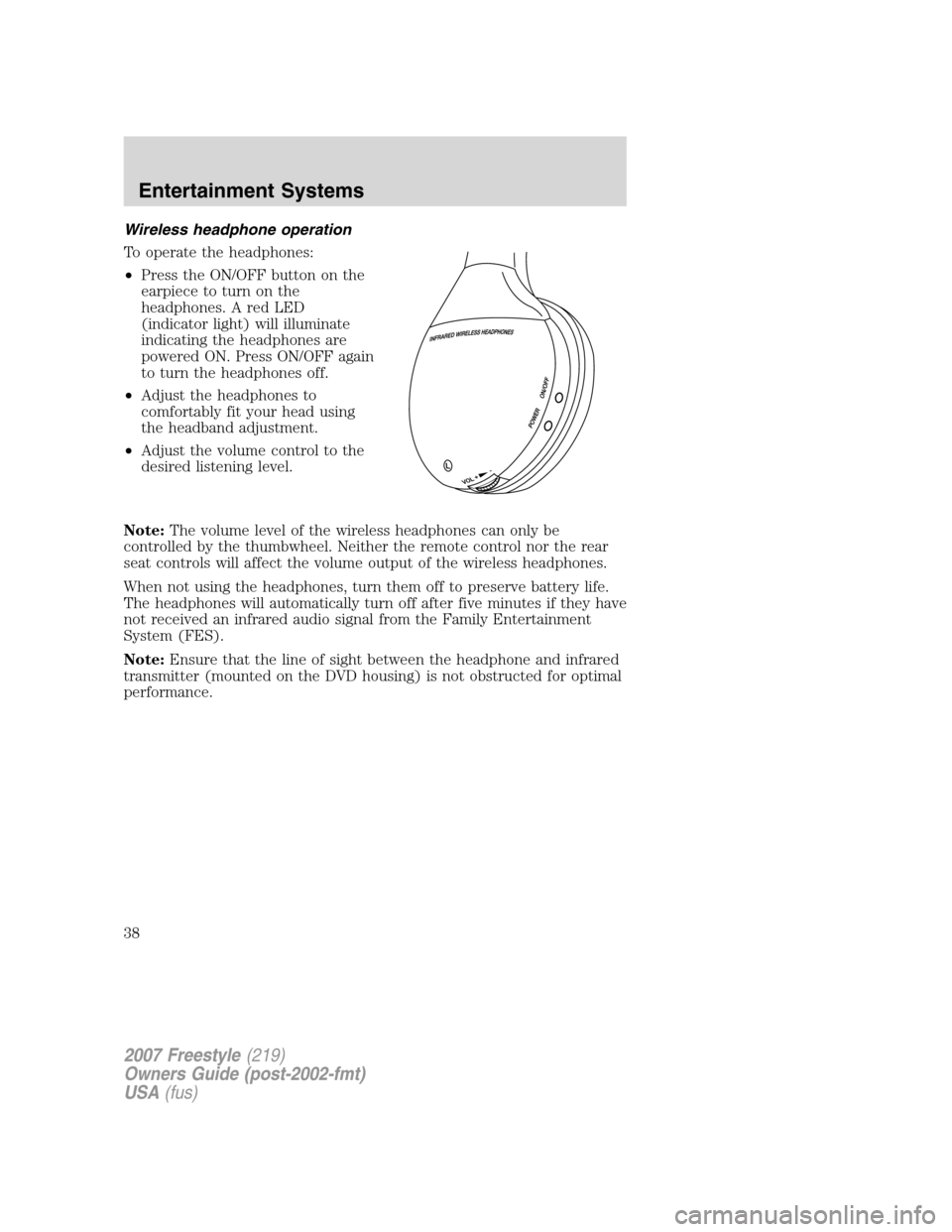
Wireless headphone operation
To operate the headphones:
•Press the ON/OFF button on the
earpiece to turn on the
headphones. A red LED
(indicator light) will illuminate
indicating the headphones are
powered ON. Press ON/OFF again
to turn the headphones off.
•Adjust the headphones to
comfortably fit your head using
the headband adjustment.
•Adjust the volume control to the
desired listening level.
Note:The volume level of the wireless headphones can only be
controlled by the thumbwheel. Neither the remote control nor the rear
seat controls will affect the volume output of the wireless headphones.
When not using the headphones, turn them off to preserve battery life.
The headphones will automatically turn off after five minutes if they have
not received an infrared audio signal from the Family Entertainment
System (FES).
Note:Ensure that the line of sight between the headphone and infrared
transmitter (mounted on the DVD housing) is not obstructed for optimal
performance.
2007 Freestyle(219)
Owners Guide (post-2002-fmt)
USA(fus)
Entertainment Systems
38
Page 41 of 296
This unit is designed to play commercially pressed 4.75 (12 cm)
audio compact discs and DVDs only. Due to technical
incompatibility, certain recordable and re-recordable compact
discs may not function correctly when used in Ford DVD/CD
players. Irregular shaped discs, discs with a scratch protection
film attached, and discs with homemade paper (adhesive) labels
should not be inserted into the player. The label may peel and
cause the disc to become jammed. It is recommended that
homemade discs be identified with permanent felt tip marker
rather than adhesive labels. Ball point pens may damage discs.
Please contact your dealer for further information.
Inserting a CD/DVD
With the ignition ON, inserting a CD/DVD into the DVD player
automatically turns ON the FES and playback should begin immediately.
The counter is automatically reset to 0:00:00 when any disc is inserted
into the FES.
Removing a CD/DVD (while playing)
1. Press the STOP/EJECT control to stop playback if a disc is playing.
2. Press the STOP/EJECT control again to eject the CD/DVD.
If the CD/DVD is not removed within the allotted time, the system will
pull the CD/DVD back into the system for safety purposes.
If the CD/DVD will not eject from the system, press and hold the EJECT
control for approximately 2 seconds. The disc should eject whether the
vehicle ignition is ON or OFF.
Playing an auxiliary device
1. Connect the video line from your video device to the YELLOW
auxiliary input jack.
2. Connect the left and right audio lines to the WHITE (left) and RED
(right) auxiliary input jacks respectively.
3. Press the MODE control repeatedly until DVD/CD AUX (no disc in
player) or DVD/CD play (disc in player) illuminates in the radio display.
If a disc is in the system, playback should begin. To enable the aux
inputs, press the STOP control or press the AUX control on the DVD
player.
2007 Freestyle(219)
Owners Guide (post-2002-fmt)
USA(fus)
Entertainment Systems
41
Page 42 of 296
On-screen indicators
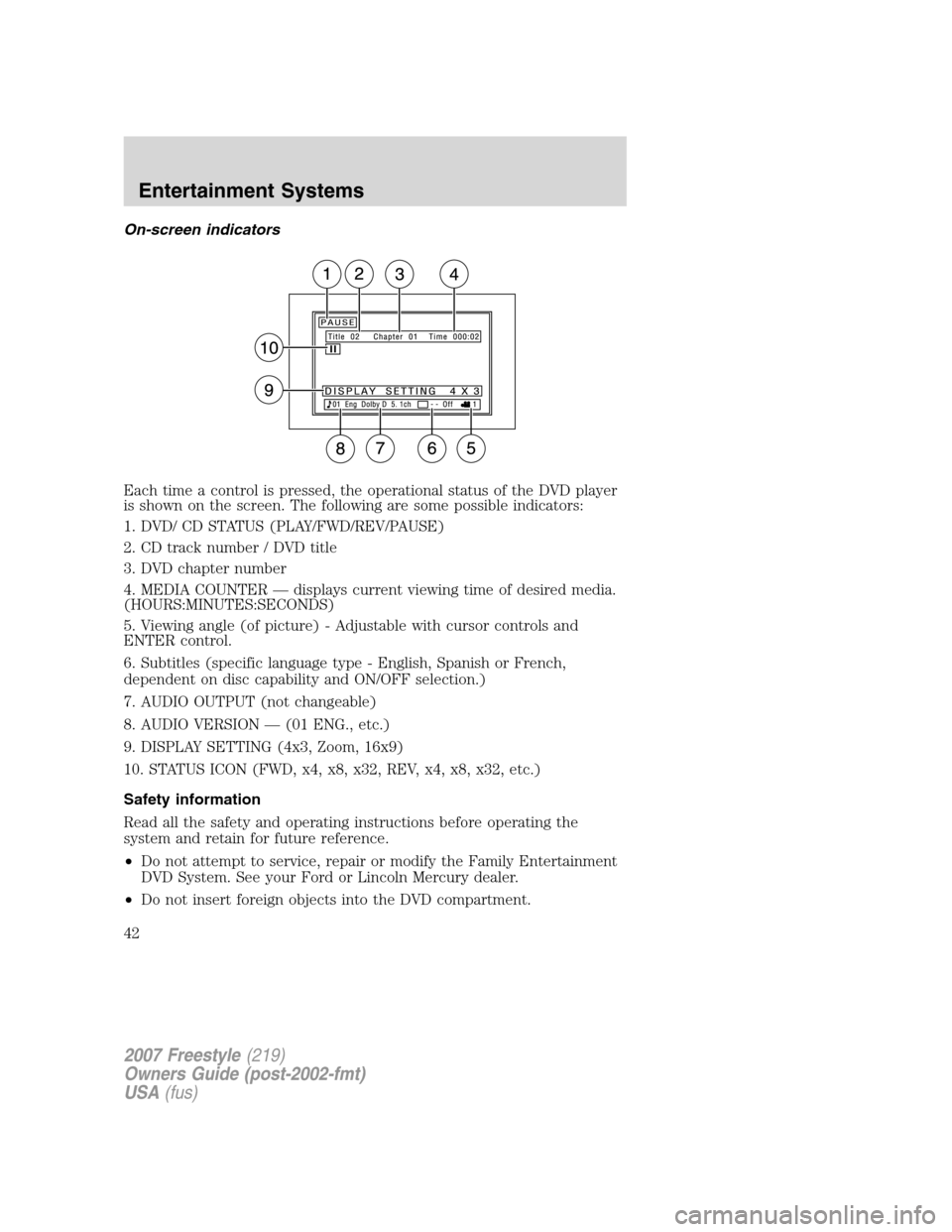
Each time a control is pressed, the operational status of the DVD player
is shown on the screen. The following are some possible indicators:
1. DVD/ CD STATUS (PLAY/FWD/REV/PAUSE)
2. CD track number / DVD title
3. DVD chapter number
4. MEDIA COUNTER — displays current viewing time of desired media.
(HOURS:MINUTES:SECONDS)
5. Viewing angle (of picture) - Adjustable with cursor controls and
ENTER control.
6. Subtitles (specific language type - English, Spanish or French,
dependent on disc capability and ON/OFF selection.)
7. AUDIO OUTPUT (not changeable)
8. AUDIO VERSION — (01 ENG., etc.)
9. DISPLAY SETTING (4x3, Zoom, 16x9)
10. STATUS ICON (FWD, x4, x8, x32, REV, x4, x8, x32, etc.)
Safety information
Read all the safety and operating instructions before operating the
system and retain for future reference.
•Do not attempt to service, repair or modify the Family Entertainment
DVD System. See your Ford or Lincoln Mercury dealer.
•Do not insert foreign objects into the DVD compartment.
2007 Freestyle(219)
Owners Guide (post-2002-fmt)
USA(fus)
Entertainment Systems
42