Page 171 of 360

screen to provide maps, turn identification, selection
menus and instructions for selecting a variety of destina-
tions and routes, AM/FM stereo radio and six-disc CD
changer with MP3 capability.
Mapping information for navigation is supplied on a
DVD that is loaded into the unit. One map DVD covers
all of North America. Refer to your “Navigation User’s
Manual” for detailed operating instructions.
Operating Instructions — Satellite Radio (If
Equipped)
Refer to your “Navigation User’s Manual” for detailed
operating instructions.
REC Setting the Clock
GPS Clock
The GPS receiver used in this system is synchronized to
the time data being transmitted by the GPS satellites. The
satellites’ clock is Greenwich Mean Time (GMT). This is
the worldwide standard for time. This makes the sys-
tem’s clock very accurate once the appropriate time zone
and daylight savings information is set.1. At theMain Menuscreen, highlight “Clock Setup”
and press ENTERORpress and hold for 3 seconds the
TIME button on the unit’s faceplate. TheClock Setup
screen appears.
2. To show the GPS clock, select “Displayed Clock: GPS
Clock” and press ENTER.
3. To adjust the time zone, Select “Time Zone” and press
ENTER. Select the appropriate time zone and press
ENTER.
UNDERSTANDING YOUR INSTRUMENT PANEL 171
4
Page 172 of 360
4. To turn daylight savings on or off, select “Daylight
Savings” and press ENTER. Select “On” or “Off” and
press ENTER.
5. Select DONE to exit from the clock setting mode. Press
ENTER to save your changes. If you press CANCEL or
NAV then your changes will not be saved.
User Defined Clock
If you wish to set the clock to a time different than the
system clock, you can manually adjust the time by
choosing the “User Defined Clock” option.
1. At theClock Setupscreen highlight “Displayed
Clock: User Defined Clock”.2. To increase the clock by hours, make sure “HR +” is
highlighted and press ENTER. Press ENTER again to
increase the clock by another hour. You will see on the
“User Defined Time” display the number of hours you
have increased the clock by.
3. To decrease the clock by one hour, use the Select
Encoder to highlight the “-” sign. Press ENTER. Press
ENTER again to decrease the clock by another hour.
172 UNDERSTANDING YOUR INSTRUMENT PANEL
Page 173 of 360
4. To increase the clock by minutes, make sure “MIN +”
is highlighted and press ENTER. Press ENTER again to
increase the clock by another minute.
5. To decrease the clock by minutes, use the Select
Encoder to highlight the “-“ sign. Press ENTER. Press
ENTER again to decrease the clock by another minute.
6. Select “DONE” to exit from the clock setting mode.
Press ENTER to save your changes. If you press CAN-
CEL or NAV then your changes will not be saved.Audio Clock Display
Select this option to change the size of the clock on the
audio screens.
1. When you are at an audio screen, quickly press the
TIME button on the navigation faceplate.
2. In this example the large clock appears on the screen.
UNDERSTANDING YOUR INSTRUMENT PANEL 173
4
Page 174 of 360
3. To switch the clock to the small clock, quickly press
TIME again.
4. To toggle back to the large clock, simply press TIME.VIDEO ENTERTAINMENT SYSTEM (SALES CODE
XRV) — IF EQUIPPED
The optional VES™ (Video Entertainment System) con-
sists of a DVD player and LCD (liquid crystal display)
screen, a battery-powered remote control, and two head-
sets. The system is located in the center console storage
bin under the armrest lid. Refer to your VES™ User’s
Manual for detailed operating instructions.
Accessing The VES
174 UNDERSTANDING YOUR INSTRUMENT PANEL
Page 179 of 360

Satellite Antenna
To ensure optimum reception, do not place items on the
roof around the rooftop antenna location. Metal objects
placed within the line of sight of the antenna will cause
decreased performance. Larger luggage items should be
placed as far forward as possible. Do not place items
directly on or above the antenna.
Reception Quality
Satellite reception may be interrupted due to one of the
following reasons.
•The vehicle is parked in an underground parking
structure or under a physical obstacle.
•Dense tree coverage may interrupt reception in the
form of short audio mutes.
•Driving under wide bridges or along tall buildings can
cause intermittent reception.
•Placing objects over or too close to the antenna can
cause signal blockage.
REMOTE SOUND SYSTEM CONTROLS
The remote sound system controls are located on the
surface of the steering wheel at the 3 and 9 o’clock
positions.
Vehicles equipped with steering wheel mounted buttons
are also equipped with the Electronic Vehicle Information
Center (EVIC). The EVIC features a driver-interactive
display. This is located in the upper part of the instru-
ment cluster between the speedometer and tachometer.
Electronic Vehicle Information Center
UNDERSTANDING YOUR INSTRUMENT PANEL 179
4
Page 304 of 360
Cavity Car-
tridge
FuseMini
FuseDescription
26 — — —
27 — 10 Amp
RedAirbag/Airbag Control
Module (ACM)
28 — 10 Amp
RedCurtain Airbag - if
equipped
29 — 5 Amp
OrangeAnti-lock Brakes
Module/Cluster/Front
Control Module (FCM)/
Powertrain Control
Module (PCM)/Sentry
Key Remote Keyless
Entry/Stop Lights
30 — 10 Amp
RedDoor Modules/Power
Mirrors - if equipped/
Steering Control Module
31 — — —
32 — — —
33 — — —
34 — — —Cavity Car-
tridge
FuseMini
FuseDescription
35 — 5 Amp
OrangeAmplifier - if equipped/
Antenna/Ignition
Delay/Overhead
Console/Passenger Door
Lock & Express Power
Window Switch - if
equipped/Power Mir-
rors - if equipped/Rain
Sensor - if equipped/
Rear Defrost
36 — 20 Amp
YellowHands Free Phone - if
equipped/Media System
Monitor DVD - if
equipped/Radio/
Satellite Receiver - if
equipped
37 — 15 Amp
BlueTransmission - NAG1
38 — 5 Amp
OrangeAnalog Clock/Cargo
Light/Overhead Con-
sole
304 MAINTAINING YOUR VEHICLE
Page 308 of 360
WARNING!
A transient high tension occurs at the bulb sockets of
High Intensity Discharge (HID) headlights when the
headlight switch is turned ON. It may cause serious
electrical shock or electrocution if not serviced prop-
erly. See your authorized dealer for service.
NOTE:When HID headlights are turned on, there is a
blue hue to the lights. This diminishes and becomes more
white after approximately 10 seconds, as the system
charges.
1. Open the hood.
NOTE:Removal of the air cleaner filter housing may be
necessary prior to replacing bulbs in the headlight assem-
bly on the driver side of the vehicle.
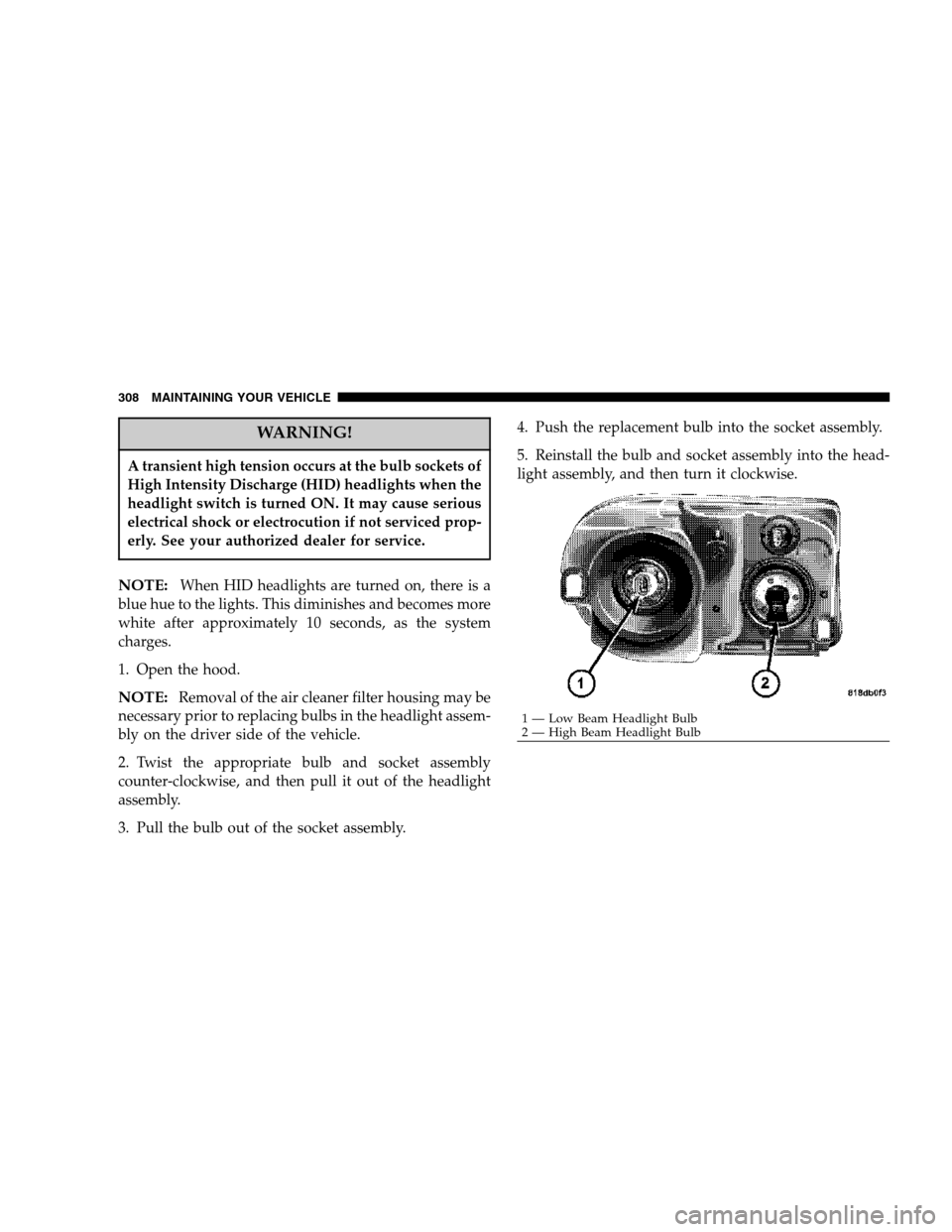
2. Twist the appropriate bulb and socket assembly
counter-clockwise, and then pull it out of the headlight
assembly.
3. Pull the bulb out of the socket assembly.4. Push the replacement bulb into the socket assembly.
5. Reinstall the bulb and socket assembly into the head-
light assembly, and then turn it clockwise.
1 — Low Beam Headlight Bulb
2 — High Beam Headlight Bulb 308 MAINTAINING YOUR VEHICLE
Page 310 of 360
6. Disconnect the electrical connector. 7. Pull the tail light assembly clear from the vehicle to
access the bulbs. Turn bulb sockets counter-clockwise to
remove.
8. Turn the appropriate bulb and socket assembly
counter-clockwise to remove it from the tail light assem-
bly.
1 — Tail/Stop Light Bulb 310 MAINTAINING YOUR VEHICLE