2007 CHEVROLET TAHOE audio
[x] Cancel search: audioPage 341 of 634

To use the auxiliary inputs of the RSE system,
connect an external auxiliary device to the
color-coded A/V jacks and turn both the auxiliary
device and the video screen power on. If the
video screen is in the DVD player mode, pressing
the AUX (auxiliary) button on the remote control
switches the video screen from the DVD
player mode to the auxiliary device. The radio can
listen to the audio of the connected auxiliary
device by sourcing to auxiliary. SeeRadio with CD
and DVD (MP3) on page 305for more information.
How to Change the RSE Video Screen
Settings
The screen display mode (normal, full, and zoom),
screen brightness, and setup menu language
can be changed from the on screen setup menu.
To change any feature, do the following:
1. Press the display menu button on the remote
control.
2. Use the remote control menu navigation
arrows and the enter button to use the
setup menu.
3. Press the display menu button again to
remove the setup menu from the screen.
Audio Output
Audio from the DVD player or auxiliary inputs may
be heard through the following possible sources:
Wireless Headphones
Vehicle Speakers
Vehicle wired headphone jacks on the rear
seat audio system, if your vehicle has this
feature.
The RSE system always transmits the audio
signal to the wireless headphones, if there is audio
available. See “Headphones” earlier in this
section for more information.
The DVD player is capable of outputting audio to
the wired headphone jacks on the RSA system,
if your vehicle has this feature. The DVD
player may be selected as an audio source on the
RSA system. SeeRear Seat Audio (RSA) on
page 348for more information.
341
Page 342 of 634
When a device is connected to the A/V jacks, or
the radio’s auxiliary input jack, if your vehicle
has this feature, the rear seat passengers are able
to hear audio from the auxiliary device through
the wireless or wired headphones. The front seat
passengers are able to listen to playback from
this device through the vehicle speakers by
selecting AUX as the source on the radio.
Video Screen
The video screen is located in the RSE overhead
console.
To use the video screen, do the following:
1. Push the release button located on the RSE
overhead console.
2. Turn the screen to the desired position.
When the video screen is not in use, push it up
into its locked position.If a DVD is playing and the screen is raised to its
locked position, the screen remains on, this is
normal, and the DVD continues to play through the
previous audio source. Use the remote control
power button or eject the disc to turn off the
screen.
The RSE overhead console contains the infrared
receivers for the wireless headphones and the
infrared receivers for the remote control. They are
located at the rear of the console.
Notice:Avoid directly touching the video
screen, as damage may occur. See “Cleaning
the Video Screen” later in this section for
more information.
342
Page 345 of 634

u(Next Track/Chapter):Press this button to go
to the beginning of the next chapter or track.
This button might not work when the DVD
is playing the copyright information or the
previews.
r(Fast Reverse):Press this button to quickly
reverse the DVD or CD. To stop fast reversing
a DVD video, press the play button. To stop fast
reversing a DVD audio or CD, release the fast
reverse button. This button might not work when
the DVD is playing the copyright information or the
previews.
[(Fast Forward):Press this button to fast
forward the DVD or CD. To stop fast forwarding a
DVD video, press the play button. To stop fast
forwarding a DVD audio or CD, release the
fast forward button. This button may not work
when the DVD is playing the copyright information
or the previews.
e(Audio):Press this button to change audio
tracks on DVDs that have this feature when
the DVD is playing. The format and content of this
function varies for each disc.
{(Subtitles):Press this button to turn ON/OFF
subtitles and to move through subtitle options
when a DVD is playing. The format and content of
this function varies for each disc.
AUX (Auxiliary):Press this button to switch the
system between the DVD player and an auxiliary
source.
d(Camera):Press this button to change camera
angles on DVDs that have this feature when a
DVD is playing. The format and content of
this function varies for each disc.
1 through 0 (Numeric Keypad):The numeric
keypad provides the capability of direct chapter or
track number selection.
\(Clear):Press this button within three seconds
after entering a numeric selection, to clear all
numerical inputs.
}10 (Double Digit Entries):Press this button to
select chapter or track numbers greater than
nine. Press this button before entering the number.
345
Page 347 of 634
Problem Recommended Action
The auxiliary source is
running but there is no
picture or sound.Check that the RSE video
screen is in the auxiliary
source mode.
Check the auxiliary input
connections at both
devices.
Sometimes the wireless
headphone audio cuts out
or buzzes.Check for obstructions,
low batteries, reception
range, and interference
from cellular telephone
towers or by using your
cellular telephone in the
vehicle.
Check that the
headphones are on
correctly using the L (left)
and R (right) on the
headphones.
I lost the remote and/or
the headphones.See your dealer for
assistance.
The DVD is playing, but
there is no picture or
sound.Check that the RSE video
screen is sourced to the
DVD player.DVD Display Error Messages
The DVD display error message depends on
which radio you have. The video screen may
display one of the following:
Disc Load/Eject Error:This message is
displayed when there are disc load or eject
problems.
Disc Format Error:This message is displayed, if
the disc is inserted with the disc label wrong
side up, or if the disc is damaged.
Disc Region Error:This message is displayed, if
the disc is not from a correct region.
No Disc Inserted:This message is displayed, if
no disc is present when the EJECT button is
pressed on the radio.
347
Page 348 of 634
DVD Distortion
Video distortion may occur when operating cellular
phones, scanners, CB radios, Global Position
Systems (GPS)*, two-way radios, mobile fax, or
walkie talkies.
It might be necessary to turn off the DVD player
when operating one of these devices in or near the
vehicle.
*Excludes the OnStar
®System.
Cleaning the RSE Overhead Console
When cleaning the RSE overhead console surface,
use only a clean cloth dampened with clean
water.
Cleaning the Video Screen
When cleaning the video screen, use only a clean
cloth dampened with clean water. Use care
when directly touching or cleaning the screen, as
damage may result.
Rear Seat Audio (RSA)
This feature allows rear seat passengers to listen
to and control any of the music sources: radio,
CDs, DVDs, or other auxiliary sources. However,
the rear seat passengers can only control the
music sources the front seat passengers are not
listening to (except on some radios where
dual control is allowed). For example, rear seat
passengers can listen to and control a CD through
the headphones, while the driver listens to the
radio through the front speakers. The rear
seat passengers have control of the volume for
each set of headphones.
You can operate the RSA functions even when
the main radio is off.
Audio can be heard through wired headphones
(not included) plugged into the jacks on the RSA.
If your vehicle has this feature, audio can also
be heard on Channel 2 of the wireless
headphones.
The audio system mutes the rear speakers when
the RSA audio is active through the headphones.
348
Page 350 of 634
While listening to a disc, press the seek up arrow
to goto the next track or chapter on the disc.
Press the seek down arrow to go back to the start
of the current track or chapter (if more than
ten seconds have played). This function is inactive,
with some radios, if the front seat passengers
are listening to the disc.
When a DVD video menu is being displayed,
press the seek up arrow or seek down arrow to
perform a cursor up or down on the menu.
Hold the seek up arrow or seek down arrow to
perform a cursor right or left on the menu.
PROG (Program):Press this button to go to the
next preset radio station or channel set on the
main radio. This function is inactive, with
some radios, if the front seat passengers are
listening to the radio.
When a CD or DVD audio is playing, press this
button to go to the beginning of the CD or
DVD audio. This function is inactive, with some
radios, if the front seat passengers are listening to
the disc.When a disc audio is playing in the CD or DVD
changer, press this button to select the next disc, if
multiple discs are loaded. This function is
inactive, with some radios, if the front seat
passengers are listening to the disc.
When a DVD video menu is being displayed,
press the PROG button to perform the menu
function, enter.
Theft-Deterrent Feature
THEFTLOCK®is designed to discourage theft of
your vehicle’s radio. The feature works
automatically by learning a portion of the Vehicle
Identication Number (VIN). If the radio is
moved to a different vehicle, it does not operate
and LOCKED displays.
350
Page 351 of 634
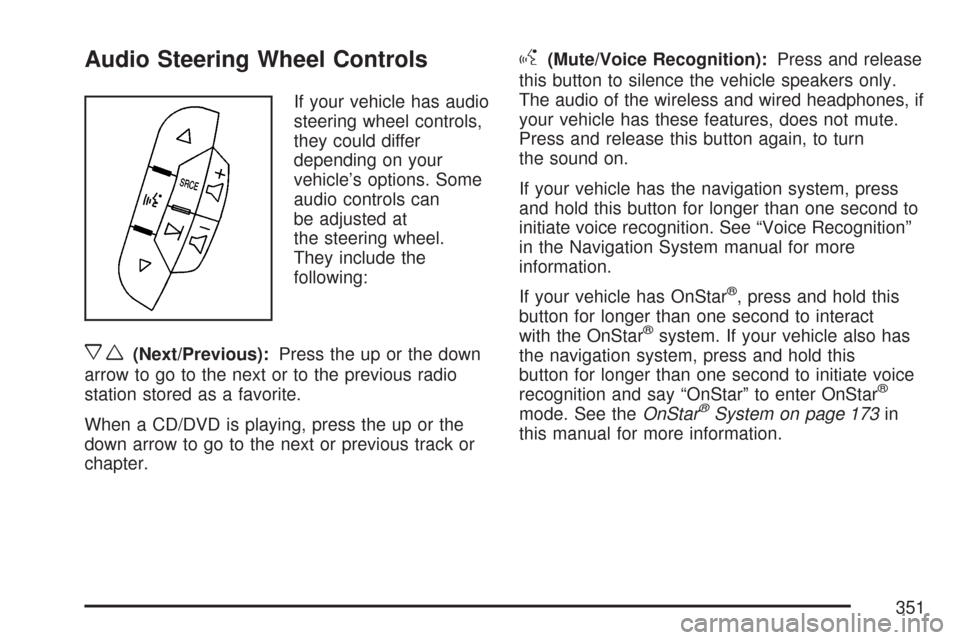
Audio Steering Wheel Controls
If your vehicle has audio
steering wheel controls,
they could differ
depending on your
vehicle’s options. Some
audio controls can
be adjusted at
the steering wheel.
They include the
following:
xw(Next/Previous):Press the up or the down
arrow to go to the next or to the previous radio
station stored as a favorite.
When a CD/DVD is playing, press the up or the
down arrow to go to the next or previous track or
chapter.
g(Mute/Voice Recognition):Press and release
this button to silence the vehicle speakers only.
The audio of the wireless and wired headphones, if
your vehicle has these features, does not mute.
Press and release this button again, to turn
the sound on.
If your vehicle has the navigation system, press
and hold this button for longer than one second to
initiate voice recognition. See “Voice Recognition”
in the Navigation System manual for more
information.
If your vehicle has OnStar
®, press and hold this
button for longer than one second to interact
with the OnStar
®system. If your vehicle also has
the navigation system, press and hold this
button for longer than one second to initiate voice
recognition and say “OnStar” to enter OnStar
®
mode. See theOnStar®System on page 173in
this manual for more information.
351
Page 570 of 634

Fuses Usage
30 Daytime Running Lamps
31 Driver’s Side High-Beam Headlamp
32 Not Used
33 Sunroof, Emergency Roof Lamp
34Key Ignition System, Theft Deterrent
System
35 Windshield Wiper
36 SEO B2 Uptter Usage (Battery)
37 Electric Adjustable Pedals
38 Climate Controls (Battery)
39 Airbag System (Ignition)
40 Amplier
41 Audio System
42 Four-Wheel Drive
43Miscellaneous (Ignition), Rear Vision
Camera, Cruise ControlFuses Usage
44 Liftgate Release
45OnStar
®, Rear Seat Entertainment
Display
46 Instrument Panel Cluster
47 Not Used
48 Not Used
49Auxiliary Climate Control (Ignition),
Compass-Temperature Mirror
50 Rear Defogger
51 Airbag System (Battery)
52 SEO B1 Uptter Usage (Battery)
53Cigarette Lighter, Auxiliary Power
Outlet
54Automatic Level Control Compressor
Relay, SEO Uptter Usage
55 Climate Controls (Ignition)
56Engine Control Module, Secondary
Fuel Pump (Ignition)
570