2007 CHEVROLET OPTRA 5 ECO mode
[x] Cancel search: ECO modePage 156 of 422

A/C (Air Conditioning):If your vehicle has air
conditioning, follow these steps to use the system.
Start the engine and set the fan control knob to
the desired fan speed. The air conditioning
compressor does not operate when the fan control
knob is in the OFF position. Press the A/C
button to turn the air conditioning system on and
off. When A/C is pressed, an indicator light in
the button will come on to let you know that air
conditioning is activated.
On hot days, open the windows to let hot inside
air escape; then close them. This helps to reduce
the time it takes for your vehicle to cool down.
It also helps the system to operate more efficiently.
For quick cool down on hot days, do the
following:
1. Select the vent mode.
2. Select the highest fan speed.
3. Press the A/C button.
4. Press the recirculation button.
5. Select the coolest temperature.Using these settings together for long periods of
time may cause the air inside of your vehicle
to become too dry. To prevent this from
happening, after the air in your vehicle has cooled,
turn the recirculation mode off.
The air conditioning system removes moisture
from the air, so you may sometimes notice a small
amount of water dripping underneath your
vehicle while idling or after turning off the engine.
This is normal.
?(Recirculation):This mode keeps outside air
from coming into the vehicle. It can be used to
prevent outside air and odors from entering your
vehicle or to help heat or cool the air inside
your vehicle more quickly.
Press this button to turn the recirculation mode on.
When the button is pressed, an indicator light in
the button will come on. Press this button again to
return to outside air mode.
Using the recirculation mode for extended periods
may cause your windows to fog. If this happens,
select the defrost mode.
156
Page 170 of 422

Speed Sensitive Power
Steering (SSPS) Warning Light
If your vehicle has
Speed Sensitive Power
Steering, this warning
light will come on briefly
when you turn the
ignition to ON as a check
to show you it is working.
Then it should go out after a few seconds.
If the warning light does not come on, have it fixed
so it will be able to warn you if there is a problem.
If the warning light stays on, or comes on while
you are driving, the system may not be working.
If this happens, see your dealer for service.
Hold Mode Light
If your vehicle has this
feature, this light will
come on when the hold
mode is active.
If the HOLD mode light flashes, have your vehicle
checked. See “Hold Mode” underAutomatic
Transaxle Operation on page 110for additional
information on this feature.
170
Page 186 of 422

Drivers are encouraged to set up any auxiliary
device while the vehicle is in PARK (P). See
Defensive Driving on page 206for more
information on driver distraction.
To use a portable audio player, connect a 3.5 mm
(1/8 inch) cable to the radio’s front auxiliary
input jack. While a device is connected, turn the
portable audio player on and press the radio
CD/AUX button to hear audio from the device over
the vehicle speakers.
CD/AUX (CD/Auxiliary):Press this button once
to play a CD while a portable audio device is
playing. Press this button a second time for the
system to begin playing audio from the connected
portable audio player. Once in this mode,
“Auxinput” appears on the display. If the auxiliary
jack does not detect the presence of an output
jack, the auxiliary mode does not display.
O(Power/Volume):Turn this knob clockwise or
counterclockwise to increase or decrease the
volume of the portable player. Additional
adjustments on a portable device might be needed
to get the desired volume.
Radio with Six-Disc CD (MP3/WMA)
Playing the Radio
O
(Power/Volume):Press and release this knob
to turn the system on or off.
Turn the power/volume knob clockwise or
counterclockwise to increase or decrease the
volume.
Press and hold this knob for more than
two seconds to silence the system. Press and
release this knob again to turn the sound back on.
186
Page 193 of 422

Using the Auxiliary Input Jack
AUX IN (Auxiliary Input):The radio system has
an auxiliary input jack located on the lower
right side of the faceplate. This is not an audio
output. Do not plug the headphone set into
the front auxiliary input jack. An external audio
device such as an iPod, laptop computer,
MP3 player, CD changer, or XM™ receiver, etc.
can be connected to the auxiliary input jack for use
as another source for audio listening.
The auxiliary input jack also accepts cell phone
connectors. Plug the cell phone connector into the
auxiliary input jack to hear a person speck on a
cell phone during a conversation through the
vehicle sound system.
Drivers are encouraged to set up any auxiliary
device while the vehicle is in PARK (P). See
Defensive Driving on page 206for more
information on driver distraction.To use a portable audio player, connect a 3.5 mm
(1/8 inch) cable to the radio’s front auxiliary
input jack. While a device is connected, turn the
portable audio player on and press the radio
CD/AUX button to hear audio from the device over
the vehicle speakers.
O(Power/Volume):Turn this knob clockwise or
counterclockwise to increase or decrease the
volume of the portable player. Additional
adjustments on a portable device might be needed
to get the desired volume.
CD/AUX (CD/Auxiliary):Press this button once
to play a CD while a portable audio device is
playing. Press this button a second time for the
system to begin playing audio from the connected
portable audio player. Once in this mode,
“Auxinput” appears on the display. If the auxiliary
jack does not detect the presence of an output
jack, the auxiliary mode does not display.
193
Page 197 of 422

All of the CD functions work the same while
playing an MP3/WMA, except for those listed here.
See “Playing a CD” earlier for more information.
SCROLL (MP3/WMA Mode Only):Press
the SOUND button for longer than two seconds.
The song title or other available information
of a song scrolls on/off. The offset is scroll on.
The scroll mode can be changed only when
the SOUND button is pressed for longer than
two seconds.
DIR (Directory):Press this button to repeat the
tracks in the current directory. DIR displays.
Press this button again to repeat the tracks in all
of the directories. ALL displays.
Press this button again to turn off repeat play.
¦¥SEEK (Previous/Next Folder)
(in MP3/WMA Mode):Press the up or down
arrows to change the folder. If CD-R does not have
any folder, “ROOT” flashes on the display for a
short time.
()TUNE (Previous/Next Track):Press the
down arrows to go to the start of the current
track or press the up arrows to go to the next track.
The track number displays. The player continues
moving backward or forward through the CD
with each press of the up or down arrows.
INFO/DISP (Information/Display):Press this
button to display additional text information related
to the current MP3/WMA song. A choice of
additional information such as: Song Title, Album
Title, and Artist. Bit rate might also display.
When information is not available, No Info
(information) displays.
Press this button for longer than two seconds to
change display mode.
197
Page 201 of 422
All of the CD functions work the same while
playing an MP3/WMA, except for those listed here.
See “Playing a CD” earlier for more information.
SCROLL (MP3/WMA Mode Only):Press
the SOUND button for longer than two seconds.
The song title and other available information
of the song scrolls on/off. The offset is scroll on.
The scroll mode can be changed only when
the SOUND button is pressed for longer than
two seconds.
1 DIR (Directory):Press this button to repeat the
tracks in the current directory. DIR displays.
Press this button again to repeat the tracks in all
of the directories. ALL displays.
Press this button again to turn off repeat play.
¦¥SEEK (Previous/Next Folder)
(in MP3/WMA Mode):Press the up or down
arrows to change the folder. If CD-R does not have
any folder, “ROOT” flashes on the display for a
short time.
()TUNE (Previous/Next Track):Press the
down arrows to go to the start of the current
track or press the up arrows to go to the next track.
The track number displays. The player continues
moving backward or forward through the CD
with each press of the up or down arrows.
INFO/DISP (Information/Display):Press this
button to display additional text information related
to the current MP3/WMA song. A choice of
additional information such as: Song Title, Album
Title, and Artist. Bit rate might also display.
When information is not available, No Info
(information) displays.
Press this button for longer than two seconds to
change display mode.
201
Page 202 of 422
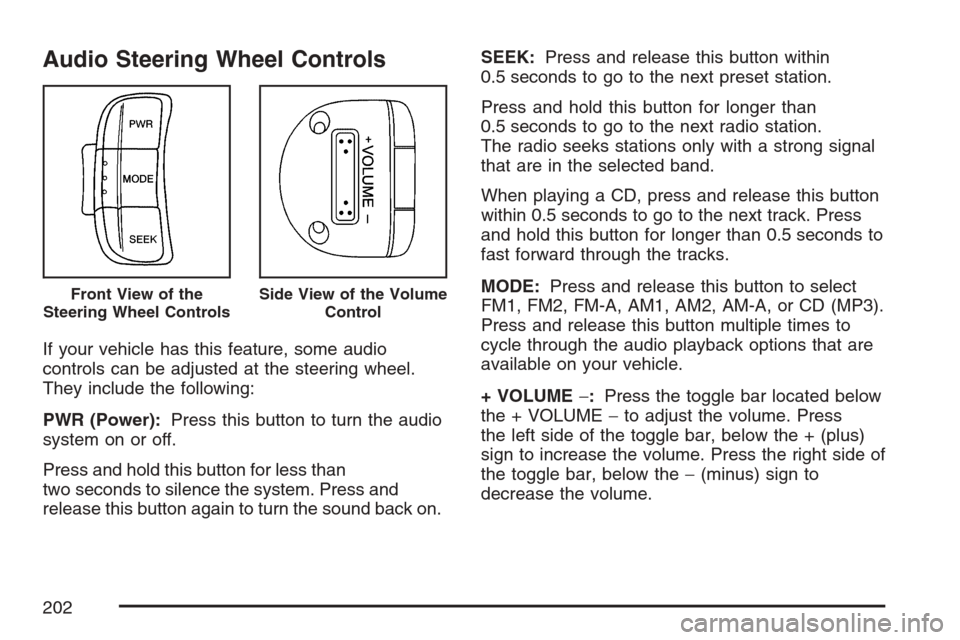
Audio Steering Wheel Controls
If your vehicle has this feature, some audio
controls can be adjusted at the steering wheel.
They include the following:
PWR (Power):Press this button to turn the audio
system on or off.
Press and hold this button for less than
two seconds to silence the system. Press and
release this button again to turn the sound back on.SEEK:Press and release this button within
0.5 seconds to go to the next preset station.
Press and hold this button for longer than
0.5 seconds to go to the next radio station.
The radio seeks stations only with a strong signal
that are in the selected band.
When playing a CD, press and release this button
within 0.5 seconds to go to the next track. Press
and hold this button for longer than 0.5 seconds to
fast forward through the tracks.
MODE:Press and release this button to select
FM1, FM2, FM-A, AM1, AM2, AM-A, or CD (MP3).
Press and release this button multiple times to
cycle through the audio playback options that are
available on your vehicle.
+ VOLUME−:Press the toggle bar located below
the + VOLUME−to adjust the volume. Press
the left side of the toggle bar, below the + (plus)
sign to increase the volume. Press the right side of
the toggle bar, below the−(minus) sign to
decrease the volume.
Front View of the
Steering Wheel ControlsSide View of the Volume
Control
202
Page 237 of 422
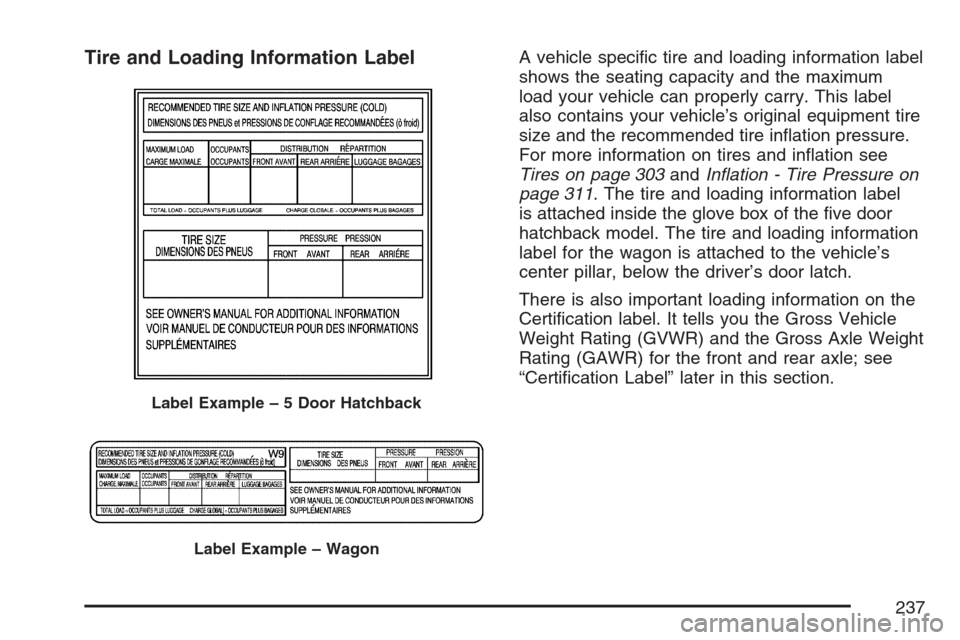
Tire and Loading Information LabelA vehicle specific tire and loading information label
shows the seating capacity and the maximum
load your vehicle can properly carry. This label
also contains your vehicle’s original equipment tire
size and the recommended tire inflation pressure.
For more information on tires and inflation see
Tires on page 303andInflation - Tire Pressure on
page 311. The tire and loading information label
is attached inside the glove box of the five door
hatchback model. The tire and loading information
label for the wagon is attached to the vehicle’s
center pillar, below the driver’s door latch.
There is also important loading information on the
Certification label. It tells you the Gross Vehicle
Weight Rating (GVWR) and the Gross Axle Weight
Rating (GAWR) for the front and rear axle; see
“Certification Label” later in this section.
Label Example–5DoorHatchback
Label Example – Wagon
237