2007 CHEVROLET MALIBU ignition
[x] Cancel search: ignitionPage 252 of 510
MSG (Traffic):If TRAFFIC displays, the tuned
station broadcasts traffic announcements and
when a traffic announcement comes on the
tuned radio station you will hear it.
If the current tuned station does not broadcast
traffic announcements, press and hold this
button for two seconds and the radio seeks to a
station that does. When a station that broadcasts
traffic announcements is found, the radio stops
seeking and TRAF between brackets displays.
When a traffic announcement comes on the
tuned radio station you will hear it. If no station
is found that broadcasts traffic announcements,
NO TRAFFIC INFO displays.
If TRAF displays, press and hold the MSG
button for two seconds to turn off the traffic
announcements.
The radio plays the traffic announcement even
if the volume is low. The radio interrupts the
play of a CD if the last tuned station broadcasts
traffic announcements.
This function does not apply to XM™ Satellite
Radio Service.Radio Messages
CALIBRATE:The audio system has been
calibrated for your vehicle from the factory.
If CALIBRATE displays, it means that the radio
has not been congured properly for the vehicle
and it must be returned to your dealer/retailer
for service.
LOCKED:This message displays when the
THEFTLOCK
®system has locked up. Take
your vehicle to your dealer/retailer for service.
If any error occurs repeatedly or if an error cannot
be corrected, contact your dealer/retailer.
Radio Messages for XM™ Only
SeeXM Radio Messages on page 259later in
this section for further detail.
Playing a CD
If the ignition or radio is turned off, with a CD
in the player, it stays in the player. When
the ignition or radio is turned on, the CD starts
playing where it stopped, if it was the last
selected audio source.
252
Page 253 of 510
When a CD is inserted, the CD symbol displays
on the CD. As each new track starts to play,
the track number also displays.
The CD player can play the smaller 3 inch (8 cm)
single CDs with an adapter ring. Full-size CDs and
the smaller CDs are loaded in the same manner.
If playing a CD-R, the sound quality can be
reduced due to CD-R quality, the method of
recording, the quality of the music that has
been recorded, and the way the CD-R has been
handled. There can be an increase in skipping,
difficulty in nding tracks, and/or difficulty in
loading and ejecting. If these problems occur,
check the bottom surface of the CD. If the surface
of the CD is damaged, such as cracked, broken,
or scratched, the CD does not play properly.
If the surface of the CD is soiled, seeCare of Your
CDs and DVDs on page 285for more information.
If there is no apparent damage, try a known
good CD.
Do not add any label to a CD, it could get
caught in the CD player. If a CD is recorded
on a personal computer and a description label
is needed, try labeling the top of the recorded
CD with a marking pen.Notice:If a label is added to a CD, or more
than one CD is inserted into the slot at a time,
or an attempt is made to play scratched
or damaged CDs, the CD player could be
damaged. While using the CD player, use
only CDs in good condition without any label,
load one CD at a time, and keep the CD
player and the loading slot free of foreign
materials, liquids, and debris.
If an error displays, see “CD Messages” later
in this section.
LOAD:Press the LOAD button to load CDs into
the CD player. This CD player holds up to six CDs.
To insert one CD, do the following:
1. Turn the ignition on.
2. Press and release the LOAD button.
3. Wait for INSERT CD to ash on the display.
4. Load a CD. Insert the CD partway into the slot,
label side up. The player pulls the CD in.
253
Page 254 of 510
To insert multiple CDs, do the following:
1. Turn the ignition on.
2. Press and hold the LOAD button for
two seconds.
A beep sounds and MULTI LOAD CD,
then INSERT CD and the number displays.
3. Once INSERT CD and the number displays,
load a CD. Insert the CD partway into the
slot, label side up. The player pulls the CD in.
Once the CD is loaded, INSERT CD and
the number displays again. After that, you can
load another CD. The CD player takes up
to six CDs. Do not try to load more than six.
To load more than one CD but less than six,
complete Steps 1 through 3. When nished loading
CDs, the radio begins to play the last CD loaded.
If more than one CD has been loaded, a number
for each CD displays and the currently selected
slot number is underlined.
EJECT /
Z:To eject a single CD press
the EJECT /
Zbutton. The radio displays
EJECTING CD # and the single CD symbol
ashes until the CD is ready to be removed.When the CD is ready to be removed it ejects
part way from the radio and the display changes
to a ashing REMOVE CD # with the single
CD symbol ashing until the CD is removed.
If the CD is not removed within 25 seconds the
radio pulls it back in.
To eject multiple CDs, press and hold the
EJECT /
Zbutton until a beep sounds and
EJECTING ALL CDS displays with the single CD
symbol ashing. The CD symbol ashes until
a CD is ready to be removed. When the CD is
ready to be removed it ejects part way from
the radio and the display changes to a ashing
REMOVE CD # with the single CD symbol
ashing until the CD is removed. If the CD is
not removed within 25 seconds the radio pulls
it back in. After the CD is removed the radio
repeats the previous actions until all of the CDs
have been removed or a CD is pulled back in.
Playing a Specic Loaded CD
For every CD loaded, a number displays. To play
a specic CD, press the numbered pushbutton
that corresponds to the CD you want to play.
A small bar displays under the CD number that
is playing, and the track number also displays.
254
Page 274 of 510
Tips and Troubleshooting Chart
Problem Recommended Action
No power. The ignition may not be
in the on position, ACC,
or RAP. The parental
control button might
have been pressed.
Disc will not play. The system might be off.
The parental control
button might have been
pressed. The system
might be in auxiliary
source mode. Press the
AUX button to switch
between the DVD player
and the auxiliary source.
The disc is upside down
or is not compatible.
No sound. The volume on the
headphones could be
too low. Adjust the volume
on the right earpiece on
the wireless headphones.
If the DVD system is
being heard through the
vehicle speakers, adjust
the volume from the radio.
The radio must have the
RSE enabled by using
the SRCE button.
Problem Recommended Action
The picture does not
ll the screen. There are
black borders on the
top and bottom or on
both sides or it looks
stretched out.Press and release the
size control button on the
remote control. This lls
the screen. If there are
borders on the top and
bottom, the movie could
have been made that way
for a standard screen.
I ejected the disc and
tried to take it out, but
it was pulled back into
the slot.Eject the disc again.
The language in the
audio or on the screen
is wrong.Press the main display
menu button on the
DVD player or the
remote control and
change the audio or
language selection on
the DVD menu.
The remote control
does not work.Point the remote control
directly at the transmitter
window. The batteries
could be weak or put in
wrong. The parental
control button might have
been pressed. The remote
control does not work
the RSA control, only
the RSE system.
274
Page 316 of 510
If you drive regularly in steep country, or if you are
planning to visit there, here are some tips that
can make your trips safer and more enjoyable.
Keep your vehicle in good shape. Check
all uid levels and also the brakes, tires,
cooling system, and transaxle. These parts
can work hard on mountain roads.
{CAUTION:
If you do not shift down, the brakes could
get so hot that they would not work well.
You would then have poor braking or
even none going down a hill. You could
crash. Shift down to let the engine assist
the brakes on a steep downhill slope.
{CAUTION:
Coasting downhill in NEUTRAL (N) or with
the ignition off is dangerous. The brakes
will have to do all the work of slowing
down. They could get so hot that they
would not work well. You would then have
poor braking or even none going down a
hill. You could crash. Always have the
engine running and your vehicle in gear
when you go downhill.
Know how to go down hills. The most important
thing to know is this: let your engine do some of
the slowing down. Shift to a lower gear when
you go down a steep or long hill.
316
Page 331 of 510
Dinghy Towing
The Malibu Sedan SS and Maxx SS cannot be
dinghy towed.
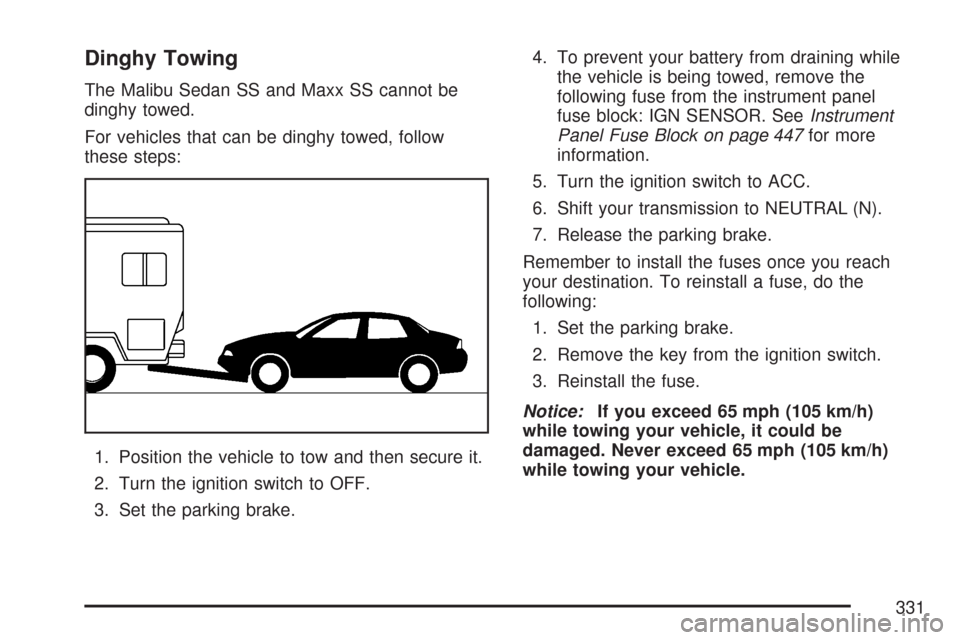
For vehicles that can be dinghy towed, follow
these steps:
1. Position the vehicle to tow and then secure it.
2. Turn the ignition switch to OFF.
3. Set the parking brake.4. To prevent your battery from draining while
the vehicle is being towed, remove the
following fuse from the instrument panel
fuse block: IGN SENSOR. SeeInstrument
Panel Fuse Block on page 447for more
information.
5. Turn the ignition switch to ACC.
6. Shift your transmission to NEUTRAL (N).
7. Release the parking brake.
Remember to install the fuses once you reach
your destination. To reinstall a fuse, do the
following:
1. Set the parking brake.
2. Remove the key from the ignition switch.
3. Reinstall the fuse.
Notice:If you exceed 65 mph (105 km/h)
while towing your vehicle, it could be
damaged. Never exceed 65 mph (105 km/h)
while towing your vehicle.
331
Page 386 of 510
Notice:If you leave your radio or other
accessories on during the jump starting
procedure, they could be damaged. The repairs
would not be covered by your warranty. Always
turn off your radio and other accessories when
jump starting your vehicle.
3. Turn off the ignition on both vehicles. Unplug
unnecessary accessories plugged into the
cigarette lighter or the accessory power outlet.
Turn off the radio and all lamps that are not
needed. This will avoid sparks and help save
both batteries. And it could save the radio!
4. Open the hoods and locate the batteries.
Find the positive (+) and negative (−) terminal
locations on each vehicle. SeeEngine
Compartment Overview on page 354for more
information on location.
{CAUTION:
An electric fan can start up even when the
engine is not running and can injure you.
Keep hands, clothing and tools away from
any underhood electric fan.
{CAUTION:
Using a match near a battery can cause
battery gas to explode. People have been
hurt doing this, and some have been
blinded. Use a ashlight if you need
more light.
Be sure the battery has enough water.
You do not need to add water to the battery
installed in your new vehicle. But if a
battery has ller caps, be sure the right
amount of uid is there. If it is low, add
water to take care of that rst. If you do not,
explosive gas could be present.
Battery uid contains acid that can burn
you. Do not get it on you. If you
accidentally get it in your eyes or on your
skin, ush the place with water and get
medical help immediately.
386
Page 448 of 510
Fuses Usage
HVAC
BLOWER HIGH
(Relay)Climate Control System
CLUSTER/
THEFTInstrument Panel Cluster, Theft
Deterrent System
ONSTAR OnStar
®System
NOT
INSTALLEDNot Used
AIRBAG (IGN) Airbag System
HVAC CTRL
(BATT)Climate Control System
PEDAL Adjustable Throttle and Brake Pedal
WIPER SW Windshield Wiper/Washer Switch
IGN SENSOR Ignition Switch
STR/WHL
ILLUMSteering Wheel Controls
Backlighting
NOT
INSTALLEDNot Used
RADIO Audio System
INTERIOR
LIGHTSOverhead Lighting, Trunk/Cargo
Lighting
REAR WIPER Rear Wiper System/Washer Pump
HVAC CTRL
(IGN)Climate Control System
Fuses Usage
HVAC
BLOWERClimate Control System
DOOR LOCK Automatic Door Lock System
ROOF/HEAT
SEATSunroof, Heated Seats, Automatic
Dimming Rearview Mirror, Compass,
Rear Wiper/Washer System
POWER
WINDOWSPower Window Switch
NOT
INSTALLEDNot Used
NOT
INSTALLEDNot Used
AIRBAG
(BATT)Airbag System
FUSE PULLER Fuse Puller
SPARE FUSE
HOLDERSpare
SPARE FUSE
HOLDERSpare
SPARE FUSE
HOLDERSpare
SPARE FUSE
HOLDERSpare
448