2007 CHEVROLET MALIBU remote control
[x] Cancel search: remote controlPage 272 of 510
Menu Bar
The menu bar can be displayed across the top of
the screen by pressing the
z(display) button
on the remote control. Selecting icons from
the menu bar allows adjustments to the audio and
video settings. Use the remote control left and
right arrow buttons to scroll through the menu bar.
A description of the highlighted icon appears at
the bottom of the screen. Use the down arrow to
display the options for the highlighted icon.
The movie can stop playing while selections are
being made.
Current Subtitle Language:The subtitle
language can be selected as Off, English,
Spanish, or French. The actual subtitle language
is dependent on whether a DVD supports the
selected language.
Current Audio Language:The audio language
can be selected as Off, English, Spanish, or
French. The actual audio language is dependent
on whether a DVD supports the selected language.
Smart Color:This color setting can be selected
without changing the default from the color
settings menu.Sound Mode:This analog output can be changed
without changing the default from the analog
output menu.
Frame-by-Frame:The DVD pauses and can
be viewed frame-by-frame, in forward or reverse,
by using the remote control arrow buttons.
Press
s(play) to resume play of the DVD.
DVD audio does not be available during selection.
Slow Motion:The DVD pauses and can be viewed
in slow motion, at various speeds, in forward or
reverse, by using the remote control arrow buttons.
Press
s(play) to resume play of the DVD.
DVD audio is not available during selection.
Scan Speeds:The DVD can be viewed in fast
motion, at various speeds, in forward or reverse,
by using the remote control arrow buttons.
Press
s(play) to resume play of the DVD.
DVD audio is not available during selection.
Enlarge Picture:The DVD pauses and the frame
can be enlarged by using the remote control arrow
key buttons. Pressing the
r(enter) button on the
remote control allows panning of the frame using
the remote control arrow buttons. Press
s(play)
to resume play of the DVD. DVD audio is not
available during selection.
272
Page 273 of 510
Title:Move between DVD titles by using the
remote control arrow buttons.
Chapter:Move between DVD chapters by
using the remote control arrow buttons.
Time Search:The user can jump to different
areas of a DVD by using the remote control
arrow and
r(enter) buttons to select a
specic time position.
Favorite Track Selection (FTS):You can
program the unit to play only your favorite track
selections from a DVD or Audio CD. For a
DVD, FTS is accessed from the Menu bar.
For a CD, the FTS screen displays immediately
when the CD is inserted. From the screen, choose
the tracks on the CD that you wish to store,
using the remote control right and left arrows and
the
rbutton to select. The player remembers
the selections and each time the CD is inserted
in the player, only those tracks are played, if FTS
is turned on. The player can remember selections
for up to 50 discs. To remove FTS for a disc,
the disc must be in the player and the highlighted
tracks must be de-selected. Use the right and
left arrow buttons and the
rbutton or select
CLEAR ALL on the display.Not all DVDs support all of the feature defaults
in the setup menus. In the event a feature is
not supported, defaults are provided by the
DVD media.
Exit the setup menu by pressing the
q(return)
button on the remote control. If changes are made
to the setup menu, the DVD resumes play from
the beginning.
Battery Replacement
To change the remote control batteries, do the
following:
1. Unclip the battery door located on the back
of the remote control.
2. Replace the two AA batteries. Make sure that
they are installed correctly, using the diagram
on the inside of the battery compartment.
3. Close the battery door.
If the remote control is to be stored for a long
period of time, remove the batteries and keep
them in a cool, dry place.
273
Page 274 of 510
Tips and Troubleshooting Chart
Problem Recommended Action
No power. The ignition may not be
in the on position, ACC,
or RAP. The parental
control button might
have been pressed.
Disc will not play. The system might be off.
The parental control
button might have been
pressed. The system
might be in auxiliary
source mode. Press the
AUX button to switch
between the DVD player
and the auxiliary source.
The disc is upside down
or is not compatible.
No sound. The volume on the
headphones could be
too low. Adjust the volume
on the right earpiece on
the wireless headphones.
If the DVD system is
being heard through the
vehicle speakers, adjust
the volume from the radio.
The radio must have the
RSE enabled by using
the SRCE button.
Problem Recommended Action
The picture does not
ll the screen. There are
black borders on the
top and bottom or on
both sides or it looks
stretched out.Press and release the
size control button on the
remote control. This lls
the screen. If there are
borders on the top and
bottom, the movie could
have been made that way
for a standard screen.
I ejected the disc and
tried to take it out, but
it was pulled back into
the slot.Eject the disc again.
The language in the
audio or on the screen
is wrong.Press the main display
menu button on the
DVD player or the
remote control and
change the audio or
language selection on
the DVD menu.
The remote control
does not work.Point the remote control
directly at the transmitter
window. The batteries
could be weak or put in
wrong. The parental
control button might have
been pressed. The remote
control does not work
the RSA control, only
the RSE system.
274
Page 275 of 510
Problem Recommended Action
How do I get subtitles
on or off?Press the display button
on the remote control to
go to the DVDs main
menu. Then follow the
screen prompts.
After stopping the player,
I push the play button
but sometimes the DVD
starts where I left off,
and sometimes at the
beginning.Press the stop button on
the remote control to
resume where the DVD
left off. Press the stop
button twice to start the
DVD at the beginning.
If the power is off and the
DVD is still in the player,
press the play button.
The DVD is playing but
there is no picture or
sound. The auxiliary
source is running but
there is no picture
or sound.Press and release the
AUX button on the
remote control or the
SRCE and play buttons
on the DVD player to
get to auxiliary input.
Check to make sure
that the auxiliary source
is connected to the
inputs properly.
The audio or video
skips or jumps.The DVD could be
dirty or scratched.
Try cleaning the DVD.Problem Recommended Action
When I return to the
DVD from the system
menu, sometimes it plays
from the beginning and
sometimes from where
it left off.If the stop button was
pressed once, it resumes
play from where it left off.
If the stop button was
pressed twice, it starts at
the beginning of the DVD.
However, if a change
was made to the menu
the DVD starts from
where it left off, even if
the stop button was only
pressed once.
The fast forward, reverse,
previous, and next
functions do not work.Some commands that
do one thing for DVDs
does not always work or
perform the same function
for audio CDs or games.
These functions can
also be disabled when
the DVD is playing the
copyright information
or the previews.
275
Page 276 of 510
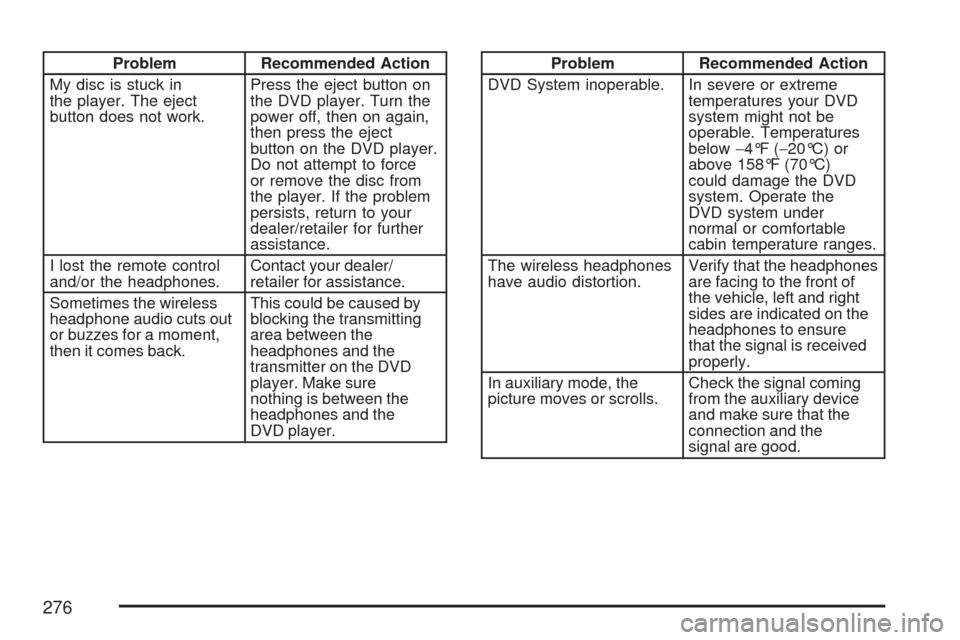
Problem Recommended Action
My disc is stuck in
the player. The eject
button does not work.Press the eject button on
the DVD player. Turn the
power off, then on again,
then press the eject
button on the DVD player.
Do not attempt to force
or remove the disc from
the player. If the problem
persists, return to your
dealer/retailer for further
assistance.
I lost the remote control
and/or the headphones.Contact your dealer/
retailer for assistance.
Sometimes the wireless
headphone audio cuts out
or buzzes for a moment,
then it comes back.This could be caused by
blocking the transmitting
area between the
headphones and the
transmitter on the DVD
player. Make sure
nothing is between the
headphones and the
DVD player.Problem Recommended Action
DVD System inoperable. In severe or extreme
temperatures your DVD
system might not be
operable. Temperatures
below−4°F (−20°C) or
above 158°F (70°C)
could damage the DVD
system. Operate the
DVD system under
normal or comfortable
cabin temperature ranges.
The wireless headphones
have audio distortion.Verify that the headphones
are facing to the front of
the vehicle, left and right
sides are indicated on the
headphones to ensure
that the signal is received
properly.
In auxiliary mode, the
picture moves or scrolls.Check the signal coming
from the auxiliary device
and make sure that the
connection and the
signal are good.
276
Page 453 of 510
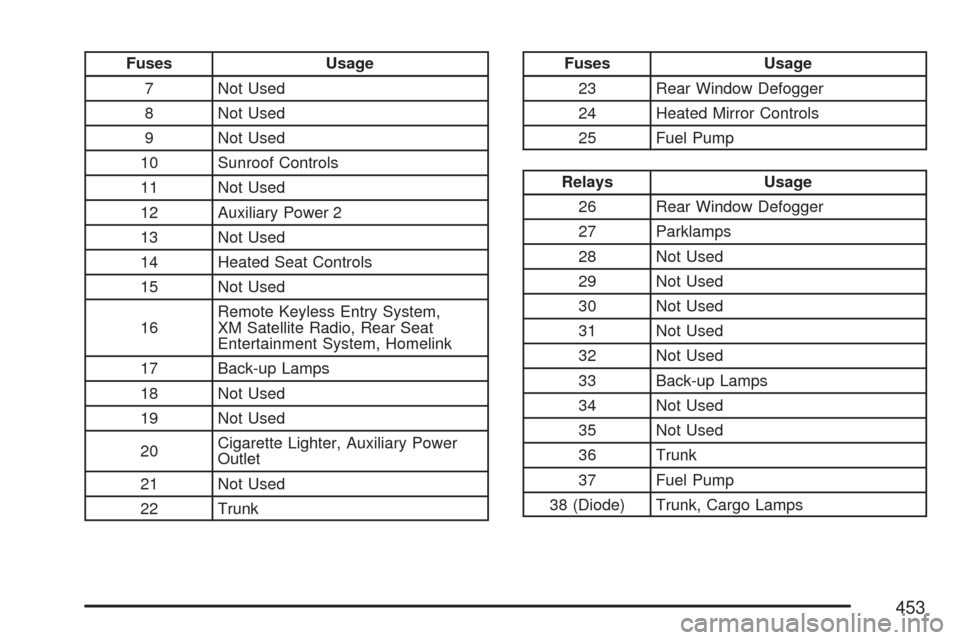
Fuses Usage
7 Not Used
8 Not Used
9 Not Used
10 Sunroof Controls
11 Not Used
12 Auxiliary Power 2
13 Not Used
14 Heated Seat Controls
15 Not Used
16Remote Keyless Entry System,
XM Satellite Radio, Rear Seat
Entertainment System, Homelink
17 Back-up Lamps
18 Not Used
19 Not Used
20Cigarette Lighter, Auxiliary Power
Outlet
21 Not Used
22 TrunkFuses Usage
23 Rear Window Defogger
24 Heated Mirror Controls
25 Fuel Pump
Relays Usage
26 Rear Window Defogger
27 Parklamps
28 Not Used
29 Not Used
30 Not Used
31 Not Used
32 Not Used
33 Back-up Lamps
34 Not Used
35 Not Used
36 Trunk
37 Fuel Pump
38 (Diode) Trunk, Cargo Lamps
453
Page 509 of 510
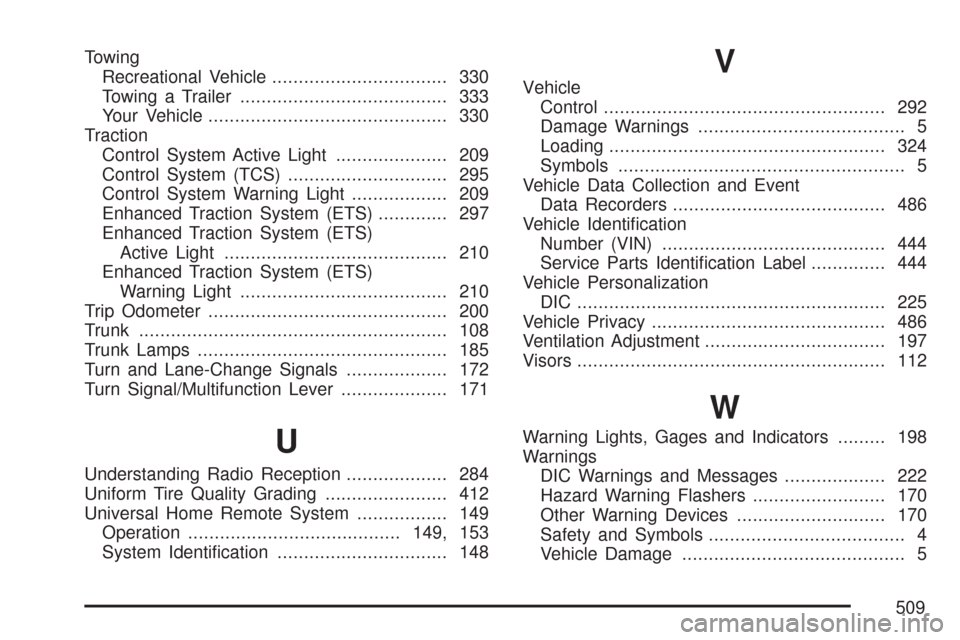
Towing
Recreational Vehicle................................. 330
Towing a Trailer....................................... 333
Your Vehicle............................................. 330
Traction
Control System Active Light..................... 209
Control System (TCS).............................. 295
Control System Warning Light.................. 209
Enhanced Traction System (ETS)............. 297
Enhanced Traction System (ETS)
Active Light.......................................... 210
Enhanced Traction System (ETS)
Warning Light....................................... 210
Trip Odometer............................................. 200
Trunk.......................................................... 108
Trunk Lamps............................................... 185
Turn and Lane-Change Signals................... 172
Turn Signal/Multifunction Lever.................... 171
U
Understanding Radio Reception................... 284
Uniform Tire Quality Grading....................... 412
Universal Home Remote System................. 149
Operation........................................149, 153
System Identication................................ 148
V
Vehicle
Control..................................................... 292
Damage Warnings....................................... 5
Loading.................................................... 324
Symbols...................................................... 5
Vehicle Data Collection and Event
Data Recorders........................................ 486
Vehicle Identication
Number (VIN).......................................... 444
Service Parts Identication Label.............. 444
Vehicle Personalization
DIC .......................................................... 225
Vehicle Privacy............................................ 486
Ventilation Adjustment.................................. 197
Visors.......................................................... 112
W
Warning Lights, Gages and Indicators......... 198
Warnings
DIC Warnings and Messages................... 222
Hazard Warning Flashers......................... 170
Other Warning Devices............................ 170
Safety and Symbols..................................... 4
Vehicle Damage.......................................... 5
509