2007 CHEVROLET EQUINOX display
[x] Cancel search: displayPage 270 of 492
Parental Control
The Rear Seat Entertainment System may have a
Parental Control feature, depending on which
radio you have. The Parental Control feature will
turn off the video screen and disable all button
operations from the remote control. This feature
can also be used to gain the attention of the
rear passengers that are using headphones.
To enable Parental Control press and hold the
radio power button for more than 2 seconds.
If on, the radio and video screen will turn off.
If a DVD and/or CD is playing, it will be stopped.
A “padlock” icon or a text message may be
displayed on the radio display depending on which
radio you have, while Parental Control is on.
The radio can be turned back on with a single
press of the power button and used normally, but
the RSE system will remain in Parental Control.
To turn off Parental Control, press and hold the
radio power button for more than 2 seconds.
The video screen will return to the state they were
in before Parental Control was turned on. The
“padlock” icon will disappear from the radio display.
Parental Control can also be turned off by inserting
or ejecting any disc, an ignition cycle, or pressing
the “play” icon on the radio DVD display menu.
Headphones
The RSE includes two sets of wireless
headphones that are only dedicated to this
system. These headphones are used to listen to
the DVD radio or an auxiliary device connected to
the RCA jacks. The wireless headphones have
an ON/OFF switch and a volume control.
To use the headphones, turn the switch to ON.
An indicator light located on the headphones
will illuminate. If the light does not illuminate, the
batteries may need to be replaced. See “Battery
Replacement” later in this section for more
information. Switch the headphones to OFF
when not in use.
The infrared transmitters are located in the
display below the video screen. The headphones
will shut off automatically to save the battery
power if the RSE system and RSA are shut off
or if the headphones are out of range of the
transmitters for more than three minutes. If you
move too far forward or step out of the vehicle,
the headphones will lose the audio signal.
270
Page 273 of 492
How to Change the RSE Video Screen
Settings
The screen display mode (normal, full, and zoom),
screen brightness, and setup menu language
can be changed from the on screen setup menu.
To change any feature, perform the following:
1. Press the display menu button on the
remote control.
2. Use the remote control menu navigation
arrows and the enter button to use the
setup menu.
3. Press the display menu button again to
remove the setup menu from the screen.
Audio Output
Audio from the DVD player or auxiliary inputs may
be heard through the following possible sources:
Wireless Headphones
Vehicle Speakers
Vehicle wired headphone jacks on the
rear seat audio system, if your vehicle has
this feature.
The RSE system will always transmit the audio
signal to the wireless headphones, if there is
audio available. See “Headphones” earlier in this
section for more information.
When a device is connected to the radio’s auxiliary
input jack, if your vehicle has this feature, or
A/V jacks, the rear seat passengers will be able
to hear audio from the auxiliary device through
the wireless or wired headphones. The front seat
passengers will be able to listen to playback
from this device through the vehicle speakers by
selecting AUX as the source on the radio.
273
Page 274 of 492
Video Screen
The video screen is located in the RSE overhead
console.
To use the video screen, do the following:
1. Push the release button located on the
RSE overhead console.
2. Turn the screen to the desired position.
When the video screen is not in use, push it up
into its locked position.
If a DVD is playing and the screen is raised to its
locked position, the screen will remain on, this
is normal, and the DVD will continue to play
through the previous audio source. Use the remote
control power button or eject the disc to turn off
the screen.
The RSE overhead console contains the IR
transmitters for the wireless headphones and
the IR receivers for the remote control. They
are located at the rear of the console.
Notice:Avoid directly touching the video
screen, as damage may occur. See “Cleaning
the Video Screen” later in this section for
more information.
Remote Control
To use the remote control, aim it at the transmitter
window at the rear of the RSE overhead console
and press the desired button. Direct sunlight
or very bright light may affect the ability of the
RSE transmitter to receive signals from the remote
control. If the remote control does not seem to
be working, the batteries may need to be replaced.
See “Battery Replacement” later in this section.
Objects blocking the line of sight may also
affect the function of the remote control.
If a CD or DVD is in the Radio DVD slot, the
remote control power button can be used to turn
on the video screen display and start the disc.
The radio can also turn on the video screen
display. SeeRadio with CD and DVD on page 235
for more information.
Notice:Storing the remote control in a hot
area or in direct sunlight may damage it,
and the repairs will not be covered by your
warranty. Keep the remote control stored in
a cool, dry place.
274
Page 275 of 492
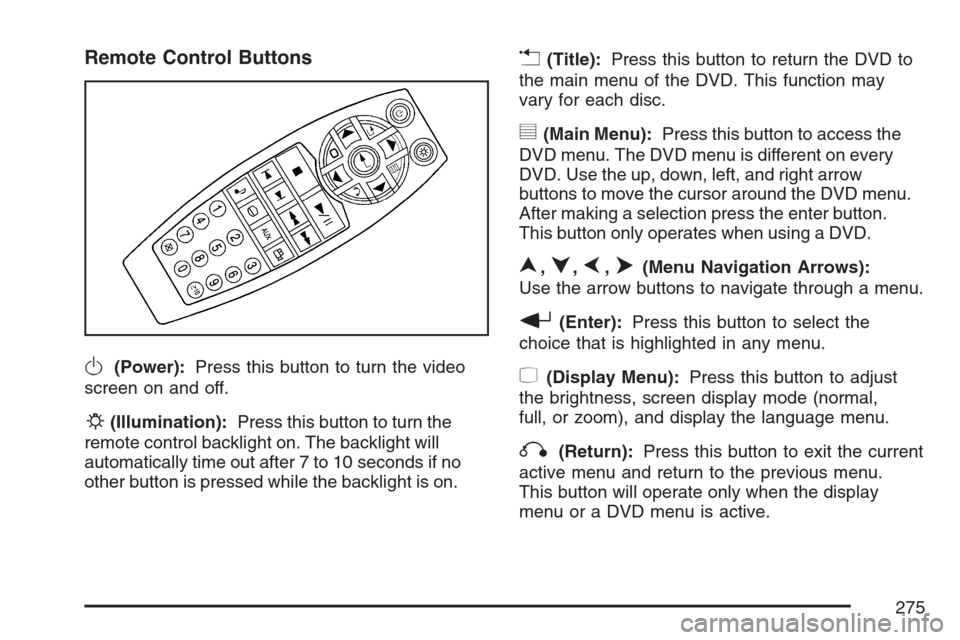
Remote Control Buttons
O(Power):Press this button to turn the video
screen on and off.
P(Illumination):Press this button to turn the
remote control backlight on. The backlight will
automatically time out after 7 to 10 seconds if no
other button is pressed while the backlight is on.
v(Title):Press this button to return the DVD to
the main menu of the DVD. This function may
vary for each disc.
y(Main Menu):Press this button to access the
DVD menu. The DVD menu is different on every
DVD. Use the up, down, left, and right arrow
buttons to move the cursor around the DVD menu.
After making a selection press the enter button.
This button only operates when using a DVD.
n,q,p,o(Menu Navigation Arrows):
Use the arrow buttons to navigate through a menu.
r(Enter):Press this button to select the
choice that is highlighted in any menu.
z(Display Menu):Press this button to adjust
the brightness, screen display mode (normal,
full, or zoom), and display the language menu.
q(Return):Press this button to exit the current
active menu and return to the previous menu.
This button will operate only when the display
menu or a DVD menu is active.
275
Page 278 of 492
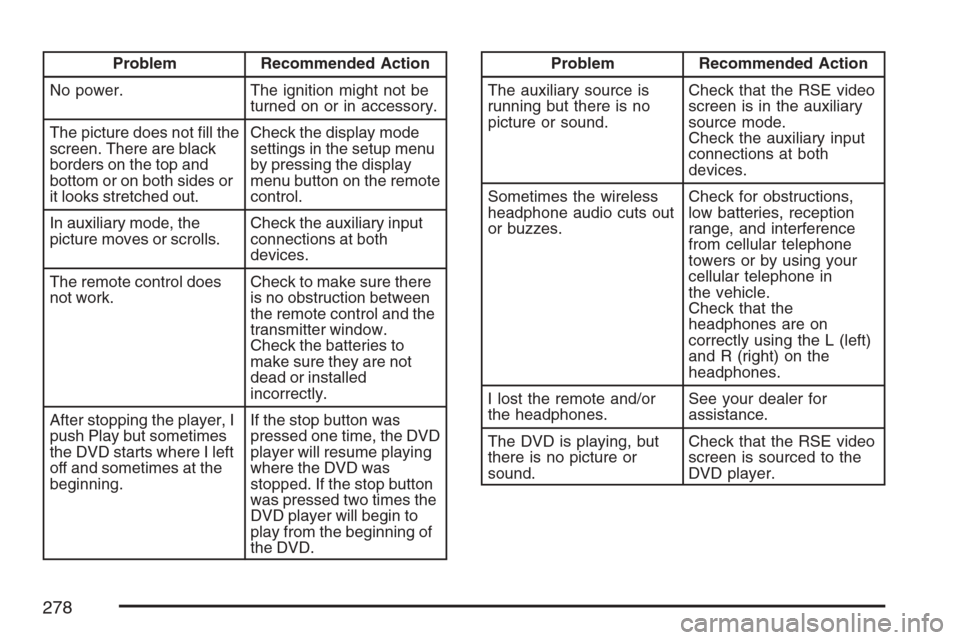
Problem Recommended Action
No power. The ignition might not be
turned on or in accessory.
The picture does not ll the
screen. There are black
borders on the top and
bottom or on both sides or
it looks stretched out.Check the display mode
settings in the setup menu
by pressing the display
menu button on the remote
control.
In auxiliary mode, the
picture moves or scrolls.Check the auxiliary input
connections at both
devices.
The remote control does
not work.Check to make sure there
is no obstruction between
the remote control and the
transmitter window.
Check the batteries to
make sure they are not
dead or installed
incorrectly.
After stopping the player, I
push Play but sometimes
the DVD starts where I left
off and sometimes at the
beginning.If the stop button was
pressed one time, the DVD
player will resume playing
where the DVD was
stopped. If the stop button
was pressed two times the
DVD player will begin to
play from the beginning of
the DVD.Problem Recommended Action
The auxiliary source is
running but there is no
picture or sound.Check that the RSE video
screen is in the auxiliary
source mode.
Check the auxiliary input
connections at both
devices.
Sometimes the wireless
headphone audio cuts out
or buzzes.Check for obstructions,
low batteries, reception
range, and interference
from cellular telephone
towers or by using your
cellular telephone in
the vehicle.
Check that the
headphones are on
correctly using the L (left)
and R (right) on the
headphones.
I lost the remote and/or
the headphones.See your dealer for
assistance.
The DVD is playing, but
there is no picture or
sound.Check that the RSE video
screen is sourced to the
DVD player.
278
Page 279 of 492
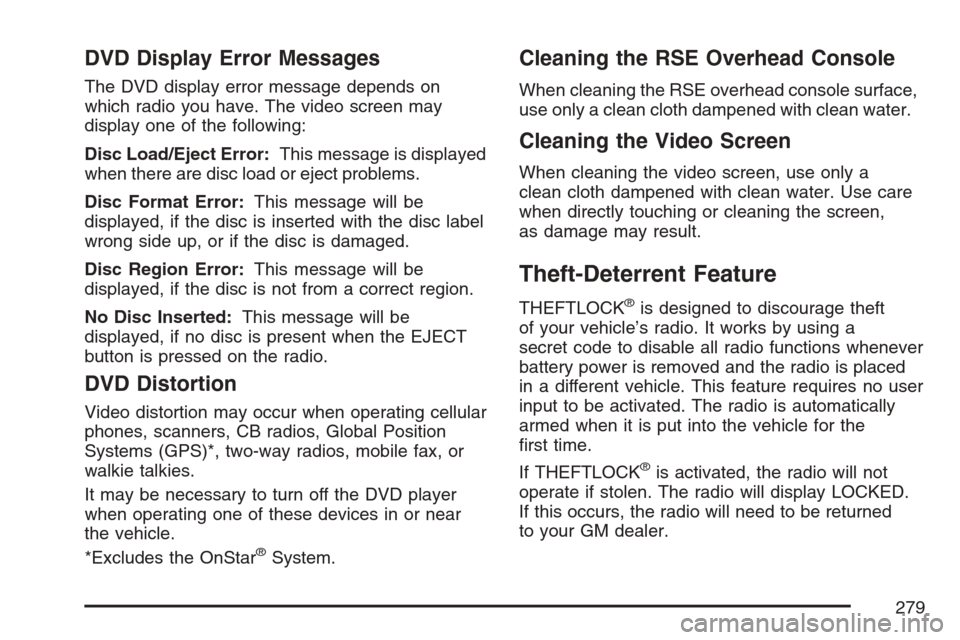
DVD Display Error Messages
The DVD display error message depends on
which radio you have. The video screen may
display one of the following:
Disc Load/Eject Error:This message is displayed
when there are disc load or eject problems.
Disc Format Error:This message will be
displayed, if the disc is inserted with the disc label
wrong side up, or if the disc is damaged.
Disc Region Error:This message will be
displayed, if the disc is not from a correct region.
No Disc Inserted:This message will be
displayed, if no disc is present when the EJECT
button is pressed on the radio.
DVD Distortion
Video distortion may occur when operating cellular
phones, scanners, CB radios, Global Position
Systems (GPS)*, two-way radios, mobile fax, or
walkie talkies.
It may be necessary to turn off the DVD player
when operating one of these devices in or near
the vehicle.
*Excludes the OnStar
®System.
Cleaning the RSE Overhead Console
When cleaning the RSE overhead console surface,
use only a clean cloth dampened with clean water.
Cleaning the Video Screen
When cleaning the video screen, use only a
clean cloth dampened with clean water. Use care
when directly touching or cleaning the screen,
as damage may result.
Theft-Deterrent Feature
THEFTLOCK®is designed to discourage theft
of your vehicle’s radio. It works by using a
secret code to disable all radio functions whenever
battery power is removed and the radio is placed
in a different vehicle. This feature requires no user
input to be activated. The radio is automatically
armed when it is put into the vehicle for the
rst time.
If THEFTLOCK
®is activated, the radio will not
operate if stolen. The radio will display LOCKED.
If this occurs, the radio will need to be returned
to your GM dealer.
279
Page 281 of 492
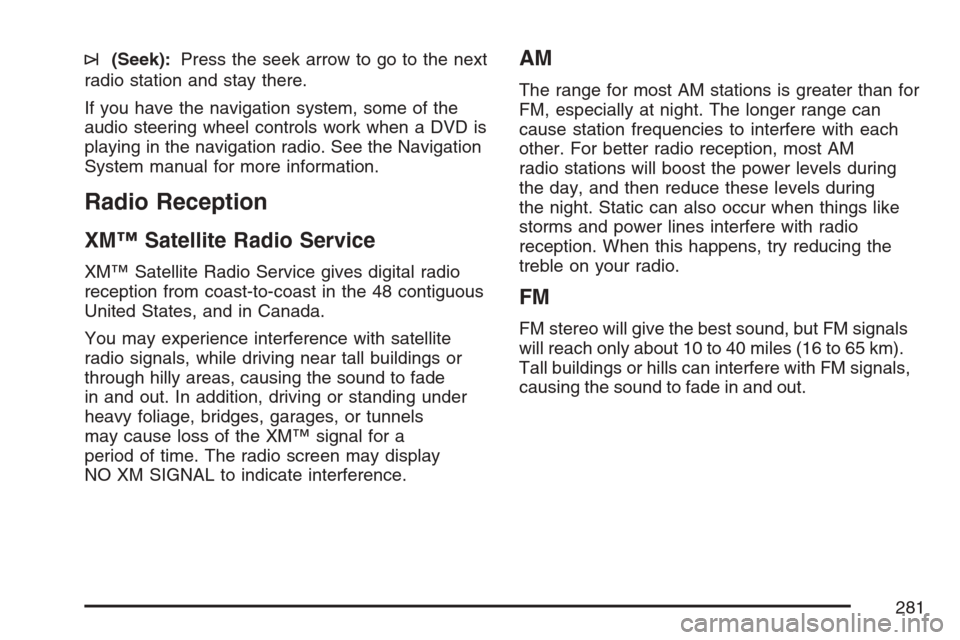
¨(Seek):Press the seek arrow to go to the next
radio station and stay there.
If you have the navigation system, some of the
audio steering wheel controls work when a DVD is
playing in the navigation radio. See the Navigation
System manual for more information.
Radio Reception
XM™ Satellite Radio Service
XM™ Satellite Radio Service gives digital radio
reception from coast-to-coast in the 48 contiguous
United States, and in Canada.
You may experience interference with satellite
radio signals, while driving near tall buildings or
through hilly areas, causing the sound to fade
in and out. In addition, driving or standing under
heavy foliage, bridges, garages, or tunnels
may cause loss of the XM™ signal for a
period of time. The radio screen may display
NO XM SIGNAL to indicate interference.
AM
The range for most AM stations is greater than for
FM, especially at night. The longer range can
cause station frequencies to interfere with each
other. For better radio reception, most AM
radio stations will boost the power levels during
the day, and then reduce these levels during
the night. Static can also occur when things like
storms and power lines interfere with radio
reception. When this happens, try reducing the
treble on your radio.
FM
FM stereo will give the best sound, but FM signals
will reach only about 10 to 40 miles (16 to 65 km).
Tall buildings or hills can interfere with FM signals,
causing the sound to fade in and out.
281
Page 292 of 492
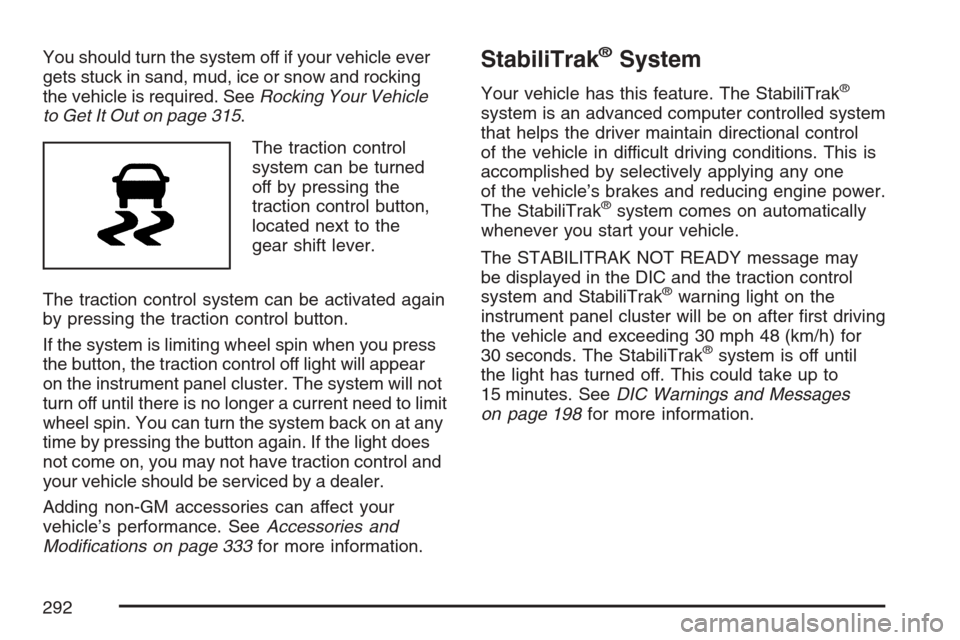
You should turn the system off if your vehicle ever
gets stuck in sand, mud, ice or snow and rocking
the vehicle is required. SeeRocking Your Vehicle
to Get It Out on page 315.
The traction control
system can be turned
off by pressing the
traction control button,
located next to the
gear shift lever.
The traction control system can be activated again
by pressing the traction control button.
If the system is limiting wheel spin when you press
the button, the traction control off light will appear
on the instrument panel cluster. The system will not
turn off until there is no longer a current need to limit
wheel spin. You can turn the system back on at any
time by pressing the button again. If the light does
not come on, you may not have traction control and
your vehicle should be serviced by a dealer.
Adding non-GM accessories can affect your
vehicle’s performance. SeeAccessories and
Modications on page 333for more information.StabiliTrak®System
Your vehicle has this feature. The StabiliTrak®
system is an advanced computer controlled system
that helps the driver maintain directional control
of the vehicle in difficult driving conditions. This is
accomplished by selectively applying any one
of the vehicle’s brakes and reducing engine power.
The StabiliTrak
®system comes on automatically
whenever you start your vehicle.
The STABILITRAK NOT READY message may
be displayed in the DIC and the traction control
system and StabiliTrak
®warning light on the
instrument panel cluster will be on after rst driving
the vehicle and exceeding 30 mph 48 (km/h) for
30 seconds. The StabiliTrak
®system is off until
the light has turned off. This could take up to
15 minutes. SeeDIC Warnings and Messages
on page 198for more information.
292