2007 CHEVROLET AVEO CD player
[x] Cancel search: CD playerPage 130 of 436
Cruise Control Light.................................. 171
Highbeam On Light................................... 171
Daytime Running Lamps (DRL)
Indicator Light........................................ 171
Door Ajar Light.......................................... 172
Fuel Gage................................................. 172
Low Fuel Warning Light............................ 173
Secondary Information Center (SIC).......... 174
Secondary Information Center (SIC)
(Hatchback Only)................................... 174
Clock (Hatchback Only)............................. 175
Safety Belt Reminder Light........................ 175
Airbag Readiness Light............................. 176
Passenger Airbag Status Indicator
(Hatchback)............................................ 177
Charging System Light.............................. 179
Anti-Lock Brake System Warning Light...... 179
Hold Mode Light........................................ 180
Malfunction Indicator Lamp........................ 180Oil Pressure Light..................................... 184
Fog Lamp Light......................................... 185
Door Ajar Light.......................................... 185
Audio System(s)......................................... 186
AM-FM Radio (Single Display,
Base Level)........................................... 187
AM-FM Radio (Double Display,
Base Level)........................................... 189
Radio with CD (MP3/WMA)....................... 193
Radio with Six-Disc CD (MP3/WMA)......... 200
Using an MP3 (Radio with CD Player)...... 207
Using an MP3 (Radio with Six-Disc
Player)................................................... 211
Audio Steering Wheel Controls.................. 215
Radio Reception........................................ 216
Care of Your CDs..................................... 216
Care of the CD Player.............................. 216
Fixed Mast Antenna (Hatchback)............... 217
Backglass Antenna (Sedan)....................... 217
Section 3 Instrument Panel
130
Page 187 of 436
While your vehicle is parked:
•Familiarize yourself with all of its controls.
•Familiarize yourself with its operation.
•Set up your audio system by presetting your
favorite radio stations, setting the tone, and
adjusting the speakers. Then, when driving
conditions permit, you can tune to your favorite
radio stations using the presets and steering
wheel controls if the vehicle has them.
Notice:Before adding any sound equipment
to your vehicle, such as an audio system,
CD player, CB radio, mobile telephone,
or two-way radio, make sure that it can be
added by checking with your dealer/retailer.
Also, check federal rules covering mobile radio
and telephone units. If sound equipment can
be added, it is very important to do it properly.
Added sound equipment can interfere with
the operation of your vehicle’s engine, radio,
or other systems, and even damage them. Your
vehicle’s systems can interfere with the
operation of sound equipment that has
been added.
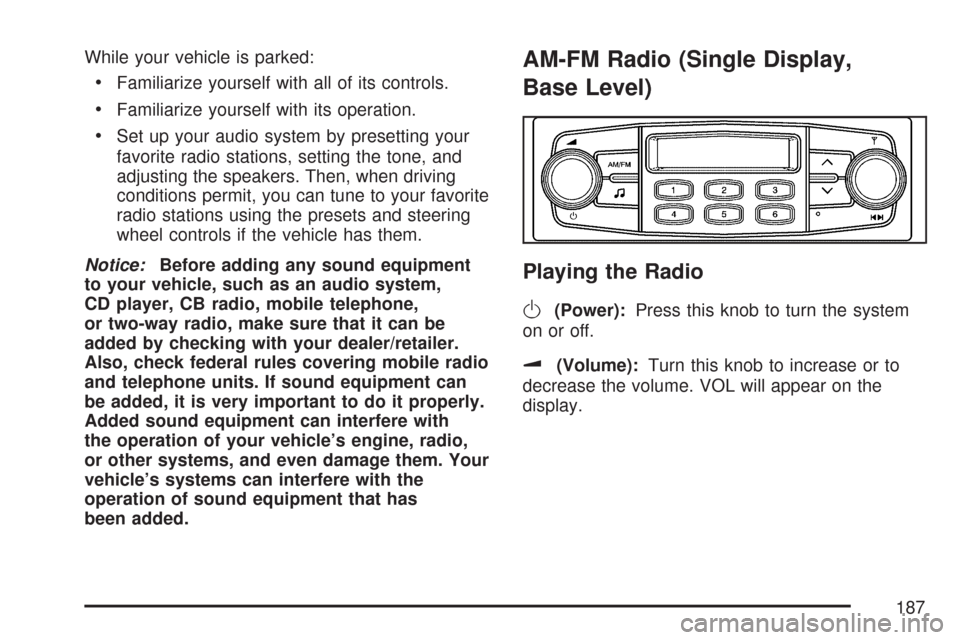
AM-FM Radio (Single Display,
Base Level)
Playing the Radio
O
(Power):Press this knob to turn the system
on or off.
u(Volume):Turn this knob to increase or to
decrease the volume. VOL will appear on the
display.
187
Page 190 of 436
The previous volume setting is maintained
whenever the radio is turned on. The volume can
be adjusted by using the volume knob.
Finding a Station
AM/AUX:Press this button to play an AM station
while a portable audio device is playing. Press
this button again and the system will begin playing
audio from the connected portable audio player.
If a portable audio player is not connected,
“no input device found” will be displayed.
FM:Press this button to switch between FM1 or
FM2. The display will show the selection.
¦¥SEEK:Press the up or down SEEK arrow
to go to the next or to the previous station and
stay there.
The radio will only seek stations with a strong
signal that are in the selected band.
()TUNE:Press the up or down TUNE arrow
to go to the next or to the previous radio station.
SCAN:Push and release this button to scan radio
stations. The radio will go to a station, play for a
few seconds, then go on to the next station.Push this button again to stop scanning.
The radio will only scan stations with a strong
signal that are in the selected band.
Setting Preset Stations
Up to 36 stations (six FM1, six FM2, six FM-A and
six AM1, six AM2, six AM-A), can be programmed
on the six numbered pushbuttons, by performing
the following steps:
1. Turn the radio on.
2. Press AM/AUX to select AM1, AM2, or AM-A.
Press FM to select FM1, FM2 or FM-A.
3. Tune in the desired station.
4. Press and hold one of the six numbered
pushbuttons for longer than two seconds.
The channel number (CH#1 through CH#6)
will flash on the display when the station
has been set. Whenever that numbered preset
button is pressed, the station that was set
will return.
5. Repeat the first four steps for each preset
button.
190
Page 192 of 436
To adjust the fade between the front and the rear
speakers, press this button until FAD appears
on the display. Turn the power/volume knob
to increase or to decrease the fade between the
front and the rear speakers. The display will
show the fade level. When finished making the
selection, press this button to select the fade level.
Setting the EQ (Equalization)
SOUND (Equalization):Press this button until
EQ OFF appears on the display to select
customized equalization settings designed for
classic, dance, rock, jazz, pop, voice, and techno.
Turn the power/volume knob until the desired
equalization setting appears on the display. When
finished making the selection, press the SOUND
button to select the equalization setting.
To cancel an equalization setting, press the
SOUND button until EQ OFF appears on the
display, turn the power/volume knob until OFF
appears on the display, then press the SOUND
button again to select the equalization setting.
Order of Sound Function
The order for displayed sound function is EQ OFF,
CLASSIC, DANCE, ROCK, JAZZ, POP, VOICE,
TECHNO, and EQ OFF.
Using the Auxiliary Input Jack
AUX IN (Auxiliary Input):Your radio system has
an auxiliary input jack located on the lower right
side of the faceplate. This is not an audio
output; do not plug the headphone set into the
front auxiliary input jack. You can however,
connect an external audio device such as an iPod,
laptop computer, MP3 player, CD changer, or
XM™ receiver, etc. to the auxiliary input jack for
use as another source for audio listening.
The auxiliary input jack will also accept cell phone
connectors. Plug the cell phone connector into
the auxiliary input jack to hear the other side of a
cell phone’s conversation through the vehicle
sound system.
192
Page 193 of 436
Drivers are encouraged to set up any auxiliary
device while the vehicle is in park (P). See
Defensive Driving on page 220for more
information on driver distraction.
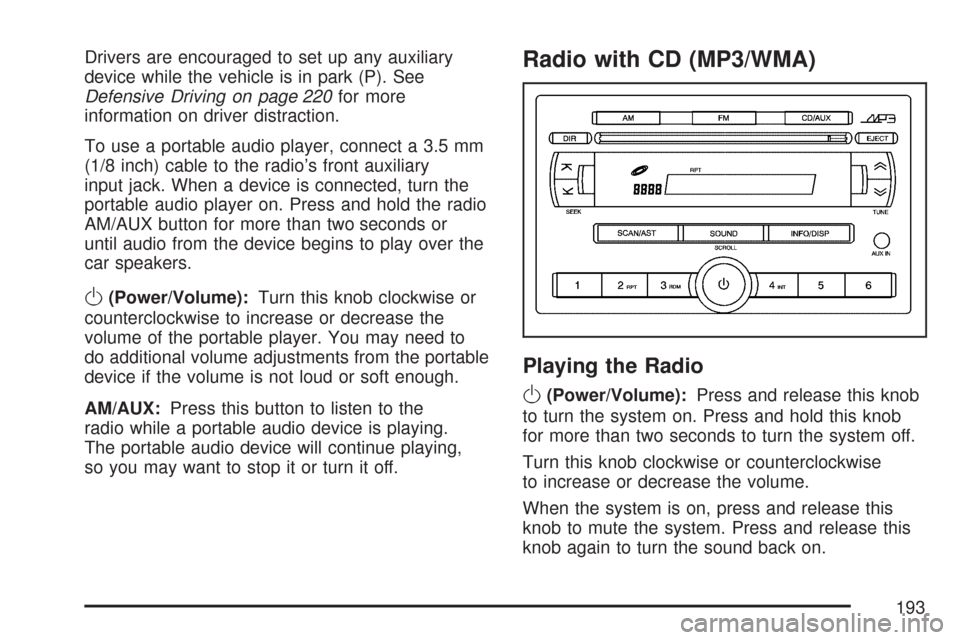
To use a portable audio player, connect a 3.5 mm
(1/8 inch) cable to the radio’s front auxiliary
input jack. When a device is connected, turn the
portable audio player on. Press and hold the radio
AM/AUX button for more than two seconds or
until audio from the device begins to play over the
car speakers.
O(Power/Volume):Turn this knob clockwise or
counterclockwise to increase or decrease the
volume of the portable player. You may need to
do additional volume adjustments from the portable
device if the volume is not loud or soft enough.
AM/AUX:Press this button to listen to the
radio while a portable audio device is playing.
The portable audio device will continue playing,
so you may want to stop it or turn it off.
Radio with CD (MP3/WMA)
Playing the Radio
O
(Power/Volume):Press and release this knob
to turn the system on. Press and hold this knob
for more than two seconds to turn the system off.
Turn this knob clockwise or counterclockwise
to increase or decrease the volume.
When the system is on, press and release this
knob to mute the system. Press and release this
knob again to turn the sound back on.
193
Page 196 of 436
Setting the Equalization
The order for displayed customized equalization
settings are EQ OFF, CLASSIC, DANCE,
ROCK, JAZZ, POP, VOICE, TECHNO, EQ OFF.
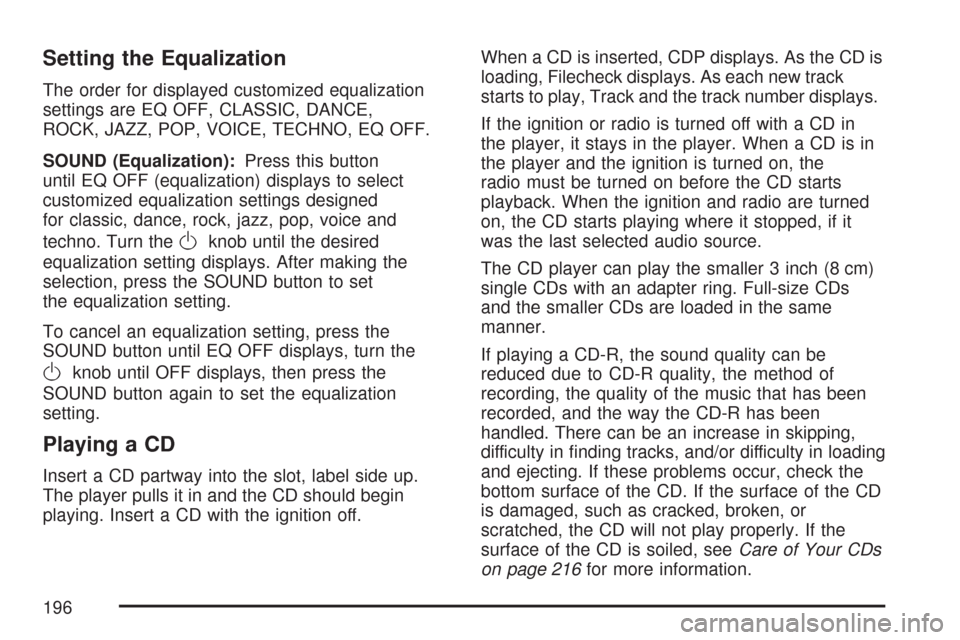
SOUND (Equalization):Press this button
until EQ OFF (equalization) displays to select
customized equalization settings designed
for classic, dance, rock, jazz, pop, voice and
techno. Turn the
Oknob until the desired
equalization setting displays. After making the
selection, press the SOUND button to set
the equalization setting.
To cancel an equalization setting, press the
SOUND button until EQ OFF displays, turn the
Oknob until OFF displays, then press the
SOUND button again to set the equalization
setting.
Playing a CD
Insert a CD partway into the slot, label side up.
The player pulls it in and the CD should begin
playing. Insert a CD with the ignition off.When a CD is inserted, CDP displays. As the CD is
loading, Filecheck displays. As each new track
starts to play, Track and the track number displays.
If the ignition or radio is turned off with a CD in
the player, it stays in the player. When a CD is in
the player and the ignition is turned on, the
radio must be turned on before the CD starts
playback. When the ignition and radio are turned
on, the CD starts playing where it stopped, if it
was the last selected audio source.
The CD player can play the smaller 3 inch (8 cm)
single CDs with an adapter ring. Full-size CDs
and the smaller CDs are loaded in the same
manner.
If playing a CD-R, the sound quality can be
reduced due to CD-R quality, the method of
recording, the quality of the music that has been
recorded, and the way the CD-R has been
handled. There can be an increase in skipping,
difficulty in finding tracks, and/or difficulty in loading
and ejecting. If these problems occur, check the
bottom surface of the CD. If the surface of the CD
is damaged, such as cracked, broken, or
scratched, the CD will not play properly. If the
surface of the CD is soiled, seeCare of Your CDs
on page 216for more information.
196
Page 197 of 436
If there is no apparent damage, try a known
good CD.
Do not add any label to a CD, it could get caught
in the CD player. If a CD is recorded on a
personal computer and a description label is
needed, try labeling the top of the recorded CD
with a marking pen.
Notice:If a label is added to a CD, or more
than one CD is inserted into the slot at a time,
or an attempt is made to play scratched or
damaged CDs, the CD player could be
damaged. While using the CD player, use only
CDs in good condition without any label,
load one CD at a time, and keep the CD player
and the loading slot free of foreign materials,
liquids, and debris.
If an error displays, see “CD Messages” later in
this section.
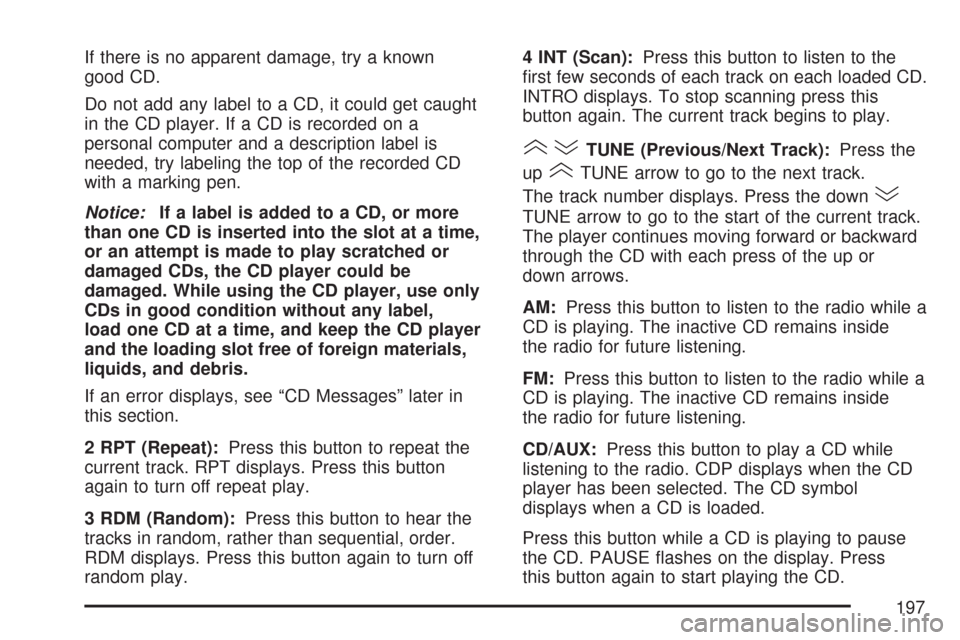
2 RPT (Repeat):Press this button to repeat the
current track. RPT displays. Press this button
again to turn off repeat play.
3 RDM (Random):Press this button to hear the
tracks in random, rather than sequential, order.
RDM displays. Press this button again to turn off
random play.4 INT (Scan):Press this button to listen to the
first few seconds of each track on each loaded CD.
INTRO displays. To stop scanning press this
button again. The current track begins to play.
()TUNE (Previous/Next Track):Press the
up
(TUNE arrow to go to the next track.
The track number displays. Press the down
)
TUNE arrow to go to the start of the current track.
The player continues moving forward or backward
through the CD with each press of the up or
down arrows.
AM:Press this button to listen to the radio while a
CD is playing. The inactive CD remains inside
the radio for future listening.
FM:Press this button to listen to the radio while a
CD is playing. The inactive CD remains inside
the radio for future listening.
CD/AUX:Press this button to play a CD while
listening to the radio. CDP displays when the CD
player has been selected. The CD symbol
displays when a CD is loaded.
Press this button while a CD is playing to pause
the CD. PAUSE flashes on the display. Press
this button again to start playing the CD.
197
Page 198 of 436
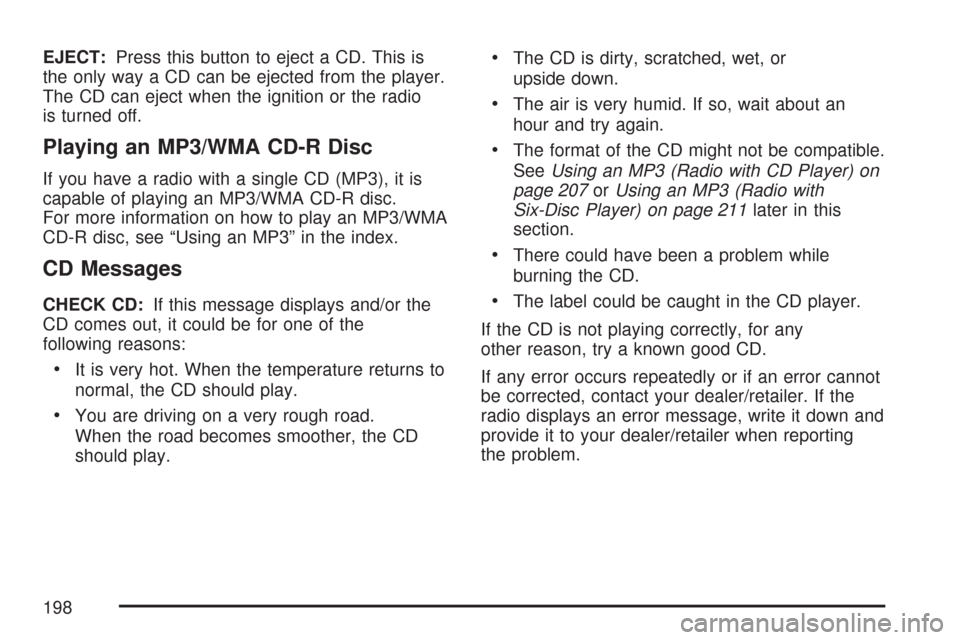
EJECT:Press this button to eject a CD. This is
the only way a CD can be ejected from the player.
The CD can eject when the ignition or the radio
is turned off.
Playing an MP3/WMA CD-R Disc
If you have a radio with a single CD (MP3), it is
capable of playing an MP3/WMA CD-R disc.
For more information on how to play an MP3/WMA
CD-R disc, see “Using an MP3” in the index.
CD Messages
CHECK CD:If this message displays and/or the
CD comes out, it could be for one of the
following reasons:
•It is very hot. When the temperature returns to
normal, the CD should play.
•You are driving on a very rough road.
When the road becomes smoother, the CD
should play.
•The CD is dirty, scratched, wet, or
upside down.
•The air is very humid. If so, wait about an
hour and try again.
•The format of the CD might not be compatible.
SeeUsing an MP3 (Radio with CD Player) on
page 207orUsing an MP3 (Radio with
Six-Disc Player) on page 211later in this
section.
•There could have been a problem while
burning the CD.
•The label could be caught in the CD player.
If the CD is not playing correctly, for any
other reason, try a known good CD.
If any error occurs repeatedly or if an error cannot
be corrected, contact your dealer/retailer. If the
radio displays an error message, write it down and
provide it to your dealer/retailer when reporting
the problem.
198