2007 BMW X5 4.8I battery
[x] Cancel search: batteryPage 99 of 272

Controls
97Reference
At a glance
Driving tips
Communications
Navigation
Entertainment
Mobility
Lamps
Parking lamps/low beams
0Lights off and daytime running lamps*
1Parking lamps and daytime running lamps*
2Low beams and courtesy lamps
3Automatic headlamp control
*, daytime run-
ning lamps
*, courtesy lamps, Adaptive
Head Light
*
Parking lamps
In position1, the front, rear and side vehicle
lighting is switched on. You can use the parking
lamps for parking.
The parking lamps drain the battery. Do
not leave them switched on for long peri-
ods of time, otherwise it may no longer be pos-
sible to start the engine. It is better to switch on
the roadside parking lamps on one side, refer to
page99.<
Low beams
The low beams light up when the light switch is
in position 2 and the ignition is on.
If the light switch remains in position 2, the
exterior lamps are switched off automatically
when the driver's door is opened while the igni-
tion is off.
Switch on the parking lamps if required as
described under Parking lamps.
Automatic headlamp control*
With the daytime running lamps activated, refer
to page98, the daytime running lamps are
switched on in position3 with the ignition
switched on. The system automatically
switches over to the low beams depending on
the ambient light, e.g. in a tunnel, at dawn and
dusk and in case of precipitation. The LED next
to the symbol lights up when the low beams are
on.
When driving into a tunnel with bright overhead
lighting, switching on of the lights may be
delayed.
A blue sky with the sun low on the horizon can
cause the lights to be switched on.
The low beams remain switched on inde-
pendent of the ambient lighting condi-
tions when you switch on the fog lamps
*.<
If desired, the light switch can be left in
position3. The exterior lighting is automatically
switched off after parking the vehicle.
The automatic headlamp control cannot
serve as a substitute for your personal
judgment in determining when the lamps
should be switched on in response to ambient
lighting conditions. For example, the sensors
cannot detect fog or hazy weather. To avoid
safety risks, you should always switch on the
low beams manually under these conditions.<
Courtesy lamps
If, when parking the vehicle, you leave the light
switch in position2 or3, the parking lamps and
the interior lamps light up for a certain time
when the vehicle is unlocked.
Pathway lighting
When you activate the headlamp flasher after
parking the vehicle and switching off the lamps,
the low beams will come on for a brief period.
You can set the duration or deactivate the func-
tion via iDrive.
Page 102 of 272

Lamps
100
Interior lamps
The interior lamps, footwell lamps, door entry
lighting
and courtesy lamps* are controlled
automatically.
With the courtesy lamps, LED lights are located
in the door handles to illuminate the exterior
area before the doors.
To protect the battery, all lamps in the
vehicle are switched off approx. 15 min-
utes after radio readiness is switched off, refer
to Start/Stop button on page56.<
Switching interior lamps on and off
manually
Press the button.
If you want the interior lamps to remain off con-
tinuously, maintain pressure on the button for
approx. 3 seconds.
Reading lamps
Reading lamps are provided in the front and
rear
* adjacent to the interior lamps. Press the
button to switch the lamps on and off.
Page 107 of 272

Controls
105Reference
At a glance
Driving tips
Communications
Navigation
Entertainment
Mobility
AUC Automatic recirculated-air
control/recirculated-air mode
You can respond to pollutants or
unpleasant odors in the immediate
environment by suspending the
supply of outside air. The system
then recirculates the air currently within the
vehicle. During AUC operation, a sensor
detects pollutants in the outside air and con-
trols the shut-off automatically.
By pressing the button repeatedly, you can
request three operating modes:
>LED off: outside air flows in continuously.
>Left LED on, AUC mode: the system
detects pollutants in the outside air and
shuts off the supply as needed.
>Right LED on, recirculated-air mode: the
supply of outside air is permanently shut off.
If condensation starts to form on the
inside window surfaces during operation
in the recirculated-air mode, you should switch
it off while also increasing the air volume as
required.
The recirculated-air mode should not be used
over an extended period of time, as the air qual-
ity inside the vehicle deteriorates continu-
ously.<
Residual heat
The heat stored in the engine is
used to heat the passenger com-
partment, e.g. while stopped at a
school to pick up a child.
Switching on residual heat utilization
Pressing the right side switches on the residual
heat utilization when the following conditions
are met:
>up to 15 minutes after switching off the
engine
>with the engine at operating temperature
>with sufficient battery voltage
>at an outside temperature below 777/
256REST appears on the display of the automatic
climate control when the residual heat utiliza-
tion is switched on.
From radio readiness the interior temperature,
the air volume and the air distribution can be
set.
If the conditions for the residual heat utili-
zation are met, no display appears.<
Switching off residual heat utilization
You can select the lowest blower speed by
pressing and holding the left side. Pressing
again switches off the residual heat utilization.
REST disappears from the display of the auto-
matic climate control.
Switching off automatic climate control
You can select the lowest blower
speed by pressing and holding the
left side. Pressing again switches
off the automatic climate control. The air vol-
ume, the heater and the cooling function are all
switched off.
You can switch on the system again by pressing
any button of the automatic climate control.
Front ventilation
1Knurled wheels to smoothly open and close
air vents
2Levers to change the air vent direction
Do not drop any foreign objects into the
air vents, otherwise these could be cata-
pulted outwards and lead to injuries.<
Page 110 of 272

Climate
108
Air volume, manual
You can vary the air volume by
pressing on the corresponding
side. You can reactivate the auto-
matic mode for the air volume with the AUTO
button.
Switching off rear automatic climate
control
You can select the lowest blower
speed by pressing and holding the
left side. Pressing again switches
off the rear automatic climate control. The air
volume, the heater and the cooling function are
all switched off.
The rear automatic climate control can
also be switched off with iDrive. To switch
on the rear automatic climate control again, the
system must first be reactivated, refer to Acti-
vating rear automatic climate control.<
You can switch on the system again by pressing
any button of the rear automatic climate control.
Rear ventilation
1Knurled wheels to smoothly open and close
air vents
2Knurled wheels to adjust temperature in
upper body region; can be adjusted sepa-
rately for left and right:
>Turn toward blue: colder
>Turn toward red: warmer
3Levers to change the air vent direction1Lever to change the air vent direction
2Knurled wheel to smoothly open and close
air vents
For information on the ventilation of the 3rd row
seats, refer to page106.
Parked car ventilation*
The concept
The parked car ventilation blows air into the
passenger compartment to lower interior tem-
peratures.
It is ready to use in the parked-car mode at any
outside temperature.
You can set two different times for the system
to start. The parked car ventilation can also be
switched on and off directly. It remains
switched on for 30 minutes.
Since the system uses a substantial amount of
electrical current, you should refrain from acti-
vating it twice in succession without allowing
the battery to be recharged in normal operation
between use.
The air emerges through the upper body region
air vents in the instrument panel. Therefore,
please open the air vents.
The parked car ventilation is operated via iDrive.
Switching on and off directly
iDrive, for explanation of concept, refer to
page16.
1.Open the start menu.
2.Move the controller to the left to open
"Climate".
Page 153 of 272

Navigation
Driving tips
151Reference
At a glance
Controls
Communications
Entertainment
Mobility
What to do if …
What to do if …
>a navigation DVD is inserted, but an instruc-
tion to insert the DVD appears on the Con-
trol Display?
The navigation DVD may not be the correct
DVD for the navigation system. This infor-
mation is indicated on the DVD label.
>you request the current position of your
vehicle, but do not receive a precise dis-
play?
The system is unable to receive enough
GPS signals at your current position due to
obstructions, your position is not yet avail-
able on your navigation DVD, or the system
is in the process of calculating your posi-
tion. Reception is best when you have an
unobstructed view to the sky.
>the destination guidance does not accept a
destination?
The data of the destination is not stored on
the navigation DVD that is loaded. Select a
destination that is as close as possible to
the original.
>the destination guidance does not accept
an address without the street name?
On the navigation DVD, no downtown area
can be determined for the city or town
entered. Enter any street, or a destination
such as the railway station in the selected
town, and then start the destination guid-
ance.
>you want to enter a destination for the des-
tination guidance, but it is not possible to
select the letters for your desired entry?
The data of the destination is not stored on
the navigation DVD that is loaded. In this
case, the system will not offer you any let-
ters to choose from. Select a destination
that is as close as possible to the original.>the system stops furnishing directions on
which way to turn as you approach intersec-
tions?
You are driving in an area that has not yet
been completely recorded on the naviga-
tion DVD. Instead of an arrow indicating a
turn, you will see an arrow which indicates
the general direction of your planned route.
Or you have left the recommended route
and the system requires a few seconds to
calculate a new recommended route.
>the navigation system does not react to
entries?
If the battery was disconnected, it takes
about 10 minutes before the system is once
again operational.
Page 176 of 272

DVD system in rear
174 >Press the button:
Activating menu item.
Changing batteries
1.Press the detent and remove the cover.
2.Change the batteries. The type and installa-
tion position are marked on the bottom of
the battery compartment.
3.Close the cover.
Dispose of used batteries at a collection
point or at your BMW Sports Activity
Vehicle Center.<
Sound output via
loudspeakers
In addition to the headphones, you can also play
the sound via the vehicle loudspeakers.
As soon as a plug is inserted in the AUX-In
socket in the center console, the sound output
of the DVD system via the vehicle loudspeakers
is interrupted.
iDrive, for explanation of concept, refer to
page16.
1.Press the button.
This opens the start menu.
2.Move the controller backwards to open
"Entertainment".3.Select "AUX" and press the controller.
Switching DVD system on/off
Press the button on the CD/DVD player.
The DVD system switches on automatically
when a CD or DVD is inserted.
Playing CD/DVD
The menu item with which the contents of the
CD/DVD can be called up is dependent on the
data on a CD or DVD:
>Video data via "DVD"
>Audio data via "CD"
>Images via "Photo".
Playing videos from CD/DVD
Country codes of DVDs
Your DVD player only plays DVDs with the cod-
ing of your home region, e.g. Europe = 2. The
country codes supported by your DVD are con-
tained in the information on your DVD.
Page 190 of 272

Telephoning
188
Telephoning
The concept
Your BMW is equipped with a full mobile phone
preparation package. After logging on a suitable
mobile phone on the vehicle once, you can
operate the mobile phone via iDrive, with the
buttons on the steering wheel and by voice.
A mobile phone that has been logged on once is
automatically detected again with the engine
running or the ignition switched on as soon as
it is in the vehicle interior. The logon data of up
to four mobile phones can be stored simulta-
neously. If several mobile phones are detected
simultaneously, the respective last mobile
phone logged on can be operated via the vehi-
cle.
Using a phone in your vehicle
Using snap-in adapter*
The so-called snap-in adapter, a mobile phone
cradle, enables the battery to be charged and
the mobile phone to be connected to the exter-
nal antenna of your vehicle. This ensures
improved network reception and a consistent
voice reproduction quality. Ask your BMW
Sports Activity Vehicle Center which mobile
phones snap-in adapters are offered for.
BMW discourages the use of mobile
phones or other mobile communications
devices inside the vehicle without a direct con-
nection to an outside antenna. Otherwise, the
vehicle electronics and mobile communication
device can influence one another. In addition,
there is no assurance that the radiation which
results from transmission will be dissipated
from the vehicle interior.<
Avoid operating a mobile phone detected by
the vehicle with the keypad of the mobile
phone, otherwise malfunctions can occur.
For your safety
A car phone makes life more convenient in
many ways, and can even save lives in an emer-
gency. While you should consult your mobile
phone's separate operating instructions for a
detailed description of safety precautions and
information, we request that you direct your
particular attention to the following:
Only make entries when the traffic situa-
tion allows you to do so. Do not hold the
mobile phone in your hand while you are driving;
use the hands-free system instead. If you do
not observe this precaution, your being dis-
tracted can endanger vehicle occupants and
other road users.<
Suitable mobile phones
Ask your BMW Sports Activity Vehicle Center
which mobile phones with a Bluetooth interface
are supported by the mobile phone preparation
package or which mobile phones snap-in
adapters are available for. These mobile phones
support the functions described in this Owner's
Manual with a certain software version. Mal-
functions can occur with other mobile phones.
Care instructions
You can find what you need to know about car-
ing for your mobile phone in the Caring for your
vehicle brochure and in the separate mobile
phone operating instructions.
Operating options
You can operate the mobile phone using:
>Buttons on steering wheel, refer to page11
>iDrive, refer to page192
>Voice commands, refer to page197
*
Page 203 of 272
201
Entertainment
Reference
At a glance
Controls
Driving tips Communications
Navigation
Mobility
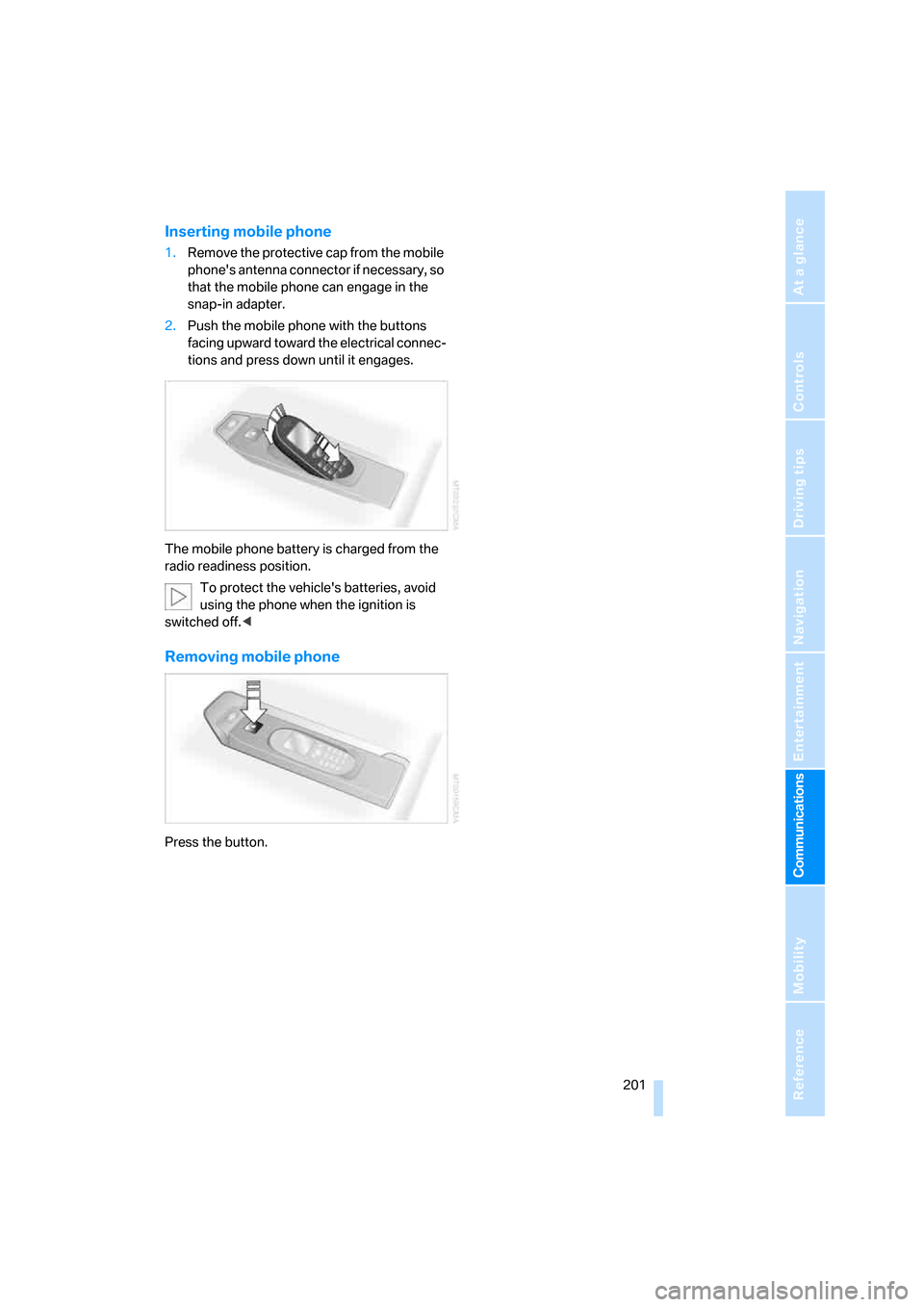
Inserting mobile phone
1.Remove the protective cap from the mobile
phone's antenna connector if necessary, so
that the mobile phone can engage in the
snap-in adapter.
2.Push the mobile phone with the buttons
facing upward toward the electrical connec-
tions and press down until it engages.
The mobile phone battery is charged from the
radio readiness position.
To protect the vehicle's batteries, avoid
using the phone when the ignition is
switched off.<
Removing mobile phone
Press the button.