2007 BMW M5 tow
[x] Cancel search: towPage 118 of 253

Things to remember when driving
116
Securing cargo
>Use the luggage net*, luggage straps, or
securing straps to hold down small and
lightweight luggage and cargo.
>Heavy-duty cargo straps
* for securing
larger and heavier objects are available at
your BMW center. Four lashing eyes
mounted in the cargo bay are used to
secure these heavy-duty cargo straps, refer
to illustration.
>Please observe the special instructions
supplied with the heavy-duty cargo straps.
Position and secure the cargo as
described above, so that it cannot endan-
ger the car's occupants, for example if sudden
braking or evasive maneuvers are necessary.
Use only the lashing eyes to secure heavy-duty
cargo straps, refer to illustration, otherwise the
cargo straps could become detached or the
vehicle could be damaged.
Never exceed either the approved gross vehicle
weight or either of the approved axle loads, refer
to page224, as excessive loads can pose a
safety hazard, and may also place you in viola-
tion of traffic safety laws.
You should never transport unsecured heavy or
hard objects in the passenger compartment, as
they could fly around and pose a safety hazard
to the vehicle's occupants during abrupt brak-
ing or evasive maneuvers.<
Roof-mounted luggage rack*
A special rack system is available as an option
for your BMW. Please comply with the precau-
tions included with the installation instructions.
Mounting points
The mounting points are located in the door
openings.
Loading roof-mounted luggage rack
Because roof racks raise the vehicle's center of
gravity when loaded, they have a major effect on
its handling and steering response.
You should therefore always remember not to
exceed the approved roof load capacity, the
approved gross vehicle weight or the axle loads
when loading the rack.
You can find the specified weights under
Weights on page224.
The load on the roof must be evenly distributed
and must not extend outward beyond the limits
of the loading surface. Always stow the heaviest
pieces on the bottom. Be sure that adequate
clearance is maintained for raising the glass
sunroof, and that objects do not project into the
opening path of the luggage compartment lid.
Secure roof-mounted cargo correctly and
securely to prevent it from shifting or falling off
during the trip.
Drive smoothly. Avoid sudden acceleration and
braking maneuvers. Take corners gently.
Page 123 of 253

Navigation
Driving tips
121Reference
At a glance
Controls
Communications
Entertainment
Mobility
Destination entry
In entering your destination you can select from
among the following options:
>Entering a destination manually, see below
>Entering destination via voice*, refer to
page124
>Selecting destination using information,
refer to page127
>Selecting destination from a list, refer to
Destination list, page128
>Selecting destination from address book,
refer to page128
>Selecting home address, refer to page130
After selecting your destination you can pro-
ceed to start the destination guidance, refer to
page133.
Operating navigation system
Enter data only when the vehicle is sta-
tionary, and always give priority to the
applicable traffic regulations in the event of any
contradiction between traffic and road condi-
tions and the instructions issued by the naviga-
tion system. If you do not observe this precau-
tion, you can endanger the vehicle occupants
and other road users.<
iDrive, for explanation of principle, refer to
page16.
1.Press the button.
This opens the start menu.
2.Move the controller to the right to open
"Navigation".3.Select "Navigation" and press the control-
ler.
Entering a destination
manually
The system's word matching principle makes it
easier for you to enter the names of streets or
towns, refer to page132. This allows you to
enter different spellings and completes your
entry automatically so that stored names can be
called up quickly.
1.Change to upper field if necessary. Turn the
controller until "Navigation" is selected and
press the controller.
"New destination" is selected.
2.Press the controller.
Page 124 of 253
Destination entry
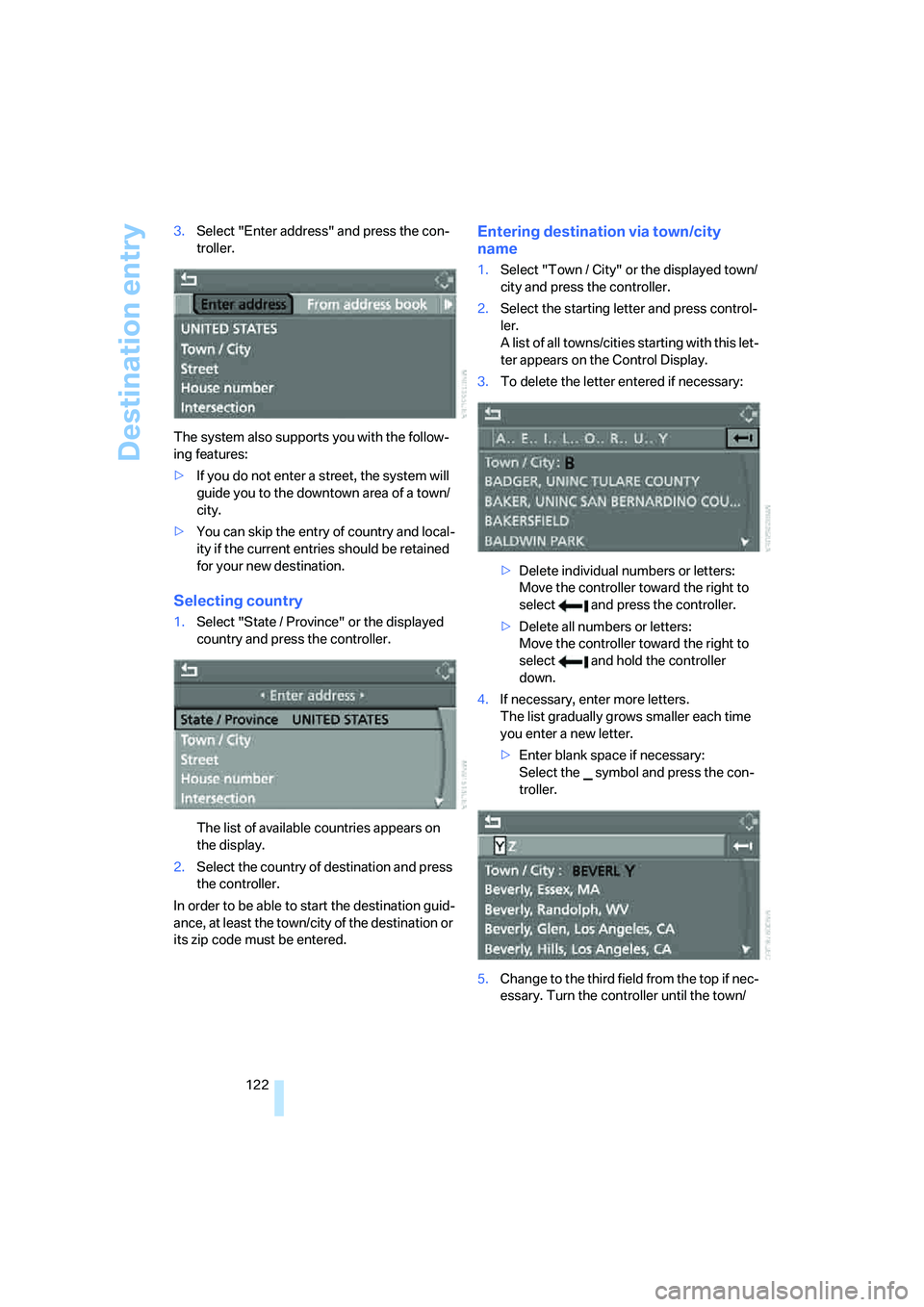
122 3.Select "Enter address" and press the con-
troller.
The system also supports you with the follow-
ing features:
>If you do not enter a street, the system will
guide you to the downtown area of a town/
city.
>You can skip the entry of country and local-
ity if the current entries should be retained
for your new destination.
Selecting country
1.Select "State / Province" or the displayed
country and press the controller.
The list of available countries appears on
the display.
2.Select the country of destination and press
the controller.
In order to be able to start the destination guid-
ance, at least the town/city of the destination or
its zip code must be entered.
Entering destination via town/city
name
1.Select "Town / City" or the displayed town/
city and press the controller.
2.Select the starting letter and press control-
ler.
A list of all towns/cities starting with this let-
ter appears on the Control Display.
3.To delete the letter entered if necessary:
>Delete individual numbers or letters:
Move the controller toward the right to
select and press the controller.
>Delete all numbers or letters:
Move the controller toward the right to
select and hold the controller
down.
4.If necessary, enter more letters.
The list gradually grows smaller each time
you enter a new letter.
>Enter blank space if necessary:
Select the symbol and press the con-
troller.
5.Change to the third field from the top if nec-
essary. Turn the controller until the town/
Page 125 of 253
Navigation
Driving tips
123Reference
At a glance
Controls
Communications
Entertainment
Mobility
city name is selected from the list and press
the controller.
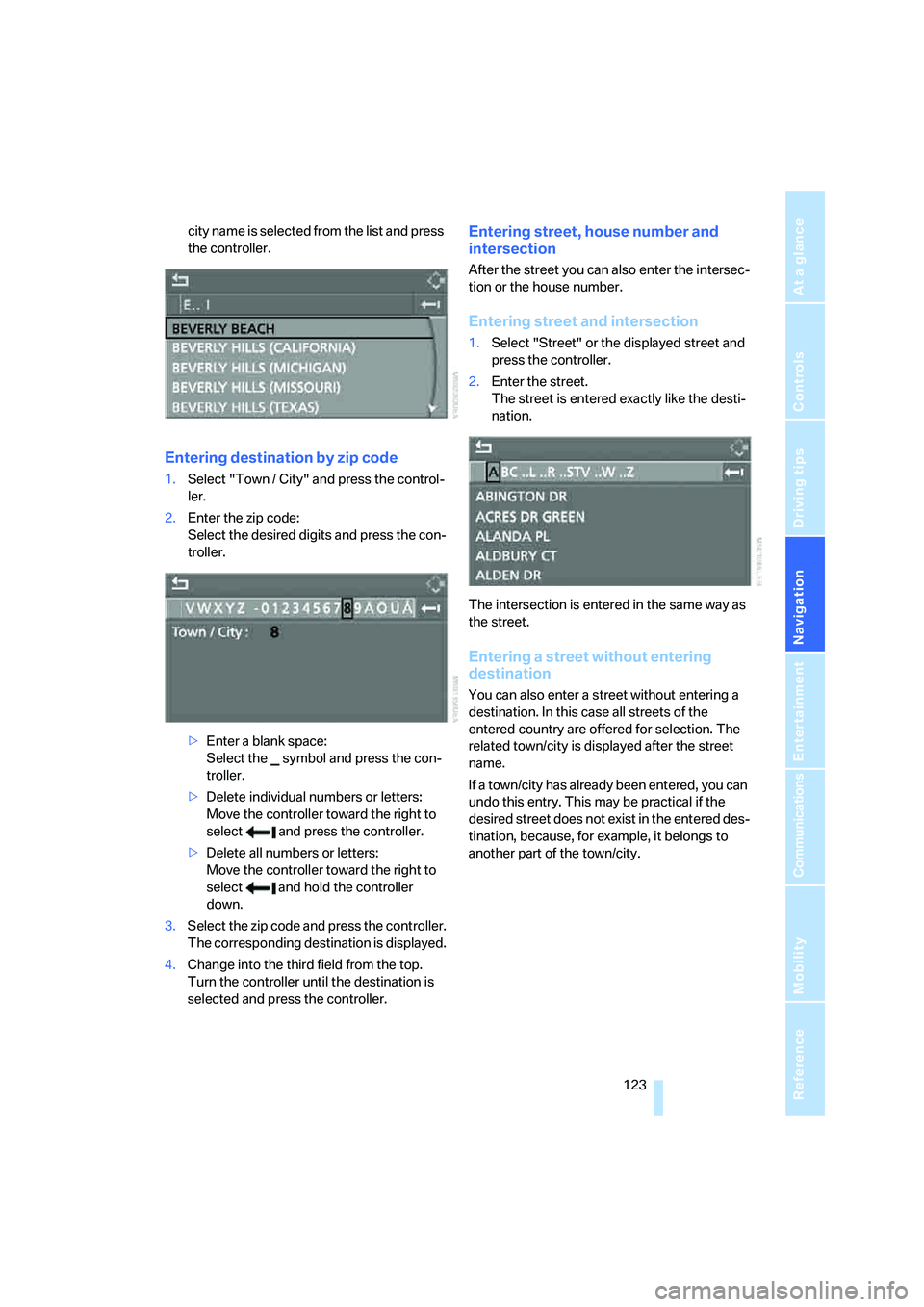
Entering destination by zip code
1.Select "Town / City" and press the control-
ler.
2.Enter the zip code:
Select the desired digits and press the con-
troller.
>Enter a blank space:
Select the symbol and press the con-
troller.
>Delete individual numbers or letters:
Move the controller toward the right to
select and press the controller.
>Delete all numbers or letters:
Move the controller toward the right to
select and hold the controller
down.
3.Select the zip code and press the controller.
The corresponding destination is displayed.
4.Change into the third field from the top.
Turn the controller until the destination is
selected and press the controller.
Entering street, house number and
intersection
After the street you can also enter the intersec-
tion or the house number.
Entering street and intersection
1.Select "Street" or the displayed street and
press the controller.
2.Enter the street.
The street is entered exactly like the desti-
nation.
The intersection is entered in the same way as
the street.
Entering a street without entering
destination
You can also enter a street without entering a
destination. In this case all streets of the
entered country are offered for selection. The
related town/city is displayed after the street
name.
If a town/city has already been entered, you can
undo this entry. This may be practical if the
desired street does not exist in the entered des-
tination, because, for example, it belongs to
another part of the town/city.
Page 127 of 253

Navigation
Driving tips
125Reference
At a glance
Controls
Communications
Entertainment
Mobility
Selecting country
1.Wait for the system to ask for the country of
destination.
Say the name of the country of destination in
the language of the voice command system.
Entering destination
The destination can be spelled or entered as an
entire word.
Spelling destination
To enter the destination, spell it using the
orthography of the country of destination.
Pronounce the letters smoothly and at normal
volume, avoiding excessive emphasis and
pauses.
The system can suggest up to 20 desti-
nations that match your entries. Up to
6 entries are displayed at once on the Con-
trol Display.The town/city can also be selected from the list
via iDrive:
Turn the controller until the destination is
selected and press the controller.
Entering destination as an entire word
Towns/cities and streets located in the region
where the language of the voice command sys-
tem is spoken can be entered as an entire word.
Example: to enter a US destination as an entire
word, the system language must be English.
The condition for this is the use of a suitable
navigation DVD.
Speak smoothly and at normal volume, avoiding
excessive emphasis and pauses.
1.Wait for the system to request the destina-
tion.
The system can suggest up to 6 destina-
tions that match your entries.
The town/city can also be selected from the list
via iDrive:
Turn the controller until the destination is
selected and press the controller.
Identical-sounding towns/cities that can-
not be distinguished by the system are 2.Say the name of the country of destina-
tion.
1.Spell town/city name:
Say at least the first three letters of the
destination. The more letters you say,
the more exactly the system recognizes
the town/city.
A destination is suggested by the system.
2.Select town/city:
>Select highlighted town/city: {Yes}
>Select other town/city: {No}
>Select entry, e.g. {Entry 3}
>To show other entries in the list:
{Next page}
>To respell the town/city: {Repeat}
2.Say the name of the destination.
A destination is suggested by the system.
3.Select town/city:
>Select highlighted town/city: {Yes}
>Select other town/city: {No}
>Select entry, e.g. {Entry 3}
>To reenter the town/city: {Repeat}
>To enter the town/city by spelling:
{Spell}
Page 128 of 253

Destination entry
126 compiled in a separate list and shown as a des-
tination followed by three dots.
Select this entry with {Yes} if necessary. Then
select the desired town/city from this list.<
Entering street and house number
The street is entered in the same way as the
destination.
To enter the house number:
Up to 4-digit house numbers can be entered.
Starting destination guidance
Destination guidance starts immediately.
Saving destination
The destination is added to the destination list
or can be stored in the address book.
Map-guided destination
selection
If you only know the location of the town/city or
street of the destination, then you can enter the
destination by using a map. You can use the
cursor to select the destination on the map and
then adopt it into the destination guidance.
1.Select "Navigation" and press the control-
ler.
"New destination" is selected.
2.Press the controller.3.Select "Input map" and press the controller.
A section of a map is displayed on the Con-
trol Display:
>During destination guidance, around the
current destination
>With the destination guidance deacti-
vated, around the last destination
entered
4.Select destination with cursor.
>Changing scale: turn the controller.
>Moving map: move the controller in the
corresponding direction.
The controller can be moved to the left,
right, forward, backward and also diago-
nally.
5.To adopt or store the destination in the des-
tination guidance system, press the con-
troller.
The selected destination and other menu
items are displayed.
6.Select the desired menu item:
>"Start route guidance" starts destination
guidance.
>"Show current position" places the cur-
rent position in the center of the map. 1.{House number}
2.Say the house number.
{Start guidance}
{Add to destination list} or
{Add to address book}
Page 130 of 253

Destination entry
128
Destination list
The last 20 entered destinations are shown in
the destination list. You can display these desti-
nations and adopt them in the destination guid-
ance system.
For example, to plan a longer route, you can
store all destinations you want to drive to in
advance in the destination list, refer to Entering
a destination manually on page121.
Select "Navigation" and press the controller.
The last destination entered is the first item in
the destination list.
This symbol indicates the current destina-
tion during destination guide.
To display additional destinations from the des-
tination list:
Turn the controller.
Applying destination in destination
guidance system
1.Select the desired destination and press
the controller.
2.Select "Start guidance" and press the con-
troller.
Editing destination list
1.Select the desired destination in the desti-
nation list and press the controller.
2.The selected destination can be edited:
>Store entry:
Select "Add to address book".
>Display information on destination:
Select "Information on destination".
>Delete entry:
Select "Delete entry".
>Delete all entries:
Select "Delete list". The destination
guidance is switched off.
>Change entry:
Select "Edit". For operation, refer to
Entering destination via town/city name,
page122.
3.Press the controller.
Address book
Opening address book
iDrive, for explanation of principle, refer to
page16.
Select "Address book" and press the controller.
Page 134 of 253

Destination entry
132 >"Avoid tollroads"
Tollroads are avoided where possible.
>"Avoid ferries"
Ferries are avoided where possible.
To exit the menu:
Select the arrow and press the controller.
The route criteria can also be changed in the
map view:
1.Select the symbol for the route criterion and
press the controller.
2.Select a route criterion and press the con-
troller.
Word matching principle
The system supports the word matching princi-
ple to make it easier for you to enter the names
of streets or towns. The system runs ongoing
checks, comparing your destination entries
with the data stored on the navigation DVD as
the basis for instant response. The user bene-
fits include:
>Names of specific locations can also vary
from the official versions if you are using a
spelling that is customary in another coun-
try.
Example:
Instead of "München", you can also enter
the English spelling "Munich" or the Italian
spelling "Monaco".
>When you are entering the names of towns
and streets the system will complete them
automatically as soon as enough letters are
available to ensure unambiguous identifica-
tion.
>The system only accepts name entries
beginning with letters that are stored on the
navigation DVD. The system will not accept
non existent names and addresses.