2007 BMW M5 radio controls
[x] Cancel search: radio controlsPage 155 of 253
Navigation
Entertainment
Driving tips
153Reference
At a glance
Controls
Communications
Mobility
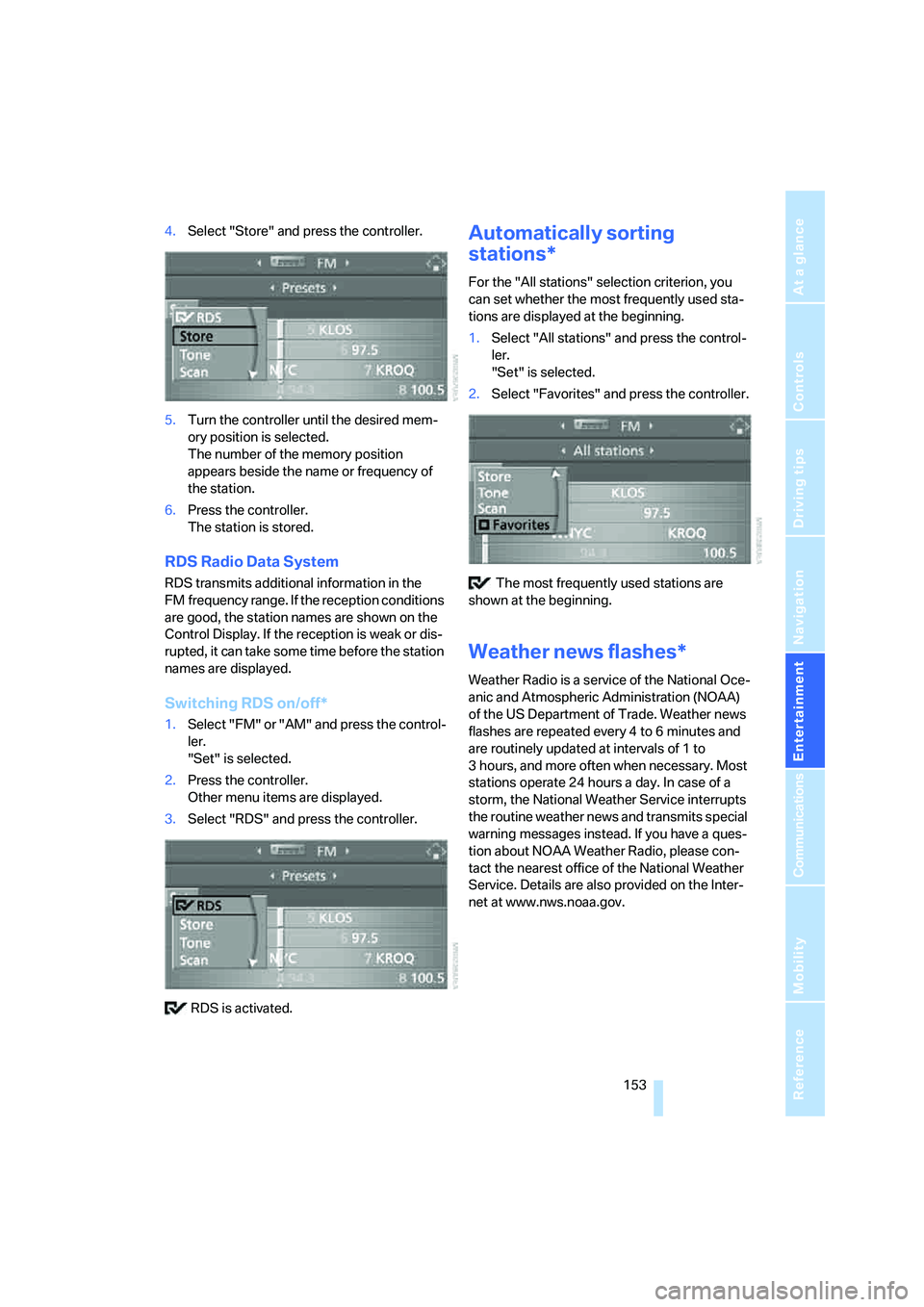
4.Select "Store" and press the controller.
5.Turn the controller until the desired mem-
ory position is selected.
The number of the memory position
appears beside the name or frequency of
the station.
6.Press the controller.
The station is stored.
RDS Radio Data System
RDS transmits additional information in the
FM frequency range. If the reception conditions
are good, the station names are shown on the
Control Display. If the reception is weak or dis-
rupted, it can take some time before the station
names are displayed.
Switching RDS on/off*
1.Select "FM" or "AM" and press the control-
ler.
"Set" is selected.
2.Press the controller.
Other menu items are displayed.
3.Select "RDS" and press the controller.
RDS is activated.
Automatically sorting
stations*
For the "All stations" selection criterion, you
can set whether the most frequently used sta-
tions are displayed at the beginning.
1.Select "All stations" and press the control-
ler.
"Set" is selected.
2.Select "Favorites" and press the controller.
The most frequently used stations are
shown at the beginning.
Weather news flashes*
Weather Radio is a service of the National Oce-
anic and Atmospheric Administration (NOAA)
of the US Department of Trade. Weather news
flashes are repeated every 4 to 6 minutes and
are routinely updated at intervals of 1 to
3 hours, and more often when necessary. Most
stations operate 24 hours a day. In case of a
storm, the National Weather Service interrupts
the routine weather news and transmits special
warning messages instead. If you have a ques-
tion about NOAA Weather Radio, please con-
tact the nearest office of the National Weather
Service. Details are also provided on the Inter-
net at www.nws.noaa.gov.
Page 157 of 253

Navigation
Entertainment
Driving tips
155Reference
At a glance
Controls
Communications
Mobility
3.Select "Autostore" and press the controller.
4.Press the controller.
Other menu items are displayed.
5.Select "Autostore " and press the con-
troller.
The display of the stations offering digital
reception is updated. This can take up to 2 min-
utes.
Displaying additional information
With the digital stations, additional information
on the current track is displayed, e.g. the name
of the artist.
1.Select a station and press the controller.
2.Select "Details" and press the controller. The information is displayed.
If a digital station is received again when the
station is changed, the additional information
will be displayed again following a brief interrup-
tion.
Satellite radio*
You can receive over 100 different channels
with high sound quality.
The channels are offered to you in predefined
packages. To receive the channels of your
choice, you must have this package enabled.
With this new technology the signal may
fail, causing interruptions in reception.<
Enabling or disabling channels
iDrive, for explanation of principle, refer to
page16.
1.Press the button.
This opens the start menu.
2.Move the controller backwards to open
"Entertainment".
3.Select "SAT".
Page 163 of 253

Navigation
Entertainment
Driving tips
161Reference
At a glance
Controls
Communications
Mobility
To exit from the menu:
Select the arrow and press the controller.
Displaying information on track*
With compressed audio files, you can display
any information stored on the current track, e.g.
the name of the artist.
1.Press the controller.
2.Select "Details" and press the controller.
The information for the current track are dis-
played.
From radio readiness, the setting is stored for
the remote control currently in use.
Sampling tracks, scan
The system automatically plays a brief sample
from each of the tracks on the current CD.
1.Select "Set" and press the controller.
Other menu items are displayed.2.Select "Scan" and press the controller.
To end sampling:
1.Press the controller.
2.Select "Scan" and press the controller.
This cancels sampling of the tracks, and the
player remains on the current track.
Compressed audio files*
1.Select the current track and press the con-
troller.
2.Select the desired menu item:
>To sample all tracks of the current direc-
tory, select "Scan directory" and press
the controller.
>To sample all tracks of the CD, select
"Scan all" and press the controller.
To end sampling:
1.Press the controller.
2.Select "Scan directory" or "Scan all" and
press the controller.
This cancels sampling, and the player remains
on the current track.
Page 175 of 253

173
Entertainment
Reference
At a glance
Controls
Driving tips Communications
Navigation
Mobility
When the ignition and radio readiness are
switched off, e.g. after removing the remote
control from the ignition lock, you can continue
an ongoing call via the hands-free system for no
more than 25 minutes.
Speech quality
If the person you are talking to cannot under-
stand you well, this may be due to excessively
loud background noises. The full mobile phone
preparation package can compensate for these
noises to a certain degree. To optimize the
speech quality during a call, we recommend
that you:
>Reduce background noises, e.g. by closing
the windows, reducing the air volume of the
automatic climate control or pointing the
front vent outlets downward
>Reduce volume of hands-free system
Requirements
The logon data of the mobile phone are stored
in the vehicle and the mobile phone is ready to
operate.
The engine is running or the ignition is switched
on.
The mobile phone is detected by the vehicle.
iDrive, for explanation of principle, refer to
page16.
1.Press the button.
This opens the start menu.
2.Move the controller forward to open "Com-
munication".
Receiving calls
If you have the phone number of the caller
stored in the phone book and the phone num-
ber has been transmitted, the name of the entry
is displayed.
Accepting a call
Select "Accept" and press the controller.
Rejecting a call
Select "Reject" and press the controller.
The caller is diverted to your mailbox if it has
been activated.
Calling
Dialing phone numbers
1.Select "Phone" and press the controller.
2.Select "Dial" and press the controller.
3.Enter the desired phone number by dialing
the individual digits and pressing the con-
troller.
Always enter the complete phone number
consisting of national dialing code, area
code, and phone number.
The letters correspond to the digits on the
keypad of the mobile phone.
Page 183 of 253
181
Entertainment
Reference
At a glance
Controls
Driving tips Communications
Navigation
Mobility
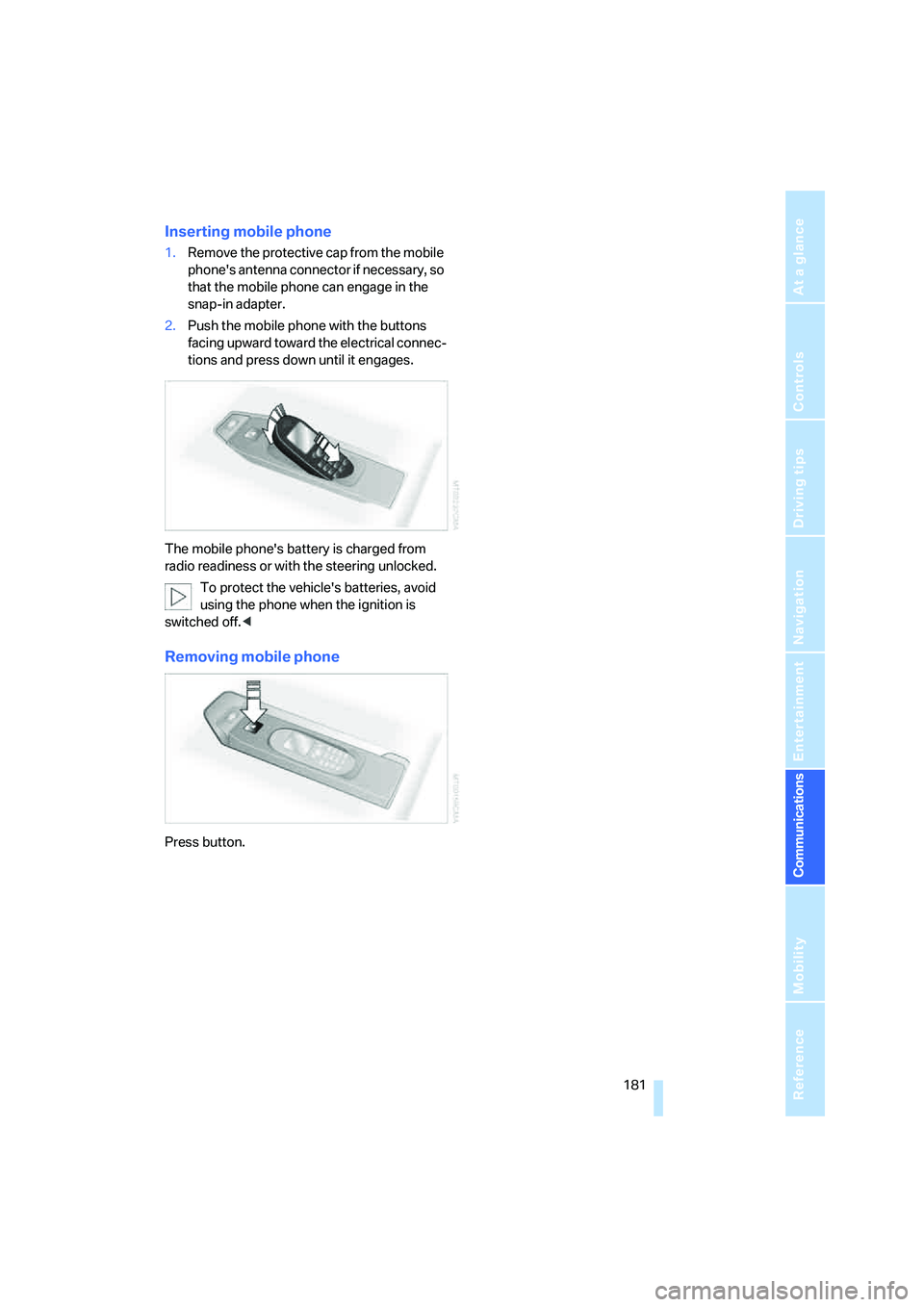
Inserting mobile phone
1.Remove the protective cap from the mobile
phone's antenna connector if necessary, so
that the mobile phone can engage in the
snap-in adapter.
2.Push the mobile phone with the buttons
facing upward toward the electrical connec-
tions and press down until it engages.
The mobile phone's battery is charged from
radio readiness or with the steering unlocked.
To protect the vehicle's batteries, avoid
using the phone when the ignition is
switched off.<
Removing mobile phone
Press button.
Page 189 of 253

187
Entertainment
Reference
At a glance
Controls
Driving tips Communications
Navigation
Mobility
Blocking services*
If you block the services, the connection to
BMW Assist is deactivated.
1.Press the button.
This opens the start menu.
2.Press the controller to open the menu.
3.Turn the controller until "Settings" is
selected and press the controller.
4.Turn the controller until "BMW Services" is
selected and press the controller.
5.Change to upper field if necessary. Turn the
controller until "Service Status" is selected
and press the controller.
6.Select "Options" and press the controller.
7.Select "Terminate services" and press the
controller.
The use of BMW Assist is blocked, and the cur-
rent vehicle position will not be transmitted dur-
ing an emergency call
*. To cancel blocking and
reactivate BMW Assist, see below. This does
not affect the contractual agreements.
Reactivate BMW Assist if necessary to log on
again.
Activating BMW Assist
For you to be able to use the services of BMW
Assist, these must be activated.
Requirements
>Make sure that the vehicle can determine its
current position. Reception is best when
you have an unobstructed view to the sky.
>Leave radio readiness switched on while
connecting to the system.
Activating
1.Press the button.
This opens the start menu.
2.Press the controller to open the menu.
3.Turn the controller until "Settings" is
selected and press the controller.
Page 215 of 253

Mobility
213Reference
At a glance
Controls
Driving tips
Communications
Navigation
Entertainment
Vehicle battery
Battery care
The battery is 100 % maintenance-free, i.e., the
electrolyte will last for the life of the battery
when the vehicle is operated in a temperate cli-
mate. Your BMW center will be glad to advise in
all matters concerning the battery.
Charging battery
Only charge the battery in the vehicle via the
terminals in the engine compartment with the
engine switched off. Connections, refer to
Jump starting on page215.
Disposal
Have old batteries disposed of by your
BMW center or hand them in to a recy-
cling center. Maintain the battery in an upright
position for transport and storage. Always
restrain the battery to prevent it from tipping
over during transport.<
Power failure
After a temporary power loss, the functioning of
some equipment may be limited and require
reinitialization. Individual settings are also lost
and must be updated:
>Seat, mirror and steering wheel memory
The positions must be stored again, refer to
page43.
>Time and Date
The values must be updated, refer to
page74.
>Radio
Stations must be stored again if necessary,
refer to page152.
>Navigation system
Wait until the system starts, refer to
page120.
Fuses
Never attempt to repair a blown fuse and
do not replace a defective fuse with a sub-
stitute of another color or amperage rating, as
this could lead to a circuit overload, ultimately
resulting in a fire in the vehicle.<
Spare fuses, plastic tweezers and fuse alloca-
tion diagram are located in the compartment for
the onboard tool kit, refer to page206.
In glove compartment
1.Release both quick-release fasteners.
2.Fold the cover forward or remove.
In cargo bay
1.Lift up floor mat.
2.Release the quick-release fastener of the
right side panel and pull out the panel.
Page 229 of 253
Reference 227
At a glance
Controls
Driving tips
Communications
Navigation
Entertainment
Mobility
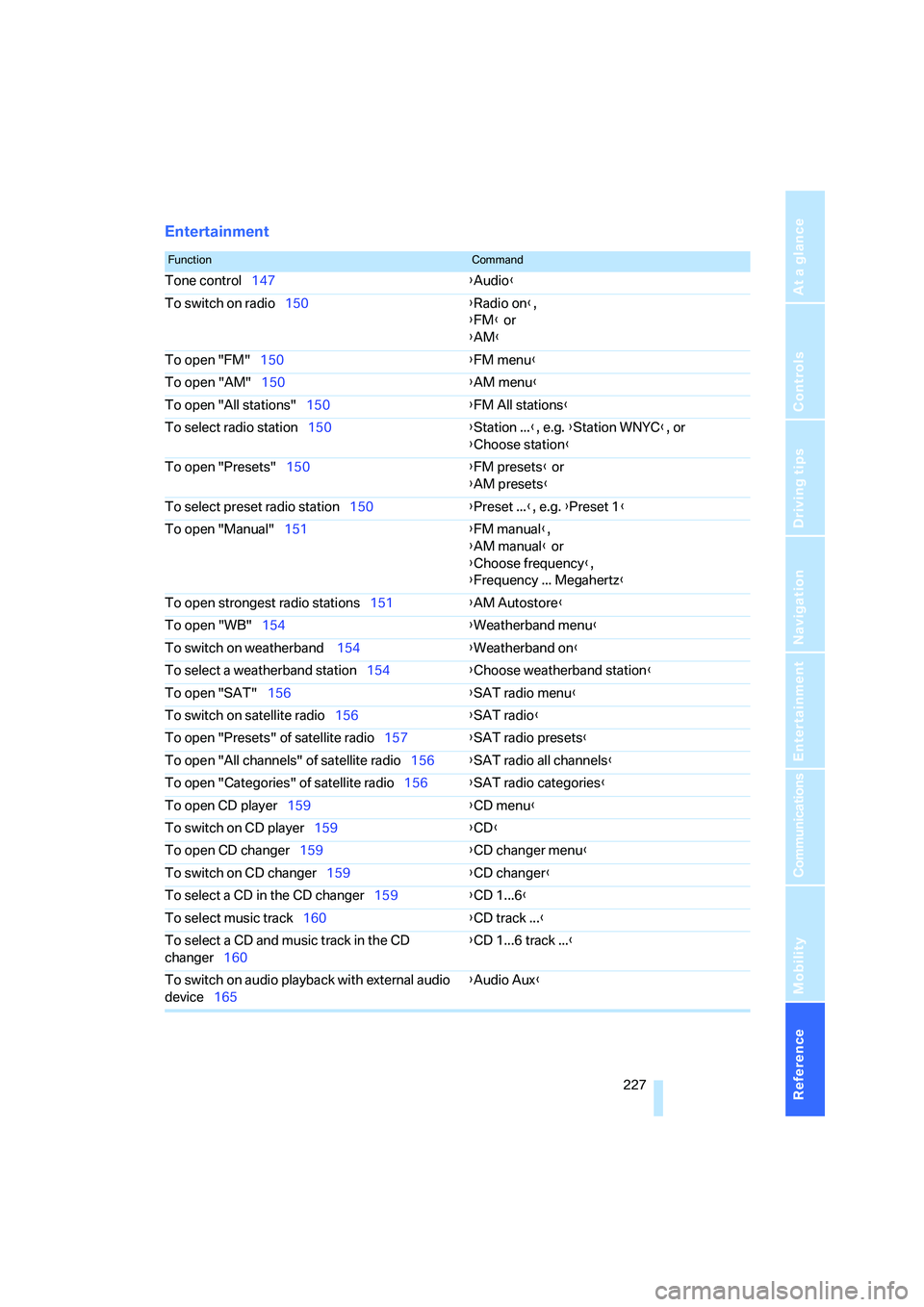
Entertainment
FunctionCommand
Tone control147{Audio}
To switch on radio150{Radio on},
{FM} or
{AM}
To open "FM"150{FM menu}
To open "AM"150{AM menu}
To open "All stations"150{FM All stations}
To select radio station150{Station ...}, e.g. {Station WNYC}, or
{Choose station}
To open "Presets"150{FM presets} or
{AM presets}
To select preset radio station150{Preset ...}, e.g. {Preset 1}
To open "Manual"151{FM manual},
{AM manual} or
{Choose frequency},
{Frequency ... Megahertz}
To open strongest radio stations151{AM Autostore}
To open "WB"154{Weatherband menu}
To switch on weatherband 154{Weatherband on}
To select a weatherband station154{Choose weatherband station}
To open "SAT"156{SAT radio menu}
To switch on satellite radio156{SAT radio}
To open "Presets" of satellite radio157{SAT radio presets}
To open "All channels" of satellite radio156{SAT radio all channels}
To open "Categories" of satellite radio156{SAT radio categories}
To open CD player159{CD menu}
To switch on CD player159{CD}
To open CD changer159{CD changer menu}
To switch on CD changer159{CD changer}
To select a CD in the CD changer159{CD 1...6}
To select music track160{CD track ...}
To select a CD and music track in the CD
changer160{CD 1...6 track ...}
To switch on audio playback with external audio
device165{Audio Aux}