2007 BMW 650I COUPE display
[x] Cancel search: displayPage 112 of 254
Climate
110
Ventilation for cooling
Adjust the vent outlets to direct the flow of cool
air in your direction, for instance, if the interior
has become too warm, etc.
Draft-free ventilation
Set the vent outlets so that the air flows past
you and is not directed straight at you.
Microfilter/activated-charcoal filter
The microfilter removes dust and pollen from
the incoming air. The activated-charcoal filter
provides additional protection by filtering gas-
eous pollutants from the outside air. Your BMW
center replaces this combined filter as a stan-
dard part of your scheduled maintenance.
You can have more detailed information shown
on the Control Display, refer to page78.
Parked car ventilation
The concept
The parked car ventilation blows air into the
passenger compartment to lower interior tem-
peratures.
It is ready to use in the parked-car mode at any
outside temperature.
You can set two different times for the system
to start. The parked car ventilation can also be
switched on and off directly. It remains
switched on for 30 minutes.
Since the system uses a substantial amount of
electrical current, you should refrain from acti-
vating it twice in succession without allowing
the battery to be recharged in normal operation
between uses.
The air emerges through the upper body region
vent outlets in the instrument panel. Therefore,
please open the vent outlets.
The parked car ventilation system is operated
via iDrive.
Switching on and off directly
iDrive, for explanation of principle, refer to
page16.
1.Open the start menu.
2.Move the controller to the left to open "Cli-
mate".
3.Select "Parked car operation" and press the
controller.
4.Select "Automatic ventilation" and press
the controller.
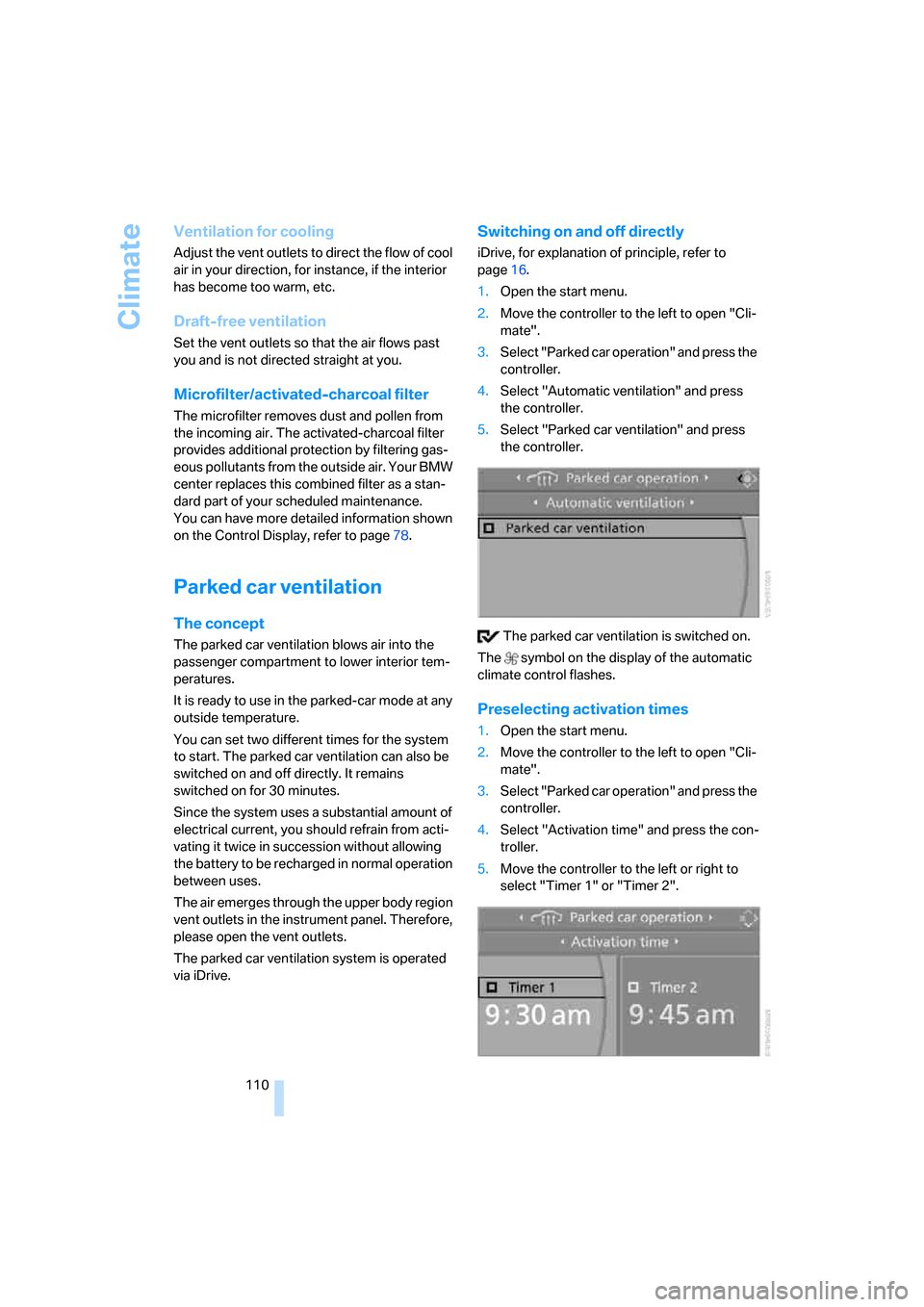
5.Select "Parked car ventilation" and press
the controller.
The parked car ventilation is switched on.
The symbol on the display of the automatic
climate control flashes.
Preselecting activation times
1.Open the start menu.
2.Move the controller to the left to open "Cli-
mate".
3.Select "Parked car operation" and press the
controller.
4.Select "Activation time" and press the con-
troller.
5.Move the controller to the left or right to
select "Timer 1" or "Timer 2".
Page 113 of 254
Controls
111Reference
At a glance
Driving tips
Communications
Navigation
Entertainment
Mobility
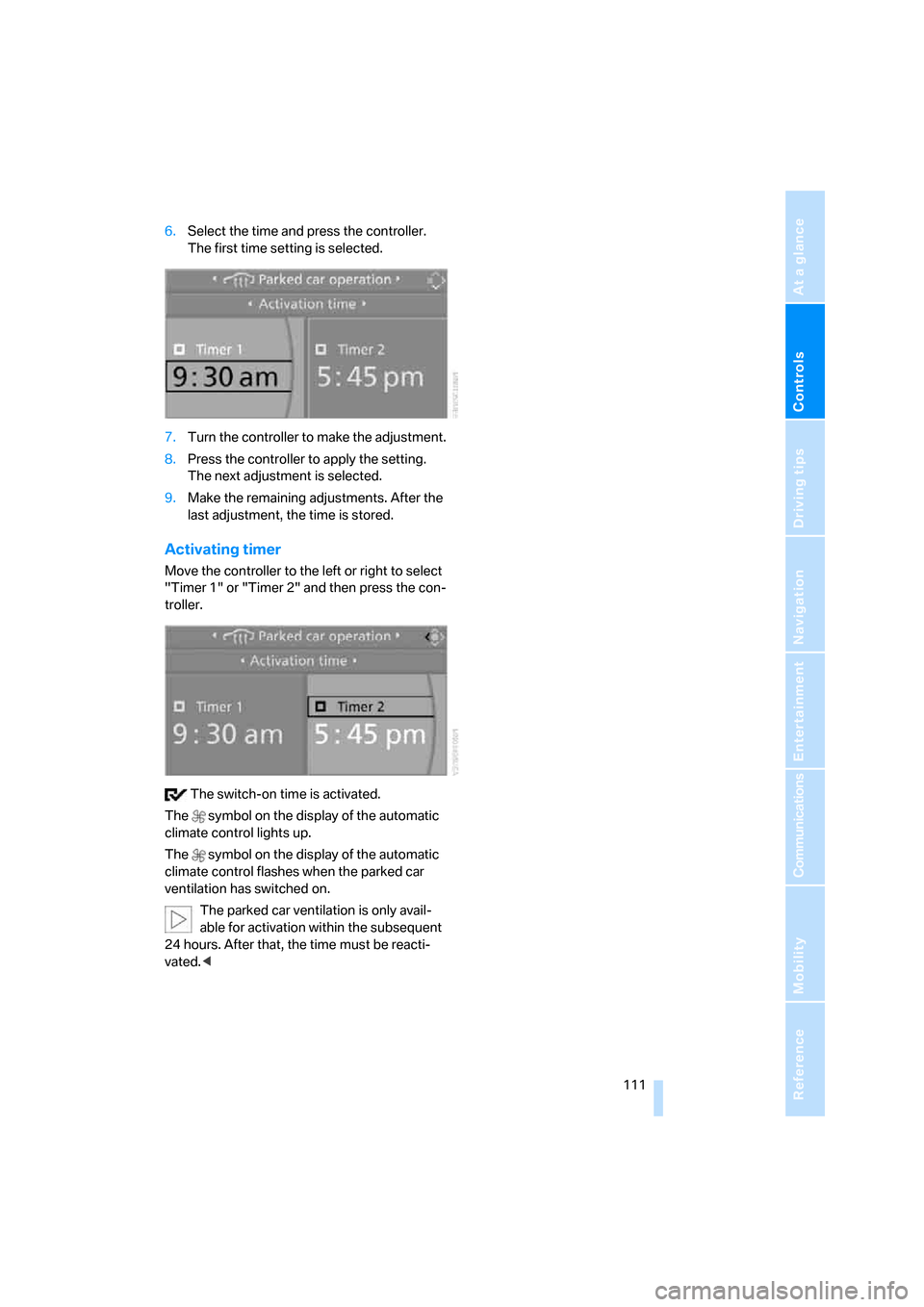
6.Select the time and press the controller.
The first time setting is selected.
7.Turn the controller to make the adjustment.
8.Press the controller to apply the setting.
The next adjustment is selected.
9.Make the remaining adjustments. After the
last adjustment, the time is stored.
Activating timer
Move the controller to the left or right to select
"Timer 1" or "Timer 2" and then press the con-
troller.
The switch-on time is activated.
The symbol on the display of the automatic
climate control lights up.
The symbol on the display of the automatic
climate control flashes when the parked car
ventilation has switched on.
The parked car ventilation is only avail-
able for activation within the subsequent
24 hours. After that, the time must be reacti-
vated.<
Page 128 of 254
Starting navigation system
126
Starting navigation system
Your navigation system can use satellites to
ascertain the precise position of your vehicle
and guide you reliably to any destination you
enter.
Navigation DVD
The navigation system requires a special navi-
gation DVD. The latest version is available at
your BMW center.
Inserting navigation DVD
1.Insert the navigation DVD with the labeled
side up. The navigation DVD is pulled in
automatically.
2.Wait several seconds for the system to scan
the data from the DVD.
Removing navigation DVD
1.Press button 1.
The DVD emerges slightly from the drive.
2.Remove the DVD.
If the DVD is not ejected from the drive, it is pos-
sible that it is blocked. In this case a message is
also shown on the Control Display.
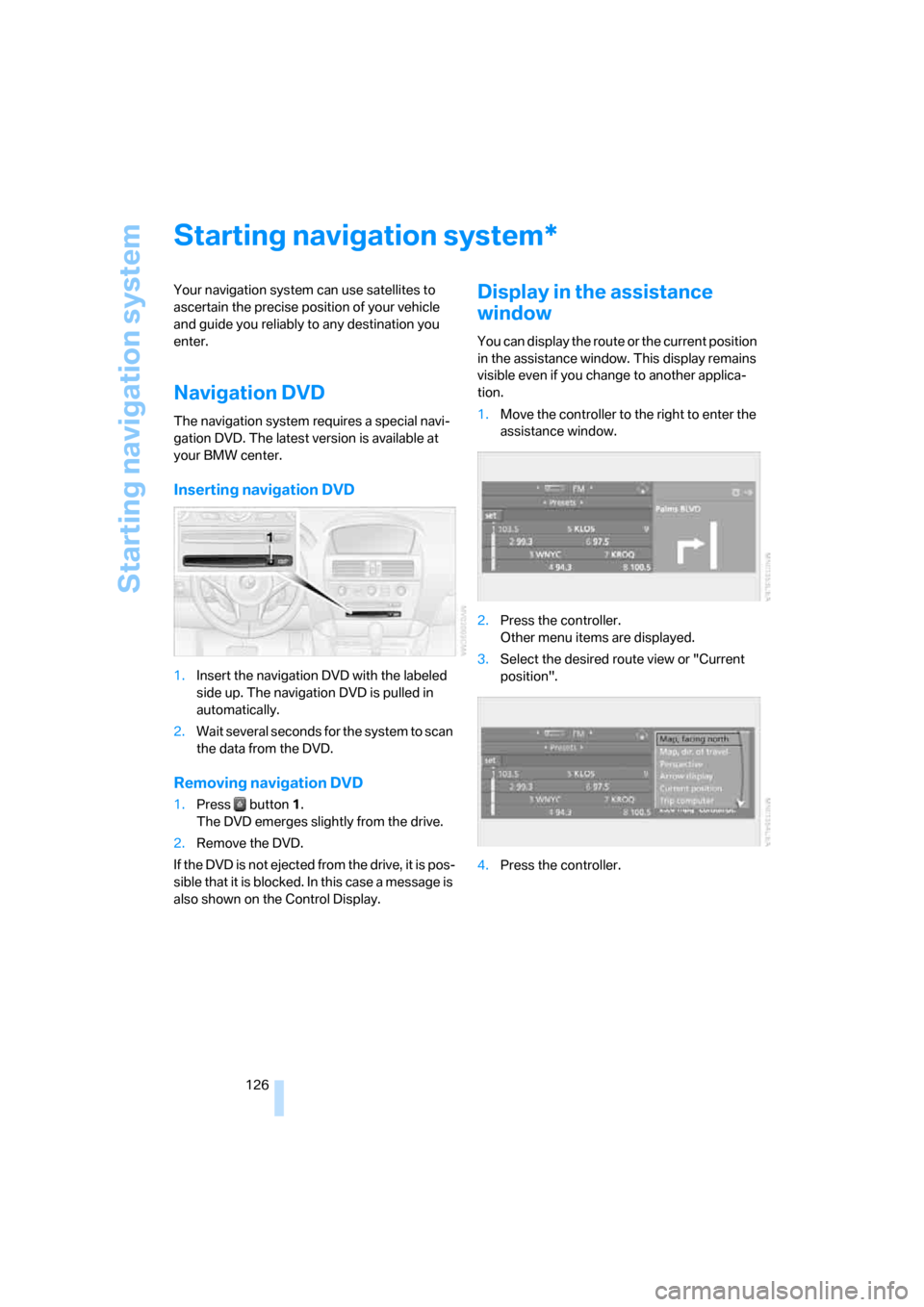
Display in the assistance
window
You can display the route or the current position
in the assistance window. This display remains
visible even if you change to another applica-
tion.
1.Move the controller to the right to enter the
assistance window.
2.Press the controller.
Other menu items are displayed.
3.Select the desired route view or "Current
position".
4.Press the controller.
*
Page 129 of 254

Navigation
Driving tips
127Reference
At a glance
Controls
Communications
Entertainment
Mobility
Displaying arrow view in map view
If the navigation system suggests a change of
direction, the arrow view is briefly displayed.
1.Press the button.
This opens the start menu.
2.Press the controller to open the menu.
3.Turn the controller until "Settings" is
selected and press the controller.
4.Turn the controller until "Language / Units"
is selected and press the controller.
5.Change to upper field if necessary. Turn the
controller until "Languages" is selected and
press the controller.
6.Select "Arrow display pop-up instructions"
and press the controller.
The arrow display is shown.
Page 131 of 254
Navigation
Driving tips
129Reference
At a glance
Controls
Communications
Entertainment
Mobility
Selecting country
1.Select "State / Province" or the displayed
country and press the controller.
A list of available countries appears on the
display.
2.Select the country of destination and press
the controller.
In order to be able to start the destination guid-
ance, at least the town/city of destination or its
zip code must be entered.
Entering town/city of destination via
name
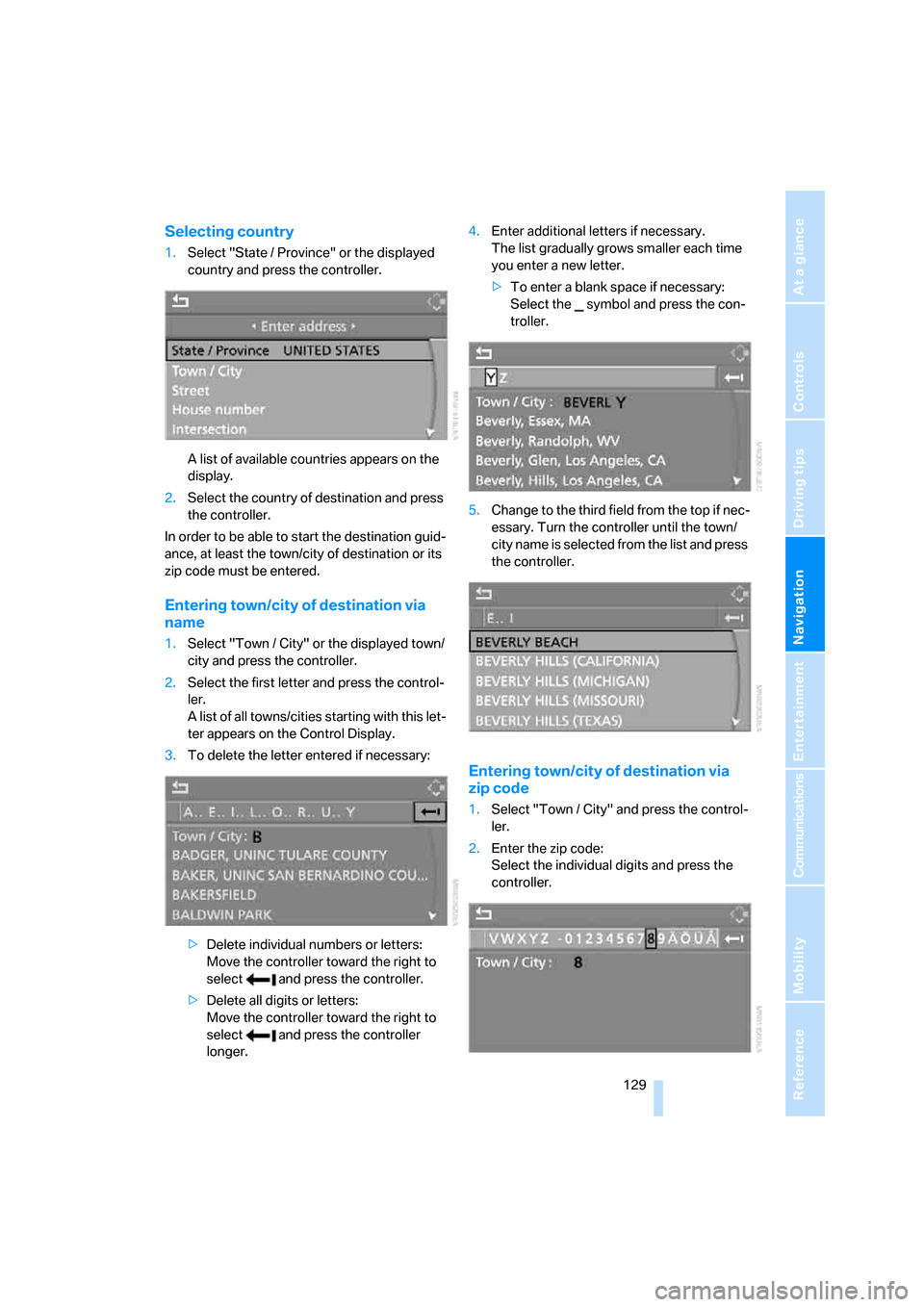
1.Select "Town / City" or the displayed town/
city and press the controller.
2.Select the first letter and press the control-
ler.
A list of all towns/cities starting with this let-
ter appears on the Control Display.
3.To delete the letter entered if necessary:
>Delete individual numbers or letters:
Move the controller toward the right to
select and press the controller.
>Delete all digits or letters:
Move the controller toward the right to
select and press the controller
longer.4.Enter additional letters if necessary.
The list gradually grows smaller each time
you enter a new letter.
>To enter a blank space if necessary:
Select the symbol and press the con-
troller.
5.Change to the third field from the top if nec-
essary. Turn the controller until the town/
city name is selected from the list and press
the controller.
Entering town/city of destination via
zip code
1.Select "Town / City" and press the control-
ler.
2.Enter the zip code:
Select the individual digits and press the
controller.
Page 132 of 254
Destination entry
130 >Enter a blank space:
Select the symbol and press the con-
troller.
>Delete individual digits or letters:
Move the controller toward the right to
select and press the controller.
>Delete all digits or letters:
Move the controller toward the right to
select and press the controller
longer.
3.Select the zip code and press the controller.
The corresponding town/city of destination
is displayed.
4.Change into the third field from the top.
Turn the controller until the town/city of
destination is selected and press the con-
troller.
Entering street, house number and
intersection
After the street you can also enter the intersec-
tion or the house number.
Entering street and intersection
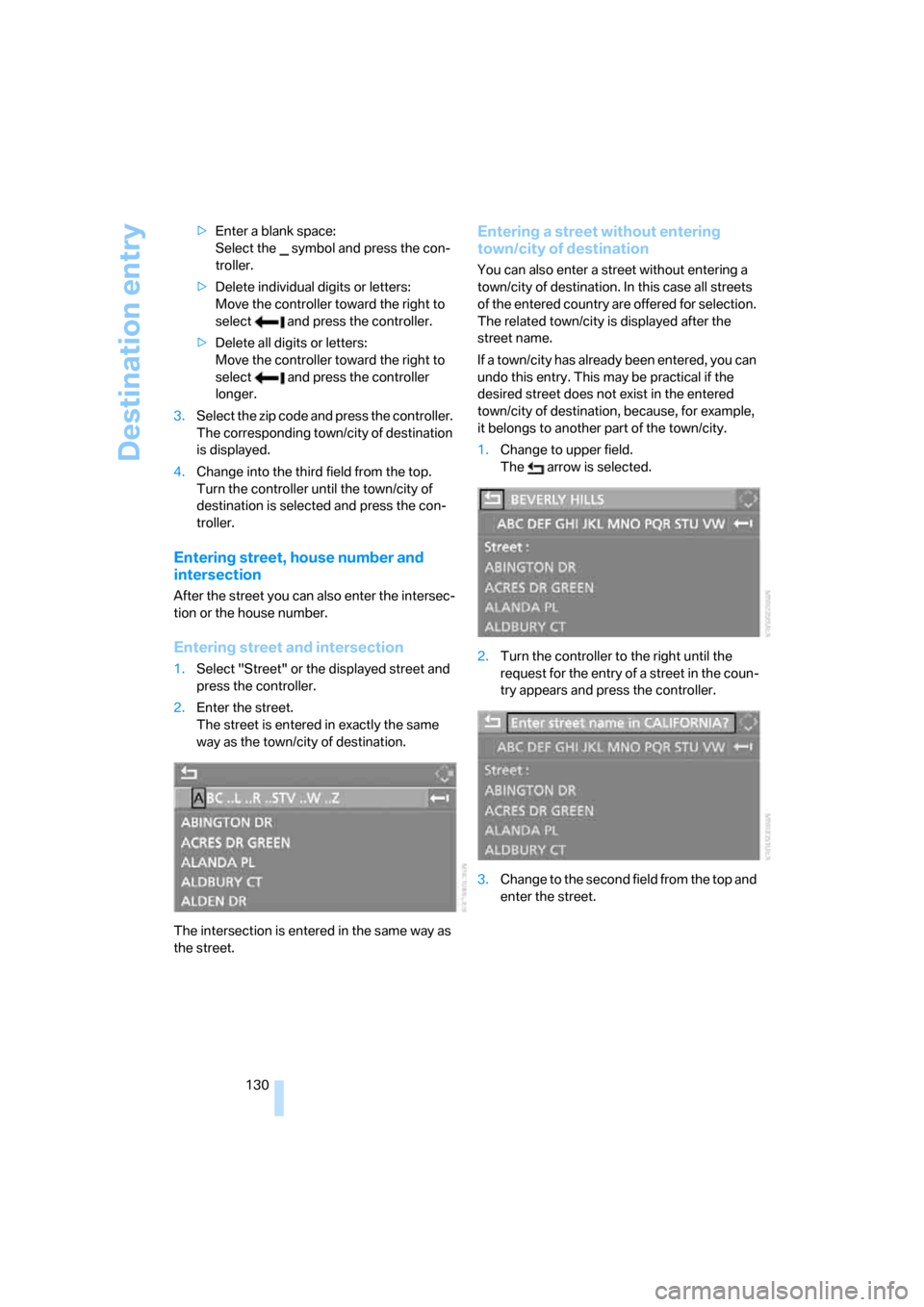
1.Select "Street" or the displayed street and
press the controller.
2.Enter the street.
The street is entered in exactly the same
way as the town/city of destination.
The intersection is entered in the same way as
the street.
Entering a street without entering
town/city of destination
You can also enter a street without entering a
town/city of destination. In this case all streets
of the entered country are offered for selection.
The related town/city is displayed after the
street name.
If a town/city has already been entered, you can
undo this entry. This may be practical if the
desired street does not exist in the entered
town/city of destination, because, for example,
it belongs to another part of the town/city.
1.Change to upper field.
The arrow is selected.
2.Turn the controller to the right until the
request for the entry of a street in the coun-
try appears and press the controller.
3.Change to the second field from the top and
enter the street.
Page 133 of 254

Navigation
Driving tips
131Reference
At a glance
Controls
Communications
Entertainment
Mobility
Entering house number
All house numbers stored for the street on the
navigation DVD can be entered.
1.Select "House number" and press the con-
troller.
2.Enter the house number:
Select the individual digits and press the
controller.
3.Change into the third field from the top.
Turn the controller until the house number
is selected and press the controller.
Starting destination guidance with
manual destination entry
>Select "Start guidance" and press the con-
troller.
Destination guidance starts immediately.
>If destination guidance is not to be started
immediately:
Select "Add to destination list" and press
the controller.
The destination is stored in the destination
list, refer to page135.
Entering destination via
voice*
You can enter a desired destination with the
voice command system. When entering the
destination, it is possible to change between
voice command and iDrive at any time. Reacti-
vate the voice command function for this pur-
pose if necessary.
With {Options} you can have the system
read aloud the possible commands.<1.Press the button on the steering wheel
or in the center console.
Selecting country
1.Wait for the system to ask for the country of
destination.
Say the name of the country of destination in
the language of the voice command system.
Entering town/city of destination
The town/city of destination can be spelled or
entered as an entire word.
Spelling town/city of destination
To enter the town/city of destination, spell it
using the customary spelling of the country of
destination.
Pronounce the letters smoothly and at normal
volume, avoiding excessive emphasis and
pauses.
The system can suggest up to 20 towns/cit-
ies of destination that match your entries.
Up to 6 entries are displayed at once on the
Control Display.
2.{Enter address}
2.Say the name of the country of destina-
tion.
1.Spell town/city name:
Say at least the first three letters of the
town/city of destination. The more let-
ters you say, the more exactly the sys-
tem recognizes the town/city.
Page 134 of 254

Destination entry
132 The town/city can also be selected from the list
via iDrive:
Turn the controller until the town/city of desti-
nation is selected and press the controller.
Entering the destination as an entire
word*
Towns/cities of destination and streets located
in the region where the language of the voice
command system is spoken can be entered as
an entire word.
Example: to enter a US town/city of destination
as an entire word, the system language must be
English.
The condition for this is the use of a suitable
navigation DVD.
Speak smoothly and at normal volume, avoiding
excessive emphasis and pauses.
1.Wait for the system to request the town/city
of destination.
The system can suggest up to 6 towns/cit-
ies of destination that match your entries.The town/city can also be selected from the list
via iDrive:
Turn the controller until the town/city of desti-
nation is selected and press the controller.
Destinations that sound the same which
cannot be differentiated by the system
are summarized in a separate list and shown as
a destination followed by three dots.
Select this entry with {Yes} if necessary. Then
select the desired city/town in this list.<
Entering street and house number
The street is entered in the same way as the
town/city of destination.
To enter the house number:
Up to 4-digit house numbers can be entered.
Say the house number as individual digits.
Starting destination guidance
Destination guidance starts immediately. A destination is suggested by the system.
2.Select a town/city:
>Select highlighted town/city: {Yes}
>Select other town/city: {No}
>Select entry, e.g. {Entry 3}
>Display additional entries of the list:
{Next page}
>To respell the town/city: {Repeat}
2.Say the name of the town/city of desti-
nation.
A destination is suggested by the system.
3.Select a town/city:
>Select highlighted town/city: {Yes}
>Select other town/city: {No}
>Select entry, e.g. {Entry 3}
>Reenter the town/city: {Repeat}
>Enter town/city of destination by
spelling it: {Spell}
1.{House number}
2.Say the house number.
{Start guidance}