2007 BMW 328XI SEDAN Set time
[x] Cancel search: Set timePage 163 of 268

Navigation
Entertainment
Driving tips
161Reference
At a glance
Controls
Communications
Mobility
1.Move the highlight marker to the second
field from the top.
2.Choose a selection criterion and press the
controller.
Sampling stations, scan
The stations on the current waveband are auto-
matically sampled in succession.
1.Select "FM" or "AM" and press the control-
ler.
"Set" is selected.
2.Press the controller.
Other menu items are displayed.
3.Select "Scan" and press the controller.
The stations are sampled.
Stop sampling:
1.Press the controller.
2.Select "Scan" and press the controller.
Station sampling is interrupted and the
selected station stays on.
Buttons on the CD player
To sample stations, press the but-
ton for the corresponding direction for an
extended time.
To stop scanning, press the button again.
Selecting the frequency manually
With "Manual" you can select stations that are
received in addition to those displayed.
1.Select "FM" or "AM" and press the control-
ler.
2.Move the highlight marker to the second
field from the top.
3.Select "Manual" and press the controller.
4.Turn the controller to set a certain fre-
quency.
Updating stations with best reception
If on a longer journey you move out of the
reception range of the stations originally
received, you can update the list of stations
received with the strongest signals in the AM
waveband.
1.Select "AM" and press the controller.
2.Move the highlight marker to the second
field from the top.
3.Select "Autostore" and press the controller.
"Set" is selected.
4.Press the controller.
Other menu items are displayed.
Page 164 of 268
Radio
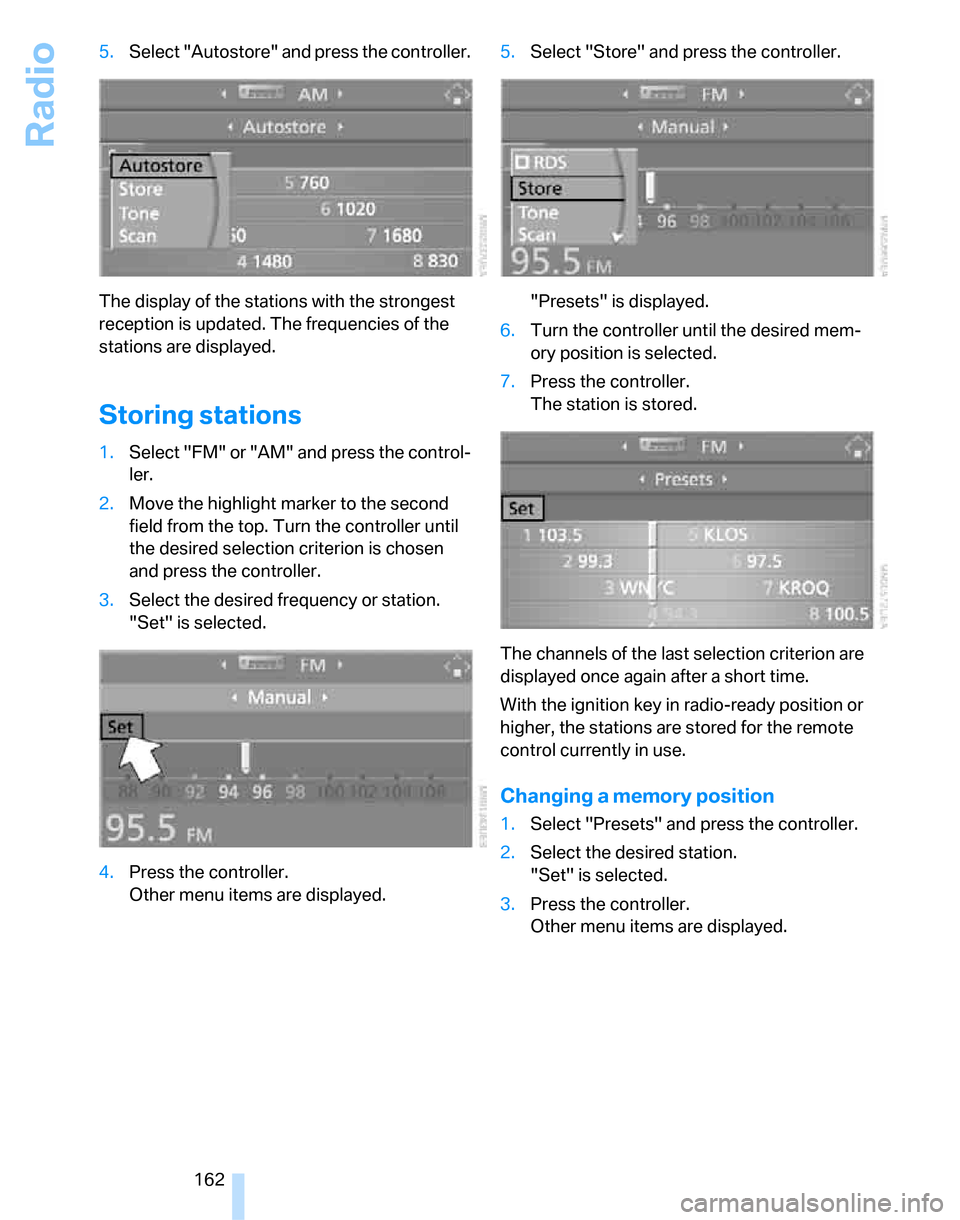
162 5.Select "Autostore" and press the controller.
The display of the stations with the strongest
reception is updated. The frequencies of the
stations are displayed.
Storing stations
1.Select "FM" or "AM" and press the control-
ler.
2.Move the highlight marker to the second
field from the top. Turn the controller until
the desired selection criterion is chosen
and press the controller.
3.Select the desired frequency or station.
"Set" is selected.
4.Press the controller.
Other menu items are displayed.5.Select "Store" and press the controller.
"Presets" is displayed.
6.Turn the controller until the desired mem-
ory position is selected.
7.Press the controller.
The station is stored.
The channels of the last selection criterion are
displayed once again after a short time.
With the ignition key in radio-ready position or
higher, the stations are stored for the remote
control currently in use.
Changing a memory position
1.Select "Presets" and press the controller.
2.Select the desired station.
"Set" is selected.
3.Press the controller.
Other menu items are displayed.
Page 165 of 268

Navigation
Entertainment
Driving tips
163Reference
At a glance
Controls
Communications
Mobility
4.Select "Store" and press the controller.
5.Turn the controller until the desired mem-
ory position is selected.
The number of the memory position
appears beside the name or frequency of
the station.
6.Press the controller.
The station is stored.
RDS Radio Data System
RDS transmits additional information in the FM
frequency range. If the reception conditions are
good, the station names are shown on the Con-
trol Display. Where reception is poor or in the
event of interference, it may take some time
before the station names will appear in the dis-
play.
Switching RDS on/off*
1.Select "FM" and press the controller.
"Set" is selected.
2.Press the controller.
Other menu items are displayed.
3.Select "RDS" and press the controller.
RDS is activated.
Satellite radio*
You can receive over 100 different channels
with high sound quality.
The channels are offered to you in predefined
packages. To receive the channels of your
choice, you must have this package enabled.
With this new technology, signal losses
can occur from time to time and result in
audio interruptions.<
Enabling or disabling channels
iDrive, for operating principle refer to page16.
1.Press the button.
This opens the start menu.
2.Move the controller backwards to call up
"Entertainment".
3.Select "SAT".
4.Press the controller.
The channels are displayed.
These channels are enabled.
Enabling
1.Select a channel that has not yet been
enabled and press the controller.
Page 167 of 268
Navigation
Entertainment
Driving tips
165Reference
At a glance
Controls
Communications
Mobility
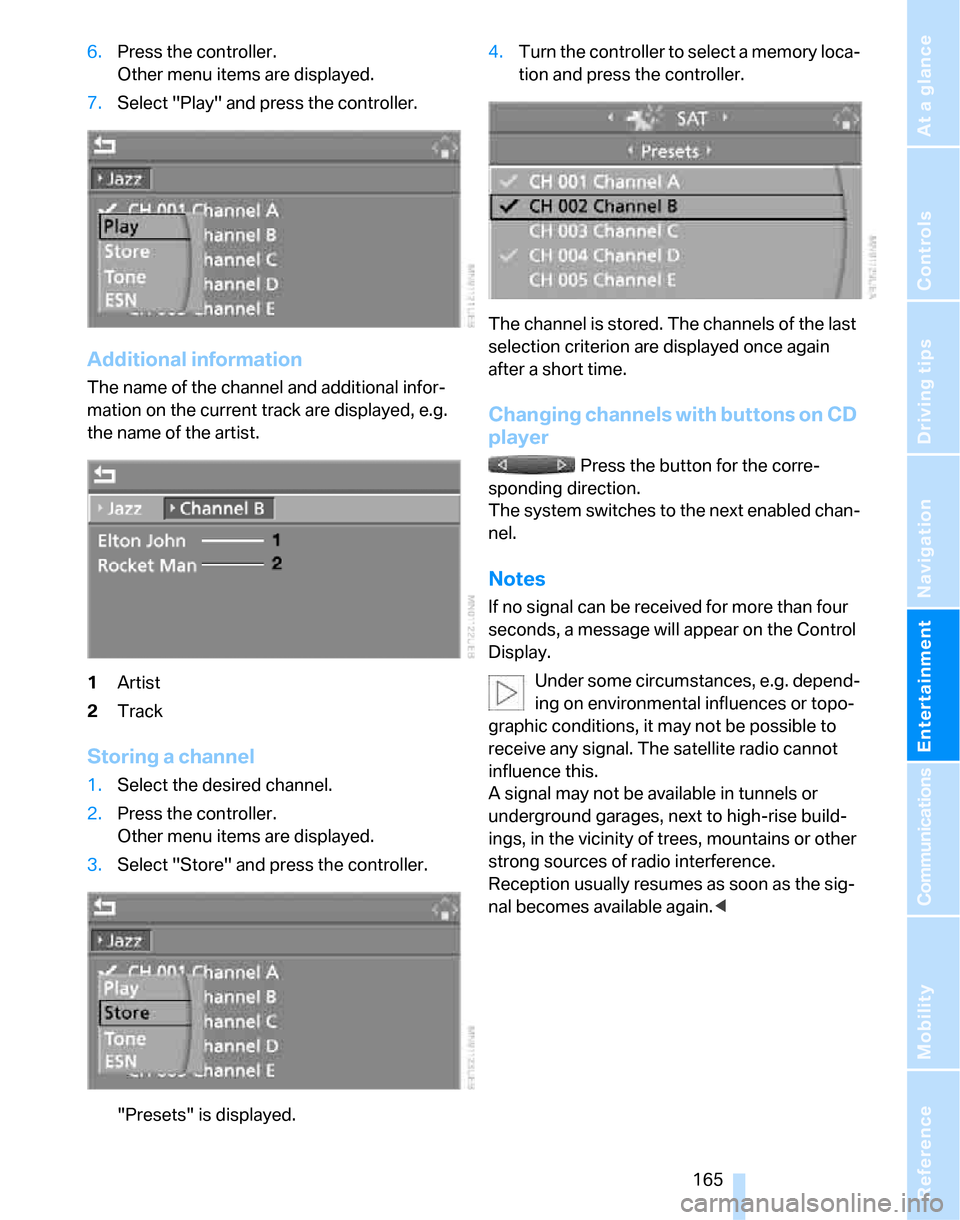
6.Press the controller.
Other menu items are displayed.
7.Select "Play" and press the controller.
Additional information
The name of the channel and additional infor-
mation on the current track are displayed, e.g.
the name of the artist.
1Artist
2Track
Storing a channel
1.Select the desired channel.
2.Press the controller.
Other menu items are displayed.
3.Select "Store" and press the controller.
"Presets" is displayed.4.Turn the controller to select a memory loca-
tion and press the controller.
The channel is stored. The channels of the last
selection criterion are displayed once again
after a short time.
Changing channels with buttons on CD
player
Press the button for the corre-
sponding direction.
The system switches to the next enabled chan-
nel.
Notes
If no signal can be received for more than four
seconds, a message will appear on the Control
Display.
Under some circumstances, e.g. depend-
ing on environmental influences or topo-
graphic conditions, it may not be possible to
receive any signal. The satellite radio cannot
influence this.
A signal may not be available in tunnels or
underground garages, next to high-rise build-
ings, in the vicinity of trees, mountains or other
strong sources of radio interference.
Reception usually resumes as soon as the sig-
nal becomes available again.<
Page 181 of 268
179
Entertainment
Reference
At a glance
Controls
Driving tips Communications
Navigation
Mobility
refer to your mobile phone's operating instruc-
tions, if necessary.
Up to four mobile phones can be paired, one
after the other. If a fifth mobile phone is paired,
the pairing data for the last mobile phone on the
list is deleted, refer also to the information
below.
List of paired mobile phones
All mobile phones with pairing data stored by
the vehicle can be displayed. If several mobile
phones are detected by the vehicle at the same
time, the mobile phone at the top of the list can
be operated via the vehicle.
You can change the order of the mobile phones
on the list. As long as a mobile phone from this
list is selected, you cannot operate the mobile
phones via the vehicle.
iDrive, for operating principle refer to page16.
1.Press the
button to call up the start
menu.
2.Call up the menu by pressing the control-
ler.
3.Select "Settings" and press the controller.
4.Select "Bluetooth" and press the controller.
5.If necessary, move the highlight marker to
the uppermost field. Turn the controller
until "Bluetooth" is selected and press the
controller.
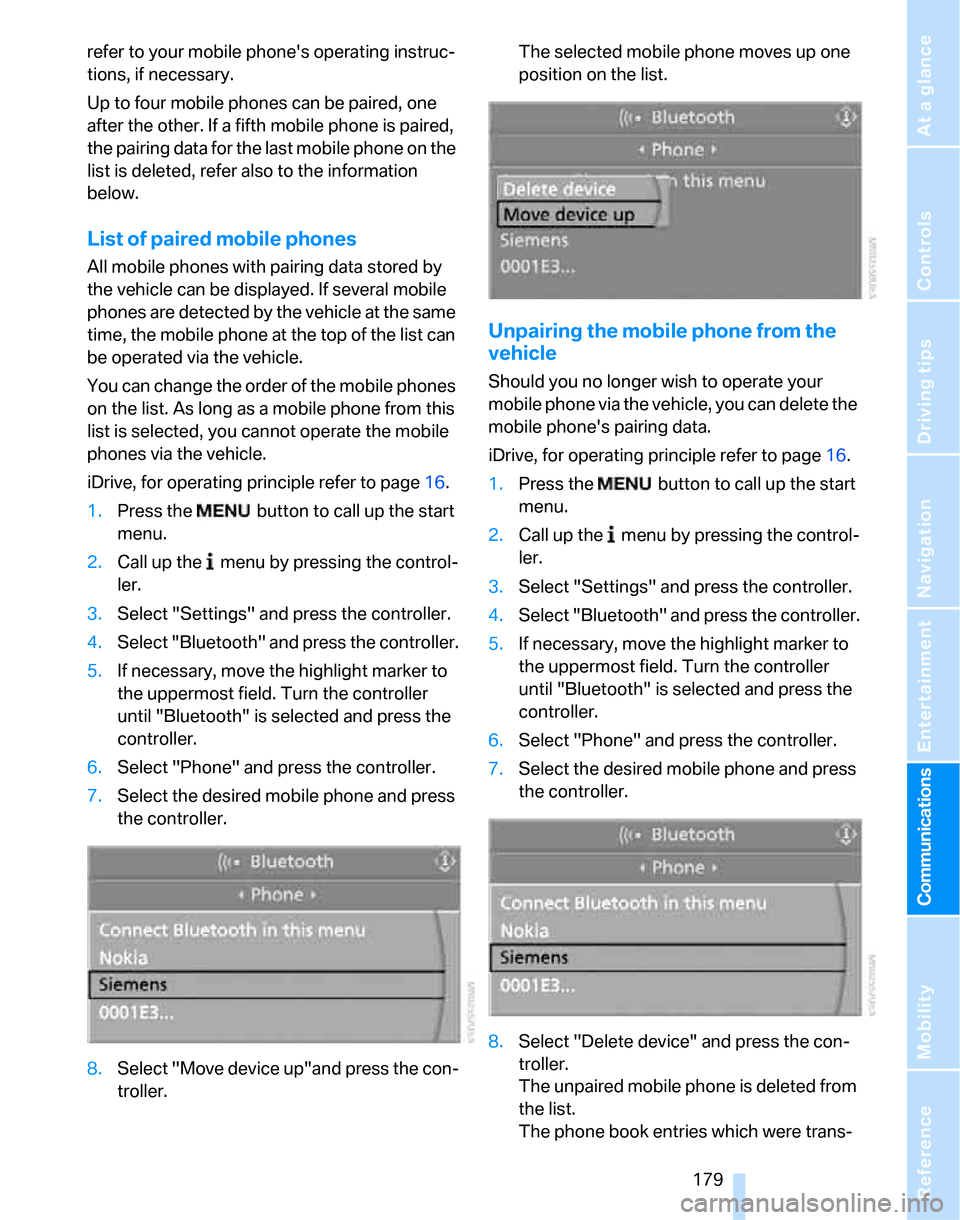
6.Select "Phone" and press the controller.
7.Select the desired mobile phone and press
the controller.
8.Select "Move device up"and press the con-
troller.The selected mobile phone moves up one
position on the list.
Unpairing the mobile phone from the
vehicle
Should you no longer wish to operate your
mobile phone via the vehicle, you can delete the
mobile phone's pairing data.
iDrive, for operating principle refer to page16.
1.Press the button to call up the start
menu.
2.Call up the menu by pressing the control-
ler.
3.Select "Settings" and press the controller.
4.Select "Bluetooth" and press the controller.
5.If necessary, move the highlight marker to
the uppermost field. Turn the controller
until "Bluetooth" is selected and press the
controller.
6.Select "Phone" and press the controller.
7.Select the desired mobile phone and press
the controller.
8.Select "Delete device" and press the con-
troller.
The unpaired mobile phone is deleted from
the list.
The phone book entries which were trans-
Page 221 of 268
Mobility
219Reference
At a glance
Controls
Driving tips
Communications
Navigation
Entertainment
Maintenance
BMW Maintenance System
The BMW Maintenance System supports the
preservation of the traffic and operating safety
of your BMW. The service schedule also
includes operations related to the vehicle's
comfort and convenience features, such as
replacement of the filters for the inside air. The
objective is to optimize efforts with respect to
minimal vehicle maintenance costs.
If and when you come to sell your BMW, a com-
prehensive record of servicing will prove a sig-
nificant benefit.
CBS Condition Based Service
Sensors and special algorithms take the differ-
ent driving conditions of your BMW into
account. Condition Based Service uses this to
determine the current and future service
requirements. By letting you define a service
and maintenance regimen that reflects your
own individual requirements, the system builds
the basis for trouble-free driving.
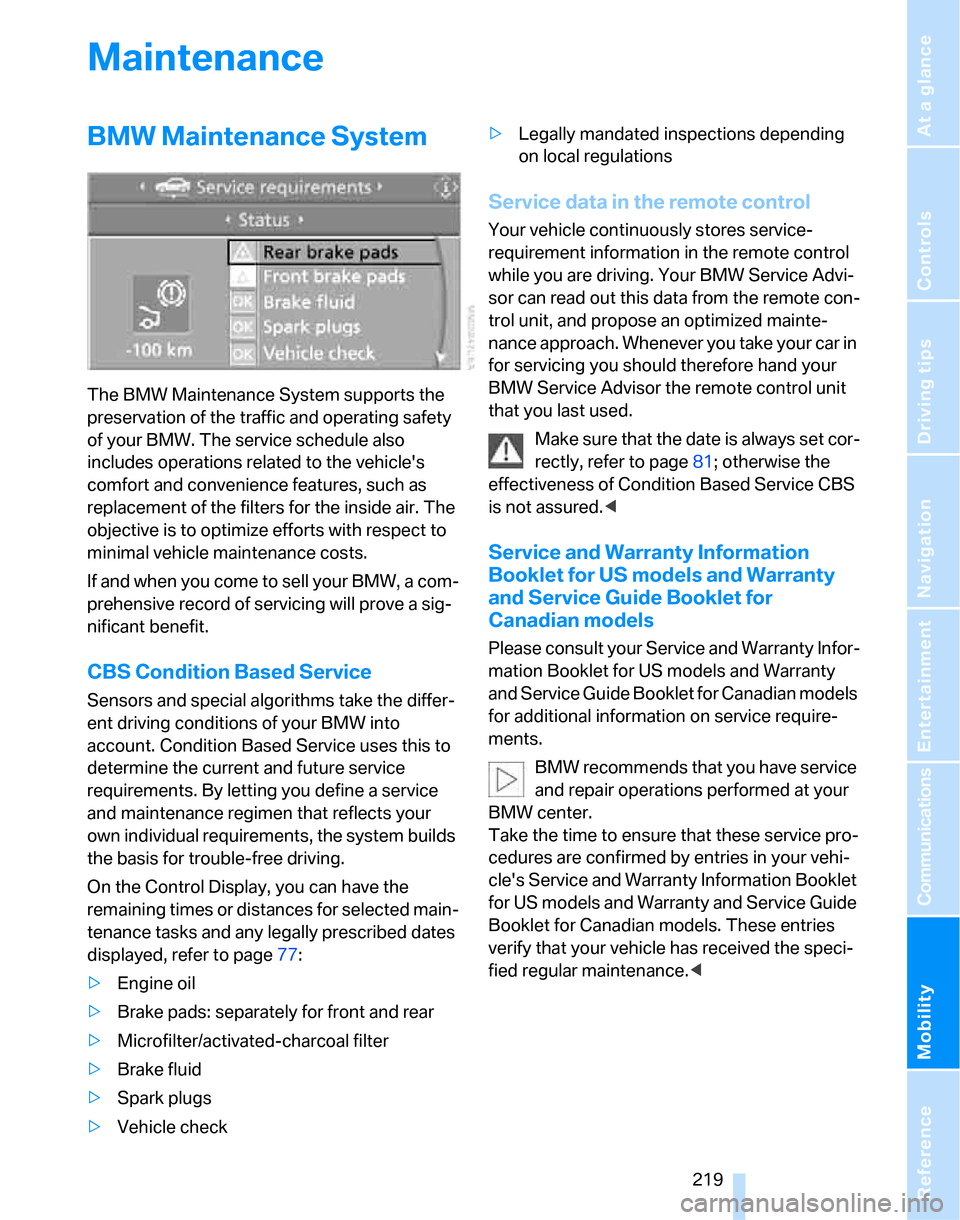
On the Control Display, you can have the
remaining times or distances for selected main-
tenance tasks and any legally prescribed dates
displayed, refer to page77:
>Engine oil
>Brake pads: separately for front and rear
>Microfilter/activated-charcoal filter
>Brake fluid
>Spark plugs
>Vehicle check>Legally mandated inspections depending
on local regulations
Service data in the remote control
Your vehicle continuously stores service-
requirement information in the remote control
while you are driving. Your BMW Service Advi-
sor can read out this data from the remote con-
trol unit, and propose an optimized mainte-
nance approach. Whenever you take your car in
for servicing you should therefore hand your
BMW Service Advisor the remote control unit
that you last used.
Make sure that the date is always set cor-
rectly, refer to page81; otherwise the
effectiveness of Condition Based Service CBS
is not assured.<
Service and Warranty Information
Booklet for US models and Warranty
and Service Guide Booklet for
Canadian models
Please consult your Service and Warranty Infor-
mation Booklet for US models and Warranty
and Service Guide Booklet for Canadian models
for additional information on service require-
ments.
BMW recommends that you have service
and repair operations performed at your
BMW center.
Take the time to ensure that these service pro-
cedures are confirmed by entries in your vehi-
cle's Service and Warranty Information Booklet
for US models and Warranty and Service Guide
Booklet for Canadian models. These entries
verify that your vehicle has received the speci-
fied regular maintenance.<
Page 229 of 268

Mobility
227Reference
At a glance
Controls
Driving tips
Communications
Navigation
Entertainment
Changing wheels
Your BMW is equipped with Run-Flat Tires as
standard. This removes the need to change a
wheel immediately in the event of a puncture.
For information on continuing to drive with a
damaged tire, refer to Indication of a flat tire on
page91.
The symbol identifying Run-Flat Tires is a circle
with the letters RSC on the sidewall, refer to
Run-Flat Tires, page212.
When mounting new tires or changing over
from summer to winter tires and vice versa,
mount Run-Flat Tires for your own safety. In the
event of a flat, no spare wheel is available. Your
BMW center will be glad to advise you. Refer
also to New wheels and tires, page212.
The tools for changing wheels are avail-
able as optional accessories from your
BMW center.<
Jack mounting points
The jacking points are at the positions shown in
the illustration.
Vehicle battery
Battery care
The battery is 100 % maintenance-free, the
electrolyte will last for the life of the battery
when the vehicle is operated in a temperate cli-
mate. Your BMW center will be glad to advise in
all matters concerning the battery.
Charging the battery
Only charge the battery in the vehicle via the
terminals in the engine compartment with the
engine off. Connections, refer to Jump starting
on page230.
Disposal
Have old batteries disposed of by your
BMW center or hand them in to a recy-
cling center. Maintain the battery in an upright
position for transport and storage. Always
secure the battery against tipping over during
transport.<
Power failure
After a temporary power loss, the functioning of
some equipment may be limited and require
reinitialization. Individual settings may likewise
have been lost and will have to be programmed:
>Time and date
These values must be updated, refer to
page80.
>Radio
In some cases, stations may have to be
stored again, refer to page162.
>Navigation system
Operability must be waited for, refer to
page130.
>Panorama glass roof
It may only be possible to raise the sunroof,
if applicable. The system must be initialized.
Please contact your BMW center.
>Seat and mirror memory
The positions must be stored again, refer to
page48.
>Inside rearview mirror with digital compass
The system must be calibrated, refer to
page109.
Fuses
Never attempt to repair a blown fuse and
do not replace a defective fuse with a sub-
stitute of another color or amperage rating, oth-
erwise this could lead to a circuit overload, ulti-
mately resulting in a fire in the vehicle.<
Page 247 of 268
Reference 245
At a glance
Controls
Driving tips
Communications
Navigation
Entertainment
Mobility
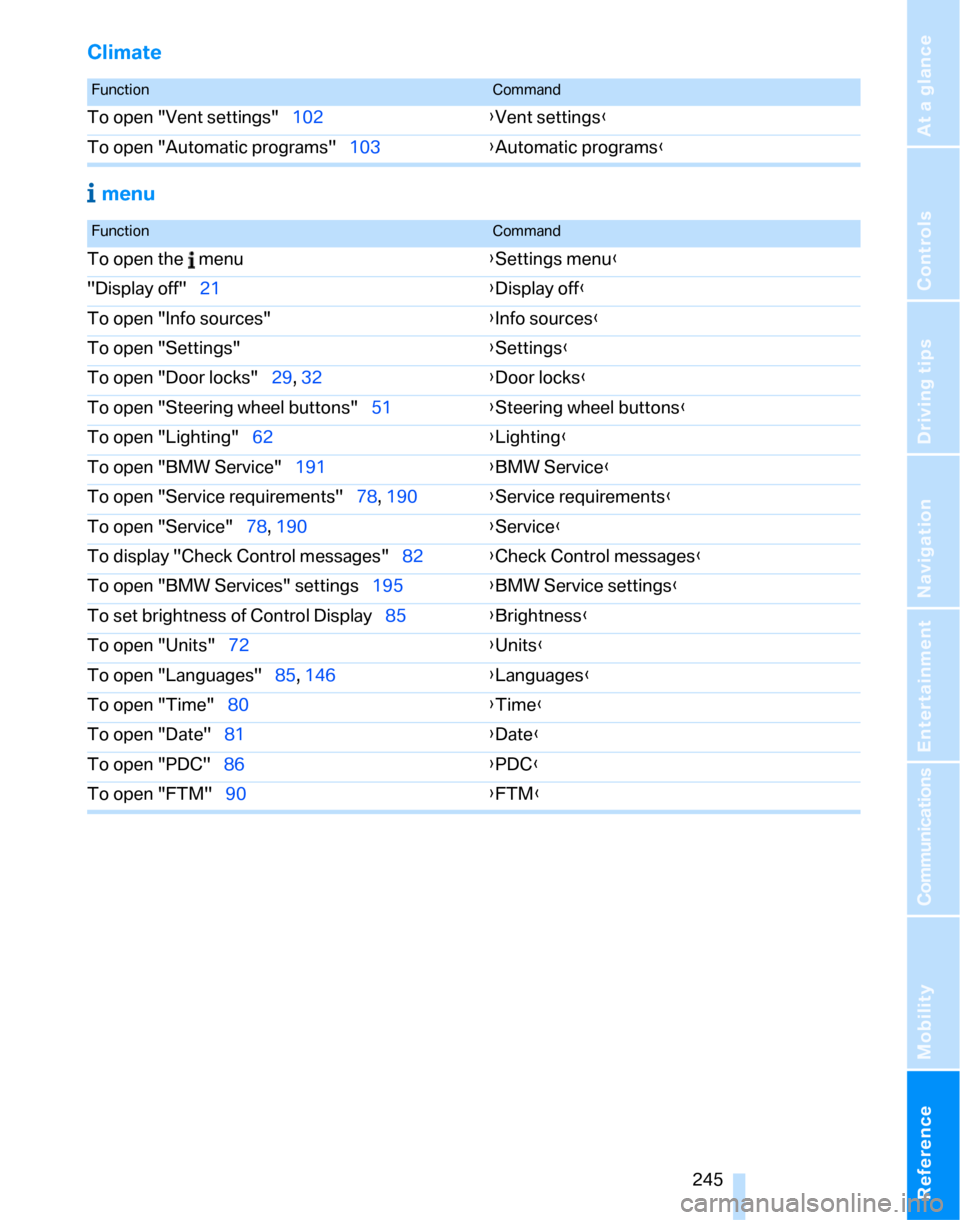
Climate
menu
FunctionCommand
To open "Vent settings"102{Vent settings}
To open "Automatic programs"103{Automatic programs}
FunctionCommand
To open the menu{Settings menu}
"Display off"21{Display off}
To open "Info sources"{Info sources}
To open "Settings"{Settings}
To open "Door locks"29, 32{Door locks}
To open "Steering wheel buttons"51{Steering wheel buttons}
To open "Lighting"62{Lighting}
To open "BMW Service"191{BMW Service}
To open "Service requirements"78, 190{Service requirements}
To open "Service"78, 190{Service}
To display "Check Control messages"82{Check Control messages}
To open "BMW Services" settings195{BMW Service settings}
To set brightness of Control Display85{Brightness}
To open "Units"72{Units}
To open "Languages"85, 146{Languages}
To open "Time"80{Time}
To open "Date"81{Date}
To open "PDC"86{PDC}
To open "FTM"90{FTM}