Page 276 of 480
’06_SEQUOIA_U (L/O 0508)
266
CHANGING ANGLE SCREEN
Push the “Angle” switch on the screen,
and then the changing angle screen will
appear. You can also display the screen
by pushing the “ANGLE” button on the
controller.
The angle can be selected for discs that
are multi−angle compatible when the
“
” mark appears on the screen. Each
time you push the “Angle” switch, the
angle changes. The angle number which
you can select will appear on the screen.
To turn off the screen, push the “Hide”
switch.
Push the “Back” switch to return to the
previous screen.
DVD video
DVD audio
Page 278 of 480
’06_SEQUOIA_U (L/O 0508)
268
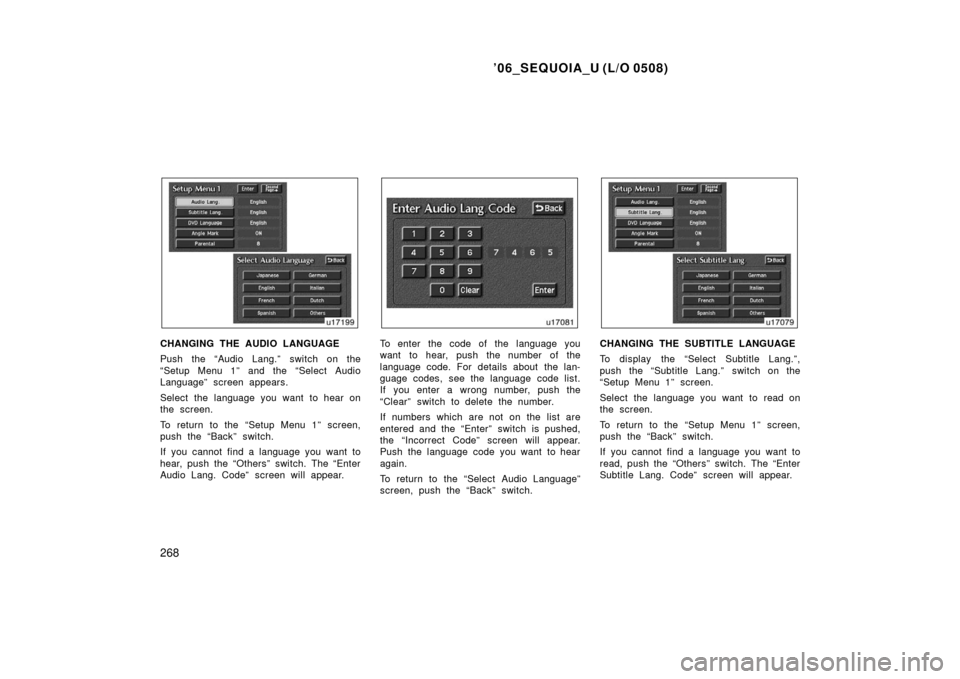
CHANGING THE AUDIO LANGUAGE
Push the “Audio Lang.” switch on the
“Setup Menu 1” and the “Select Audio
Language” screen appears.
Select the language you want to hear on
the screen.
To return to the “Setup Menu 1” screen,
push the “Back” switch.
If you cannot find a language you want to
hear, push the “Others” switch. The “Enter
Audio Lang. Code” screen will appear.To enter the code of the language you
want to hear, push the number of the
language code. For details about the lan-
guage codes, see the language code list.
If you enter a wrong number, push the
“Clear” switch to delete the number.
If numbers which are not on the list are
entered and the “Enter” switch is pushed,
the “Incorrect Code” screen will appear.
Push the language code you want to hear
again.
To return to the “Select Audio Language”
screen, push the “Back” switch.CHANGING THE SUBTITLE LANGUAGE
To display the “Select Subtitle Lang.”,
push the “Subtitle Lang.” switch on the
“Setup Menu 1” screen.
Select the language you want to read on
the screen.
To return to the “Setup Menu 1” screen,
push the “Back” switch.
If you cannot find a language you want to
read, push the “Others” switch. The “Enter
Subtitle Lang. Code” screen will appear.
Page 284 of 480

’06_SEQUOIA_U (L/O 0508)
274
SELECTING THE CHAPTER/TRACK
To select the chapter/track, push the “
”
or “
” (TUNE/TRACK) button on the con-
troller until the number of the chapter/
track you want to select appears on the
screen.
DVD video
DVD audio
USING THE CONTROL SCREEN
When playing a disc, push the “DVD” but-
ton on the controller. The control screen
will appear on the screen.
Details of the specific switches, controls
and features are described below.
1. “PICTURE” switch
Push the “PICTURE” switch to turn off
the control screen and return to the
picture previously displayed.
2. “RPT” switch (DVD audio only) Push the “RPT” switch while the track
is playing. When the track ends, it will
automatically replay. To turn off the re-
peat feature, push this switch again.
3. “RAND” switch (DVD audio only) Push the “RAND” switch. The player
will play the tracks on the disc in ran-
dom order. To turn off the random fea-
ture, push this switch again.
4. “SCAN” switch (DVD audio only) Push the “SCAN” switch. The player
will scan all the tracks on the disc you
are listening to. To stop scanning, push
this switch again. If the player scanned
all the tracks on the disc, it will stop
scanning.
Page 285 of 480
’06_SEQUOIA_U (L/O 0508)
275
5. “” and “” switches
Push and hold the “
” or “” switch
to fast forward or reverse a disc. When
you release the switch, the DVD player
will resume playing.
SELECTING THE DISC MENU NUMBER
(video CD only)
Push the “Sel. Number” switch and then
the disc menu number search screen will
appear. You can also display the screen
by pushing the “SEARCH” switch on the
controller.Enter the disc menu number by using the
“ − ”, “+” and “+10” switches and push the
“Enter” switch. The player starts playing
the disc from the entered disc menu num-
ber. The entered disc menu number will
appear on the screen.
Push the “Back” switch to return to the
menu screen.
Move up and down the switches by push-
ing “Shift keys” on the screen.
—DVD player operation (video
CD/audio CD/CD text)
Page 287 of 480
’06_SEQUOIA_U (L/O 0508)
277
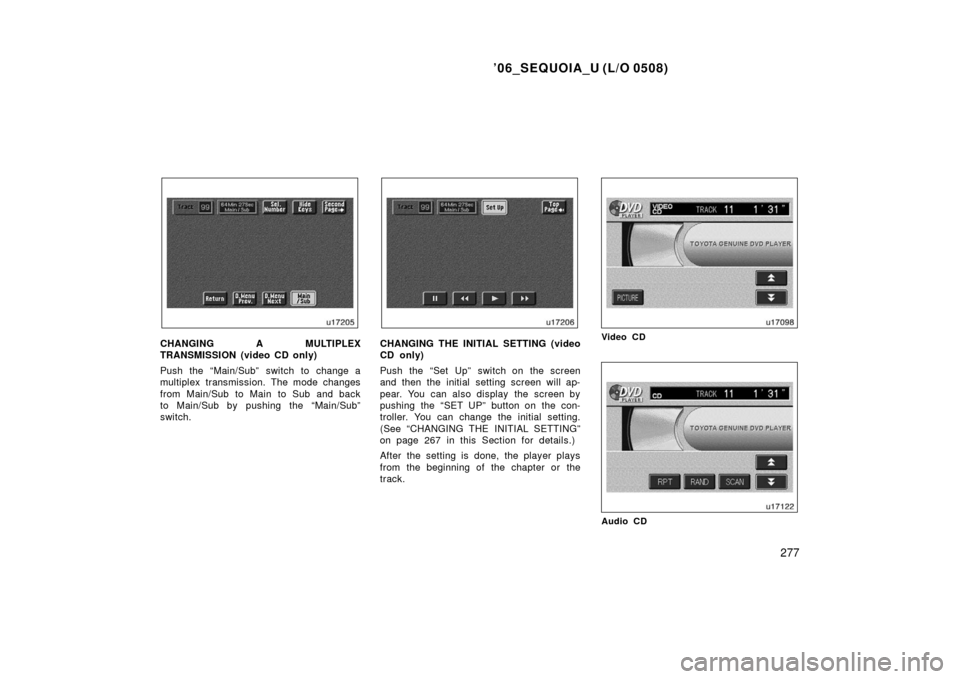
CHANGING A MULTIPLEX
TRANSMISSION (video CD only)
Push the “Main/Sub” switch to change a
multiplex transmission. The mode changes
from Main/Sub to Main to Sub and back
to Main/Sub by pushing the “Main/Sub”
switch.CHANGING THE INITIAL SETTING (video
CD only)
Push the “Set Up” switch on the screen
and then the initial setting screen will ap-
pear. You can also display the screen by
pushing the “SET UP” button on the con-
troller. You can change the initial setting.
(See “CHANGING THE INITIAL SETTING”
on page 267 in this Section for details.)
After the setting is done, the player plays
from the beginning of the chapter or the
track.Video CD
Audio CD
Page 288 of 480

’06_SEQUOIA_U (L/O 0508)
278
CD text
USING THE CONTROL SCREEN
When playing a disc, push the “DVD” but-
ton on the controller. The control screen
will appear on the screen.
CD text only—
The disc title and track title will appear on
the screen when pushing the “DVD” but-
ton.
Details of the specific switches, controls
and features are described below.1. “PICTURE” switch (video CD only)
Push the “PICTURE” switch to turn off
the control screen and return to the
picture previously displayed.
2. “RPT” switch (audio CD and CD text)
Push the “RPT” switch while the track
is playing. When the track ends, it will
automatically replay. To turn off the re-
peat feature, push this switch again.
3. “RAND” switch (audio CD and CD text)
Push the “RAND” switch. The player
will play the tracks on the disc in ran-
dom order. To turn off the random fea-
ture, push this switch again.
4. “SCAN” switch (audio CD and CD text)
Push the “SCAN” switch. The player
will scan all the tracks on the disc. To
stop scanning, push this switch again.
When the player has scanned all the
tracks on the disc, it will stop scan-
ning.
5. “
” and “” switches
Push the “
” or “” switch to fast
forward or reverse the disc. When you
push the switch again, the DVD player
will resume playing.
You can adjust the color, contrast, tone
and brightness of the screen.
Push the “DISPLAY” switch on the control-
ler and then the “Display” screen will ap-
pear.
The screen may turn purple to deflect the
sunlight. This is not a malfunction.
—Screen adjustment
Page 290 of 480

’06_SEQUOIA_U (L/O 0508)
280
The audio machine connected to the input
terminal adapter can be played in the
video mode.
To select the video mode, push the
“VIDEO” button on the controller. You can
also select the video mode on the mode
selection screen mentioned above.DVD PLAYER AND DVD VIDEO DISCS
This DVD player conforms to NTSC col-
or TV formats. DVD video discs con-
forming to other formats such as PAL
or SECAM cannot be used.
Region codes:
Some DVD video discs
have a region code indicating where you
can use. If the DVD video disc is not
labeled “ALL” or “1”, you cannot use it in
this DVD player. If you attempt to play an
inappropriate DVD video disc in this play-
er, “REGION CODE ERROR” appears on
the screen. Even if the DVD video disc
does not have a region code, in some
cases you cannot use it. Marks shown on DVD video discs:
Indicates NTSC format
of color TV.
Indicates the number
of audio tracks.
Indicates the number
of language subtitles.
Indicates the number
of angles.
Indicates the screen
to be selected.
Wide screen: 16:9
Standard: 4:3
Indicates regions in
which this video disc
can be played.
ALL: all countries
Number: region code
—DVD video disc information
Page 291 of 480

’06_SEQUOIA_U (L/O 0508)
281
DVD VIDEO DISC GLOSSARY
DVD video discs: Digital Versatile Disc
that holds video. DVD video discs have
adopted “MPEG2”, one of the world stan-
dards of digital compression technologies.
The picture data is compressed by 1/40
on average and stored. Variable rate en-
coded technology in which the volume of
data assigned to the picture is changed
depending on the picture format has also
been adopted. Audio data is stored using
PCM and Dolby digital, which enables
higher quality of sound. Furthermore, mul-
ti −angle and multi −language features will
also help you enjoy the more advanced
technology of DVD video.
Viewer restrictions: This feature limits
what can be viewed in conformity with the
level of restrictions of the country. The
level of restrictions varies depending on
the DVD video disc. Some DVD video
discs cannot be played at all, or violent
scenes are skipped or replaced with other
scenes.
Level 1: DVD video discs for children can
be played.
Level 2—7: DVD video discs for children
and G −rated movies can be played. Level 8: All types of DVD video discs can
be played.
Multiangle feature:
You can enjoy the
same scene at different angles.
Multilanguage feature: You can select
the language of the subtitles and audio.
Region codes: Region codes are provided
on DVD players and DVD discs. If the
DVD video disc does not have the same
region code as the DVD player, you can-
not play the disc on the DVD player. For
region codes, see page 280.
Audio: This DVD player can play liner
PCM, Dolby digital, dts and MPEG audio
format DVD. Other decoded type cannot
be played.
Title and chapter: Video and audio pro-
grams stored on DVD video discs are di-
vided in parts by title and chapter.
Title: The largest unit of the video and
audio programs stored on DVD video
discs. Usually, one piece of a movie, one
album, or one audio program is assigned
as a title.
Chapter: A unit smaller than a title. A title
comprises plural chapters. Manufactured under license from Dolby
Laboratories. “Dolby”, “Pro Logic”, and
the doubleD symbol are trademarks of
Dolby Laboratories. Confidential unpub-
lished works.
�
19921997 Dolby Laboratories. All
rights reserved.
This product incorporates copyright
protection technology that is protected
by method claims of certain U.S. pat-
ents and other intellectual property
rights owned by Macrovision Corpora-
tion and other rights owners. Use of
this copyright protection technology
must be authorized by Macrovision Cor-
poration, and is intended for home and
other limited viewing uses only unless
otherwise authorized by Macrovision
Corporation. Reverse engineering or
disassembly is prohibited.
“dts” is a trademark of Digital Theater
Systems, Inc.