2006 NISSAN TITAN navigation system
[x] Cancel search: navigation systemPage 137 of 360
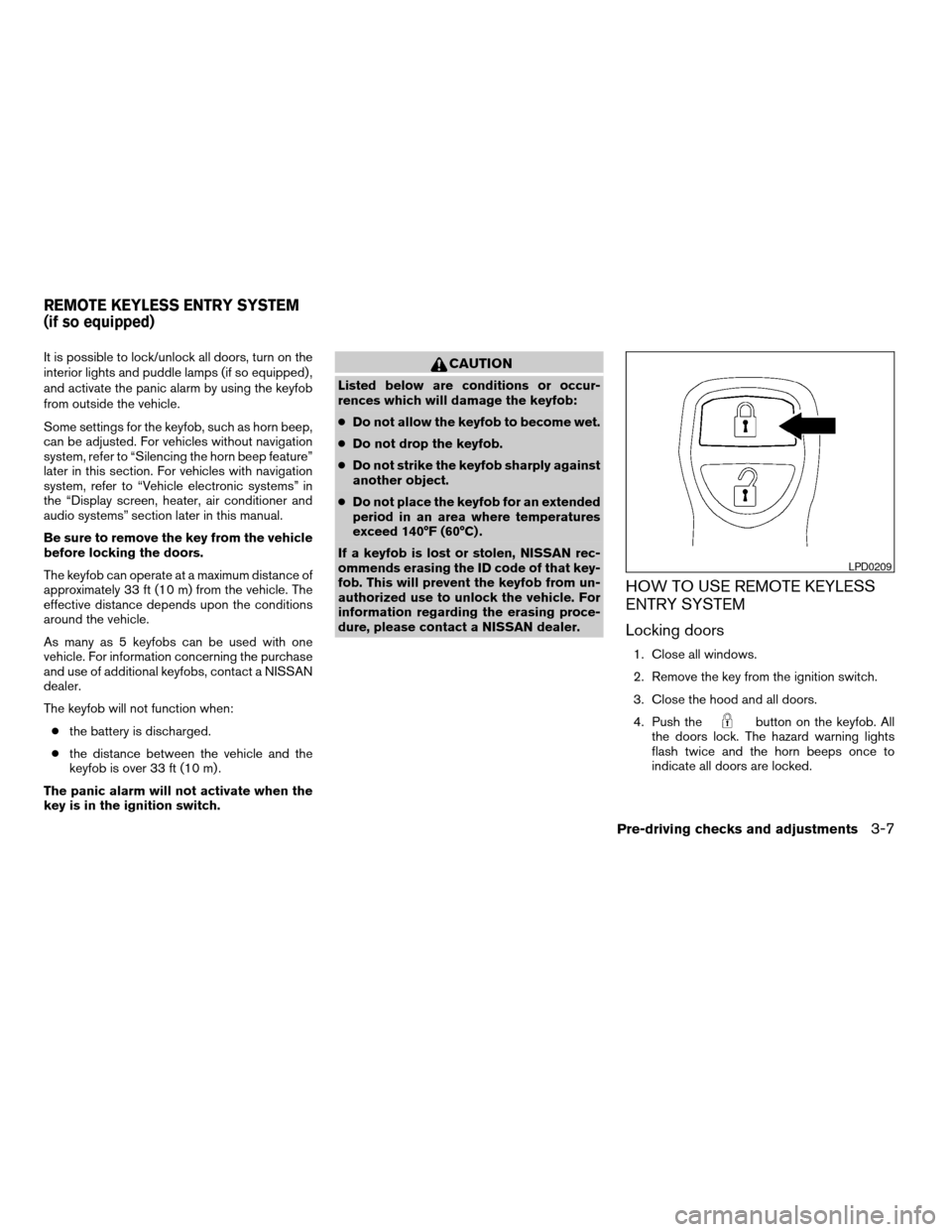
It is possible to lock/unlock all doors, turn on the
interior lights and puddle lamps (if so equipped) ,
and activate the panic alarm by using the keyfob
from outside the vehicle.
Some settings for the keyfob, such as horn beep,
can be adjusted. For vehicles without navigation
system, refer to “Silencing the horn beep feature”
later in this section. For vehicles with navigation
system, refer to “Vehicle electronic systems” in
the “Display screen, heater, air conditioner and
audio systems” section later in this manual.
Be sure to remove the key from the vehicle
before locking the doors.
The keyfob can operate at a maximum distance of
approximately 33 ft (10 m) from the vehicle. The
effective distance depends upon the conditions
around the vehicle.
As many as 5 keyfobs can be used with one
vehicle. For information concerning the purchase
and use of additional keyfobs, contact a NISSAN
dealer.
The keyfob will not function when:
cthe battery is discharged.
cthe distance between the vehicle and the
keyfob is over 33 ft (10 m) .
The panic alarm will not activate when the
key is in the ignition switch.CAUTION
Listed below are conditions or occur-
rences which will damage the keyfob:
cDo not allow the keyfob to become wet.
cDo not drop the keyfob.
cDo not strike the keyfob sharply against
another object.
cDo not place the keyfob for an extended
period in an area where temperatures
exceed 140°F (60°C) .
If a keyfob is lost or stolen, NISSAN rec-
ommends erasing the ID code of that key-
fob. This will prevent the keyfob from un-
authorized use to unlock the vehicle. For
information regarding the erasing proce-
dure, please contact a NISSAN dealer.
HOW TO USE REMOTE KEYLESS
ENTRY SYSTEM
Locking doors
1. Close all windows.
2. Remove the key from the ignition switch.
3. Close the hood and all doors.
4. Push the
button on the keyfob. All
the doors lock. The hazard warning lights
flash twice and the horn beeps once to
indicate all doors are locked.
LPD0209
REMOTE KEYLESS ENTRY SYSTEM
(if so equipped)
Pre-driving checks and adjustments3-7
ZREVIEW COPYÐ2006 Titan(tzw)
Owners ManualÐUSA_English(nna)
06/15/05Ðdebbie
X
Page 138 of 360

cWhen thebutton is pushed with all
doors locked, the hazard warning lights flash
twice and the horn beeps once as a re-
minder that the doors are already locked.
cIf a door is open and you push the
button, the doors will lock but the horn will
not beep and the hazard warning lights will
not flash.
The horn may or may not beep. For vehicles
without navigation system, refer to “Silencing the
horn beep feature” later in this section. For ve-
hicles with navigation system, refer to “Vehicle
electronic systems” in the “Display screen,
heater, air conditioner and audio systems” sec-
tion later in this manual.
Unlocking doors
Push thebutton on the keyfob once.
cOnly the driver’s door unlocks.
cThe hazard warning lights flash once if all
doors are completely closed with the ignition
key in any position except the ON position.
cThe interior lights and puddle lamps (if so
equipped) turn on and the light timer acti-
vates for 30 seconds when the interior light
switch is in the DOOR position with the
ignition key in any position except the ON
position.Push the
button on the keyfob again within
5 seconds.
cAll doors unlock.
cThe hazard warning lights flash once if all
doors are completely closed.
The interior lights can be turned off without wait-
ing 30 seconds by inserting the key into the
ignition and turning to the ON or START position,
locking the doors with the keyfob or pushing the
interior light switch to the off position.
Auto relock
When thebutton on the keyfob is pushed,
all doors will lock automatically within 1 minute
unless one of the following operations is per-
formed:
cAny door is opened.
cA key is inserted into the ignition switch and
the key is turned from OFF to ON.
Linking the keyfob to automatic drive
positioner memory
If the vehicle is equipped with automatic drive
positioner, the keyfob can be linked to a memory
setting.
See “Automatic driver positioner” later in this
section.
LPD0210
3-8Pre-driving checks and adjustments
ZREVIEW COPYÐ2006 Titan(tzw)
Owners ManualÐUSA_English(nna)
06/15/05Ðdebbie
X
Page 152 of 360

1. Follow the steps for storing a memory posi-
tion.
2. While the indicator light for the memory
switch being set is illuminated for 5 sec-
onds, press the
button on the keyfob.
The indicator light will blink. After the indica-
tor light goes off, the keyfob is linked to that
memory setting.
With the key removed from the ignition switch,
press the
button on the keyfob. The driv-
er’s seat, accelerator and brake pedals, and out-
side mirrors will move to the memorized position.
NOTE:
If a new memory position is saved to the
memory switch, the keyfob automatically
re-links.
Confirming memory storage
cTurn the ignition ON and push the SET switch.
If the main memory has not been stored, the
indicator light will come on for approximately
0.5 seconds. When the memory has stored
the position, the indicator light will stay on for
approximately 5 seconds.
cIf the battery cable is disconnected, or if the
fuse opens, the memory will be canceled. In
such a case, reset the desired positions
using the following procedures.1. Open and close the driver’s door more than
two times with the ignition key in the LOCK
position.
2. Reset the desired position using the previ-
ous procedure.
Selecting the memorized position
Set the automatic transmission selector lever to
the P (Park) position, then:
cWithin 45 seconds of opening the driver’s
door, push the memory switch (1 or 2) fully
for at least 1 second, or
cTurn the ignition switch to the ON position
and push the memory switch (1 or 2) fully for
at least 1 second.
The driver’s seat, accelerator and brake pedals,
and outside mirrors will move to the memorized
position with the indicator light blinking, and then
the light will stay on for approximately 5 seconds.
ENTRY/EXIT FUNCTION
This system is designed so that the driver’s seat
will automatically move when the automatic
transmission selector lever is in the P (Park)
position. This allows the driver to get into and out
of the driver’s seat more easily.The driver’s seat will slide backward:
cWhen the key is removed from the ignition
switch and the driver’s door is opened.
cWhen the driver’s door is opened with the
ignition key turned to LOCK.
cWhen the ignition key is turned from ACC to
LOCK with the driver’s door open.
The driver’s seat will return to the previous posi-
tion:
cWhen the key is inserted into the ignition
switch and the driver’s door is closed.
cWhen the driver’s door is closed with the key
turned to LOCK.
cWhen the key is turned from ACC to ON
while the automatic transmission selector
lever is in the P (Park) position.
The entry/exit function can be adjusted or can-
celed. For vehicles with navigation system, see
“Vehicle electronic systems” in the “Display
screen, heater, air conditioner and audio sys-
tems” section of this manual. For vehicles without
navigation system, see your NISSAN dealer.
3-22Pre-driving checks and adjustments
ZREVIEW COPYÐ2006 Titan(tzw)
Owners ManualÐUSA_English(nna)
06/15/05Ðdebbie
X
Page 153 of 360

SYSTEM OPERATION
The automatic drive positioner system will not
work or will stop operating under the following
conditions:
cWhen the vehicle speed is above 4 MPH (7
km/h) .
cWhen any of the memory switches are
pushed while the automatic drive positioner
is operating.
cWhen the adjusting switch for the driver’s
seat is turned on while the automatic drive
positioner is operating.
cWhen the memory switch (1 or 2) is not
pushed and held for at least 1 second.
cWhen the seat has been already moved to
the memorized position.
cWhen no seat position is stored in the
memory switch.
cWhen the automatic transmission selector
lever is moved from P (Park) to any other
position.
cWhen the driver’s door remains open more
than 45 seconds and the ignition switch is
not in the ON position.The automatic drive positioner system can be
adjusted and canceled. For vehicles with naviga-
tion system, see “Vehicle electronic systems” in
the “Display screen, heater, air conditioner and
audio systems” section of this manual. For ve-
hicles without navigation system, see your
NISSAN dealer.
Pre-driving checks and adjustments3-23
ZREVIEW COPYÐ2006 Titan(tzw)
Owners ManualÐUSA_English(nna)
06/15/05Ðdebbie
X
Page 157 of 360

“Display”key — This is a select key on the
screen. By selecting this key you can proceed to
the next function.
NAMES OF THE COMPONENTS
1.brightness control button (P. 4-7)
2. BACK (previous) button (P. 4-3)
3. Joystick and ENTER push button (P. 4-3)
4. SETTING button (P. 4-7)
5. TRIP drive computer button (P. 4-4)
6. DEST button*
7. ROUTE button*
8. MAP button*
9. GUIDE VOICE button*
10.
zoom out button*
11.
zoom in button*
*For Navigation system control buttons, refer to
the separate Navigation System Owner’s
Manual.
HOW TO USE JOYSTICK AND
“ENTER” BUTTON
Choose an item on the display using the joystick
and push the“ENTER”button for operation.
HOW TO USE “BACK” BUTTON
This button has two functions.
cGo back to the previous display (cancel) .
If you press the“BACK”button during setup, the
setup will be canceled and/or the display will
return to the previous screen.
cFinish setup.
If you press this button after the setup is com-
pleted, the setup will start over, and the display
will return to the climate control or audio mode
and Navigation screen.
SETTING UP THE START-UP
SCREEN
When you turn the ignition key to ACC or ON, the
SYSTEM START-UP warning is displayed on the
screen. Read the warning and select the “I
AGREE” (English) or “ENTER” (Français) key
then push the“ENTER”button.If you do not push the“ENTER”button, the
Navigation system will not proceed to the next
step display.
If you do not touch the button or screen key for
more than 1 minute on the TRIP, SETTING or
START-UP screen, the screen will change to
TRIP screen automatically.
To proceed to the next step, refer to the separate
Navigation System Owner’s Manual.
Display screen, heater, air conditioner and audio systems4-3
ZREVIEW COPYÐ2006 Titan(tzw)
Owners ManualÐUSA_English(nna)
06/15/05Ðdebbie
X
Page 161 of 360

HOW TO USE THE “SETTING”
BUTTON
To adjust the various settings within the display
screen press the“SETTING”button.
After pressing the SETTING button a menu will
be shown on the display screen which will allow
you to program several functions such as the
display screen appearance, programmable fea-
tures for your vehicles electronics system and
other system settings such as your clock. To
make a selection from this mode use the joystick
and press the “ENTER” button.
SETTING THE DISPLAY (Audio or
HVAC display):
The audio or HVAC reading can be displayed at
the bottom of the screen. Choose the “Audio” or
“HVAC” (Heater and air conditioner) key to be
displayed at the bottom, by using the joystick and
pressing the ENTER button to select or deselect
the key. The setting condition will normally appear
on the screen. To return to the setting screen,
push the “SETTING” button or “BACK” button.
Display settings
The DISPLAY SETTINGS screen will appear af-
ter pushing the“SETTING”button, selecting
“Display”key and pushing the“ENTER”but-
ton.
Brightness/Contrast/Map Background:
To adjust the brightness and contrast of the
screen, select the“Brightness/contrast”key
and push the“ENTER”button. You can then use
the joystick to adjust the brightness to Darker or
Brighter and the contrast to Lower or Higher. For
information on Map Background, please refer to
the separate Navigation System Owner’s
Manual.Display Off:
To turn off the screen, push the“SETTING”
button and select the“Display”key and“Dis-
play Off”key. The indicator of the“Display
Off”will turn to amber. When any mode button is
pushed with the screen off, the screen turns on
for further operation. The screen will turn off
automatically 5 seconds after the operation is
finished on the map display in the Audio, HVAC
(Heater and air conditioner) , SETTING or VE-
HICLE INFO modes.
To turn on the screen, push the“SETTING”
button and select the“Display”key and“Dis-
play Off”key, then set the screen to on by
pushing the“ENTER”button.
Setting Audio or HVAC display:
Choose the“Audio”or“HVAC”(Heater and air
conditioner) key to be displayed at the bottom, by
using the joystick. The audio or HVAC setting
condition will normally appear on the screen. To
return to the setting screen, push the“SET-
TING”button or“BACK”button.LHA0558
Display screen, heater, air conditioner and audio systems4-7
ZREVIEW COPYÐ2006 Titan(tzw)
Owners ManualÐUSA_English(nna)
06/15/05Ðdebbie
X
Page 198 of 360
CAUTION
cThe glass screen on the liquid crystal
display may break if hit with a hard or
sharp object. If the glass breaks, do not
touch the liquid crystalline material,
which contains a small amount of mer-
cury. In case of contact with skin, wash
immediately with soap and water.
cUse a damp, soft cloth when cleaning
the Mobile Entertainment System com-
ponents. Do not use solvents or clean-
ing solutions.
cDo not attempt to use the system in
extreme temperature conditions [below
-4°F (-20°C) or above 158°F (70°C)].
cTo avoid draining the vehicle battery, do
not operate the system more than 15
minutes without starting the engine.
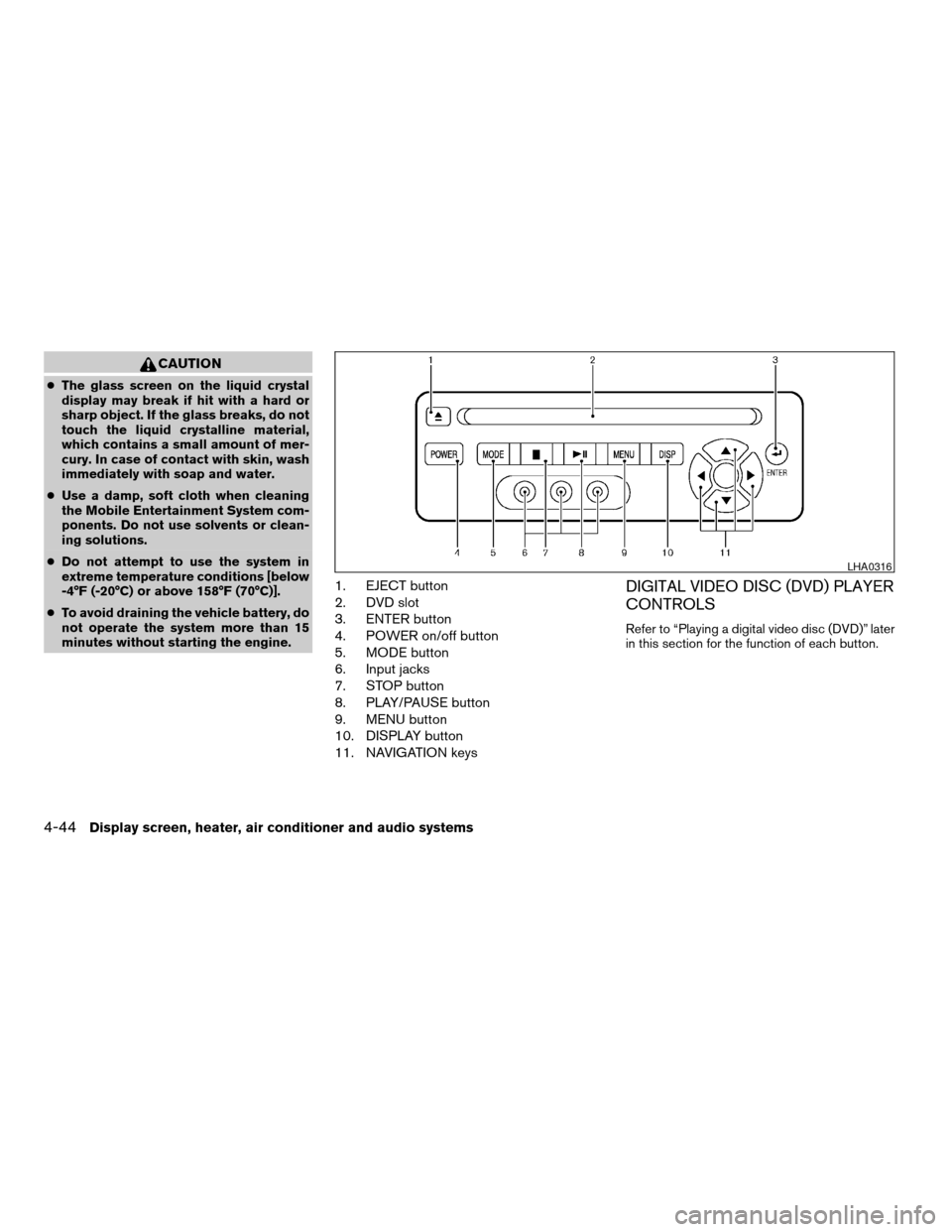
1. EJECT button
2. DVD slot
3. ENTER button
4. POWER on/off button
5. MODE button
6. Input jacks
7. STOP button
8. PLAY/PAUSE button
9. MENU button
10. DISPLAY button
11. NAVIGATION keysDIGITAL VIDEO DISC (DVD) PLAYER
CONTROLS
Refer to “Playing a digital video disc (DVD)” later
in this section for the function of each button.
LHA0316
4-44Display screen, heater, air conditioner and audio systems
ZREVIEW COPYÐ2006 Titan(tzw)
Owners ManualÐUSA_English(nna)
06/15/05Ðdebbie
X
Page 199 of 360

1. POWER button
2. STOP button
3. NEXT TRACK/CHAPTER and PREVI-
OUS TRACK/CHAPTER button
4. TITLE button
5. ENTER button6. DISPLAY button
7. MODE button
8. SUBTITLE button
9. AUDIO button
10. ANGLE button
11. CLEAR button
12. PAUSE button
13. PLAY button
14. FAST FORWARD/FAST REVERSE
button
15. MENU button
16. NAVIGATION keys
17. BACK button
18. NUMERIC KEYPAD
REMOTE CONTROL
Refer to “Playing a digital video disc (DVD)” later
in this section for the function of each button.
FLIP-DOWN SCREEN
The flip-down screen has a wireless remote con-
trol receiver
s1located at the bottom of the
screen.
LHA0317
LHA0315
Display screen, heater, air conditioner and audio systems4-45
ZREVIEW COPYÐ2006 Titan(tzw)
Owners ManualÐUSA_English(nna)
06/15/05Ðdebbie
X