Page 137 of 267
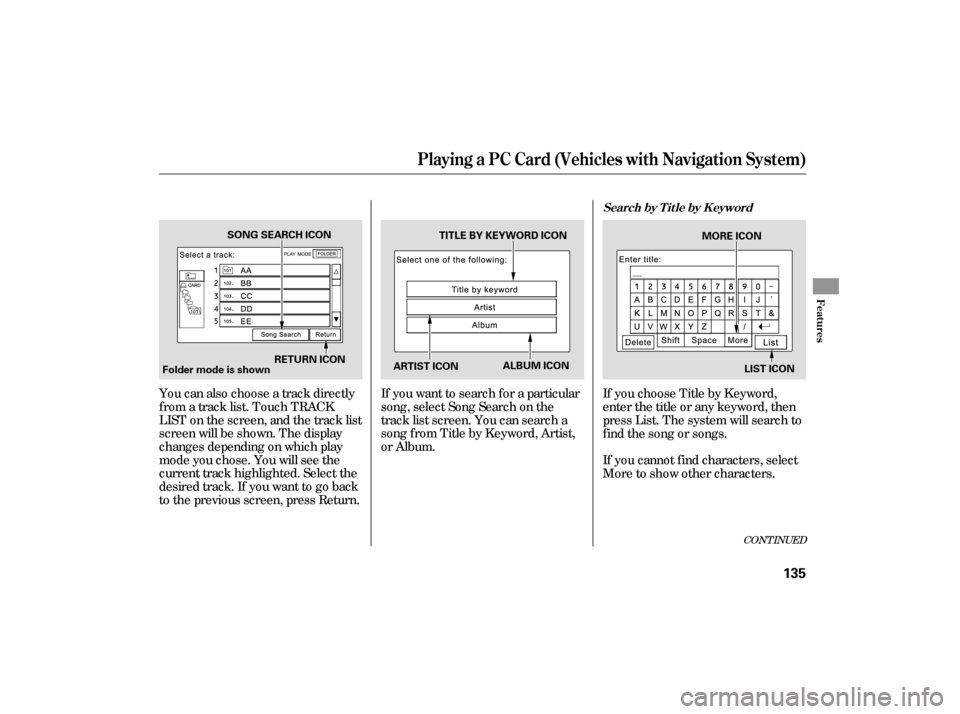
You can also choose a track directly
f rom a track list. Touch TRACK
LIST on the screen, and the track list
screen will be shown. The display
changes depending on which play
mode you chose. You will see the
current track highlighted. Select the
desired track. If you want to go back
to the previous screen, press Return.If you want to search f or a particular
song, select Song Search on the
track list screen. You can search a
songfromTitlebyKeyword,Artist,
or Album.
If you choose Title by Keyword,
enter the title or any keyword, then
press List. The system will search to
f ind the song or songs.
If youcannotfindcharacters,select
More to show other characters.
CONT INUED
Playing a PC Card (Vehicles with Navigation System)
Search by T it le by K eyword
Features
135
Folder mode is shownSONG SEARCH ICON
RETURN ICON ARTIST ICONALBUM ICON
TITLE BY KEYWORD ICON
MORE ICON
LIST ICON
�����—�����—�����y�
����
����
���y���
�(�#���������y���
�����y
Page 138 of 267
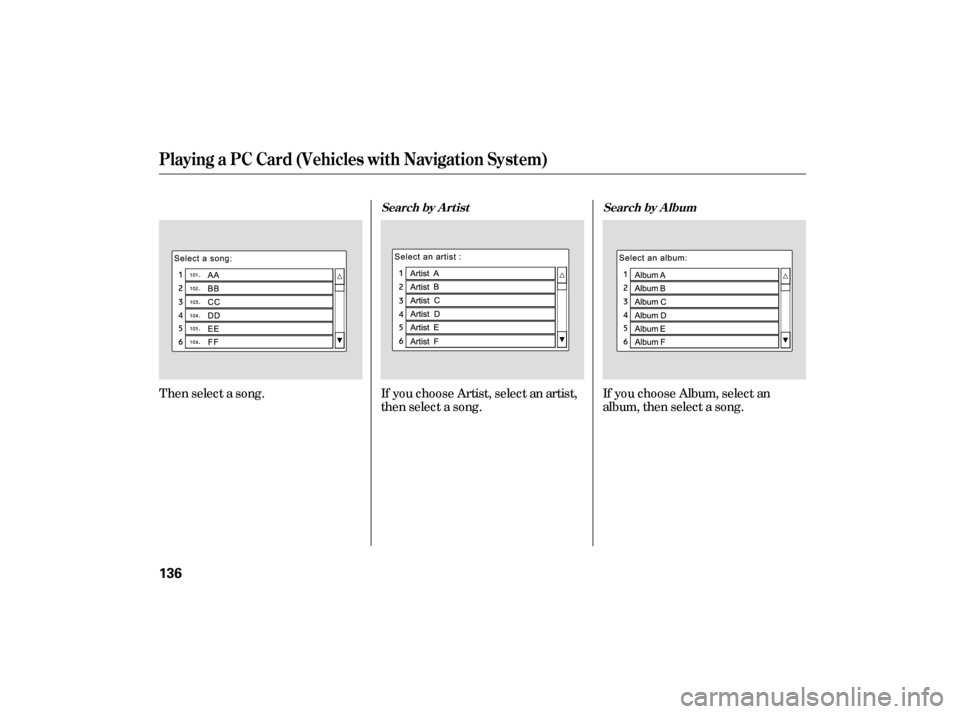
Then select a song.If you choose Artist, select an artist,
then select a song. If you choose Album, select an
album, then select a song.
Playing a PC Card (Vehicles with Navigation System)
Search by A rtist
Search by A lbum
136
�����—�����—�����y�
����
����
���y���
�(�#���������y���
�����y
Page 139 of 267
The player plays recorded MP3/
WMA cards in recorded order.
Maximum playable f older layers are
8, total playable f olders are 99, and
total playable tracks are 999 per card.
If your card has a complex structure,
theplayertakessometimetoread
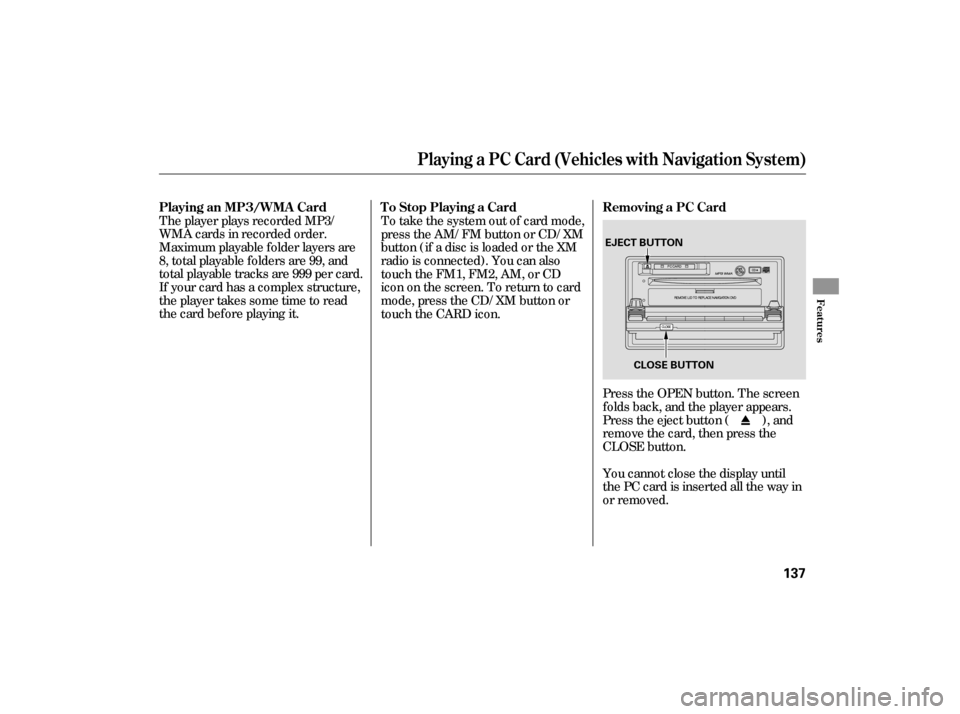
the card bef ore playing it.Press the OPEN button. The screen
folds back, and the player appears.
Press the eject button ( ), and
remove the card, then press the
CLOSE button.
You cannot close the display until
the PC card is inserted all the way in
or removed.
To take the system out of card mode,
press the AM/FM button or CD/XM
button (if a disc is loaded or the XM
radio is connected). You can also
touch the FM1, FM2, AM, or CD
icon on the screen. To return to card
mode, press the CD/XM button or
touch the CARD icon.
Playing a PC Card (Vehicles with Navigation System)
Playing an MP3/WMA Card
Removing a PC Card
To Stop Playing a Card
Features
137
EJECT BUTTON
CLOSE BUTTON
�����—�����—�����y�
����
��������y���
�(�#���������y���
�����y
Page 140 of 267
If you see an error message in the
display while playing a disc, f ind the
cause in the chart to the right. If you
cannot clear the error message, take
your vehicle to your dealer.Indication Cause Solution
FOCUS Error
Mechanical Error
High temperaturePress the EJECT button, and pull out the disc.
Check if it is inserted correctly in the disc
player.
Make sure the disc is not scratched or damaged.
Press the EJECT button, and pull out the disc.
Check the disc for damage or deformation.
If the disc cannot be pulled out, or the error
message does not disappear after the disc is
ejected, see your dealer.
Will disappear when the temperature returns to
normal.
Disc Player Error Messages (Vehicles with Navigation System)
138
�����—�����—�����y�
����
��������y���
�(�#���������y���
���
�y
Page 144 of 267

If you lose the card, you must obtain
the code number f rom a dealer. To
do this, you will need the system’s
serial number.
Your vehicle’s audio system will
disable itself if it is disconnected
f rom electrical power f or any reason.
To make it work again, you must
enter a specif ic f ive-digit code
(except f or model with navigation
system)/f our-digit code (model with
navigation system) in the preset
buttons. Because there are hundreds
of number combinations possible
from five or four-digits, making the
system work without knowing the
exact code is nearly impossible.
Youshouldhavereceivedacardthat
lists your audio system’s code and
serial numbers. It is best to store this
card in a saf e place at home. In
addition, you should write the audio
system’s serial number in this owner’s
manual. If you make a mistake entering the
code, do not start over; complete the
f ive-digit (except f or model with
navigation system)/f our-digit (model
with navigation system) sequence,
then enter the correct code. You
have 10 tries to enter the correct
code. If you are unsuccessf ul in 10
attempts, you must then leave the
system on f or 1 hour bef ore trying
again.
If your vehicle’s battery is
disconnected or goes dead, or the
radio f use is removed, the audio
system will disable itself . Use the
preset buttons to enter the five-digit
code (except f or model with
navigation system)/f our-digit code
(model with navigation system). The
code is on the radio code card
included in your owner’s manual kit.
When it is entered correctly, the
radio will start playing.
Radio T hef t Protection
142
�����—�����—�����y�
����
��������y���
�(�#���������y���
�����y
Page 145 of 267
�´
�µ �´�µ
�´ �µ �´�µ
�Û�Ý The MODE button changes the
mode. Pressing the button
repeatedly selects FM1, FM2, AM, a
disc (if a disc is loaded), or a PC card
(if a card is loaded).
If you are listening to the radio, use
the CH button to change stations.
Each time you press the top ( ) of
the button, the system goes to the
next preset station on the band you
are listening to. Press the bottom
( ) to go back to the previous
station.If youpressandholdtheCH
button ( ) or ( ) until you hear a
beep, the system goes into the seek
mode. It finds a station with a strong
signal.
If you are playing a disc, the system
skips to the beginning of the next
track each time you press the top
( ) of the CH button. Press the
bottom ( ) to return to the
beginning of the current track. Press
it again to return to the previous track. You will see the disc and track
numbers in the display. If you press
andholdtheCHbutton( )or( )
until you hear a beep, you can select
a different folder.
Tousethevoicecontrolsystem,
ref er to the navigation system
manual.
The auxiliary input jack is under the
accessory power socket. The system
will accept auxiliary input from
standard audio accessories.
When the appropriate audio unit is
connected to the auxiliary input jack,
press the CD/XM or XM/AUX
button to select the unit.
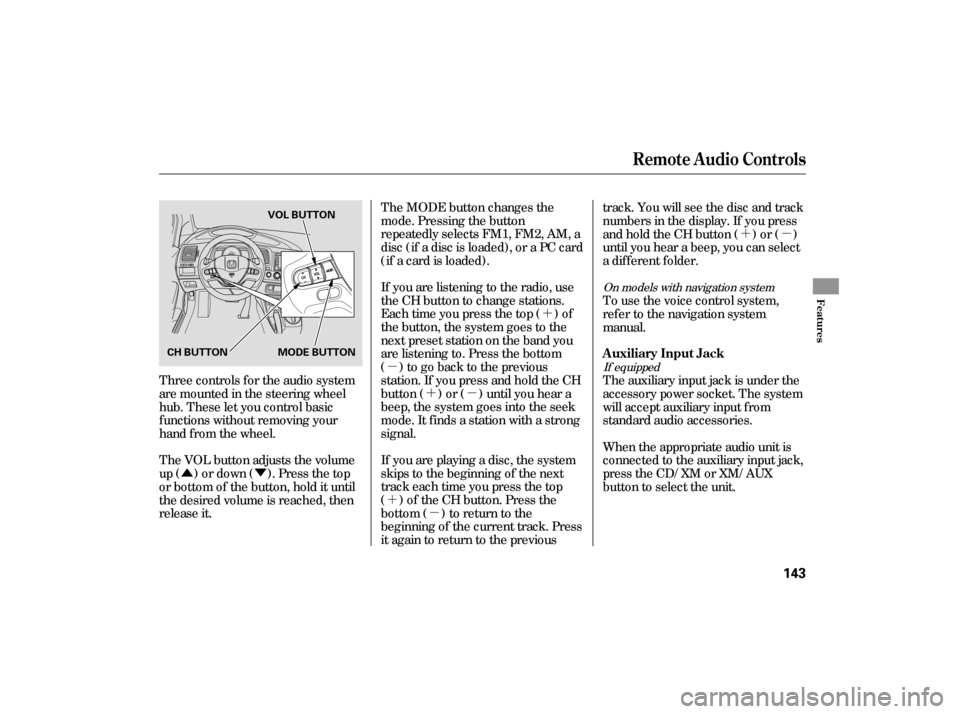
Three controls f or the audio system
are mounted in the steering wheel
hub. These let you control basic
f unctions without removing your
hand f rom the wheel.
The VOL button adjusts the volume
up ( ) or down ( ). Press the top
or bottom of the button, hold it until
the desired volume is reached, then
release it.
On models with navigation system
If equipped
Remote Audio Controls
Auxiliary Input Jack
Features
143
CH BUTTON VOL BUTTON
MODE BUTTON
�����—�����—�����y�
����
��������y���
�(�#���������y���
�����y
Page 257 of 267

�µ
�Î
�Î
�Î
���
��
��
��
��
�$
�#
Valid only f or sales within the United States. Canadian owners should contact their authorized Honda dealer.
T he publications shown below can be purchased f rom Helm
Incorporated. You can order in any of three ways:
Detach and mail the order f orm on the right half of this page
Call Helm Inc. at 1-800-782-4356
Go online at
If you are interested in other years or models, contact Helm Inc.
at 1-800-782-4356.
(credit card orders only)
Purchasing Factory Authorized Manuals (U.S. only)
Authorized Manuals
Authorized Manuals
255
ORDER TOLL FREE: 1-800-782-4356
OR
(NOTE: For Credit Card Holder Orders Only)
MINIMUM CREDIT CARD PURCHASE $10.00
Form Description
2006 Honda Civic Hybrid
Electrical Troubleshooting Manual 2006 Honda Civic 2/4 DoorBody Repair Manual
2006 Honda Civic Hybrid
Navigation System Owner’s Manual 2006 Honda Civic HybridHonda Service History
2006 Honda Civic Hybrid Quick Start Guide
Order Form for Previous Years-
Indicate Year and Model Desired
Publication
Form Number 61SNC00
61SNC00EL
61SNA30
31SNC600
31SNC700
31SNCM00 31SNCQ00 HON-R Price
Each
$75.00
$50.00
$44.00
$35.00
$29.00
$12.00
$12.00
FREE
2006 Honda Civic Hybrid Service Manual
2006 Honda Civic Hybrid Owner’s Manual
PUBLICATION NUMBER VEHICLE MODEL
Name Year Qty
Price
Each Total
Price
GRAND TOTAL HANDLING CHARGE Mich. Purchases
Add 6% Sales Tax TOTAL MATERIAL
$6.95
Monday-Friday 8:00 A.M. 6:00 P.M. EST
By completing this form you can order the materials desired. You can
pay by check or money order, or charge to your credit card. Mail to
Helm Incorporated at the address shown on the back of the order form.
Prices are subject to change without
notice and without incurring obligation.
Orders are mailed within 10 days. Please
allow adequate time for delivery.
Prices are subject to change without notice and without incurring obligation.
www. helminc. com
�����—�����—�����y�
�������������y���
�(�#���������y���������y