2006 CHEVROLET UPLANDER ESP
[x] Cancel search: ESPPage 240 of 458
To insert multiple CDs, do the following:
1. Turn the ignition on.
2. Press and hold the load button for two seconds.
You will hear a beep and LOAD ALL DISC will
appear on the display.
3. When INSERT CD # appears on the display, load a
CD. Insert the CD partway into the slot, label side
up. The player will pull the CD in.
Once the CD is loaded, wait for INSERT CD # to
appear on the display, then load the next CD.
The CD player takes up to six CDs. Do not try to
load more than six.
To load more than one CD but less than six, complete
Steps 1 through 3. When nished loading CDs,
press the load button to cancel the loading function.
The radio will begin to play the last CD loaded.
If more than one CD has been loaded, a number for
each CD will appear on the display.
Playing a Specic Loaded CD
For every CD loaded, a number will appear on the
display. To play a specic CD press the numbered
pushbutton that corresponds to the CD.
If an error appears on the display, see “CD Messages”
later in this section.
X(Eject):Press this button to eject CD(s).
To eject the CD that is currently playing, press and
release this button.
To eject multiple CDs, do the following:
1. Press and hold the eject button for two seconds.
You will hear a beep and EJECT ALL DISCS will
appear on the display.
2. When REMOVE DISC appears on the display, the
CD will eject and can be removed.
To stop ejecting the CDs, press the load or the
eject button.
If the CD is not removed, after 25 seconds, the CD will
be automatically pulled back into the player. If CD is
pushed back into the player, before the 25 second time
period is complete, the player will sense an error
and will try to eject the CD several times before
stopping.
Do not repeatedly press the eject button to eject a CD
after you have tried to push it in manually. The
player’s 25-second eject timer will reset at each press of
eject, causing the player to not eject the CD until the
25-second time period has elapsed.
O/e(Tune):Turn this knob to go to the next or
previous track.
3-90
ProCarManuals.com
Page 250 of 458
Wired Headphones
There is a right and left wired headphone jack.
To adjust the volume, do the following:
1. Plug the headphone into the corresponding jack,
located behind the video screen, next to the
auxiliary jacks.
2. Press the corresponding headphone button on the
DVD faceplate.
3. Press the right and left arrow buttons, on the DVD
faceplate, to increase or to decrease the volume.
The wired headphones work as follows:
DVD on / RSA off: The wired headphones will play
RSE audio.
DVD off / RSA on: The wired headphones will play
RSA audio.
DVD on / RSA on: The wired headphones will play
RSA audio.
Stereo RCA Jacks
The RCA jacks are located behind the video screen on
the DVD console. The RCA jacks allow audio and
video signals to be connected from an auxiliary device
such as a camcorder or a video game unit to the
RSE. The yellow RCA jack is used for video inputs, the
red RCA jack for right audio inputs, and the white
RCA jack for left audio inputs. The system requires
standard RCA cables, not included, to connect the
auxiliary device to the RCA jacks. Refer to the
manufacturer’s instructions for proper usage.
3-100
ProCarManuals.com
Page 263 of 458

When a CD is playing in the single CD player, press this
button to select the next track. This function is inactive if
the front seat passengers are listening to a CD.
When a CD is playing in the six-disc CD changer, press
this button to select the next CD, if multiple CDs are
loaded. This function is inactive if the front seat
passengers are listening to a CD.
SRCE (Source):Press this button to switch between
playing the AM/FM tuner, front CD player, and XM™
Satellite Radio Service (if equipped). If one of the
sources are not loaded, the system will skip over the
source when this button is pressed.
X(Headphone):Press the right or the left headphone
button to enable volume control of the wired headphone
connected to the corresponding jack. Press the right
and left arrow buttons to change the volume.
rj(Parental Control):This button is located behind
the video screen, below the auxiliary jacks. Press this
button while using RSA, or when a DVD or CD is playing
to blank the video screen and to mute the audio. The
power indicator lights on the DVD player will ash.Turning on the parental control will also disable all other
button operations from the remote control and the
DVD player, except for the eject button. Press this
button again to restore operation of the RSA, DVD
player, and remote control.
This button may also be used to turn the DVD player
power on and automatically resume play if the vehicle is
on and a disc is in the player. If no disc is in the
player then the system will power up in auxiliary mode.
Theft-Deterrent Feature
THEFTLOCK®is designed to discourage theft of your
vehicle’s radio. The feature works automatically by
learning a portion of the Vehicle Identication Number
(VIN). If the radio is moved to a different vehicle, it
will not operate and LOCKED will appear on the display.
With THEFTLOCK
®activated, the radio will not
operate if stolen.
3-113
ProCarManuals.com
Page 265 of 458
Radio Reception
You may experience frequency interference and static
during normal radio reception if items such as cellphone
chargers, vehicle convenience accessories, and
external electronic devices are plugged into the
accessory power outlet. If there is interference or static,
unplug the item from the accessory power outlet.
AM
The range for most AM stations is greater than for FM,
especially at night. The longer range can cause
station frequencies to interfere with each other. For
better radio reception, most AM radio stations will boost
the power levels during the day, and then reduce
these levels during the night. Static can also occur when
things like storms and power lines interfere with radio
reception. When this happens, try reducing the treble on
your radio.
FM Stereo
FM stereo will give the best sound, but FM signals will
reach only about 10 to 40 miles (16 to 65 km). Tall
buildings or hills can interfere with FM signals, causing
the sound to fade in and out.
XM™ Satellite Radio Service
XM™ Satellite Radio Service gives digital radio
reception from coast-to-coast in the 48 contiguous
United States, and in Canada (if available). Just as with
FM, tall buildings or hills can interfere with satellite
radio signals, causing the sound to fade in and out. In
addition, traveling or standing under heavy foliage,
bridges, garages, or tunnels may cause loss of the XM™
signal for a period of time. The radio may display NO
SIGNAL to indicate interference.
Care of Your CDs and DVDs
Handle CDs carefully. Store them in their original cases
or other protective cases and away from direct
sunlight and dust. The CD player scans the bottom
surface of the disc. If the surface of a CD is damaged,
such as cracked, broken, or scratched, the CD will
not play properly or not at all. If the surface of a CD is
soiled, take a soft, lint free cloth or dampen a clean, soft
cloth in a mild, neutral detergent solution mixed with
water, and clean it. Make sure the wiping process starts
from the center to the edge.
Do not touch the bottom side of a CD while handling it;
this could damage the surface. Pick up CDs by
grasping the outer edges or the edge of the hole and
the outer edge.
3-115
ProCarManuals.com
Page 271 of 458
There is something else about drinking and driving that
many people do not know. Medical research shows that
alcohol in a person’s system can make crash injuries
worse, especially injuries to the brain, spinal cord, or
heart. This means that when anyone who has been
drinking — driver or passenger — is in a crash, that
person’s chance of being killed or permanently disabled
is higher than if the person had not been drinking.
{CAUTION:
Drinking and then driving is very dangerous.
Your reexes, perceptions, attentiveness, and
judgment can be affected by even a small
amount of alcohol. You can have a serious — or
even fatal — collision if you drive after drinking.
Please do not drink and drive or ride with a
driver who has been drinking. Ride home in a
cab; or if you are with a group, designate a
driver who will not drink.
Control of a Vehicle
You have three systems that make your vehicle go where
you want it to go. They are the brakes, the steering, and
the accelerator. All three systems have to do their work at
the places where the tires meet the road.
Sometimes, as when you are driving on snow or ice, it is
easy to ask more of those control systems than the tires
and road can provide. That means you can lose control of
your vehicle. SeeTraction Control System (TCS) on
page 4-8andStabiliTrak
®System on page 4-9.
Adding non-GM accessories can affect your vehicle’s
performance. SeeAccessories and Modications
on page 5-3.
Braking
SeeBrake System Warning Light on page 3-38.
Braking action involves perception time and
reaction time.
First, you have to decide to push on the brake pedal.
That is perception time. Then you have to bring up your
foot and do it. That is reaction time.
Average reaction time is about three-fourths of a
second. But that is only an average. It might be less
with one driver and as long as two or three seconds or
more with another. Age, physical condition, alertness,
4-5
ProCarManuals.com
Page 274 of 458
Remember: Anti-lock does not change the time you
need to get your foot up to the brake pedal or always
decrease stopping distance. If you get too close to
the vehicle in front of you, you will not have time to apply
your brakes if that vehicle suddenly slows or stops.
Always leave enough room up ahead to stop, even
though you have anti-lock brakes.
Using Anti-Lock
Do not pump the brakes. Just hold the brake pedal
down rmly and let anti-lock work for you. You may feel
a slight brake pedal pulsation or notice some noise,
but this is normal.
Braking in Emergencies
With anti-lock brakes, you can steer and brake at the
same time. In many emergencies, steering can help you
more than even the very best braking.
Traction Control System (TCS)
Your vehicle may have a traction control system that
limits wheel spin. This is especially useful in slippery
road conditions. The system operates if it senses that
one or both of the front wheels are spinning or beginning
to lose traction. When this happens, the system
brakes the spinning wheel(s) and/or reduces engine
power to limit wheel spin.The TRACTION CONTROL ACTIVE message will come
on in the Driver Information Center (DIC) when the
traction control system is limiting wheel spin. You may
feel or hear the system working, but this is normal.
If your vehicle is in cruise control when the traction
control system begins to limit wheel spin, the cruise
control will automatically disengage. When road
conditions allow you to safely use it again, you may
re-engage the cruise control.
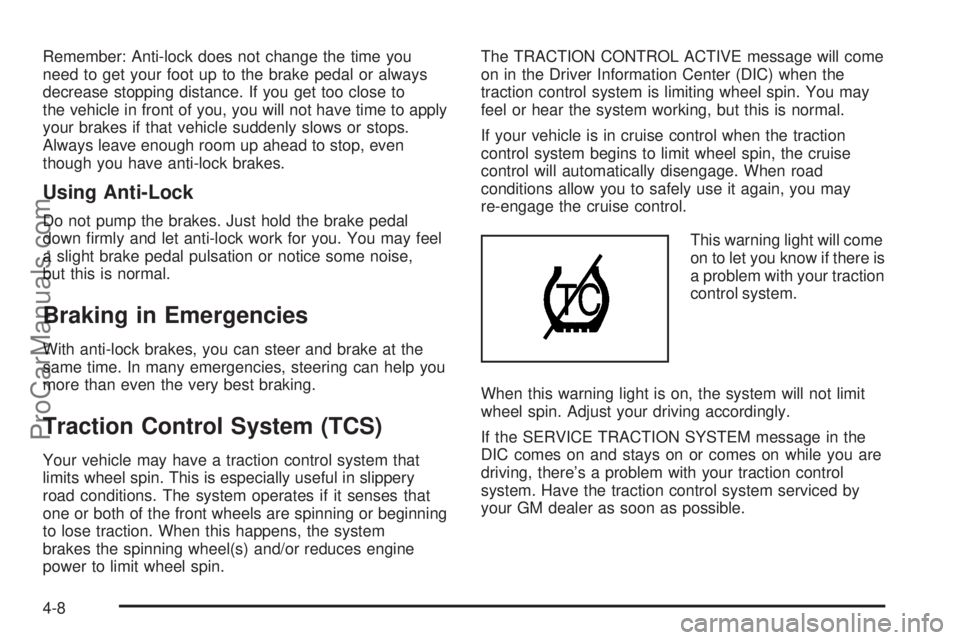
This warning light will come
on to let you know if there is
a problem with your traction
control system.
When this warning light is on, the system will not limit
wheel spin. Adjust your driving accordingly.
If the SERVICE TRACTION SYSTEM message in the
DIC comes on and stays on or comes on while you are
driving, there’s a problem with your traction control
system. Have the traction control system serviced by
your GM dealer as soon as possible.
4-8
ProCarManuals.com
Page 275 of 458
When this warning message is on, the TRACTION
CONTROL OFF message in the DIC will come on to
remind you that the system will not limit wheel spin.
Adjust your driving accordingly.
The traction control system automatically comes on
whenever you start your vehicle. To limit wheel
spin, especially in slippery road conditions, you should
always leave the system on. But you can turn the
traction control system off if you ever need to. You
should turn the system off if your vehicle ever gets
stuck in sand, mud or snow and rocking the vehicle is
required. SeeRocking Your Vehicle to Get It Out
on page 4-30andIf Your Vehicle is Stuck in Sand, Mud,
Ice or Snow on page 4-29.
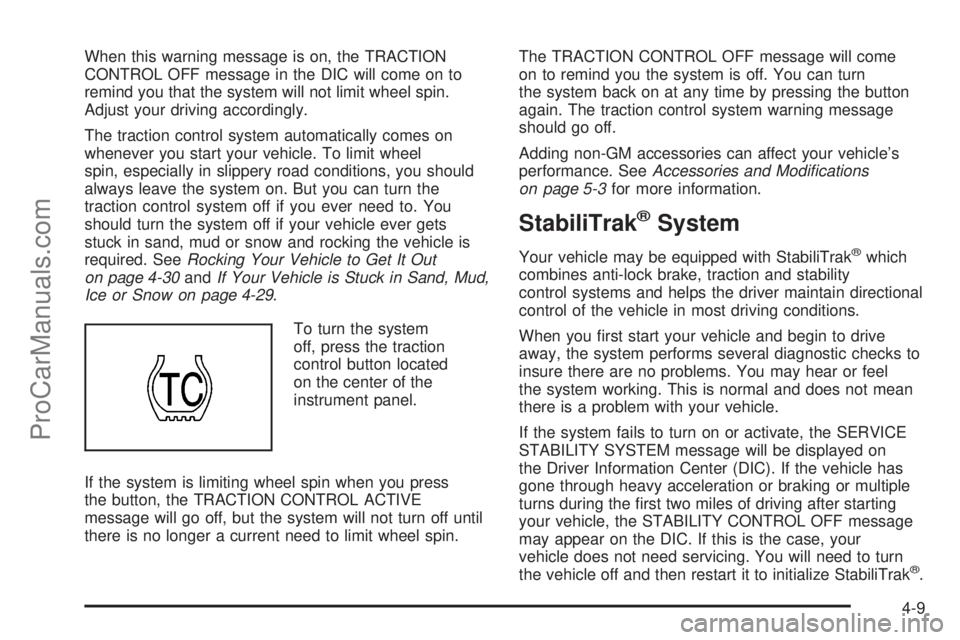
To turn the system
off, press the traction
control button located
on the center of the
instrument panel.
If the system is limiting wheel spin when you press
the button, the TRACTION CONTROL ACTIVE
message will go off, but the system will not turn off until
there is no longer a current need to limit wheel spin.The TRACTION CONTROL OFF message will come
on to remind you the system is off. You can turn
the system back on at any time by pressing the button
again. The traction control system warning message
should go off.
Adding non-GM accessories can affect your vehicle’s
performance. SeeAccessories and Modications
on page 5-3for more information.
StabiliTrak®System
Your vehicle may be equipped with StabiliTrak®which
combines anti-lock brake, traction and stability
control systems and helps the driver maintain directional
control of the vehicle in most driving conditions.
When you rst start your vehicle and begin to drive
away, the system performs several diagnostic checks to
insure there are no problems. You may hear or feel
the system working. This is normal and does not mean
there is a problem with your vehicle.
If the system fails to turn on or activate, the SERVICE
STABILITY SYSTEM message will be displayed on
the Driver Information Center (DIC). If the vehicle has
gone through heavy acceleration or braking or multiple
turns during the rst two miles of driving after starting
your vehicle, the STABILITY CONTROL OFF message
may appear on the DIC. If this is the case, your
vehicle does not need servicing. You will need to turn
the vehicle off and then restart it to initialize StabiliTrak
®.
4-9
ProCarManuals.com
Page 281 of 458
Do not get too close to the vehicle you want to
pass while you are awaiting an opportunity. For
one thing, following too closely reduces your area
of vision, especially if you are following a larger
vehicle. Also, you will not have adequate space if
the vehicle ahead suddenly slows or stops.
Keep back a reasonable distance.
When it looks like a chance to pass is coming up,
start to accelerate but stay in the right lane and do
not get too close. Time your move so you will be
increasing speed as the time comes to move into the
other lane. If the way is clear to pass, you will have a
running start that more than makes up for the
distance you would lose by dropping back. And if
something happens to cause you to cancel your
pass, you need only slow down and drop back again
and wait for another opportunity.
If other vehicles are lined up to pass a slow vehicle,
wait your turn. But take care that someone is not
trying to pass you as you pull out to pass the slow
vehicle. Remember to glance over your shoulder and
check the blind spot.
Check your mirrors, glance over your shoulder,
and start your left lane change signal before moving
out of the right lane to pass. When you are far
enough ahead of the passed vehicle to see its
front in your inside mirror, activate your right lane
change signal and move back into the right lane.Remember that your passenger side outside mirror is
convex. The vehicle you just passed may seem to be
farther away from you than it really is.
Try not to pass more than one vehicle at a time
on two-lane roads. Reconsider before passing the
next vehicle.
Do not overtake a slowly moving vehicle too rapidly.
Even though the brake lamps are not ashing, it may
be slowing down or starting to turn.
If you are being passed, make it easy for the
following driver to get ahead of you. Perhaps you can
ease a little to the right.
Loss of Control
Let us review what driving experts say about what
happens when the three control systems — brakes,
steering, and acceleration — do not have enough
friction where the tires meet the road to do what the
driver has asked.
In any emergency, do not give up. Keep trying to
steer and constantly seek an escape route or area
of less danger.
4-15
ProCarManuals.com