2006 CHEVROLET SILVERADO ESP
[x] Cancel search: ESPPage 140 of 594
4. Put the transmission in NEUTRAL (N).
5. Shift the transfer case to Two-Wheel High.
6. Simultaneously press and hold the Two-Wheel High
and Four-Wheel Low buttons for 10 seconds. The
red NEUTRAL light will come on when the
transfer case shift to NEUTRAL is complete.
7. If the engine is running, shift the transmission to
REVERSE (R) for one second, then shift the
transmission to DRIVE (D) for one second, or
FIRST (1) for vehicles equipped with a manual
transmission.
8. Turn the engine off, by turning the key to
ACCESSORY.
9. Place the transmission shift lever in PARK (P).
10. Turn the ignition to LOCK.Shifting Out of NEUTRAL
To shift out of NEUTRAL:
1. Set the parking brake and apply the regular brake
pedal.
2. Turn the ignition to RUN with the engine off.
3. Shift the transmission to NEUTRAL (N).
4. Press the button for the desired transfer case shift
position (Two-Wheel High, Four-Wheel High, AUTO
4WD, or Four-Wheel Low).
5. After the transfer case has shifted out of NEUTRAL
the red light will go out.
6. Release the parking brake.
7. You may start the engine and shift the transmission
to the desired position.
Excessively shifting the transfer case into or out of the
different modes may cause the transfer case to enter the
shift protection mode. This will protect the transfer case
from possible damage and will only allow the transfer
case to respond to one shift per 10 seconds. The transfer
case may stay in this mode for up to three minutes.
2-44
Page 145 of 594
4. After the transfer case has shifted out of NEUTRAL
the red light will go out.
5. Release the parking brake.
6. You may start the engine and shift the transmission
to the desired position. Excessively shifting the
transfer case into or out of the different modes may
cause the transfer case to enter the shift protection
mode. This will protect the transfer case from
possible damage and will only allow the transfer
case to respond to one shift per 10 seconds.
The transfer case may stay in this mode for up to
three minutes.
7. After the transfer case has shifted out of NEUTRAL
the red light will go out.
Parking Brake
To set the parking brake, hold the regular brake pedal
down with your right foot. Push down the parking
brake pedal with your left foot.
A chime will activate and the warning light will ash when
the parking brake is applied and the vehicle is moving at
least 3 mph (5 km/h) for at least three seconds.To release the parking brake, hold the regular brake
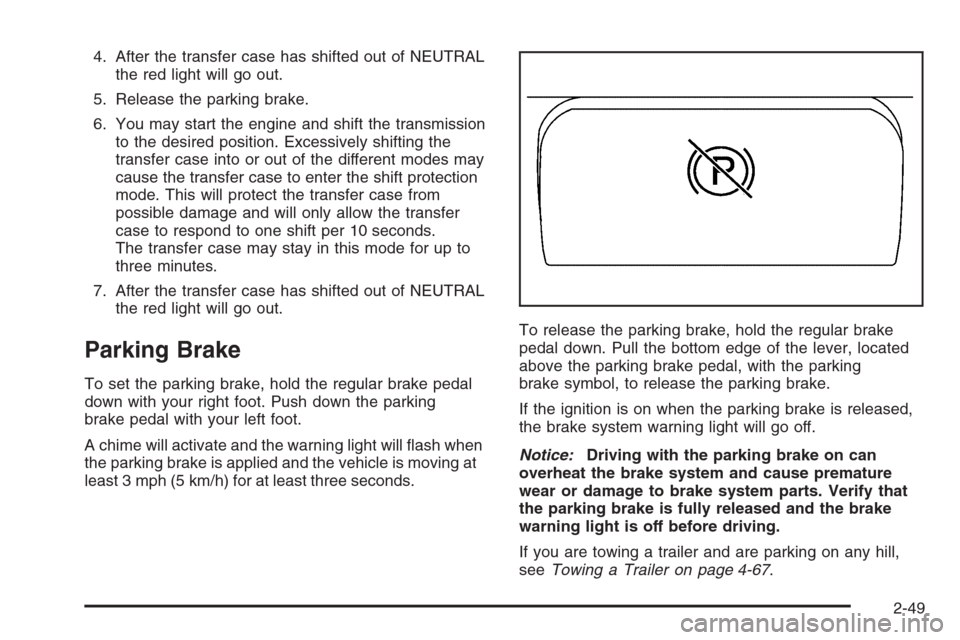
pedal down. Pull the bottom edge of the lever, located
above the parking brake pedal, with the parking
brake symbol, to release the parking brake.
If the ignition is on when the parking brake is released,
the brake system warning light will go off.
Notice:Driving with the parking brake on can
overheat the brake system and cause premature
wear or damage to brake system parts. Verify that
the parking brake is fully released and the brake
warning light is off before driving.
If you are towing a trailer and are parking on any hill,
seeTowing a Trailer on page 4-67.
2-49
Page 166 of 594
Directions & Connections®Plan
All Safe & Sound Plan Services
Driving Directions
RideAssist
Information and Convenience Services
OnStar®Hands-Free Calling
OnStar®Hands-Free Calling allows OnStar®subscribers
to make and receive calls using voice commands at
the touch of a button. Hands-Free Calling is fully
integrated into the vehicle, and may be used with
Pre-Paid Packages or linked to a cell phone through
OnStar
®Shared Minutes Plan. To nd out more, refer to
the OnStar®Owner’s Guide in the vehicle’s glove
box, visit www.onstar.com or www.onstar.ca, or speak
with an OnStar
®advisor by pressing the OnStar®button
or calling 1-888-4-ONSTAR (1-888-466-7827).
OnStar®Virtual Advisor
Your vehicle may have Virtual Advisor. It is a feature of
OnStar®Hands-Free Calling that uses your minutes
to access weather, local traffic reports, and stock quotes.
By pressing the phone button and giving a few simple
voice commands, you can browse through the
various topics. Customize your information prole at
www.myonstar.com. See the OnStar
®Owner’s Guide for
more information.
OnStar®Steering Wheel Controls
Your vehicle may be
equipped with a Talk/Mute
button that can be used
to interact with OnStar
®.
See the Audio Steering
Wheel Control section for
your specic vehicle
operation.
When calling into voice mail systems, or to dial directory
numbers, press this button once, wait for the response,
say the number(s) to be dialed, wait for the number(s)
to be repeated and then say “dial”. See the OnStar
®
Owner’s Guide for more information.
2-70
Page 190 of 594

Headlamps on Reminder
A reminder chime will sound when your headlamps or
parking lamps are manually turned on and your
ignition is off and a door is open. To disable the chime,
turn the light off then back on.
Daytime Running Lamps (DRL)
Daytime Running Lamps (DRL) can make it easier for
others to see the front of your vehicle during the
day. DRL can be helpful in many different driving
conditions, but they can be especially helpful in the short
periods after dawn and before sunset. Fully functional
DRL are required on all vehicles rst sold in Canada.
The DRL system will come on when the following
conditions are met:
The ignition is on
The exterior lamps control is in AUTO
The light sensor determines it is daytime
When the DRL are on, only your DRL lamps will be on.
The taillamps, sidemarker and other lamps will not be on.
The instrument panel back lighting will not be on either.When it begins to get dark, the automatic headlamp
system will switch from DRL to the headlamps.
When you turn the headlamp switch off, the headlamps
will go off, and your DRL lamps will illuminate,
provided it is not dark outside.
Automatic Headlamp System
When it is dark enough outside, your automatic
headlamp system will turn on the headlamps at the
normal brightness, along with the taillamps, sidemarker,
parking lamps, and the instrument panel lights. The
radio back lighting will also be dimly lit.
To turn off the automatic headlamp system, turn the
exterior lamps switch to the off position. Turning off
the automatic headlamp system with the headlamp
switch is not available for vehicles rst sold in Canada.
Your vehicle has a light sensor located on the top of
the instrument panel in the defroster grille that regulates
when the automatic headlamps turn on. Be sure it is
not covered, or the system will come on whenever the
ignition is on.
3-14
Page 227 of 594
Driver Information Center (DIC)
The Driver Information Center (DIC) display is located
on the instrument panel cluster, below the speedometer.
If your vehicle has DIC buttons, they are located on
the steering wheel. The DIC can display information
such as the trip odometer, fuel economy, customization
features, and warning/status messages.
If your vehicle does not have DIC steering wheel
buttons, you will not have all of the features listed. Scroll
through the odometer, trip odometer, engine hours,
and selected range if your vehicle has an Allison
Transmission
®by pressing the trip odometer reset stem
located on the instrument panel cluster. Turn off, or
acknowledge, DIC messages by pressing the trip
odometer reset stem. SeeSpeedometer and Odometer
on page 3-32for information on features for vehicles
without DIC buttons.
If your vehicle has an Allison Transmission
®and the
shift lever is in the MANUAL MODE (M) position,
the DIC will display the current gear range. The DIC
will also display the gear range as it is shifted up
or down. For example, if the gear range is currently set
to 6, the DIC will display (6)54321. When the
gear range is shifted down one time, the DIC will display
6(5)4321. SeeAutomatic Transmission Operation
on page 2-24for more information.
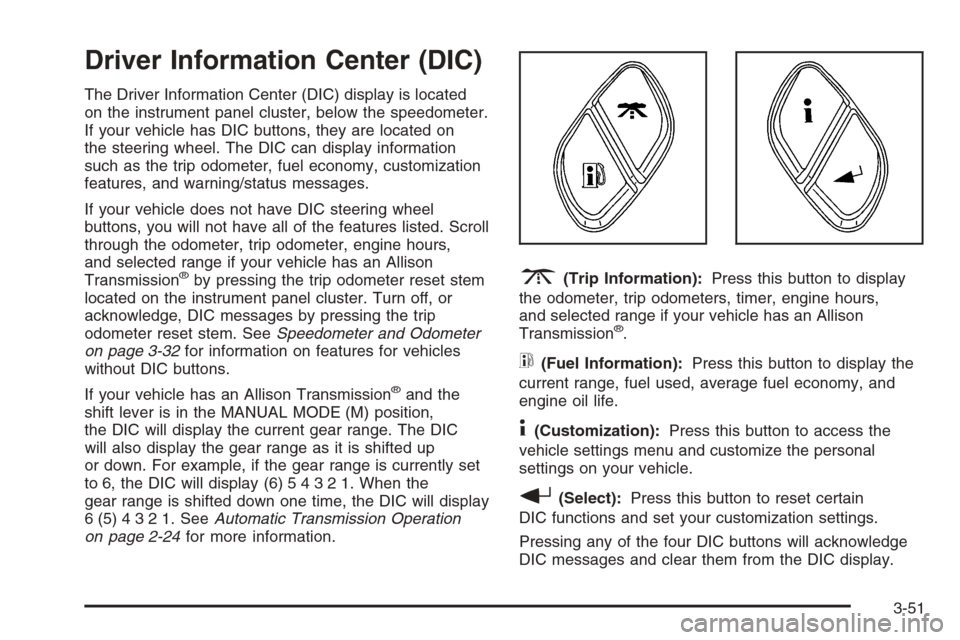
3(Trip Information):Press this button to display
the odometer, trip odometers, timer, engine hours,
and selected range if your vehicle has an Allison
Transmission
®.
t(Fuel Information):Press this button to display the
current range, fuel used, average fuel economy, and
engine oil life.
4(Customization):Press this button to access the
vehicle settings menu and customize the personal
settings on your vehicle.
r(Select):Press this button to reset certain
DIC functions and set your customization settings.
Pressing any of the four DIC buttons will acknowledge
DIC messages and clear them from the DIC display.
3-51
Page 245 of 594
Language
To select your preference for display language, press
the select button while LANGUAGE is displayed on the
DIC. Pressing the select button will scroll through the
following languages:
ENGLISH
FRANCAIS (French)
ESPANOL (Spanish)
Choose one of the available options and press the
customization button while it is displayed on the DIC to
select it.
If you accidentally choose a language that you do not
want or understand, press and hold the customization
button and the trip information button at the same
time. The DIC will begin scrolling through the languages
in their particular language. English will be in English,
Francais will be in French and Espanol will be in
Spanish. When you see the language that you would
like, release both buttons. The DIC will then display the
information in the language you chose.
You can also scroll through the different languages by
pressing and holding the trip reset stem for four seconds,
as long as you are in the odometer mode.
Display Units
Press the customization button until DISPLAY UNITS
appears in the display. To select English or metric, press
the select button while DISPLAY UNITS is displayed
on the DIC. Pressing the select button will scroll through
the following choices:
DISPLAY UNITS: ENGLISH
DISPLAY UNITS: METRIC
If you choose English, all information will be displayed
in English units. For example, distance in miles and fuel
economy in miles per gallon. If you choose metric, all
information will be displayed in metric units. For
example, distance in kilometers and fuel economy in
liters per 100 kilometers.
Choose one of the available options and press the
customization button while it is displayed on the DIC to
select it and end out of the customizable options.
3-69
Page 285 of 594
To insert multiple CDs, do the following:
1. Turn the ignition on.
2. Press and hold the LOAD button for two seconds.
You will hear a beep and the indicator light, located
to the right of the slot, will begin to ash and
MULTI LOAD # will appear on the display.
3. Once the light stops ashing and turns green,
INSERT CD # will appear on the display, load
a CD. Insert the CD part way into the slot, label side
up. The player will pull the CD in.
Once the CD is loaded, the indicator light will begin
ashing again. Once the light stops ashing and
turns green, you can load another CD. The
CD player takes up to six CDs. Do not try to load
more than six.
To load more than one CD but less than six, complete
Steps 1 through 3. When nished loading CDs,
press the LOAD button to cancel the loading function.
The radio will begin to play the last CD loaded.
If more than one CD has been loaded, a number for
each CD will appear on the display.Playing a Specic Loaded CD
For every CD loaded, a number will appear on the
display. To play a specic CD, rst press the CD AUX
button, then press the numbered pushbutton that
corresponds to the CD. A small bar will appear under
the CD number that is playing and the track number will
appear on the display.
If an error appears on the display, see “CD Messages”
later in this section.
CD
Z(Eject):Press this button to eject CD(s).
To eject the CD that is currently playing, press and
release this button.
To eject multiple CDs, do the following:
1. Press and hold the CD eject button for two seconds.
You will hear a beep and the indicator light, located
to the right of the slot, will begin to ash and
EJECT ALL will appear on the display.
2. Once the light stops ashing, REMOVE CD # will
appear on the display. The CD will eject and can
be removed.
Once the CD is removed, the indicator light will
begin ashing again and another CD will eject.
To stop ejecting the CDs, press the LOAD or the
eject button.
3-109
Page 304 of 594
Radio Reception
You may experience frequency interference and static
during normal radio reception if items such as cellphone
chargers, vehicle convenience accessories, and
external electronic devices are plugged into the
accessory power outlet. If there is interference or static,
unplug the item from the accessory power outlet.
AM
The range for most AM stations is greater than for FM,
especially at night. The longer range can cause
station frequencies to interfere with each other. For
better radio reception, most AM radio stations will boost
the power levels during the day, and then reduce
these levels during the night. Static can also occur when
things like storms and power lines interfere with radio
reception. When this happens, try reducing the treble on
your radio.
FM Stereo
FM stereo will give the best sound, but FM signals will
reach only about 10 to 40 miles (16 to 65 km). Tall
buildings or hills can interfere with FM signals, causing
the sound to fade in and out.
XM™ Satellite Radio Service
XM™ Satellite Radio Service gives digital radio
reception from coast-to-coast in the 48 contiguous
United States, and in Canada (if available). Just as with
FM, tall buildings or hills can interfere with satellite
radio signals, causing the sound to fade in and out.
In addition, traveling or standing under heavy foliage,
bridges, garages, or tunnels may cause loss of the XM™
signal for a period of time. The radio may display
NO SIGNAL to indicate interference.
Care of the Cassette Tape Player
A tape player that is not cleaned regularly can cause
reduced sound quality, ruined cassettes, or a damaged
mechanism. Cassette tapes should be stored in their
cases away from contaminants, direct sunlight, and
extreme heat. If they are not, they may not operate
properly or may cause failure of the tape player.
The tape player should be cleaned regularly after every
50 hours of use. The radio may display CLEAN to
indicate that the tape player has been used for 50 hours
without resetting the tape clean timer. If this message
appears on the display, the cassette tape player
needs to be cleaned. It will still play tapes, but it should
be cleaned as soon as possible to prevent damage
to the tapes and player.
3-128