2006 CADILLAC XLR V Top
[x] Cancel search: TopPage 186 of 456

TOP INOP (Inoperative) – VALET ON:This message
will display when the retractable hardtop button is
pressed and the valet switch is on. Turn off the valet
switch before using the retractable hardtop.
TOP INOP (Inoperative) OUT OF PARK:This
message will display if the retractable hardtop button is
pressed while the vehicle is not in PARK (P).
TOP MOTOR OVER TEMP (Temperature):This
message will display when the retractable hardtop button
is pressed and the hardtop pump motor temperature
is over 221°F (105°C). Wait for the hardtop pump motor
to cool down before using the retractable hardtop.
TOP NOT SECURE:This message will display when
the retractable hardtop button is released before the top
open or close operation is complete. Press and hold the
retractable hardtop button to fully open or close the top.
TRAC (Traction) SYSTEM ACTIVE:When your
traction control system is limiting wheel spin, the
TRACTION SYSTEM ACTIVE message will be
displayed. Slippery road conditions may exist if this
message is displayed, so adjust your driving accordingly.
This message will stay on for a few seconds after the
traction control system stops limited wheel spin.TRAC (Traction)/STABILITRAK OFF:This message
indicates that both the Traction Control System
(TCS) and StabiliTrak
®are off. The message will remain
until the systems are turned on again.
TRAC (Traction)/STABILITRAK ON:This message
indicates that both the Traction Control System
(TCS) and the StabiliTrak
®are on.
TRACTION SYSTEM OFF:This message indicates
that the Traction Control System (TCS) is off but
StabiliTrak
®remains on.
TRACTION SYSTEM ON:This message indicates that
the Traction Control System (TCS) is on.
TRUNK AJAR:This message indicates that the trunk is
open while the vehicle is running and not in PARK (P).
WAIT FOR STABILITRAK:This message will be
displayed after driving 19 mph (30 km/h) for 10 seconds
if the steering is not centered. StabiliTrak
®is not
available until the steering centers itself and the
STABILITRAK READY message is displayed in the DIC.
3-76
Page 188 of 456

DIC Vehicle Personalization
Your vehicle is equipped with personalization capabilities
that allows you to program certain features to a
preferred setting for up to two drivers. The back of the
keyless access transmitters are labelled 1 or 2.
The current driver’s preferences are recalled when one
of the following occurs:
The lock or unlock button on the keyless access
transmitter, programmed as 1 or 2, is pressed.
The appropriate memory button, 1 or 2, located on
the driver’s seat is pressed. SeeMemory Seat,
Mirrors and Steering Wheel on page 2-56for more
information.
A valid keyless access transmitter is detected upon
opening the driver’s door.
If more than one valid keyless access transmitter is
detected upon opening the driver’s door, the driver
preferences for the lowest driver number will be recalled.
If a keyless access transmitter is programmed
as #3 or #4, the personalization system will not
recognize the transmitter. The Driver Information
Center (DIC) will not display a current driver number
and the features that are normally programmed
through the DIC will be set to the default states.Also, if the OPTIONS button is pressed, the DIC does
not display the menus used to set personalizations,
but instead displays OPTIONS UNAVAILABLE for a
few seconds.
Feature Programming
To change feature preferences, make sure the vehicle
is running and in PARK (P). Press the OPTIONS
button and the Driver Information Center (DIC) will
display the current driver for a few seconds, then display
the rst personalization menu item. You can now use
the OPTIONS button to change the setting of the
displayed feature. Press the top or bottom of the
information button to scroll up or down the list of
features. When you get to a feature you want to change,
press the OPTIONS button again. When you are
nished, press the RESET button to exit the
personalization menu. If no button is pressed within
45 seconds, the DIC will exit the personalization menu.
The following are DIC options that will be available
in the personalization menu.
Auto Recall
This feature allows the steering column, outside mirrors
and the driver’s seat to automatically move to the current
driver’s set position when the engine starts. The DIC will
display AUTO RECALL OFF or AUTO RECALL ON.
Press the OPTIONS button to change the setting.
3-78
Page 196 of 456

Care of Your CDs
Handle CDs carefully. Store them in their original cases
or other protective cases and away from direct
sunlight and dust. The CD player scans the bottom
surface of the disc. If the surface of a CD is damaged,
such as cracked, broken, or scratched, the CD will
not play properly or not at all. If the surface of a CD is
soiled, take a soft, lint free cloth or dampen a clean,
soft cloth in a mild, neutral detergent solution mixed
with water, and clean it. Make sure the wiping process
starts from the center to the edge.
Do not touch the bottom side of a CD while handling
it; this could damage the surface. Pick up CDs by
grasping the outer edges or the edge of the hole
and the outer edge.
Care of the CD Player
The use of CD lens cleaners for CD players is not
advised, due to the risk of contaminating the internal
lens of the CD optics with lubricants.
Diversity Antenna System
The AM-FM antennas are located under the decklid
surface in the trunk compartment. the antennas
are hidden from view and are not accessible.
If adding an aftermarket cellular telephone to your
vehicle, do not attach the antenna to the rear glass.
This would interfere with the convertible top retraction
operation and could cause damage to the
nished/painted surfaces.
XM™ Satellite Radio Antenna
System (Trunk Mounted)
Your vehicle may have the XM™ Satellite Radio
antenna that is located on the trunk of your vehicle.
Keep this antenna clear of snow and ice build up
for clear radio reception.
XM™ Satellite Radio Antenna
System (Diversity System)
Your vehicle may have the XM™ Satellite Radio
antennas that are located in the outside rear view
mirrors. These antennas are hidden from view and
are not accessible.
3-86
Page 201 of 456

{CAUTION:
Looking at the moving map on the navigation
screen frequently or for too long while driving
can cause a crash and you or others can be
injured or killed. Keep your eyes and mind on
the road and avoid looking too long or too
often at the moving map on the navigation
screen. Use the voice guidance directions
whenever possible.
The navigation system allows you to do the following:
Plan a route with provided turn-by-turn route
and map guidance with voice prompts.
SeePlan Route on page 4-18for more information.
Select a destination using various methods
and choices.
Receive broadcast announcements on traffic and
emergency alert communications.The information in the system may not always be
complete. Road conditions such as prohibited turns,
detours, and construction zones, change frequently.
It is important to consider whether you can follow
the directions given by the system for the current
conditions.
When getting started, you may set the navigation
system to your preference using various options.
You will also need to know how to perform various
functions to begin route guidance. Reference the
following topics for further information:
To adjust screen appearance, language, clock,
English/metric measurements, or other options,
see “Main Audio Menu” underNavigation Audio
System on page 4-51.
To adjust voice guidance volume or other navigation
settings, seeSetup Menu on page 4-13.
4-5
Page 203 of 456
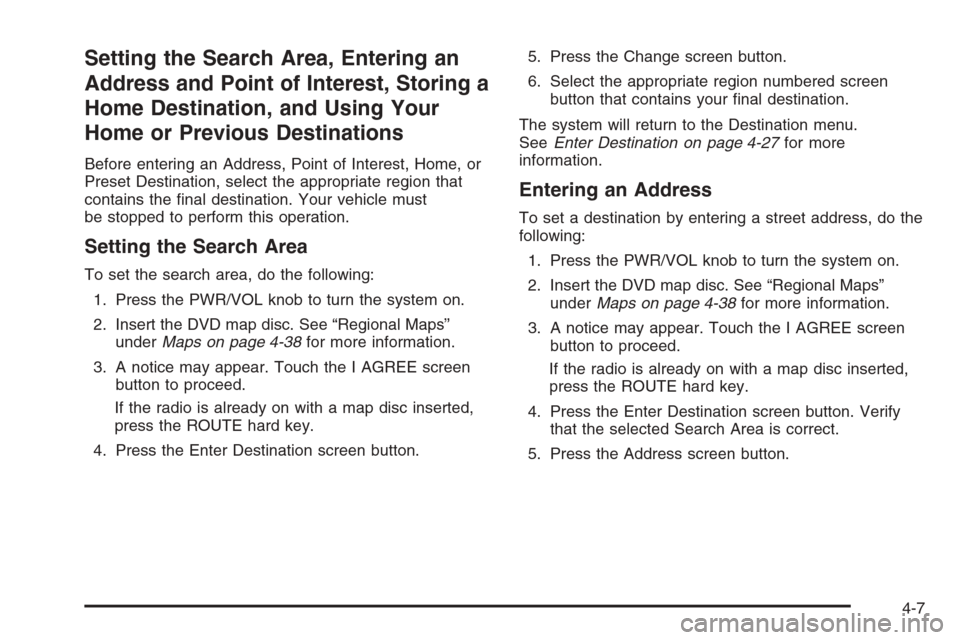
Setting the Search Area, Entering an
Address and Point of Interest, Storing a
Home Destination, and Using Your
Home or Previous Destinations
Before entering an Address, Point of Interest, Home, or
Preset Destination, select the appropriate region that
contains the nal destination. Your vehicle must
be stopped to perform this operation.
Setting the Search Area
To set the search area, do the following:
1. Press the PWR/VOL knob to turn the system on.
2. Insert the DVD map disc. See “Regional Maps”
underMaps on page 4-38for more information.
3. A notice may appear. Touch the I AGREE screen
button to proceed.
If the radio is already on with a map disc inserted,
press the ROUTE hard key.
4. Press the Enter Destination screen button.5. Press the Change screen button.
6. Select the appropriate region numbered screen
button that contains your nal destination.
The system will return to the Destination menu.
SeeEnter Destination on page 4-27for more
information.
Entering an Address
To set a destination by entering a street address, do the
following:
1. Press the PWR/VOL knob to turn the system on.
2. Insert the DVD map disc. See “Regional Maps”
underMaps on page 4-38for more information.
3. A notice may appear. Touch the I AGREE screen
button to proceed.
If the radio is already on with a map disc inserted,
press the ROUTE hard key.
4. Press the Enter Destination screen button. Verify
that the selected Search Area is correct.
5. Press the Address screen button.
4-7
Page 224 of 456

Easy Planning Route
With this destination entry method, you can select a
destination using the scroll symbol on the map screen.
SeeMaps on page 4-38.To use this destination entry method, do the following:
1. Press the MAP key.
2. Touch the map screen twice for the scroll symbol to
appear. Touch the map or drag the scroll symbol
toward your destination.
3. Touch the map screen continuously to scroll
through the map faster. The address of the location
on the map will appear at the top of the screen.
If needed, use the zoom feature to locate your
destination. See “Map Scales” underMaps
on page 4-38for more information.
4. Touch ENT DEST to set this location as your
destination. You may also touch MARK to store this
location as a memory point.
5. Touch Enter to plan your route.
4-28
Page 239 of 456
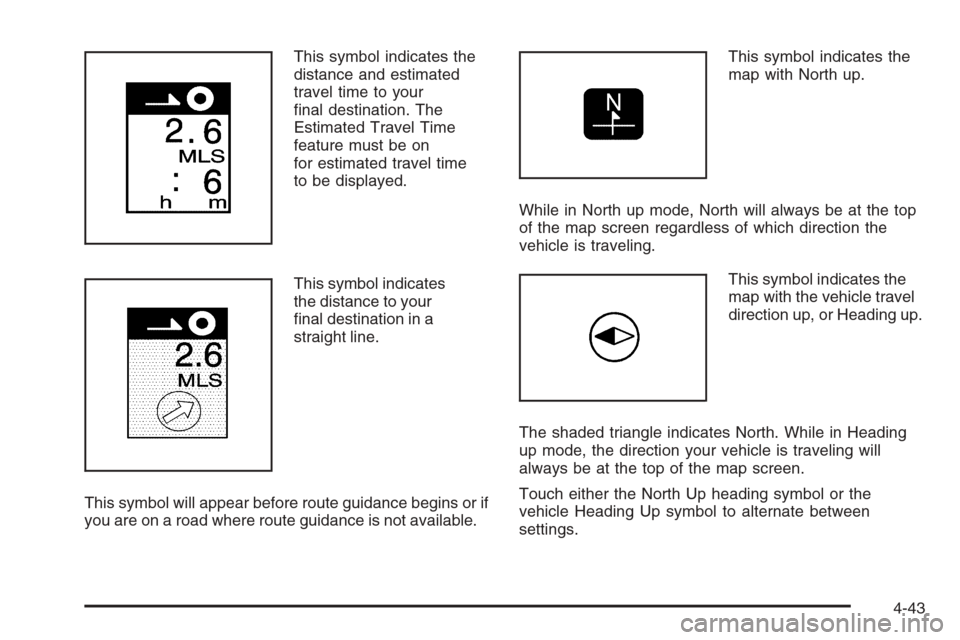
This symbol indicates the
distance and estimated
travel time to your
nal destination. The
Estimated Travel Time
feature must be on
for estimated travel time
to be displayed.
This symbol indicates
the distance to your
nal destination in a
straight line.
This symbol will appear before route guidance begins or if
you are on a road where route guidance is not available.This symbol indicates the
map with North up.
While in North up mode, North will always be at the top
of the map screen regardless of which direction the
vehicle is traveling.
This symbol indicates the
map with the vehicle travel
direction up, or Heading up.
The shaded triangle indicates North. While in Heading
up mode, the direction your vehicle is traveling will
always be at the top of the map screen.
Touch either the North Up heading symbol or the
vehicle Heading Up symbol to alternate between
settings.
4-43
Page 242 of 456

Turn List:This option allows you to view a step-by-step
listing of upcoming street names, the distance that
you will travel on the road, and turns you will need to
make during your planned route.
After touching Turn List, the system may take some
time to create the list. The length of time will vary
depending on the length of your route and the planning
methods you have selected.The turn list will read from bottom to top. The bottom
street name is the street you are currently on. The
system automatically updates this screen as you make
each turn. You may also touch the scroll up and
down arrows providing scroll is available. Touching the
down arrow will bring you to your current location.
Touching the up arrow will give you upcoming streets.
At times, there may not be names available for entrance
or exit ramps.
To avoid a turn, touch AVOID next to the turn you want
to avoid. You can use REDUCE or ENLARGE to edit
the avoided point. Touch Reroute or press the MAP key
to calculate your new route.
Touch Return to view your current position and to turn
the turn list screen off.
Touch REROUTE or press the MAP key to calculate a
new route.
Auto Reroute
When your destination is set and you travel off of the
planned route, the system will automatically begin
to reroute you. You will see the new route highlighted
on the screen.
4-46