2006 CADILLAC SRX audio
[x] Cancel search: audioPage 239 of 456

Tips and Troubleshooting Chart (cont’d)
Problem Recommended Action
The disc was ejected, but
it was pulled back into the
DVD player.The disc is being stored
in the DVD player. Press
the eject button again to
eject the disc.
In auxiliary mode, the
picture moves or scrolls.Check the signal coming
from the auxiliary device
and make sure that the
connection and the signal
is good.
Change the Video Format
to PAL or NTSC. See
“Stereo RCA Jacks”
previously for how to
change the video format.
The language in the
audio or on the screen
is wrong.Press the MENU button
on the DVD player or on
the remote control and
change the audio or
language selection on
the DVD menu.
Tips and Troubleshooting Chart (cont’d)
Problem Recommended Action
The remote control
does not work.Point the remote control
directly at the infrared
window below the video
screen while using.
Check that the batteries
are not dead or put
in wrong.
The parental control
button might have been
turned on. The power
indicator light will ash.
After stopping the player,
I push Play but
sometimes the DVD
starts where I left off and
sometimes at the
beginning.If the stop button was
pressed one time, the
DVD player will resume
playing where the DVD
was stopped. If the stop
button was pressed two
times the DVD player will
begin to play from the
beginning of the DVD.
3-111
Page 240 of 456

Tips and Troubleshooting Chart (cont’d)
Problem Recommended Action
The auxiliary source is
running but there is no
picture or sound.Press the MODE button
to change from the
DVD player mode to the
auxiliary source mode.
Check to make sure that
the auxiliary source is
connected to the inputs
properly.
My disc is stuck in the
player. The Load/Eject
button does not work.Press the eject/load
button on the DVD player.
Turn the power off, then
on again, then press the
eject/load button on the
DVD player.
Do not attempt to forcibly
remove the disc from the
DVD player. This could
permanently damage the
disc and the DVD player.
Tips and Troubleshooting Chart (cont’d)
Problem Recommended Action
Sometimes the wireless
headphone audio cuts
out or buzzes.This could be caused by
interference from cellular
telephone towers or by
using your cellular
telephone in the vehicle.
I lost the remote and/or
the headphones.See your dealer for
assistance.
DVD Distortion
There may be an experience with audio distortion in the
wireless headphones when operating cellular phones,
scanners, CB radios, Global Positioning Systems
(GPS)*, two-way radios, mobile fax, or walkie talkies.
It may be necessary to turn off the DVD player
when operating one of these devices in or near the
vehicle.
* Excludes the OnStar
®System.
3-112
Page 241 of 456
Cleaning the DVD Player
When cleaning the outside DVD faceplate and buttons,
use only a clean cloth dampened with clean water.
Cleaning the Video Screen
Pour some isopropyl or rubbing alcohol on a clean cloth
and gently wipe the video screen. Do not spray
directly onto the screen and do not press too hard or
too long on the video screen.
Theft-Deterrent Feature
THEFTLOCK®is designed to discourage theft of your
vehicle’s radio. The feature works automatically by
learning a portion of the Vehicle Identication Number
(VIN). If the radio is moved to a different vehicle, it
will not operate. If the radio is removed from your
vehicle, the original VIN in the radio can be used to
trace the radio back to your vehicle.
With THEFTLOCK
®activated, the radio will not
operate if stolen.
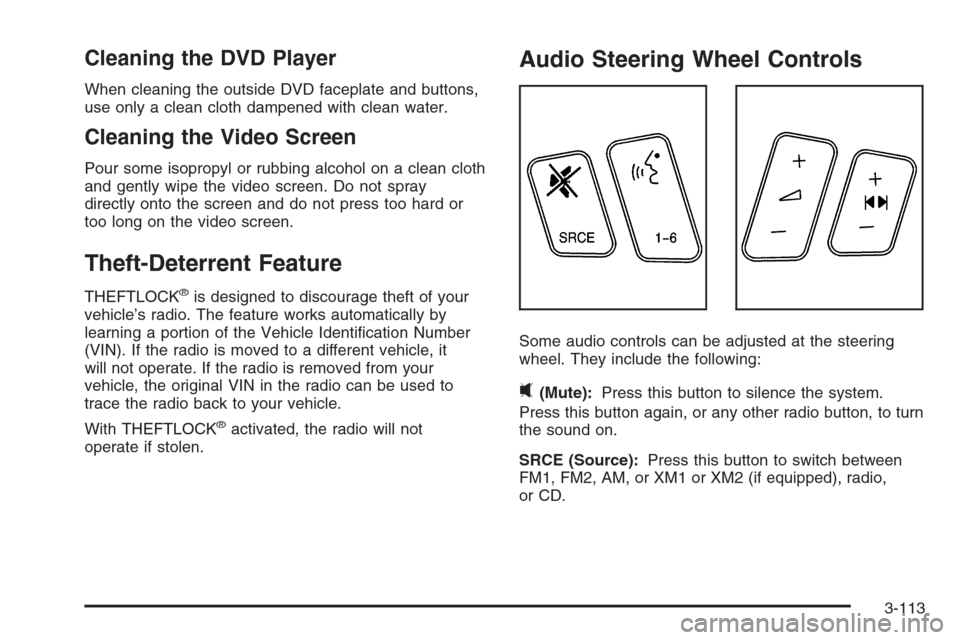
Audio Steering Wheel Controls
Some audio controls can be adjusted at the steering
wheel. They include the following:
0(Mute):Press this button to silence the system.
Press this button again, or any other radio button, to turn
the sound on.
SRCE (Source):Press this button to switch between
FM1, FM2, AM, or XM1 or XM2 (if equipped), radio,
or CD.
3-113
Page 242 of 456

g(Voice Recognition):If your vehicle has the
navigation system, press this button to initiate voice
recognition. See “Voice Recognition” in the Navigation
System manual for more information.
1-6 (Preset Stations):Press this button to play stations
that are programmed on the radio preset pushbuttons.
The radio will only seek preset stations with a strong
signal that are in the selected band.
When a CD is playing, press this button to go to the
next track.
When a CD is playing in the six-disc CD changer, press
this button to go to the next available CD, if multiple
CDs are loaded.
+
u— (Volume):Press this button to increase or to
decrease the volume.
+
tu— (Seek):Press either arrow to go to the
next or the previous radio station and stay there.
The radio will only seek stations with a strong signal
that are in the selected band.
When a CD is playing, press the minus sign to go to the
start of the current track, if more than 10 seconds
have played. Press the plus sign to go to the next track.
If either the minus or the plus button are pressed
more than once, the player will continue moving
backward or forward through the CD.Press and hold the SEEK plus or minus button, until
you hear a beep. The CD will fast forward or fast reverse
through the CD. Press either button again to play the
passage.
If you have the navigation system, some of the audio
steering wheel controls work when a DVD is playing in
the navigation radio. See the Navigation System
manual for more information.
Radio Reception
You may experience frequency interference and static
during normal radio reception if items such as cellphone
chargers, vehicle convenience accessories, and
external electronic devices are plugged into the
accessory power outlet. If there is interference or static,
unplug the item from the accessory power outlet.
AM
The range for most AM stations is greater than for FM,
especially at night. The longer range can cause
station frequencies to interfere with each other. For
better radio reception, most AM radio stations will boost
the power levels during the day, and then reduce
these levels during the night. Static can also occur when
things like storms and power lines interfere with radio
reception. When this happens, try reducing the treble on
your radio.
3-114
Page 324 of 456

When the system has calculated that oil life has been
diminished, it will indicate that an oil change is
necessary. A Change Engine Oil message in the DIC
will come on. Change your oil as soon as possible within
the next 600 miles (1 000 km). It is possible that, if
you are driving under the best conditions, the oil
life system may not indicate that an oil change is
necessary for over a year. However, your engine oil and
lter must be changed at least once a year and at
this time the system must be reset. Your dealer has
GM-trained service people who will perform this
work using genuine GM parts and reset the system. It is
also important to check your oil regularly and keep it
at the proper level.
If the system is ever reset accidentally, you must
change your oil at 3,000 miles (5 000 km) since your
last oil change. Remember to reset the oil life system
whenever the oil is changed.
After the oil has been changed, the Change Engine Oil
message and the oil life indicator must be reset.How to Reset the Engine Oil Life
System and the Oil Life Indicator
The Engine Oil Life System calculates when to change
your engine oil and lter based on vehicle use.
Anytime your oil is changed, reset the system so it can
calculate when the next oil change is required. If a
situation occurs where you change your oil prior to a
Change Engine Oil Message in the DIC being turned on,
reset the system.
Base Audio System
Press the CLR button located to the right of the DIC
display to acknowledge the Change Engine Oil
message. This will clear the message from the display
and reset it.
5-20
Page 328 of 456

How to Reset the Change Transmission
Fluid Message and the Transmission
Fluid Indicator
After the transmission uid has been changed, the
Change Trans Fluid message and the transmission uid
life indicator must be reset. To reset the message
and indicator, use one of the following procedures:
Base Audio System
Press the CLR (Clear) button located to the right of the
Driver Information Center (DIC) display to acknowledge
the CHANGE TRANS FLUID message. This will
clear the message from the display and reset it.
To reset the transmission uid life indicator, use the
following steps:
1. Press the up or down arrow on the INFO
(Information) button located to the right of the DIC
display to access the DIC menu.
2. Once the XXX% TRANS FLUID LIFE menu item is
highlighted, press and hold the CLR button.
The percentage will return to 100, and the
transmission uid life indicator will be reset.
3. Repeat the steps if the percentage does not
return to 100.
Navigation System
If your vehicle has a navigation system, see your
navigation system supplement for instructions on how to
reset the transmission uid life indicator.
Engine Coolant
The cooling system in your vehicle is lled with
DEX-COOL®engine coolant. This coolant is designed
to remain in your vehicle for ve years or 150,000 miles
(240 000 km), whichever occurs rst, if you add only
DEX-COOL
®extended life coolant.
The following explains your cooling system and how to
add coolant when it is low. If you have a problem
with engine overheating, seeEngine Overheating on
page 5-27.
A 50/50 mixture of clean, drinkable water and
DEX-COOL
®coolant will:
Give freezing protection down to−34°F (−37°C).
Give boiling protection up to 265°F (129°C).
Protect against rust and corrosion.
Help keep the proper engine temperature.
Let the warning lights and gages work as they
should.
5-24
Page 404 of 456

Fuses Usage
L FRT HTD
SEAT MODDriver’s Heated Seat Module
MEM/ADAPT
SEATDriver’s Power Seat Switch, Memory
Seat Module
THEFTUniversal Garage Door Opener,
Intrusion Sensor, Diversity Antenna
Module
REVERSE
LAMPISRVM (Inside Rearview Mirror),
License Plate Lamp Assembly
SPARE Not Used
POSITION
LAMPTaillamp Assemblies, Front Position
Lamp Assemblies
SPARE Not Used
ELC COMPElectronic Level Control (ELC)
Compressor, Electronic Level
Control (ELC) Solenoid
AUDIO Radio, OnStar
®Module
FFS SW Flip Fold Seat Switch
REAR DR MOD Rear Door Modules
FFSM Flip Fold Seat Module
Fuses Usage
DRIVER
DR MODDriver’s Door Module
BASSTaillamps, Center High-Mounted
Stop Lamp, Flasher Module, ABS
Module, Trailer Lamps
HDLP
LEVELINGHeadlamp Leveling System Chassis
Sensors (Export Only)
SPARE Not Used
CCP Climate Control Panel (CCP)
IGN 3Heated Seat Modules, Air Inlet
Motor, Shifter Assembly
J Cases Usage
AMP Audio Amplier
ELCElectronic Level Control (ELC)
Compressor
Circuit
BreakersUsage
SEAT C/BPower Seat Switches, Memory Seat
Module
5-100
Page 443 of 456

A
Accessories and Modications............................ 5-3
Accessory Power Outlet(s)...............................3-24
Adding Equipment to Your Airbag-Equipped
Vehicle.......................................................1-64
Additives, Fuel................................................. 5-6
Add-On Electrical Equipment............................5-94
Adjustable Throttle and Brake Pedal..................2-26
Air Cleaner/Filter, Engine.................................5-22
Air Conditioning..............................................3-26
Airbag
Readiness Light..........................................3-38
Airbag Sensing and Diagnostic Module (SDM)....7-10
Airbag System................................................1-53
Adding Equipment to Your Airbag-Equipped
Vehicle...................................................1-64
How Does an Airbag Restrain?......................1-61
Servicing Your Airbag-Equipped Vehicle..........1-63
What Makes an Airbag Inate?......................1-61
What Will You See After an Airbag Inates?....1-62
When Should an Airbag Inate?....................1-59
Where Are the Airbags?...............................1-56
All-Wheel Drive...............................................5-47
All-Wheel-Drive (AWD) System.........................4-12
Antenna, Diversity Antenna System..................3-116
Antenna, XM™ Satellite Radio Antenna
System.....................................................3-116Anti-Lock Brake System (ABS)........................... 4-7
Anti-Lock Brake, System Warning Light..............3-40
Appearance Care
Aluminum or Chrome-Plated Wheels..............5-90
Care of Safety Belts....................................5-88
Chemical Paint Spotting...............................5-91
Cleaning Exterior Lamps/Lenses....................5-89
Cleaning the Inside of Your Vehicle................5-85
Fabric/Carpet..............................................5-86
Finish Care.................................................5-89
Finish Damage............................................5-91
Instrument Panel, Vinyl, and Other
Plastic Surfaces.......................................5-87
Leather......................................................5-87
Sheet Metal Damage...................................5-91
Speaker Covers..........................................5-88
Tires..........................................................5-90
Underbody Maintenance...............................5-91
Vehicle Care/Appearance Materials................5-92
Washing Your Vehicle...................................5-88
Weatherstrips..............................................5-88
Windshield and Wiper Blades........................5-89
Wood Panels..............................................5-88
Ashtray(s)......................................................3-25
Audio System(s).............................................3-81
Audio Steering Wheel Controls....................3-113
Care of Your CD and DVD Player................3-115
Care of Your CDs and DVDs .......................3-115
1