2006 BUICK RAINIER lock
[x] Cancel search: lockPage 197 of 470

INFO (Information):If the current station has a
message, the information symbol will appear on the
display. Press this button to see the message. The
message may display the artist, song title, call in
phone numbers, etc.
If the entire message is not displayed, parts of the
message will appear every three seconds. To scroll
through the message, press and release the INFO
button. A new group of words will appear on the display
after every press of this button. Once the complete
message has been displayed, the information symbol
will disappear from the display until another new
message is received. The last message can be
displayed by pressing the INFO button. You can view
the last message until a new message is received
or a different station is tuned to.
When a message is not available from a station,
No Info will appear on the display.
TRAF (Traffic):If TRAF appears on the display
the tuned station broadcasts traffic announcements
and when a traffic announcement comes on the tuned
radio station you will hear it.
If the station does not broadcast traffic announcements,
press the TRAF button and the radio will seek to a
station that does. When a station that broadcasts traffic
announcements is found, the radio will stop seeking
and TRAF will appear on the display. If no station
is found that broadcasts traffic announcements,
No Traf will appear on the display.If TRAF is on the display, press the TRAF button to
turn off the traffic announcements.
The radio will play the traffic announcement if the
volume is low. The radio will interrupt the play of a CD if
the last tuned station broadcasts traffic announcements.
This function does not apply to XM™ Satellite
Radio Service.
Radio Messages
CAL ERR (Calibration Error):The audio system
has been calibrated for your vehicle from the factory.
If CAL ERR appears on the display it means that
the radio has not been congured properly for your
vehicle and it must be returned to your GM dealer for
service.
LOCKED:This message is displayed when the
THEFTLOCK
®system has locked up. Take your
vehicle to your GM dealer for service.
If any error occurs repeatedly or if an error cannot
be corrected, contact your GM dealer.
3-75
Page 198 of 470

XM™ Radio Messages
Radio Display
MessageCondition Action Required
XL (Explicit Language
Channels)XL on the radio display,
after the channel name,
indicates content with
explicit language.These channels, or any others, can be blocked at a
customer’s request, by calling 1-800-852-XMXM (9696).
Updating Updating
encryption codeThe encryption code in the receiver is being updated, and
no action is required. This process should take no longer
than 30 seconds.
No Signl Loss of signal The system is functioning correctly, but the vehicle is in a
location that is blocking the XM™ signal. When the vehicle
is moved into an open area, the signal should return.
Loading Acquiring channel audio
(after 4 second delay)The radio system is acquiring and processing audio and text
data. No action is needed. This message should disappear
shortly.
Off Air Channel not in service This channel is not currently in service. Tune to another
channel.
CH Unavl Channel no longer
availableThis previously assigned channel is no longer assigned.
Tune to another station. If this station was one of the
presets, choose another station for that preset button.
No Info Artist Name/Feature
not availableNo artist information is available at this time on this channel.
The system is working properly.
3-76
Page 199 of 470
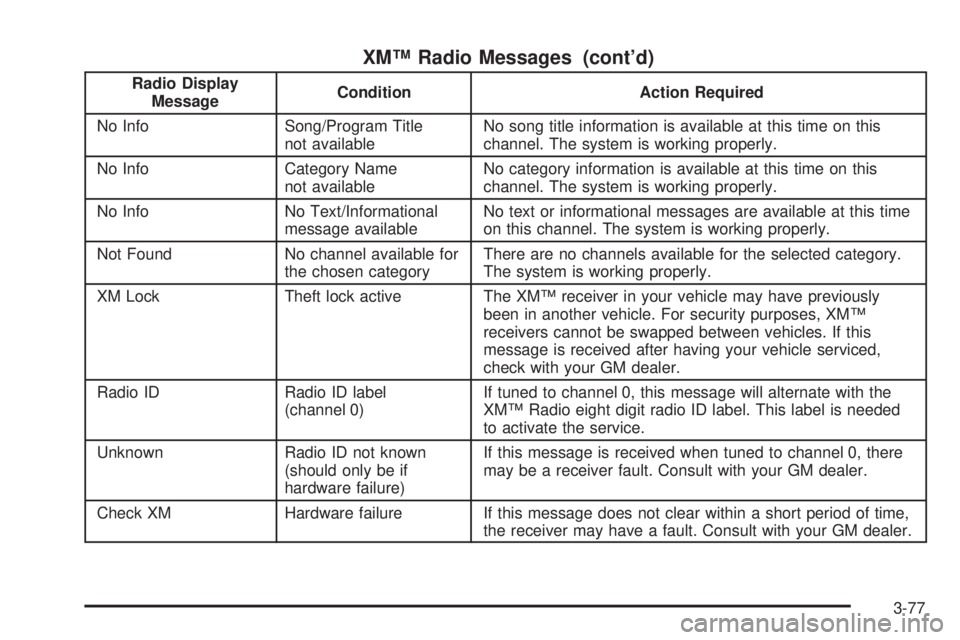
XM™ Radio Messages (cont’d)
Radio Display
MessageCondition Action Required
No Info Song/Program Title
not availableNo song title information is available at this time on this
channel. The system is working properly.
No Info Category Name
not availableNo category information is available at this time on this
channel. The system is working properly.
No Info No Text/Informational
message availableNo text or informational messages are available at this time
on this channel. The system is working properly.
Not Found No channel available for
the chosen categoryThere are no channels available for the selected category.
The system is working properly.
XM Lock Theft lock active The XM™ receiver in your vehicle may have previously
been in another vehicle. For security purposes, XM™
receivers cannot be swapped between vehicles. If this
message is received after having your vehicle serviced,
check with your GM dealer.
Radio ID Radio ID label
(channel 0)If tuned to channel 0, this message will alternate with the
XM™ Radio eight digit radio ID label. This label is needed
to activate the service.
Unknown Radio ID not known
(should only be if
hardware failure)If this message is received when tuned to channel 0, there
may be a receiver fault. Consult with your GM dealer.
Check XM Hardware failure If this message does not clear within a short period of time,
the receiver may have a fault. Consult with your GM dealer.
3-77
Page 212 of 470

Setting Preset PTYs (RDS Only)
These buttons have factory PTY presets. Up to 12 PTYs
(six FM1 and six FM2), can be programmed on the
six numbered pushbuttons, by performing the
following steps:
1. Press BAND to select FM1 or FM2.
2. Press the TYPE button to activate program type
select mode. TYPE and the last selected PTY
will appear on the display.
3. Turn the TYPE knob or press and release the
TYPE button to select a PTY.
4. Press and hold one of the six numbered
pushbuttons until you hear a beep. Whenever that
numbered pushbutton is pressed (while in PTY
select mode), the PTY that was set will return.
5. Repeat the steps for each pushbutton.
RDS Messages
INFO (Information):If the current station has a
message, the information symbol will appear on
the display. Press this button to see the message.
The message may display the artist, song title,
call in phone numbers, etc.If the entire message is not displayed, parts of the
message will appear every three seconds. To scroll
through the message, press and release the INFO button.
A new group of words will appear on the display after
every press of the button. Once the complete message
has been displayed, the information symbol will
disappear from the display until another new message is
received. The last message can be displayed by pressing
the INFO button. You can view the last message until a
new message is received or a different station is tuned to.
When a message is not available from a station, No Info
will appear on the display.
Radio Messages
CAL ERR (Calibration Error):The audio system
has been calibrated for your vehicle from the factory.
If CAL ERR appears on the display, it means that
the radio has not been congured properly for the
vehicle and must be returned to your GM dealer
for service.
LOCKED:This message is displayed when the
THEFTLOCK
®system has locked up. Take the
vehicle to your GM dealer for service.
If any error occurs repeatedly, or if an error cannot
be corrected, contact your GM dealer.
3-90
Page 213 of 470

XM™ Radio Messages
Radio Display
MessageCondition Action Required
XL (Explicit Language
Channels)XL on the radio display,
after the channel name,
indicates content with
explicit language.These channels, or any others, can be blocked at a
customer’s request, by calling 1-800-852-XMXM (9696).
Updating Updating
encryption codeThe encryption code in the receiver is being updated, and
no action is required. This process should take no longer
than 30 seconds.
No Signal Loss of signal The system is functioning correctly, but the vehicle is in a
location that is blocking the XM™ signal. When you move
into an open area, the signal should return.
Loading XM Acquiring channel audio
(after 4 second delay)The audio system is acquiring and processing audio and
text data. No action is needed. This message should
disappear shortly.
CH Off Air Channel not in service This channel is not currently in service. Tune to another
channel.
CH Unavail Channel no longer
availableThis previously assigned channel is no longer assigned.
Tune to another station. If this station was one of the
presets, choose another station for that preset button.
No Info Artist Name/Feature
not availableNo artist information is available at this time on this
channel. The system is working properly.
3-91
Page 214 of 470

XM™ Radio Messages (cont’d)
Radio Display
MessageCondition Action Required
No Info Song/Program Title
not availableNo song title information is available at this time on this
channel. The system is working properly.
No Info Category Name
not availableNo category information is available at this time on this
channel. The system is working properly.
No Info No Text/Informational
message availableNo text or informational messages are available at this time
on this channel. The system is working properly.
Not Found No channel available for
the chosen categoryThere are no channels available for the selected category.
The system is working properly.
XM Locked Theft lock active The XM™ receiver in the vehicle may have previously been
in another vehicle. For security purposes, XM™ receivers
cannot be swapped between vehicles. If this message is
received after having your vehicle serviced, check with your
GM dealer.
Radio ID Radio ID label
(channel 0)If tuned to channel 0, this message will alternate with the
XM™ Radio eight digit radio ID label. This label is needed
to activate the service.
Unknown Radio ID not known
(should only be if
hardware failure)If this message is received when tuned to channel 0, there
may be a receiver fault. Consult with your GM dealer.
Chk XMRcvr Hardware failure If this message does not clear within a short period of time,
the receiver may have a fault. Consult with your GM dealer.
3-92
Page 217 of 470

Cassette Tape Messages
CHK TAPE (Check Tape):If this message appears
on the display, the tape will not play due to one of the
following errors:
The tape is tight and the player cannot turn the
tape hubs. Remove the tape. Hold the tape with
the open end down and try to turn the right
hub counterclockwise with a pencil. Turn the tape
over and repeat. If the hubs do not turn easily,
the tape may be damaged and should not be used
in the player. Try a new tape to make sure your
player is working properly.
The tape is broken. Try a new tape.
The tape is wrapped around the tape head.
Attempt to get the cassette out. Try a new tape.
CLEAN:If this message appears on the display, the
cassette tape player needs to be cleaned. It will still
play tapes, but it should be cleaned as soon as possible
to prevent damage to the tapes and player. SeeCare
of the Cassette Tape Player on page 3-128.
If the cassette tape is not playing correctly, for any
other reason, try a known good cassette.If any error occurs repeatedly or if an error cannot be
corrected, contact your GM dealer. If the radio displays
an error message, write it down and provide it to
your GM dealer when reporting the problem.
CD Adapter Kits
It is possible to use a portable CD player with the
cassette tape player after activating the bypass
feature on your tape player.
To activate the bypass feature, perform the
following steps:
1. Turn the ignition on.
2. Turn the radio off.
3. Press and hold the TAPE DISC button for
ve seconds. READY will appear on the display
and the tape symbol on the display will ash,
indicating the feature is active.
4. Insert the adapter into the cassette tape slot.
It will power up the radio and begin playing.
The override feature will remain active until the eject
button is pressed.
3-95
Page 226 of 470

Setting Preset PTYs (RDS Only)
These pushbuttons have factory PTY presets. Up to
12 PTYs (six FM1 and six FM2), can be programmed
on the six numbered pushbuttons, by performing
the following steps:
1. Press BAND to select FM1 or FM2.
2. Press the TYPE button to activate program type
select mode. P-TYPE and the last selected PTY
will appear on the display.
3. Turn the TYPE knob or press and release the
TYPE button to select a PTY.
4. Press and hold one of the six numbered
pushbuttons until you hear a beep. Whenever
that numbered pushbutton is pressed (while in
PTY mode), the PTY that was set will return.
5. Repeat the steps for each pushbutton.
RDS Messages
INFO (Information):If the current station has a
message, INFO will appear on the display. Press this
button to see the message. The message may display
the artist, song title, call in phone numbers, etc.If the entire message is not displayed, parts of the
message will appear every three seconds. To scroll
through the message, press and release the INFO
button. A new group of words will appear on the display
after every press of this button. Once the complete
message has been displayed, INFO will disappear
from the display until another new message is received.
The last message can be displayed by pressing the
INFO button. You can view the last message until a new
message is received or a different station is tuned to.
Radio Messages
CAL ERR (Calibration Error):The audio system
has been calibrated for your vehicle from the factory.
If CAL ERR appears on the display, it means that
the radio has not been congured properly for the
vehicle and must be returned to your GM dealer
for service.
LOCKED:This message is displayed when the
THEFTLOCK
®system has locked up. Take the
vehicle to your GM dealer for service.
If any error occurs repeatedly, or if an error cannot
be corrected, contact your GM dealer.
3-104