2006 BMW M6 COUPE audio
[x] Cancel search: audioPage 142 of 227
CD player and CD changer
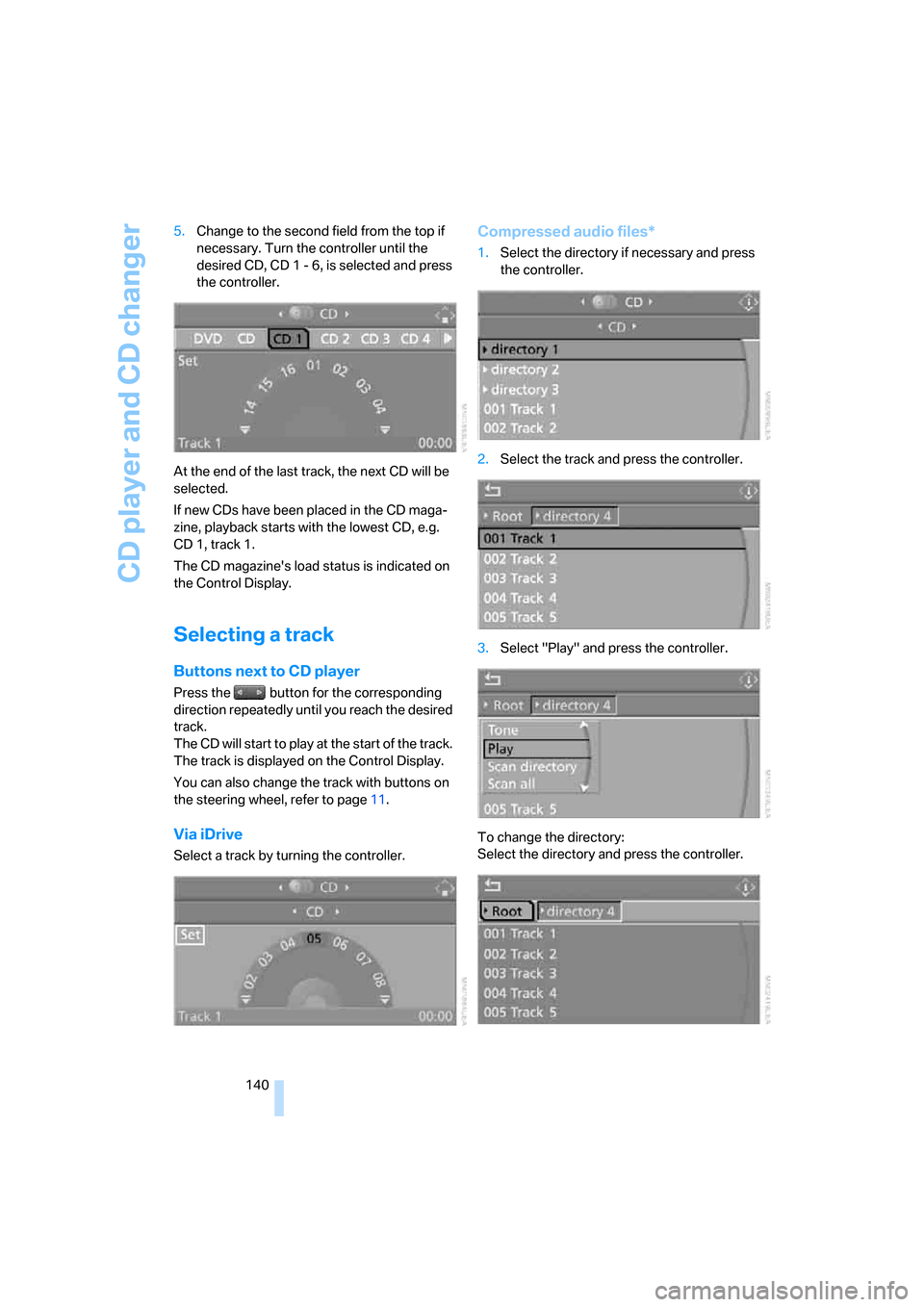
140 5.Change to the second field from the top if
necessary. Turn the controller until the
desired CD, CD 1 - 6, is selected and press
the controller.
At the end of the last track, the next CD will be
selected.
If new CDs have been placed in the CD maga-
zine, playback starts with the lowest CD, e.g.
CD 1, track 1.
The CD magazine's load status is indicated on
the Control Display.
Selecting a track
Buttons next to CD player
Press the button for the corresponding
direction repeatedly until you reach the desired
track.
The CD will start to play at the start of the track.
The track is displayed on the Control Display.
You can also change the track with buttons on
the steering wheel, refer to page11.
Via iDrive
Select a track by turning the controller.
Compressed audio files*
1.Select the directory if necessary and press
the controller.
2.Select the track and press the controller.
3.Select "Play" and press the controller.
To change the directory:
Select the directory and press the controller.
Page 143 of 227

Navigation
Entertainment
Driving tips
141Reference
At a glance
Controls
Communications
Mobility
To exit from the menu:
Select the arrow and press the controller.
Displaying information on track*
With compressed audio files, you can display
possibly included information about the current
track, e.g. the name of the artist.
1.Press the controller.
2.Select "Details" and press the controller.
The information about the current track is dis-
played.
The setting is stored for the remote control cur-
rently in use.
Sampling tracks, scan
The system automatically plays a brief sample
from each of the tracks on the current CD.
1.Select "Set" and press the controller.
Other menu items are displayed.2.Select "Scan" and press the controller.
To end sampling:
1.Press the controller.
2.Select "Scan" and press the controller.
This cancels sampling of the tracks, and the
player remains on the current track.
Compressed audio files*
1.Select the current track and press the con-
troller.
2.Select the desired menu item:
>To sample all tracks of the current direc-
tory, select "Scan directory" and press
the controller.
>To sample all tracks of the CD, select
"Scan all" and press the controller.
To end scan search:
1.Press the controller.
2.Select "Scan directory" or "Scan all" and
press the controller.
This cancels the scan search and the player
remains on the current track.
Page 144 of 227
CD player and CD changer
142
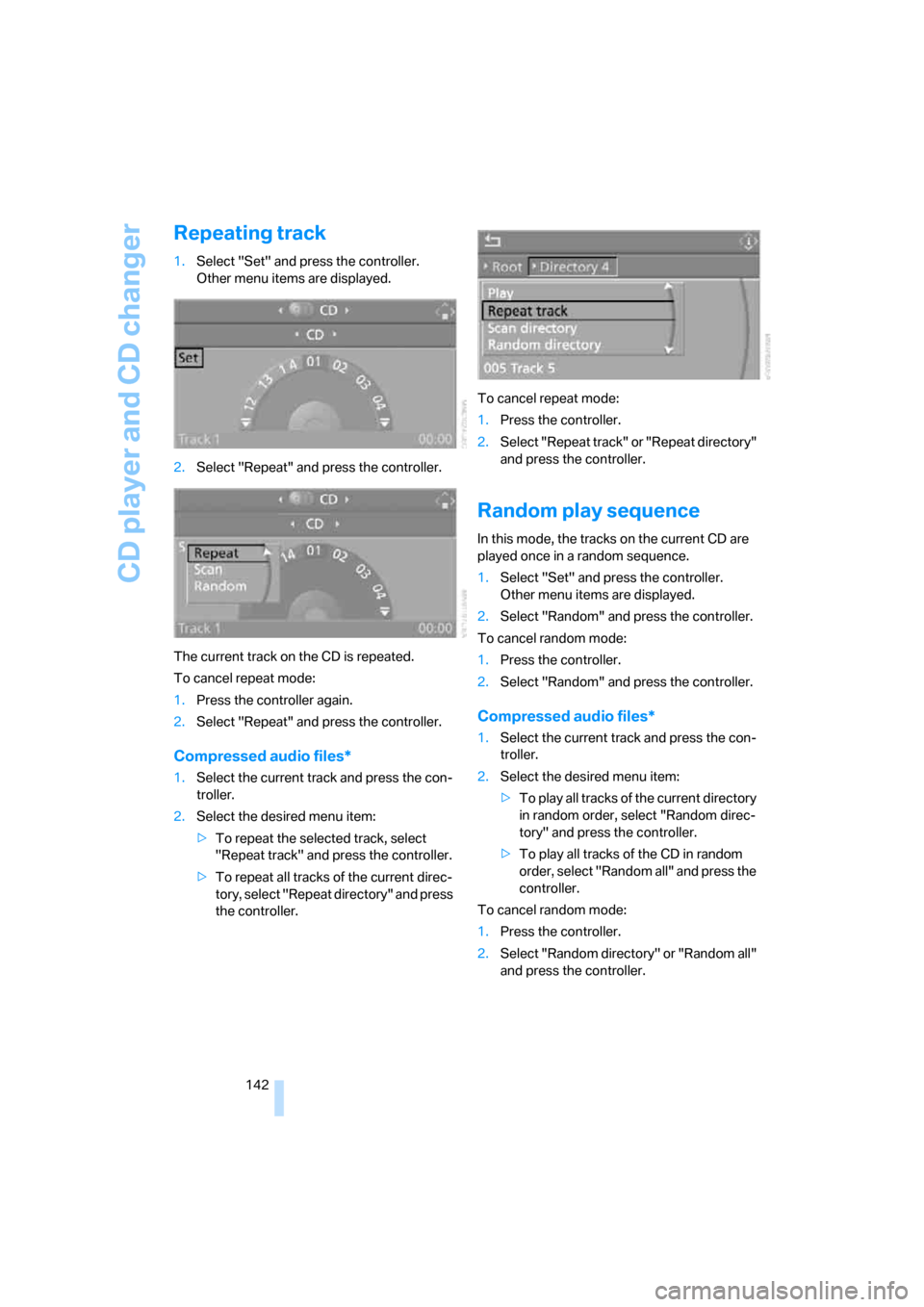
Repeating track
1.Select "Set" and press the controller.
Other menu items are displayed.
2.Select "Repeat" and press the controller.
The current track on the CD is repeated.
To cancel repeat mode:
1.Press the controller again.
2.Select "Repeat" and press the controller.
Compressed audio files*
1.Select the current track and press the con-
troller.
2.Select the desired menu item:
>To repeat the selected track, select
"Repeat track" and press the controller.
>To repeat all tracks of the current direc-
tory, select "Repeat directory" and press
the controller.To cancel repeat mode:
1.Press the controller.
2.Select "Repeat track" or "Repeat directory"
and press the controller.
Random play sequence
In this mode, the tracks on the current CD are
played once in a random sequence.
1.Select "Set" and press the controller.
Other menu items are displayed.
2.Select "Random" and press the controller.
To cancel random mode:
1.Press the controller.
2.Select "Random" and press the controller.
Compressed audio files*
1.Select the current track and press the con-
troller.
2.Select the desired menu item:
>To pla y all tracks of the current directory
in random order, select "Random direc-
tory" and press the controller.
>To play all tracks of the CD in random
order, select "Random all" and press the
controller.
To cancel random mode:
1.Press the controller.
2.Select "Random directory" or "Random all"
and press the controller.
Page 154 of 227
Telephoning
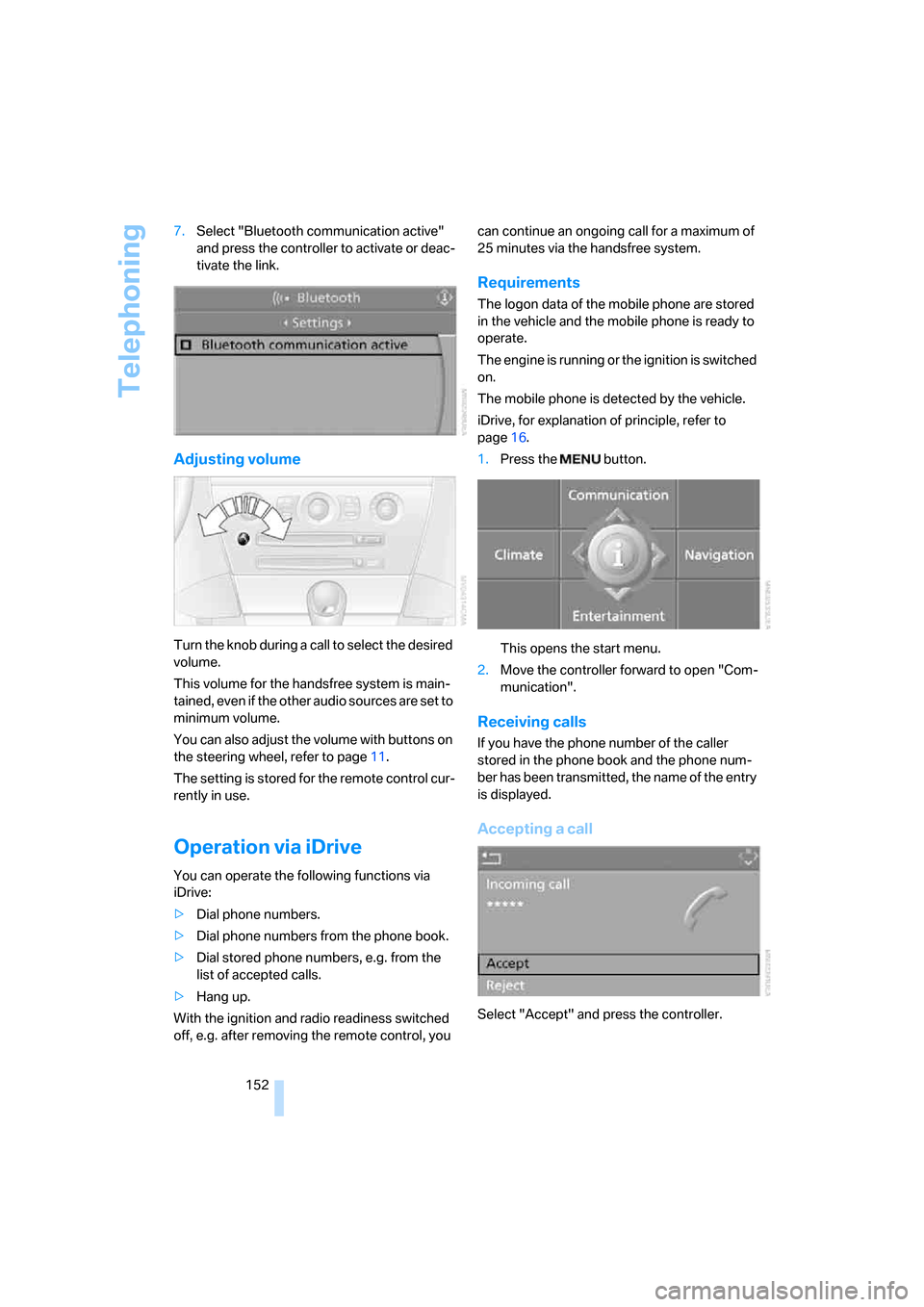
152 7.Select "Bluetooth communication active"
and press the controller to activate or deac-
tivate the link.
Adjusting volume
Turn the knob during a call to select the desired
volume.
This volume for the handsfree system is main-
tained, even if the other audio sources are set to
minimum volume.
You can also adjust the volume with buttons on
the steering wheel, refer to page11.
The setting is stored for the remote control cur-
rently in use.
Operation via iDrive
You can operate the following functions via
iDrive:
>Dial phone numbers.
>Dial phone numbers from the phone book.
>Dial stored phone numbers, e.g. from the
list of accepted calls.
>Hang up.
With the ignition and radio readiness switched
off, e.g. after removing the remote control, you can continue an ongoing call for a maximum of
25 minutes via the handsfree system.
Requirements
The logon data of the mobile phone are stored
in the vehicle and the mobile phone is ready to
operate.
The engine is running or the ignition is switched
on.
The mobile phone is detected by the vehicle.
iDrive, for explanation of principle, refer to
page16.
1.Press the button.
This opens the start menu.
2.Move the controller forward to open "Com-
munication".
Receiving calls
If you have the phone number of the caller
stored in the phone book and the phone num-
ber has been transmitted, the name of the entry
is displayed.
Accepting a call
Select "Accept" and press the controller.
Page 159 of 227
157
Entertainment
Reference
At a glance
Controls
Driving tips Communications
Navigation
Mobility
Voice commands
Activating system
1.Press the button on the steering wheel.
An acoustic signal indicates that you can
say commands.
2.Say the command.
The text or numbers that the voice com-
mand system has registered will appear on
the Control Display.
Ending/canceling operation by voice
Press the button on the steering wheel
or
In dialogs where text is spoken, not a command,
e.g. a name, canceling is only possible using the
button on the steering wheel.
Having possible commands read aloud
The system understands default commands
that must be spoken word for word.
You can have the system read aloud the possi-
ble commands at any point:
Using alternative commands
There are often a number of commands to run a
function, e.g.:
The system recognizes digits from zero to nine.
You can say each digit individually or group
them into a sequence to accelerate the input.
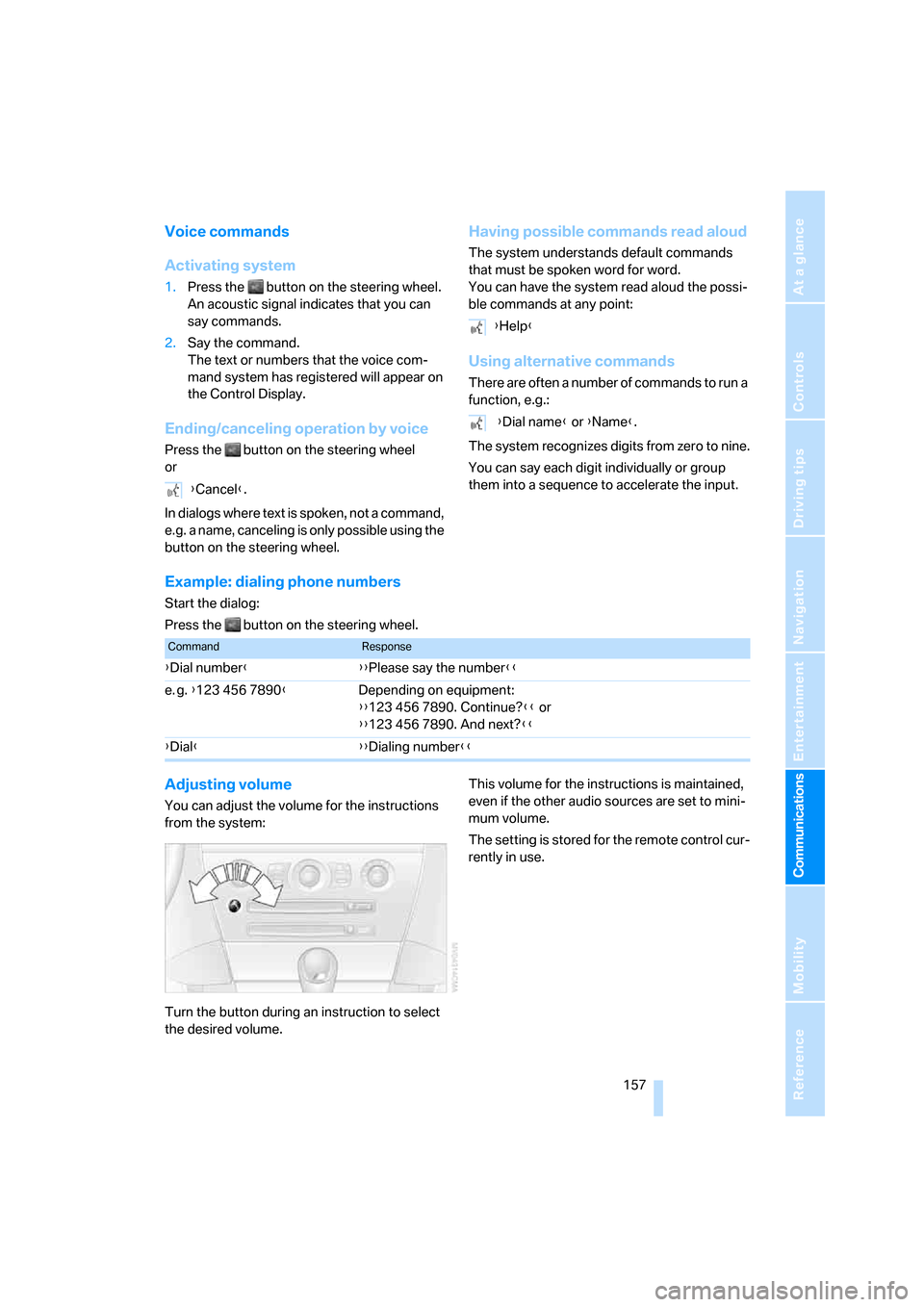
Example: dialing phone numbers
Start the dialog:
Press the button on the steering wheel.
Adjusting volume
You can adjust the volume for the instructions
from the system:
Turn the button during an instruction to select
the desired volume.This volume for the instructions is maintained,
even if the other audio sources are set to mini-
mum volume.
The setting is stored for the remote control cur-
rently in use. {Cancel}.
{Help}
{Dial name} or {Name}.
CommandResponse
{Dial number}{{Please say the number}}
e. g. {123 456 7890}Depending on equipment:
{{123 456 7890. Continue?}} or
{{123 456 7890. And next?}}
{Dial}{{Dialing number}}
Page 160 of 227
Telephoning
158
Calling
Dialing phone numbers
Correcting phone number
After the last spoken sequence of digits has
been repeated by the system, you can delete
this sequence of digits.
The command {Correct number} can be
repeated as often as you like.
Deleting input
{Delete} is used to delete all the digits entered
so far.
Voice phone book
Operating by voice command requires a per-
sonal voice phone book.
>On vehicles with separate drives for audio
CDs and navigation DVDs, the entries are
automatically adopted from your mobile
phone's memory.
>On vehicles with a single drive, the entries
must be entered by voice and are indepen-
dent of your mobile phone's memory. In this
case, it is not possible to use voice com-
mand either to call phone numbers stored in
the mobile phone or to store new numbers.
Creating and editing voice phone
book*
Save entry:
An entry always consists of a name and phone
number.
Delete entry:
You can delete any entry from the voice phone
book.
Delete all entries:
{Delete phone book} deletes all entries in the
phone book.
Have entries read aloud and dial:
You can have all the entries of your voice phone
book read aloud in the order of input and select
a certain entry to establish a connection: 1.{Dial number}.
The dialog for establishing a telephone
connection is opened.
2.Say the phone number.
For telephone calls abroad, say {Plus}
and then the country code.
3.{Dial}.
The connection to the desired sub-
scriber is established.
{Correct number}.
The digits are deleted.
1.{Save name}.
The dialog for storing a name is
opened.
2.Speak name and repeat entry upon
request.
The spoken length of the names in the
phone book must not exceed approx.
2seconds.
3.Say the phone number when prompted.
4.To store the phone number:
{Save}.
1.{Delete name}.
The dialog for deleting an entry is
opened.
2.Say the name when prompted.
3.Confirm the prompt with {Yes}.
1.{Delete phone book}.
The dialog for deleting phone book is
opened.
2.Confirm the prompt with {Yes}.
3.Confirm the repeated prompt with
{Yes}.
1.{Read phone book}.
The dialog for reading phone book is
opened.
2.{Dial number} when the desired entry is
read aloud.
Page 205 of 227

Reference 203
At a glance
Controls
Driving tips
Communications
Navigation
Entertainment
Mobility
Entertainment
FunctionCommand
Tone control127{Audio}
To switch on radio130{Radio on},
{FM on} or
{AM on}
To open "FM"130{FM menu}
To open "AM"130{AM menu}
To open "All stations"130{FM All stations}
To select the radio station130{Station ...} or
{Choose station}
To open "Presets"130{FM presets} or
{AM presets}
To select stored radio stations130{Choose preset}
To open "Manual"131{FM manual},
{AM manual} or
{Choose frequency},
{Frequency ... Megahertz}
To open the radio station with the best
reception131{AM Autostore}
To open "WB"134{Weatherband menu}
To switch on weatherband 134{Weatherband on}
To select a weatherband station134{Choose weatherband station}
To open "SAT"136{SAT radio menu}
To switch on satellite radio136
{SAT radio}
To open "Presets" of satellite radio137{SAT radio presets}
To open "All channels" of satellite radio136{SAT radio all channels}
To open "Categories" of satellite radio136{SAT radio categories}
To select CD player139{CD menu}
To switch on CD player139{CD}
To select CD changer139{CD-changer menu}
To switch on CD changer139{CD-changer}
To select a CD139{CD 1...6}
To select music track140{CD track ...}
To select CD and track140{CD 1...6 track ...}
Page 208 of 227

Everything from A to Z
206
Everything from A to Z
Index
"..." Identifies Control Display
texts used to select
individual functions, and
indicates where to find them
in the text.
A
ABS Antilock Brake
System71
Accessories6
Activated-charcoal filter87
Activating hour signal68
"Activation time" for parked
car ventilation88
Adapter for spare key28
Adaptive brake lamps, refer to
Brake force display75
Adaptive Head Light81
"Add digits" for mobile
phone154
"Address book" for
navigation114
Address for navigation
– deleting115
– entering107,110
– selecting115
– storing114
– storing current position114
"Add to address book"114
"Add to destination list"110
Adjusting confirmation signals
for locking and unlocking31
Adjusting the thigh support40
Adjusting tone in audio mode,
refer to Tone control127
"After door opened"41
"After unlocking"41Airbags75
– deactivating, refer to
Exception for front
passenger seat48
– sitting safely39
– warning lamp77
Air distribution
– automatic85
– manual86
Airing, refer to Ventilation87
Air recirculation, refer to AUC
Automatic recirculated-air
control87
"Air recirculation on / off"45
Air vents, refer to
Ventilation87
Air volume86
AKI, refer to Fuel
specifications169
Alarm system35
– avoiding unintentional
alarms35
– interior motion sensor35
– switching off alarm35
– switching off tilt alarm
sensor and interior motion
sensor36
– tilt alarm sensor35
"All channels"136
"All doors"30
All-season tires, refer to
Winter tires174
"All stations" on the radio,
selecting130,133
Alterations, technical, refer to
For your own safety6
"AM", reception
range126,130
Antenna for mobile phone148
Antifreeze
– coolant178
– washer fluid57Antilock Brake System
ABS71
Anti-theft alarm system, refer
to Alarm system35
Anti-theft system, refer to
Central locking system29
Approved axle loads, refer to
Weights200
Approved engine oils178
Approved gross vehicle
weight, refer to Weights200
Armrest, refer to Center
armrest92
Around the center console14
Around the steering wheel10
Arrival time
– refer to Computer61
– refer to Starting destination
guidance118
"Arrow display" during
Navigation119
Ashtray93
Assist, refer to
BMW Assist161
Assistance systems, refer to
Driving stability control
systems71
Assistance window20
"Assist. window off"21
AUC Automatic recirculated-
air control87
Audio126
– controls126
– switching on/off126
– tone control127
– volume127
"Audio", refer to Tone
control127