2006 BMW M5 SEDAN m button
[x] Cancel search: m buttonPage 158 of 231

Telephoning
156
Preparation with mobile phone
6.Additional operations must be carried out
on the mobile phone and differ depending
on the model, refer to the operating instruc-
tions of your mobile phone, e.g. find, con-
nect or link under Bluetooth device.
Logging on
Depending on your mobile phone, you will first
be requested consecutively via the display of
your mobile phone or the Control Display to
enter the Bluetooth passkey you specified.
Display on the Control Display if the Bluetooth
passkey can be entered with iDrive:
7.Select "Add device" and press the control-
ler.
8.Enter the Bluetooth passkey.
Depending on the mobile phone, approx.
30 seconds are available for entering the
Bluetooth passkey on the mobile phone
and on the Control Display.
9.Select "Confirm passkey" and press the
controller.
10.Wait a few seconds until the list of the
logged-on mobile phones is shown on the
Control Display and "Phone" is selected.To cancel the logon of the mobile phone on the
vehicle:
Select "Refuse connection" and press the con-
troller.
The next time you use the mobile phone in the
vehicle interior, it will be detected within a max-
imum of 2 minutes with the engine running or
the ignition switched on.
As soon as a mobile phone is detected by the
vehicle, the phone book entries stored on the
SIM card or on your mobile phone are trans-
ferred to your vehicle, refer to the operating
instructions of your mobile phone if necessary.
This transfer is dependent on your mobile
phone, refer to the operating instructions of
your mobile phone if necessary, and can take
several minutes.
Up to four mobile phones can be logged on
consecutively. If you log on a fifth mobile phone,
the logon data of the last mobile phone in the
list will be deleted, refer to below.
List of logged-on mobile phones
All mobile phones for which the vehicle has
stored the logon data can be displayed. If sev-
eral logged-on mobile phones are detected by
the vehicle simultaneously, you can operate the
mobile phone highest up in the list via the vehi-
cle.
You can change the order of the mobile phones
in the list. As long as a mobile phone is selected
in this list, the mobile phones cannot be oper-
ated via the vehicle.
iDrive, for explanation of principle, refer to
page16.
1.Press the button to open the start
menu.
2.Open the menu by pressing the controller.
3.Select "Communication settings" and
press the controller.
4.Select "Bluetooth" and press the controller.
5.Select "Phone" and press the controller.
Page 159 of 231

157
Entertainment
Reference
At a glance
Controls
Driving tips Communications
Navigation
Mobility
6.Select the desired mobile phone and press
the controller.
7.Select "Move device up" and press the con-
troller.
The selected mobile phone is move upward
by one position.
Logging mobile phone off vehicle
If you no longer want to operate your mobile
phone via the vehicle, you can delete the logon
data of the mobile phone.
iDrive, for explanation of principle, refer to
page16.
1.Press the button to open the start
menu.
2.Open the menu by pressing the controller.
3.Select "Communication settings" and
press the controller.
4.Select "Bluetooth" and press the controller.
5.Select "Phone" and press the controller.6.Select the desired mobile phone and press
the controller.
7.Select "Delete device" and press the con-
troller.
The logged-off mobile phone is deleted
from the list.
The phone book entries you have trans-
ferred from your mobile phone to your vehi-
cle are also deleted in the process.
Activating/deactivating Bluetooth link
Bluetooth technology is not approved in
all countries. Observe the applicable local
regulations. Temporarily disconnect the Blue-
tooth link between the vehicle and the mobile
phone if necessary.<
If the Bluetooth link is deactivated, you cannot
operate your mobile phone via the vehicle and
other devices with a Bluetooth interface can be
used via the mobile phone, e.g. a laptop com-
puter.
To temporarily deactivate the Bluetooth link
between your vehicle and your mobile phone:
1.Remove the mobile phone from the snap-in
adapter and switch it off.
2.Press the button to open the start
menu.
Page 160 of 231

Telephoning
158 3.Select the menu and press the controller.
4.Select "Communication settings" and
press the controller.
5.Select "Bluetooth" and press the controller.
6.Select "Settings" and press the controller.
The Bluetooth link is activated.
7.Select "Bluetooth communication active"
and press the controller to activate or deac-
tivate the link.
Adjusting volume
Turn the knob during a call to select the desired
volume.
This volume for the hands-free system is main-
tained, even if the other audio sources are set to
minimum volume.
You can also adjust the volume with buttons on
the steering wheel, refer to page11.The setting is stored for the remote control cur-
rently in use.
Operation via iDrive
You can operate the following functions via
iDrive:
>Dial phone numbers.
>Dial phone numbers from the phone book.
>Dial stored phone numbers, e.g. from the
list of accepted calls.
>Hang up.
With the ignition switched off and radio readi-
ness, e.g. after removing the remote control,
you can continue an ongoing call for a maximum
of 25 minutes via the handsfree system.
Requirements
The logon data of the mobile phone are stored
in the vehicle and the mobile phone is ready to
operate.
The engine is running or the ignition is switched
on.
The mobile phone is detected by the vehicle.
iDrive, for explanation of principle, refer to
page16.
1.Press the button.
This opens the start menu.
2.Move the controller forward to open "Com-
munication".
Receiving calls
If you have the phone number of the caller
stored in the phone book and the phone num-
Page 163 of 231

161
Entertainment
Reference
At a glance
Controls
Driving tips Communications
Navigation
Mobility
3.Select the desired entry and press the con-
troller.
4.Select "Call" and press the controller.
The system dials the number.
Deleting individual entries
1.Select the desired entry from the list and
press the controller.
2.Select "Delete" and press the controller.
The entry is deleted.
Deleting entire list
1.Select an entry from the list and press the
controller.
2.Select "Delete all numbers" and press the
controller.
3.Select "Yes" and press the controller.
The list is deleted.
BMW Contact*
If you are not activated for BMW Assist, you can
display several service phone numbers:
>Roadside Assistance
* of the BMW Group
when you require breakdown assistance
>BMW center, e.g. when you want to make
an appointment for service
>BMW Hotline
* for information on all
aspects of your vehicle
If BMW Assist is activated, refer to page168.
You can select the displayed service phone
number if your mobile phone is logged on in the
vehicle:
iDrive, for explanation of principle, refer to
page16.
1.Press the button.
This opens the start menu.
2.Move the controller forward to select
"Communication".
Page 165 of 231

163
Entertainment
Reference
At a glance
Controls
Driving tips Communications
Navigation
Mobility
Act according to what is shown on the
mobile phone display, refer to the operating
instructions of your mobile phone.
>Press the button above the storage
compartment. Switching over may take
several seconds.
From handsfree system to mobile
phone
When you telephone via the handsfree system,
you can also continue the call via the mobile
phone if necessary, depending on the mobile
phone model. Act according to what is shown
on the mobile phone display, refer to the oper-
ating instructions of your mobile phone.
Operation by voice*
The concept
You can operate your mobile phone without
having to remove your hands from the steering
wheel. When making your entries, you will be
supported by announcements and questions in
many cases.
The same prerequisites as for operation via
iDrive apply, refer to page158.
Symbols in Owner's Manual
Voice commands
Activating system
1.Press the button on the steering wheel.
An acoustic signal indicates that you can
say commands.
2.Say the command.
The text or numbers that the voice com-
mand system has registered will appear on
the Control Display.
Ending/canceling operation by voice
Press the button on the steering wheel
or
In dialogs where text is spoken, not a command,
e.g. a name, canceling is only possible using the
button on the steering wheel.
Having possible commands read aloud
The system understands default commands
that must be spoken word for word.
You can have the possible commands spoken
by the system at any point:
Using alternative commands
There are often a number of commands to run a
function, e.g.:
The system recognizes digits from zero to nine.
You can say each digit individually or group
them into a sequence to accelerate the input.
{...}Say the specified commands word for
word.
{{...}} Indicates responses of the system.
{Cancel}.
{Help}
{Dial name} or {Name}.
Page 166 of 231
Telephoning
164
Example: dialing phone numbers
Start the dialog:
Press the button on the steering wheel.
Adjusting volume
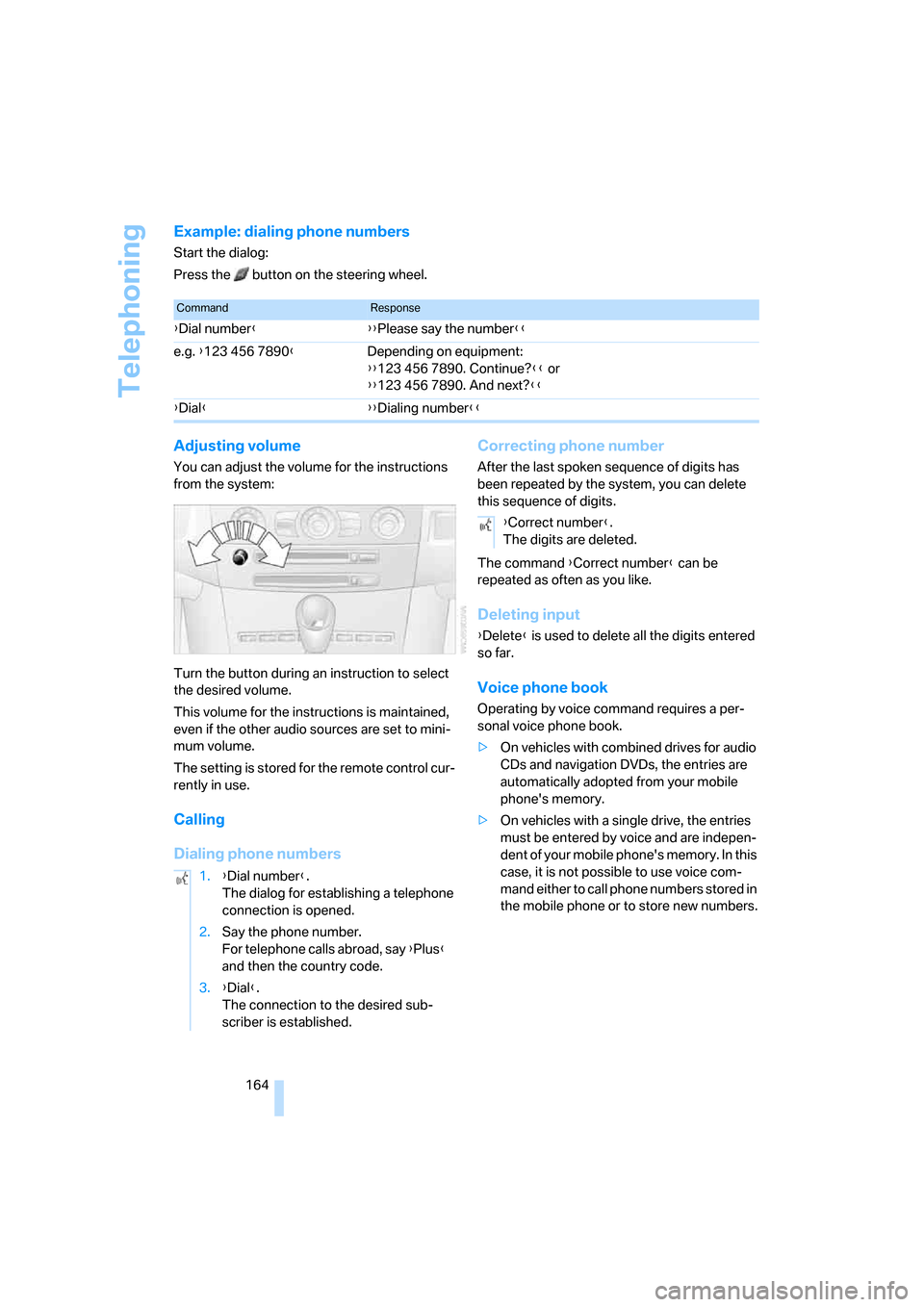
You can adjust the volume for the instructions
from the system:
Turn the button during an instruction to select
the desired volume.
This volume for the instructions is maintained,
even if the other audio sources are set to mini-
mum volume.
The setting is stored for the remote control cur-
rently in use.
Calling
Dialing phone numbersCorrecting phone number
After the last spoken sequence of digits has
been repeated by the system, you can delete
this sequence of digits.
The command {Correct number} can be
repeated as often as you like.
Deleting input
{Delete} is used to delete all the digits entered
so far.
Voice phone book
Operating by voice command requires a per-
sonal voice phone book.
>On vehicles with combined drives for audio
CDs and navigation DVDs, the entries are
automatically adopted from your mobile
phone's memory.
>On vehicles with a single drive, the entries
must be entered by voice and are indepen-
dent of your mobile phone's memory. In this
case, it is not possible to use voice com-
mand either to call phone numbers stored in
the mobile phone or to store new numbers.
CommandResponse
{Dial number}{{Please say the number}}
e.g. {123 456 7890}Depending on equipment:
{{123 456 7890. Continue?}} or
{{123 456 7890. And next?}}
{Dial}{{Dialing number}}
1.{Dial number}.
The dialog for establishing a telephone
connection is opened.
2.Say the phone number.
For telephone calls abroad, say {Plus}
and then the country code.
3.{Dial}.
The connection to the desired sub-
scriber is established.
{Correct number}.
The digits are deleted.
Page 168 of 231
Telephoning
166
Mounting/removing snap-in
adapter
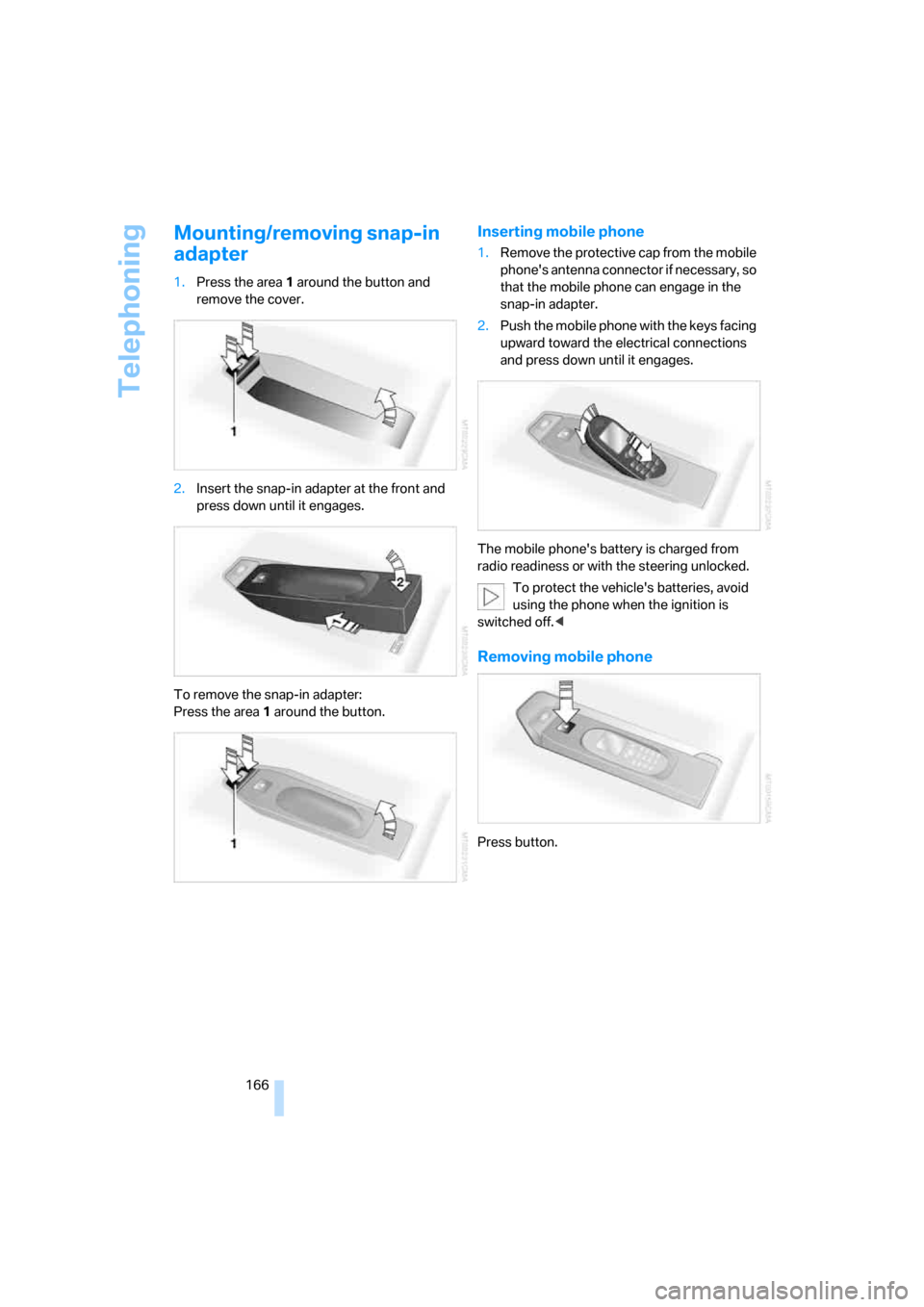
1.Press the area 1 around the button and
remove the cover.
2.Insert the snap-in adapter at the front and
press down until it engages.
To remove the snap-in adapter:
Press the area 1 around the button.
Inserting mobile phone
1.Remove the protective cap from the mobile
phone's antenna connector if necessary, so
that the mobile phone can engage in the
snap-in adapter.
2.Push the mobile phone with the keys facing
upward toward the electrical connections
and press down until it engages.
The mobile phone's battery is charged from
radio readiness or with the steering unlocked.
To protect the vehicle's batteries, avoid
using the phone when the ignition is
switched off.<
Removing mobile phone
Press button.
Page 169 of 231

167
Entertainment
Reference
At a glance
Controls
Driving tips Communications
Navigation
Mobility
TeleService , BMW Assist
TeleService
TeleService supports you when communicat-
ing with a BMW center. The built-in car phone
can be used to transmit data regarding the ser-
vice status of your vehicle or regarding legally
mandated inspections directly to your BMW
center. This is the same data that is also stored
for CBS Condition Based Service in the remove
control. Your BMW center can then contact
you, and you can make an appointment that
suits you while you are still on the road. Your
advantage here is that your BMW center can
prepare in advance for the required mainte-
nance work. The TeleService functions are
country-specific: the data regarding the service
status of your vehicle or regarding legally man-
dated inspections is transmitted on a country-
specific basis either automatically before they
fall due or during your calls to the BMW center.
Your BMW center will be glad to provide more
detailed information.
BMW Assist
BMW Assist provides you with other services in
addition to TeleService. For example, the posi-
tion data of your vehicle can be transferred to
the BMW Assist response center if an emer-
gency call
* has been initiated.
Many functions of BMW Assist depend on the
individually agreed contract. Data transmission,
e. g. of the CBS Condition Based Service, dif-
fers from country to country.
The contract of participation with BMW Assist
and the activation must be completed before
you can use BMW Assist.
When the contract expires, the car phone can
be deactivated by a BMW center without having
to visit a BMW center. Following deactivation of
the car phone, no emergency calls can be
made. The car phone can be reactivated after
signing a new contract with a BMW center.You can also use the services of BMW Assist via
the Internet. The range of services is continually
being expanded.
Requirements
You can use TeleService or BMW Assist when
the following requirements are met:
>The installed car phone is logged on to a
cellular telephone network. This network
must be capable of transmitting the ser-
vices.
>To transmit position data, the vehicle must
be able to determine the current position.
This can be displayed on the Control Dis-
play.
>For TeleService or BMW Assist to be acti-
vated and updated, the GPS signal must be
available.
>For BMW Assist: you have applied to your
BMW center or BMW Customer Support for
BMW Assist.
Enabling TeleService or BMW Assist
For you to be able to use the services of
TeleService or BMW Assist, these must be
enabled.
Requirements
>Make sure that the vehicle can determine its
current position. Reception is best when
you have an unobstructed view to the sky.
>Leave radio readiness switched on while
connecting to the system.
Enabling
iDrive, for explanation of principle, refer to
page16.
1.Press the button.
This opens the start menu.
2.Press the controller to open the menu.
**