2006 BMW 750I check
[x] Cancel search: checkPage 13 of 247

At a glance
11Reference
Controls
Driving tips
Communications
Navigation
Entertainment
Mobility
9Steptronic: upshifting63
10Steptronic: downshifting63
12Buttons on steering wheel13Info Display12
14Automatic transmission62
15Ignition lock57
19Horn: the entire surface
23Fog lamps101
24Unlocking hood201 7Instrument lighting101
8BMW Night Vision
*96
11Turn signals65
High beams,
headlamp flasher100
High-beam assistant
*100
Roadside parking lamps100
Computer76
Check Control80
Computer76
Voice command system
*
activation/deactivation23
Volume
Mobile phone:
Press button.
Make call, accept call, or end call.
Press briefly to proceed through
a selection sequence consisting
of the automatic program, the
Sport program, and the manual
mode63
Selecting radio station
Selecting music track
Skipping chapter
*
Programmable button52
16Switching ignition on/off57
and Starting/stopping engine57
17Windshield wipers65
Rain sensor65
18PDC Park Distance Control
*86
20Steering wheel heater
*52
Steering wheel adjustment52
21Unlocking luggage compartment
lid36
22Programmable cruise control67
Active cruise control
*69
Front fog lamps
Page 14 of 247

Cockpit
12
Info Display
1Resetting trip odometer to zero75
2Speedometer with display for
>Programmable cruise control67
>Active cruise control
*69
>Speed limit82
3Indicator and warning lamps12
4Tachometer75
Route guidance of navigation
system
*143
5High-beam assistant
*
6Display for
>Flat Tire Monitor
*91
>Tire Pressure Monitor
*93
7Display for
>Voice command system
*23
>Odometer and trip odometer75
>Remaining driving distance for service
requirements78
>Text messages in Check Control80
>Computer76
8Transmission range selection629Automatic transmission program
display62
10Display for
>Outside temperature75
>Clock75
>Indicator and warning lamps80
11Computer with fuel gauge76
12Fog lamps101
Indicator and warning lamps
The concept
Indicator and warning lamps can light up in dif-
ferent combinations and in different colors in
the display area1 and in the display2.
Page 15 of 247

At a glance
13Reference
Controls
Driving tips
Communications
Navigation
Entertainment
Mobility
When the engine is started or the ignition is
switched on, some lamps are checked for
proper operation and light up briefly in the pro-
cess.
Explanatory text messages
Text messages on Info Display explain the
meaning of the indicating and warning lamps
shown.
You can view additional information, e.g.
regarding the cause of a malfunction and the
corresponding action to take, in the Check Con-
trol, refer to page80.
When the situation is urgent, this information is
displayed immediately when the associated
lamps light up.
Indicator lamps without text messages
The following indicator lamps in the display
area1 indicate that certain functions are active:
Turn signals65
With parking brake released59
With parking brake set59
Warning lamp on Canadian models
Front fog lamps101
DTC Dynamic Traction Control88
High beams/headlamp flasher100
High-beam assistant
*
DSC Dynamic Stability Control,
flashes88
Page 19 of 247
At a glance
17Reference
Controls
Driving tips
Communications
Navigation
Entertainment
Mobility
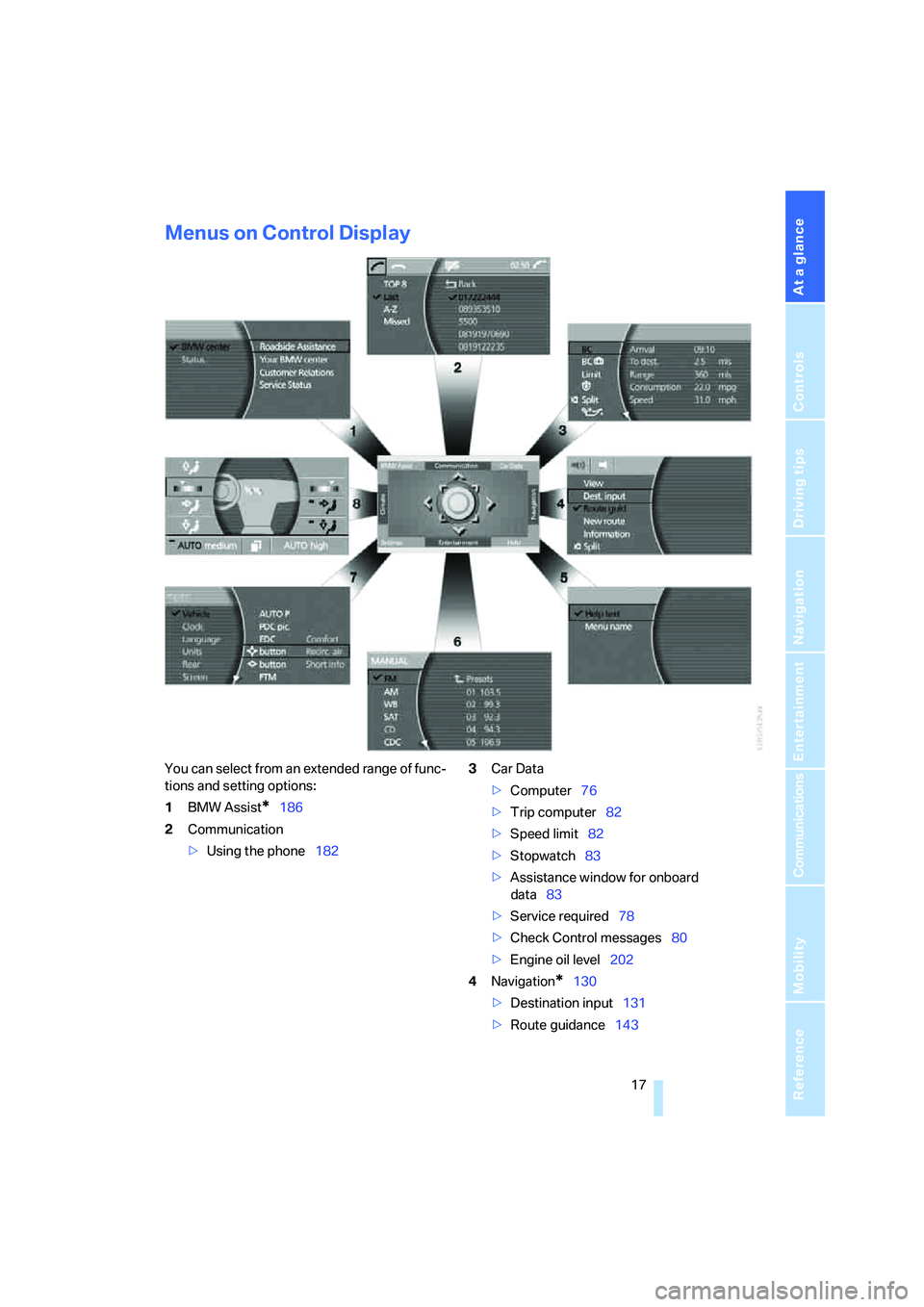
Menus on Control Display
You can select from an extended range of func-
tions and setting options:
1BMW Assist
*186
2Communication
>Using the phone1823Car Data
>Computer76
>Trip computer82
>Speed limit82
>Stopwatch83
>Assistance window
for onboard
data83
>Service required78
>Check Control messages80
>Engine oil level202
4Navigation
*130
>Destination input131
>Route guidance143
Page 23 of 247
At a glance
21Reference
Controls
Driving tips
Communications
Navigation
Entertainment
Mobility
5Telephone status
>Green, yellow and red flashing:
Linking of a mobile phone.
>Green:
Incoming or outgoing call.
>Red:
No network available.
>Yellow:
The network of another provider is being
used, partner network.
>Flashing yellow:
The network of another provider is being
used, external network.
Roaming in a partner or external net-
work incurs higher call charges than
in your home network.<
6Display of Check Control81
>You can use the "Car Data" menu to dis-
play the message on the Control Dis-
play.
Status service requirement display78
>Red:
At least one service interval has been
exceeded.
7Display of temperature selection and inten-
sity of the AUTO program, right side of pas-
senger compartment
8Air volume, right side of passenger com-
partment
9Entertainment
Display for radio, CD, and DVD
With compressed audio files, the informa-
tion about the track is displayed166
10Air volume, left side of passenger compart-
ment
11Display of temperature selection and inten-
sity of the AUTO program, left side of pas-
senger compartment
Assistance window*
The status lines in the assistance window show
the following:
>Outside temperature
>Navigation system destination>Time
>Date
Rear seat screen*
Some of the functions of iDrive can also be
operated via the rear seat screen. Certain func-
tions are only available via iDrive. These func-
tions can only be operated to a limited degree
on the rear screen, e.g. the speed limit can only
be displayed. The settings are made via iDrive.
Deploying rear seat screen
1.Swing pivoting arm upward until it engages.
2.Fold rear seat screen upward.
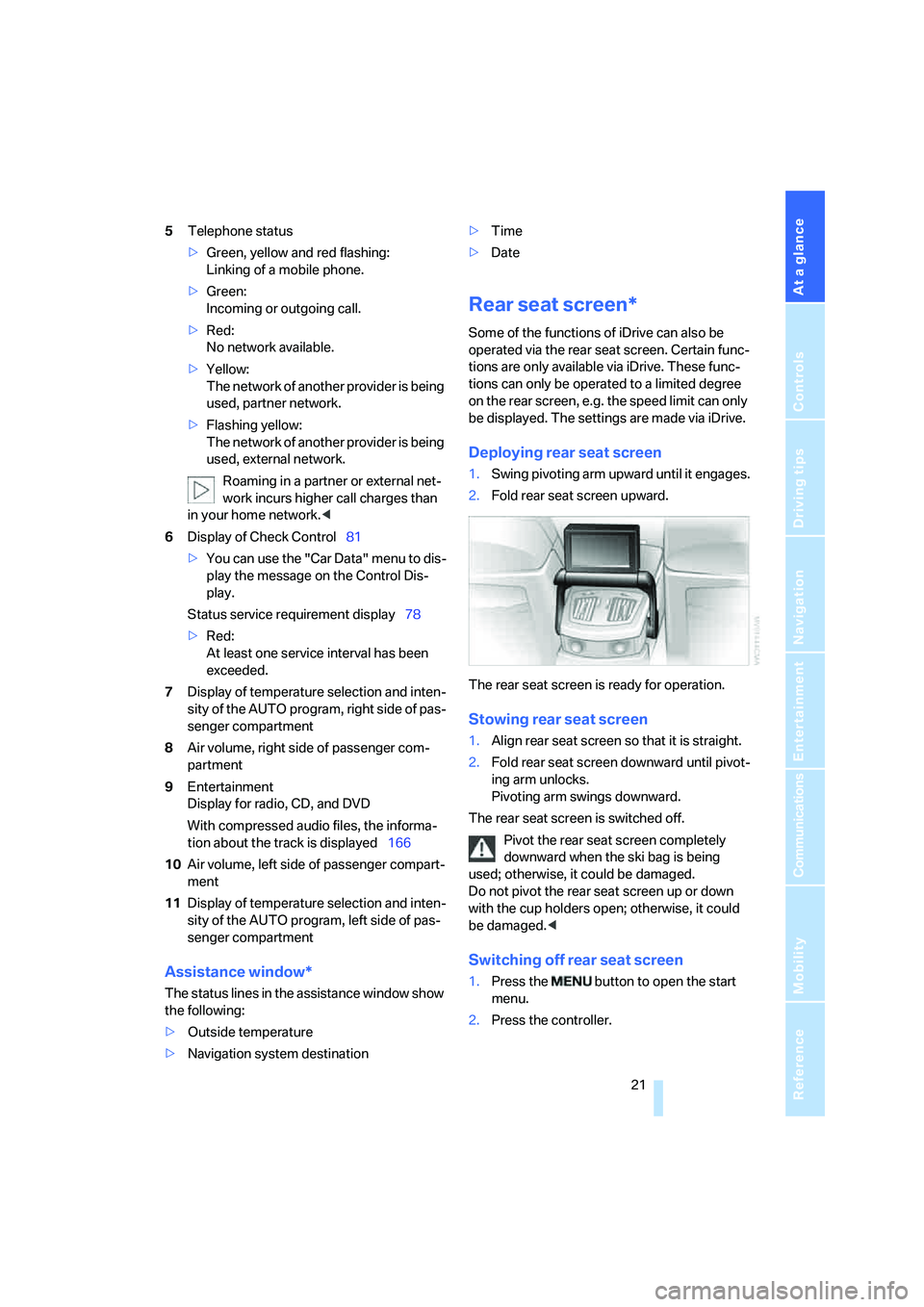
The rear seat screen is ready for operation.
Stowing rear seat screen
1.Align rear seat screen so that it is straight.
2.Fold rear seat screen downward until pivot-
ing arm unlocks.
Pivoting arm swings downward.
The rear seat screen is switched off.
Pivot the rear seat screen completely
downward when the ski bag is being
used; otherwise, it could be damaged.
Do not pivot the rear seat screen up or down
with the cup holders open; otherwise, it could
be damaged.<
Switching off rear seat screen
1.Press the button to open the start
menu.
2.Press the controller.
Page 24 of 247
iDrive
22 Press the controller again to switch the screen
back on.
Controller/buttons
The controller and buttons are located on the
center armrest.
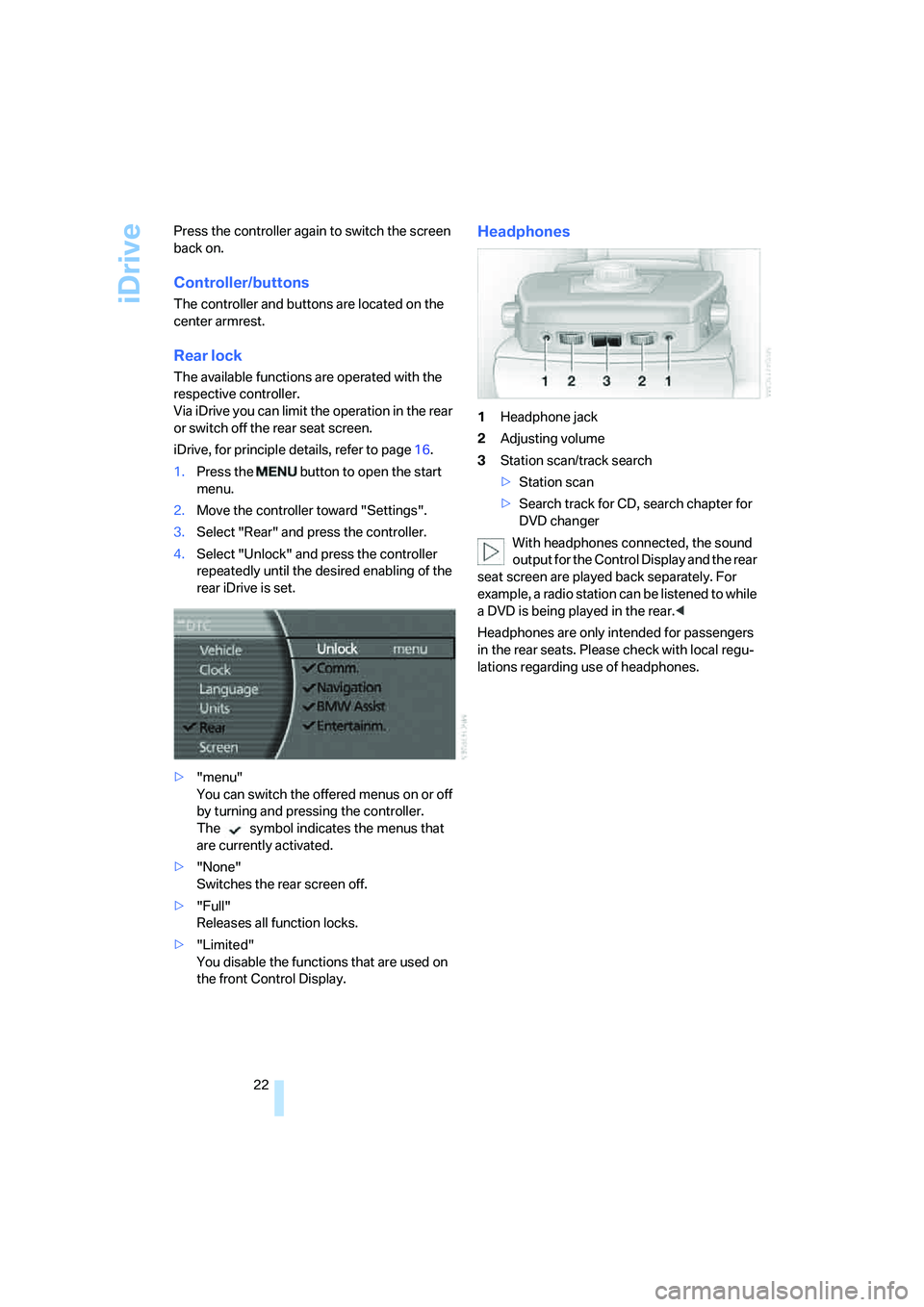
Rear lock
The available functions are operated with the
respective controller.
Via iDrive you can limit the operation in the rear
or switch off the rear seat screen.
iDrive, for principle details, refer to page16.
1.Press the button to open the start
menu.
2.Move the controller toward "Settings".
3.Select "Rear" and press the controller.
4.Select "Unlock" and press the controller
repeatedly until the desired enabling of the
rear iDrive is set.
>"menu"
You can switch the offered menus on or off
by turning and pressing the controller.
The symbol indicates the menus that
are currently activated.
>"None"
Switches the rear screen off.
>"Full"
Releases all function locks.
>"Limited"
You disable the functions that are used on
the front Control Display.
Headphones
1Headphone jack
2Adjusting volume
3Station scan/track search
>Station scan
>Search track for CD, search chapter for
DVD changer
With headphones connected, the sound
output for the Control Display and the rear
seat screen are played back separately. For
example, a radio station can be listened to while
a DVD is being played in the rear.<
Headphones are only intended for passengers
in the rear seats. Please check with local regu-
lations regarding use of headphones.
Page 27 of 247
At a glance
25Reference
Controls
Driving tips
Communications
Navigation
Entertainment
Mobility
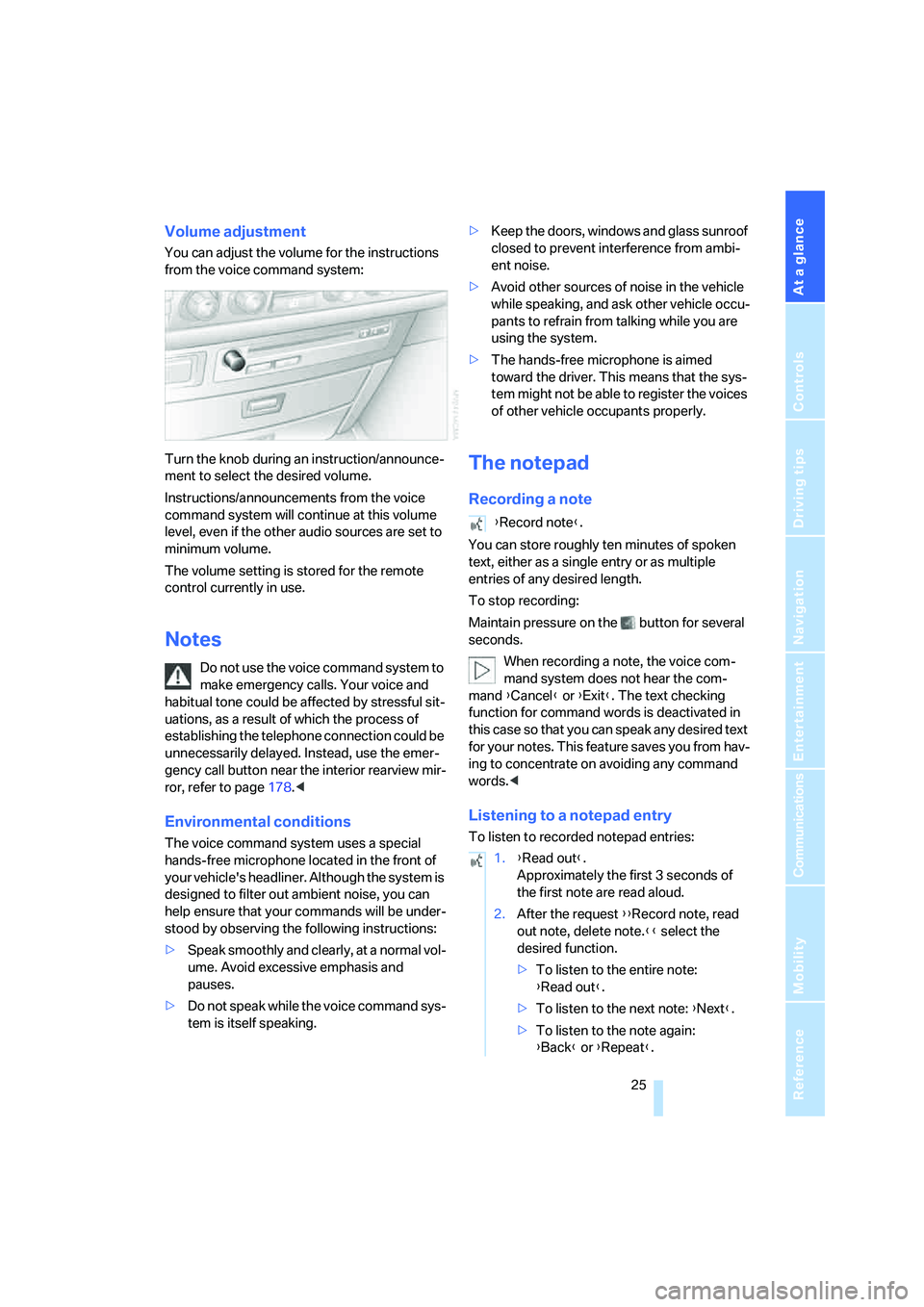
Volume adjustment
You can adjust the volume for the instructions
from the voice command system:
Turn the knob during an instruction/announce-
ment to select the desired volume.
Instructions/announcements from the voice
command system will continue at this volume
level, even if the other audio sources are set to
minimum volume.
The volume setting is stored for the remote
control currently in use.
Notes
Do not use the voice command system to
make emergency calls. Your voice and
habitual tone could be affected by stressful sit-
uations, as a result of which the process of
establishing the telephone connection could be
unnecessarily delayed. Instead, use the emer-
gency call button near the interior rearview mir-
ror, refer to page178.<
Environmental conditions
The voice command system uses a special
hands-free microphone located in the front of
your vehicle's headliner. Although the system is
designed to filter out ambient noise, you can
help ensure that your commands will be under-
stood by observing the following instructions:
>Speak smoothly and clearly, at a normal vol-
ume. Avoid excessive emphasis and
pauses.
>Do not speak while the voice command sys-
tem is itself speaking.>Keep the doors, windows and glass sunroof
closed to prevent interference from ambi-
ent noise.
>Avoid other sources of noise in the vehicle
while speaking, and ask other vehicle occu-
pants to refrain from talking while you are
using the system.
>The hands-free microphone is aimed
toward the driver. This means that the sys-
tem might not be able to register the voices
of other vehicle occupants properly.
The notepad
Recording a note
You can store roughly ten minutes of spoken
text, either as a single entry or as multiple
entries of any desired length.
To stop recording:
Maintain pressure on the button for several
seconds.
When recording a note, the voice com-
mand system does not hear the com-
mand {Cancel} or {Exit}. The text checking
function for command words is deactivated in
this case so that you can speak any desired text
for your notes. This feature saves you from hav-
ing to concentrate on avoiding any command
words.<
Listening to a notepad entry
To listen to recorded notepad entries:
{Record note}.
1.{Read out}.
Approximately the first 3 seconds of
the first note are read aloud.
2.After the request {{Record note, read
out note, delete note.}} select the
desired function.
>To listen to the entire note:
{Read out}.
>To listen to the next note: {Next}.
>To listen to the note again:
{Back} or {Repeat}.
Page 40 of 247

Opening and closing
38
Tilt alarm sensor
The tilt of the vehicle is monitored. The alarm
system reacts, e.g. in case of an attempted
wheel theft or towing.
Interior motion sensor
In order for the interior motion sensor to func-
tion properly, the windows and glass sunroof
must be completely closed.
Avoiding unintentional alarms
The tilt alarm sensor and interior motion sensor
may be switched off at the same time. This pre-
vents unintentional alarms, e.g. in the following
situations:
>In duplex garages
>When transporting on car-carrying trains
>When animals are to remain in the vehicle
Switching off tilt alarm sensor and
interior motion sensor
Press the button on the remote control
again as soon as the vehicle is locked.
The indicator lamp lights up briefly and then
flashes continuously. The tilt alarm sensor and
the interior motion sensor are switched off until
the next time the vehicle is unlocked and subse-
quently locked again.
Comfort Access*
With Comfort Access, you can have access to
your vehicle without having to hold the remote
control in your hand. It is sufficient to carry the
remote control on your person, e.g. in a jacket
pocket. The vehicle automatically detects the
associated remote control in the immediate
vicinity or in the passenger compartment.
Comfort Access supports the following func-
tions:
>Locking/unlocking the vehicle
>Unlocking the luggage compartment lid
separately
>Starting the engine
Functional requirements
>The vehicle can only be locked if the remote
control is outside the vehicle.
>The next unlocking and locking cycle is not
possible until after approx. 2 seconds.
>The engine can only be started if the remote
control is inside the vehicle.
Comparison to conventional remote
control
You can control the functions mentioned previ-
ously with the Comfort Access or by pressing
the buttons on the remote control. Therefore
please first familiarize yourself with the instruc-
tions for opening and closing, starting on
page32.
The specific features involved in the use of
Comfort Access are described below.
If a short delay occurs when opening or
closing the windows and the glass sun-
roof, then this indicates that the system is
checking whether a remote control is located in
the vehicle. Please repeat opening or closing if
necessary.<
Unlocking
Pull a door handle. This corresponds to press-
ing the button.
Only the door of the door handle you have
pulled is unlocked.
You unlock the other doors from the inside,
using the central locking system button, refer to
page34.<
Engaging locks
Push a door handle. This corresponds to press-
ing the button.
Before locking, make sure that the igni-
tion and all current-consuming devices
are switched off in order to minimized the drain
on the battery.<
If a remote control is detected in the inte-
rior, the vehicle is unlocked again or not
locked in the first place.<