2006 BMW 745i Dvd
[x] Cancel search: DvdPage 135 of 247
Navigation
Driving tips
133Reference
At a glance
Controls
Communications
Entertainment
Mobility
>To cancel selection:
Select the arrow and press the con-
troller.
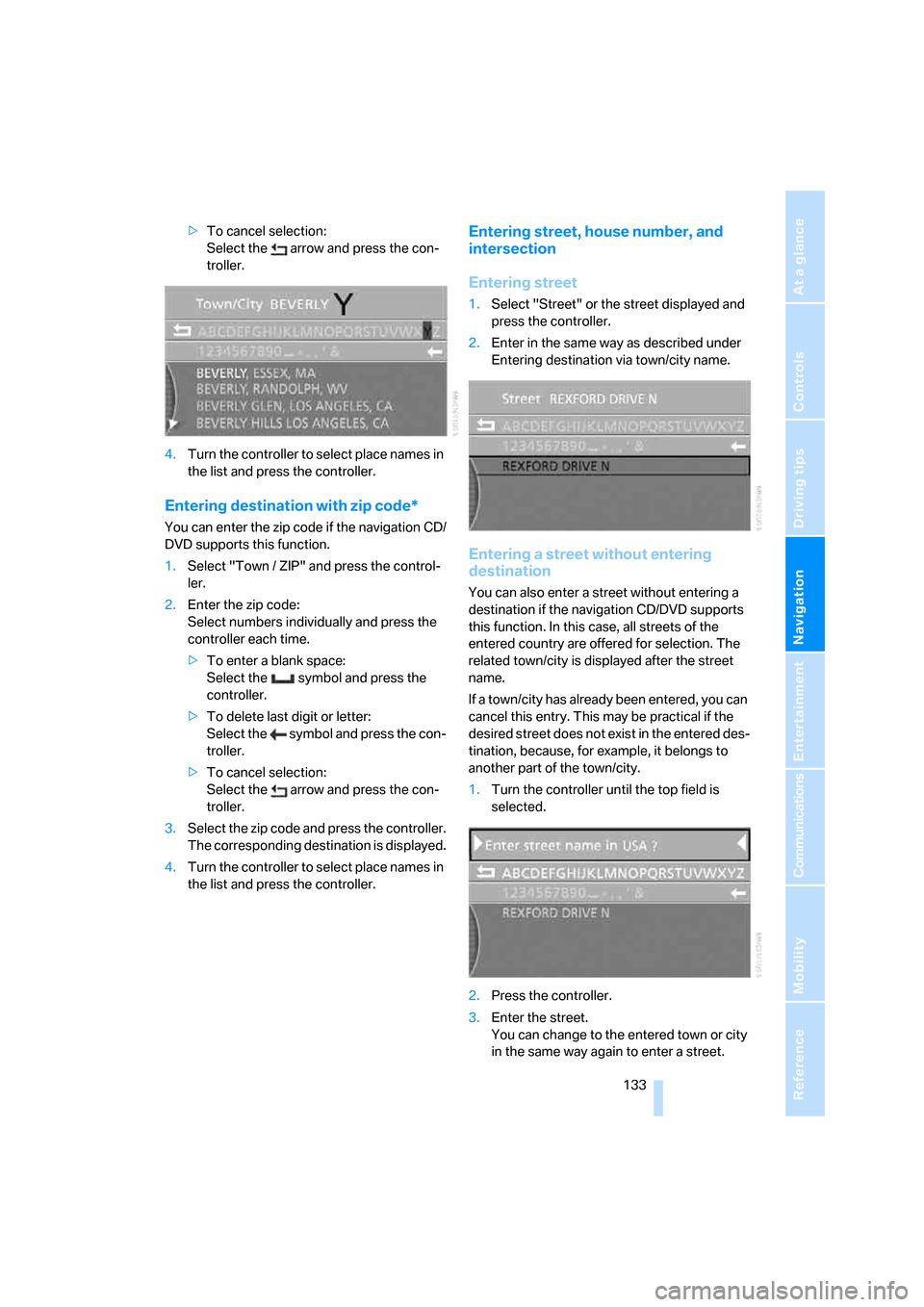
4.Turn the controller to select place names in
the list and press the controller.
Entering destination with zip code*
You can enter the zip code if the navigation CD/
DVD supports this function.
1.Select "Town / ZIP" and press the control-
ler.
2.Enter the zip code:
Select numbers individually and press the
controller each time.
>To enter a blank space:
Select the symbol and press the
controller.
>To delete last digit or letter:
Select the symbol and press the con-
troller.
>To cancel selection:
Select the arrow and press the con-
troller.
3.Select the zip code and press the controller.
The corresponding destination is displayed.
4.Turn the controller to select place names in
the list and press the controller.
Entering street, house number, and
intersection
Entering street
1.Select "Street" or the street displayed and
press the controller.
2.Enter in the same way as described under
Entering destination via town/city name.
Entering a street without entering
destination
You can also enter a street without entering a
destination if the navigation CD/DVD supports
this function. In this case, all streets of the
entered country are offered for selection. The
related town/city is displayed after the street
name.
If a town/city has already been entered, you can
cancel this entry. This may be practical if the
desired street does not exist in the entered des-
tination, because, for example, it belongs to
another part of the town/city.
1.Turn the controller until the top field is
selected.
2.Press the controller.
3.Enter the street.
You can change to the entered town or city
in the same way again to enter a street.
Page 136 of 247
Destination input
134
Entering intersection
The intersection is entered in the same way as
the street.
Entering house number
You can enter the house number if the naviga-
tion CD/DVD supports this function.
1.Select "House Number" and press the con-
troller.
2.Enter the house number:
Select numbers individually and press the
controller each time.
>To delete last digit or letter:
Select the symbol and press the con-
troller.
>To cancel selection:
Select the arrow and press the con-
troller.
If the house number entered is not stored
on the navigation CD/DVD, then the closest
possible number is entered.
3.Select "Enter" and press the controller.
Starting route guidance with manual
destination input
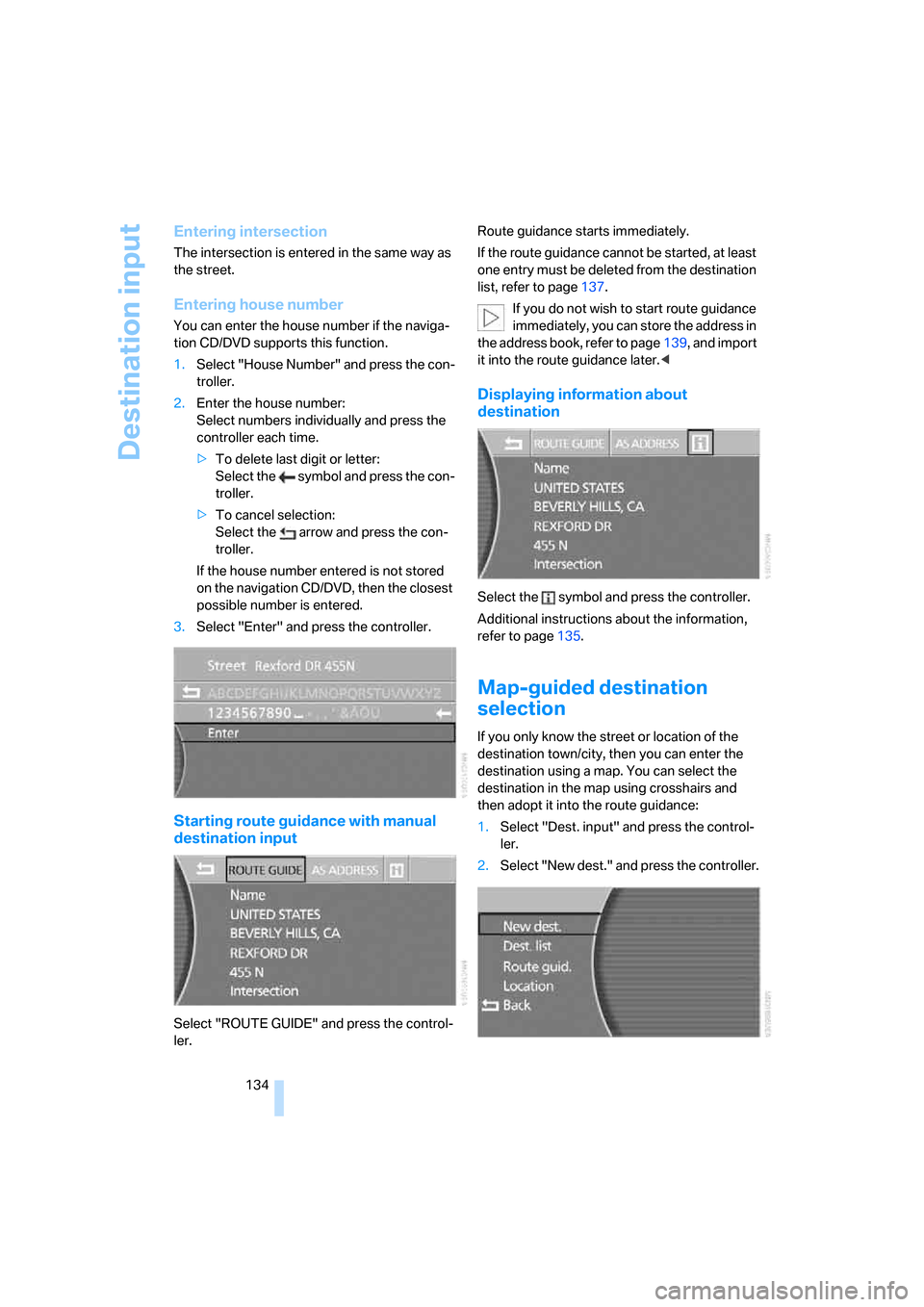
Select "ROUTE GUIDE" and press the control-
ler.Route guidance starts immediately.
If the route guidance cannot be started, at least
one entry must be deleted from the destination
list, refer to page137.
If you do not wish to start route guidance
immediately, you can store the address in
the address book, refer to page139, and import
it into the route guidance later.<
Displaying information about
destination
Select the symbol and press the controller.
Additional instructions about the information,
refer to page135.
Map-guided destination
selection
If you only know the street or location of the
destination town/city, then you can enter the
destination using a map. You can select the
destination in the map using crosshairs and
then adopt it into the route guidance:
1.Select "Dest. input" and press the control-
ler.
2.Select "New dest." and press the controller.
Page 138 of 247
Destination input
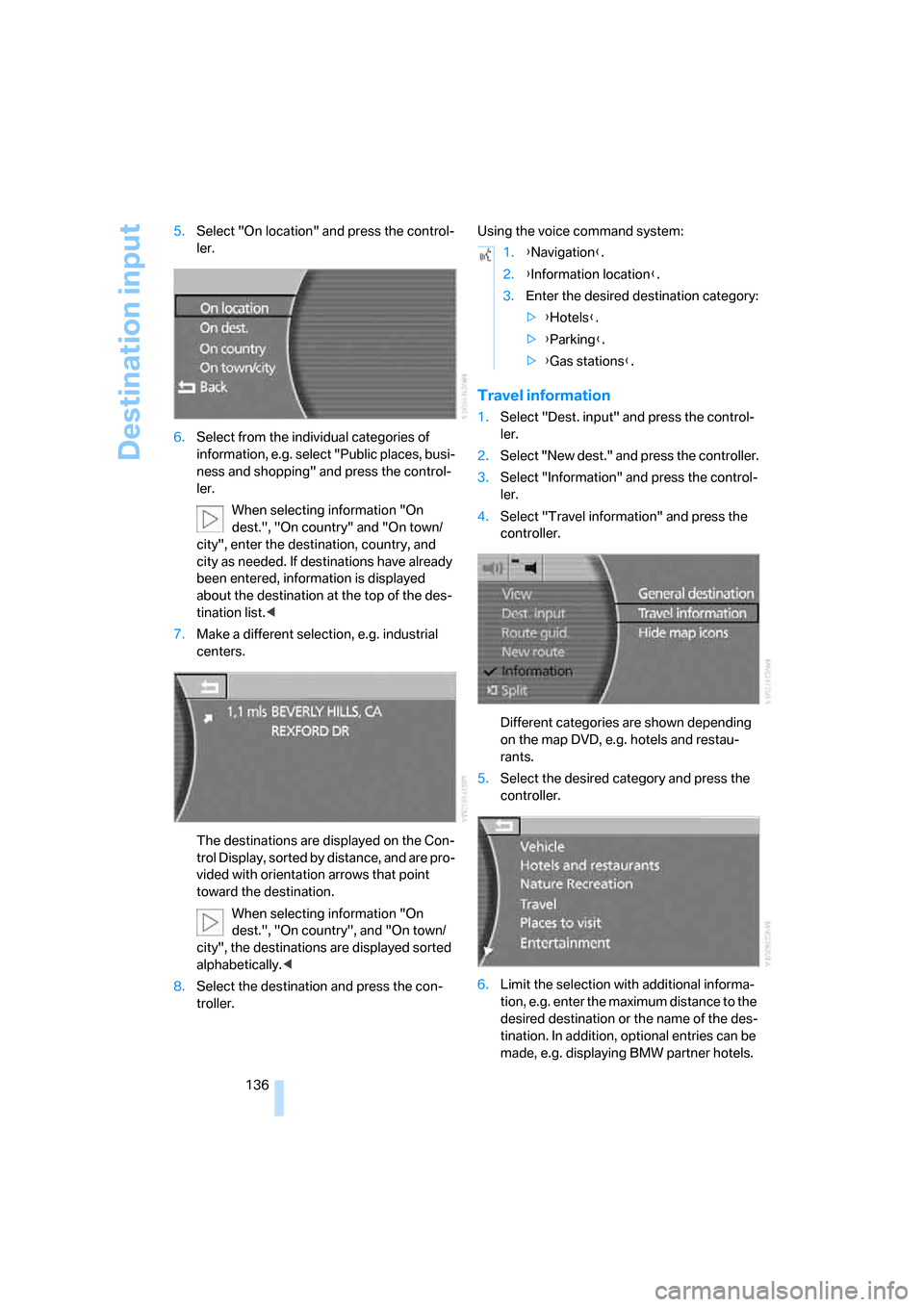
136 5.Select "On location" and press the control-
ler.
6.Select from the individual categories of
information, e.g. select "Public places, busi-
ness and shopping" and press the control-
ler.
When selecting information "On
dest.", "On country" and "On town/
city", enter the destination, country, and
city as needed. If destinations have already
been entered, information is displayed
about the destination at the top of the des-
tination list.<
7.Make a different selection, e.g. industrial
centers.
The destinations are displayed on the Con-
trol Display, sorted by distance, and are pro-
vided with orientation arrows that point
toward the destination.
When selecting information "On
dest.", "On country", and "On town/
city", the destinations are displayed sorted
alphabetically.<
8.Select the destination and press the con-
troller.Using the voice command system:
Travel information
1.Select "Dest. input" and press the control-
ler.
2.Select "New dest." and press the controller.
3.Select "Information" and press the control-
ler.
4.Select "Travel information" and press the
controller.
Different categories are shown depending
on the map DVD, e.g. hotels and restau-
rants.
5.Select the desired category and press the
controller.
6.Limit the selection with additional informa-
tion, e.g. enter the maximum distance to the
desired destination or the name of the des-
tination. In addition, optional entries can be
made, e.g. displaying BMW partner hotels.
1.{Navigation}.
2.{Information location}.
3.Enter the desired destination category:
>{Hotels}.
>{Parking}.
>{Gas stations}.
Page 141 of 247
Navigation
Driving tips
139Reference
At a glance
Controls
Communications
Entertainment
Mobility
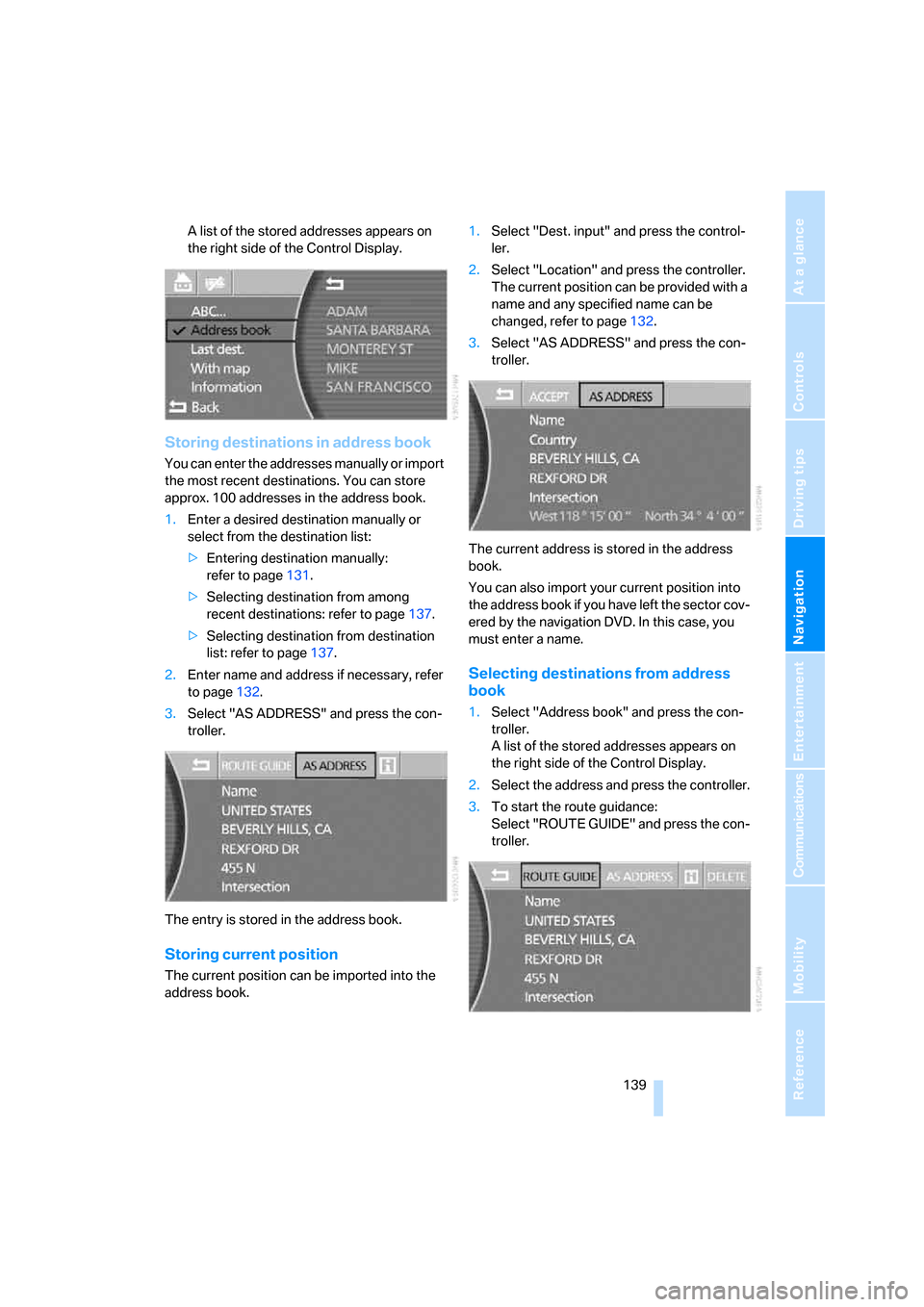
A list of the stored addresses appears on
the right side of the Control Display.
Storing destinations in address book
You can enter the addresses manually or import
the most recent destinations. You can store
approx. 100 addresses in the address book.
1.Enter a desired destination manually or
select from the destination list:
>Entering destination manually:
refer to page131.
>Selecting destination from among
recent destinations: refer to page137.
>Selecting destination from destination
list: refer to page137.
2.Enter name and address if necessary, refer
to page132.
3.Select "AS ADDRESS" and press the con-
troller.
The entry is stored in the address book.
Storing current position
The current position can be imported into the
address book.1.Select "Dest. input" and press the control-
ler.
2.Select "Location" and press the controller.
The current position can be provided with a
name and any specified name can be
changed, refer to page132.
3.Select "AS ADDRESS" and press the con-
troller.
The current address is stored in the address
book.
You can also import your current position into
the address book if you have left the sector cov-
ered by the navigation DVD. In this case, you
must enter a name.
Selecting destinations from address
book
1.Select "Address book" and press the con-
troller.
A list of the stored addresses appears on
the right side of the Control Display.
2.Select the address and press the controller.
3.To start the route guidance:
Select "ROUTE GUIDE" and press the con-
troller.
Page 143 of 247
Navigation
Driving tips
141Reference
At a glance
Controls
Communications
Entertainment
Mobility
Using the voice command system:
Voice command system address book
It is only possible to save the first entry in the
destination list. To save other addresses,
change the destination list accordingly, refer to
page137.
Storing destinations in address book
The destination to be stored in the voice com-
mand address book must be the first destina-
tion in the destination list.
The house number is not stored in the
address book of the voice command sys-
tem.<
Using the voice command system:
Selecting destinations from address
bookDeleting destinations from address
book
To delete individual destinations:
To delete all existing entries:
Route selection
You can influence the calculated route by
choosing certain route criteria.
The route is planned according to fixed rules,
taking the road type into account, e.g. whether
the route involves highways or winding roads.
The road types are stored on the navigation
DVD. As a result, the routes recommended by
the navigation system may not always be the
same ones that you would choose based on
personal experience.
Changing route criteria
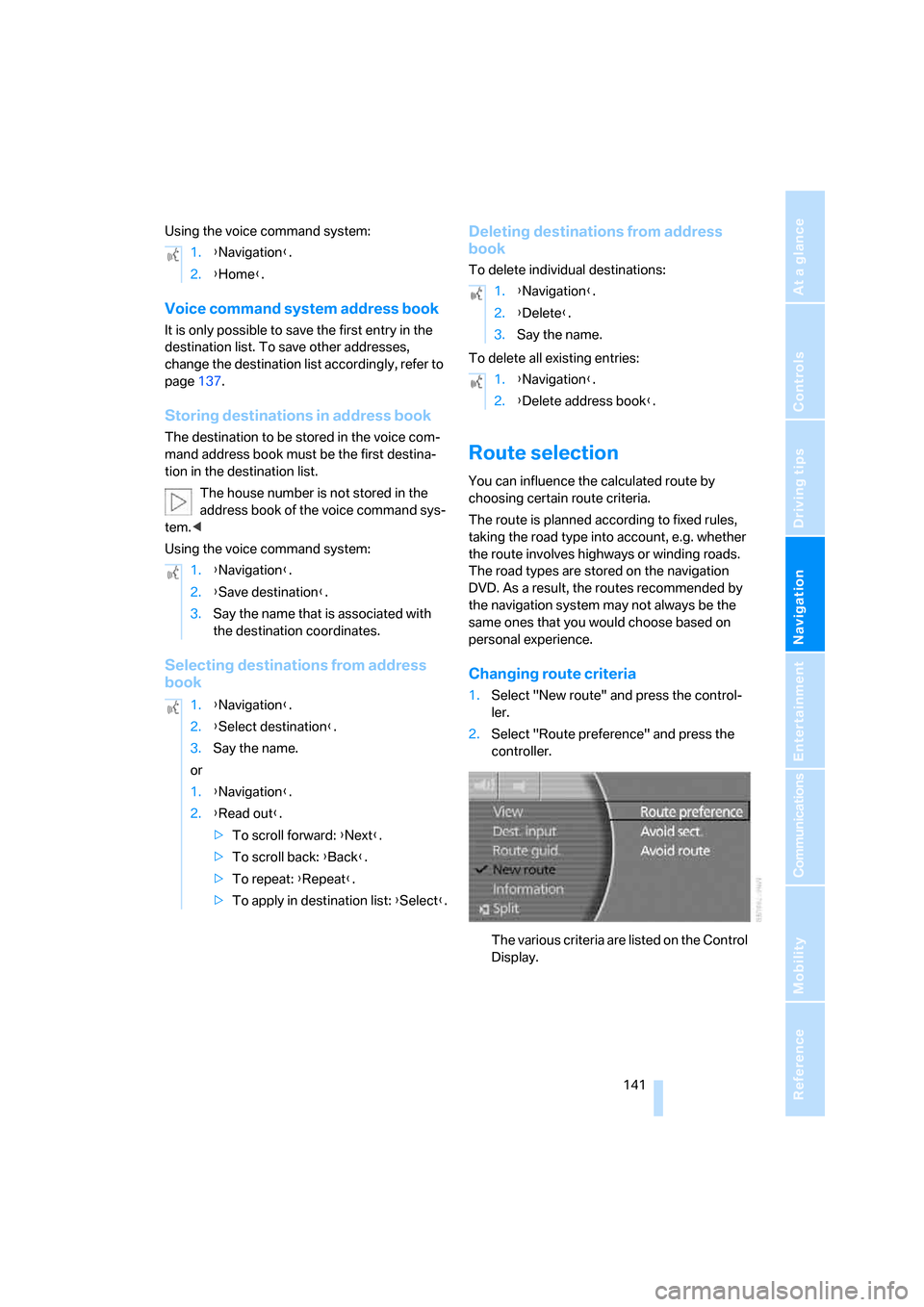
1.Select "New route" and press the control-
ler.
2.Select "Route preference" and press the
controller.
The various criteria are listed on the Control
Display. 1.{Navigation}.
2.{Home}.
1.{Navigation}.
2.{Save destination}.
3.Say the name that is associated with
the destination coordinates.
1.{Navigation}.
2.{Select destination}.
3.Say the name.
or
1.{Navigation}.
2.{Read out}.
>To scroll forward: {Next}.
>To scroll back: {Back}.
>To repeat: {Repeat}.
>To apply in destination list: {Select}.
1.{Navigation}.
2.{Delete}.
3.Say the name.
1.{Navigation}.
2.{Delete address book}.
Page 144 of 247
Destination input
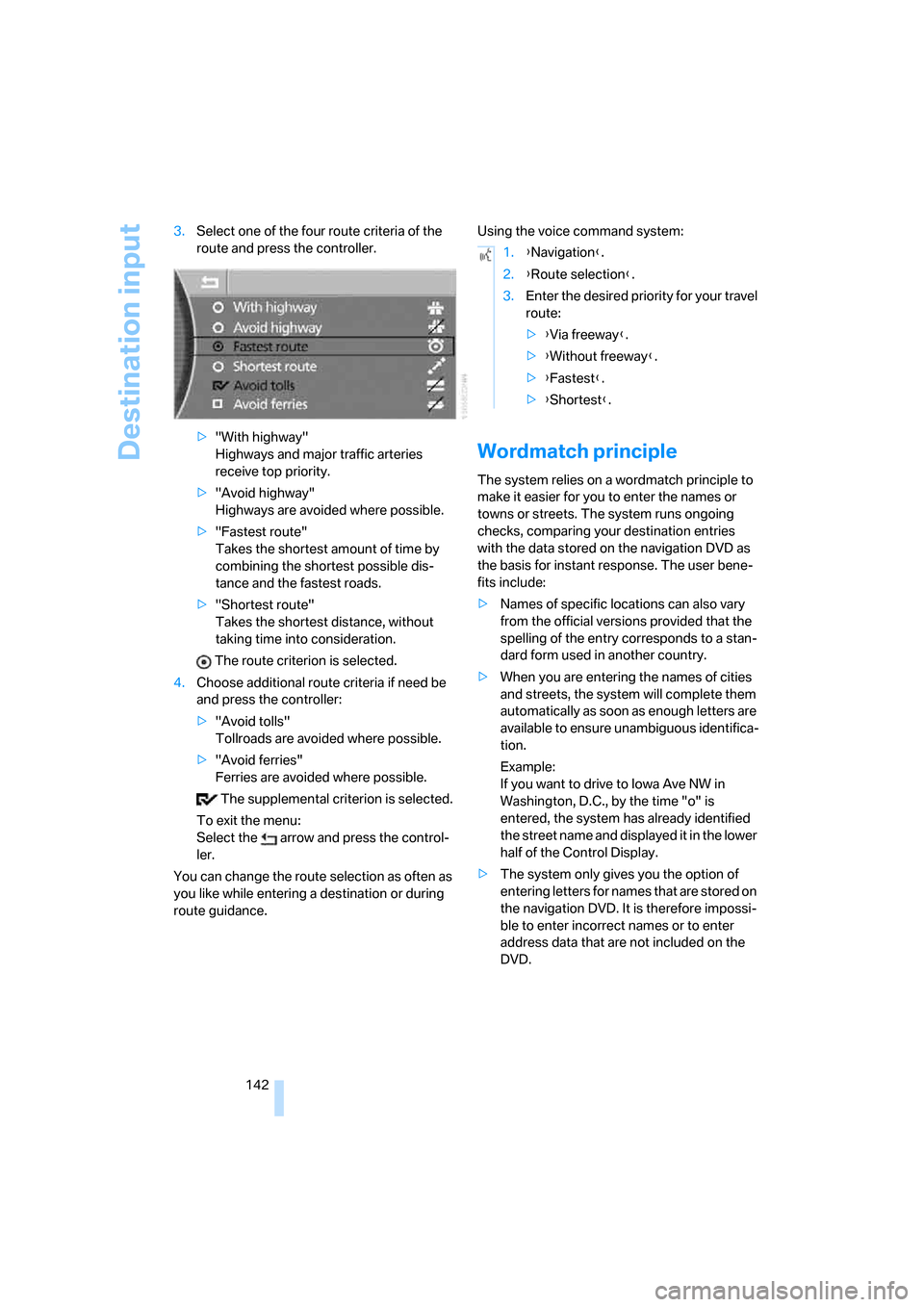
142 3.Select one of the four route criteria of the
route and press the controller.
>"With highway"
Highways and major traffic arteries
receive top priority.
>"Avoid highway"
Highways are avoided where possible.
>"Fastest route"
Takes the shortest amount of time by
combining the shortest possible dis-
tance and the fastest roads.
>"Shortest route"
Takes the shortest distance, without
taking time into consideration.
The route criterion is selected.
4.Choose additional route criteria if need be
and press the controller:
>"Avoid tolls"
Tollroads are avoided where possible.
>"Avoid ferries"
Ferries are avoided where possible.
The supplemental criterion is selected.
To exit the menu:
Select the arrow and press the control-
ler.
You can change the route selection as often as
you like while entering a destination or during
route guidance.Using the voice command system:
Wordmatch principle
The system relies on a wordmatch principle to
make it easier for you to enter the names or
towns or streets. The system runs ongoing
checks, comparing your destination entries
with the data stored on the navigation DVD as
the basis for instant response. The user bene-
fits include:
>Names of specific locations can also vary
from the official versions provided that the
spelling of the entry corresponds to a stan-
dard form used in another country.
>When you are entering the names of cities
and streets, the system will complete them
automatically as soon as enough letters are
available to ensure unambiguous identifica-
tion.
Example:
If you want to drive to Iowa Ave NW in
Washington, D.C., by the time "o" is
entered, the system has already identified
the street name and displayed it in the lower
half of the Control Display.
>The system only gives you the option of
entering letters for names that are stored on
the navigation DVD. It is therefore impossi-
ble to enter incorrect names or to enter
address data that are not included on the
DVD.
1.{Navigation}.
2.{Route selection}.
3.Enter the desired priority for your travel
route:
>{Via freeway}.
>{Without freeway}.
>{Fastest}.
>{Shortest}.
Page 146 of 247
Route guidance
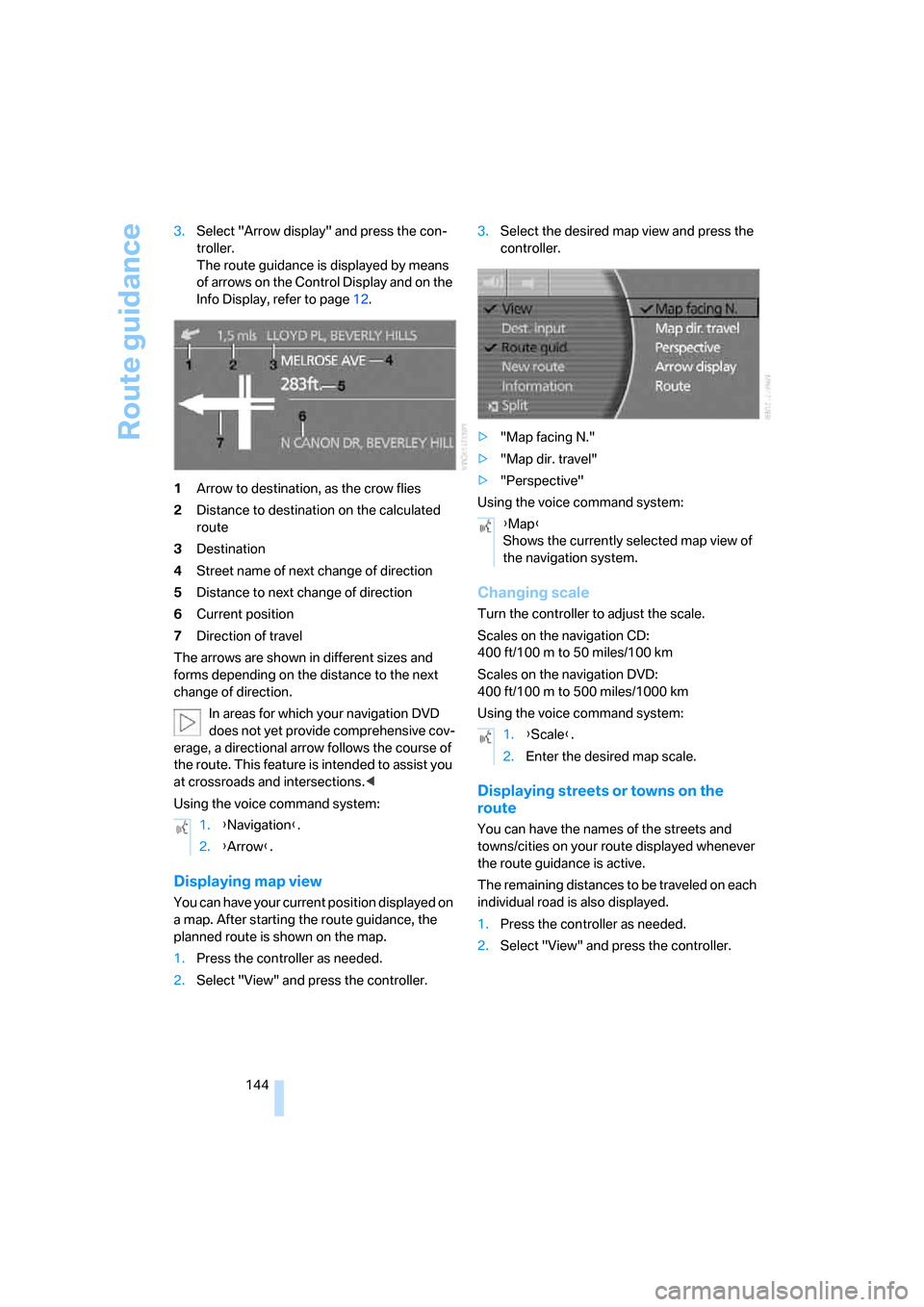
144 3.Select "Arrow display" and press the con-
troller.
The route guidance is displayed by means
of arrows on the Control Display and on the
Info Display, refer to page12.
1Arrow to destination, as the crow flies
2Distance to destination on the calculated
route
3Destination
4Street name of next change of direction
5Distance to next change of direction
6Current position
7Direction of travel
The arrows are shown in different sizes and
forms depending on the distance to the next
change of direction.
In areas for which your navigation DVD
does not yet provide comprehensive cov-
erage, a directional arrow follows the course of
the route. This feature is intended to assist you
at crossroads and intersections.<
Using the voice command system:
Displaying map view
You can have your current position displayed on
a map. After starting the route guidance, the
planned route is shown on the map.
1.Press the controller as needed.
2.Select "View" and press the controller.3.Select the desired map view and press the
controller.
>"Map facing N."
>"Map dir. travel"
>"Perspective"
Using the voice command system:
Changing scale
Turn the controller to adjust the scale.
Scales on the navigation CD:
400 ft/100 m to 50 miles/100 km
Scales on the navigation DVD:
400ft/100m to 500miles/1000km
Using the voice command system:
Displaying streets or towns on the
route
You can have the names of the streets and
towns/cities on your route displayed whenever
the route guidance is active.
The remaining distances to be traveled on each
individual road is also displayed.
1.Press the controller as needed.
2.Select "View" and press the controller. 1.{Navigation}.
2.{Arrow}.
{Map}
Shows the currently selected map view of
the navigation system.
1.{Scale}.
2.Enter the desired map scale.
Page 150 of 247
What to do if …
148
What to do if …
What to do if …
>a navigation DVD is inserted, but an instruc-
tion to insert the DVD appears on the Con-
trol Display?
The navigation DVD may not be the right
DVD for the navigation system. The DVD is
labeled accordingly.
>you request the current position of your
vehicle, but do not receive a precise dis-
play?
The system is unable to receive enough
GPS signals at your current position due to
obstructions, your position is not yet avail-
able on your navigation DVD, or the system
is in the process of calculating your posi-
tion. Please wait and then try again a little
later.
>the route guidance does not accept a desti-
nation?
The data of the destination is not stored on
the navigation DVD that is loaded. Select a
destination that is as close as possible to
the original.
>the route guidance does not accept an
address without the street?
On the navigation DVD, no downtown area
can be determined for the city or town
entered. Enter any street, or a destination
such as the railway station etc., then start
the route guidance.
>you want to enter an address for the route
guidance, but it is not possible to select the
letters for your desired entry?
The data of the destination is not stored on
the navigation DVD that is loaded. In this
case, the system will not offer you any let-
ters to choose from. Select a destination
that is as close as possible to the original.>the system stops furnishing directions on
which way to turn as you approach intersec-
tions?
You are driving in an area that has not yet
been completely recorded on the naviga-
tion DVD. Instead of an arrow indicating a
turn, you will see an arrow which indicates
the general direction of your planned route.
Or you have left the recommended route
and the system requires a few seconds to
calculate a new recommended route.
>the navigation system does not react to
entries?
If the battery was disconnected, it then
takes up to 10 minutes before the system is
once again operational.