2006 BMW 330I ESP
[x] Cancel search: ESPPage 137 of 246
Navigation
Driving tips
135Reference
At a glance
Controls
Communications
Entertainment
Mobility
Changing route criteria
1.Select "Navigation" and press the control-
ler.
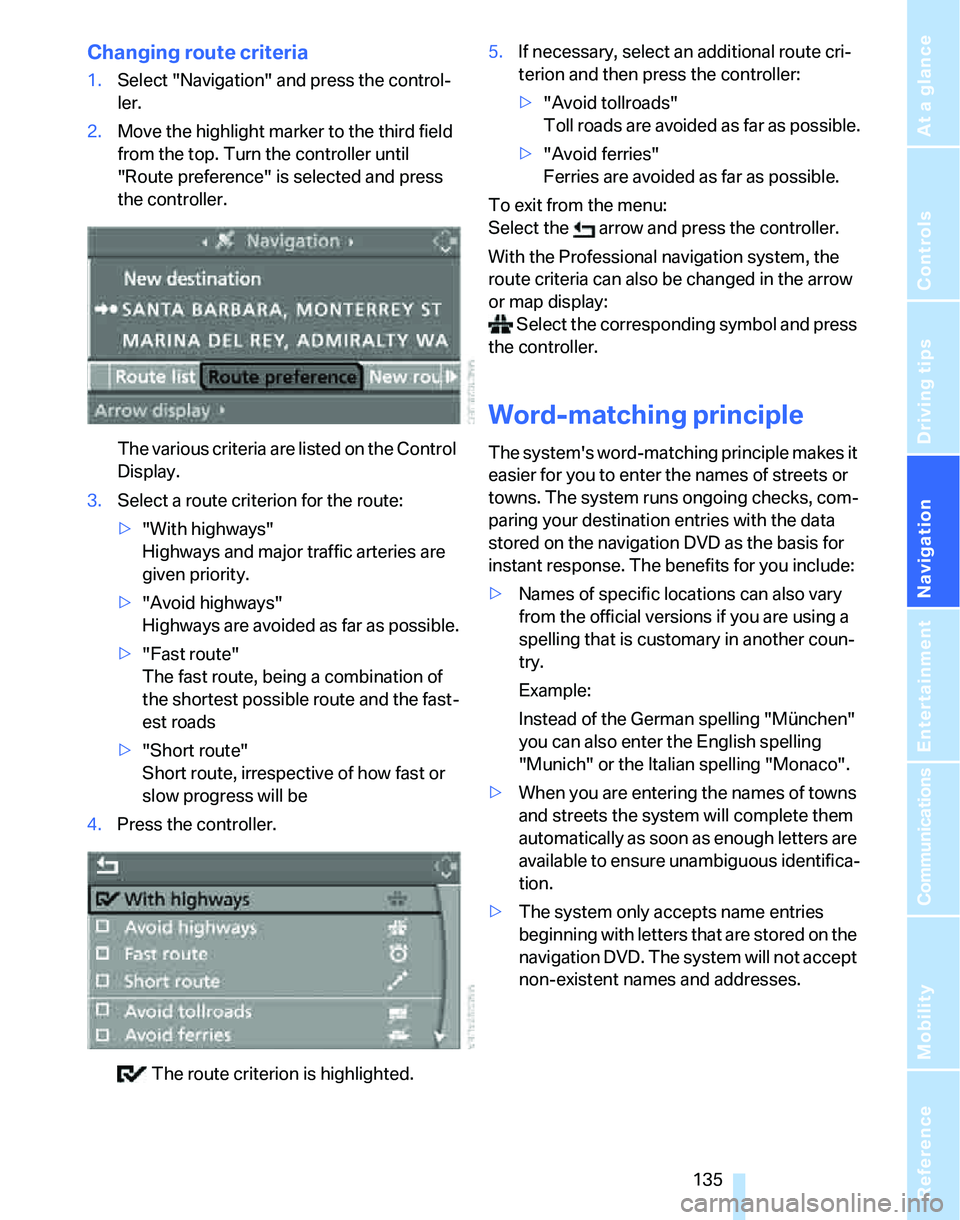
2.Move the highlight marker to the third field
from the top. Turn the controller until
"Route preference" is selected and press
the controller.
The various criteria are listed on the Control
Display.
3.Select a route criterion for the route:
>"With highways"
Highways and major traffic arteries are
given priority.
>"Avoid highways"
Highways are avoided as far as possible.
>"Fast route"
The fast route, being a combination of
the shortest possible route and the fast-
est roads
>"Short route"
Short route, irrespective of how fast or
slow progress will be
4.Press the controller.
The route criterion is highlighted.5.If necessary, select an additional route cri-
terion and then press the controller:
>"Avoid tollroads"
Toll roads are avoided as far as possible.
>"Avoid ferries"
Ferries are avoided as far as possible.
To exit from the menu:
Select the arrow and press the controller.
With the Professional navigation system, the
route criteria can also be changed in the arrow
or map display:
Select the corresponding symbol and press
the controller.
Word-matching principle
The system's word-matching principle makes it
easier for you to enter the names of streets or
towns. The system runs ongoing checks, com-
paring your destination entries with the data
stored on the navigation DVD as the basis for
instant response. The benefits for you include:
>Names of specific locations can also vary
from the official versions if you are using a
spelling that is customary in another coun-
try.
Example:
Instead of the German spelling "München"
you can also enter the English spelling
"Munich" or the Italian spelling "Monaco".
>When you are entering the names of towns
and streets the system will complete them
automatically as soon as enough letters are
available to ensure unambiguous identifica-
tion.
>The system only accepts name entries
beginning with letters that are stored on the
navigation DVD. The system will not accept
non-existent names and addresses.
Page 140 of 246
Destination guidance
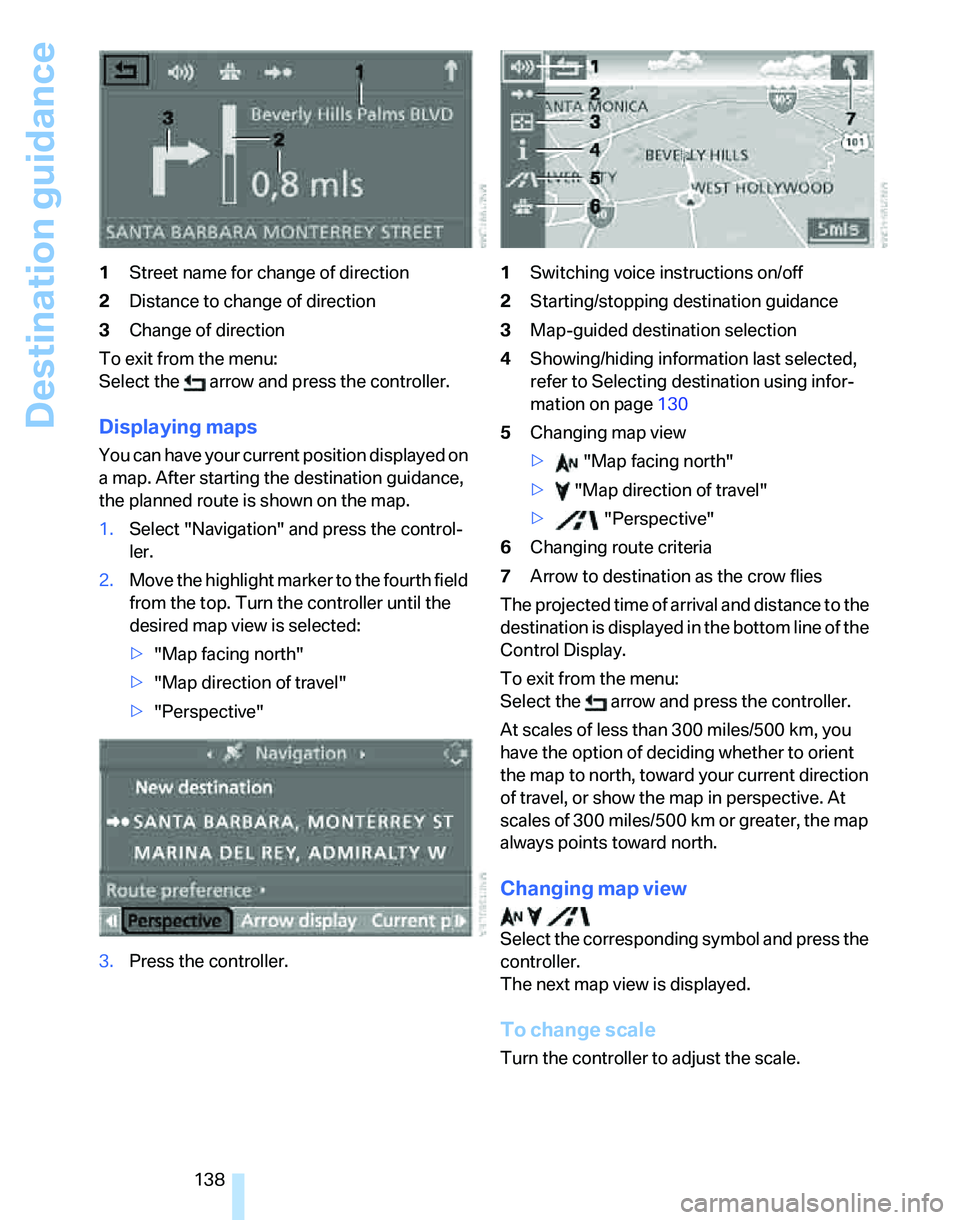
138 1Street name for change of direction
2Distance to change of direction
3Change of direction
To exit from the menu:
Select the arrow and press the controller.
Displaying maps
You can have your current position displayed on
a map. After starting the destination guidance,
the planned route is shown on the map.
1.Select "Navigation" and press the control-
ler.
2.Move the highlight marker to the fourth field
from the top. Turn the controller until the
desired map view is selected:
>"Map facing north"
>"Map direction of travel"
>"Perspective"
3.Press the controller.1Switching voice instructions on/off
2Starting/stopping destination guidance
3Map-guided destination selection
4Showing/hiding information last selected,
refer to Selecting destination using infor-
mation on page130
5Changing map view
> "Map facing north"
> "Map direction of travel"
> "Perspective"
6Changing route criteria
7Arrow to destination as the crow flies
The projected time of arrival and distance to the
destination is displayed in the bottom line of the
Control Display.
To exit from the menu:
Select the arrow and press the controller.
At scales of less than 300 miles/500 km, you
have the option of deciding whether to orient
the map to north, toward your current direction
of travel, or show the map in perspective. At
scales of 300 miles/500 km or greater, the map
always points toward north.
Changing map view
Select the corresponding symbol and press the
controller.
The next map view is displayed.
To change scale
Turn the controller to adjust the scale.
Page 162 of 246
CD player and CD changer
160 1.Select "Set" and press the controller.
Other menu items are displayed.
2.Select "Random" and press the controller.
Stop random function:
1.Press the controller.
2.Select "Random" and press the controller.
Compressed audio files*
1.Select the current track and press the con-
troller.
2.Select the desired menu item:
>To play all the tracks in the current direc-
tory in random order, select "Random
directory" and press the controller.
>To play all the tracks on the CD in ran-
dom order, select "Random all" and
press the controller.
Stop random function:
1.Press the controller
2.Select "Random directory" or "Random all"
and press the controller.
Fast forward/reverse
Buttons on the CD player:
Press and hold the button for the
corresponding direction.
The tracks can be heard, but reproduction is
distorted.
CD magazine
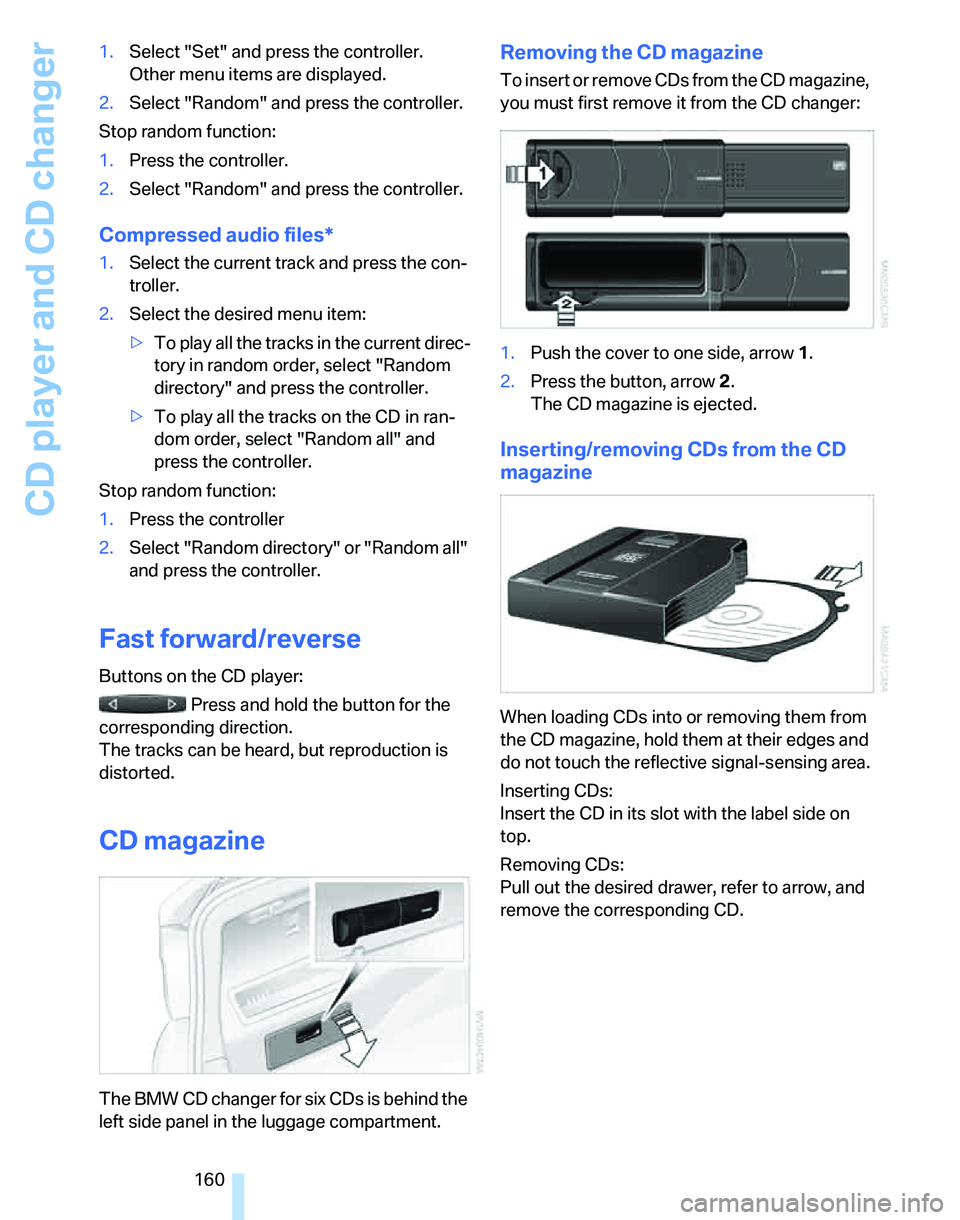
The BMW CD changer for six CDs is behind the
left side panel in the luggage compartment.
Removing the CD magazine
To insert or remove CDs from the CD magazine,
you must first remove it from the CD changer:
1.Push the cover to one side, arrow 1.
2.Press the button, arrow 2.
The CD magazine is ejected.
Inserting/removing CDs from the CD
magazine
When loading CDs into or removing them from
the CD magazine, hold them at their edges and
do not touch the reflective signal-sensing area.
Inserting CDs:
Insert the CD in its slot with the label side on
top.
Removing CDs:
Pull out the desired drawer, refer to arrow, and
remove the corresponding CD.
Page 173 of 246
171
Entertainment
Reference
At a glance
Controls
Driving tips Communications
Navigation
Mobility
ber has been transmitted, the name of the entry
is displayed.
Accepting a call
Select "Accept" and press the controller.
Rejecting a call
Select "Reject" and press the controller.
The caller is diverted to your mailbox if it has
been activated.
Calling
Dialing phone numbers
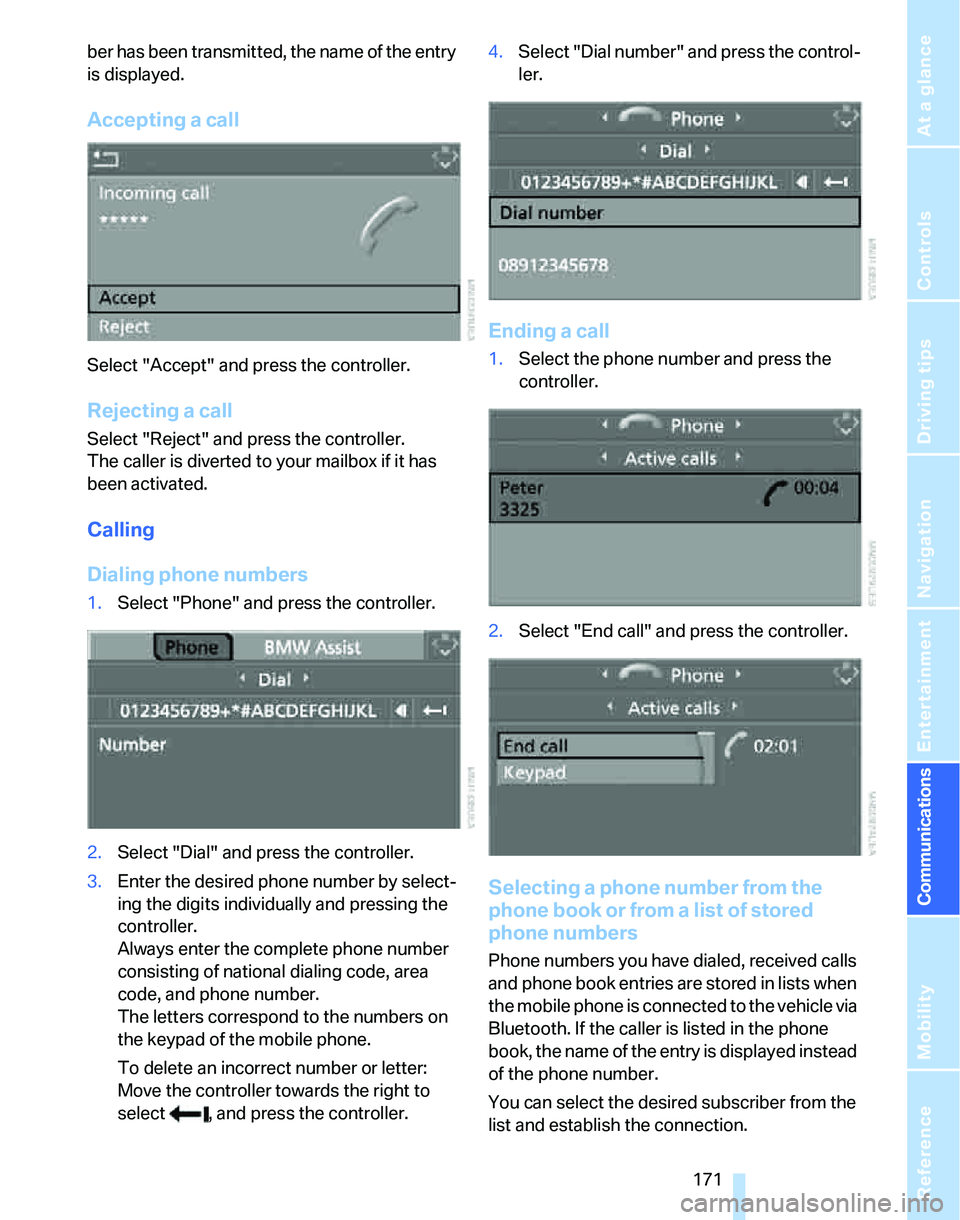
1.Select "Phone" and press the controller.
2.Select "Dial" and press the controller.
3.Enter the desired phone number by select-
ing the digits individually and pressing the
controller.
Always enter the complete phone number
consisting of national dialing code, area
code, and phone number.
The letters correspond to the numbers on
the keypad of the mobile phone.
To delete an incorrect number or letter:
Move the controller towards the right to
select , and press the controller.4.Select "Dial number" and press the control-
ler.
Ending a call
1.Select the phone number and press the
controller.
2.Select "End call" and press the controller.
Selecting a phone number from the
phone book or from a list of stored
phone numbers
Phone numbers you have dialed, received calls
and phone book entries are stored in lists when
the mobile phone is connected to the vehicle via
Bluetooth. If the caller is listed in the phone
book, the name of the entry is displayed instead
of the phone number.
You can select the desired subscriber from the
list and establish the connection.
Page 176 of 246
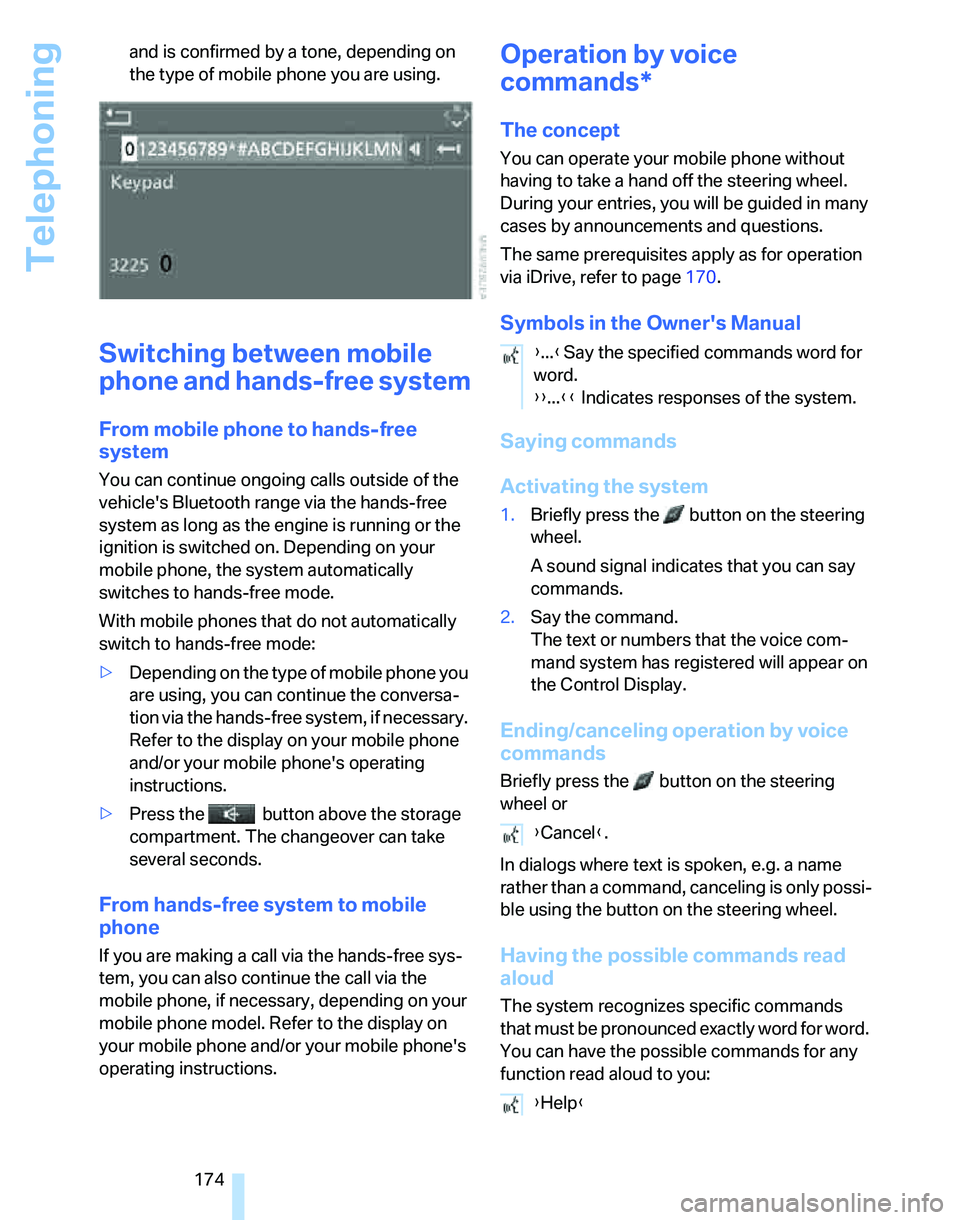
Telephoning
174 and is confirmed by a tone, depending on
the type of mobile phone you are using.
Switching between mobile
phone and hands-free system
From mobile phone to hands-free
system
You can continue ongoing calls outside of the
vehicle's Bluetooth range via the hands-free
system as long as the engine is running or the
ignition is switched on. Depending on your
mobile phone, the system automatically
switches to hands-free mode.
With mobile phones that do not automatically
switch to hands-free mode:
>Depending on the type of mobile phone you
are using, you can continue the conversa-
tion via the hands-free system, if necessary.
Refer to the display on your mobile phone
and/or your mobile phone's operating
instructions.
>Press the button above the storage
compartment. The changeover can take
several seconds.
From hands-free system to mobile
phone
If you are making a call via the hands-free sys-
tem, you can also continue the call via the
mobile phone, if necessary, depending on your
mobile phone model. Refer to the display on
your mobile phone and/or your mobile phone's
operating instructions.
Operation by voice
commands*
The concept
You can operate your mobile phone without
having to take a hand off the steering wheel.
During your entries, you will be guided in many
cases by announcements and questions.
The same prerequisites apply as for operation
via iDrive, refer to page170.
Symbols in the Owner's Manual
Saying commands
Activating the system
1.Briefly press the button on the steering
wheel.
A sound signal indicates that you can say
commands.
2.Say the command.
The text or numbers that the voice com-
mand system has registered will appear on
the Control Display.
Ending/canceling operation by voice
commands
Briefly press the button on the steering
wheel or
In dialogs where text is spoken, e.g. a name
rather than a command, canceling is only possi-
ble using the button on the steering wheel.
Having the possible commands read
aloud
The system recognizes specific commands
that must be pronounced exactly word for word.
You can have the possible commands for any
function read aloud to you:
{...}Say the specified commands word for
word.
{{...}} Indicates responses of the system.
{Cancel}.
{Help}
Page 177 of 246
175
Entertainment
Reference
At a glance
Controls
Driving tips Communications
Navigation
Mobility
Using alternative commands
Often there is more than a single command to
run a function, e.g.: Digits from zero to nine are recognized.
You can say each digit individually or group
them into a sequence to accelerate the input.
Example: dialing phone numbers
Start the dialog:
Press the button on the steering wheel.
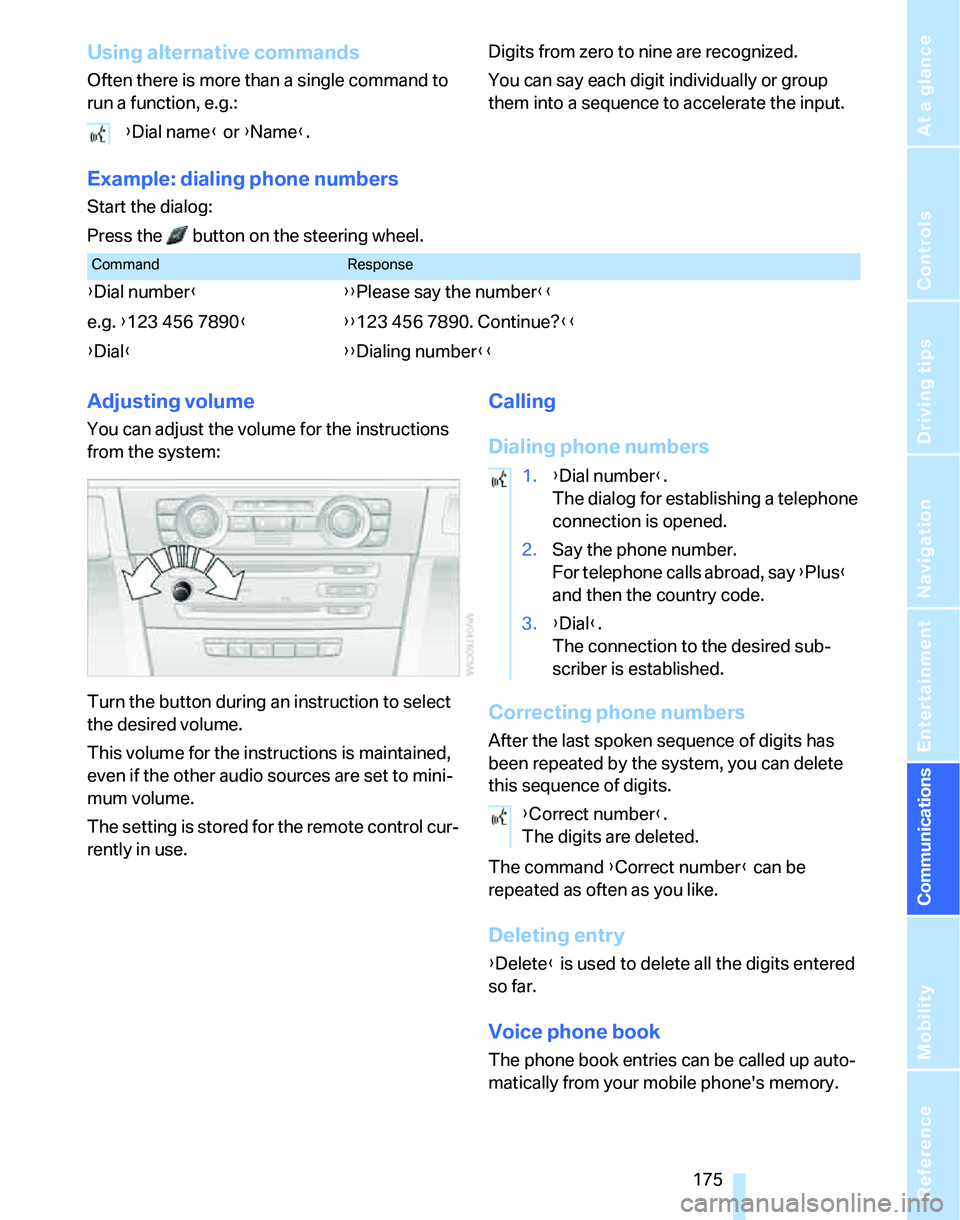
Adjusting volume
You can adjust the volume for the instructions
from the system:
Turn the button during an instruction to select
the desired volume.
This volume for the instructions is maintained,
even if the other audio sources are set to mini-
mum volume.
The setting is stored for the remote control cur-
rently in use.
Calling
Dialing phone numbers
Correcting phone numbers
After the last spoken sequence of digits has
been repeated by the system, you can delete
this sequence of digits.
The command {Correct number} can be
repeated as often as you like.
Deleting entry
{Delete} is used to delete all the digits entered
so far.
Voice phone book
The phone book entries can be called up auto-
matically from your mobile phone's memory. {Dial name} or {Name}.
CommandResponse
{Dial number}{{Please say the number}}
e.g. {123 456 7890}{{123 456 7890. Continue?}}
{Dial}{{Dialing number}}
1.{Dial number}.
The dialog for establishing a telephone
connection is opened.
2.Say the phone number.
For telephone calls abroad, say {Plus}
and then the country code.
3.{Dial}.
The connection to the desired sub-
scriber is established.
{Correct number}.
The digits are deleted.
Page 180 of 246
TeleService, BMW Assist
178
TeleService , BMW Assist
TeleService
TeleService supports you when communicat-
ing with a BMW Center. The built-in car phone
can be used to transmit data on the service sta-
tus of your vehicle or legally mandated inspec-
tions directly to your BMW Center. This is the
s ame data that is als o stored for CBS Condition
Based Service in the remote control. Your BMW
Center can then contact you, and you can make
an appointment that suits you while you are still
on the road. Your advantage here is that your
BMW Center can prepare in advance for the
required maintenance work. The TeleService
functions are country-specific: depending on
the country in which you are driving, data on
your vehicle's service status or legally man-
dated inspections are transmitted to your BMW
Center either automatically before a service due
date or when you place a call to the BMW Cen-
ter. Your BMW Center will be glad to provide
more detailed information.
BMW Assist
BMW Assist provides you with other services in
addition to TeleService. For example, the posi-
tion data of your vehicle can be transferred to
the BMW Assist response center if an emer-
gency call
* has been initiated.
Many functions of BMW Assist depend on the
individually agreed contract. Data transmission,
e.g. of the CBS Condition Based Service, differs
from country to country.
A subscriber contract for BMW Assist must be
signed and enabling must be completed before
you can use BMW Assist.
If your subscription contract with BMW Assist
expires, the car phone can be deactivated by a
BMW Center without having to schedule an
appointment at a workshop. Once the car
phone has been deactivated, emergency calls
are not possible. The car phone can be reacti-vated by a BMW Center after signing a new
contract.
You can also utilize BMW Assist services via the
Internet. The range of services offered is
expanded continually.
Requirements
You can use TeleService or BMW Assist when
the following requirements are met:
>The installed car phone is logged on to a
mobile telephone network. This network
must be capable of transmitting the ser-
vices.
>To transmit position data, the vehicle must
be able to determine the current position.
This can be displayed on the Control Dis-
play.
>A GPS signal must be available in order for
TeleService or BMW Assist to be enabled
and updated.
>For BMW Assist: you must have applied for
BMW Assist at your BMW Center or BMW
customer service.
Enabling TeleService or BMW Assist
For you to be able to use the services of
TeleService or BMW Assist, these must be
enabled.
Requirements
>Make sure that the vehicle can determine its
current location. Reception is best when
you have an unobstructed view to the sky.
>Leave radio readiness switched on while
connecting to the system.
Enabling
iDrive concept, refer to page16.
**
Page 189 of 246
Mobility
187Reference
At a glance
Controls
Driving tips
Communications
Navigation
Entertainment
Required fuel
Premium Unleaded Gasoline
The minimum octane rating is 91.
If you use gasoline with this minimum octane
rating, the engine may produce knocking
sounds when starting at high outside tempera-
tures. This has no affect on the engine life.
Minimum octane rating corresponds to the Anti
Knock Index AKI and is determined according
to the so-called (R+M)/2 method.
Do not fill the tank with leaded fuel, as this
would cause permanent damage to the
catalytic converter.<
Use high-quality brands
Field experience has indicated significant dif-
ferences in fuel quality: volatility, composition,
additives, etc., among gasolines offered for sale
in the United States and Canada. Fuels contain-
ing up to and including 10 % ethanol or other
oxygenates with up to 2.8 % oxygen by weight,
that is, 15 % MTBE or 3 % methanol plus an
equivalent amount of co-solvent, will not void
the applicable warranties with respect to
defects in materials or workmanship.
The use of poor-quality fuels may result in
drivability, starting and stalling problems
especially under certain environmental condi-
tions such as high ambient temperature and
high altitude.
Should you encounter drivability problems
which you suspect could be related to the fuel
you are using, we recommend that you respond
by switching to a recognized high-quality
brand.
Failure to comply with these recommendations
may also result in unscheduled maintenance.<