2006 BMW 330CI IDRIVE COUPE key
[x] Cancel search: keyPage 106 of 239
Practical interior accessories
104
Roller sun blind*
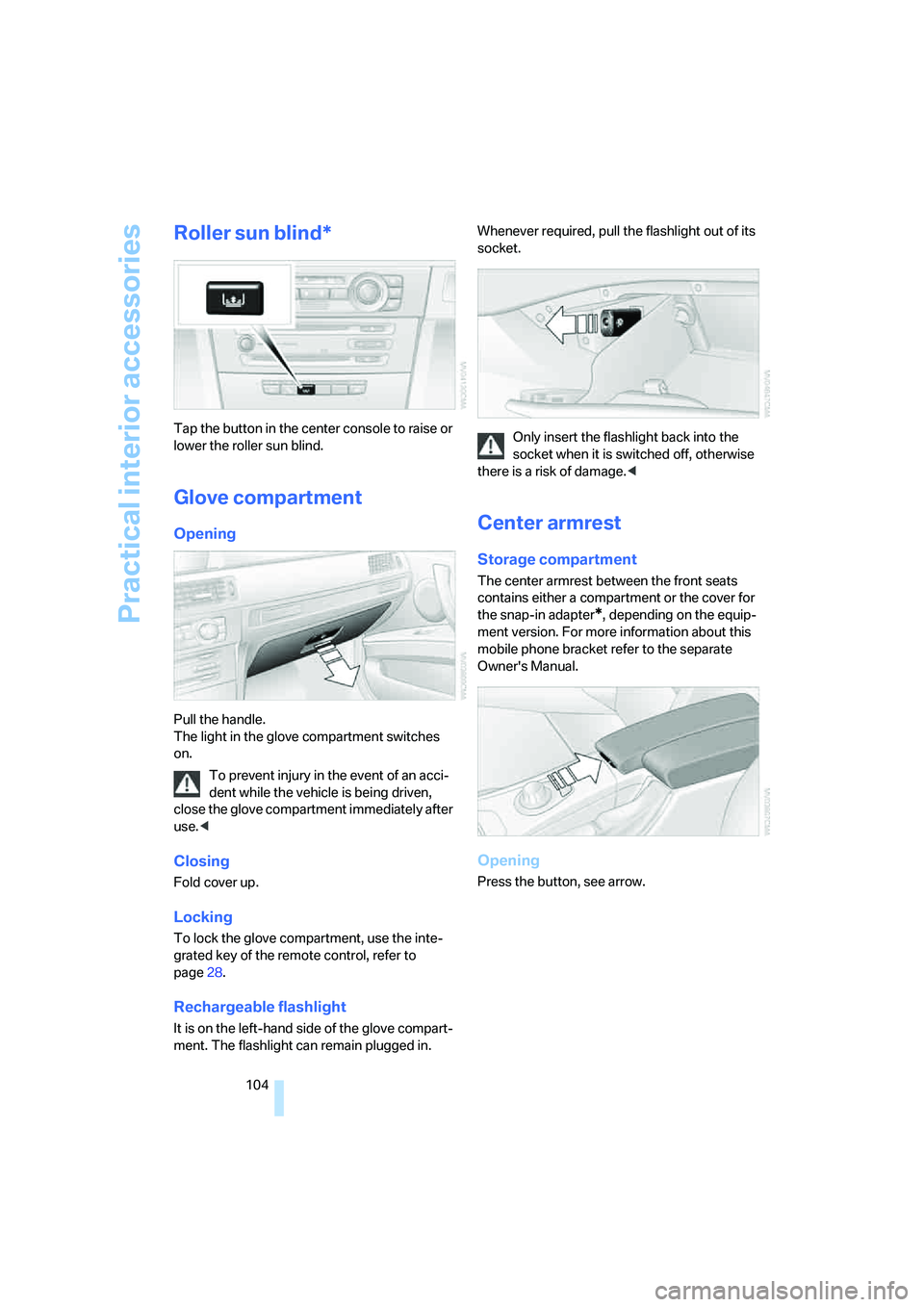
Tap the button in the center console to raise or
lower the roller sun blind.
Glove compartment
Opening
Pull the handle.
The light in the glove compartment switches
on.
To prevent injury in the event of an acci-
dent while the vehicle is being driven,
close the glove compartment immediately after
use.<
Closing
Fold cover up.
Locking
To lock the glove compartment, use the inte-
grated key of the remote control, refer to
page28.
Rechargeable flashlight
It is on the left-hand side of the glove compart-
ment. The flashlight can remain plugged in. Whenever required, pull the flashlight out of its
socket.
Only insert the flashlight back into the
socket when it is switched off, otherwise
there is a risk of damage.<
Center armrest
Storage compartment
The center armrest between the front seats
contains either a compartment or the cover for
the snap-in adapter
*, depending on the equip-
ment version. For more information about this
mobile phone bracket refer to the separate
Owner's Manual.
Opening
Press the button, see arrow.
ba8_E9293_US.book Seite 104 Freitag, 5. Mai 2006 1:02 13
Page 164 of 239
Telephoning
162
Telephoning
The concept
Your BMW is equipped with a full mobile phone
preparation package. After pairing a suitable
mobile phone with the vehicle once, you can
operate the mobile phone via iDrive, the buttons
on the steering wheel or via voice commands.
Once a mobile phone has been paired with your
vehicle, it is automatically recognized as soon
as it is inside the vehicle while the engine is run-
ning or the ignition is switched on. You can
store the pairing data for up to four mobile
phones simultaneously. If several mobile
phones are detected at the same time, the
mobile phone last paired can be operated via
the vehicle.
Using the telephone inside
the vehicle
Using the snap-in adapter*
The so-called snap-in adapter, a holder for
mobile phones, allows you to charge the mobile
phone's battery and connect the mobile phone
to your vehicle's outside antenna. This ensures
better network reception and consistent repro-
duction quality. Please contact your
BMW center to find out for which mobile
phones there are snap-in adapters available.
BMW discourages the use of mobile
phones or other mobile communications
devices inside the vehicle without a direct con-
nection to an outside antenna. Otherwise, inter-
ference between vehicle electronics systems
and the mobile communications device cannot
be ruled out. In addition, there is no assurance
that the radiation which results from transmis-
sion will be dissipated from the vehicle inte-
rior.<
Avoid operating a mobile phone recognized by
the vehicle via the mobile phone's keypad, oth-
erwise malfunctions may result.
For your safety
A car phone makes life more convenient in
many ways, and can even save lives in an emer-
gency. While you should consult your mobile
phone's separate Owner's Manual for a detailed
description of safety precautions and informa-
tion, we request that you direct your particular
attention to the following:
Only make entries when the traffic situa-
tion allows you to do so. Do not hold the
mobile phone in your hand while you are driving;
use the hands-free system instead. If you do
not observe this precaution, your being dis-
tracted can endanger vehicle occupants and
other road users.<
Suitable mobile phones
Please ask your BMW center which mobile
phones with Bluetooth interface are supported
by the mobile phone preparation package and/
or which mobile phones are compatible with the
snap-in adapter. By virtue of their particular
software versions, these mobile phones sup-
port the functions described in this Owner's
Manual. Malfunctions may occur with other
mobile phones.
Care instructions
You can find what you need to know about car-
ing for your mobile phone in the separate Caring
for your vehicle brochure and in the mobile
phone Owner's Manual.
Operating options
You can operate the mobile phone* using:
>The steering wheel, refer to page10
>iDrive, refer to page166
>Voice commands, refer to page171
*
ba8_E9293_US.book Seite 162 Freitag, 5. Mai 2006 1:02 13
Page 165 of 239

163
Entertainment
Reference
At a glance
Controls
Driving tips Communications
Navigation
Mobility
Making calls with the car phone*:
BMW Assist calls
You can use the car phone via the hands-free
system for BMW Assist calls.
When the status information "BMW Assist" or
"BMW Service" is displayed in "Communica-
tion", only BMW Assist calls are possible.
It may not be possible to establish a telephone
connection using the mobile phone while a con-
nection is being established to BMW Assist or
while a call to BMW Assist is already in
progress. If this happens, you must unpair the
mobile phone and the vehicle if you wish to
place a call with the mobile phone.
Start-up
Pairing the mobile phone with the
vehicle
The following prerequisites must be met:
>The mobile phone is ready to operate
>The Bluetooth link in the vehicle, refer to
page165, and in the mobile phone are acti-
vated
>Depending on the mobile phone, some
default settings may be necessary for the
mobile phone: e.g. via the menu item Blue-
tooth switched on or the menu item Con-
nection without confirmation.
>For pairing purposes, define any number as
the Bluetooth passkey, e.g. 1. This Blue-
tooth passkey is no longer required after
pairing has been successful.
>The ignition is switched on.
Pair the mobile phone with the vehicle
only when the car is stationary, to avoid
endangering the car's occupants and other
road users by being distracted.<
Switch on ignition
1.Insert remote control all the way into the
ignition lock.
2.Switch on ignition without operating the
brake or clutch or pressing the start/stop
button.
Preparation via iDrive
iDrive, operating principle refer to page16.
3.Press the button to call up the start
menu.
4.Call up the menu by pressing the control-
ler.
5.Select "Communication settings" and
press the controller.
6.Select "Bluetooth" and press the controller.
7.Select "Phone" and press the controller.
ba8_E9293_US.book Seite 163 Freitag, 5. Mai 2006 1:02 13
Page 166 of 239

Telephoning
164
Preparation via the mobile phone
8.Further steps must be carried out with the
mobile phone and vary depending on the
model. Please refer to your mobile phone's
operating instructions, e.g. under the topics
of Searching for a Bluetooth device, Con-
necting or Pairing.
Pairing
Depending on your mobile phone, you will see
messages, first in the mobile phone's display or
on the Control Display, requesting you to enter
the same Bluetooth passkey previously deter-
mined by you.
Message on the Control Display if the Bluetooth
passkey can be entered via iDrive:
9.Select "Add device" and press the control-
ler.
10.Enter the Bluetooth passkey.
Depending on the mobile phone, you will
have approx. 30 seconds to enter your
Bluetooth passkey on the mobile phone
and the Control Display.
11.Select "Confirm passkey" and press the
controller.12.Wait several seconds until the list of paired
mobile phones is displayed on the Control
Display and "Phone" is selected.
To interrupt the mobile phone's pairing with the
vehicle:
Select "Refuse connection" and press the con-
troller.
The next time you use the mobile phone inside
the vehicle, it will be recognized within no more
than two minutes as long as the engine is run-
ning or the ignition is switched on.
As soon as a mobile phone is detected by the
vehicle, the phone book entries stored on the
SIM card or on your mobile phone are transmit-
ted to the vehicle. Refer also your mobile
phone's operating instructions, if necessary.
This data transfer depends on your mobile
phone and can take several minutes; please
refer to your mobile phone's operating instruc-
tions, if necessary.
Up to four mobile phones can be paired, one
after the other. If a fifth mobile phone is paired,
the pairing data for the last mobile phone on the
list is deleted, refer also to the information
below.
List of paired mobile phones
All mobile phones with pairing data stored by
the vehicle can be displayed. If several mobile
phones are detected by the vehicle at the same
time, the mobile phone at the top of the list can
be operated via the vehicle.
You can change the order of the mobile phones
on the list. As long as a mobile phone from this
list is selected, you cannot operate the mobile
phones via the vehicle.
iDrive, for operating principle refer to page16.
1.Press the
button to call up the start
menu.
2.Call up the menu by pressing the control-
ler.
3.Select "Communication settings" and
press the controller.
4.Select "Bluetooth" and press the controller.
5.Select "Phone" and press the controller.
ba8_E9293_US.book Seite 164 Freitag, 5. Mai 2006 1:02 13
Page 169 of 239
167
Entertainment
Reference
At a glance
Controls
Driving tips Communications
Navigation
Mobility
ber has been transmitted, the name of the entry
is displayed.
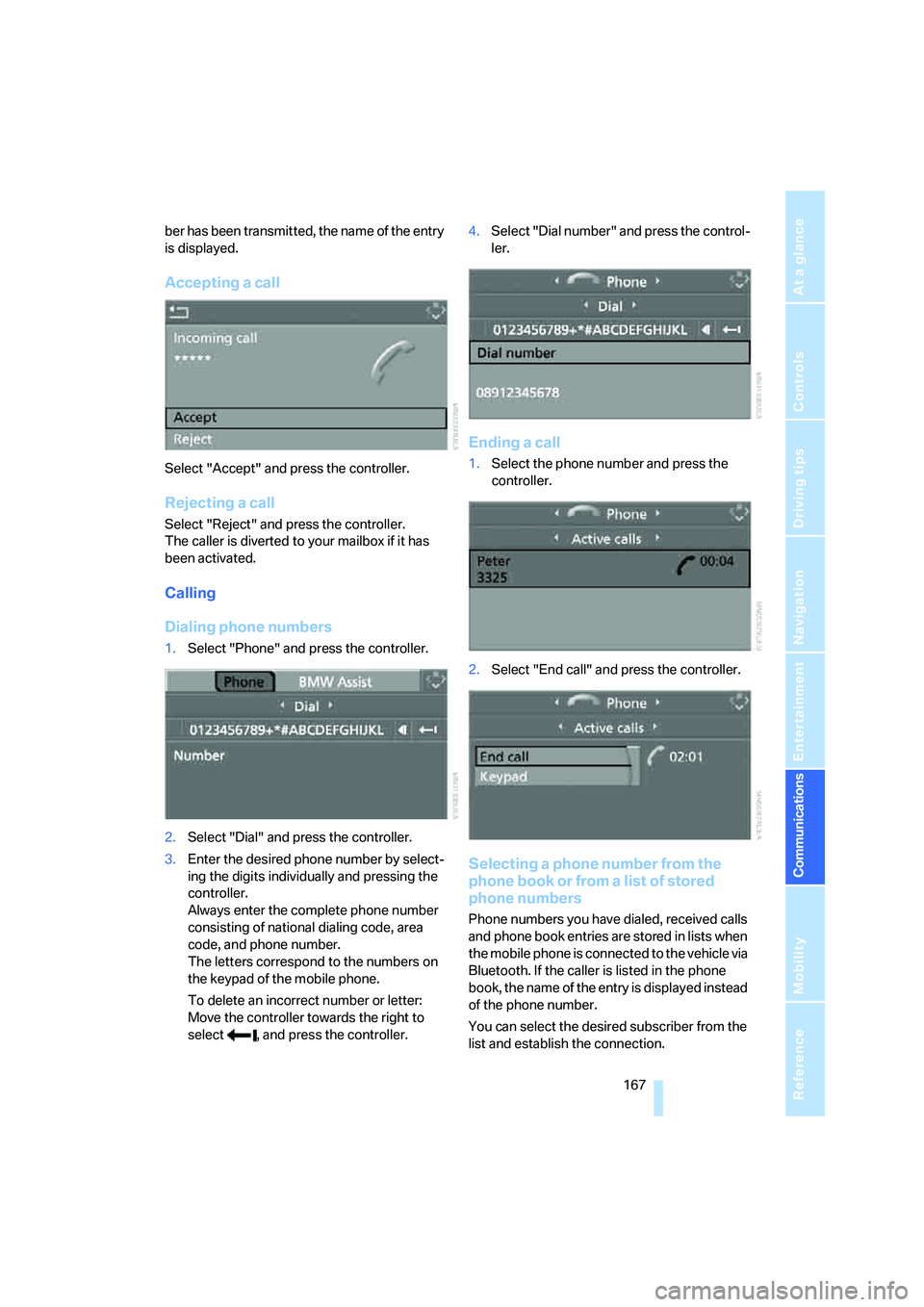
Accepting a call
Select "Accept" and press the controller.
Rejecting a call
Select "Reject" and press the controller.
The caller is diverted to your mailbox if it has
been activated.
Calling
Dialing phone numbers
1.Select "Phone" and press the controller.
2.Select "Dial" and press the controller.
3.Enter the desired phone number by select-
ing the digits individually and pressing the
controller.
Always enter the complete phone number
consisting of national dialing code, area
code, and phone number.
The letters correspond to the numbers on
the keypad of the mobile phone.
To delete an incorrect number or letter:
Move the controller towards the right to
select , and press the controller.4.Select "Dial number" and press the control-
ler.
Ending a call
1.Select the phone number and press the
controller.
2.Select "End call" and press the controller.
Selecting a phone number from the
phone book or from a list of stored
phone numbers
Phone numbers you have dialed, received calls
and phone book entries are stored in lists when
the mobile phone is connected to the vehicle via
Bluetooth. If the caller is listed in the phone
book, the name of the entry is displayed instead
of the phone number.
You can select the desired subscriber from the
list and establish the connection.
ba8_E9293_US.book Seite 167 Freitag, 5. Mai 2006 1:02 13
Page 172 of 239
Telephoning
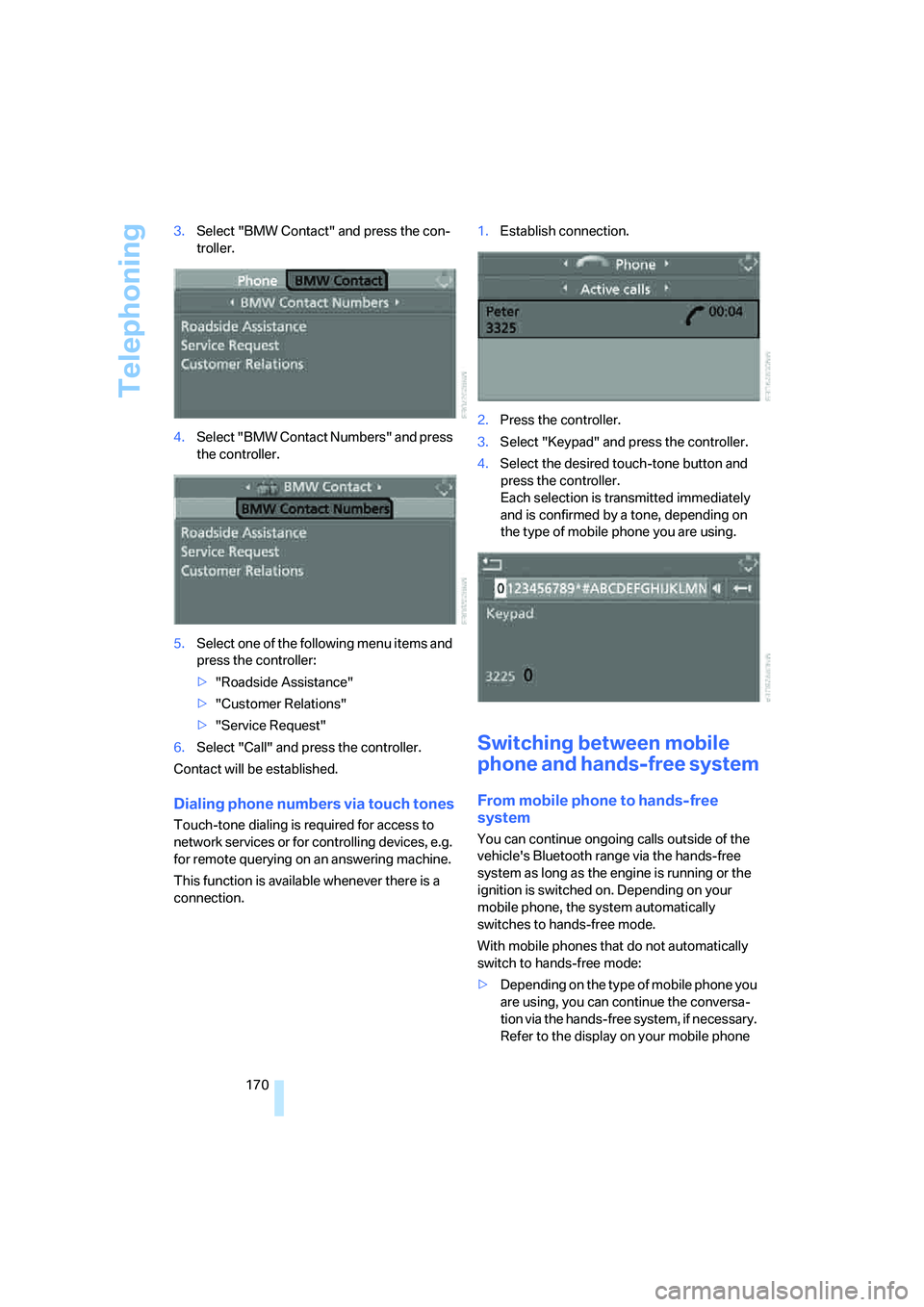
170 3.Select "BMW Contact" and press the con-
troller.
4.Select "BMW Contact Numbers" and press
the controller.
5.Select one of the following menu items and
press the controller:
>"Roadside Assistance"
>"Customer Relations"
>"Service Request"
6.Select "Call" and press the controller.
Contact will be established.
Dialing phone numbers via touch tones
Touch-tone dialing is required for access to
network services or for controlling devices, e.g.
for remote querying on an answering machine.
This function is available whenever there is a
connection.1.Establish connection.
2.Press the controller.
3.Select "Keypad" and press the controller.
4.Select the desired touch-tone button
and
press the controller.
Each selection is transmitted immediately
and is confirmed by a tone, depending on
the type of mobile phone you are using.
Switching between mobile
phone and hands-free system
From mobile phone to hands-free
system
You can continue ongoing calls outside of the
vehicle's Bluetooth range via the hands-free
system as long as the engine is running or the
ignition is switched on. Depending on your
mobile phone, the system automatically
switches to hands-free mode.
With mobile phones that do not automatically
switch to hands-free mode:
>Depending on the type of mobile phone you
are using, you can continue the conversa-
tion via the hands-free system, if necessary.
Refer to the display on your mobile phone
ba8_E9293_US.book Seite 170 Freitag, 5. Mai 2006 1:02 13
Page 222 of 239

Everything from A - Z
220 Brake system112
– BMW Maintenance
System196
– breaking in112
– disc brakes114
Breakdown services, refer to
Roadside Assistance203
Breaking in the clutch112
Breaking in the differential,
refer to Engine and
differential112
Break-in period112
Brightness of the Control
Display79
"Brightness"on the control
display79
Bulb changing, refer to Lamps
and bulbs198
Burned fuel
– refer to Average
consumption68
Button for starting the engine,
refer to Start/stop button52
Buttons on the steering
wheel11
Button to start engine52
C
California Proposition 65
warning6
"Call"168
Call
– accepting166
– displaying accepted168
– ending167
– in absence168
– starting167
Calling
– from phone book167
– from Top 8 list168
– redialing168
Can holders, refer to Cup
holders105
Capacities213
Capacity of the cargo bay212
Car battery, refer to Vehicle
battery201Car care, refer to Caring for
your vehicle brochure
Car-care products, refer to
Caring for your vehicle
brochure
"Car Data"68
Care, refer to Caring for your
vehicle brochure
Cargo, securing115
Cargo bay
– capacity212
– convenient access36
– folding up the floor
panel108
– lamp, refer to Interior
lamps93
– opening from inside33
– opening from outside33
Cargo loading
– securing cargo115
– stowing cargo115
– vehicle114
Caring for artificial leather,
refer to Caring for your
vehicle brochure
Caring for leather, refer to
Caring for your vehicle
brochure
Caring for plastic, refer to
Caring for your vehicle
brochure
Caring for the carpet, refer to
Caring for your vehicle
brochure
Caring for the vehicle finish,
refer to Caring for your
vehicle brochure
Car jack
– jacking points201
Car key, refer to Integrated
key/remote control28
Car phone162
– installation location, refer to
Center armrest104
– refer to Mobile phone162
– refer to separate Owner's
Manual
Car radio, refer to Radio144Car wash114
– also refer to Caring for your
vehicle brochure
– with convenient access36
Catalytic converter, refer to
Hot exhaust system112
"Categories" for satellite
radio150
CBS Condition Based
Service196
"CD"140,152
CD changer152
– compressed audio files152
– controls140
– fast forward/reverse156
– installation location156
– playing a track154
– random order155
– repeating a track155
– selecting a CD152
– selecting a track153
– switching on/off140
– tone control141
– volume141
CD player152
– compressed audio files152
– controls140
– fast forward/reverse156
– playing a track154
– random order155
– repeating a track155
– selecting a track153
– switching on/off140
– tone control141
– volume141
Center armrest104
Center brake lamp
– replacing bulbs200
Center console, refer to
Around the center
console14
"Central locking"30
Central locking
– from inside32
– from outside29
Central locking system29
– convenient access35
– hotel function33
ba8_E9293_US.book Seite 220 Freitag, 5. Mai 2006 1:02 13
Page 224 of 239

Everything from A - Z
222 Data, technical210
– dimensions211
– engine210
– weights212
"Date"75
Date
– setting74
– setting format75
"Date format"75
"Daytime running light"92
Daytime running light91
DBC Dynamic Brake
Control81
DCC, refer to Cruise
control58
"Deactivated"45
Deactivating front passenger
airbags88
Deadlocking, refer to
Locking30
Decommissioning the vehicle
– refer to Caring for your
vehicle brochure
Defect
– door lock31
– fuel filler door182
– glass sunroof38
Defogging windows98
Defrost, windows98
Defrosting windows98
Defrosting windows and
removing condensation
– automatic climate control98
Defrosting windshield, refer to
Defrosting windows98
Defrost position, refer to
Defrosting windows98
"Delete address book" in
navigation130
"Delete all numbers" on the
mobile phone169
"Delete data" in
navigation130
"Delete" for mobile
phone169
Destination address
– deleting129
– entering121,124Destination for navigation
– entry121
– navigation list127
– selecting from address
book129
– selecting using
information126
– storing128
Destination guidance132
– canceling voice
instructions49
– changing specified
route
130
– displaying route133
– distance and arrival132
– starting132
– terminating/continuing132
– voice instructions135
– volume of voice
instructions135
Destination list for navigation
system127
Destinations recently driven
to127
"Dial" for mobile phone167
"Dial number"167
Digital clock66
Digital compass102
Digital radio147
– displaying additional
information148
– switching on/off147
– updating stations148
Dimensions211
Directional indicators, refer to
Turn signals56
Direction instructions, refer to
Voice instructions135
Directory for navigation, refer
to Address book128
Displacement, refer to Engine
data210
Display, refer to iDrive
controls16
Display lighting, refer to
Instrument lighting93
"Display off"21
Displays
– on the Control Display16Displays, refer to Instrument
cluster12
Displays and controls10
"Display settings"74
Disposal
– coolant194
– remote control battery37
– vehicle battery201
Distance control, refer to
Active cruise control60
Distance remaining to service,
refer to Service
requirements71
"Distance to dest."69
Distance warning, refer to
PDC Park Distance
Control80
Door key, refer to Remote
control with integrated
key28
Door lock31
"Door locks"30
Doors, emergency
operation31
DOT Quality Grades187
Draft-free ventilation98
Drinks holders, refer to Cup
holders105
Drive-off assistance, refer to
Dynamic Stability Control
DSC81
Drive-off assistant82
Driving lamps, refer to Parking
lamps/low beams90
Driving notes112
Driving off on hills, refer to
Drive-off assistant82
Driving route, refer to
Displaying route133
Driving stability control
systems81
Driving through water113
Driving tips, refer to Driving
notes112
Dry air, refer to Cooling
function98
DSC Dynamic Stability
Control81
ba8_E9293_US.book Seite 222 Freitag, 5. Mai 2006 1:02 13