2005 VOLVO S40 CD changer
[x] Cancel search: CD changerPage 98 of 127

2 0 0 5
VOLVO S40
Chapter 11 - Audio
pg. 167 Audio
Audio system - introduction168
Audio system overview169
Audio functions171
Radio functions174
CD player177
CD changer (certain audio systems only)179
Audio menu settings and selections181
pg. 168 Audio system - introduction
The audio system in your car is operated with the buttons and keys in the front, center control panel. Certain functions,
such as adjusting the volume, changing radio stations or tracks on a CD, etc, can also be controlled with the optional
steering wheel-mounted keypad.
The audio system is available in three
1 versions:
Performance
Features: AM/FM radio, single-disc CD player, 4x25W output, 4 full-range speakers and two treble speakers.
High-performance
Features: AM/FM radio, CD player, 4x40W output, eight speakers (bass and treble speakers in each door).
Premium sound
Features: AM/FM radio, integrated CD changer (6 discs), 4x70W output plus 25W Dolby Pro Logic II, twelve
speakers (bass, mid-range and treble speakers in the front doors, bass and treble speakers in the rear doors, and bass
and treble in the dashboard's center speaker).
A subwoofer mounted under the floor in the trunk is available as an accessory. Consult your Volvo retailer.
1. All three audio systems may not be available in all markets.
pg. 169 Audio system overview
ProCarManuals.com
Page 99 of 127
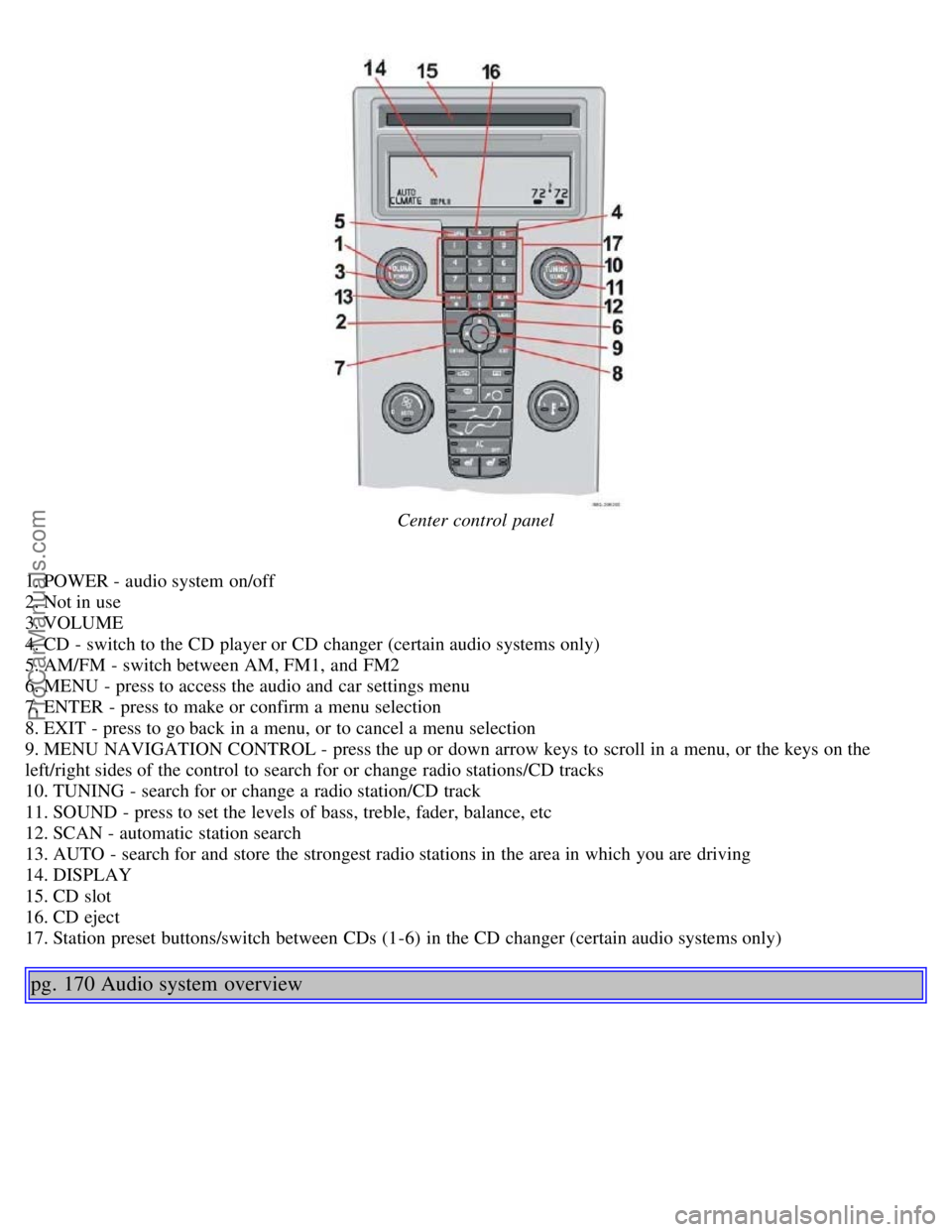
Center control panel
1. POWER - audio system on/off
2. Not in use
3. VOLUME
4. CD - switch to the CD player or CD changer (certain audio systems only)
5. AM/FM - switch between AM, FM1, and FM2
6. MENU - press to access the audio and car settings menu
7. ENTER - press to make or confirm a menu selection
8. EXIT - press to go back in a menu, or to cancel a menu selection
9. MENU NAVIGATION CONTROL - press the up or down arrow keys to scroll in a menu, or the keys on the
left/right sides of the control to search for or change radio stations/CD tracks
10. TUNING - search for or change a radio station/CD track
11. SOUND - press to set the levels of bass, treble, fader, balance, etc
12. SCAN - automatic station search
13. AUTO - search for and store the strongest radio stations in the area in which you are driving
14. DISPLAY
15. CD slot
16. CD eject
17. Station preset buttons/switch between CDs (1-6) in the CD changer (certain audio systems only)
pg. 170 Audio system overview
ProCarManuals.com
Page 107 of 127
Press the button (no. 16 in the illustration on page 169) to eject the disc.
NOTE: For reasons of traffic safety, the ejected CD must be removed within 12 seconds or it will be automatically
drawn back into the slot and the CD player will enter pause mode. Press the CD button to restart the disc.
Compact disc care
Before using a new CD for the first time, remove any burrs in the center/outer edge by running the stem of a pen or
similar object around the hole/edge of the disc.
Use CD standard EN 60908 discs only. Discs not meeting this standard may cause problems with system (poor
sound). CDR discs can cause listening problems due to the quality of the disc or recording equipment used.
Keep the discs clean. Wipe them with a soft, clean, lint-free cloth, working from the center outward. If necessary,
dampen the cloth with a neutral soap solution. Dry thoroughly before using.
Never use cleaning spray or antistatic liquid. Use only cleaners specifically made for CDs.
Use discs of the correct size only (3.5" discs should never be used).
pg. 178 CD player
Do not put tape or labels on the disc itself. They could become stuck in the player.
Volvo does not recommend the use of plastic outer rings on the disc.
Condensation may occur on discs/optical components of the changer in cold winter weather. The disc can be dried
with a clean, lint-free cloth. Optical components in the CD changer may, however, take up to one hour to dry off.
Never attempt to play a disc which is damaged in any way.
When not in use, the discs should be stored in their covers. Avoid storing discs in excessive heat, direct sunlight or
dusty locations.
pg. 179 CD changer (certain audio systems only)
Starting the CD changer
The CD changer can hold up to six discs.
To use the CD changer:
1. Press the CD button.
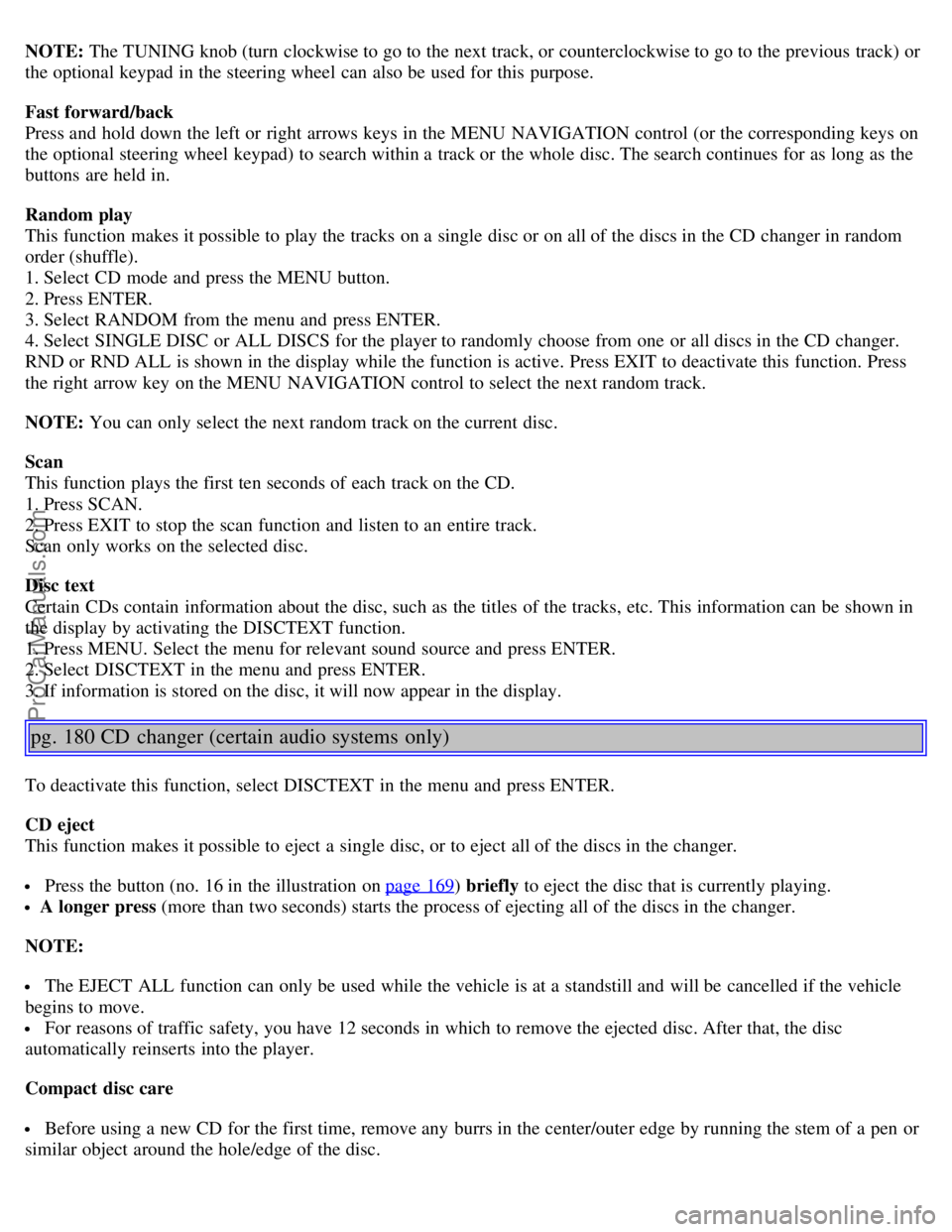
2. Select an empty position using the 1-6 buttons or the up/down keys on the MENU NAVIGATION control. The
display shows which positions are empty.
3. Insert a disc into the changer.
Ensure that INSERT DISC is displayed before inserting a new disc.
Selecting a disc position (number)
Use the station setting buttons 1-6 to select the disc to be played, or use the up/down arrow keys on the MENU
NAVIGATION control. The number of the disc and the track being played are shown in the display.
Changing tracks
Press the right/left arrow keys on the MENU NAVIGATION control to skip to the next or previous track.
ProCarManuals.com
Page 108 of 127
NOTE: The TUNING knob (turn clockwise to go to the next track, or counterclockwise to go to the previous track) or
the optional keypad in the steering wheel can also be used for this purpose.
Fast forward/back
Press and hold down the left or right arrows keys in the MENU NAVIGATION control (or the corresponding keys on
the optional steering wheel keypad) to search within a track or the whole disc. The search continues for as long as the
buttons are held in.
Random play
This function makes it possible to play the tracks on a single disc or on all of the discs in the CD changer in random
order (shuffle).
1. Select CD mode and press the MENU button.
2. Press ENTER.
3. Select RANDOM from the menu and press ENTER.
4. Select SINGLE DISC or ALL DISCS for the player to randomly choose from one or all discs in the CD changer.
RND or RND ALL is shown in the display while the function is active. Press EXIT to deactivate this function. Press
the right arrow key on the MENU NAVIGATION control to select the next random track.
NOTE: You can only select the next random track on the current disc.
Scan
This function plays the first ten seconds of each track on the CD.
1. Press SCAN.
2. Press EXIT to stop the scan function and listen to an entire track.
Scan only works on the selected disc.
Disc text
Certain CDs contain information about the disc, such as the titles of the tracks, etc. This information can be shown in
the display by activating the DISCTEXT function.
1. Press MENU. Select the menu for relevant sound source and press ENTER.
2. Select DISCTEXT in the menu and press ENTER.
3. If information is stored on the disc, it will now appear in the display.
pg. 180 CD changer (certain audio systems only)
To deactivate this function, select DISCTEXT in the menu and press ENTER.
CD eject
This function makes it possible to eject a single disc, or to eject all of the discs in the changer.
Press the button (no. 16 in the illustration on page 169) briefly to eject the disc that is currently playing.
A longer press (more than two seconds) starts the process of ejecting all of the discs in the changer.
NOTE:
The EJECT ALL function can only be used while the vehicle is at a standstill and will be cancelled if the vehicle
begins to move.
For reasons of traffic safety, you have 12 seconds in which to remove the ejected disc. After that, the disc
automatically reinserts into the player.
Compact disc care
Before using a new CD for the first time, remove any burrs in the center/outer edge by running the stem of a pen or
similar object around the hole/edge of the disc.
ProCarManuals.com
Page 109 of 127
Use CD standard EN 60908 discs only. Discs not meeting this standard may cause problems with system (poor
sound). CDR discs can cause listening problems due to the quality of the disc or recording equipment used.
Keep the discs clean. Wipe them with a soft, clean, lint-free cloth, working from the center outward. If necessary,
dampen the cloth with a neutral soap solution. Dry thoroughly before using.
Never use cleaning spray or antistatic liquid. Use only cleaners specifically made for CDs.
Use discs of the correct size only (3.5" discs should never be used).
Do not put tape or labels on the disc itself. They could become stuck in the player.
Volvo does not recommend the use of plastic outer rings on the disc.
Condensation may occur on discs/optical components of the changer in cold winter weather. The disc can be dried
with a clean, lint-free cloth. Optical components in the CD changer may, however, take up to one hour to dry off.
Never attempt to play a disc which is damaged in any way.
When not in use, the discs should be stored in their covers. Avoid storing discs in excessive heat, direct sunlight or
dusty locations.
pg. 181 Audio menu settings and selections
Audio menu settings and selections
NOTE:
All alternatives marked * can be selected or set to On or Off by navigating to the alternative in the menu and pressing
Enter.
FM1/FM2 menu
1. PTY
1.1. SELECT PTY
1.1.1. CLEAR ALL PTY
1.1.2. The available program types are listed here
1.2. SEARCH PTY
1.3. SHOW PTY ON/OFF (default)*
2. RADIOTEXT ON/OFF (default)*
3. ADVANCED RADIO SETTINGS
3.1. AF ON/OFF (default)*
3.2. RESET All
4. AUDIO SETTINGS
4.1. SURROUND AM/FM (Premium sound system only)
4.1.1. Dolby Pro Logic II*
4.1.2.3 Channel*
4.1.3. OFF (default)*
4.2. SURROUND CD
4.2.1. Dolby Pro Logic II (default)*
4.2.2.3 Channel*
4.2.3. OFF*
4.3. SUBWOOFER ON (default)/OFF* (accessory)
4.4. EQUALIZER FRONT (certain audio systems)
4.5. EQUALIZER REAR (certain audio systems)
4.6. Auto. volume control (speed compensated volume)
4.6.1. Low*
4.6.2. Medium (default)*
4.6.3. High*
4.7. RESET ALL
AM menu
1. 1. AUDIO SETTINGS
ProCarManuals.com
Page 110 of 127
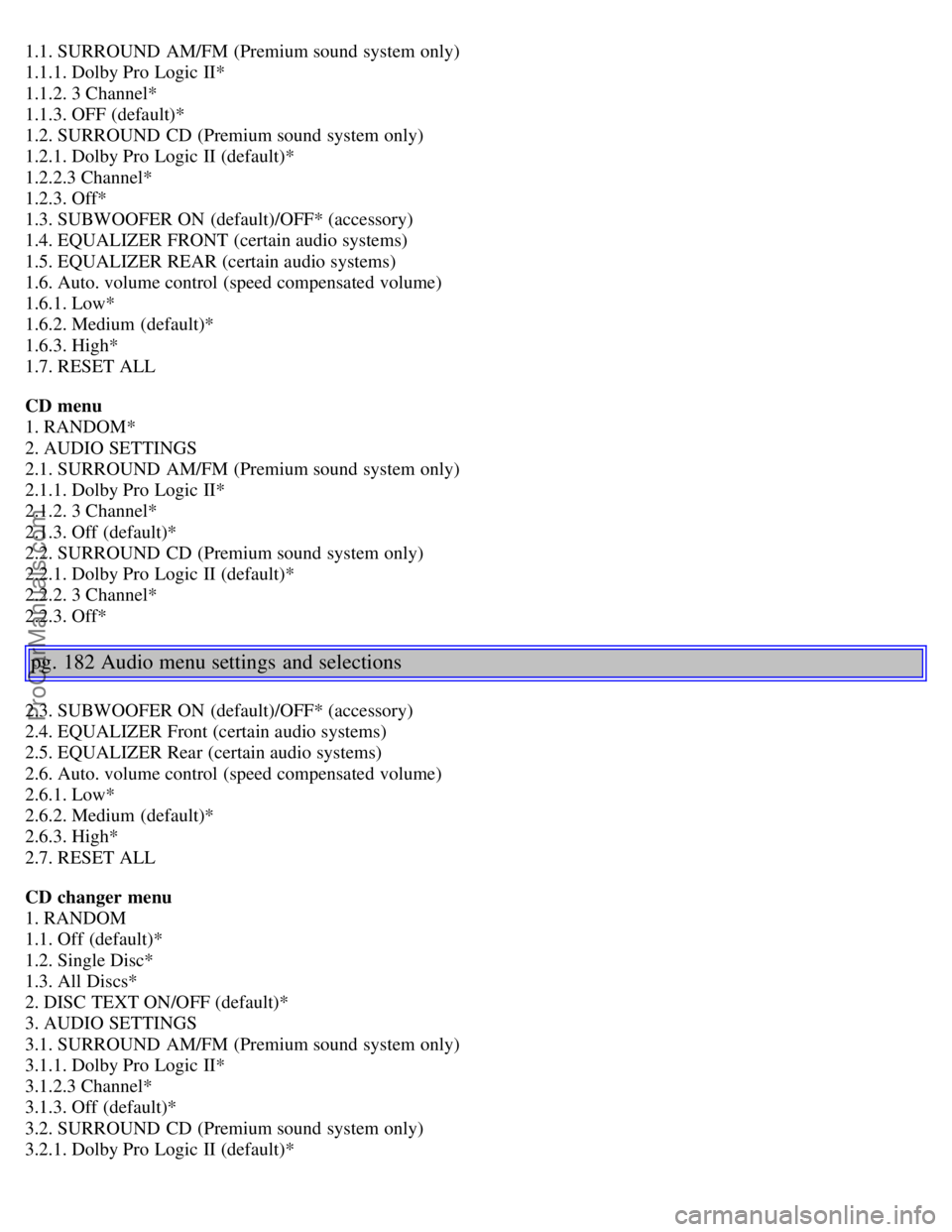
1.1. SURROUND AM/FM (Premium sound system only)
1.1.1. Dolby Pro Logic II*
1.1.2. 3 Channel*
1.1.3. OFF (default)*
1.2. SURROUND CD (Premium sound system only)
1.2.1. Dolby Pro Logic II (default)*
1.2.2.3 Channel*
1.2.3. Off*
1.3. SUBWOOFER ON (default)/OFF* (accessory)
1.4. EQUALIZER FRONT (certain audio systems)
1.5. EQUALIZER REAR (certain audio systems)
1.6. Auto. volume control (speed compensated volume)
1.6.1. Low*
1.6.2. Medium (default)*
1.6.3. High*
1.7. RESET ALL
CD menu
1. RANDOM*
2. AUDIO SETTINGS
2.1. SURROUND AM/FM (Premium sound system only)
2.1.1. Dolby Pro Logic II*
2.1.2. 3 Channel*
2.1.3. Off (default)*
2.2. SURROUND CD (Premium sound system only)
2.2.1. Dolby Pro Logic II (default)*
2.2.2. 3 Channel*
2.2.3. Off*
pg. 182 Audio menu settings and selections
2.3. SUBWOOFER ON (default)/OFF* (accessory)
2.4. EQUALIZER Front (certain audio systems)
2.5. EQUALIZER Rear (certain audio systems)
2.6. Auto. volume control (speed compensated volume)
2.6.1. Low*
2.6.2. Medium (default)*
2.6.3. High*
2.7. RESET ALL
CD changer menu
1. RANDOM
1.1. Off (default)*
1.2. Single Disc*
1.3. All Discs*
2. DISC TEXT ON/OFF (default)*
3. AUDIO SETTINGS
3.1. SURROUND AM/FM (Premium sound system only)
3.1.1. Dolby Pro Logic II*
3.1.2.3 Channel*
3.1.3. Off (default)*
3.2. SURROUND CD (Premium sound system only)
3.2.1. Dolby Pro Logic II (default)*
ProCarManuals.com
Page 120 of 127
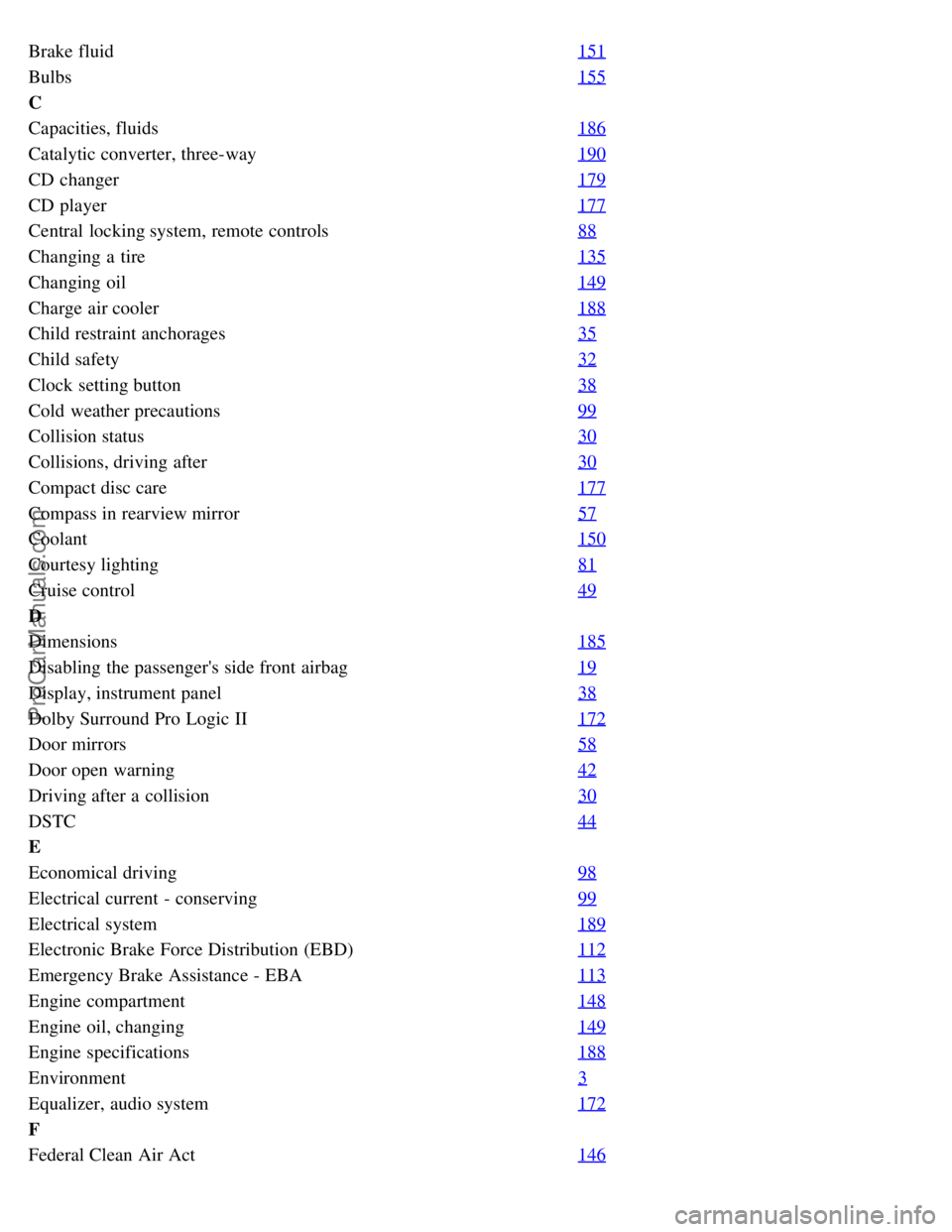
Brake fluid151
Bulbs155
C
Capacities, fluids186
Catalytic converter, three-way190
CD changer179
CD player177
Central locking system, remote controls88
Changing a tire135
Changing oil149
Charge air cooler188
Child restraint anchorages35
Child safety32
Clock setting button38
Cold weather precautions99
Collision status30
Collisions, driving after30
Compact disc care177
Compass in rearview mirror57
Coolant150
Courtesy lighting81
Cruise control49
D
Dimensions185
Disabling the passenger's side front airbag19
Display, instrument panel38
Dolby Surround Pro Logic II172
Door mirrors58
Door open warning42
Driving after a collision30
DSTC44
E
Economical driving98
Electrical current - conserving99
Electrical system189
Electronic Brake Force Distribution (EBD)112
Emergency Brake Assistance - EBA113
Engine compartment148
Engine oil, changing149
Engine specifications188
Environment3
Equalizer, audio system172
F
Federal Clean Air Act146
ProCarManuals.com