Page 82 of 139
72
�To change “Phone #” (telephone num-
ber)
Touch numeral keys.
When the entry has been completed, touch
the
“OK” switch on the screen.
The previous screen will be displayed.
(c) Deleting memory points
1. Push the “MENU” button to display
the “Menu” screen and touch the
“My
Places”
switch.
2. Touch the “Delete” switch of the
“Memory Points”.
3. Touch the corresponding switch. To
delete all memory points, touch the
“De-
lete All” switch.
For efficient memory point search, memory
points can be sorted by the
“Date”,
“Icon”, “Name” or “Attribute” switch.
To delete, touch the
“Yes” switch. To cancel
the deletion, touch the “No” switch.
Page 108 of 139
98
(a) Register dealer
You can register the dealer name, staff,
location and phone number.
1. Touch the “Set Dealer” switch on
the “Maintenance” screen.
2. Enter the location of the dealer in the
same way as for destination input. (See
page 20.)After you input the dealer, the screen changes
and displays the map location of the dealer.
If it is OK, touch the
“Enter” switch.
The screen changes to “Edit Dealer” screen.
(See “(b) Edit dealer”.)
Page 109 of 139
99
(b) Edit dealer
You can edit the dealer name, staff, loca-
tion and phone number.
1. Touch the
“Set Dealer” switch on
the “Maintenance” screen. The “Edit
Dealer” screen appears.
2. To edit, touch the corresponding
switch.
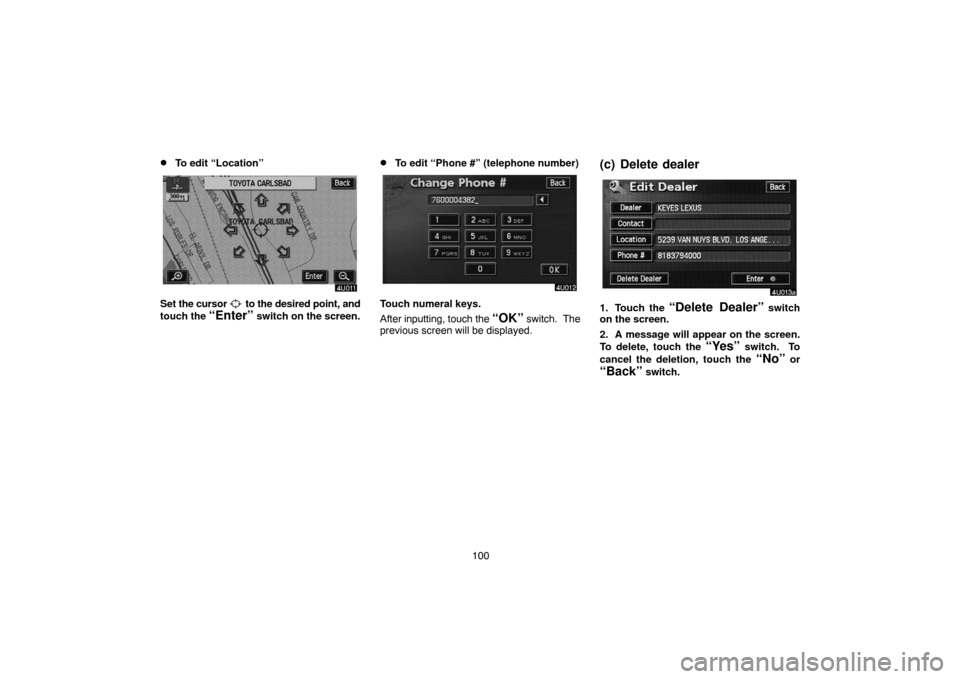
�To edit “Dealer” or “Contact”
To input the name, touch the alphabet, nu-
meral and/or umlaut keys. You can input
up to 24 letters.
After inputting, touch the
“OK” switch at the
bottom right of the screen. The previous
screen will be displayed.
Page 110 of 139
100
�To edit “Location”
Set the cursor to the desired point, and
touch the
“Enter” switch on the screen.
�To edit “Phone #” (telephone number)
Touch numeral keys.
After inputting, touch the
“OK” switch. The
previous screen will be displayed.
(c) Delete dealer
1. Touch the “Delete Dealer” switch
on the screen.
2. A message will appear on the screen.
To delete, touch the
“Yes” switch. To
cancel the deletion, touch the
“No” or
“Back” switch.
Page 118 of 139

108
Handsfree system
Handsfree system allows you to make or
receive a call without taking your hands
off the steering wheel by connecting your
cellular phone.
This system supports the Bluetooth. Blue-
tooth is a wireless data system by which you
can call without your cellular phone connect-
ing with a cable or placing on a cradle.
If your cellular phone does not support the
Bluetooth, this system can not function.
CAUTION
While you are driving, do not use a cellu-
lar phone or connect the Bluetooth
phone.
NOTICE
Do not leave your cellular phone in the
car. The temperature indoor may be
high and damage the phone.
INFORMATION
In the following conditions, the system
may not function.
�The cellular phone is turned OFF.
�The current position is outside the
communication area.
�The cellular phone is not connected.
�The cellular phone has a low battery.
By pushing the telephone button above,
you can receive a call or hang up without
taking your hands off the steering wheel.
unl303a
You can use the microphone above when
talking on the phone.
Page 119 of 139

109 The party’s voice outputs from the driver’s
speaker. When the received calls or received
voice outputs, the audio from the Audio sys-
tem or voice guidance from the Navigation
system will be muted.
INFORMATION
�Talk alternately with your party on the
phone. If you talk at the same time, the
voice may not reach each other. (It is
not a malfunction.)
�Keep the volume of receiving voice
down. Otherwise, echo is coming up.
When you talk on the phone, speak
clearly towards the microphone.
�In the following situations, your voice
may not reach the party.
�Driving on unpaved road. (Making
a traffic noise.)
�Driving at the high speed.
�The window is open.
�Turning the airconditioning vents
towards the microphone.
�The sound of the airconditioning
fan is loud.
1Indicates a condition of Bluetooth
connection.
“Blue” indicates excellent condition of Blue-
tooth connection.
“Yellow” indicates the condition easy to dis-
connect the Bluetooth, causing a deteriora-
tion in voice.
Not displayed: no connection to the Blue-
tooth.
2Indicates the receiving area.
“Rm” is displayed when receiving in Roam-
ing area.
“Hm” is displayed when receiving in Home
area.
3Indicates the level of reception.
Too bad Excellent
The level of reception does not always corre-
spond with the one of your cellular phone.
4“A” is displayed when calling in ana-
logue.
“D” is displayed when calling in digital.
Not displayed when the system can get no in-
formation from your cellular phone.
INFORMATION
This system supports the following ser-
vice.
�HFP (Hands Free Profile) Ver. 1.0
�OPP (Object Push Profile) Ver. 1.1
If your cellular phone does not support
HFP, you cannot enter the Bluetooth
phone, and take OPP service individual-
ly.
Page 120 of 139

11 0 An antenna for the Bluetooth connection
is built in the display. The indication of the
Bluetooth connection may turn yellow and
the system may not function when you
use the Bluetooth phone in the following
conditions and places.
�Your cellular phone is hiding behind the
display (behind the seat or in the glove box
and console box).
�Your cellular phone touches or covered
with metal materials.
Leave the Bluetooth phone on the place
where “Blue” indication is displayed.
BLUETOOTH is a trademark owned by Blue-
tooth SIG. Inc., U.S.A. and licensed to DEN-
SO (Fujitsu TEN)
FCC ID: BAB134000268
IC ID: 2024B134268
MADE IN JAPAN
This device complies with Part 15 of the
FCC Rules and RSS−210. Operation is
subject to the following two conditions: (1)
This device may not cause harmful interfer-
ence, and (2) This device must accept any
interference received, including interfer-
ence that may cause undesired operation.
CAUTION
Changes or modifications not expressly
approved by the party responsible for
compliance could void the user’s au-
thority to operate the equipment.
(a) Enter the Bluetooth phone
To use a handsfree system, you need to
enter your phone in the system. Once you
registered it, you can make a handsfree
call.
1. Push the
“INFO” button to display the
“Information Menu” screen.
5u004
2. Touch the “Telephone” switch to
display “Telephone” screen.
You can also push
of the telephone button
to display this screen when the vehicle is
stopped.
Page 121 of 139
111
3. Touch the “Settings” switch to dis-
play “Settings” screen.
4. Touch the “Add Phone” switch to
connect your cellular phone to the system.
5. When this screen is displayed, input
the Passkey displayed on the screen into
the phone.
For the operation of the phone, see the manu-
al that comes with your cellular phone.
If you want to cancel it, touch “Cancel”.6. When the connection is completed, de-
vice name and Bluetooth Device Address
is displayed.
You do not need to enter it in case of using the
same phone.