cWhen the system is re-drawing the display in
Birdview™ display, the distance the vehicle
travels becomes longer, and/or the degree
the vehicle turns becomes larger than in the
Planview display in order to complete
re-drawing.
cThe names of the roads and locations may
differ, depending on where the names appear
on the screen.
cIn order to avoid having too much detail on the
map, all road names are not always shown on
the screen. When the display re-draws the
map, a road name which is shown on the pre-
vious screen may not appear on the new
screen.Use the( ZOOM IN ) /
( ZOOM OUT ) buttons to change the scale of
the display and height view.
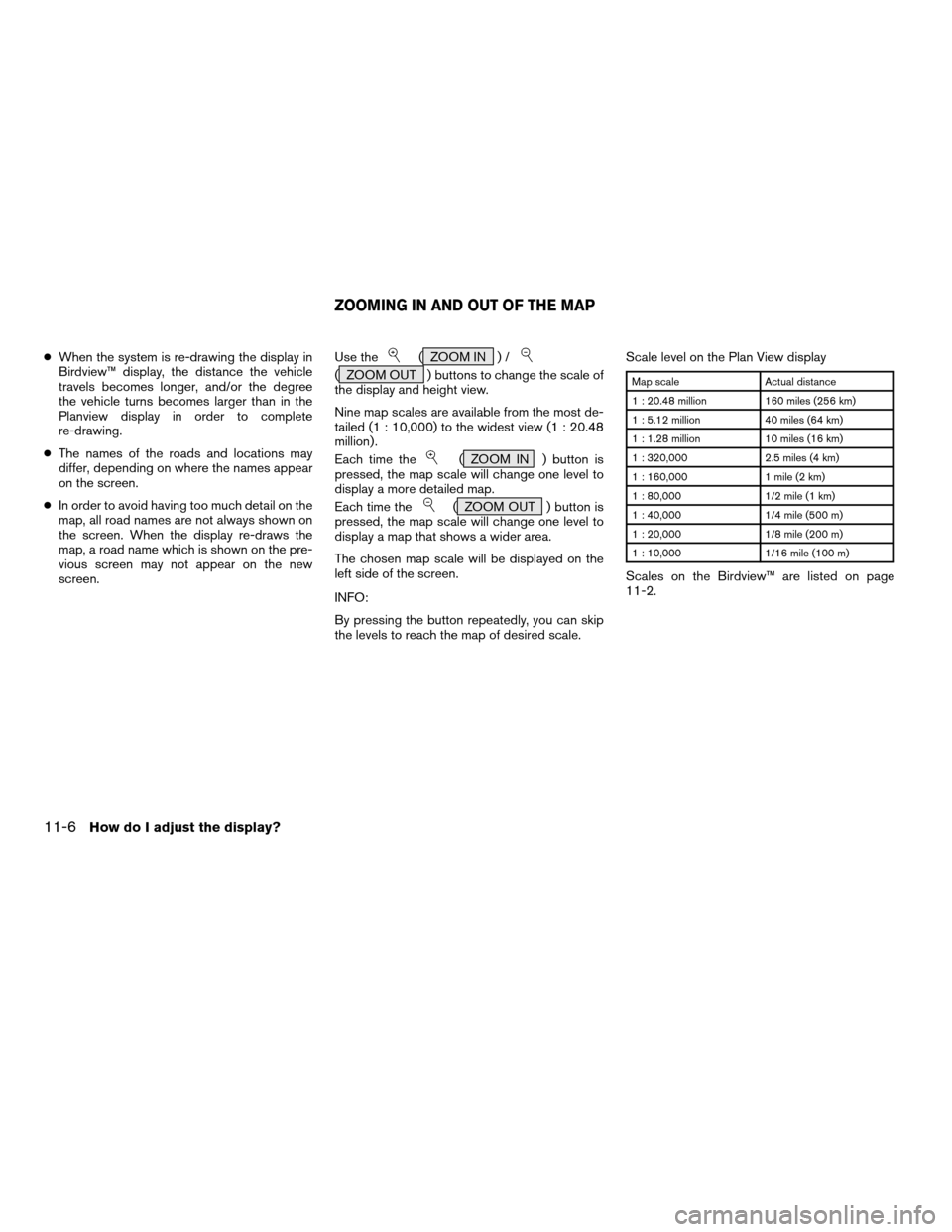
Nine map scales are available from the most de-
tailed (1 : 10,000) to the widest view (1 : 20.48
million) .
Each time the
( ZOOM IN ) button is
pressed, the map scale will change one level to
display a more detailed map.
Each time the
( ZOOM OUT ) button is
pressed, the map scale will change one level to
display a map that shows a wider area.
The chosen map scale will be displayed on the
left side of the screen.
INFO:
By pressing the button repeatedly, you can skip
the levels to reach the map of desired scale.Scale level on the Plan View display
Map scale Actual distance
1 : 20.48 million 160 miles (256 km)
1 : 5.12 million 40 miles (64 km)
1 : 1.28 million 10 miles (16 km)
1 : 320,000 2.5 miles (4 km)
1 : 160,000 1 mile (2 km)
1 : 80,000 1/2 mile (1 km)
1 : 40,000 1/4 mile (500 m)
1 : 20,000 1/8 mile (200 m)
1 : 10,000 1/16 mile (100 m)
Scales on the Birdview™ are listed on page
11-2.
ZOOMING IN AND OUT OF THE MAP
11-6How do I adjust the display?
ZREVIEW COPYÐ2005(nav)
Navigation System OMÐUSA_English(nna)
07/10/04Ðdebbie
X
1. Press the SETTING button.
2. Select the
Navigation key on the [SET-
TINGS] screen.
Most detailed level (1: 10,000)
INV1413
The widest level (1: 20.48 million)
INV1414INV1781
CHANGING THE DISPLAY DIRECTION
(in Plan View display)
How do I adjust the display?11-7
ZREVIEW COPYÐ2005(nav)
Navigation System OMÐUSA_English(nna)
07/10/04Ðdebbie
X
![NISSAN FRONTIER 2005 D22 / 1.G Owners Manual 1. Press the SETTING button.
2. Select the
Navigation key on the [SET-
TINGS] screen.
Most detailed level (1: 10,000)
INV1413
The widest level (1: 20.48 million)
INV1414INV1781
CHANGING THE DISPLAY DI](/manual-img/5/686/w960_686-152.png "NISSAN FRONTIER 2005 D22 / 1.G Owners Manual 1. Press the SETTING button.
2. Select the
Navigation key on the [SET-
TINGS] screen.
Most detailed level (1: 10,000)
INV1413
The widest level (1: 20.48 million)
INV1414INV1781
CHANGING THE DISPLAY DI")