Page 67 of 192
4. The screen returns to the [DEST. SETTING
(Intersection)] screen.
When the city is set, the display shows the
selected city next to the
City key.
Input the street name of your choice.
Proceed to “Setting with the
List key” on page
5-15.
SETTING WITH
THE
KEY
The NISSAN Navigation System includes a da-
tabase of Point of Interest (POI) locations such
as restaurants, hotels, and gas stations. (refer to
section 6.)
By using this feature, you can set a Point of Inter-
est location as a destination. For details on how
to use the POI feature, please refer to section 6.
SETTING WITH THECity KEY
Sets the destination (waypoints) on the map
screen of the area in and around the input city.
1. Press the DEST button.
INV1831INV2337
How do I program a destination?5-21
ZREVIEW COPYÐ2005(nav)
Navigation System OMÐUSA_English(nna)
07/10/04Ðdebbie
X
Page 69 of 192
2. Select the city name of your destination
(waypoints) on the [DEST. SETTING (City)]
screen.3. To set the destination (waypoints) , refer to
“Making the system guide the route with de-
tailed options” on page 5-31.4. To slightly alter the destination.
Select the
Map key to display the map
screen of the area around the specified des-
tination (waypoints) .
INV1835INV1836INV1837
How do I program a destination?5-23
ZREVIEW COPYÐ2005(nav)
Navigation System OMÐUSA_English(nna)
07/10/04Ðdebbie
X
Page 70 of 192
5. If necessary, operate the joystick to adjust
the location of the destination (waypoints) .
Press the ENTER button. Select the
Destination key to confirm.
The [DEST. SETTING (City)] screen will be
displayed.
To set the destination (waypoints) , refer to
“Making the system guide the route with de-
tailed options” on page 5-31.
cList is being displayed by selection of
the
Listkey.
Setting with theState key
TheState key is used when you select a
state/province to set the destination.
1. Select the
State key.2. The display shows the screen to select
states/provinces.
Input a state/province name.
INV1838INV1839INV1840
5-24How do I program a destination?
ZREVIEW COPYÐ2005(nav)
Navigation System OMÐUSA_English(nna)
07/10/04Ðdebbie
X
Page 73 of 192
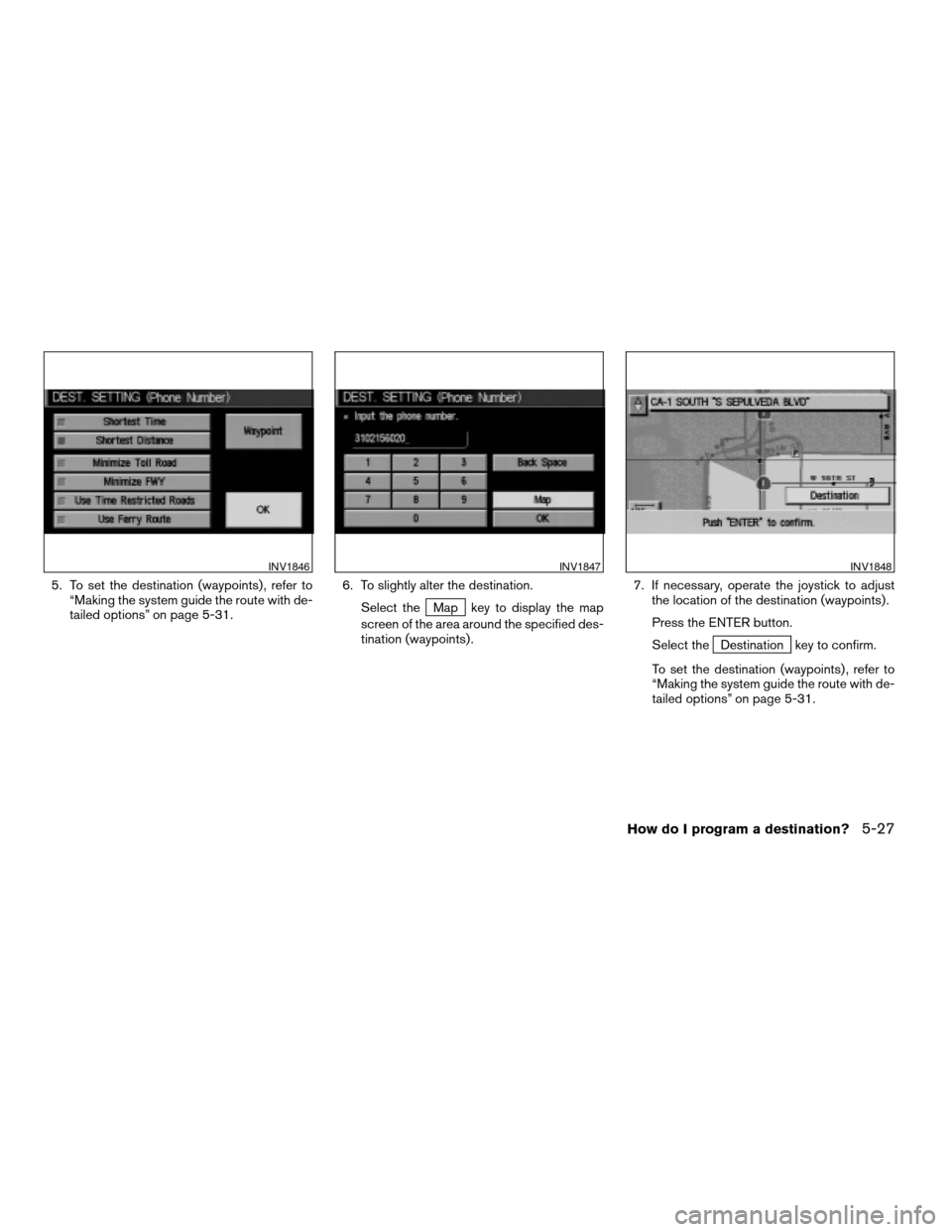
5. To set the destination (waypoints) , refer to
“Making the system guide the route with de-
tailed options” on page 5-31.6. To slightly alter the destination.
Select the
Map key to display the map
screen of the area around the specified des-
tination (waypoints) .7. If necessary, operate the joystick to adjust
the location of the destination (waypoints) .
Press the ENTER button.
Select the
Destination key to confirm.
To set the destination (waypoints) , refer to
“Making the system guide the route with de-
tailed options” on page 5-31.
INV1846INV1847INV1848
How do I program a destination?5-27
ZREVIEW COPYÐ2005(nav)
Navigation System OMÐUSA_English(nna)
07/10/04Ðdebbie
X
Page 75 of 192
4. Adjust the location using the joystick, and
press the ENTER button.
5. Select the
Destination key.
The [DEST. SETTING] screen will appear.6. Please refer to “Making the system guide
the route with detailed options” on page
5-31.
INFO:
When the
OK key is selected in the [DEST.
SETTING] screen, route calculation starts. If you
want to add waypoints, select the
Waypoint
key.
SETTING WITH THECountry KEY
When theStreet Address ,Intersection ,
City , orPoint of Interest (POI) key is used
to set the destination (waypoints) in other coun-
tries, they are retrieved from the areas in the coun-
try which have been set in the country category.
When setting the destination (waypoints) in other
countries, select a country first.
INV1852INV2004
How do I program a destination?5-29
ZREVIEW COPYÐ2005(nav)
Navigation System OMÐUSA_English(nna)
07/22/04Ðmarlene
X
Page 77 of 192
![NISSAN ARMADA 2005 1.G Owners Manual 3. The [DEST. SETTING] screen will be
displayed.
Set the
OK key.
To set the destination (waypoints) , refer to “Mak-
ing the system guide the route with detailed op-
tions” on page 5-31.
INFO:
If](/manual-img/5/686/w960_686-76.png "NISSAN ARMADA 2005 1.G Owners Manual 3. The [DEST. SETTING] screen will be
displayed.
Set the
OK key.
To set the destination (waypoints) , refer to “Mak-
ing the system guide the route with detailed op-
tions” on page 5-31.
INFO:
If")
3. The [DEST. SETTING] screen will be
displayed.
Set the
OK key.
To set the destination (waypoints) , refer to “Mak-
ing the system guide the route with detailed op-
tions” on page 5-31.
INFO:
If the home is not registered in the Address
Book, the [STREET ADDRESS] screen will be
displayed.
Please refer to “Setting with the
Street Address key” on page 5-7.
WARNING
To operate the navigation system or to
use the screen functions, first park the
vehicle in a safe place and set the park-
ing brake. Using the system while driv-
ing can distract the driver and may re-
sult in a serious accident.
MAKING THE SYSTEM GUIDE THE
ROUTE WITH DETAILED OPTIONS
By choosing the destination from the menu, you
can choose detailed options such as waypoints
and calculation conditions and have the system
guide you from the current position to the
destination.
Setting the destination
First, you will have to set the destination.
1. Select a destination using one of the meth-
ods described earlier in this chapter:
– Address Book
INV1855INV1191
HAVING THE SYSTEM GUIDE YOU
TO THE DESTINATIONS
How do I program a destination?5-31
ZREVIEW COPYÐ2005(nav)
Navigation System OMÐUSA_English(nna)
07/10/04Ðdebbie
X
Page 78 of 192
– Previous Destination
– Street Address
– Intersection
– Point of Interest (POI)
– City
– Phone Number
– Map
– Home
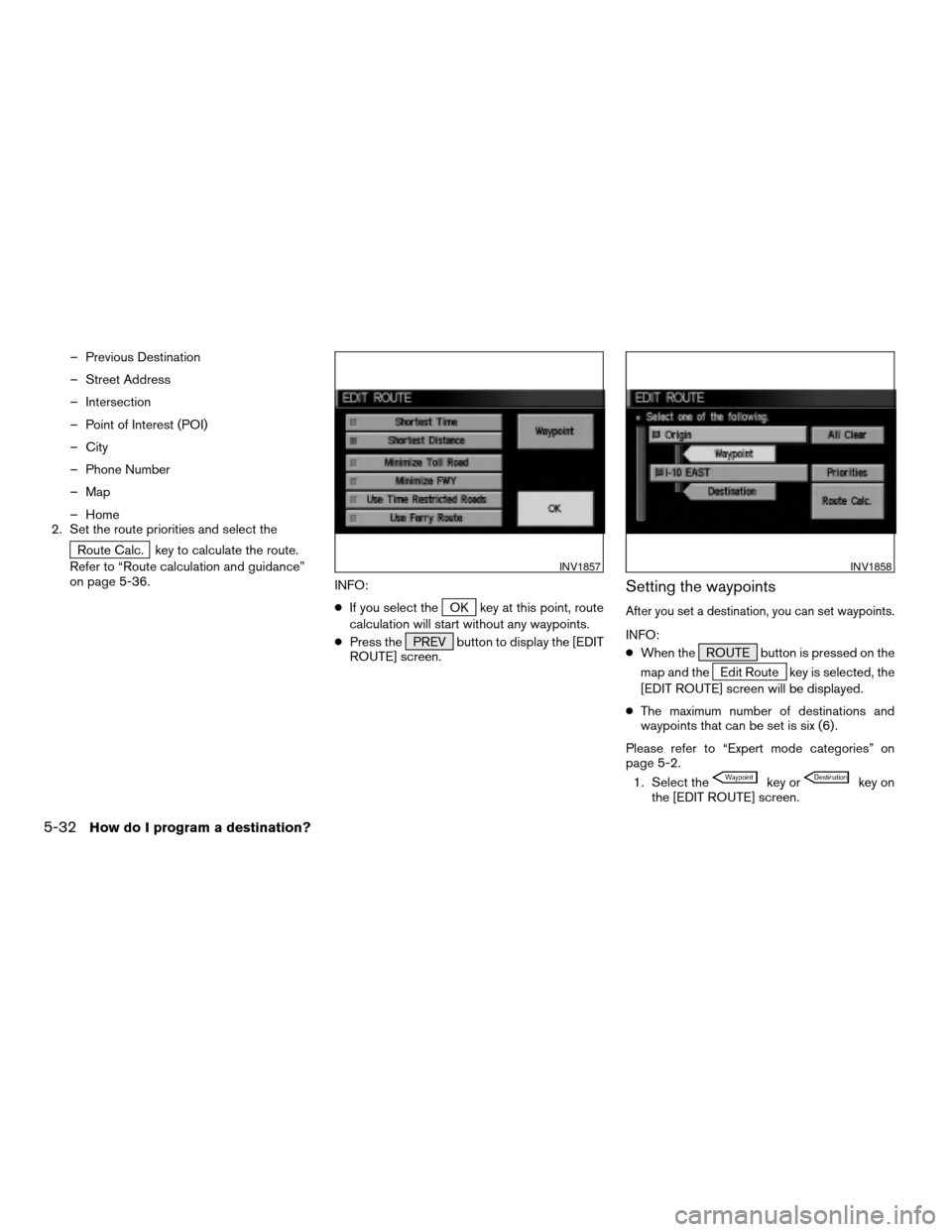
2. Set the route priorities and select the
Route Calc. key to calculate the route.
Refer to “Route calculation and guidance”
on page 5-36.
INFO:
cIf you select the
OK key at this point, route
calculation will start without any waypoints.
cPress the PREV button to display the [EDIT
ROUTE] screen.
Setting the waypoints
After you set a destination, you can set waypoints.
INFO:
cWhen the ROUTE button is pressed on the
map and the
Edit Route key is selected, the
[EDIT ROUTE] screen will be displayed.
cThe maximum number of destinations and
waypoints that can be set is six (6) .
Please refer to “Expert mode categories” on
page 5-2.
1. Select the
key orkey on
the [EDIT ROUTE] screen.
INV1857INV1858
5-32How do I program a destination?
ZREVIEW COPYÐ2005(nav)
Navigation System OMÐUSA_English(nna)
07/10/04Ðdebbie
X
Page 86 of 192
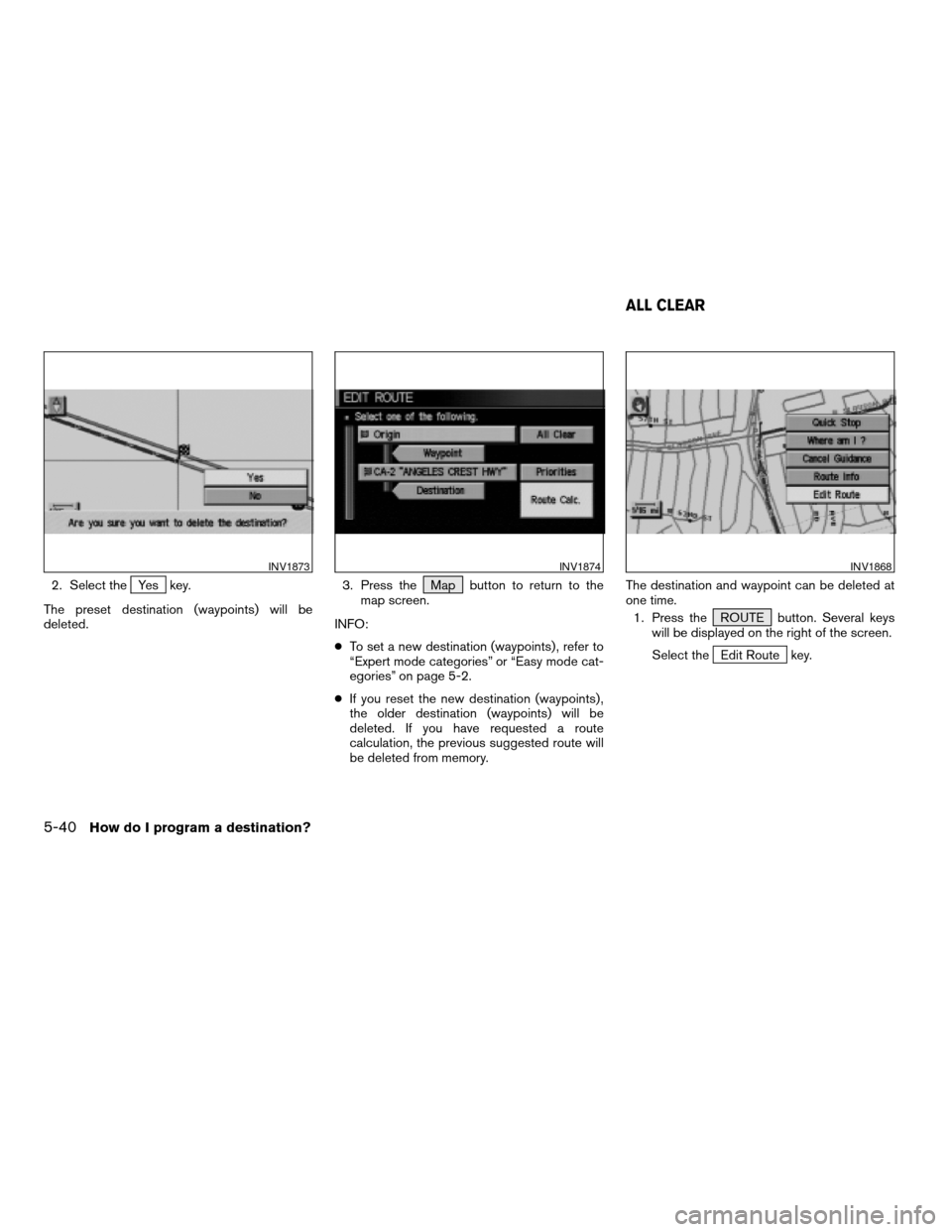
2. Select theYes key.
The preset destination (waypoints) will be
deleted.3. Press the Map button to return to the
map screen.
INFO:
cTo set a new destination (waypoints) , refer to
“Expert mode categories” or “Easy mode cat-
egories” on page 5-2.
cIf you reset the new destination (waypoints) ,
the older destination (waypoints) will be
deleted. If you have requested a route
calculation, the previous suggested route will
be deleted from memory.The destination and waypoint can be deleted at
one time.
1. Press the ROUTE button. Several keys
will be displayed on the right of the screen.
Select the
Edit Route key.
INV1873INV1874INV1868
ALL CLEAR
5-40How do I program a destination?
ZREVIEW COPYÐ2005(nav)
Navigation System OMÐUSA_English(nna)
07/10/04Ðdebbie
X
![NISSAN ARMADA 2005 1.G Owners Manual 4. The screen returns to the [DEST. SETTING
(Intersection)] screen.
When the city is set, the display shows the
selected city next to the
City key.
Input the street name of your choice.
Proceed to “](/manual-img/5/686/w960_686-66.png "NISSAN ARMADA 2005 1.G Owners Manual 4. The screen returns to the [DEST. SETTING
(Intersection)] screen.
When the city is set, the display shows the
selected city next to the
City key.
Input the street name of your choice.
Proceed to “")
![NISSAN ARMADA 2005 1.G Owners Manual 2. Select the city name of your destination
(waypoints) on the [DEST. SETTING (City)]
screen.3. To set the destination (waypoints) , refer to
“Making the system guide the route with de-
tailed optio](/manual-img/5/686/w960_686-68.png "NISSAN ARMADA 2005 1.G Owners Manual 2. Select the city name of your destination
(waypoints) on the [DEST. SETTING (City)]
screen.3. To set the destination (waypoints) , refer to
“Making the system guide the route with de-
tailed optio")
![NISSAN ARMADA 2005 1.G Owners Manual 5. If necessary, operate the joystick to adjust
the location of the destination (waypoints) .
Press the ENTER button. Select the
Destination key to confirm.
The [DEST. SETTING (City)] screen will be
d](/manual-img/5/686/w960_686-69.png "NISSAN ARMADA 2005 1.G Owners Manual 5. If necessary, operate the joystick to adjust
the location of the destination (waypoints) .
Press the ENTER button. Select the
Destination key to confirm.
The [DEST. SETTING (City)] screen will be
d")
![NISSAN ARMADA 2005 1.G Owners Manual 4. Adjust the location using the joystick, and
press the ENTER button.
5. Select the
Destination key.
The [DEST. SETTING] screen will appear.6. Please refer to “Making the system guide
the route wit](/manual-img/5/686/w960_686-74.png "NISSAN ARMADA 2005 1.G Owners Manual 4. Adjust the location using the joystick, and
press the ENTER button.
5. Select the
Destination key.
The [DEST. SETTING] screen will appear.6. Please refer to “Making the system guide
the route wit")