Page 148 of 506
146 Controls in detailControl systemMultifunction steering wheel
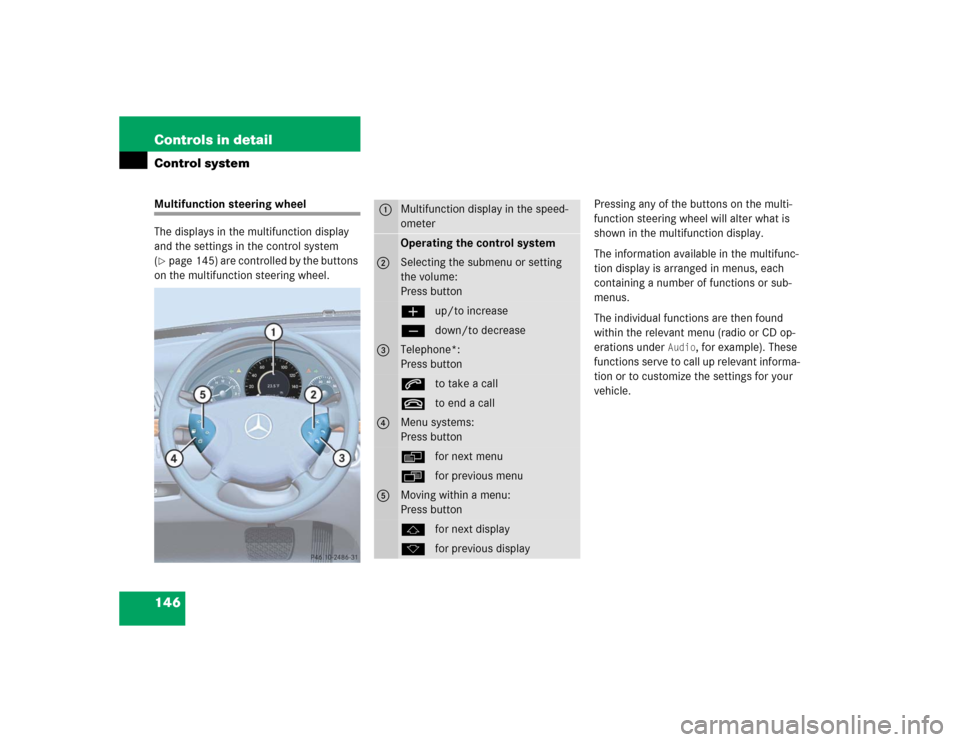
The displays in the multifunction display
and the settings in the control system
(�page 145) are controlled by the buttons
on the multifunction steering wheel.Pressing any of the buttons on the multi-
function steering wheel will alter what is
shown in the multifunction display.
The information available in the multifunc-
tion display is arranged in menus, each
containing a number of functions or sub-
menus.
The individual functions are then found
within the relevant menu (radio or CD op-
erations under
Audio
, for example). These
functions serve to call up relevant informa-
tion or to customize the settings for your
vehicle.
1
Multifunction display in the speed-
ometerOperating the control system
2
Selecting the submenu or setting
the volume:
Press buttonæup/to increaseçdown/to decrease
3
Telephone*:
Press buttonsto take a calltto end a call
4
Menu systems:
Press buttonèfor next menuÿfor previous menu
5
Moving within a menu:
Press buttonjfor next displaykfor previous display
Page 149 of 506
147 Controls in detail
Control system
It is helpful to think of the menus, and the
functions within each menu, as being ar-
ranged in a circular pattern.�
If you press buttonè orÿ re-
peatedly, you will pass through each
menu one after the other.
�
If you press buttonk orj re-
peatedly, you will pass through each
function display, one after the other, in
the current menu.In the
Settings
menu, instead of functions
you will find a number of submenus for
calling up and changing settings. For in-
structions on using these submenus, see
the “Settings menu” section (
�page 154).
The number of menus available in the sys-
tem depends on which optional equipment
is installed in you vehicle.The menus are described on the following
pages.
Page 150 of 506
148 Controls in detailControl systemMenusThis is what you will see when you scroll
through the menus.The table on the next page provides an
overview of the individual menus.
Page 151 of 506
149 Controls in detail
Control system
Menus, submenus and functions
Menu1
Menu2
Menu3
Menu4
Menu5
Menu6
Menu7
Menu8
Standard
display
AUDIO
NAV*
Distronic*
Vehicle status
message mem-
ory
Settings
Trip computer
Telephone
(�page 150)
(�page 150)
(�page 152)
(�page 152)
(�page 153)
(�page 154)
(�page 170)
(�page 171)
Commands/submenusDigital speed-
ometer
Select radio
station
Activate
route guid-
ance
Call up set-
tings
Call up vehicle
malfunction,
warning and sys-
tem status mes-
sages stored in
memory
Reset to factory
settings
Fuel consumption
statistics after
start
Load phone
book
Call up main-
tenance sys-
tem display
Operate CD
player
Instrument clus-
ter submenu
Fuel consumption
statistics since
the last reset
Search for
name in
phone book
Check tire
pressure*
Time/Date sub-
menu
Call up range
Check engine
oil level
Lighting sub-
menuVehicle sub-
menuConvenience
submenuDynamic seat*
submenu
Page 152 of 506
150 Controls in detailControl systemStandard display menu
You can select the functions in the stan-
dard display menu with buttonk
orj.
The following functions are available:Display digital speedometer
�
Press buttonj twice.
The current vehicle speed is shown in
the multifunction display.
AUDIO menu
The functions in the
Audio
menu operate
the audio equipment which you currently
have turned on.
If no audio equipment is currently turned
on, the message
AUDIO off
is shown in the
display.
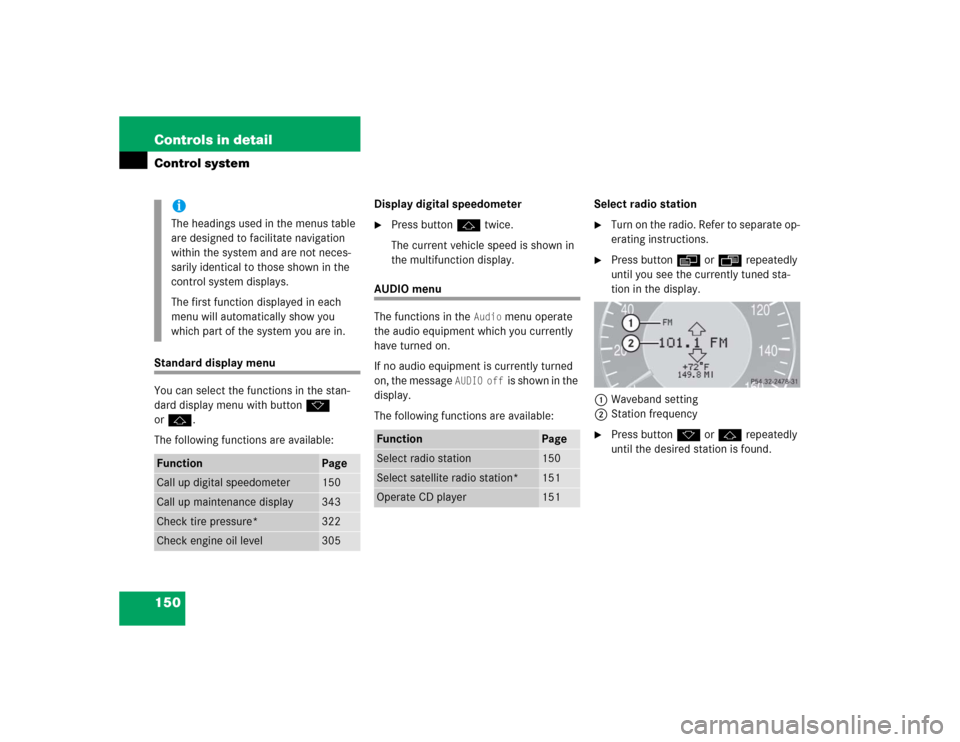
The following functions are available:Select radio station
�
Turn on the radio. Refer to separate op-
erating instructions.
�
Press buttonè orÿ repeatedly
until you see the currently tuned sta-
tion in the display.
1Waveband setting
2Station frequency
�
Press buttonk orj repeatedly
until the desired station is found.
iThe headings used in the menus table
are designed to facilitate navigation
within the system and are not neces-
sarily identical to those shown in the
control system displays.
The first function displayed in each
menu will automatically show you
which part of the system you are in.
Function
Page
Call up digital speedometer
150
Call up maintenance display
343
Check tire pressure*
322
Check engine oil level
305
Function
Page
Select radio station
150
Select satellite radio station*
151
Operate CD player
151
Page 153 of 506

151 Controls in detail
Control system
Select satellite radio station*
The satellite radio is treated as a radio ap-
plication.�
Select SAT radio with the correspond-
ing softkey in the radio menu.
1SAT mode and preset number
2Setting for station selection using
memory
3Channel name or number
�
Press buttonk orj repeatedly
until the desired channel is found.Operate the CD player
�
Turn on the radio and select the CD
player. Refer to separate operating in-
structions.
�
Press buttonè orÿ repeatedly
until the settings for the CD currently
being played are shown in the display.
1Current CD (for CD changer*)
2Current track
�
Press buttonk orj repeatedly
until the desired track is selected.
iYou can only store new stations using
the corresponding feature on the radio,
see separate operating instructions.
You can also operate the radio in the
usual manner.
iAdditional optional satellite radio
equipment and a subscription to satel-
lite radio service provider are required
for satellite radio operation. Contact an
authorized Mercedes-Benz Center for
details and availability for your vehicle.
For more information, refer to separate
COMAND operating instructions.
iTo select a CD from the magazine,
press a number on the COMAND
system SmartKey pad located in the
center console.
Page 154 of 506

152 Controls in detailControl systemNAV* menu
The
Nav
menu contains the functions
needed to operate your navigation system.
�
Press buttonè orÿ repeatedly
until you see the message
NAV
in the
display.
�
If the navigation system is switched off,
the message
NAV off
is shown in the
display.
�
If the navigation system is switched on,
the message
NAV Active
is shown in
the display.
Please refer to the COMAND manual for in-
structions on how to activate the route
guidance system.
Distronic* menu
Use the Distronic menu to display the cur-
rent settings for your Distronic system.
What information is shown in the display
depends on whether the Distronic system
is active or inactive.
Please refer to the “Driving systems” sec-
tion of this manual (
�page 235) for in-
structions on how to activate Distronic.
�
Press buttonè orÿ repeatedly
until you see one of the following two
pictures in the display.Distronic deactivated
When Distronic is deactivated, you will see
the standard display in the display.
1Vehicle ahead, if detected
2Actual distance to vehicle ahead
3Preset distance threshold to vehicle
ahead
4Your vehicle
5Symbol for activated distance warning
function
Page 155 of 506
153 Controls in detail
Control system
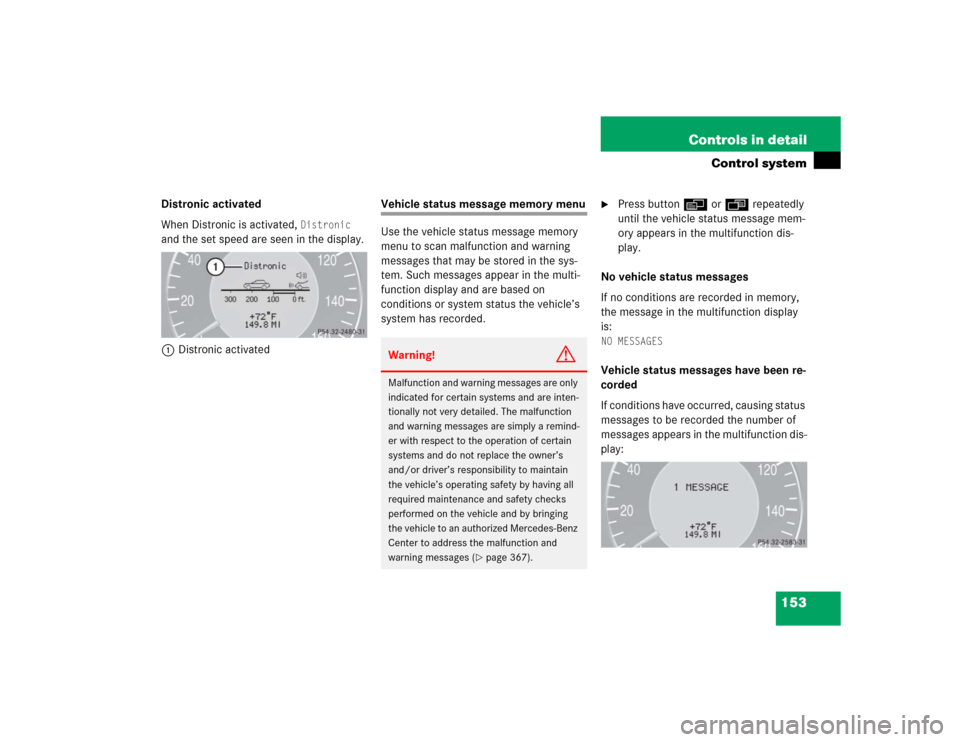
Distronic activated
When Distronic is activated,
Distronic
and the set speed are seen in the display.
1Distronic activated
Vehicle status message memory menu
Use the vehicle status message memory
menu to scan malfunction and warning
messages that may be stored in the sys-
tem. Such messages appear in the multi-
function display and are based on
conditions or system status the vehicle’s
system has recorded.
�
Press buttonè orÿ repeatedly
until the vehicle status message mem-
ory appears in the multifunction dis-
play.
No vehicle status messages
If no conditions are recorded in memory,
the message in the multifunction display
is:
NO MESSAGESVehicle status messages have been re-
corded
If conditions have occurred, causing status
messages to be recorded the number of
messages appears in the multifunction dis-
play:
Warning!
G
Malfunction and warning messages are only
indicated for certain systems and are inten-
tionally not very detailed. The malfunction
and warning messages are simply a remind-
er with respect to the operation of certain
systems and do not replace the owner’s
and/or driver’s responsibility to maintain
the vehicle’s operating safety by having all
required maintenance and safety checks
performed on the vehicle and by bringing
the vehicle to an authorized Mercedes-Benz
Center to address the malfunction and
warning messages (
�page 367).


