Page 154 of 506

152 Controls in detailControl systemNAV* menu
The
Nav
menu contains the functions
needed to operate your navigation system.
�
Press buttonè orÿ repeatedly
until you see the message
NAV
in the
display.
�
If the navigation system is switched off,
the message
NAV off
is shown in the
display.
�
If the navigation system is switched on,
the message
NAV Active
is shown in
the display.
Please refer to the COMAND manual for in-
structions on how to activate the route
guidance system.
Distronic* menu
Use the Distronic menu to display the cur-
rent settings for your Distronic system.
What information is shown in the display
depends on whether the Distronic system
is active or inactive.
Please refer to the “Driving systems” sec-
tion of this manual (
�page 235) for in-
structions on how to activate Distronic.
�
Press buttonè orÿ repeatedly
until you see one of the following two
pictures in the display.Distronic deactivated
When Distronic is deactivated, you will see
the standard display in the display.
1Vehicle ahead, if detected
2Actual distance to vehicle ahead
3Preset distance threshold to vehicle
ahead
4Your vehicle
5Symbol for activated distance warning
function
Page 156 of 506
154 Controls in detailControl system�
Press buttonk orj.
The stored messages will now be dis-
played in the order in which they have
occurred. For malfunction and warning
messages, see “Vehicle status messag-
es in the multifunction display”
(�page 367).
Should the vehicle’s system record any
conditions while driving, the number of
messages will reappear in the multifunc-
tion display when the SmartKey in the
starter switch is turned to position0 or re-
moved from the starter switch.
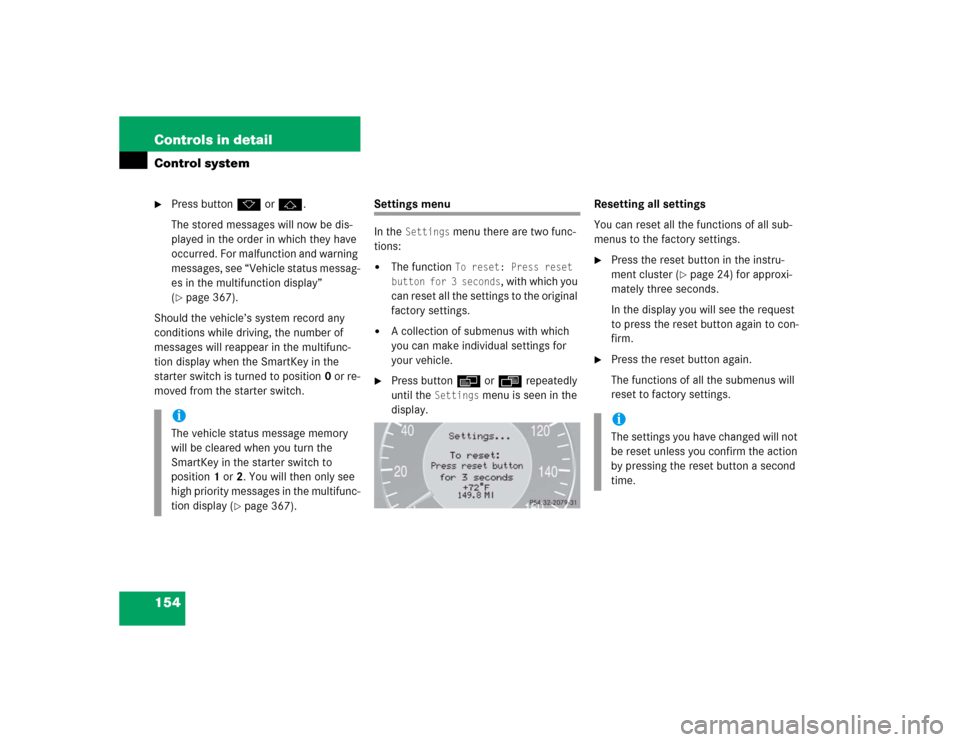
Settings menu
In the
Settings
menu there are two func-
tions:
�
The function
To reset: Press reset
button for 3 seconds
, with which you
can reset all the settings to the original
factory settings.
�
A collection of submenus with which
you can make individual settings for
your vehicle.
�
Press buttonè orÿ repeatedly
until the
Settings
menu is seen in the
display.Resetting all settings
You can reset all the functions of all sub-
menus to the factory settings.
�
Press the reset button in the instru-
ment cluster (
�page 24) for approxi-
mately three seconds.
In the display you will see the request
to press the reset button again to con-
firm.
�
Press the reset button again.
The functions of all the submenus will
reset to factory settings.
iThe vehicle status message memory
will be cleared when you turn the
SmartKey in the starter switch to
position1 or2. You will then only see
high priority messages in the multifunc-
tion display (
�page 367).
iThe settings you have changed will not
be reset unless you confirm the action
by pressing the reset button a second
time.
Page 157 of 506
155 Controls in detail
Control system
Submenus in the Settings menu�
Press buttonk orj.
In the display you see the collection of
the submenus.
�
Press buttonç.
The selection marker moves to the next
submenu.The submenus are arranged by hierarchy.
Scroll down with theç button, scroll up
with theæ button.
Move within the submenus with thek
orj button to the individual functions.
The settings themselves are made with
buttonæ orç.Resetting the functions of a submenu
For each submenu you can reset all the
functions to the factory settings.
�
Move to a function in the submenu.
�
Press the reset button (
�page 24) in
the instrument cluster for approximate-
ly three seconds.
In the display you will see the request
to press the reset button again to con-
firm.
�
Press the reset button again.
All functions of the submenu will reset
to factory settings.
Page 158 of 506

156 Controls in detailControl systemThe table below shows what settings can
be changed within the various menus. De-
tailed instructions on making individual
settings can be found on the following pag-
es.INSTRUMENT CLUSTER
TIME/DATE
LIGHTING
VEHICLE
CONVENIENCE
DYNAMIC SEAT*
Select temperature dis-
play mode
Synchronizing the
time
Set daytime running
lamp mode
(USA only)
Set automatic lock-
ing
Activate easy-en-
try/exit feature
Set level for dynam-
ic seat, driver
Select speedometer dis-
play mode
Set time (hours)
Set locator lighting
Limiting opening
height of trunk lid*
Set SmartKey-
dependency
Set level for dynam-
ic seat, passenger
Select language
Set time (minutes)
Ambient lighting
Set parking position
for exterior rear
view mirror
Select display (speed dis-
play or outside tempera-
ture) for status line
Set date (month)
Exterior lamps de-
layed shut-off
Select display (speed dis-
play or outside tempera-
ture) for basic display
Set date (day)
Interior lighting de-
layed shut-off
Tire pressure unit dis-
play*
Set date (year)
Page 159 of 506

157 Controls in detail
Control system
Instrument cluster submenu
Access the
Instr. cluster
submenu via
the
Settings
menu. Use the
Instr. clus-
ter
submenu to change the instrument
cluster display settings. The following
functions are available:Selecting temperature display mode
�
Move the selection marker with
theæ orç button to the
Instr.
cluster
submenu.
�
Press buttonj ork repeatedly
until you see this message in the dis-
play:
Temp. indicator
.
The selection marker is on the current
setting.
�
Press buttonæ orç to set the
temperature unit to degrees
Celsius (°C) or degrees
Fahrenheit (°F).Selecting speedometer display mode
�
Move the selection marker with
theæ orç button to the
Instr.
cluster
submenu.
�
Press buttonj ork repeatedly
until you see this message in the dis-
play:
Display unit Speed-/odometer
.
The selection marker is on the current
setting.
�
Press button æ or ç to set
speedometer unit to
km or
miles
.
Function
Page
Select temperature display
mode
157
Select speedometer display
mode
157
Select language
158
Select display (speed display or
outside temperature) for status
display
158
Select display (speed display or
outside temperature) for basic
display
159
Tire pressure display*
159
Page 161 of 506

159 Controls in detail
Control system
Selecting display (speed display or out-
side temperature) for basic display�
Move the selection marker with
theæ orç button to the
Instr.
cluster
submenu.
�
Press buttonj ork repeatedly
until you see this message in the dis-
play:
Basic display
.
The selection marker is on the current
setting.
�
Press buttonæ orç to select
the display permanently shown in the
multifunction display.Tire pressure display*
Use this function to set the unit for the tire
pressure display.
�
Move the selection marker with the
æ or ç button to the
Instr,
cluster
submenu.
�
Press button j or k repeatedly
until you see this message in the dis-
play:
Display unit Tire pressure
.
The selection marker is on the current
setting.
�
Press buttonæ or ç to select
the desired tire pressure unit.Time/Date submenu
Access the
Time/Date
submenu via the
Settings
menu. Use the
Time/Date
sub-
menu to change the time and date display
settings. The following functions are avail-
able:
Function
Page
Synchronizing the time
160
Set time (hours)
160
Set time (minutes)
160
Set date (month)
161
Set date (day)
161
Set date (year)
161
iInformation on setting the time, refer to
separate COMAND instructions.
Page 164 of 506

162 Controls in detailControl systemLighting submenu
Access the
Lighting
submenu via the
Set-
tings
menu. Use the
Lighting
submenu
to change the lamp and lighting settings on
your vehicle. The following functions are
available:Setting daytime running lamp mode
(USA only)
�
Move the selection marker with
buttonæ orç to the
Lighting
submenu.
�
Press buttonj ork repeatedly
until you see
Lamp circuit headlamp
in
the multifunction display.
The selection marker is on the current
setting.
�
Press buttonæ orç to select
manual operation (
manual
) or daytime
running lamp mode (
constant
) activat-
ed.
With daytime running lamp mode activated
and the exterior lamp switch at
positionM orU the low beam head-
lamps are switched on when the engine is
running.
In low ambient light conditions the follow-
ing lamps will switch on additionally:
�
Parking lamps
�
Tail lamps
�
License plate lamps
�
Side marker lamps
For more information on the daytime run-
ning lamp mode, see “Lighting”
(
�page 133).
Function
Page
Set daytime running lamp mode
(USA only)
162
Setting locator lighting
163
Setting night security illumina-
tion
164
Setting interior lighting delayed
shut-off
165
Setting ambient lighting
165
iThis function is not available in coun-
tries where the daytime running lamp
mode is mandatory and therefore in a
constant mode.
Page 165 of 506

163 Controls in detail
Control system
Setting locator lighting
With the locator lighting feature activated
and the exterior lamp switch in
positionU, the following lamps will
switch on when the vehicle is unlocked
with the SmartKey or KEYLESS-GO* during
darkness:�
Parking lamps
�
Tail lamps
�
License plate lamps
�
Side marker lamps
�
Front fog lamps
The locator lighting switches off when the
driver’s door is opened.
If you do not open a door after unlocking
with the SmartKey the lamps will switch off
automatically after approximately 40 sec-
onds.
�
Move the selection marker with
buttonæ orç to the
Lighting
submenu.
�
Press buttonj ork repeatedly
until you see
Function Surround
lighting
in the multifunction display.
The selection marker is on the current
setting.
�
Press buttonæ orç to switch
the locator lighting function
on.
�
Turn the exterior lamp switch to
positionU when exiting the vehicle.
The locator lighting feature is activat-
ed.
iFor safety reasons, resetting the Lighting
submenu to factory settings
while driving (
�page 154) will not de-
activate the daytime running lamp
mode.
The following message appears in the
multifunction display:
Lighting - Can-
not be completely reset to factory
settings while driving.
