Page 196 of 237
136 NavigationLast destinations and destination memoryCreate a new name�
Push the joystick to h, H, g or
G to select the characters. After each
selection, press E.
�
Push the joystick to F or f to
select characters diagonally.
�
Press E to confirm the entry.
The message
The address has
been saved as
will appear.
After that, the Start route guidance
menu, the
Last destinations
memory or the Today’s plan memory
reappear.Activating the destination memory
�
Activate the Navigation main menu
(�page 96).
�
Push the joystick to g or G to
select menu item
Destination
memory
.
�
Press E.
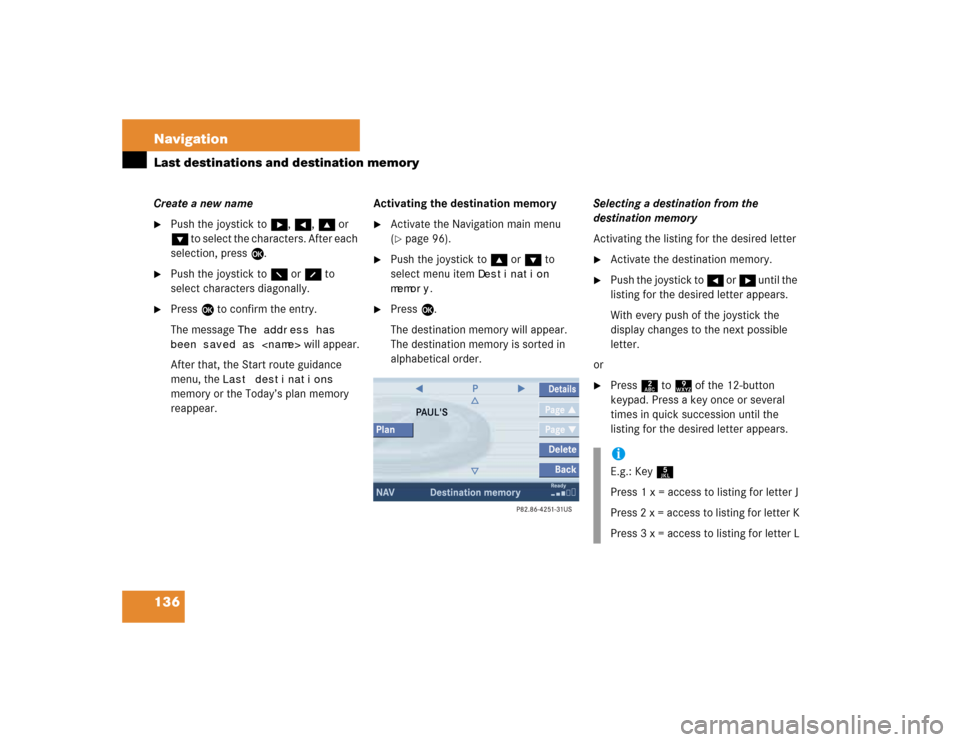
The destination memory will appear.
The destination memory is sorted in
alphabetical order.Selecting a destination from the
destination memory
Activating the listing for the desired letter
�
Activate the destination memory.
�
Push the joystick to H or h until the
listing for the desired letter appears.
With every push of the joystick the
display changes to the next possible
letter.
or
�
Press 2 to 9 of the 12-button
keypad. Press a key once or several
times in quick succession until the
listing for the desired letter appears.iE.g.: Key 5
Press 1 x = access to listing for letter J
Press 2 x = access to listing for letter K
Press 3 x = access to listing for letter L
Page 197 of 237

137 Navigation
Last destinations and destination memory
Category
Others
At the end of the letter list follows the
category
Others
.
�
Press * to access.
Category
Others
includes entries
without names or names starting with a
special character (e.g. +, !, * etc.).
Selecting a destination
�
Push the joystick to g or G to
select a destination in the listing.
�
Use the
Page
soft keys to scroll page-
wise through the list (if available).Now you can
�
start route guidance to the selected
destination
�
add the selected entry to today’s plan
(�page 144)
�
Press the
Plan
soft key.
�
view details on the selected
destination (if available)�
To do this, press the
Details
soft
key.
�
delete the selected destinationStarting route guidance to a destination
from the destination memory
�
Select a destination from the
destination memory.
�
Press E.
The Start route guidance menu will
appear (
�page 115).
Deleting a destination in the destination
memory
�
Select a destination from the
destination memory.
�
Press the
Delete
soft key.
A prompt message appears.
�
Push the joystick to H to select
Yes
.
�
Press E.
The system deletes the navigation
entry from the destination memory.
Page 198 of 237
138 NavigationPOIs (Points of Interest)
� POIs (Points of Interest)This function allows you to select Points of
Interest such as gas stations, parking
facilities or shopping centers.
�
Activating the Navigation main menu
(�page 96).
�
Push the joystick to G t o s e l e c t m e n u
item
Points of interest
.
�
Press E.
The Select POI category menu will
appear.Selecting a POI category
Select POI category menu
iYou can also select a POI �
in the Start route guidance menu
(�page 109) or during route
guidance (
�page 121)
�
on the map (
�page 141)
�
by entering a phone number
(�page 142).
Entering POIs
Page 199 of 237
139 Navigation
POIs (Points of Interest)
Available soft keys�
Name
soft key:
Brings you to the Enter POI menu
(
�page 140).
�
Details
soft key:
Shows all information about the POI
category.
�
Page
V and
Page
v soft keys:
Use the
Page
V and
Page
v soft keys
to display the next or previous page.
�
Back
soft key:
Returns you to the previous menu.
�
Push the joystick to G or g to
select the desired POI category.
�
Press E.
The Find menu will appear.
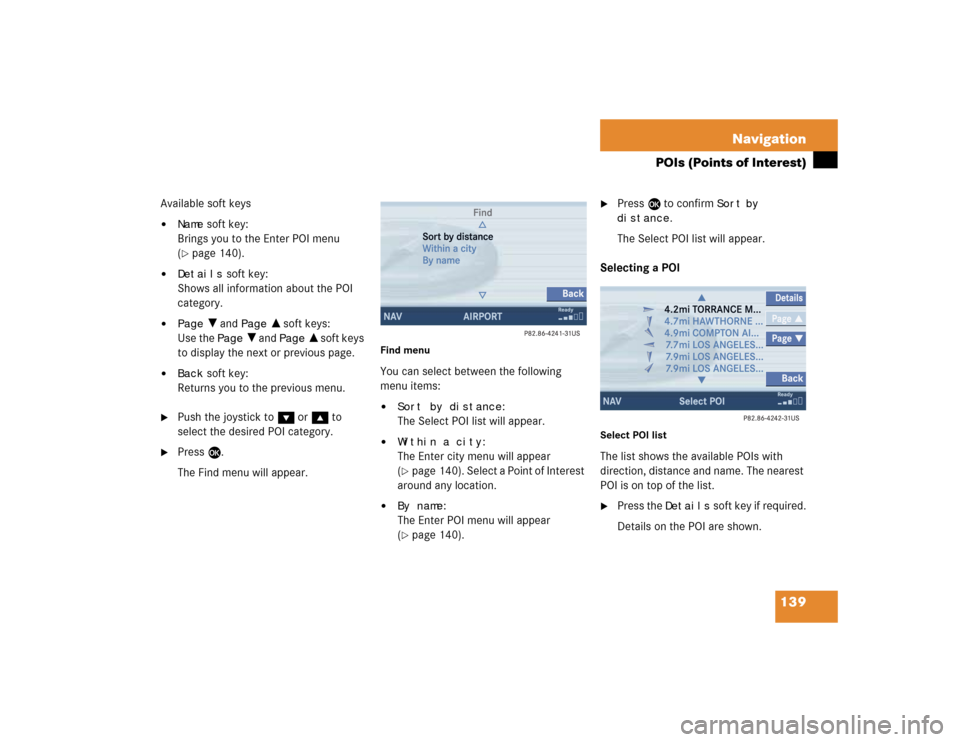
Find menuYou can select between the following
menu items:�
Sort by distance
:
The Select POI list will appear.
�
Within a city
:
The Enter city menu will appear
(
�page 140). Select a Point of Interest
around any location.
�
By name
:
The Enter POI menu will appear
(
�page 140).
�
Press E to confirm
Sort
by
distance
.
The Select POI list will appear.
Selecting a POI
Select POI listThe list shows the available POIs with
direction, distance and name. The nearest
POI is on top of the list.�
Press the
Details
soft key if required.
Details on the POI are shown.
Page 200 of 237

140 NavigationPOIs (Points of Interest)�
Push the joystick to G or g to
select the desired POI.
�
Press E.
The Start route guidance menu will
appear (
�page 115).
Entering a city
�
In the Find menu, push the joystick to
G to select menu item
Within a
city
.
�
Press E.
The Enter city menu will appear
(�page 107).
�
Enter the city and press E to confirm.
A list showing the available POIs within
the entered city will appear.
�
Select the desired POI from the list and
press E to confirm.
The Start route guidance menu will
appear (
�page 115).Entering a POI by name
�
In the Select POI category menu, press
the
Name
softkey.
or
�
In the Find menu, push the joystick to
G to select menu item
By
name
.
The Enter POI menu will appear.
Enter POI menu
�
Enter the POI name and press E to
confirm.
A list showing the entered POI name
will appear.
�
Press E.
The Start route guidance menu will
appear (
�page 115).
iIf menu item
By
name
is chosen, the
corresponding category symbol will
appear in first line.
Page 201 of 237
141 Navigation
POIs (Points of Interest)
�
Press c.
The full view of the map will appear.
Your current position and the special
destinations are indicated by symbols.
�
Press any soft key.
The soft key displays will appear.
�
If required, move the map pushing the
joystick to H, h, g, G,F or
f.
�
Press the
POIs
soft key.
One of the POI is spotlighted. The name
belonging to it is shown on the status
bar.
�
Use the
Next
or
Prev.
soft key
to select the desired POI.
�
Press the
Details
soft key if required.
Details on the POI selected are shown.
�
Press E.
The Start route guidance menu will
appear (
�page 115).
Selecting a POI on the mapiYou can define which symbols will be
shown on the map (
�page 129).
Page 202 of 237
142 NavigationPOIs (Points of Interest)If a phone number is associated with a POI,
the number can be used to select a
destination and making a call. The
database uses phone numbers in the USA
and Canada.�
Activating the Navigation main menu
(�page 96).
�
Push the joystick to G to select menu
item
Phone number
.
�
Press E.
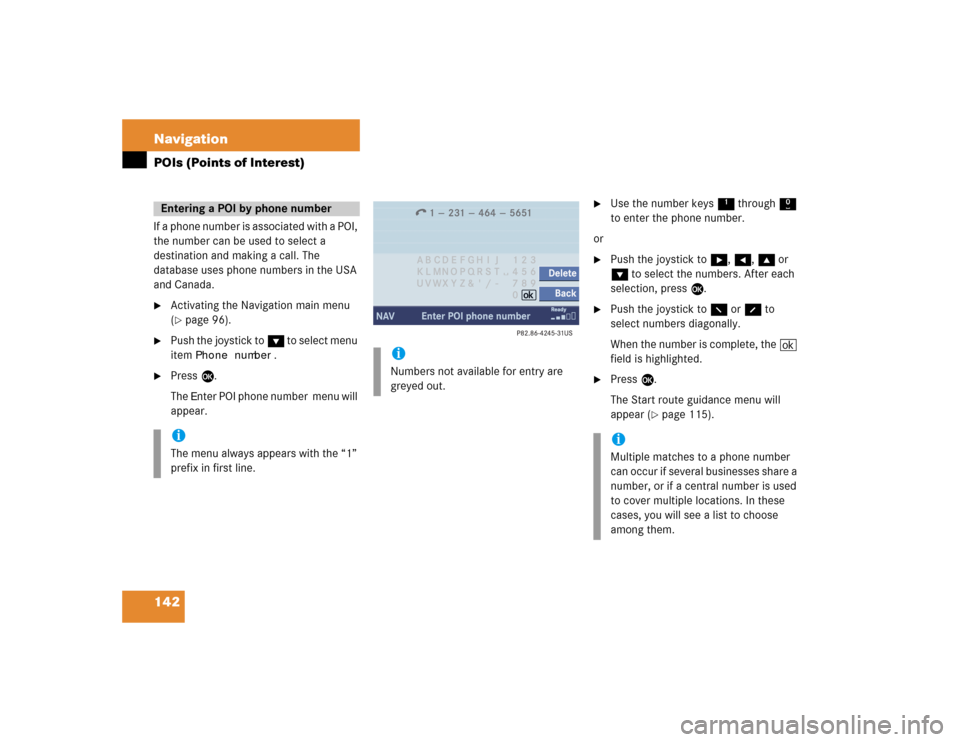
The
Enter POI phone number menu will
appear.
�
Use the number keys 1 through 0
to enter the phone number.
or
�
Push the joystick to h, H, g or
G to select the numbers. After each
selection, press E.
�
Push the joystick to F or f to
select numbers diagonally.
When the number is complete, the (
field is highlighted.
�
Press E.
The Start route guidance menu will
appear (
�page 115).
Entering a POI by phone numberiThe menu always appears with the “1”
prefix in first line.
iNumbers not available for entry are
greyed out.
iMultiple matches to a phone number
can occur if several businesses share a
number, or if a central number is used
to cover multiple locations. In these
cases, you will see a list to choose
among them.
Page 203 of 237
143 Navigation
POIs (Points of Interest)
Dialing the POI phone number*�
Press the
Call
soft key in the Route
guidance menu.
Dialing will begin. In the status bar, the
off-hook symbol will appear. If the
person called answers the call, the call
is active. You talk over the hands-free
set.
�
Press K to end the call.iThe
Call
soft key is visible if vehicle is
equipped for phone operation and
Mercedes-Benz specified mobile
telephone* is inserted in phone
cradle*.


