Page 78 of 368

Initial map display
After pressing AGREE to the initial
WARNING screen, you will move
into the initial map screen which
shows the current vehicle location.
Pressing the globe icon will take you
to the user settings—audible
feedback, navigation units, language
and clock (if equipped).
Note:There may be a slight time
delay between the soft key and the
hard key functions.
Route options
Once in navigation mode and a
route is currently active, press the
DEST hard key. The ROUTE
OPTIONS screen will appear and
allow you to choose from the
following selections:
•Detour—Press to select a detour around the current route.
•Route Preferences—When creating a destination, select from:
Minimize Time/Distance, Use Major Roads, Use Toll Roads, Use
Ferries.
•Display Whole Route:Will enter MAP mode and display your entire
chosen route.
•Destination Entry: Allows you to enter a new destination or select
from entries in: Address book, Points of Interest or Previous
Destinations.
While driving under route guidance, only follow an instruction
when it is safe to do so as the system cannot be aware of
changing conditions. Use voice guidance as much as possible, and only
view the display when driving conditions permit.
REVIEW COPY
2005 Aviator f/k/a Navigator LS(231), Owners Guide (post-2002-fmt)(own2002),
Market:USA_English(fus)
Entertainment Systems
78
Page 81 of 368
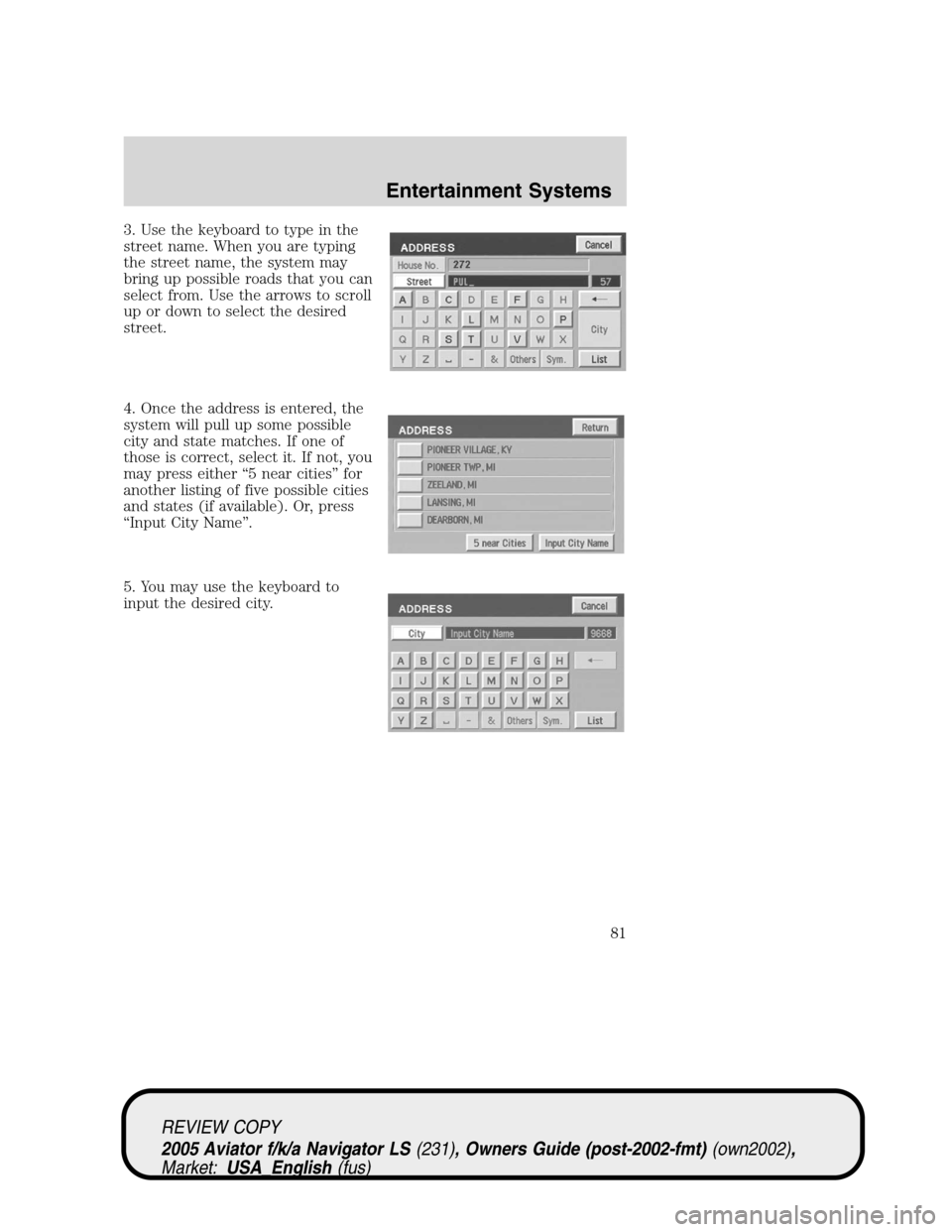
3. Use the keyboard to type in the
street name. When you are typing
the street name, the system may
bring up possible roads that you can
select from. Use the arrows to scroll
up or down to select the desired
street.
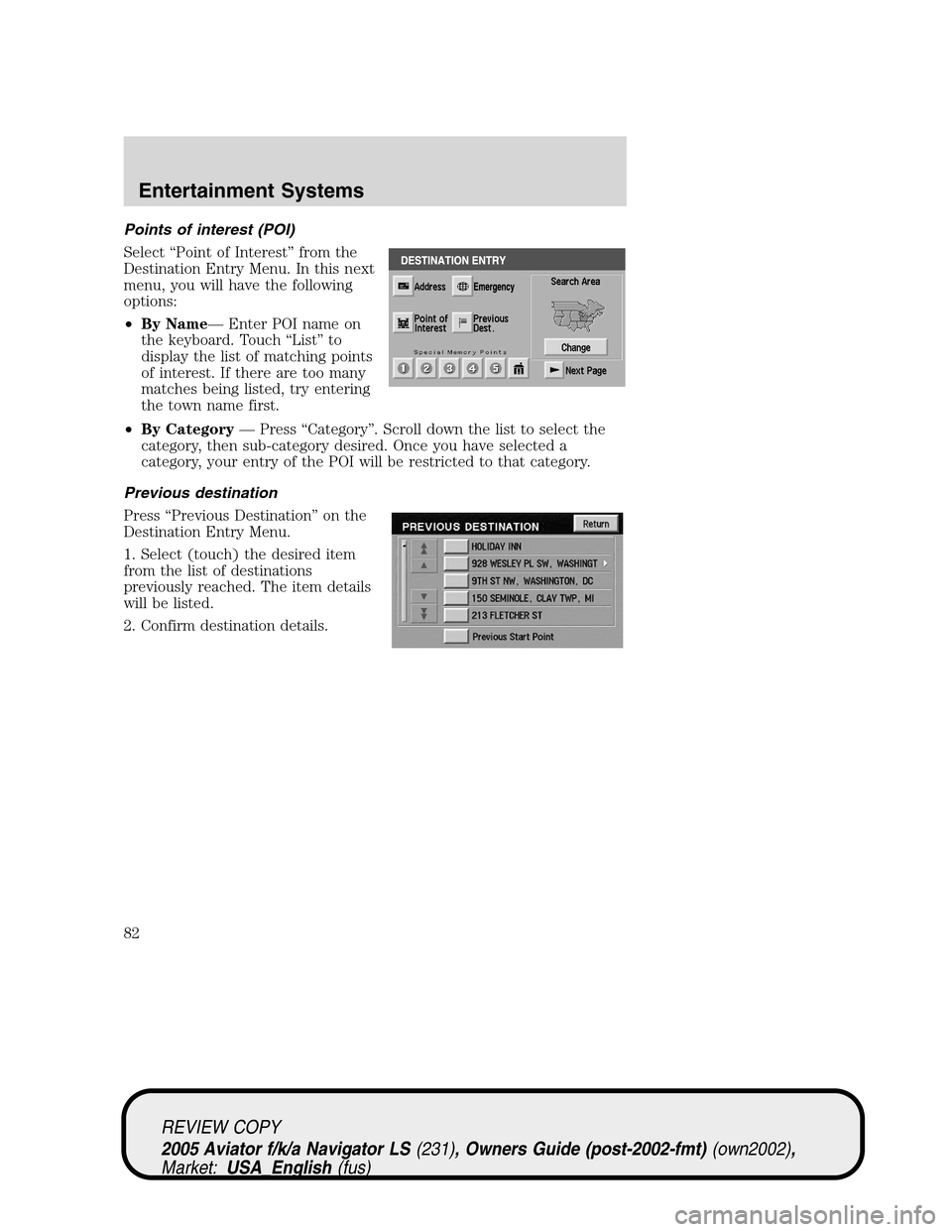
4. Once the address is entered, the
system will pull up some possible
city and state matches. If one of
those is correct, select it. If not, you
may press either“5 near cities”for
another listing of five possible cities
and states (if available). Or, press
“Input City Name”.
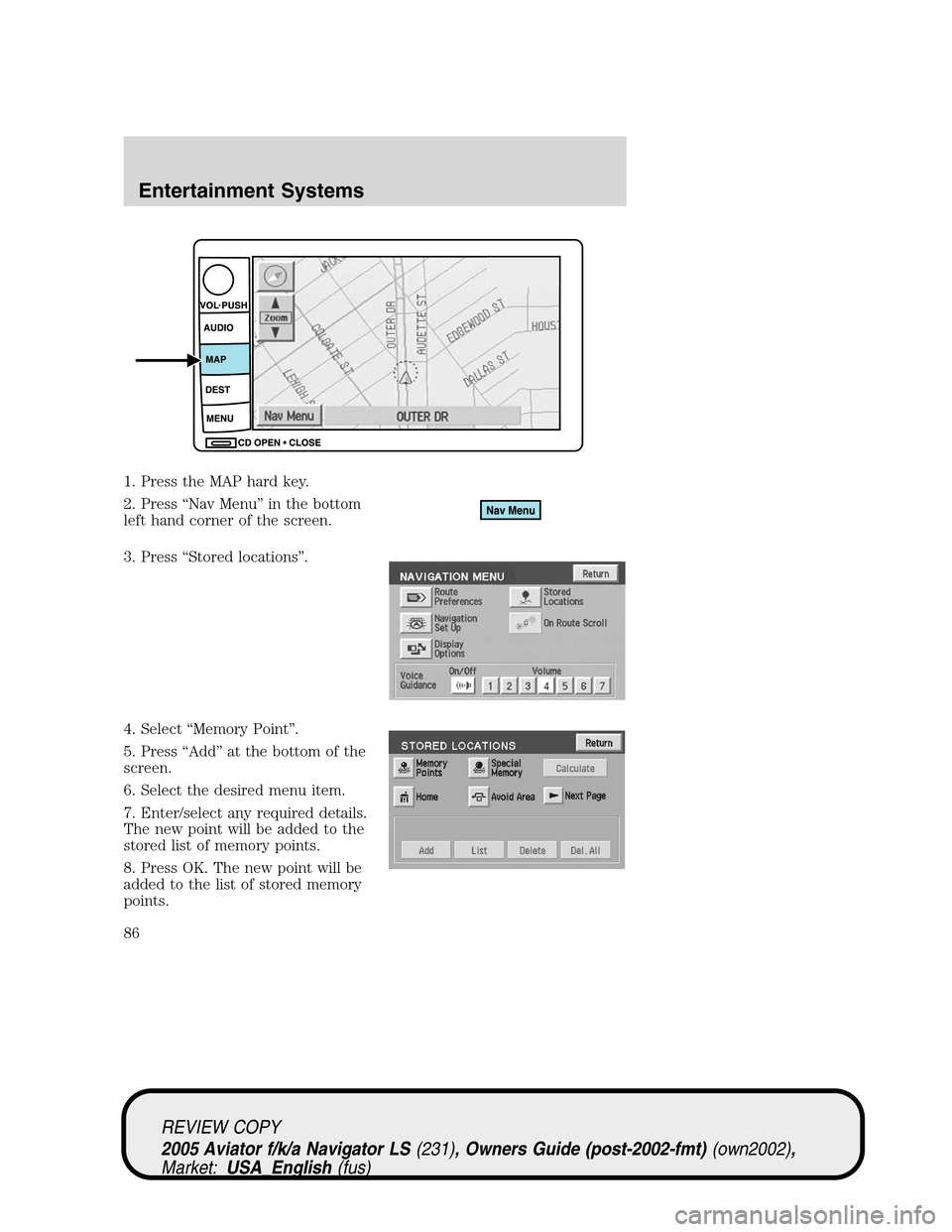
5. You may use the keyboard to
input the desired city.
REVIEW COPY
2005 Aviator f/k/a Navigator LS(231), Owners Guide (post-2002-fmt)(own2002),
Market:USA_English(fus)
Entertainment Systems
81
Page 82 of 368
Points of interest (POI)
Select“Point of Interest”from the
Destination Entry Menu. In this next
menu, you will have the following
options:
•By Name—Enter POI name on
the keyboard. Touch“List”to
display the list of matching points
of interest. If there are too many
matches being listed, try entering
the town name first.
•By Category—Press“Category”. Scroll down the list to select the
category, then sub-category desired. Once you have selected a
category, your entry of the POI will be restricted to that category.
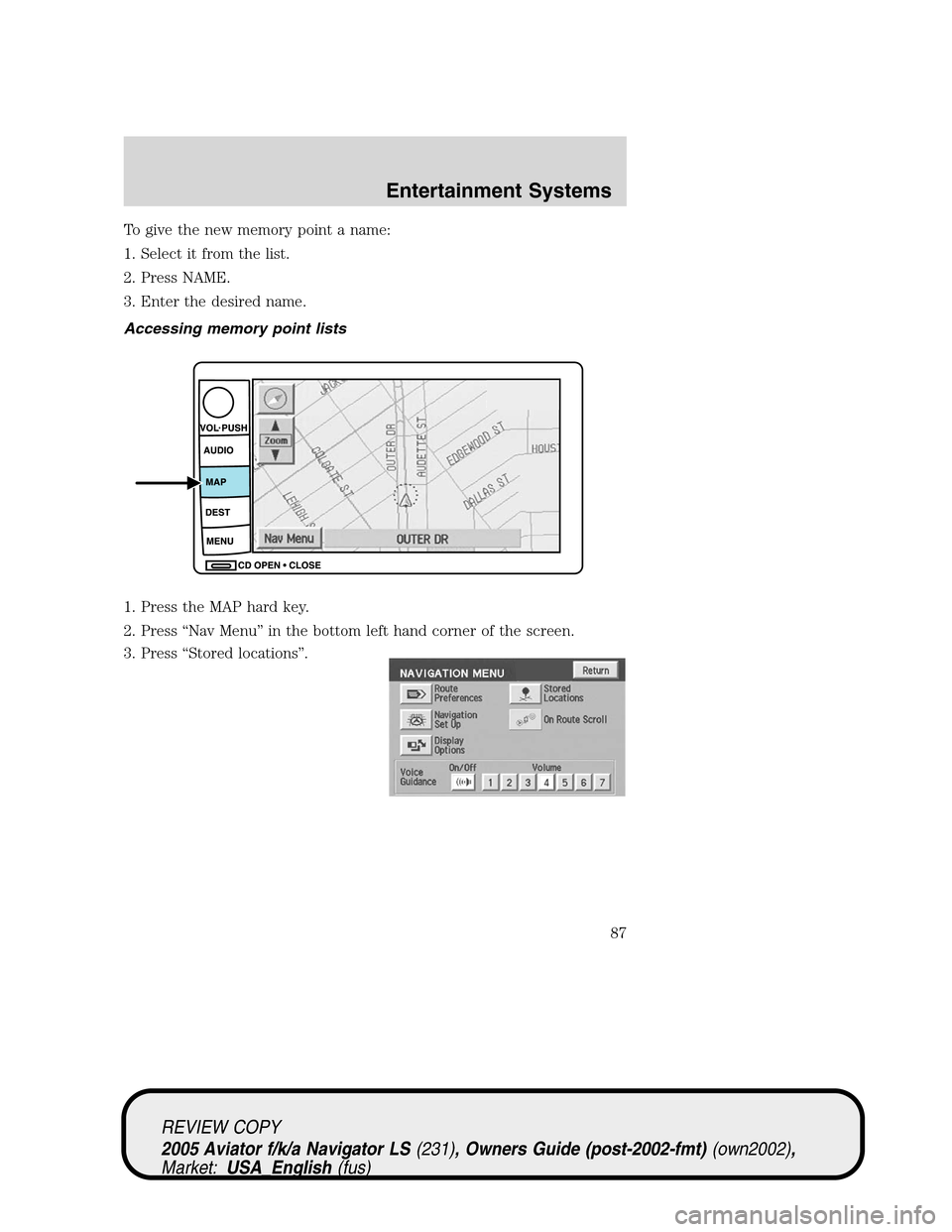
Previous destination
Press“Previous Destination”on the
Destination Entry Menu.
1. Select (touch) the desired item
from the list of destinations
previously reached. The item details
will be listed.
2. Confirm destination details.
REVIEW COPY
2005 Aviator f/k/a Navigator LS(231), Owners Guide (post-2002-fmt)(own2002),
Market:USA_English(fus)
Entertainment Systems
82
Page 83 of 368
Deleting stored locations
Your navigation system allows you to delete any stored locations
(previous destinations, memory points, special memory points, home,
avoid areas, destination and way points, etc.) To delete any of these
stored locations:
1. Press the MAP hard key.
2. Press“Nav Menu”in the bottom
left hand corner of the screen.
3. Press“Stored locations”.
REVIEW COPY
2005 Aviator f/k/a Navigator LS(231), Owners Guide (post-2002-fmt)(own2002),
Market:USA_English(fus)
Entertainment Systems
83
Page 86 of 368
1. Press the MAP hard key.
2. Press“Nav Menu”in the bottom
left hand corner of the screen.
3. Press“Stored locations”.
4. Select“Memory Point”.
5. Press“Add”at the bottom of the
screen.
6. Select the desired menu item.
7. Enter/select any required details.
The new point will be added to the
stored list of memory points.
8. Press OK. The new point will be
added to the list of stored memory
points.
REVIEW COPY
2005 Aviator f/k/a Navigator LS(231), Owners Guide (post-2002-fmt)(own2002),
Market:USA_English(fus)
Entertainment Systems
86
Page 87 of 368
To give the new memory point a name:
1. Select it from the list.
2. Press NAME.
3. Enter the desired name.
Accessing memory point lists
1. Press the MAP hard key.
2. Press“Nav Menu”in the bottom left hand corner of the screen.
3. Press“Stored locations”.
REVIEW COPY
2005 Aviator f/k/a Navigator LS(231), Owners Guide (post-2002-fmt)(own2002),
Market:USA_English(fus)
Entertainment Systems
87
Page 90 of 368

Freeway Entrance/Exit
To set a freeway entrance or exit as a destination:
1. Press the DEST hard key.
2. Press“
Next page”to access
the second page of the Destination
Entry menu.
3. Select“Freeway Entrance/Exit”.
1.Enter freeway name—Enter
the freeway name using the
keyboard. Press“List”to select a
freeway from those displayed.
To enter numbers in the freeway
name, press“Sym”.
2.Select entrance/exit—Press
“Entrance”if you wish to join the
freeway at this junction. Press
“Exit”if you wish to leave the
freeway at this junction.
3.Select Junction—The screen
will display a list of junctions on the
freeway. They can be listed either
by distance, (from the current
vehicle location), by pressing the
“Dist”button or alphabetically by
pressing the“A-Z”button. Select the desired entrance or exit.
The destination details are displayed for confirmation.
REVIEW COPY
2005 Aviator f/k/a Navigator LS(231), Owners Guide (post-2002-fmt)(own2002),
Market:USA_English(fus)
Entertainment Systems
90
Page 110 of 368
INTERIOR LAMPS
Front row map lights (if equipped)
To turn on the map lights, press the
edge of the light.
Second row dome lamps
The dome lamp lights when:
•any door is opened.
•the instrument panel dimmer
switch is rotated up until the
courtesy lamps come on.
•any of the remote entry controls
are pressed and the ignition is
OFF.
The reading portion (the two outer lights) can only be toggled on and off
at the lamp.
Third row courtesy/reading/cargo lamps
The dome portion of the lamp (the
center light) can be turned on when
the headlamp control is rotated fully
up or when any door is opened.
With the ignition key in the ACC or ON position, the rear dome lamp can
be turned ON or OFF by sliding the control.
REVIEW COPY
2005 Aviator f/k/a Navigator LS(231), Owners Guide (post-2002-fmt)(own2002),
Market:USA_English(fus)
Lights
110