2005 GMC YUKON DENALI ignition
[x] Cancel search: ignitionPage 197 of 468
PASSENGER DOOR AJAR
If the passenger’s door is not fully closed and the
vehicle is in a drive gear, this message will appear on
the display and you will hear a chime. Stop and turn off
the vehicle, check the door for obstacles and close
the door again. Check to see if the message still
appears on the DIC. Pressing any of the four DIC
buttons, if equipped, will clear the message from the DIC
display. If your vehicle is not equipped with the four
DIC buttons, pressing the trip odometer reset stem will
clear the message from the DIC display.
REAR ACCESS OPEN
If the liftgate is open while the ignition is in RUN, this
message will appear on the DIC and you will hear
a chime. Turn off the vehicle and check the liftgate.
Restart the vehicle and check for the message on the
DIC display. Pressing any of the four DIC buttons,
if equipped, will clear the message from the DIC display.
If your vehicle is not equipped with the four DIC
buttons, pressing the trip odometer reset stem will clear
the message from the DIC display.
REDUCED ENGINE POWER
This message is displayed and you will hear a chime
when the cooling system temperature gets too hot and
the engine further enters the engine coolant protection
mode. SeeEngine Overheating on page 5-28for further
information.
REPLACE LIFTGATE FUSE
This message will be displayed if the liftgate lock
malfunctions and/or the liftgate fuse blows. For more
information on fuses, seeFuses and Circuit Breakers on
page 5-105. If the message returns after replacing the
fuse, see your GM dealer for service.
RIGHT REAR DOOR AJAR
If the passenger’s side rear door is not fully closed and
the vehicle is in a drive gear, this message will
appear on the display and you will hear a chime. Stop
and turn off the vehicle, check the door for obstacles and
close the door again. Check to see if the message
still appears on the DIC. Pressing any of the four DIC
buttons, if equipped, will clear the message from the DIC
display. If your vehicle is not equipped with the four
DIC buttons, pressing the trip odometer reset stem will
clear the message from the DIC display.
3-55
Page 199 of 468

SERVICE RIDE CONTROL
If a problem occurs with the suspension system, this
message will appear on the DIC. If this message
appears, stop and turn off the vehicle. Restart the
vehicle and check for the message on the DIC display.
If the message is still displayed or appears again
when you begin driving, the suspension system needs
service. See your GM dealer.
SERVICE STABILITY
If you ever see the SERVICE STABILITY message, it
means there may be a problem with your StabiliTrak®
system. If you see this message, try to reset the system.
Stop; turn off the engine; then start the engine again.
If the SERVICE STABILITY message still comes
on, it means there is a problem. You should see your
GM dealer for service. The vehicle is safe to drive,
however, you do not have the benet of StabiliTrak
®,so
reduce your speed and drive accordingly.
SERVICE TIRE MONITOR
If your vehicle is equipped with the tire pressure monitor
system, this message will be displayed if any of the
tire monitor sensors have malfunctioned or if all the
tire monitor sensors have not been programmed
successfully. Pressing any of the four DIC buttons, if
equipped, will clear the message from the DIC display.
If your vehicle is not equipped with the four DIC
buttons, pressing the trip odometer reset stem will clear
the message from the DIC display. The message will
appear at each ignition cycle until the system is
serviced. See your GM dealer.
STABILITY SYS ACTIVE
You may see the STABILITY SYS ACTIVE message on
the DIC. It means that an advanced computer-controlled
system has come on to help your vehicle continue to
go in the direction in which you are steering. StabiliTrak
®
activates when the computer senses that your vehicle
is just starting to spin, as it might if you hit a patch of ice
or other slippery spot on the road. When the system
activates, you may hear a noise or feel a vibration in the
brake pedal. This is normal. When the STABILITY
SYS ACTIVE message is on, you should continue to
steer in the direction you want to go. The system
is designed to help you in bad weather or other difficult
driving situations by making the most of whatever
road conditions will permit.
3-57
Page 203 of 468

DIC Vehicle Customization
Your vehicle may have customization capabilities that
allow you to program some features to one setting
based on your preference. All of the customizable
options listed may not be available on your vehicle. Only
the options available will be displayed on your Driver
Information Center (DIC).
The default settings for the customization features were
set when your vehicle left the factory, but may have
been changed from their default state since then.
To change feature preferences, make sure the ignition
is on and the vehicle is in PARK (P). Press the
customization button to scroll through the available
customizable options.
After pressing the customization button, VEHICLE
SETTINGS will momentarily display before going to a
customization option.
Lock Doors
Press the customization button until LOCK DOORS
appears in the display. To select your preference
for automatic locking, press the select button while
LOCK DOORS is displayed on the DIC. Pressing the
select button will scroll through the following choices:
LOCK DOORS: IN GEAR (default):The doors will lock
when the vehicle is shifted out of PARK (P).
LOCK DOORS: WITH SPEED:The doors will lock
when the vehicle speed is above 8 mph (13 km/h) for
three seconds.
Choose one of the available options and press the
customization button while it is displayed on the DIC to
select it and move on to the next feature. For more
information on automatic door locks, seeProgrammable
Automatic Door Locks on page 2-10.
3-61
Page 204 of 468

Unlock Doors
Press the customization button until UNLOCK DOORS
appears in the display. To select your preference for
automatic unlocking, press the select button while
UNLOCK DOORS is displayed on the DIC. Pressing the
select button will scroll through the following choices:
UNLOCK DOORS: IN PARK (default):All of the doors
will unlock when the vehicle is shifted into PARK (P).
UNLOCK DRIVER: IN PARK:The driver’s door will be
unlocked when the vehicle is shifted into PARK (P).
UNLOCK DOORS: KEY OUT:All of the doors
will unlock when the key is taken out of the ignition.
UNLOCK DOORS: MANUALLY:The doors will not be
unlocked automatically.
Choose one of the available options and press the
customization button while it is displayed on the DIC to
select it and move on to the next feature. For more
information on automatic door locks, seeProgrammable
Automatic Door Locks on page 2-10.
Door Lock Delay
If your DIC does not have this feature, you can still
program the delayed locking feature. SeeDelayed
Locking on page 2-10for more information.When locking the doors with the power lock switch or
the remote keyless entry transmitter and a door or
the liftgate is open, the delayed locking feature will delay
locking the doors and liftgate until ve seconds after
the last door is closed.
Press the customization button until DOOR LOCK
DELAY appears in the display. To select your
preference for delayed locking, press the select button
while DOOR LOCK DELAY is displayed on the DIC.
Pressing the select button will scroll through the
following choices:
DOOR LOCK DELAY: OFF (default):The doors will
lock immediately when pressing the power lock switch or
the lock button on the remote keyless entry transmitter.
DOOR LOCK DELAY: ON:The doors will not lock until
ve seconds after the last door or the liftgate is closed.
You will hear three chimes to signal that the delayed
locking feature is in use. You can temporarily override
delayed locking by pressing the lock button on the door or
the remote keyless entry transmitter a second time.
Choose one of the available options and press the
customization button while it is displayed on the DIC to
select it and move on to the next feature. For more
information on automatic door locks, seeProgrammable
Automatic Door Locks on page 2-10.
This feature will not operate if the key is in the ignition.
3-62
Page 207 of 468

Easy Exit Seat
Press the customization button until EASY EXIT SEAT
appears in the display. To select your preference for
seat position exit, press the select button while
EASY EXIT SEAT is displayed on the DIC. Pressing the
select button will scroll through the following choices:
EASY EXIT SEAT: OFF (default):No seat exit
recall will occur.
EASY EXIT SEAT: ON:The driver’s seat will move to
the exit position when the key is removed from the
ignition.
Choose one of the available options and press the
customization button while it is displayed on the DIC to
select it and move on to the next feature. For more
information on seat position exit, seeMemory Seat on
page 2-48.
Curb View
Press the customization button until CURB VIEW
appears in the display. To select your preference for
curb view, press the select button while CURB VIEW is
displayed on the DIC. Pressing the select button will
scroll through the following choices:
CURB VIEW: OFF (default):Neither outside mirror
will be tilted down when the vehicle is shifted into
REVERSE (R).
CURB VIEW: PASSENGER:The passenger’s outside
mirror will be tilted down when the vehicle is shifted
into REVERSE (R).
CURB VIEW: DRIVER:The driver’s outside mirror
will be tilted down when the vehicle is shifted into
REVERSE (R).
CURB VIEW: BOTH:The driver’s and passenger’s
outside mirrors will be tilted down when the vehicle is
shifted into REVERSE (R).
Choose one of the available options and press the
customization button while it is displayed on the DIC to
select it and move on to the next feature. For more
information on tilt mirror in reverse, seeOutside
Automatic Dimming Mirror with Curb View Assist
on page 2-36.
3-65
Page 209 of 468

Display Units
Press the customization button until DISPLAY UNITS
appears in the display. To select English or metric, press
the select button while DISPLAY UNITS is displayed
on the DIC. Pressing the select button will scroll through
the following choices:
DISPLAY UNITS: ENGLISH
DISPLAY UNITS: METRIC
If you choose English, all information will be displayed
in English units. For example, distance in miles and fuel
economy in miles per gallon.
Choose one of the available options and press the
customization button while it is displayed on the DIC to
select it and end out of the customizable options.
Audio System(s)
Notice:Before adding any sound equipment to
your vehicle, like a tape player, CB radio, mobile
telephone, or two-way radio, make sure that it can
be added by checking with your dealer. Also,
check federal rules covering mobile radio and
telephone units. If sound equipment can be added,
it is very important to do it properly. Added
sound equipment may interfere with the operation
of your vehicle’s engine, radio, or other systems,
and even damage them. Your vehicle’s systems may
interfere with the operation of sound equipment
that has been added improperly.
Figure out which audio system is in your vehicle, nd
out what your audio system can do, and how to operate
all of its controls.
Your vehicle has a feature called Retained Accessory
Power (RAP). With RAP, the audio system can be
played even after the ignition is turned off. SeeRetained
Accessory Power (RAP) on page 2-20for more
information.
3-67
Page 210 of 468
Setting the Time
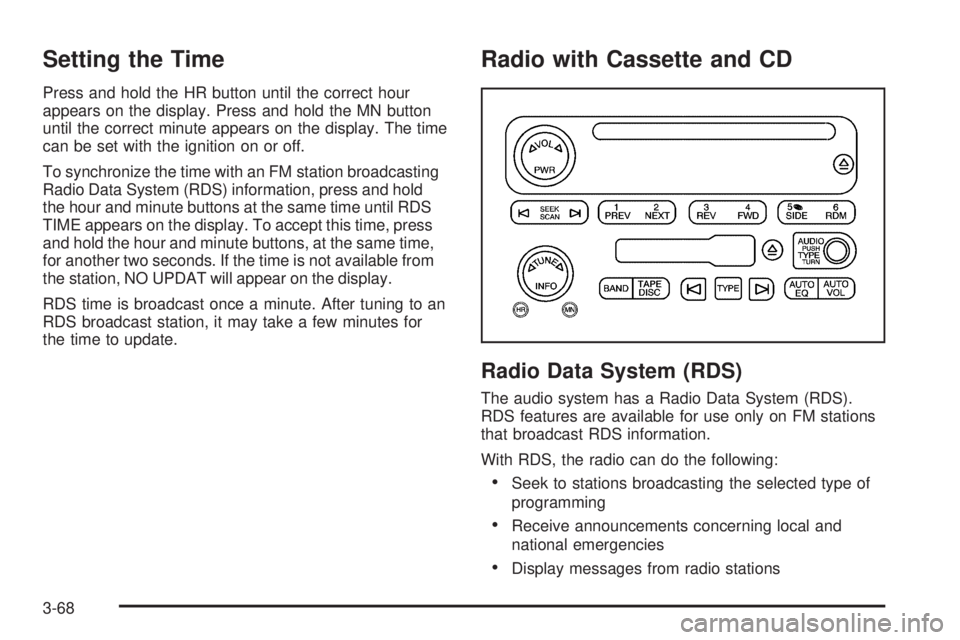
Press and hold the HR button until the correct hour
appears on the display. Press and hold the MN button
until the correct minute appears on the display. The time
can be set with the ignition on or off.
To synchronize the time with an FM station broadcasting
Radio Data System (RDS) information, press and hold
the hour and minute buttons at the same time until RDS
TIME appears on the display. To accept this time, press
and hold the hour and minute buttons, at the same time,
for another two seconds. If the time is not available from
the station, NO UPDAT will appear on the display.
RDS time is broadcast once a minute. After tuning to an
RDS broadcast station, it may take a few minutes for
the time to update.
Radio with Cassette and CD
Radio Data System (RDS)
The audio system has a Radio Data System (RDS).
RDS features are available for use only on FM stations
that broadcast RDS information.
With RDS, the radio can do the following:
Seek to stations broadcasting the selected type of
programming
Receive announcements concerning local and
national emergencies
Display messages from radio stations
3-68
Page 211 of 468

This system relies upon receiving specic information
from these stations and will only work when the
information is available. In rare cases, a radio station
may broadcast incorrect information that will cause
the radio features to work improperly. If this happens,
contact the radio station.
While the radio is tuned to an RDS station, the station
name or call letters will appear on the display instead of
the frequency. RDS stations may also provide the time of
day, a program type (PTY) for current programming, and
the name of the program being broadcast.
XM™ Satellite Radio Service
XM™ is a satellite radio service that is based in the
48 contiguous United States. XM™ offers
100 coast-to-coast channels including music, news,
sports, talk, and children’s programming. XM™ provides
digital quality audio and text information that includes
song title and artist name. A service fee is required
in order to receive the XM™ service. For more
information, contact XM™ at www.xmradio.com or
call 1-800-852-XMXM (9696).
Playing the Radio
PWR (Power):Press this knob to turn the system on
and off.
oVOLp(Volume):Turn this knob to increase or to
decrease the volume.
INFO (Information):Press this knob to switch the
display between the radio station frequency and
the time. When the ignition is off, press this knob to
display the time.
For RDS, press the INFO knob to change what appears
on the display while using RDS. The display options
are station name, RDS station frequency, PTY, and the
name of the program (if available).
For XM™ (if equipped), press the INFO knob while
in XM™ mode to retrieve four different categories
of information related to the current song or channel:
Artist, Song Title, Category or PTY, Channel
Number/Channel Name.
To change the default on the display, press the INFO
knob until you see the display you want, then hold
the knob until you hear a beep. The selected display will
now be the default.
3-69