Page 253 of 480

DVD Player Buttons
O(Power):Press this button to turn the RSE system
on and off. The power indicator light will illuminate
when the power is on.
X(Eject):Press this button to eject a DVD or CD.
SRCE (Source):Press this button to switch between
the DVD player and an auxiliary source.
c(Stop):Press this button to stop playing, rewinding,
or fast forwarding a DVD or CD. Press this button
twice to return to the beginning of the DVD.
s(Play/Pause):Press this button to start play of a
DVD or CD. Press this button while a DVD or CD is
playing to pause it. Press this button again to continue
the play of the DVD or CD.
y(Main DVD Menu):Press this button to access
the DVD menu. The DVD menu is different on every
DVD. Use the up, down, left, and right arrow buttons to
move the cursor around the DVD menu. After making
a selection press the enter button. This button only
operates when playing a DVD.
z(Set-up Menu):Press this button to adjust the
color, tint, brightness, contrast, display mode, and
dynamic range compression. The dynamic range
compression feature can be used to reduce loud audio
and increase low audio produced by some DVDs.
To change a feature back to the factory default setting,
press this button to display the feature, then press
and hold this button. The default setting will appear on
the display.
While playing an Audio or DVD disc, press and hold this
button to display and to remove the track and time
information.
n,q,p,o(Menu Navigation Arrows):Use the
arrow buttons to navigate through a menu.
r(Enter):Press this button to select the choices
that are highlighted in any menu.
3-117
Page 255 of 480

Remote Control Buttons
O(Power):Press this button to turn the DVD player
on and off.
v(Title):Press this button to return the DVD to the
main menu of the DVD.
n,q,p,o(Menu Navigation Arrows):Use the
arrow buttons to navigate through a menu.
z(Set-up Menu):Press this button to adjust the
color, tint, brightness, contrast, display mode, and
dynamic range compression. The dynamic range
compression feature can be used to reduce loud audio
and increase low audio produced by some DVDs.
e(Audio):Press this button to display a menu that
will only appear when a DVD is being played. The format
and content of this function will vary for each disc.
r(Fast Reverse):Press this button to fast reverse
the DVD or CD. To stop fast reversing, press this button
again. This button may not work when the DVD is
playing the copyright information or the previews.
SRCE (Source):Press this button to switch between
the DVD player and an auxiliary source.
c(Stop):Press this button to stop playing, rewinding,
or fast forwarding a DVD or CD. Press this button
twice to return to the beginning of the DVD.
t(Previous Track/Chapter):Press this button to
return to the start of the current track or chapter. Press
this button again to return to the previous track or
chapter. This button may not work when the DVD is
playing the copyright information or the previews.
3-119
Page 257 of 480

Battery Replacement
To change the batteries, do the following:
1. Remove the battery compartment door located on
the bottom of the remote control.
2. Replace the two AA batteries in the compartment.
Make sure that they are installed correctly, using
the diagram on the inside of the battery
compartment.
3. Close the battery door securely.
If the remote control is to be stored for a long period of
time, remove the batteries and keep them in a cool,
dry place.
Problem Recommended Action
No power. The ignition might not be
in on or accessory.
The parental control
button might have been
turned on. The power
indicator light will ash.
Disc will not play. The system might be off.
The parental control
button might have been
turned on. The power
indicator light will ash.
The system might be in
auxiliary mode.
The disc is upside down
or is not compatible.
The picture does not
ll the screen. There
are black borders on
the top and bottom or
on both sides or it looks
stretched out.Check the display mode
settings in the
display menu.
The disc was ejected,
but it was pulled back
into the DVD player.The disc is being stored in
the DVD player. Press the
eject button again to eject
the disc.
3-121
Page 258 of 480

Problem Recommended Action
In auxiliary mode, the
picture moves or scrolls.Check the auxiliary input
connections at both
devices.
Change the Video Format
to PAL or NTSC. See
“Stereo RCA Jacks”
previously for how to
change the video format.
The language in the
audio or on the screen
is wrong.Check the audio or
language selection in
the main DVD menu.
The remote control
does not work.Check to make sure there
is no obstruction between
the remote control and the
transmitter window.
Check the batteries to
make sure they are not
dead or installed
incorrectly.
The parental control
button might have been
turned on. The power
indicator light will ash.Problem Recommended Action
After stopping the
player, I push Play but
sometimes the DVD
starts where I left off
and sometimes at the
beginning.If the stop button was
pressed one time, the
DVD player will resume
playing where the DVD
was stopped. If the stop
button was pressed two
times the DVD player will
begin to play from the
beginning of the DVD.
The auxiliary source is
running but there is no
picture or sound.Check that the DVD
player is in the auxiliary
source mode.
Check the auxiliary input
connections at both
devices.
My disc is stuck in the
player. The Load/Eject
button does not work.Turn the DVD power off,
then on, then press the
load/eject button on the
DVD player.
Do not attempt to forcibly
remove the disc from the
DVD player. This could
permanently damage the
disc and DVD player.
3-122
Page 432 of 480
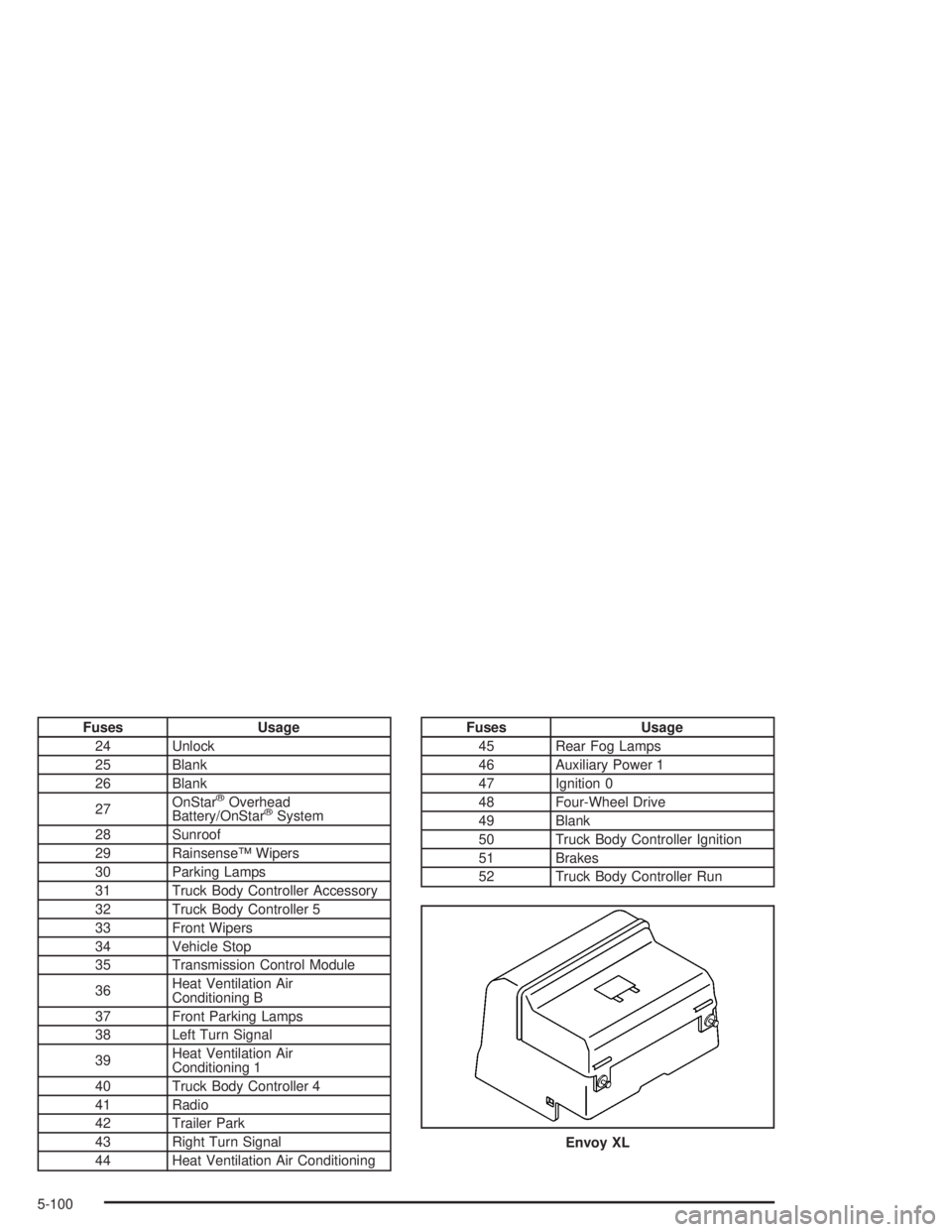
Fuses Usage
24 Unlock
25 Blank
26 Blank
27OnStar
®Overhead
Battery/OnStar®System
28 Sunroof
29 Rainsense™ Wipers
30 Parking Lamps
31 Truck Body Controller Accessory
32 Truck Body Controller 5
33 Front Wipers
34 Vehicle Stop
35 Transmission Control Module
36Heat Ventilation Air
Conditioning B
37 Front Parking Lamps
38 Left Turn Signal
39Heat Ventilation Air
Conditioning 1
40 Truck Body Controller 4
41 Radio
42 Trailer Park
43 Right Turn Signal
44 Heat Ventilation Air Conditioning
Fuses Usage
45 Rear Fog Lamps
46 Auxiliary Power 1
47 Ignition 0
48 Four-Wheel Drive
49 Blank
50 Truck Body Controller Ignition
51 Brakes
52 Truck Body Controller Run
Envoy XL
5-100
Page 434 of 480
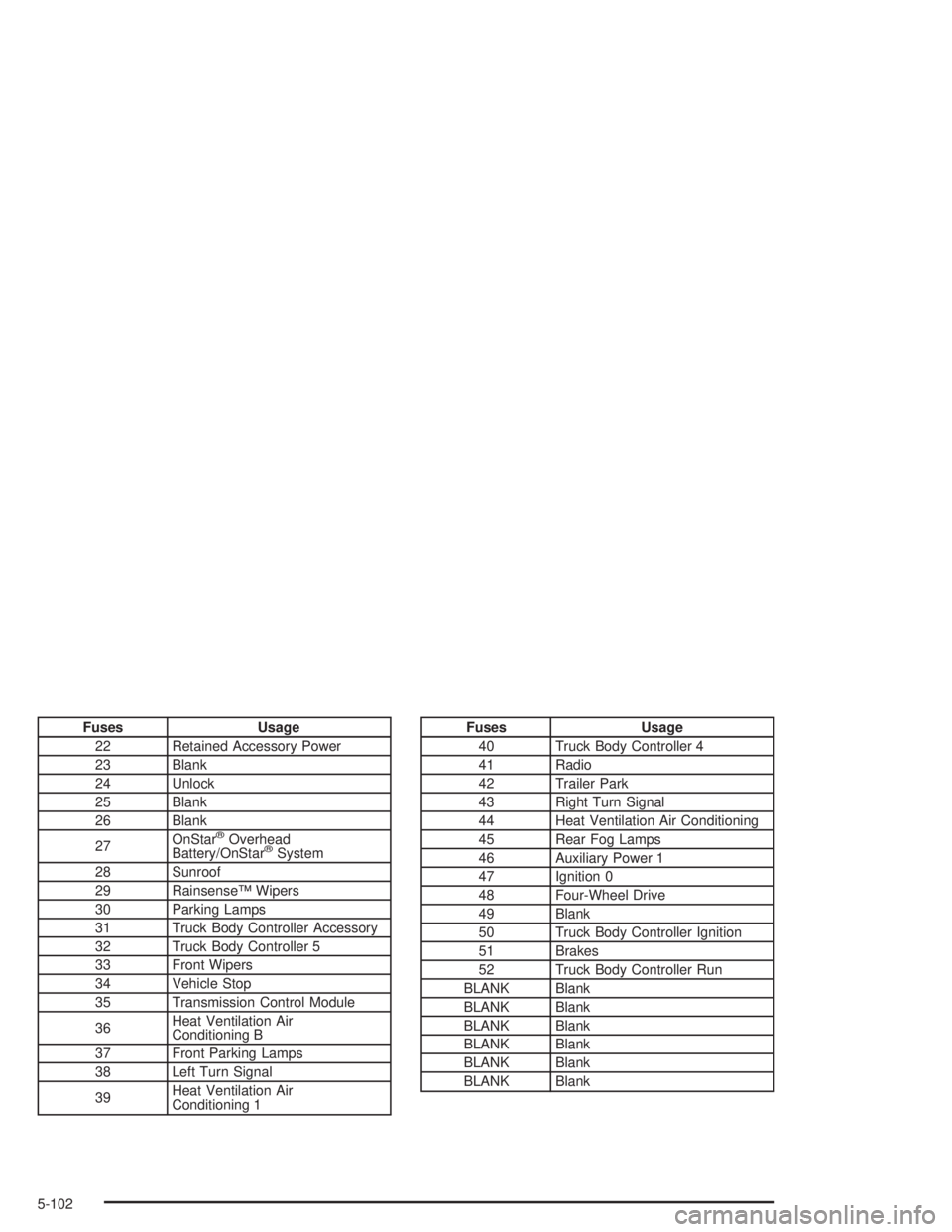
Fuses Usage
22 Retained Accessory Power
23 Blank
24 Unlock
25 Blank
26 Blank
27OnStar
®Overhead
Battery/OnStar®System
28 Sunroof
29 Rainsense™ Wipers
30 Parking Lamps
31 Truck Body Controller Accessory
32 Truck Body Controller 5
33 Front Wipers
34 Vehicle Stop
35 Transmission Control Module
36Heat Ventilation Air
Conditioning B
37 Front Parking Lamps
38 Left Turn Signal
39Heat Ventilation Air
Conditioning 1
Fuses Usage
40 Truck Body Controller 4
41 Radio
42 Trailer Park
43 Right Turn Signal
44 Heat Ventilation Air Conditioning
45 Rear Fog Lamps
46 Auxiliary Power 1
47 Ignition 0
48 Four-Wheel Drive
49 Blank
50 Truck Body Controller Ignition
51 Brakes
52 Truck Body Controller Run
BLANK Blank
BLANK Blank
BLANK Blank
BLANK Blank
BLANK Blank
BLANK Blank
5-102