Page 85 of 368
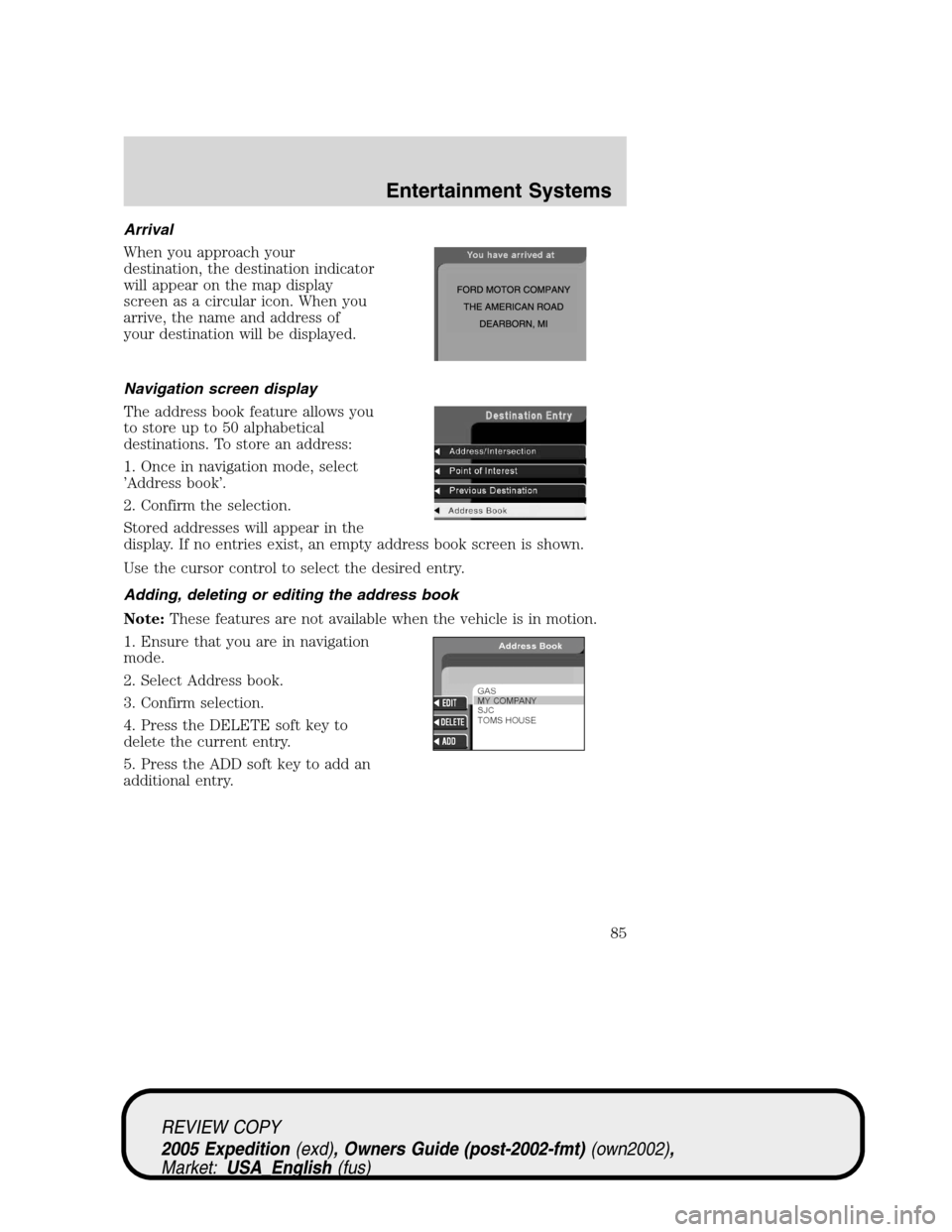
Arrival
When you approach your
destination, the destination indicator
will appear on the map display
screen as a circular icon. When you
arrive, the name and address of
your destination will be displayed.
Navigation screen display
The address book feature allows you
to store up to 50 alphabetical
destinations. To store an address:
1. Once in navigation mode, select
’Address book’.
2. Confirm the selection.
Stored addresses will appear in the
display. If no entries exist, an empty address book screen is shown.
Use the cursor control to select the desired entry.
Adding, deleting or editing the address book
Note:These features are not available when the vehicle is in motion.
1. Ensure that you are in navigation
mode.
2. Select Address book.
3. Confirm selection.
4. Press the DELETE soft key to
delete the current entry.
5. Press the ADD soft key to add an
additional entry.
REVIEW COPY
2005 Expedition(exd), Owners Guide (post-2002-fmt)(own2002),
Market:USA_English(fus)
Entertainment Systems
85
Page 86 of 368
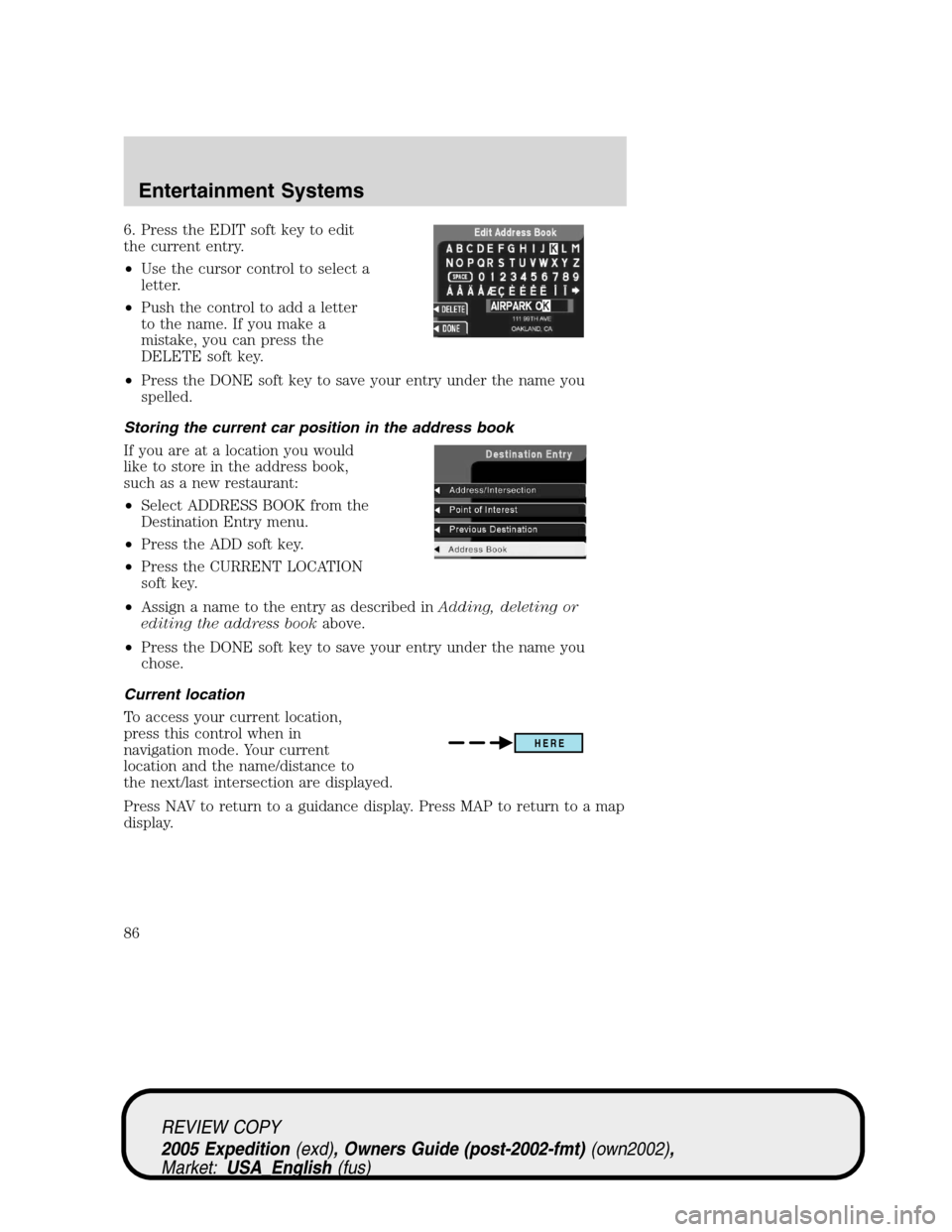
6. Press the EDIT soft key to edit
the current entry.
•Use the cursor control to select a
letter.
•Push the control to add a letter
to the name. If you make a
mistake, you can press the
DELETE soft key.
•Press the DONE soft key to save your entry under the name you
spelled.
Storing the current car position in the address book
If you are at a location you would
like to store in the address book,
such as a new restaurant:
•Select ADDRESS BOOK from the
Destination Entry menu.
•Press the ADD soft key.
•Press the CURRENT LOCATION
soft key.
•Assign a name to the entry as described inAdding, deleting or
editing the address bookabove.
•Press the DONE soft key to save your entry under the name you
chose.
Current location
To access your current location,
press this control when in
navigation mode. Your current
location and the name/distance to
the next/last intersection are displayed.
Press NAV to return to a guidance display. Press MAP to return to a map
display.
HERE
REVIEW COPY
2005 Expedition(exd), Owners Guide (post-2002-fmt)(own2002),
Market:USA_English(fus)
Entertainment Systems
86
Page 87 of 368
Detours, route interruptions and changes
If need be, your navigation system
can easily and quickly find the most
efficient detour around road
construction, unexpected traffic or
undesirable roads.
Detour options
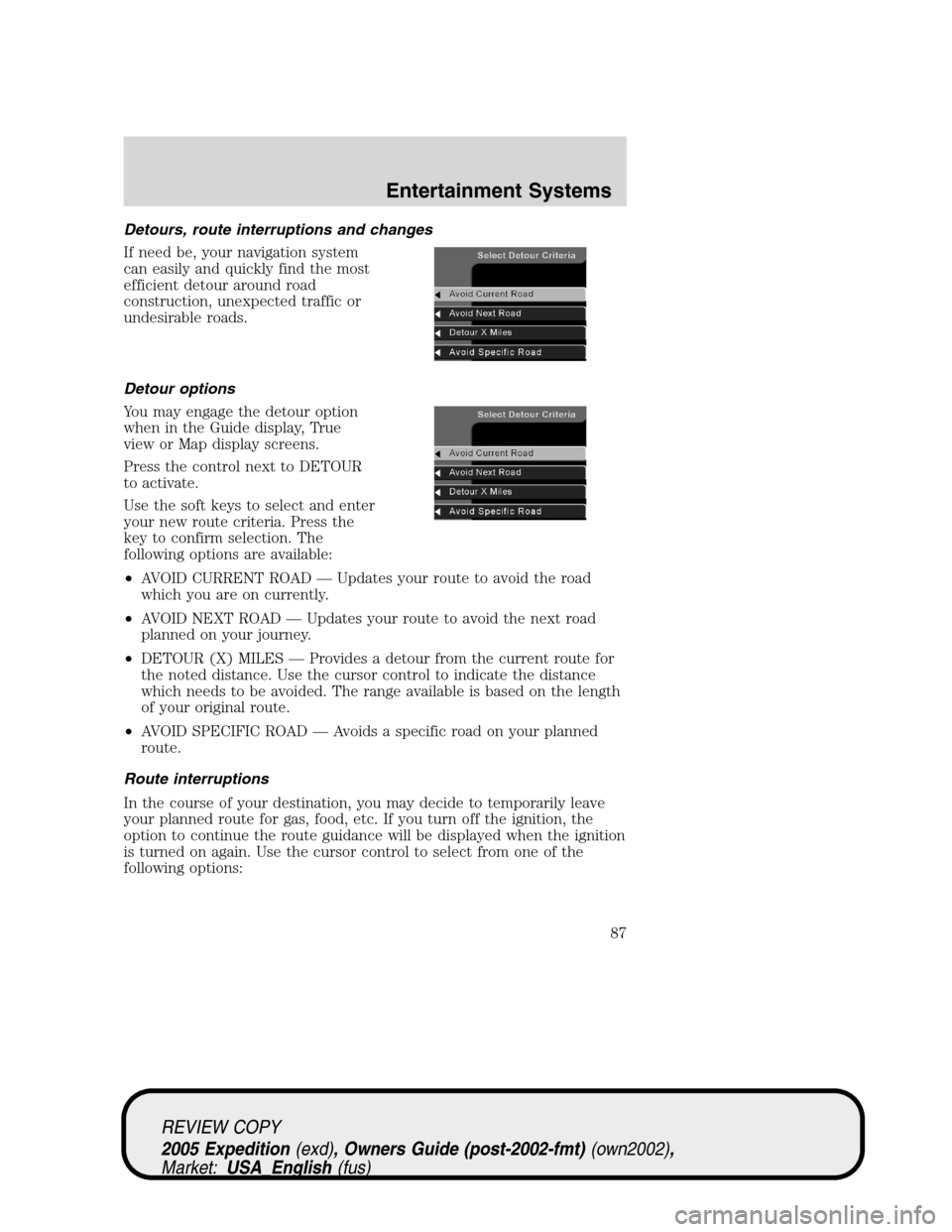
You may engage the detour option
when in the Guide display, True
view or Map display screens.
Press the control next to DETOUR
to activate.
Use the soft keys to select and enter
your new route criteria. Press the
key to confirm selection. The
following options are available:
•AVOID CURRENT ROAD — Updates your route to avoid the road
which you are on currently.
•AVOID NEXT ROAD — Updates your route to avoid the next road
planned on your journey.
•DETOUR (X) MILES — Provides a detour from the current route for
the noted distance. Use the cursor control to indicate the distance
which needs to be avoided. The range available is based on the length
of your original route.
•AVOID SPECIFIC ROAD — Avoids a specific road on your planned
route.
Route interruptions
In the course of your destination, you may decide to temporarily leave
your planned route for gas, food, etc. If you turn off the ignition, the
option to continue the route guidance will be displayed when the ignition
is turned on again. Use the cursor control to select from one of the
following options:
REVIEW COPY
2005 Expedition(exd), Owners Guide (post-2002-fmt)(own2002),
Market:USA_English(fus)
Entertainment Systems
87
Page 88 of 368
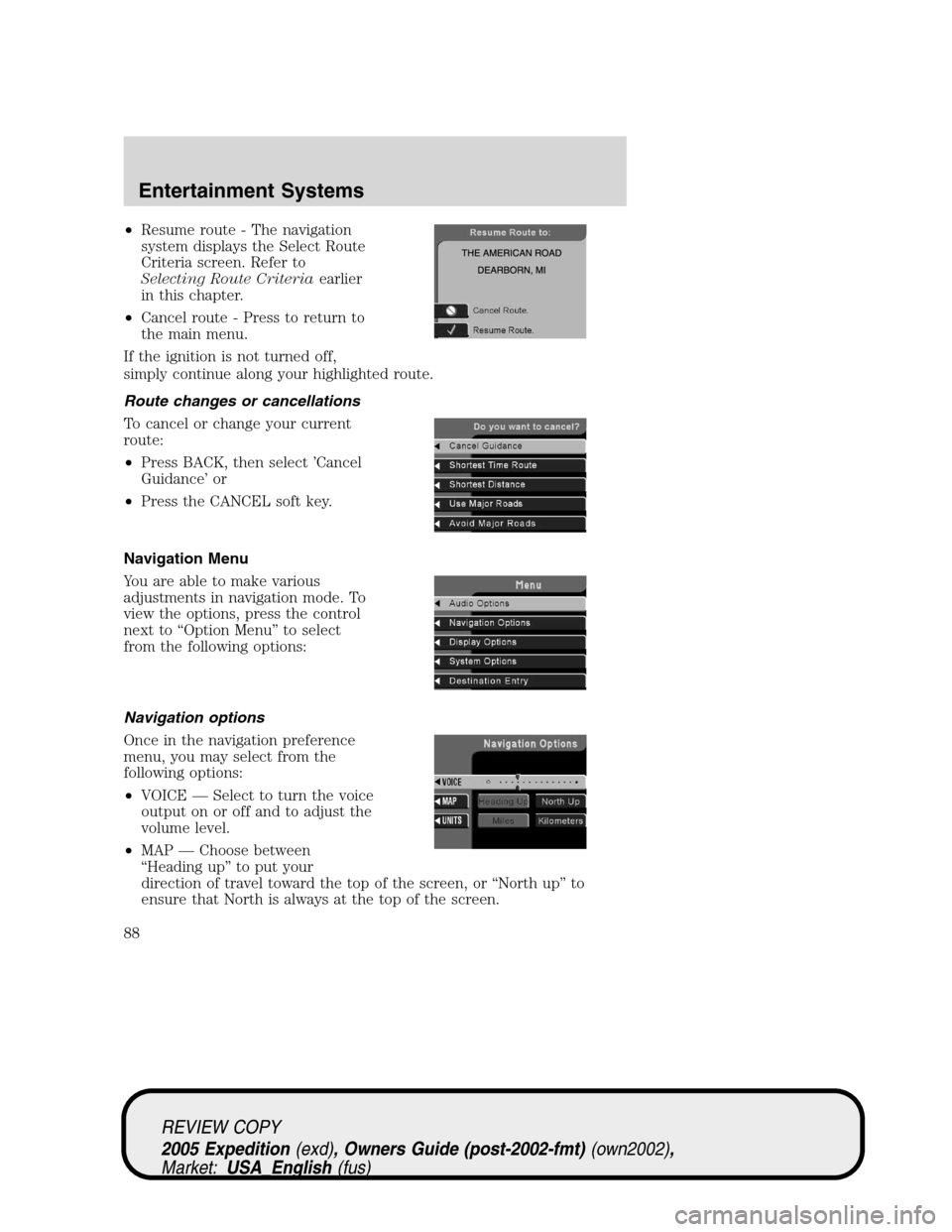
•Resume route - The navigation
system displays the Select Route
Criteria screen. Refer to
Selecting Route Criteriaearlier
in this chapter.
•Cancel route - Press to return to
the main menu.
If the ignition is not turned off,
simply continue along your highlighted route.
Route changes or cancellations
To cancel or change your current
route:
•Press BACK, then select ’Cancel
Guidance’ or
•Press the CANCEL soft key.
Navigation Menu
You are able to make various
adjustments in navigation mode. To
view the options, press the control
next to “Option Menu” to select
from the following options:
Navigation options
Once in the navigation preference
menu, you may select from the
following options:
•VOICE — Select to turn the voice
output on or off and to adjust the
volume level.
•MAP — Choose between
“Heading up” to put your
direction of travel toward the top of the screen, or “North up” to
ensure that North is always at the top of the screen.
REVIEW COPY
2005 Expedition(exd), Owners Guide (post-2002-fmt)(own2002),
Market:USA_English(fus)
Entertainment Systems
88
Page 90 of 368
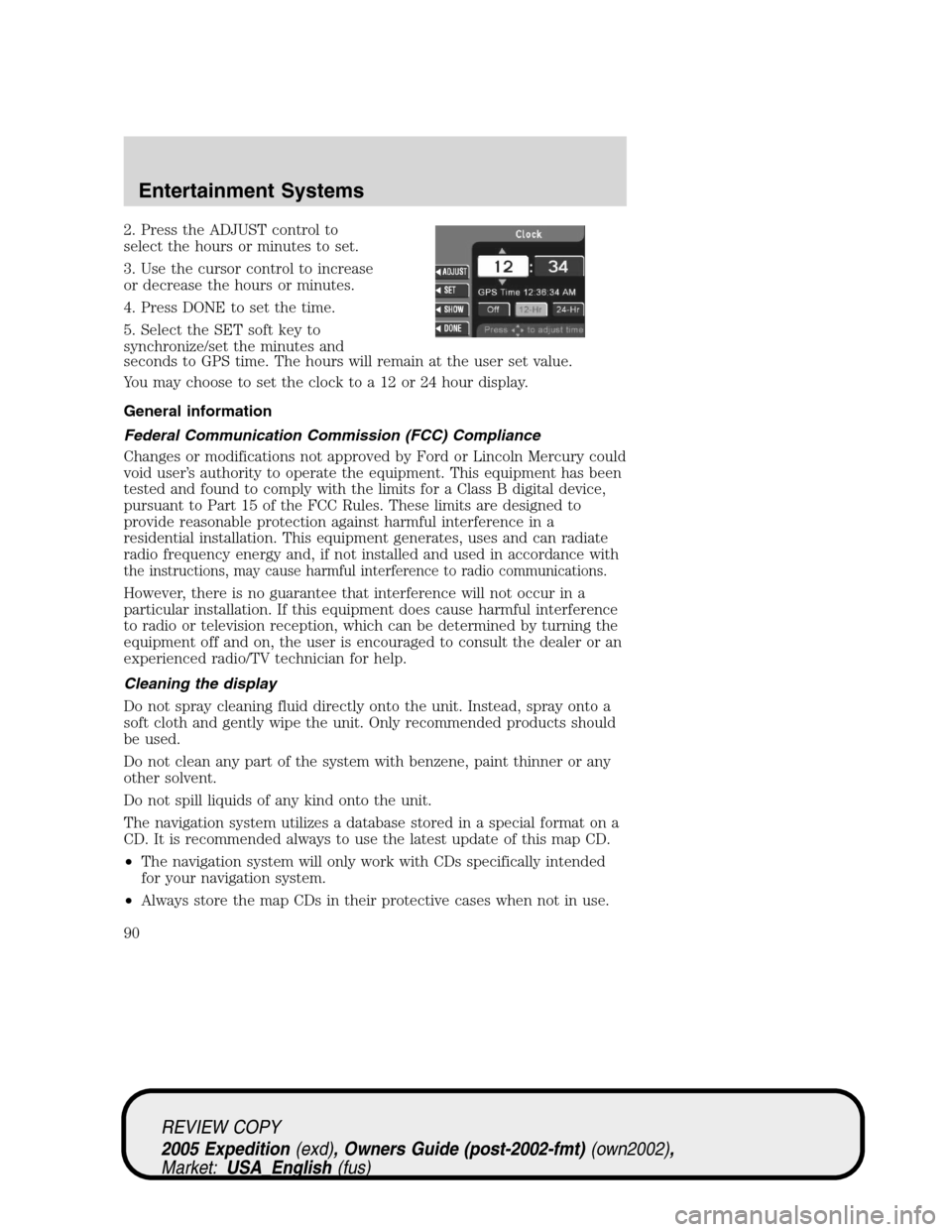
2. Press the ADJUST control to
select the hours or minutes to set.
3. Use the cursor control to increase
or decrease the hours or minutes.
4. Press DONE to set the time.
5. Select the SET soft key to
synchronize/set the minutes and
seconds to GPS time. The hours will remain at the user set value.
You may choose to set the clock to a 12 or 24 hour display.
General information
Federal Communication Commission (FCC) Compliance
Changes or modifications not approved by Ford or Lincoln Mercury could
void user’s authority to operate the equipment. This equipment has been
tested and found to comply with the limits for a Class B digital device,
pursuant to Part 15 of the FCC Rules. These limits are designed to
provide reasonable protection against harmful interference in a
residential installation. This equipment generates, uses and can radiate
radio frequency energy and, if not installed and used in accordance with
the instructions, may cause harmful interference to radio communications.
However, there is no guarantee that interference will not occur in a
particular installation. If this equipment does cause harmful interference
to radio or television reception, which can be determined by turning the
equipment off and on, the user is encouraged to consult the dealer or an
experienced radio/TV technician for help.
Cleaning the display
Do not spray cleaning fluid directly onto the unit. Instead, spray onto a
soft cloth and gently wipe the unit. Only recommended products should
be used.
Do not clean any part of the system with benzene, paint thinner or any
other solvent.
Do not spill liquids of any kind onto the unit.
The navigation system utilizes a database stored in a special format on a
CD. It is recommended always to use the latest update of this map CD.
•The navigation system will only work with CDs specifically intended
for your navigation system.
•Always store the map CDs in their protective cases when not in use.
REVIEW COPY
2005 Expedition(exd), Owners Guide (post-2002-fmt)(own2002),
Market:USA_English(fus)
Entertainment Systems
90
Page 106 of 368
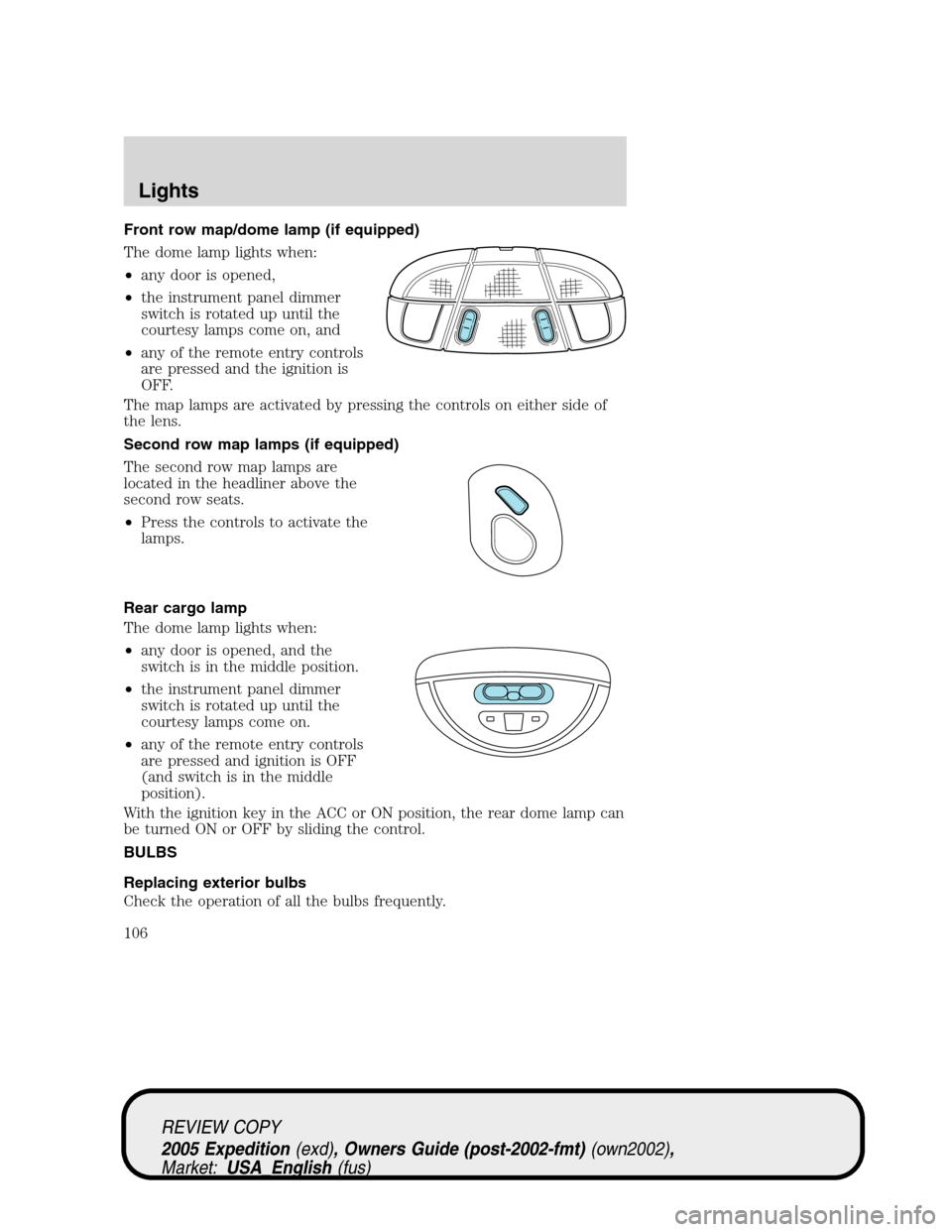
Front row map/dome lamp (if equipped)
The dome lamp lights when:
•any door is opened,
•the instrument panel dimmer
switch is rotated up until the
courtesy lamps come on, and
•any of the remote entry controls
are pressed and the ignition is
OFF.
The map lamps are activated by pressing the controls on either side of
the lens.
Second row map lamps (if equipped)
The second row map lamps are
located in the headliner above the
second row seats.
•Press the controls to activate the
lamps.
Rear cargo lamp
The dome lamp lights when:
•any door is opened, and the
switch is in the middle position.
•the instrument panel dimmer
switch is rotated up until the
courtesy lamps come on.
•any of the remote entry controls
are pressed and ignition is OFF
(and switch is in the middle
position).
With the ignition key in the ACC or ON position, the rear dome lamp can
be turned ON or OFF by sliding the control.
BULBS
Replacing exterior bulbs
Check the operation of all the bulbs frequently.
REVIEW COPY
2005 Expedition(exd), Owners Guide (post-2002-fmt)(own2002),
Market:USA_English(fus)
Lights
106
Page 141 of 368

•They will reappear on the display ten minutes from the reset.
•They will not reappear until an ignition OFF-ON cycle has been
completed.
This acts as a reminder that these warning conditions still exist within
the vehicle.
Warning display Status
Park assist ON/OFF (if equipped) Warning displays when R
(reverse) gear is selected.
Liftgate or liftglass ajar Warning returns after 10
minutes
Low fuel level
Check charging system
Low brake fluid level
Low oil pressure
Check engine temperature
Check AdvTrac (if equipped)
Temporary 4X4 high
Low tire pressure (if equipped) Warning returns after the
ignition key is turned from
OFF to ON. Tire pressure monitor fault (if equipped)
Tire pressure sensor fault (if equipped)
Check park assist (if equipped)
Low washer fluid level
Check air suspension (if equipped)
Air suspension switched OFF (if
equipped)
Check compass module
Compass no response
Check fuel cap
Door ajar Will not clear until
condition is corrected
Reduced engine power
Stop engine safely
Check electronic throttle control
Park brake engaged
REVIEW COPY
2005 Expedition(exd), Owners Guide (post-2002-fmt)(own2002),
Market:USA_English(fus)
Driver Controls
141
Page 148 of 368
KEYS
One key operates all the locks and starts the vehicle. Always carry a
spare key with you in case of an emergency.
Your keys are programmed to your vehicle; using a non-programmed key
will not permit your vehicle to start. If you lose your dealer supplied
keys, replacement keys are available through your authorized dealer.
Refer to theSecuriLock�passive anti-theft systemsection later in this
chapter for more information.
POWER DOOR LOCKS
If the door does not unlock when the control is pressed, refer to the
Power door lock disable featuresection in this chapter.
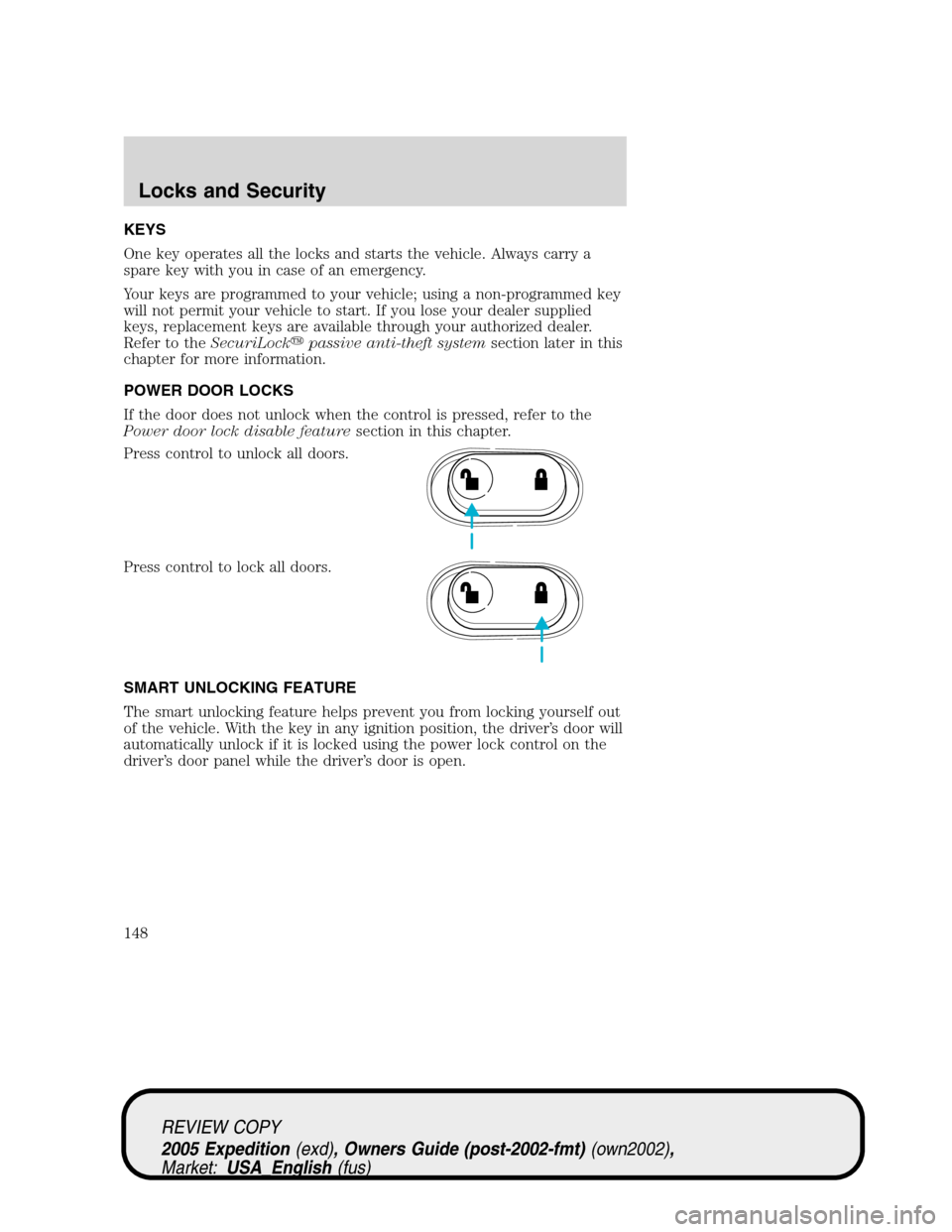
Press control to unlock all doors.
Press control to lock all doors.
SMART UNLOCKING FEATURE
The smart unlocking feature helps prevent you from locking yourself out
of the vehicle. With the key in any ignition position, the driver’s door will
automatically unlock if it is locked using the power lock control on the
driver’s door panel while the driver’s door is open.
REVIEW COPY
2005 Expedition(exd), Owners Guide (post-2002-fmt)(own2002),
Market:USA_English(fus)
Locks and Security
Locks and Security
148