2005 CHEVROLET UPLANDER light
[x] Cancel search: lightPage 255 of 460
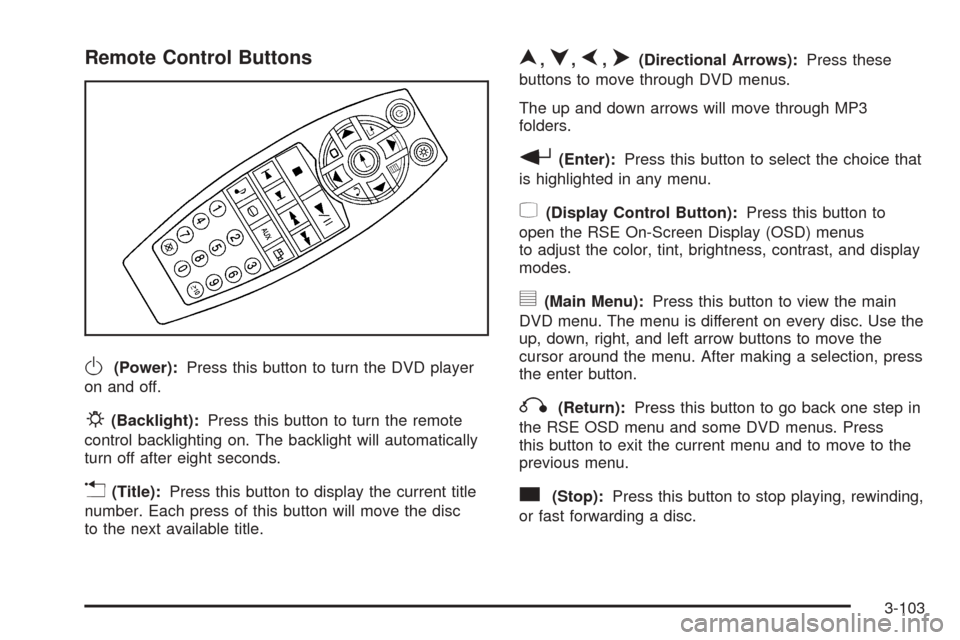
Remote Control Buttons
O(Power):Press this button to turn the DVD player
on and off.
P(Backlight):Press this button to turn the remote
control backlighting on. The backlight will automatically
turn off after eight seconds.
v(Title):Press this button to display the current title
number. Each press of this button will move the disc
to the next available title.
n,q,p,o(Directional Arrows):Press these
buttons to move through DVD menus.
The up and down arrows will move through MP3
folders.
r(Enter):Press this button to select the choice that
is highlighted in any menu.
z(Display Control Button):Press this button to
open the RSE On-Screen Display (OSD) menus
to adjust the color, tint, brightness, contrast, and display
modes.
y(Main Menu):Press this button to view the main
DVD menu. The menu is different on every disc. Use the
up, down, right, and left arrow buttons to move the
cursor around the menu. After making a selection, press
the enter button.
q(Return):Press this button to go back one step in
the RSE OSD menu and some DVD menus. Press
this button to exit the current menu and to move to the
previous menu.
c(Stop):Press this button to stop playing, rewinding,
or fast forwarding a disc.
3-103
Page 258 of 460
Tips and Troubleshooting Chart
Problem Recommended Action
No power. The ignition may not be in
ACCESSORY, RUN,
or RAP.
Disc will not play. The system might be off.
The parental control button
might have been pressed.
The power indicator lights
will ash. The system might
be in auxiliary source mode.
Press the AUX button to
switch between the DVD
player and the auxiliary
source. The disc is upside
down or is not compatible.
No sound — Wireless
HeadphonesTurn the headphones on.
Make sure the correct
channel is selected on the
wireless headphones.
Check the batteries. The
volume on the headphones
could be too low, adjust the
volume.
Problem Recommended Action
No sound — Wired
HeadphonesMake sure the wired
headphones are plugged in.
Adjust the volume. If RSA is
on, DVD audio will not be
heard.
No sound — Vehicle
SpeakersIf the DVD system is being
heard through the vehicle
speakers, adjust the volume
on the radio. Press the CD
AUX button on the radio to
make sure that RSE is
enabled. The rear speakers
will mute when RSA is on.
The picture is distorted
during fast forward or
reverse.This is normal for this
operation.
The picture does not ll
the screen. There are
black borders on the top
and bottom or on both
sides or it looks
stretched out.Video mode may not be
correctly set. See “RSE
OSD” earlier in this section.
I ejected the disc and
tried to take it out, but it
was pulled back into
the slot.Press the eject
button once.
3-106
Page 259 of 460

Problem Recommended Action
The language in the
audio or on the screen
is wrong.Press the main menu
button on the remote
control and change the
audio or language selection
on the DVD menu. To
change the language
preference, press the
display button to access the
RSE OSD menu. See “RSE
OSD” earlier in this section.
The remote control does
not work.Point the remote control
directly at the face of the
DVD unit. The batteries
could be weak or put in
wrong. The parental control
button might have been
pressed, the power
indicator lights will ash.
How do I get subtitles
on or off?Press the subtitle button on
the remote control to select
subtitle option or go to the
DVDs main menu and
follow the screen prompts.
The auxiliary source is
running but there is no
picture or sound.Press and release the AUX
button on the remote
control or the DVD player to
get to auxiliary input. Check
to make sure that the
auxiliary source is
connected to the inputs
properly.Problem Recommended Action
The audio or video skips
or jumps.The DVD could be dirty or
scratched. Try cleaning
the disc.
The fast forward, fast
reverse, previous, and
next functions do
not work.Some commands that do
one thing for DVDs will not
always work or perform the
same function for audio,
audio discs, or games.
These functions may also
be disabled when the DVD
is playing the copyright
information or the previews.
When RSA is on, these
buttons control RSA
functions.
My disc is stuck in the
player. The eject button
does not work.Press the eject button on
the DVD player. Turn the
ignition off, then on again,
then press the eject button
on the DVD player. Do not
attempt to force or remove
the disc from the player. If
the problem persists, return
to your GM dealer for
further assistance.
I lost the remote control
and/or the headphones.Contact your GM dealer for
assistance.
3-107
Page 263 of 460

When a CD is playing, press the left arrow to go to the
start of the current track or to the previous track. Press
the right arrow to go to the next track on the CD. This
function is inactive if the front seat passengers are
listening to a CD.
PROG (Program):Press this button to select the next
preset station stored on the radio. Each press of
this button will take you to the next preset station. This
function is inactive if the front seat passengers are
listening to the radio.
When a CD is playing in the single CD player, press this
button to select the next track. This function is inactive if
the front seat passengers are listening to a CD.
When a CD is playing in the six-disc CD changer, press
this button to select the next CD, if multiple CDs are
loaded. This function is inactive if the front seat
passengers are listening to a CD.
SRCE (Source):Press this button to switch between
playing the AM/FM tuner, front CD player, and XM™
Satellite Radio Service (if equipped). If one of the
sources are not loaded, the system will skip over the
source when this button is pressed.
X(Headphone):Press the right or the left headphone
button to enable volume control of the wired headphone
connected to the corresponding jack. Press the right
and left arrow buttons to change the volume.
rj(Parental Control):This button is located behind
the video screen, below the auxiliary jacks. Press this
button while using RSA, or when a DVD or CD is playing
to blank the video screen and to mute the audio. The
power indicator lights on the DVD player will ash.
Turning on the parental control will also disable all other
button operations from the remote control and the
DVD player, except for the eject button. Press this
button again to restore operation of the RSA, DVD
player, and remote control.
This button may also be used to turn the DVD player
power on and automatically resume play if the vehicle is
on and a disc is in the player. If no disc is in the
player then the system will power up in auxiliary mode.
3-111
Page 266 of 460
Care of Your CDs and DVDs
Handle discs carefully. Store them in their original cases
or other protective cases and away from direct sunlight
and dust. If the surface of a disc is soiled, dampen
a clean, soft cloth in a mild, neutral detergent solution
and clean it, wiping from the center to the edge.
Be sure never to touch the side without writing when
handling discs. Pick up discs by grasping the outer
edges or the edge of the hole and the outer edge.
Care of the CD and DVD Player
The use of CD lens cleaners for CDs is not advised,
due to the risk of contaminating the lens of the CD optics
with lubricants internal to the CD mechanism.
Fixed Mast Antenna
The xed mast antenna can withstand most car washes
without being damaged. If the mast should ever
become slightly bent, straighten it out by hand. If the
mast is badly bent, replace it.
Check occasionally to make sure the mast is still
tightened to the antenna base located on the hood of
the vehicle. If tightening is required, tighten by hand.
XM™ Satellite Radio Antenna
System
The XM™ Satellite Radio antenna is located on the roof
of your vehicle. Keep this antenna clear of snow and
ice build up for clear radio reception.
Loading items onto the roof of your vehicle can interfere
with the performance of the XM™ system. Make sure
that the XM™ satellite antenna is not obstructed.
Chime Level Adjustment
The radio is the vehicle chime producer. To change the
volume level, press and hold pushbutton 6 with the
ignition on and the radio power off. The chime volume
level will change from the normal level to loud, and
LOUD will appear on the radio display. To change back
to the default or normal setting, press and hold
pushbutton 6 again. The chime level will change from
the loud level to normal, and NORMAL will appear
on the radio display. Removing the radio and not
replacing it with a factory radio or chime module will
disable vehicle chimes.
3-114
Page 273 of 460

Anti-Lock Brake System (ABS)
Your vehicle has anti-lock brakes. ABS is an advanced
electronic braking system that will help prevent a
braking skid.
When you start your engine and begin to drive away,
your anti-lock brake system will check itself. You
may hear a momentary motor or clicking noise while
this test is going on, and you may even notice that your
brake pedal moves or pulses a little. This is normal.
If there is a problem with
the anti-lock brake system,
this warning light will
stay on. SeeAnti-Lock
Brake System Warning
Light on page 3-38.
Let us say the road is wet and you are driving safely.
Suddenly, an animal jumps out in front of you. You slam
on the brakes and continue braking. Here is what
happens with ABS:
A computer senses that wheels are slowing down. If
one of the wheels is about to stop rolling, the computer
will separately work the brakes at each wheel.
4-7
Page 274 of 460
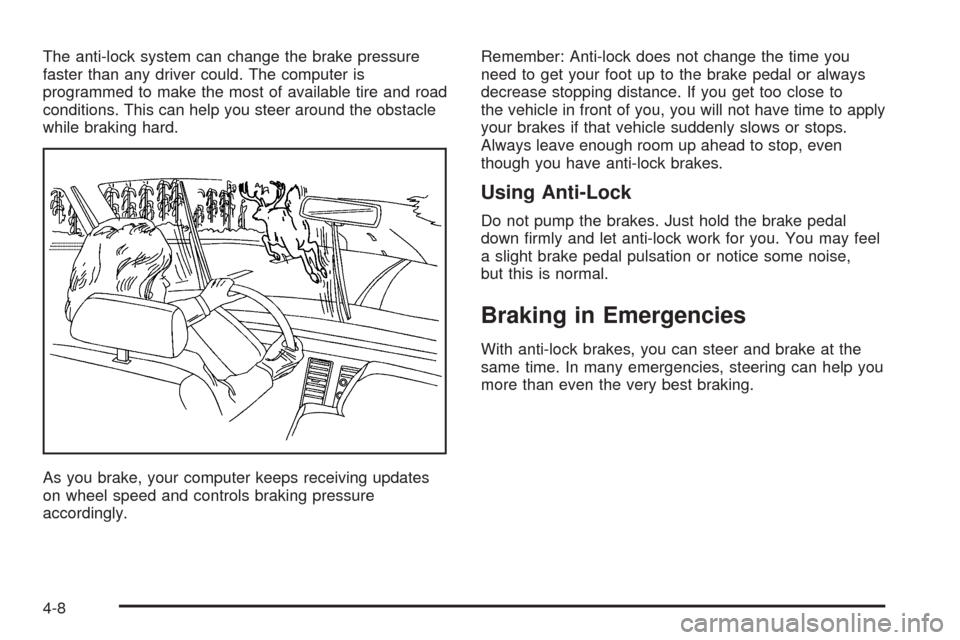
The anti-lock system can change the brake pressure
faster than any driver could. The computer is
programmed to make the most of available tire and road
conditions. This can help you steer around the obstacle
while braking hard.
As you brake, your computer keeps receiving updates
on wheel speed and controls braking pressure
accordingly.Remember: Anti-lock does not change the time you
need to get your foot up to the brake pedal or always
decrease stopping distance. If you get too close to
the vehicle in front of you, you will not have time to apply
your brakes if that vehicle suddenly slows or stops.
Always leave enough room up ahead to stop, even
though you have anti-lock brakes.
Using Anti-Lock
Do not pump the brakes. Just hold the brake pedal
down rmly and let anti-lock work for you. You may feel
a slight brake pedal pulsation or notice some noise,
but this is normal.
Braking in Emergencies
With anti-lock brakes, you can steer and brake at the
same time. In many emergencies, steering can help you
more than even the very best braking.
4-8
Page 275 of 460
Traction Control System (TCS)
Your vehicle may have a traction control system that
limits wheel spin. This is especially useful in slippery
road conditions. The system operates if it senses that
one or both of the front wheels are spinning or beginning
to lose traction. When this happens, the system
brakes the spinning wheel(s) and/or reduces engine
power to limit wheel spin.
The TRACTION CONTROL ACTIVE message will come
on in the Driver Information Center (DIC) when the
traction control system is limiting wheel spin. You may
feel or hear the system working, but this is normal.
If your vehicle is in cruise control when the traction
control system begins to limit wheel spin, the cruise
control will automatically disengage. When road
conditions allow you to safely use it again, you may
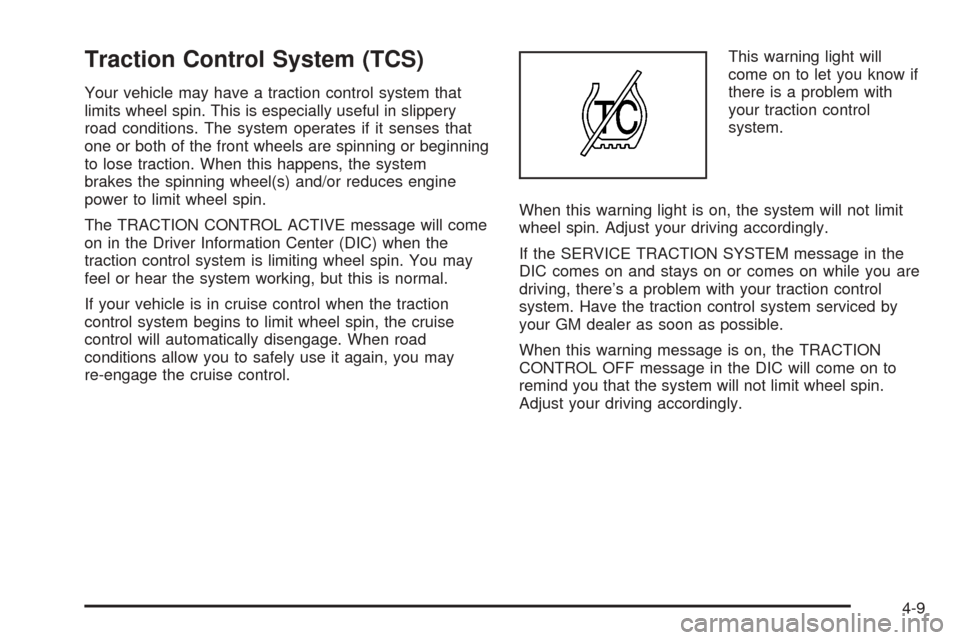
re-engage the cruise control.This warning light will
come on to let you know if
there is a problem with
your traction control
system.
When this warning light is on, the system will not limit
wheel spin. Adjust your driving accordingly.
If the SERVICE TRACTION SYSTEM message in the
DIC comes on and stays on or comes on while you are
driving, there’s a problem with your traction control
system. Have the traction control system serviced by
your GM dealer as soon as possible.
When this warning message is on, the TRACTION
CONTROL OFF message in the DIC will come on to
remind you that the system will not limit wheel spin.
Adjust your driving accordingly.
4-9