2005 CHEVROLET TAHOE ECO mode
[x] Cancel search: ECO modePage 271 of 536

AUTO EQ (Automatic Equalization):Press AUTO EQ
to select the equalization setting while playing a CD.
The equalization will be stored whenever a CD is played.
For more information on AUTO EQ, see “AUTO EQ”
listed previously in this section.
©SEEK¨:Press the left arrow to go to the start of
the current track, if more than ten seconds have played.
Press the right arrow to go to the next track. If either
arrow is pressed more than once, the player will
continue moving backward or forward through the CD.
©SCAN¨:To scan one CD, press and hold
either SCAN arrow for more than two seconds until
TRACK SCAN appears on the display and you hear a
beep. The radio will go to the next track, play for
10 seconds, then go on to the next track. Press either
SCAN arrow again, to stop scanning.
To scan all loaded CDs, press and hold either SCAN
arrow for more than four seconds until ALL CD
SCAN appears on the display and you hear a beep.
Use this feature to listen to 10 seconds of the rst track
of each loaded CD. Press either SCAN arrow again,
to stop scanning.INFO (Information):Press this knob to see how long
the current track has been playing. To change the
default on the display, track or elapsed time, press the
knob until you see the display you want, then press
and hold the knob until you hear a beep. The selected
display will now be the default.
BAND:Press this button to listen to the radio when a
CD is playing. The inactive CD(s) will remain safely
inside the radio for future listening.
Using Song List Mode
The six-disc CD changer has a feature called song list.
This feature is capable of saving 20 track selections.
To save tracks into the song list feature, perform
the following steps:
1. Turn the CD player on and load it with at least one
CD. See “LOAD CD” listed previously in this section
for more information.
2. Check to see that the CD changer is not in song list
mode. S-LIST should not appear on the display. If
S-LIST is present, press the SONG LIST button
to turn it off.
3. Select the desired CD by pressing the numbered
pushbutton and then use the SEEK or TYPE right
arrow to locate the track to be saved. The track will
begin to play.
3-119
Page 272 of 536

4. Press and hold the SONG LIST button to save the
track into memory. When SONG LIST is pressed,
one beep will be heard immediately. After
two seconds of continuously pressing the SONG
LIST button, two beeps will sound to conrm
the track has been saved.
5. Repeat Steps 3 and 4 for saving other selections.
S-LIST FULL will appear on the display if you try to save
more than 20 selections.
To play the song list, press the SONG LIST button.
One beep will be heard and S-LIST will appear on the
display. The recorded tracks will begin to play in
the order they were saved.
Seek through the song list by using the SEEK or TYPE
arrows. Seeking past the last saved track will return
to the rst saved track.
To delete tracks from the song list, perform the
following steps:
1. Turn the CD player on.
2. Press the SONG LIST button to turn song list on.
S-LIST will appear on the display.
3. Press either SEEK or TYPE arrow to select the
desired track to be deleted.4. Press and hold the SONG LIST button for
two seconds. When SONG LIST is pressed,
one beep will be heard immediately. After
two seconds of continuously pressing the SONG
LIST button, two beeps will be heard to conrm that
the track has been deleted.
After a track has been deleted, the remaining tracks are
moved up the list. When another track is added to the
song list, the track will be added to the end of the list.
To delete the entire song list, perform the
following steps:
1. Turn the CD player on.
2. Press the SONG LIST button to turn song list on.
S-LIST will appear on the display.
3. Press and hold the SONG LIST button for more
than four seconds. One beep will be heard,
followed by two beeps after two seconds, and a
nal beep will be heard after four seconds. S-LIST
EMPTY will appear on the display indicating the
song list has been deleted.
If a CD is ejected, and the song list contains saved
tracks from that CD, those tracks are automatically
deleted from the song list. Any tracks saved to the song
list again are added to the bottom of the list.
To end song list mode, press the SONG LIST button.
One beep will be heard and S-LIST will be removed from
the display.
3-120
Page 281 of 536

1 through 0 (Numeric Keypad):The numeric keypad
provides you with the capability of direct chapter,
title, and track number selection.
}10 (Double Digit Entries):Press this button to
select chapter, title, and track numbers greater than 9.
Press this button before inputting the number.
\(Clear):Press this button within three seconds after
inputting a number to clear the number(s).
P(Illumination):Press this button to turn the remote
control backlight on. The backlight will time out after
about 7 to 10 seconds if no other button is pressed while
the backlight is on.
y(Main DVD Menu):Press this button to access the
DVD menu. The DVD menu is different on every
DVD. Use the up, down, left, and right arrow buttons to
move the cursor around the DVD menu. After making
a selection press the enter button. This button only
operates when playing a DVD.
r(Enter):Press this button to select the choices
that are highlighted in any menu.
q(Return):Press this button to exit the current
active menu and return to the previous menu. This
button will operate only when a DVD is playing and a
menu is active.
|(Camera Angle):Press this button to change
camera angles on DVDs that have this feature when a
DVD is playing. The format and content of this
function will vary for each disc.
{(Subtitle):Press this button to turn on subtitles and
to move through subtitle options when a DVD is
playing. The format and content of this function will vary
for each disc.
[(Fast Forward):Press this button to fast forward
the DVD or CD. To stop fast forwarding, press this
button again. This button may not work when the DVD
is playing the copyright information or the previews.
s(Play/Pause):Press this button to start play of a
DVD or CD. Press this button while a DVD or CD is
playing to pause it. Press this button again to continue
the play of the DVD or CD.
When the DVD is playing, press the pause button then
press the fast forward button. The DVD will continue
playing in a slow play mode. To cancel slow play mode,
press the play/pause button.
u(Next Track/Chapter):Press this button to advance
to the beginning of the next track or chapter. This
button may not work when the DVD is playing the
copyright information or the previews.
3-129
Page 282 of 536

Battery Replacement
To change the batteries, do the following:
1. Remove the battery compartment door located on
the bottom of the remote control.
2. Replace the two AA batteries in the compartment.
Make sure that they are installed correctly, using
the diagram on the inside of the battery
compartment.
3. Close the battery door securely.
If the remote control is to be stored for a long period of
time, remove the batteries and keep them in a cool,
dry place.
Problem Recommended Action
No power. The ignition might not be
in on or accessory.
The parental control
button might have been
turned on. The power
indicator light will ash.
Disc will not play. The system might be off.
The parental control
button might have been
turned on. The power
indicator light will ash.
The system might be in
auxiliary mode.
The disc is upside down
or is not compatible.
The picture does not ll
the screen. There are
black borders on the
top and bottom or on
both sides or it looks
stretched out.Check the display
mode settings in the
display menu.
The disc was ejected, but
it was pulled back into
the DVD player.The disc is being stored
in the DVD player. Press
the eject button again to
eject the disc.
3-130
Page 283 of 536

Problem Recommended Action
In auxiliary mode, the
picture moves or scrolls.Check the auxiliary input
connections at both
devices.
Change the Video
Format to PAL or NTSC.
See “Stereo RCA Jacks”
previously for how to
change the video format.
The language in the
audio or on the screen
is wrong.Check the audio or
language selection in the
main DVD menu.
The remote control does
not work.Check to make sure
there is no obstruction
between the remote
control and the
transmitter window.
Check the batteries to
make sure they are not
dead or installed
incorrectly.
The parental control
button might have been
turned on. The power
indicator light will ash.Problem Recommended Action
After stopping the player, I
push Play but sometimes
the DVD starts where I
left off and sometimes at
the beginning.If the stop button was
pressed one time, the
DVD player will resume
playing where the DVD
was stopped. If the stop
button was pressed two
times the DVD player will
begin to play from the
beginning of the DVD.
The auxiliary source is
running but there is no
picture or sound.Check that the DVD
player is in the auxiliary
source mode.
Check the auxiliary input
connections at both
devices.
My disc is stuck in the
player. The Load/Eject
button does not work.Turn the DVD power off,
then on, then press the
load/eject button on the
DVD player.
Do not attempt to forcibly
remove the disc from the
DVD player. This could
permanently damage the
disc and DVD player.
3-131
Page 284 of 536

Problem Recommended Action
Sometimes the wireless
headphone audio cuts out
or buzzes.Check for obstructions,
low batteries, reception
range, and interference
from cellular telephone
towers or by using your
cellular telephone in the
vehicle.
Check that the
headphones are facing
the front of the vehicle.
I lost the remote and/or
the headphones.See your dealer for
assistance.
The DVD is playing, but
there is no picture or
sound.Check that the DVD
player is in DVD mode.
The audio/video skips
or jumps.The DVD or CD could be
dirty, scratched, or
damaged.
The audio from the radio
for the Radio with
Six-Disc CD and XM™
has taken over the audio
from the DVD or CD
when using the wired
headphones.The RSE is working
correctly.
Use the wireless
headphones or have the
front seat passengers
listen to another audio
source.DVD Messages
The following errors may be displayed on the video
screen:
Disc Format Error:This message will be displayed if a
disc is inserted upside down, if the disc is not readable,
or if the format is not compatible with the DVD player.
Load/Eject Error:This message will be displayed if the
disc is not properly loaded or ejected.
Disc Play Error:This message will be displayed if the
DVD player cannot play the disc. Scratched or
damaged discs will cause this error.
Region Code Error:This message will be displayed if
the region code of the DVD is not compatible with
the region code of the DVD player.
No Disc:This message will be displayed if any of the
buttons on the DVD faceplate or remote control are
pressed and no disc is present in the DVD player.
DVD Distortion
There may be an experience with audio distortion in
the wireless headphones when operating cellular
phones, scanners, CB radios, Global Positioning
Systems (GPS)*, two-way radios, mobile fax, or
walkie talkies.
3-132
Page 306 of 536
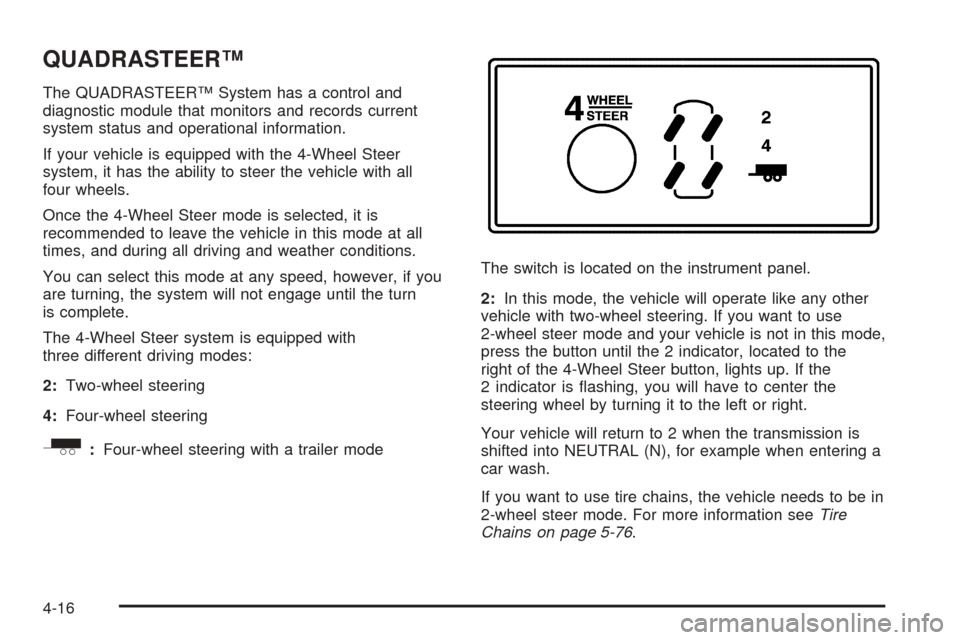
QUADRASTEER™
The QUADRASTEER™ System has a control and
diagnostic module that monitors and records current
system status and operational information.
If your vehicle is equipped with the 4-Wheel Steer
system, it has the ability to steer the vehicle with all
four wheels.
Once the 4-Wheel Steer mode is selected, it is
recommended to leave the vehicle in this mode at all
times, and during all driving and weather conditions.
You can select this mode at any speed, however, if you
are turning, the system will not engage until the turn
is complete.
The 4-Wheel Steer system is equipped with
three different driving modes:
2:Two-wheel steering
4:Four-wheel steering
_:Four-wheel steering with a trailer modeThe switch is located on the instrument panel.
2:In this mode, the vehicle will operate like any other
vehicle with two-wheel steering. If you want to use
2-wheel steer mode and your vehicle is not in this mode,
press the button until the 2 indicator, located to the
right of the 4-Wheel Steer button, lights up. If the
2 indicator is ashing, you will have to center the
steering wheel by turning it to the left or right.
Your vehicle will return to 2 when the transmission is
shifted into NEUTRAL (N), for example when entering a
car wash.
If you want to use tire chains, the vehicle needs to be in
2-wheel steer mode. For more information seeTire
Chains on page 5-76.
4-16
Page 308 of 536
_(4-Wheel Steer Tow Mode):When towing a
trailer, the 4-wheel steer tow mode provides enhanced
stability allowing the trailer to follow the path of the
tow vehicle more closely, especially during lane
changes.
In this mode the system operates much like the 4 mode,
but is enhanced for trailer towing. It is recommended
for all types and weights of trailers.
To engage the 4-wheel steer tow mode, press the
button until the 4 and tow mode indicators light up on
the instrument panel. If the tow indicator is ashing, you
will have to center the steering wheel by turning it to
the left or right. While in the 4-wheel steer tow mode, it
is possible the steering wheel may be slightly off
center. For more information, seeTowing a Trailer on
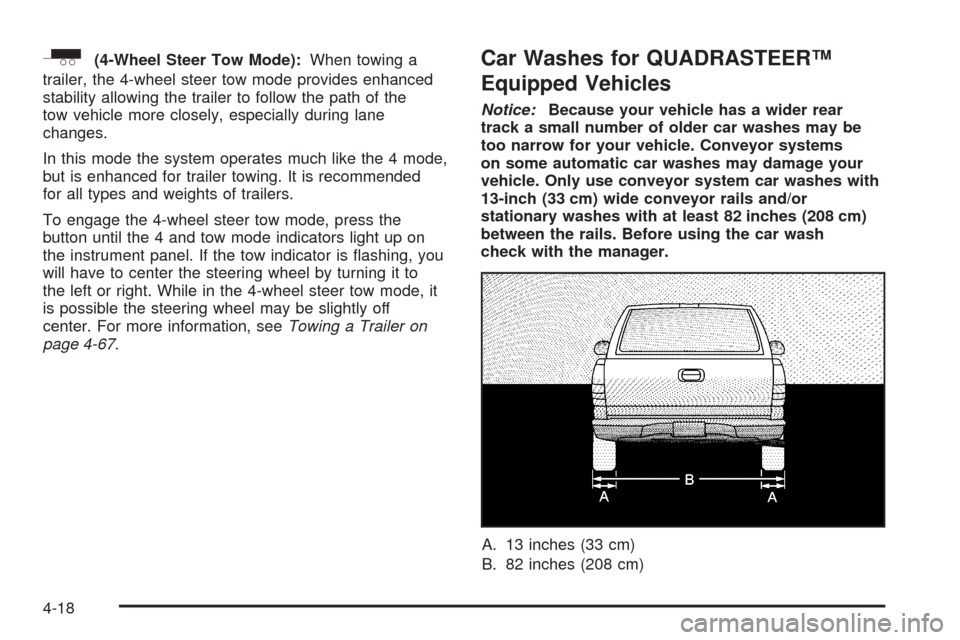
page 4-67.Car Washes for QUADRASTEER™
Equipped Vehicles
Notice:Because your vehicle has a wider rear
track a small number of older car washes may be
too narrow for your vehicle. Conveyor systems
on some automatic car washes may damage your
vehicle. Only use conveyor system car washes with
13-inch (33 cm) wide conveyor rails and/or
stationary washes with at least 82 inches (208 cm)
between the rails. Before using the car wash
check with the manager.
A. 13 inches (33 cm)
B. 82 inches (208 cm)
4-18